Infiniti QX80 (2023 year). Manual in english - page 9
 

  Index      Manuals     Infiniti QX80 (2023 year). Manual in english


Search            copyright infringement  


Content      ..     7      8      9      10     ..


Infiniti QX80 (2023 year). Manual in english - page 9


4-32

Monitor, climate, audio, phone and voice recognition systems

industry odors such as pulp or chemicals, and
exhaust gas such as gasoline or diesel. When
such odors or gas are detected, the system
automatically changes from the outside air
circulation mode to the recirculation mode.
When the

button is pushed under the

following conditions, the indicator light on
the button will illuminate and the exhaust
gas detection sensor will turn on.

.

The air flow control is not in the front

defroster mode. (The indicator light on
the

button is turned off.)

.

The outside temperature is about 32°F

(0°C) or more.

When the automatic intake air control is ON,
for the first 5 minutes, the recirculation
mode is selected to prevent dust, dirt and
pollen from entering the vehicle and cleans
the air inside of the vehicle with positive and
negative ions that are emitted from the
ventilator.
After the 5 minutes, the sensor detects
exhaust gas and automatically alternates
between the recirculation mode and outside
air circulation mode.

WAE0641X

REAR AUTOMATIC AIR CONDI-
TIONING SYSTEM

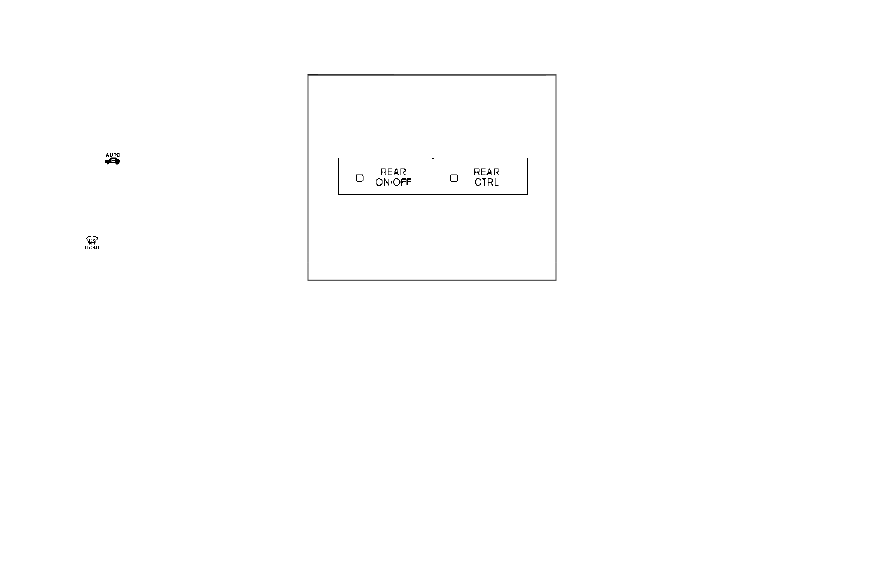
Push the REAR ON·OFF button on the front
air conditioner control panel to turn on the
rear automatic air conditioning system. (The
indicator light on the button will illuminate.)
To control the rear automatic air condition-
ing system with the front air conditioner
control panel, push the REAR CTRL button.
(The indicator light on the button will
illuminate.)
The rear automatic air conditioning system
can also be adjusted by using the rear air
conditioner control panel located on the rear
of the center console. (See “Rear air condi-

tioner control panel operation” (P.4-34).)

Front air conditioner control panel
operation

Automatic operation:

1. Push the REAR ON·OFF button to turn

on the rear automatic air conditioning
system. (The indicator light on the button
will illuminate.) Push the REAR CTRL
button to operate the rear automatic air
conditioning system. (The indicator light
on the button will illuminate.)

2. Push the AUTO button. (The AUTO

indicator light on the button will illumi-
nate and “AUTO” will appear on the rear
air conditioner control panel.)

3. Turn the temperature control dial (dri-

ver’s side) to set the desired tempera-
ture.

Cooling and dehumidified heating:

1. Push the REAR ON·OFF button to turn

on the rear automatic air conditioning
system. (The indicator light on the button
will illuminate.) Push the REAR CTRL
button to operate the rear automatic air
conditioning system. (The indicator light
on the button will illuminate.)

2. Turn the temperature control dial (dri-

ver’s side) to set the desired tempera-
ture.

CarManuals2.com

-------------------------------------------------------------------------------------------------------------------------------------------------------------

3. Switch the air flow mode to

by

pushing the

button.

4. Push the A/C button. (The indicator light

on the button will illuminate.)

NOTE:

When the front air conditioner is off, the
rear automatic air conditioning system only
operates the fan. When you would like to
use the air conditioner, be sure to push the
A/C button on the front air conditioner
control panel to turn on the A/C indicator
light.
Manual operation:

Perform the following when the indicator
lights on the REAR ON·OFF button and the
REAR CTRL button are illuminated.

.

Temperature control

Turn the temperature control dial (dri-
ver’s side) to set the desired tempera-
ture.

.

Fan speed control

Push the fan speed control

buttons

to manually control the fan speed.

.

Air flow control

Push the

button to change the air

flow mode.

: The air outlet is fixed at foot level.
: The air outlet is fixed at both the head and

foot levels.

: The air outlet is fixed at the head level.

WAE0470X

1.

button

2.

Fan speed control button

3.

AUTO button

4.

Display

5.

MODE button

6.

TEMP button

Monitor, climate, audio, phone and voice recognition systems

4-33

CarManuals2.com

-------------------------------------------------------------------------------------------------------------------------------------------------------------

4-34

Monitor, climate, audio, phone and voice recognition systems

Rear air conditioner control panel
operation

Rear control buttons:

When the indicator light on the REAR CTRL
button on the front air conditioner control
panel is turned off, the rear seat passengers
can adjust the rear automatic air condition-
ing system using the control switches on the
rear of the center console.

.

button:

Rear automatic air conditioning system
on/off.

.

button:

Rear fan speed control up/down

.

AUTO button:

Rear automatic air conditioning system
on, AUTO mode on

.

MODE button:

Rear air flow control change

.

TEMP button:

Rear temperature control up/down

Turning the system on/off

Use the following methods to turn on/off
the rear automatic air conditioning system.

.

Operating the front air conditioner con-

trol panel:
Push the REAR ON·OFF button on the
front air conditioner control panel.

.

Operating the rear air conditioner control

panel:
Push the

button on the rear air

conditioner control panel when the in-
dicator light on the REAR CTRL button
on the front air conditioner control panel
is not illuminated.

WAE0642X

WAE0643X

CarManuals2.com

-------------------------------------------------------------------------------------------------------------------------------------------------------------

OPERATING TIPS

When the engine coolant temperature and
outside air temperature are low, the air flow
from the foot outlets may not operate.
However, this is not a malfunction. After
the coolant temperature warms up, the air
flow from the foot outlets will operate
normally.
The sensors

and

located on the instru-

ment panel help maintain a constant tem-
perature. Do not put anything on or around
the sensors.

LINKING INTELLIGENT KEY

The air conditioner system settings can be
memorized for each Intelligent Key. See
“Setting memory function” (P.3-41).

IN-CABIN MICROFILTER

Models without Advanced Climate Control
System:
The climate control system is equipped with
an in-cabin microfilter which collects dirt,
pollen, dust, etc.
Models with Advanced Climate Control
System:
The climate control system is equipped with
a natural grape seed polyphenol filter which
collects and neutralizes dirt, pollen, dust, etc.
To make sure the air conditioner heats,

defogs, and ventilates efficiently, replace
the filter in accordance with the specified
maintenance intervals listed in the “9. Main-
tenance and schedules” section. If replace-
ment is required, it is recommended you visit
an INFINITI retailer for this service.

The filter should be replaced if the air flow
decreases significantly or if windows fog up
easily when operating the heater or air
conditioner.

SERVICING CLIMATE CONTROL

The climate control system in your vehicle is
charged with a refrigerant designed with the
environment in mind.

This refrigerant will

not harm the earth’s ozone layer.

However,

special charging equipment and lubricant are
required when servicing your air conditioner.
Using improper refrigerants or lubricants will
cause severe damage to your climate control
system. (See “Capacities and recommended
fluids/lubricants” (P.10-2) for climate con-
trol system refrigerant and lubricant recom-
mendations.)
An INFINITI retailer will be able to service
your environmentally friendly climate control
system.

WARNING

The system contains refrigerant under
high pressure. To avoid personal injury,
any air conditioner service should be
done only by an experienced technician
with the proper equipment.

Monitor, climate, audio, phone and voice recognition systems

4-35

CarManuals2.com

-------------------------------------------------------------------------------------------------------------------------------------------------------------

4-36

Monitor, climate, audio, phone and voice recognition systems

WINDOW ANTENNA

The antenna pattern is printed inside the 3rd
row seat window.

CAUTION

.

Do not place metalized film near the
3rd row seat window or attach any
metal parts to it. This may cause poor
reception or noise.

.

When cleaning the inside of the 3rd
row seat window, be careful not to
scratch or damage the 3rd row seat
window antenna. Lightly wipe along
the antenna with a dampened soft
cloth.

SAA3602

SATELLITE RADIO ANTENNA

There is a satellite radio antenna on the rear
part of the vehicle roof.

CAUTION

.

A buildup of ice on the satellite radio
antenna can affect satellite radio
performance. Remove the ice to re-
store satellite radio reception.

.

When removing snow from the roof,
do not apply strong force to the
satellite radio antenna. That may
cause broken satellite radio antenna

and roof panel dent.

ANTENNA

CarManuals2.com

-------------------------------------------------------------------------------------------------------------------------------------------------------------

When installing a car phone or a CB radio in
your vehicle, be sure to observe the follow-
ing cautions, otherwise the new equipment
may adversely affect the electronic control
modules and electronic control system har-
ness.

WARNING

.

A cellular phone should not be used
for any purpose while driving so full
attention may be given to vehicle
operation. Some jurisdictions prohibit
the use of cellular phones while
driving.

.

If you must make a call while your
vehicle is in motion, the hands-free
cellular phone operational mode (if so
equipped) is highly recommended.
Exercise extreme caution at all times
so full attention may be given to
vehicle operation.

.

If a conversation in a moving vehicle
requires you to take notes, pull off
the road to a safe location and stop
your vehicle before doing so.

CAUTION

.

Keep the antenna as far away as
possible from the electronic control
modules.

.

Keep the antenna wire more than 8 in
(20 cm) away from the electronic
control system harness. Do not route
the antenna wire next to any harness.

.

Adjust the antenna standing-wave
ratio as recommended by the manu-
facturer.

.

Connect the ground wire from the CB
radio chassis to the body.

.

For details, it is recommended you
visit an INFINITI retailer.

WARNING

.

It is unlawful in most jurisdictions for
a person to drive a motor vehicle
which is equipped with a television
monitor or screen that is visible,
directly or indirectly, to the driver
while operating the vehicle. In the
interest of safety, the unit should
never be installed where it will be
directly or indirectly visible, by the
operator of the motor vehicle.

.

For safety reasons when changing
discs, it is recommended that the
vehicle is not in motion, and that
you do not allow children to unfasten
safety belts to change discs or make
any adjustments to the system. Sys-
tem adjustments can be accom-
plished using the remote control,
while safety belts remain fastened.

.

Enjoy your RSI system but remember
that safety of all passengers remains
the number one priority. Devices
installed in the USB, HDMI, or head-
phone jack may protrude and create a
potential eye impact hazard for un-
belted passengers during a vehicle
accident. To reduce the risk of injury,
use only SD cards (hidden on left side

Monitor, climate, audio, phone and voice recognition systems

4-37

CAR PHONE OR CB RADIO

REAR SEAT INFOTAINMENT
(RSI) (if so equipped)

CarManuals2.com

-------------------------------------------------------------------------------------------------------------------------------------------------------------

4-38

Monitor, climate, audio, phone and voice recognition systems

of driver side monitor) or low-profile
USB storage devices.

CAUTION

.

If your vehicle is equipped with a
wireless rear seat audio system or
any other wireless infrared device,
make sure it is powered off when
operating the RSI system. If both
systems are powered on at the same
time, the two systems may obstruct
each other, possibly creating undesir-
able audio interference through the
wireless headphones.

.

Do not touch the inner pins of the
jacks on the front panel. Electrostatic
discharge may cause permanent da-
mage to the device.

.

The LCD display screen is not
touchscreen. Do not put pressure or
add suction cups on the screen.

.

Caution children to avoid touching or
scratching the screen, as it may
become dirty or damaged.

.

Be sure to run the vehicle engine
while using the system. Using this
system without running the engine
can result in battery drain. To avoid

the risk of battery drain, please
remember to turn off the system
when the vehicle is not in use.

WELCOME

This Rear Seat Infotainment (RSI) system,
with built-in Wi-Fi, has some advanced
features. Before operating this system, read
this section thoroughly and retain it for
future reference.

System features

.

Twin 8-inch Color TFT-LCD Panels with

1024 x 600 Resolution

.

Internal Wi-Fi Network

.

Bluetooth

®

4.1 Audio Streaming

.

Miracast

®

/Smart View Capability

.

SmartStream Content Sharing

.

USB 2.0 Port, SDXC Card Input

.

HDMI 1.4 Input with MHL 2.0 Support

.

Exclusive Slingplayer

®

Application

.

3.5mm Stereo Headphone Output

.

Front Panel Capacitive Touch Controls

.

Infrared Wireless Headphones

.

Full-Function Slimline Remote Control

.

Monitor Screen Sharing

WAE0712X

GETTING STARTED

Turning the monitor on or off

1. Press the

button

on the top of the

monitor or the remote control to turn the
monitor on or off. When in use, the front
panel controls will illuminate.

2. After the monitor has been turned on

and is displaying a picture, the up/down
viewing angle can be adjusted to opti-
mize the picture quality. Press the push-
button latch

located on the top of the

monitor to pivot the screen.

CarManuals2.com

-------------------------------------------------------------------------------------------------------------------------------------------------------------

Power up tips

1. After the ignition switch is pushed to the

ON position, there is a 12 second delay
before the monitor

(power) button is

operable.

2. On some vehicles after the ignition is

turned off, the system will continue to
work for 10 minutes, or until the driver’s
door is opened.

3. Remember to turn the monitor off and

pivot the screen to the locked (latched)
position when not in use.

Audio options

Wireless headphones

Each monitor includes a built-in dual channel
infrared transmitter for use with wireless
headphones. The wireless headphones must
be used within a line of sight from the
transmitter as infrared signals, like visible
light, travel only in a straight line.

How to use the wireless headphones

When placing the headphones on your head,
make sure to observe the left and right
orientation. The headphones must be or-
iented correctly (facing forward) to receive
the audio signal. Press the

(power)

button on the headphones, then select
channel “A” to listen to monitor A, or channel
“B” to listen to monitor B. Adjust the audio

level using the volume control on each
headphone.

Wired headphones

There is a 3.5mm stereo headphone output
on each monitor which can be used with
most standard stereo headphones (wired
headphones sold separately).

Bluetooth

®

streaming audio

To listen to audio throughout the entire
vehicle, the system includes the ability to
stream audio over a Bluetooth

®

connection

to the vehicle’s stereo system.
When monitor A is selected as the source to
stream from, the audio output to the wire-
less and wired headphones will be disabled
(only on monitor A). To use the wireless or
wired headphones with monitor A, you must
turn off the Bluetooth

®

streaming feature.

To enable/disable Bluetooth

®

streaming,

navigate to the “SETTINGS” menu, or press

on the remote control during content

playback. For additional information, see
“Settings” (P.4-61).

Media compatibility

For a list of compatible media formats for
this system, see “Storage device formatting”
(P.4-39).

.

The metadata or file information of some

audio and video files may not be cor-
rectly displayed.

.

It is not possible to play content that is

protected by DRM (Digital Rights Man-
agement).

.

There may be a delay before playback

begins when using USB flash drives or
SD cards with complex folder hierarchies
or many files.

.

Some audio, video, and image files may

be incompatible with this system due to
file characteristics, file format, recording
software used, directory structure, and/
or the type of audio/video encoding
used.

Storage device formatting

This system is compatible with several types
of formatting for USB flash drives and SD
cards. Refer to the documentation that
comes with your storage device for more
details on how to format.

FAT32 - USB and SDHC

Good for smaller capacity storage devices,
but individual files on the drive must be less
than 4GB. This format is good for music and
images.

EX-FAT - USB and SDXC

Better choice for larger capacity storage
devices with files that are more than 4GB.
This format is better for larger files such as
full-length movies.

Monitor, climate, audio, phone and voice recognition systems

4-39

CarManuals2.com

-------------------------------------------------------------------------------------------------------------------------------------------------------------

4-40

Monitor, climate, audio, phone and voice recognition systems

NTFS - USB and SDXC

Best choice for very large capacity storage
devices - with no limitations on file size. This
format can be used for all file sizes.

CarManuals2.com

-------------------------------------------------------------------------------------------------------------------------------------------------------------

Supported Formats

Format

Extension

Supported Variations/Codecs

VIDEO

ASF

.wmv

H.263, H.264, MPEG-2 Part 2, WMV

AVI

.avi

H.263, H.264, MPEG-2 Part 2, Xvid, WMV

MP4

.mp4, .m4v

H.263, H.264, MPEG-2 Part 2, MPEG-4 Part 2

Matroska

.mkv

H.263, H.264, MPEG-2 Part 2, MPEG-4 Part 2, WMV

MPEG

.mpg, .mpeg, .vob

H.264, MPEG-2 Part 2, MPEG-4 Part 2

AUDIO

AAC

.m4a, .aac

-

ASF

.wma

WMA, WMA Lossless, WMA Voice, WMA Pro

FLAC

.flac

FLAC 1.2.1

Matroska

.mka

-

MPEG

.mp1, .mp2, .mp3

MPEG-1 Audio Layer 1, 2, 3, MPEG-2/2.5 Audio Layer 1, 2, 3

OGG

.ogg

-

WAV

.wav

-

PHOTO

BMP

.bmp

-

GIF

.gif

-

JPEG

.jpg, .jpeg

-

PNG

.png

-

TIFF

.tiff, .tif

-

WebP

.webp

-

Video Profiles Supported:
ASF:

WMV7, WMV8, WMV9;

H.264:

Baseline, Main, Extended, High;

MPEG-2 Part 2:

Simple, Main, High;

MPEG-4 Part 2:

Simple, Advanced Simple Profile, Xvid

Monitor, climate, audio, phone and voice recognition systems

4-41

CarManuals2.com

-------------------------------------------------------------------------------------------------------------------------------------------------------------

4-42

Monitor, climate, audio, phone and voice recognition systems

WAE0713X

Monitor A (Driver’s Side)

CarManuals2.com

-------------------------------------------------------------------------------------------------------------------------------------------------------------

WAE0714X

Monitor B (Passenger’s Side)

CONTROL DESCRIPTION

1.

SD Card Slot

Play videos, music, and images stored on
most SD cards. The full-size SD card slot
is accessible on the left side of the
monitor when the screen is in the open
position.

2.

Screen latch

Press the push-button latch located on
the top of the monitor to pivot the
screen. Remember to turn the monitor
off and pivot the screen to the locked
(latched) position when not in use.

3.

Power (Monitor A)

Press this button to turn the monitor on.
Press again to turn the monitor off.
Press and hold for 6 seconds to reset
the system (Monitor A only).

Power (Monitor B)

Press this button to turn the monitor on.
Press again to turn the monitor off.

4.

Front panel controls

Capacitive-touch buttons provide user
interface navigation, Select, Back, and
Home functions.

5.

Monitor screen display

Includes an 8-inch TFT Liquid Crystal
Display with 1024 x 600 resolution.

Monitor, climate, audio, phone and voice recognition systems

4-43

CarManuals2.com

-------------------------------------------------------------------------------------------------------------------------------------------------------------

4-44

Monitor, climate, audio, phone and voice recognition systems

6.

HDMI port

Connect an external audio/video source
using a full-size HDMI connector. Sup-
ports MHL 2.0 playback and charging.

7.

USB 2.0 port

Play videos, music, and images stored on
most USB devices. Provides up to 2 amps
of output to charge most mobile devices.

8.

Headphone output jack

Connect wired headphones using a 1/8
in (3.5 mm) stereo connector.

CAUTION

.

Do not use any harsh solvents or
chemicals when cleaning the monitor.

.

Do not use any abrasive cleaners that
may scratch the screen. Use only a
lightly dampened lint free cloth to
wipe the screen if it is dirty.

.

The LCD display screen is not
touchscreen. Do not put pressure or
add suction cups on the screen.

.

Caution children to avoid touching or
scratching the screen, as it may
become dirty or damaged.

.

Place the monitor in the fully closed
position when not in use.

WAE0715X

Battery door in locked position

WAE0716X

Battery door in unlocked position

REMOTE CONTROL OPERATION

Before use

Before attempting to operate your remote
control, turn the remote control face down
and remove the battery insulator by pulling
the clear plastic tab away from the remote
control.

Replacing the battery

1. Turn the remote control face down. Use

a coin to turn the battery cover counter-
clockwise and remove it.

2. Replace the battery with a CR2032 or

equivalent. Make sure that proper polar-
ity is observed. The positive (+) side of
the battery should face upwards.

3. Place the cover back into position and

turn it clockwise until it locks into place.

The remote control will only operate this
device. It is not a universal remote control
and will not control other equipment.

WARNING

Keep the battery out of the reach of
children. In case the battery is acciden-
tally swallowed, immediately consult a
doctor. Also, when disposing of used
batteries, please comply with govern-
mental regulations or environmental

CarManuals2.com

-------------------------------------------------------------------------------------------------------------------------------------------------------------

public institution rules that apply in your
country/area.

CAUTION

.

Always ensure that the battery is
inserted in the correct direction as
shown in the battery compartment.

.

When the battery fails to function,
replace it immediately.

.

Remove the battery if the remote
control is not used for a month or
longer.

.

Storage in extreme cold can weaken
the battery. Keep the remote control
stored in a cool, dry place.

WAE0717X

REMOTE CONTROL BUTTONS

1.

Power

Press this button to turn the monitor on.
Press again to turn the monitor off.

2.

Monitor A

Press this button to transmit the remote

control codes and functions to operate
monitor A (Driver side).

3.

Directional pad

Press these buttons to increase/de-
crease the volume or navigate up/down
when displaying a menu or file list.

4.

Home

Press this button to return to the home
screen.

5.

Back

Press this button to go back to the
previous screen.

6.

Monitor B

Press this button to transmit the remote
control codes and functions to operate
monitor B (Passenger side).

7.

Select

Press this button to make a selection
when displaying a menu or file list.

8.

Menu

Press this button to open the context
menu (when available).

NOTE:

You must first select the desired monitor
(press A or B) to control it. Example - Press
A, then press Power to turn monitor A on/
off.

Monitor, climate, audio, phone and voice recognition systems

4-45

CarManuals2.com

-------------------------------------------------------------------------------------------------------------------------------------------------------------

4-46

Monitor, climate, audio, phone and voice recognition systems

WAE0718X

WIRELESS HEADPHONE OP-
ERATION

Installing the batteries

Before attempting to operate the head-
phones, install the batteries as described
below:

1. Remove the headphone battery cover by

using a screwdriver.

2. Install two “AAA” batteries into the

headphones. Make sure that proper
polarity (+ or -) is observed.

3. Reinstall headphone battery cover.

Headphone operation

Press the power button

on the head-

phones to turn on and off the headphones.
The amber (Monitor A) or green (Monitor B)
LED will illuminate when the headphone is
turned on. Set the select switch to “A” or “B”
for use with the “A” monitor or “B” monitor
respectively. Use the volume thumb wheel
to adjust the volume level for the headphone
audio.

NOTE:

If the headphones are accidentally left on
and system is powered off, a battery saver
feature will automatically turn off the
headphones after approximately 3 minutes.

WARNING

Keep the batteries out of the reach of
children. In case the batteries are acci-
dentally swallowed, immediately consult
a doctor. Also, when disposing of used
batteries, please comply with govern-
mental regulations or environmental
public institution rules that apply in your
country/area.

CarManuals2.com

-------------------------------------------------------------------------------------------------------------------------------------------------------------

CAUTION

.

Always ensure that the batteries are
inserted with the positive and nega-
tive terminals in the correct direction
as shown in the battery compartment

.

.

Different types of batteries have
different characteristics. Do not mix
different types.

.

Do not mix old and new batteries.
Mixing old and new batteries will
shorten battery life and/or cause
chemical leaks from the old batteries.

.

When batteries fail to function, re-
place them immediately.

.

Remove the batteries if the head-
phones are not used for a month or
longer.

WAE0719X

GENERAL OPERATION

Navigating menus

When fully powered on, the Home screen
can be accessed at any time by pressing the

button on the remote control, or the

button on the monitor.
The main menu

is located on the far-left

side of the screen and allows users to select
a source, change settings, USB fast-charge
certain devices, and mirror content playing
from the opposite monitor.
To the right of the main menu is a preview
menu

, which gives a preview of the

highlighted option in the main menu. The
preview menu options will change with each

selection.
Press

or

to scroll through the

options in each menu. The current selection
is highlighted in the center of the menu when
scrolling up and down. Press

or

when an item is highlighted to select the
item. Press

or

to move back one

level in the menu.

Mirror

For additional information on how to mirror
content playing from the opposite monitor,
see “Mirroring content” (P.4-49) and “Using
Miracast

®

” (P.4-58).

Fast-Charge (USB)

For additional information, see “Fast-
Charge (USB)” (P.4-50).

Settings

For additional information, see “Settings”
(P.4-61).

Monitor, climate, audio, phone and voice recognition systems

4-47

CarManuals2.com

-------------------------------------------------------------------------------------------------------------------------------------------------------------

4-48

Monitor, climate, audio, phone and voice recognition systems

WAE0720X

Sources

The following sources can be accessed from
the main menu:

HDMI

Play content from an external audio/video
source using a standard HDMI cable (sold
separately).

USB

Play videos, music, and images stored on
most USB devices. Provides up to 2 amps of
output to charge most mobile devices. This
system does not support wired USB data
transfer or audio/video playback from mo-
bile devices.

SD CARD

Play videos, music, and images stored on
most SD cards.

Slingplayer

®

Stream content wirelessly from a Slingbox

®

(sold separately) to the RSI system. *Re-
quires external internet connection.

Miracast

®

Stream content wirelessly from a Miracast-
enabled device to the RSI system.
NOTE: Miracast

®

works with Android OS

mobile devices only. This feature is not
supported on iOS devices.

SmartStream

Stream content wirelessly between mobile
devices and to the RSI system. *Requires
compatible UPnP application to be installed
on the mobile device. For additional infor-
mation, see “SmartStream” (P.4-59).
NOTE: SmartStream works on both Android
and iOS devices using mobile app (VOXX-
RSI).

NOTE:

The top left corner of the screen includes a
graphic representation that shows the
navigational path of the current menu. For
example: Home > Source > HDMI.

WAE0721X

VIDEO OPERATION

Volume control

Volume level can be adjusted by pressing

or

any time video is playing, or

by selecting the volume icon in the playback
controls menu.

NOTE:

For hearing protection, there is a maximum
volume setting to limit the audio output of
the front panel 3.5mm headphone output.
Using the directional pad on the remote
navigate to “SETTINGS” then “AUDIO”
then “HEADPHONES” to adjust the max-
imum volume. Once set, the maximum

CarManuals2.com

-------------------------------------------------------------------------------------------------------------------------------------------------------------

volume is limited to this setting.

Mirroring content

To mirror the content of the opposite
monitor, using the directional pad on the
remote, select “MIRROR” from the Home
Screen. This will allow the identical content
to play on both monitors.

Multicast

Multicast (Off/On) provides the ability to
watch a video over the built-in Wi-Fi net-
work using an application installed on a
mobile device. When turned on, the video
content will be "cast" over the network to
allow users with multiple mobile devices to
enjoy the same movie. *Requires application
to be installed on the mobile device.

Bluetooth

Selecting “BLUETOOTH” allows the Blue-
tooth

®

feature to be turned off/on, audio

source selection, and lip-sync adjustments.
For additional information, see “Bluetooth

®

streaming” (P.4-66) and “Lip-Sync adjust-
ment” (P.4-66).

WAE0722X

HDMI/MHL CONNECTION

HDMI connection

Display content from an external source
connected to the system using the HDMI
port located on the front of monitor A. A
standard HDMI cable is required (sold
separately).
To access the HDMI source, using the
directional pad on the remote, select
“SOURCE” from the Home Screen and
navigate to HDMI in the menu. When HDMI
is highlighted, a preview of the HDMI input
will be displayed in the preview screen.
Press

to return to the source menu.

NOTE:

HDMI connected devices are independent
and must be controlled directly from the
source device.

MHL connection

The system also allows mobile devices
supporting Mobile High-Definition Link
(MHL) to be connected. An MHL-to-HDMI
cable is required (sold separately).
Mobile High-Definition Link (MHL) is an
industry standard mobile audio/video inter-
face that allows connection of smartphones,
tablets, and other portable consumer elec-
tronics devices to the system. MHL trans-
ports high-quality uncompressed audio and
video from a mobile source device to the
system and at the same time provides power
to recharge the device.

NOTE:

MHL connected devices are independent
and must be controlled directly from the
source device.

Monitor, climate, audio, phone and voice recognition systems

4-49

CarManuals2.com

-------------------------------------------------------------------------------------------------------------------------------------------------------------

4-50

Monitor, climate, audio, phone and voice recognition systems

WAE0723X

USB/SD CARD OPERATION

USB operation

Insert a USB device into the USB port
located on the front of monitor A. Using
the directional pad on the remote, select
“SOURCE” from the Home Screen and
navigate to “USB” in the menu. When USB
is highlighted, music, video and photo icons
will appear in the preview menu to the right.
The front panel USB port provides up to 2
amps of output to charge most mobile
devices. Please note this system does not
support USB data transfer or audio/video
playback from mobile devices.

NOTE:

When inserting a USB storage device with a
large library of content, there may be a
delay before the content is accessible.

WAE0724X

Fast-Charge (USB)

Fast-Charge allows you to charge certain
USB devices faster than normal. To enable,
using the directional pad on the remote,
select “FAST-CHARGE” when highlighted in
the main menu. The USB icon will display a
green lightning bolt when active.

NOTE:

Enabling the Fast-Charge mode disables
the USB port from reading data or content
from USB devices. When selecting USB as
the source, the Fast-Charge feature is
automatically disabled.

CarManuals2.com

-------------------------------------------------------------------------------------------------------------------------------------------------------------

WAE0725X

SD card operation

Insert a full-size SD card into the SD card
slot located on the left side monitor A. Using
the directional pad on the remote, select
“SOURCE” from the Home Screen and
navigate to “SD CARD” in the menu. When
SD Card is highlighted, music, video and
photo icons will appear in the preview menu
to the right.

Basic navigation

USB and SD card are characterized by three
different categories which are videos, music,
and photos. Each media type will show a
preview of the available content. After
selecting a media type, navigate the content,

and select the desired file or photo. When a
media item is highlighted, the preview image
is enlarged and surrounded by a white
border. If available, the item’s metadata
(video title, filename, or photo name) will
be displayed in the information bar at the
bottom of the screen.

Context menu

Press

on the remote while navigating

content to open the context menu. The
context menu provides options to adjust
the page view, sorting, and searching. The
options will vary, depending on the content.
Press

to select or toggle the highlighted

item on the menu. Press

to exit the

context menu.

WAE0726X

Page view — music and videos

Using the directional pad on the remote,
select “PAGE VIEW” to change between List
or Grid. List provides an alphanumeric text
listing of all content, whereas Grid provides
an alphanumeric thumbnail graphic view of
the content.

Page view — photos

Using the directional pad on the remote,
select “PAGE VIEW” to change between
Grid, Overview, Slideshow, or Full Screen.
Grid provides a large thumbnail graphic
view, whereas Overview provides a small
thumbnail graphic view of the content.
Slideshow will play photos in sequence and

Monitor, climate, audio, phone and voice recognition systems

4-51

CarManuals2.com

-------------------------------------------------------------------------------------------------------------------------------------------------------------

4-52

Monitor, climate, audio, phone and voice recognition systems

Full Screen fills the entire screen.

WAE0727X

Search

Search provides an easy way to find and play
content by name. Using the directional pad
on the remote, select “SEARCH” to display
the on-screen keyboard. Use the directional
pad to navigate the keyboard and enter the
first few characters of the filename. Once
the desired file is displayed, press

to

hide the keyboard. Press

to begin play-

back.

Sorting — videos

Using the directional pad on the remote,
select “SORTING” to select between Title,
Rating, Year, Filename, or Genre.

Sorting — music

Using the directional pad on the remote,
select “SORTING” to select between Artist,
Album, Year, Filename, Song, or Genre.

Sorting — photos

Using the directional pad on the remote,
select “SORTING” to select between Date or
Filename.

CarManuals2.com

-------------------------------------------------------------------------------------------------------------------------------------------------------------

WAE0728X

USB/SD card USB/SD card video
playback controls

During video playback, press

to display

the playback controls. Press

or

to

navigate the controls. Press

to select

the highlighted function or option. The
playback controls will disappear after ap-

proximately 5 seconds of no activity.
1.

Context Menu

Press

on the remote to open the

context menu. The menu options will
vary, depending on the source.

2.

Progress Bar

Shows elapsed time, total time and video
progress bar indicator.

3.

Volume

Select to display the volume level indi-
cator. Press

or

to increase or

decrease the volume.

4.

Night Mode

Select to dim the screen and reduce eye
strain during operation at night.

5.

Previous

Select to go to the beginning of the
chapter. Select again to go to the pre-
vious chapter.

6.

Rewind

Select to rewind at 2x, 4x, 8x, and 16x
speeds. Select

to resume playback.

7.

Stop

Select to stop video playback and return
to the menu.

8.

Play/Pause

Select once to pause video playback.
Select again to resume video playback.

9.

Fast Forward

Select to fast forward at 2x, 4x, 8x, and
16x speeds. Select

to resume play-

back.

10.

Next

Select to go to the next chapter.

Monitor, climate, audio, phone and voice recognition systems

4-53

CarManuals2.com

-------------------------------------------------------------------------------------------------------------------------------------------------------------

4-54

Monitor, climate, audio, phone and voice recognition systems

11.

Repeat

Select once to repeat the entire video.
Select again to repeat the currently
playing chapter one time.

WAE0725X

Playing videos

Using the directional pad on the remote,
select “VIDEOS” to navigate the content.
When a media item is highlighted in Grid
mode, the preview image is enlarged and
surrounded by a white border. The video title
will be displayed in the information bar at
the bottom of the screen. Press

to begin

playback. When choosing a video that has
previously been started, a "Resume" option
is available.

Context menu

Press

on the remote to open the context

menu during playback. The context menu
provides options to adjust the display set-

tings, aspect settings, and Bluetooth

®

set-

tings. Press

to select or toggle the

highlighted item on the menu. Press

to

exit the context menu.

Display settings

Brightness is adjustable between Low,
Medium, High, and Default.
Contrast is adjustable between Low, Med-
ium, High, and Default.
Sharpness is adjustable between Low, Med-
ium, High, and Default.
Aspect is adjustable between Preserve,
Crop, and Stretch.

CarManuals2.com

-------------------------------------------------------------------------------------------------------------------------------------------------------------

WAE0729X

Bluetooth

®

settings

Selecting “BLUETOOTH” allows the Blue-
tooth

®

feature to be turned off/on, audio

source selection, and lip-sync adjustments.
For additional information, see “Lip-Sync
adjustment” (P.4-66).

WAE0730X

Playing music

Navigating through a music library is iden-
tical to navigating through the video library.
The default sorting option for music is Artist.
Selecting an artist will then sort by Album
and will display all available albums by that
artist. There is also an option to Play ALL
albums from the selected artist.
Select an album to display all songs in the
album. Press

or

to navigate the

songs. Press

to begin playback.

During playback, press

to select the

Now Playing screen. The Now Playing
screen includes the following controls: Pre-
vious Song, Next Song, Rewind, Fast-For-

ward, Play/Pause, Shuffle, Repeat, Volume
Control, and Night mode.
Press

to return to the Playlist screen.

The audio will continue to play while navi-
gating the playlist screen. The system will
return to the Now Playing screen after
approximately 15 seconds of no activity.

Monitor, climate, audio, phone and voice recognition systems

4-55

CarManuals2.com

-------------------------------------------------------------------------------------------------------------------------------------------------------------

4-56

Monitor, climate, audio, phone and voice recognition systems

WAE0731X

Navigating photos

To view photos, using the directional pad on
the remote navigate to “SOURCE” then
“USB” or “SD CARD” then “PHOTOS” from
the home screen. Storage device must be
connected to display to read media. Use the
directional pad to highlight the photo then
press

to view.

Highlight the vertical arrows on menu to
access the page selector feature to quickly
scan photos.
Press

to highlight additional options

including Sorting, Page View, Set As Back-
ground, and Search.
Sorting lets you arrange the photos by

filename or date.
Page View allows the user to view photos in
Fullscreen, Grid, Overview, or Slideshow.
Set As Background sets the selected photo
as the home screen background.
Search prompts the user to input a filename
or date to find a photo.

SLINGPLAYER

®

About Slingplayer

®

A Slingbox

®

(sold separately) connects to

your home network and sits between your
cable or set-top box and your TV. When
accessed remotely, your Slingbox

®

slings

your content to the RSI system. To use
Slingplayer

®

, an external internet connection

is required. For additional information, see
“Using Wi-Fi” (P.4-61) to enable Client
Mode in the Wi-Fi Settings and allow the
system to connect to a Wi-Fi hotspot.

WAE0732X

Using Slingplayer

®

Using the directional pad on the remote,
select “SOURCE” from the Home Screen and
navigate to “SLINGPLAYER” in the menu.
The first use of Slingplayer

®

will prompt you

for login credentials. Use the remote control
to navigate the on-screen keyboard and
enter the e-mail address and password
associated with your Slingplayer

®

account.

CarManuals2.com

-------------------------------------------------------------------------------------------------------------------------------------------------------------

WAE0733X

Slingplayer

®

options

Once logged in, the main Slingplayer

®

menu

page is displayed with 3 options:
1. Select “DIRECTORY” to watch live tele-

vision from a Slingbox

®

.

2. Select “SETTINGS” to change the set-

tings of the Slingplayer

®

application.

3. Select “HELP” to display information on

how to properly use the Slingplayer

®

application.

WAE0734X

Connect to a live video stream

Press

to access the navigational menu

that will display two sets of Menu Control
Bars. The upper Menu Control Bar displays
types of controls. Press

to select the

desired type of control. Press

to hide

the menus and return to the live stream.
Slingplayer

®

control options include:

.

Main

.

DVR

.

Directional Pad

.

Number

.

Miscellaneous

WAE0735X

Accessing the program guide

Press

to display the upper and lower

Menu Control Bar for Slingplayer

®

. By

default, the "Main" icon on the upper Menu
Control Bar is highlighted, showing the
"Main" menu options in the lower Menu
Control Bar. Press

or

to navigate

to the lower options and select "GUIDE".
This will launch the Program Guide. Once the
guide has loaded, use the directional pad and
press

to select the desired channel or

program. Press

multiple times or

to exit.

Monitor, climate, audio, phone and voice recognition systems

4-57

CarManuals2.com

-------------------------------------------------------------------------------------------------------------------------------------------------------------

4-58

Monitor, climate, audio, phone and voice recognition systems

WAE0736X

Exiting Slingplayer

®

There are two ways to exit the Slingplayer

®

application. Press

or

while on the

main screen to return to the main menu.
When exiting the application, you will be
prompted to confirm: "Are you sure you
want to exit Slingplayer? There will be no
data usage once exited". Select “Yes” to
return to the Home Screen or select “No” to
return to the stream.

Connection quality

The quality of a mobile network connection,
whether it’s Wi-Fi or a mobile hotspot can
vary, due to network conditions. Connection
speed and bandwidth can fluctuate, creating

conditions that aren’t optimal for smooth
streaming.

Slingbox

®

compatibility

The following legacy Slingbox

®

devices are

not supported: Slingbox PRO, Slingbox AV,
Slingbox TUNER, Slingbox Classic.
Visit www.slingbox.com for more informa-
tion on Slingbox

®

or where to purchase.

MIRACAST

®

About Miracast

®

Miracast

®

is a dedicated wireless connection

technology that allows content streaming
between a mobile device and the RSI system.
The connection is made without cables or a
network connection. It provides the ability to
“cast” (display) content, such as images or
videos from the mobile device to the RSI
system. There is no need for an external
internet connection and the ability to con-
nect is inside Miracast-certified devices.
NOTE: Miracast

®

works with Android OS

mobile devices only. This feature is not
supported on iOS devices.

WAE0737X

Using Miracast

®

Using the directional pad on the remote
select “SOURCE” from the Home Screen and
navigate to “MIRACAST” in the menu.
"Ready to Connect" will be displayed. Enable
Screen Mirroring on the mobile device and
look for "RSI-Miracast" in the list of possible
devices to connect to. Note that Miracast

®

may be labeled differently, depending on the
mobile device and its operating system. If
Miracast

®

is not available, look for Smart

View or Screen Mirroring in the settings
menu of your mobile device. Remember to
end your Miracast

®

connection when fin-

ished to avoid draining the battery of your
mobile device.

CarManuals2.com

-------------------------------------------------------------------------------------------------------------------------------------------------------------

This screen must be active to be able to
connect your mobile device to the monitor.
Visit www.wi-fi.org for a current list of
Miracast

®

certified devices.

USING THE MOBILE APPLICA-
TION ON YOUR MOBILE DEVICE

Download the free ”VOXX-RSI” mobile
application on your mobile device from
Apple iTunes or Google Play store. A full
version of the RSI Owner’s Manual is also
included within the mobile application.

WARNING

THIS MOBILE APP IS NOT FOR DRI-
VER USE

To reduce risk of a crash which can result
in death or serious injury, always drive
carefully and in accordance with traffic
laws. The driver should not use the
mobile app while the vehicle is in motion.
Mobile app may only be used by the
driver after you have stopped your
vehicle in an appropriate location per-
mitted by law. The mobile app is speci-
fically designed to be used by passengers
other than the driver, provided it does
not interfere with driving, and does not
distract the driver’s attention to the

road.

SMARTSTREAM

About SmartStream

SmartStream is a wireless connection tech-
nology that allows content streaming be-
tween a mobile device and the RSI system
and between mobile devices. Content is
streamed over the built-in Wi-Fi network
using an application installed on a mobile
device. There is no need for an external
internet connection.

Using SmartStream

Before using the SmartStream feature, a
compatible UPnP application is required to
be downloaded and installed on your mobile
device. To stream content from a mobile
device, you must first connect it to the RSI
network.

WAE0738X

Connecting a mobile device to the RSI
network:

1. Using the directional pad on the remote,

select “SOURCE” from the Home Screen
and then select “SMARTSTREAM” in the
menu. A device connection screen will be
displayed on the monitor.

2. Navigate to the “Wi-Fi” settings menu of

the mobile device and establish a con-
nection to the network named “INFINITI
RSI”.

3. When prompted, enter the network

password to join the INFINITI RSI net-
work. Select the Show Password check
box in the Wi-Fi Settings menu to display
the current password. For additional

Monitor, climate, audio, phone and voice recognition systems

4-59

CarManuals2.com

-------------------------------------------------------------------------------------------------------------------------------------------------------------

4-60

Monitor, climate, audio, phone and voice recognition systems

information, see “Using Wi-Fi” (P.4-61).

NOTE:

Access Point must be selected to use the
SmartStream feature. For additional infor-
mation, see “Using Wi-Fi” (P.4-61).

WAE0739X

Streaming content from a mobile device:

1. Once connected, launch the application,

and select SmartStream on the mobile
device.

2. Choose the desired monitor to stream to

by selecting Monitor A or Monitor B.
Note: To stream content from a mobile
device, the monitor must be set to
SmartStream in the source menu.

3. Select the desired source content from

the list of available devices. Content can
be browsed from all devices that are
connected to the RSI Wi-Fi network and
have a compatible UPnP application
installed.

4. After selecting a content source, navi-

gate through the folders, and select the
desired file to stream to the monitor.
Once the file is selected, it will begin
streaming to the monitor that was
selected in step 2 above.

5. Playback controls are available from the

Now Playing screen in the UPnP appli-
cation and from the monitor. Press
to display the playback controls on the
monitor.

NOTE:

.

Content protected with DRM (Digital

R i g h t s M a n a g e m e n t ) c a n n o t b e
streamed using the SmartStream fea-
ture.

.

A wired connection (HDMI or MHL) is

required to stream protected content
from a mobile device to the RSI system.
For additional information, see “HDMI/
MHL connection” (P.4-49).

CarManuals2.com

-------------------------------------------------------------------------------------------------------------------------------------------------------------

WAE0740X

SETTINGS

The following settings can be accessed from
the main menu:

Wi-Fi

Change the SSID (network name), change
the password of the network, and toggle
between Client Mode or Access Point.

Read Back

A text-to-speech aid that enables the sys-
tem to read text items displayed on the
screen. This feature guides the user through
operating the RSI system.

Display

Adjust Brightness, Contrast, and Sharpness
settings.

Audio

Select the monitor to use for Bluetooth

®

audio streaming and set the maximum
volume level when using wired headphones.

Advanced

Change the language of the GUI (Graphic
User Interface), reset the RSI system, and
update the software.

Customize

Change the background image of the home
screen using content from an SD card or
USB storage device.

Bluetooth

Control Bluetooth

®

audio streaming (On/

Off) and select from the available list of
paired devices.

WAE0741X

Using Wi-Fi

Access Point

Access Point is used when connecting other
mobile devices to the RSI’s built-in internal
network. This mode allows the RSI system to
connect to devices "inside" the vehicle, using
an optional UPnP application installed on a
mobile device.
To change the SSID, navigate the keyboard
and enter the desired network name. Select
"Enter" when complete. The default SSID
name is INFINITI RSI.
To change the network password, navigate
the keyboard and enter the desired numeric
password. Select "Enter" when complete.

Monitor, climate, audio, phone and voice recognition systems

4-61

CarManuals2.com

-------------------------------------------------------------------------------------------------------------------------------------------------------------

4-62

Monitor, climate, audio, phone and voice recognition systems

Select the Show Password check box to
display the current password. Select "Save"
to save the SSID and password.

WAE0742X

Client Mode

Client Mode is used when connecting the
RSI system to an external network or to the
internet using a mobile hotspot. This mode
allows the RSI system to connect "outside"
the vehicle.
Enable Client Mode by highlighting the
Status switch. The switch will turn green
when on. The RSI system will begin search-
ing for available wireless networks and
display them below. Navigate to the desired
network and press

to select it. Enter the

password (if necessary) to complete the
connection. The system will automatically
connect to the last connected network until
Client Mode is disabled.

NOTE:

Client Mode will use data from the external
Wi-Fi connection. Use with care as addi-
tional data is consumed when using mobile
device data plans.

Using Read Back*

Enable the Read Back feature by highlight-
ing the Status switch. The switch will turn
green when on. Highlight the Save button
and press

to enable Read Back. When

enabled, the RSI system will read the text of
menu items displayed on the screen, provid-
ing audible guidance on how to use the
system. A blue bar will also appear at the top
of each screen indicating the Read Back
feature is enabled.

Speech Volume

Speech Volume can be adjusted to match the
media volume (spoken text volume is the
same volume level as the content being
played). To reduce the Speech Volume to
be lower than the volume level content being
played, set it to 75%, 50%, or 25% of the
media volume.

Speech Rate

Speech Rate can be adjusted between
Normal, Fast, or Slow. This setting controls
how fast the spoken text is pronounced.
*Complies with FCC/Accessibility rule 21st
Century Communications and Video Acces-

CarManuals2.com

-------------------------------------------------------------------------------------------------------------------------------------------------------------

sibility Act (CVAA).

WAE0743X

Display settings

Brightness

Brightness is a measurement of the amount
of light the monitor produces. For displaying
movies, a brighter luminance rating is desir-
able. Select between Low, Medium, High,
and Default (High).

Contrast

Contrast is a ratio of difference of the
monitor’s ability to produce bright whites
and dark blacks. Select between Low, Med-
ium, High, and Default (High).

Sharpness

Sharpness is edge contrast that is visible
along edges of content. Decreasing the
sharpness will create a softer image. In-
creasing the sharpness will affect the con-
trast only along/near edges of the image
while leaving smooth areas of the image
alone. Select between Low, Medium, High,
and Default (Low).

Monitor, climate, audio, phone and voice recognition systems

4-63

CarManuals2.com

-------------------------------------------------------------------------------------------------------------------------------------------------------------


Content      ..     7      8      9      10     ..