FM 3-22.91 MORTAR FIRE DIRECTION PROCEDURES (July 2008) - page 12
Chapter 18
(23) Select Shot to start the clock and, if operating digitally, to notify the FO that the adjusting gun
has fired.
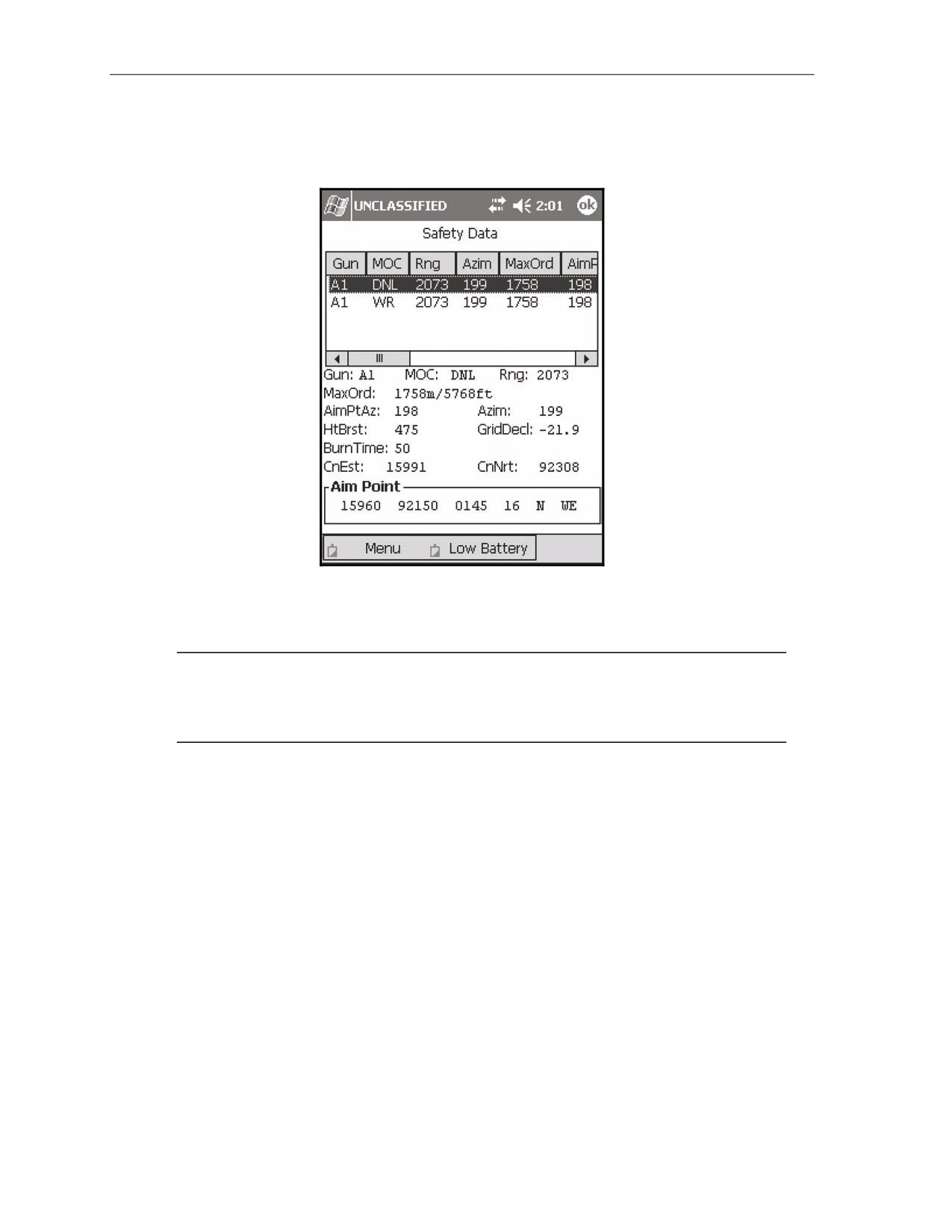
(24) To record the canister impact grid, navigate to the Safety Data screen (Figure 18-47).
Figure 18-47. Illumination: Safety Data screen.
(25) Select the adjusting gun's data line, and drag the stylus to the bottom of the screen to read the
complete safety data.
NOTE: The canister easting and northing coordinates (CnEst: and CnNrt:) are displayed at the
bottom of the screen. If the solution produces a canister impact grid outside of a safety fan or in
a BOLAD, no solution will be produced, and a warning message describing the violation will be
displayed on the Errors/Warnings screen.
(26) Navigate to the Subsequent Adjust screen to await the first adjustment.
(27) Process illumination subsequent adjustments in the same manner as HE adjustments with the
addition of the up/down adjustments.
(28) Ensure that the OT azimuth has been entered before applying any adjustments. If not, the
LHMBC will revert to the GT line for all corrections.
18-44
FM 3-22.91
17 July 2008
Fire Missions
EXAMPLE
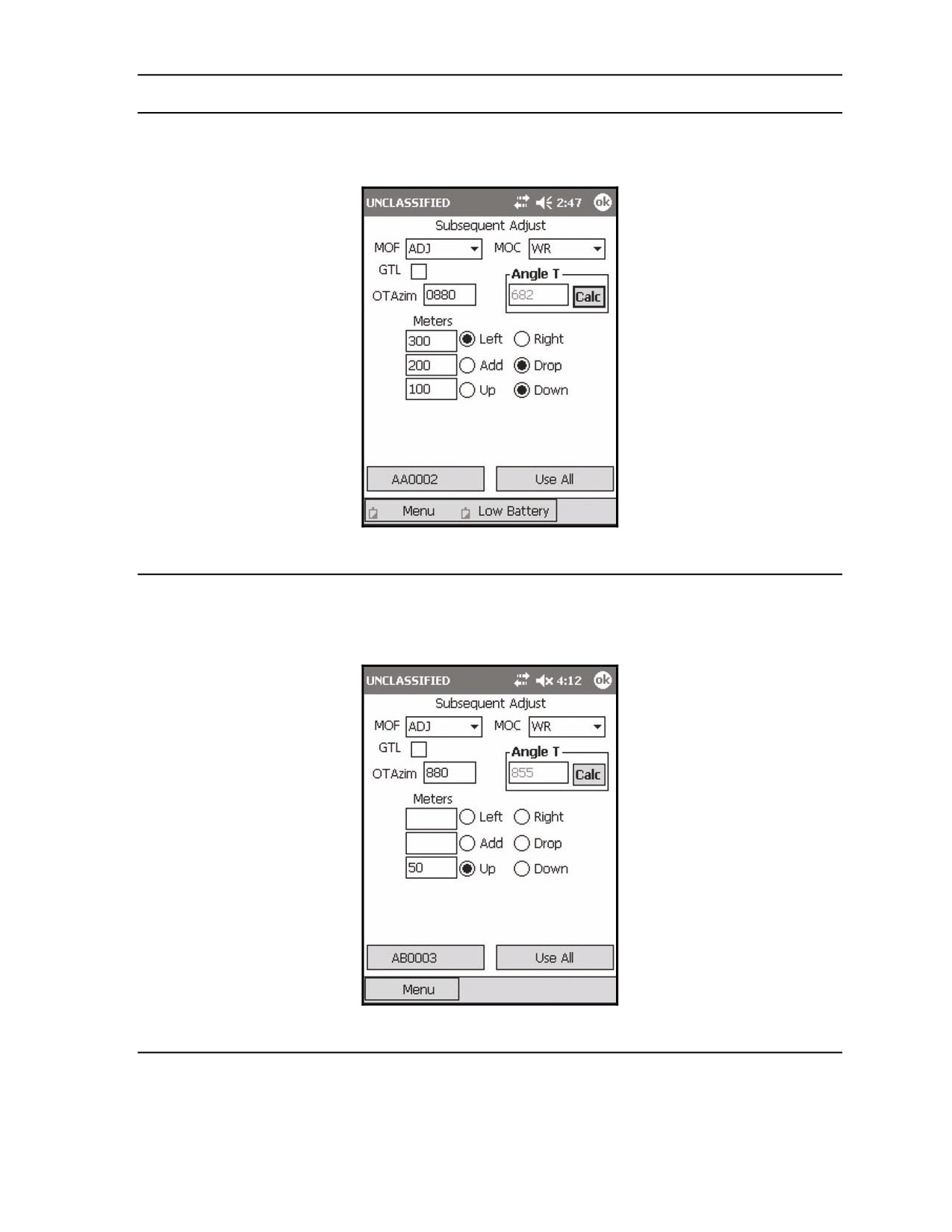
FO Call: Left 300. Drop 200. Down 100. (Figure 18-48)
Figure 18-48. Illumination: first subsequent adjustment.
EXAMPLE
FO Call: Up 50. Prepare to mark illumination. (Figure 18-49)
Figure 18-49. Illumination: second subsequent adjustment.
17 July 2008
FM 3-22.91
18-45
Chapter 18
NOTE: Mark time represents the length of time after the illumination is fired that the FO wants
effects on the target. If the FO simply wants to illuminate an area, a mark time is not necessary.
If a mark time is used, the FDC operator will time each illumination round from the time it is
fired until it has completely burned out. When the illumination reaches the height of optimal
illumination, the FO will call "Mark." After establishing a mark time, the mark is recorded on
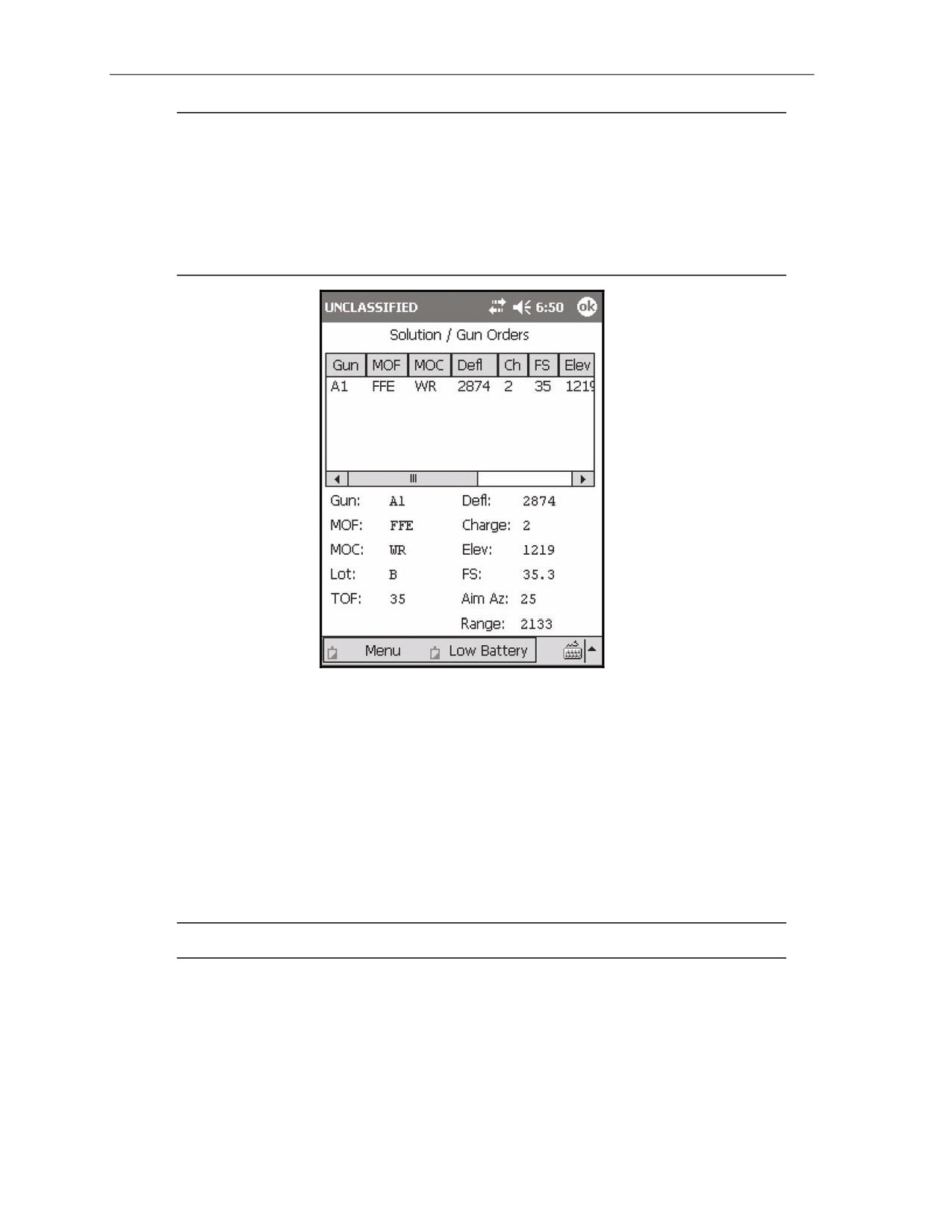
DA Form 2399-R, along with the FFE data (Figure 18-50). This computer record will continue
to be used to record illumination rounds fired during firing the coordinated illumination. A
separate DA Form 2399-R will be initiated for HE/WP.
Figure 18-50. One-gun Illumination Fire For Effect Solution screen.
COORDINATED ILLUMINATION MISSIONS
18-18. Illumination missions are often coordinated with other suppressive fires. The illumination exposes
possible targets, which are then engaged with HE. The FDC operator alternates between the illumination
fire mission and the HE fire mission.
18-19. The illumination portion of the mission is identical to a standard illumination mission, but once
the FFE has been initiated for the illumination mission, HE adjustment begins. During the HE adjustment
and FFE, the operator receives subsequent messages from the FO to fire illumination in coordination with
the HE. He alternates between the illumination mission (<AA0002>, in the illumination mission example)
and the HE mission (in the example, <AA0003>). After the illumination is adjusted, the method of
command for both fires is changed from WR to AMC.
NOTE: The adjustment of the HE is identical to a standard fire mission.
18-46
FM 3-22.91
17 July 2008
Fire Missions
EXAMPLE
To navigate to the illumination mission—
(1) Select Menu.
(2) Select Missions.
(3) Select FPFs.
(4) Select AA002.
To navigate to the HE mission—
(1) Select Menu.
(2) Select Missions.
(3) Select FPFs.
(4) Select AA003.
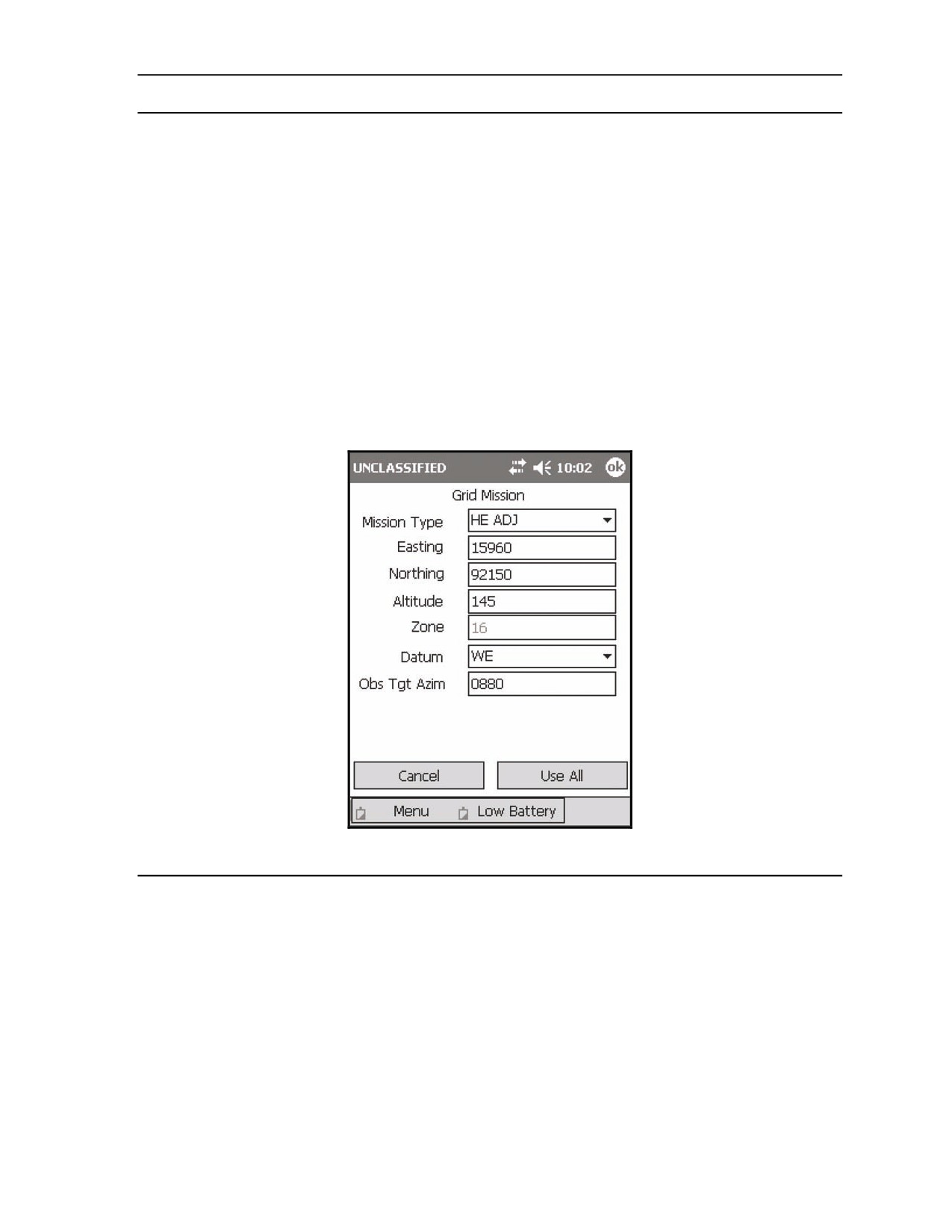
Upon receipt of a fire mission, the FDC operator initiates the appropriate fire mission by selecting the
proper method of target location. For this example, we will locate our target using grid coordinates
and fire HE in both the adjustment and in the FFE (Figure 18-51).
Figure 18-51. Coordinated Illumination: Mission Initialization screen.
17 July 2008
FM 3-22.91
18-47
Chapter 18
18-20. To conduct a coordinated illumination mission—
(1) From the Grid Mission screen, verify all target location information, and select Use All.
(2) The Mission Data screen displays.
NOTE: Now that HE is being fired again, the Use Reg Correction box is enabled and selected
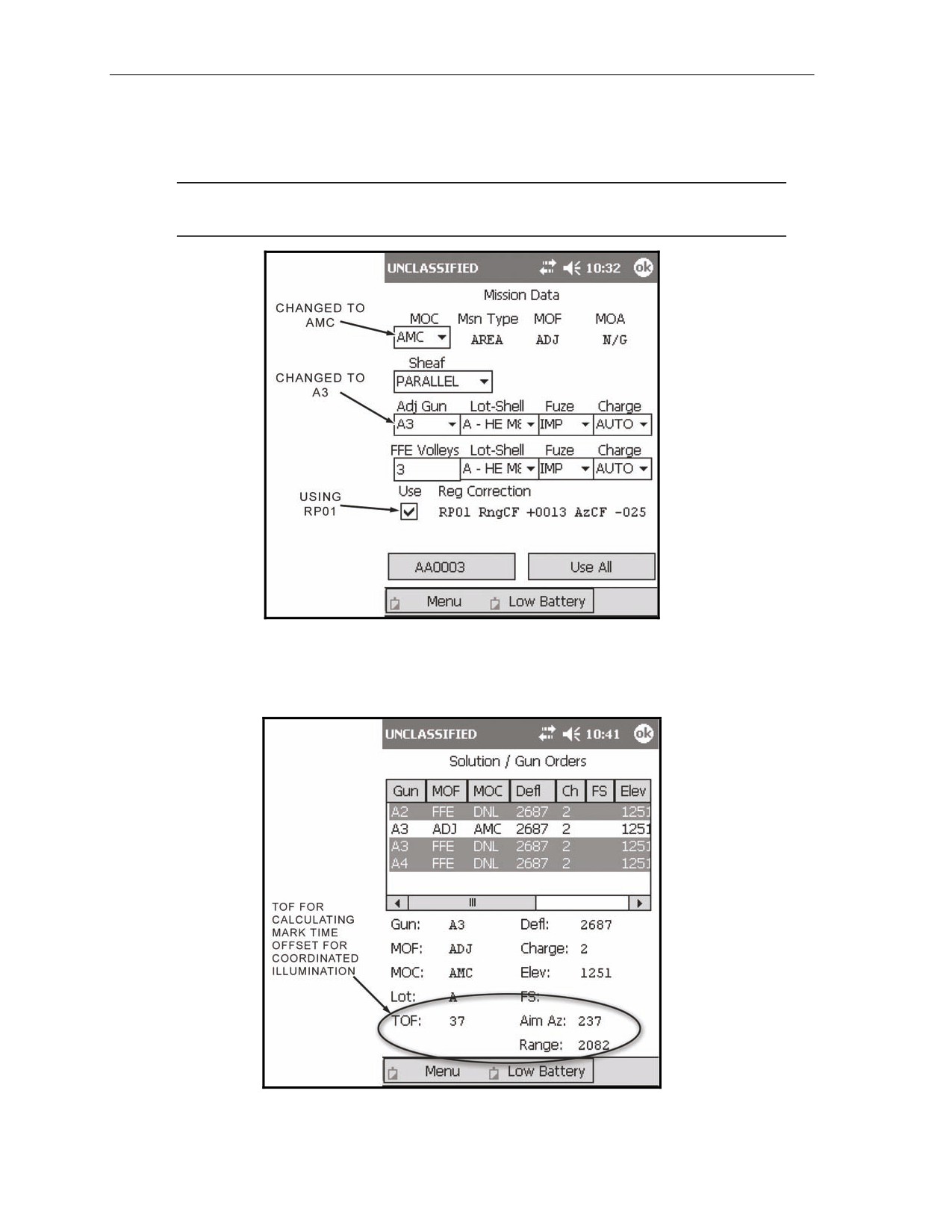
(Figure 18-52).
Figure 18-52. Coordinated Illumination: Mission Data screen.
(3) Confirm that all mission data is correct, and select Use All.
(4) The Solution/Gun Orders screen (Figure 18-53) displays.
Figure 18-53. Coordinated Illumination: High-Explosive Solution screen.
18-48
FM 3-22.91
17 July 2008
Fire Missions
(5) Calculate the firing times for the HE and WP. In the example, the mark time for the illumination
mission is 52 seconds, and the TOF for the HE is 37 seconds. This means the delay between the
firing of the illumination and the HE is 15 seconds (52 - 37 = 15). This way, the illumination
will be at its optimum height when the HE impacts.
(6) Fifteen seconds after "Shot" is announced to the illumination gun, "Shot" will be given to the
HE adjusting gun.
(7) Navigate to the illumination mission by—
Selecting Menu.
Selecting Missions.
Selecting FPFs.
Selecting the target number.
Selecting Solution.
(8) Select Shot.
(9) Navigate to the HE mission by—
Selecting Menu.
Selecting Missions.
Selecting FPFs.
Selecting the target number.
Selecting Solution.
(10) After the delay time has elapsed (15 seconds, in the example), select Shot.
NOTE: To perform this procedure when operating digitally, the FDC operator must navigate to
the Mission Status screen to select Shot for each mission.
(11) Navigate to the HE Subsequent Adjust screen to await the FO’s adjustment.
EXAMPLE
FO Call: Continuous illumination. HE. Left 50. Fire for effect.
NOTE: The request for continuous illumination indicates that the FO wants the target
illuminated during the fire for effect and afterward so he can make his surveillance which will
be reported back to the FDC.
(12) Record the FO’s surveillance on DA Form 2399-R.
(13) End both missions, and update the ammunition expenditure as described in paragraph 18-2.
FINAL PROTECTIVE FIRES
18-21. An FPF is an immediately available, prearranged barrier of fire designed to impede enemy
movement across defensive lines or areas. The LHMBC can store up to three FPFs at a time. If an active
mission is in progress and an FPF order is received, the FPF mission has the higher priority.
18-22. To initiate the FPF—
(1) Select Menu.
(2) Select Manual Missions.
(3) Select Grid Msn.
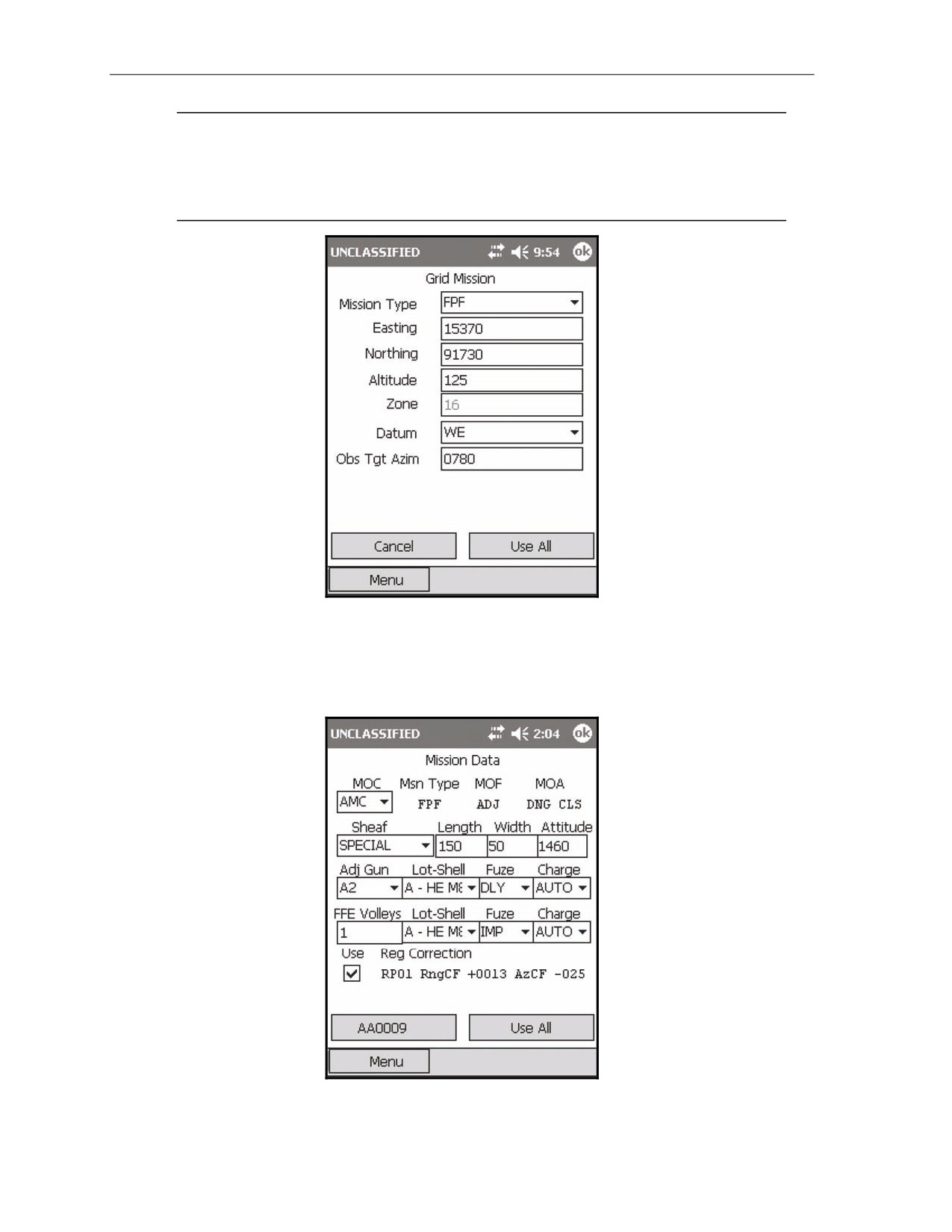
(4) The Grid Mission screen is displays.
(5) Change the mission type to FPF (Figure 18-54).
17 July 2008
FM 3-22.91
18-49
Chapter 18
NOTE: The following LHMBC FPF mission screens depict an actual fire mission. This
example includes the registration corrections from the example registration mission (RP01).
This example uses a grid mission to illustrate the process of receiving, adjusting, saving, and
firing an FPF. Polar plot or shift from a known point missions are conducted in the same
manner.
Figure 18-54. Manual Grid Final Protective Fire: Mission Initialization screen.
(6) Complete the screen.
(7) Select Use All.
(8) The Mission Data screen (Figure 18-55) displays.
Figure 18-55. Final Protective Fire: Mission Data screen.
18-50
FM 3-22.91
17 July 2008
Fire Missions
NOTE: The MOC for FPF remains AMC during the adjustment phase. The sheaf is set to
Special and cannot be changed.
(9) Enter the length, width, and attitude of the FPF.
NOTE: Since this mission is danger close, the default fuze setting for both the adjustment and
the FFE of the FPF is DLY, but the standard fuze setting for an FPF FFE is IMPACT.
(10) Change the fuze setting for the FFE to IMP.
(11) Ensure that all other data is correct, and select Use All.
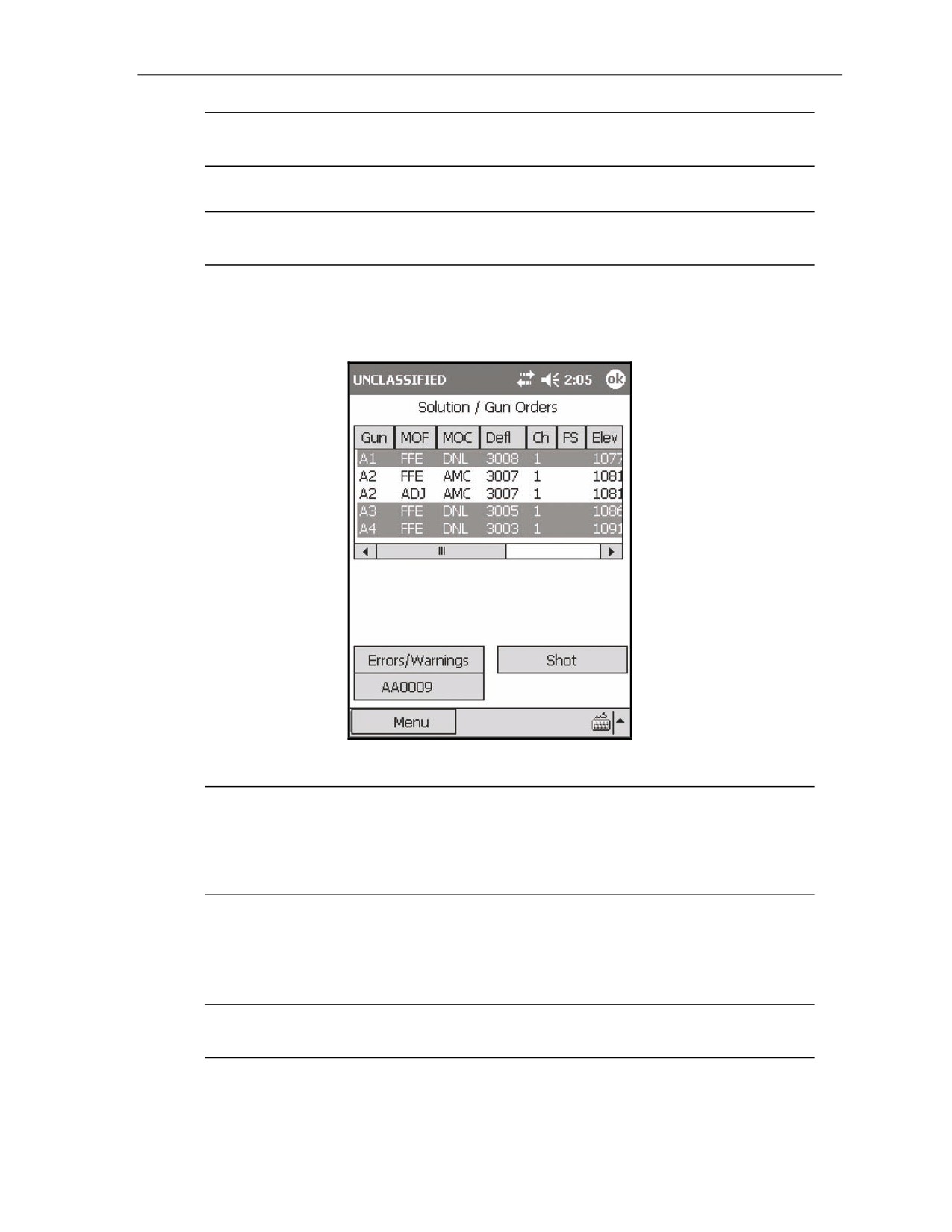
(12) The Solution/Gun Orders screen (Figure 18-56) displays.
Figure 18-56. Final Protective Fire: Initial Solution screen.
NOTE: The LHMBC displays the adjusting solution for the adjusting piece and FFE data for
all guns. In the example, the adjusting piece is A2. The entire section should fire in the initial
adjustment so the FO can determine which gun is impacting the closest to the friendly forces
(the danger gun). This is accomplished by firing either a section right (SR) or a section left (SL).
For this example, a section right is used. The FO determines that A1 is the danger gun.
(13) Record the solution and safety data on DA Form 2399-R.
(14) When the first gun fires, select Shot to start the shot clock.
(15) Select the <Target> button.
(16) The <Target> screen displays.
NOTE: The target location given in the CFF is not the location of the FPF. The FO must add a
200- to 400-meter safety factor to the location of the FPF. The FDC never adds a safety factor.
17 July 2008
FM 3-22.91
18-51
Chapter 18
EXAMPLE
The FO has determined that A1 is the danger gun and sends the following:
FO Call: #1 Danger close. Right 100. Drop 25.
Record this adjustment on DA Form 2399-R.
NOTE: The type of adjustment is danger close. The FO must use the creeping fire
method of adjustment. The fuze setting for all adjustments is set to DELAY to reduce
the risk of injury to friendly Soldiers while adjusting the FPF.
(17) Select Mission Data.
(18) The Mission Data screen displays.
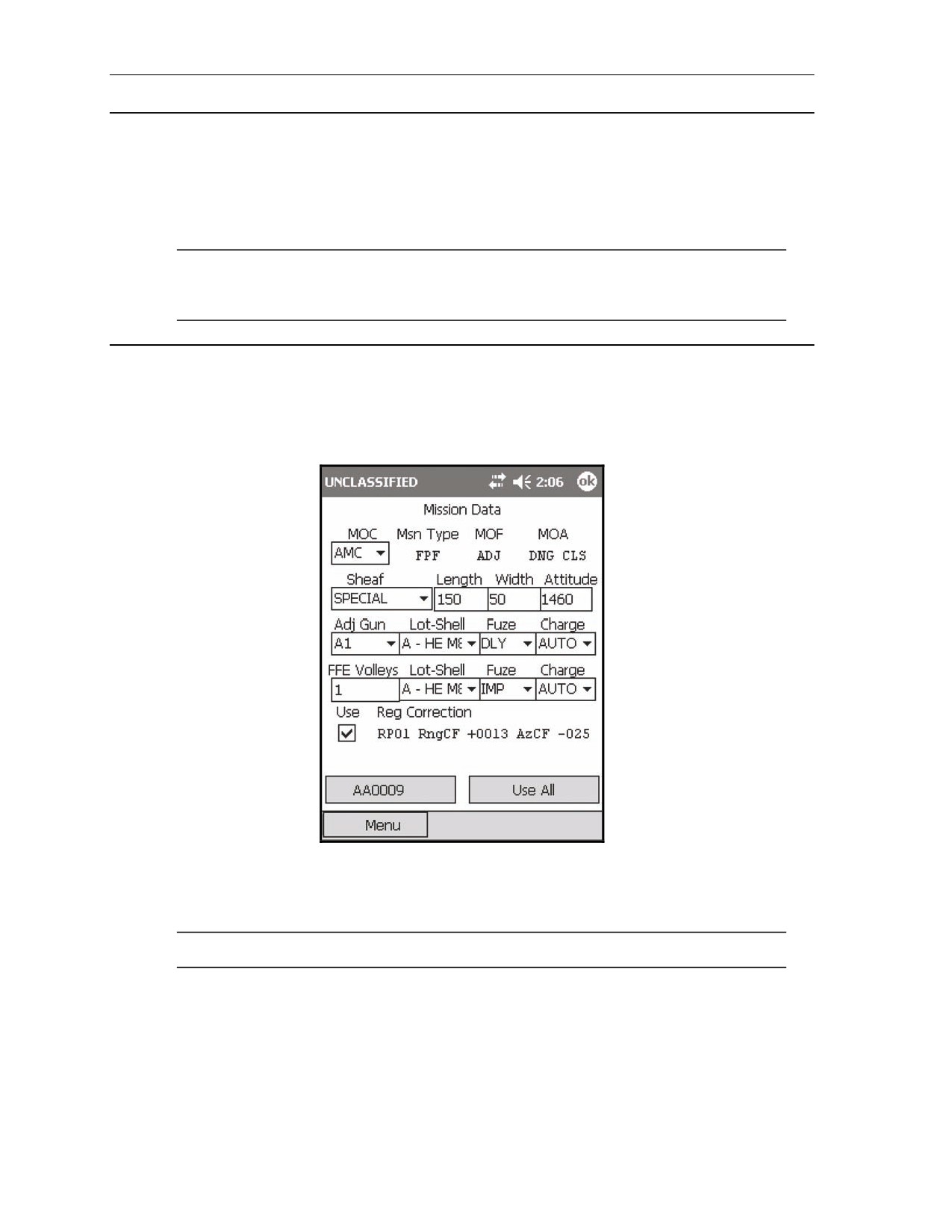
(19) Change Adj Gun from the original choice to the danger gun (Figure 18-57).
Figure 18-57. Final Protective Fire: changing the adjusting gun.
(20) Select Use All.
(21) The Solution/Gun Orders screen is displayed.
NOTE: The adjustment still must be entered, so disregard this solution.
(22) Select the <Target> button.
(23) The <Target> screen displays.
(24) Select Subs Adust.
18-52
FM 3-22.91
17 July 2008
Fire Missions
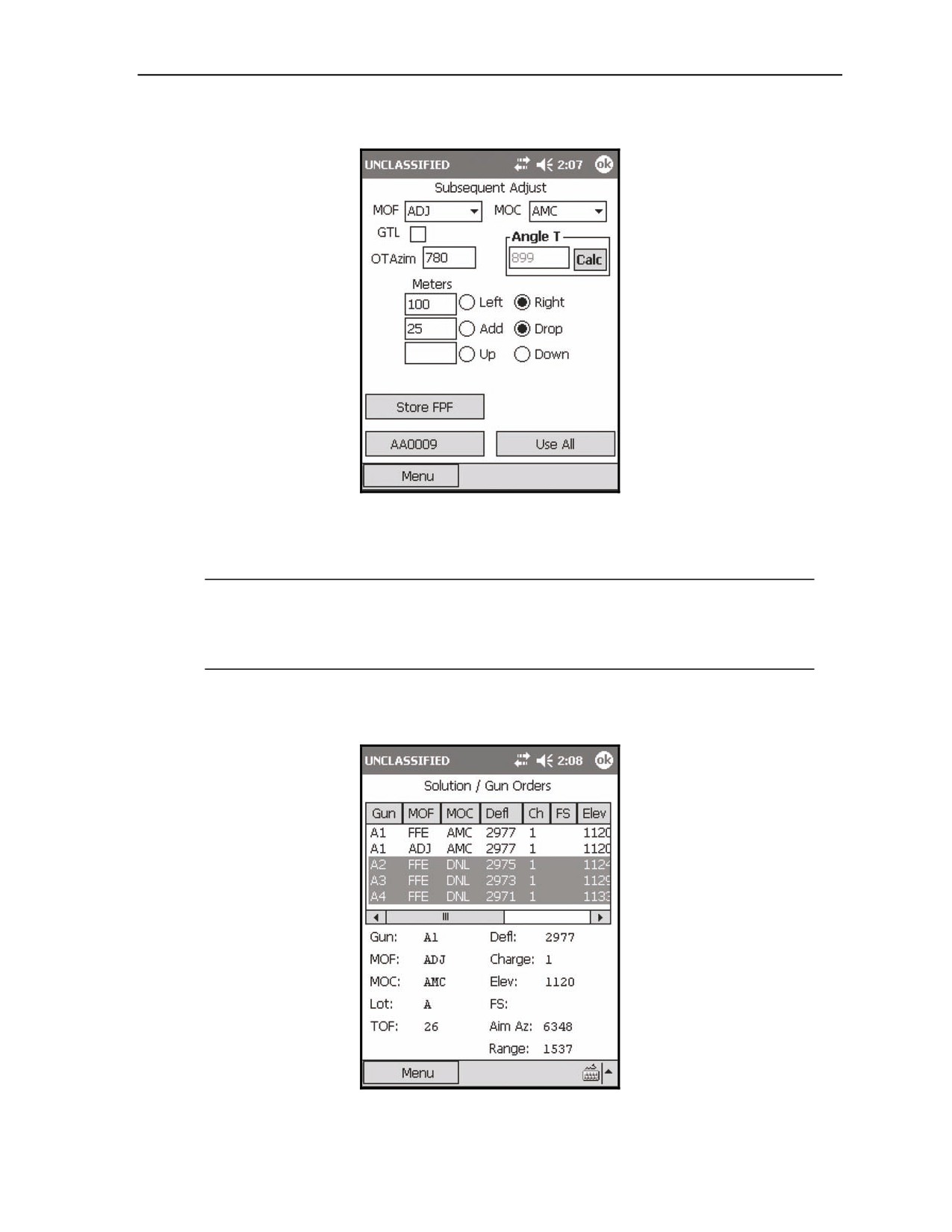
(25) The Subsequent Adjust screen displays (Figure 18-58).
Figure 18-58. Final Protective Fire: first adjustment.
(26) Enter the subsequent adjust as described for a manual grid mission (paragraph 18-2, Basic
Manual Missions).
NOTE: If the FO did not send the OT azimuth in the initial CFF, he must send the OT azimuth
before the FDC can process any subsequent adjustments. If the OT azimuth is entered from the
Subsequent Adjust screen, select Calc to display the new angle T. If the angle T is more than
499 mils but less than 2700 mils, the FDC must send an MTO stating that angle T is in effect.
(27) Select Use All.
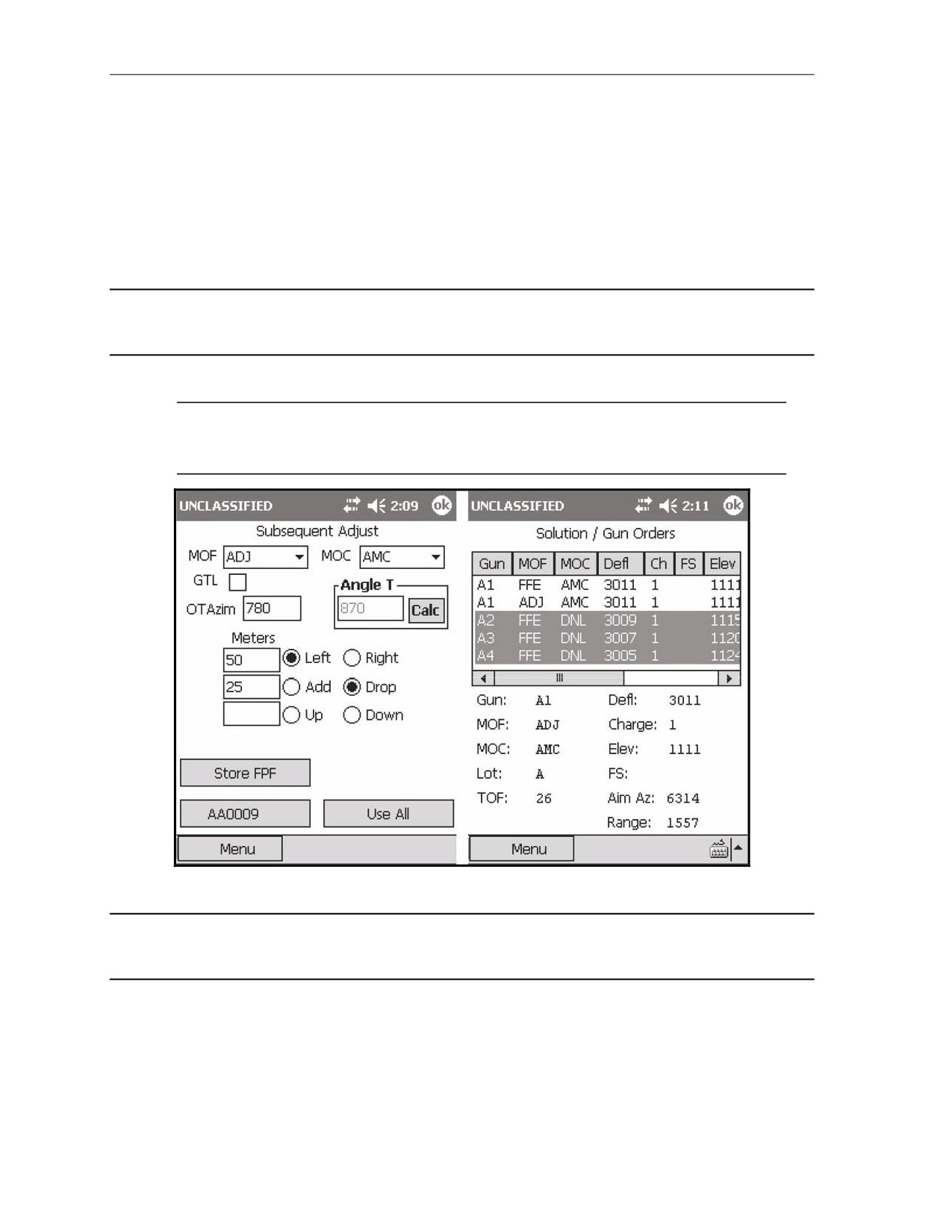
(28) The Solution/Gun Orders screen (Figure 18-59) displays.
Figure 18-59. Final Protective Fire: A1’s initial adjustment.
17 July 2008
FM 3-22.91
18-53
Chapter 18
(29) Record the solution safety data for A1 on DA Form 2399-R.
(30) Send the data to the guns.
(31) Select Shot.
(32) The shot clock displays.
(33) Select the <Target> button.
(34) Select Sub Adjust.
(35) The Subsequent Adjustment screen displays.
(36) , Wait for the next adjustment.
EXAMPLE
FO Call: Left 50. Drop 25.
NOTE: Unlike a normal HE mission where only adjustments of 50 meters or more are fired,
adjustments in the FPF will be fired until they are within 25 meters of the proper FPF location
(Figure 18-60).
Figure 18-60. Final Protective Fire: A1’s second adjustment and solution.
EXAMPLE
FO Call: A1 adjusted. Prepare to adjust sheaf.
18-54
FM 3-22.91
17 July 2008
Fire Missions
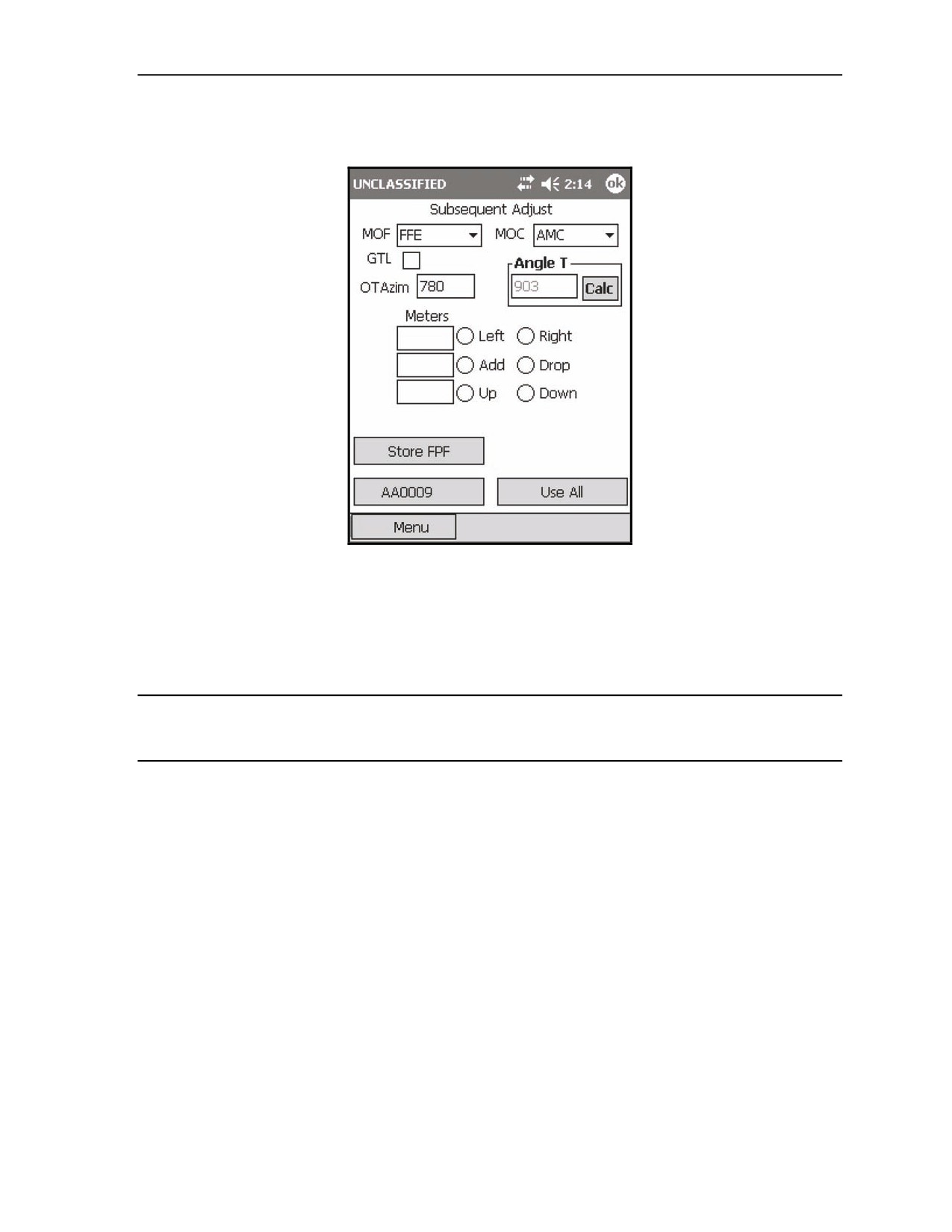
(37) To adjust the sheaf, change the MOF from ADJ to FFE on the Subsequent Adjust screen (Figure
18-61).
Figure 18-61. Final Protective Fire: preparing to adjust the sheaf.
(38) There were no further adjustments given, so in the example, A1 is considered adjusted.
(39) Select Use All.
(40) The Solution/Gun Orders screen displays.
(41) Record the solution and safety data for A2 (in the example) before issuing gun orders.
EXAMPLE
FO Call: A2 right 10. Gun adjusted. Repeat A3.
(42) To modify the sheaf, from the <Target> screen, select Adj Sheaf.
17 July 2008
FM 3-22.91
18-55
Chapter 18
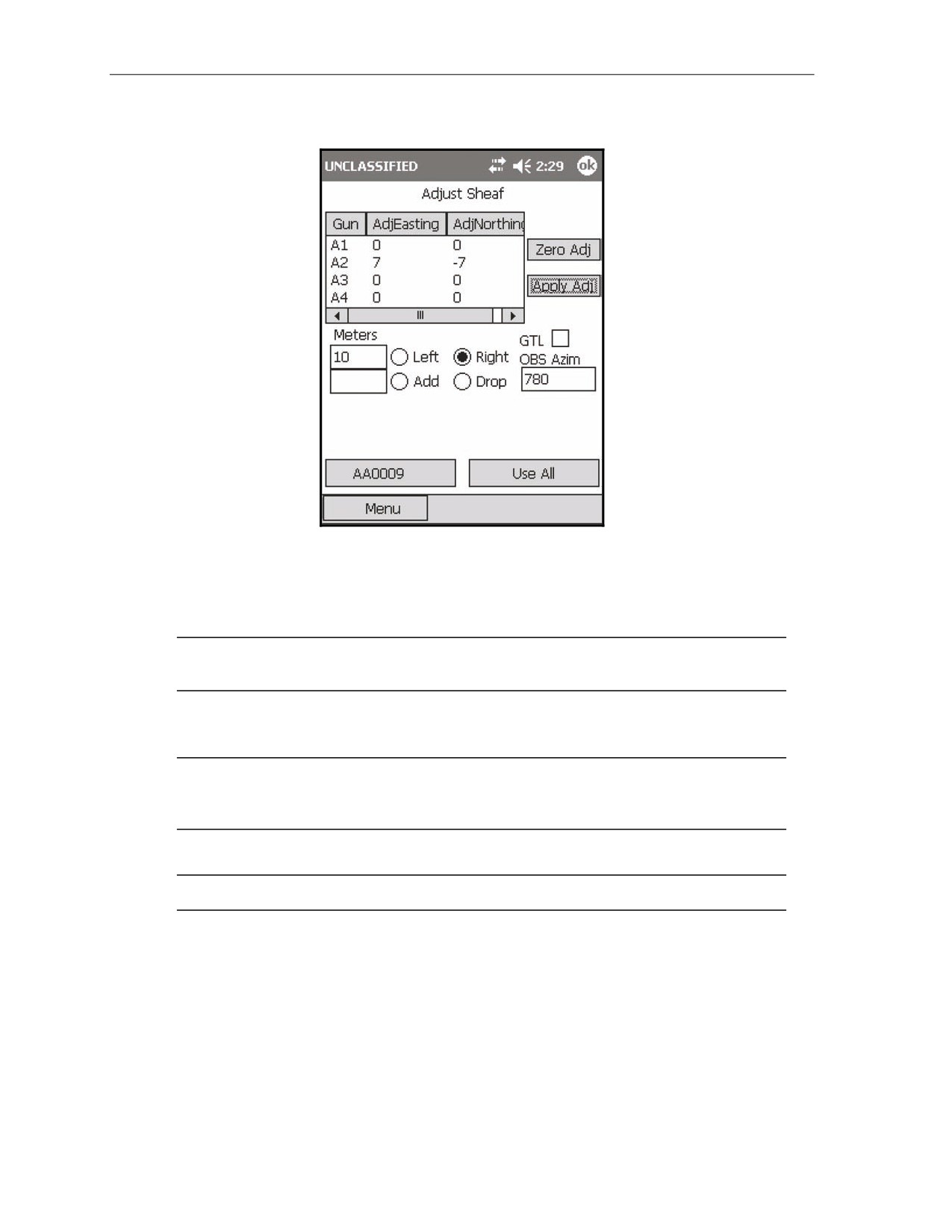
(43) The Adjust Sheaf screen (Figure 18-62) displays.
Figure 18-62. Final Protective Fire: adjusting A2.
(44) Select the Right radio button.
(45) Enter the number of meters (10, in the example) in the corresponding Meters field.
(46) Highlight A2 (in the example), and select Apply Adj.
NOTE: The modification is now displayed in the Adjustment window with the corresponding
easting and northing corrections displayed.
(47) Select Use All.
(48) The Mission Data screen displays.
NOTE: Corrections are entered in the form of a direction (left or right of the OT azimuth) and
distance (farther or nearer along the OT azimuth). The adjustments displayed in the Adjustment
window refer to the modifications of the calculated burst point grid coordinate.
(49) The Mission Data screen is displayed by default.
NOTE: When in the sheaf adjustment phase, the adjusting gun listed is irrelevant.
(50) Select Use All.
18-56
FM 3-22.91
17 July 2008
Fire Missions
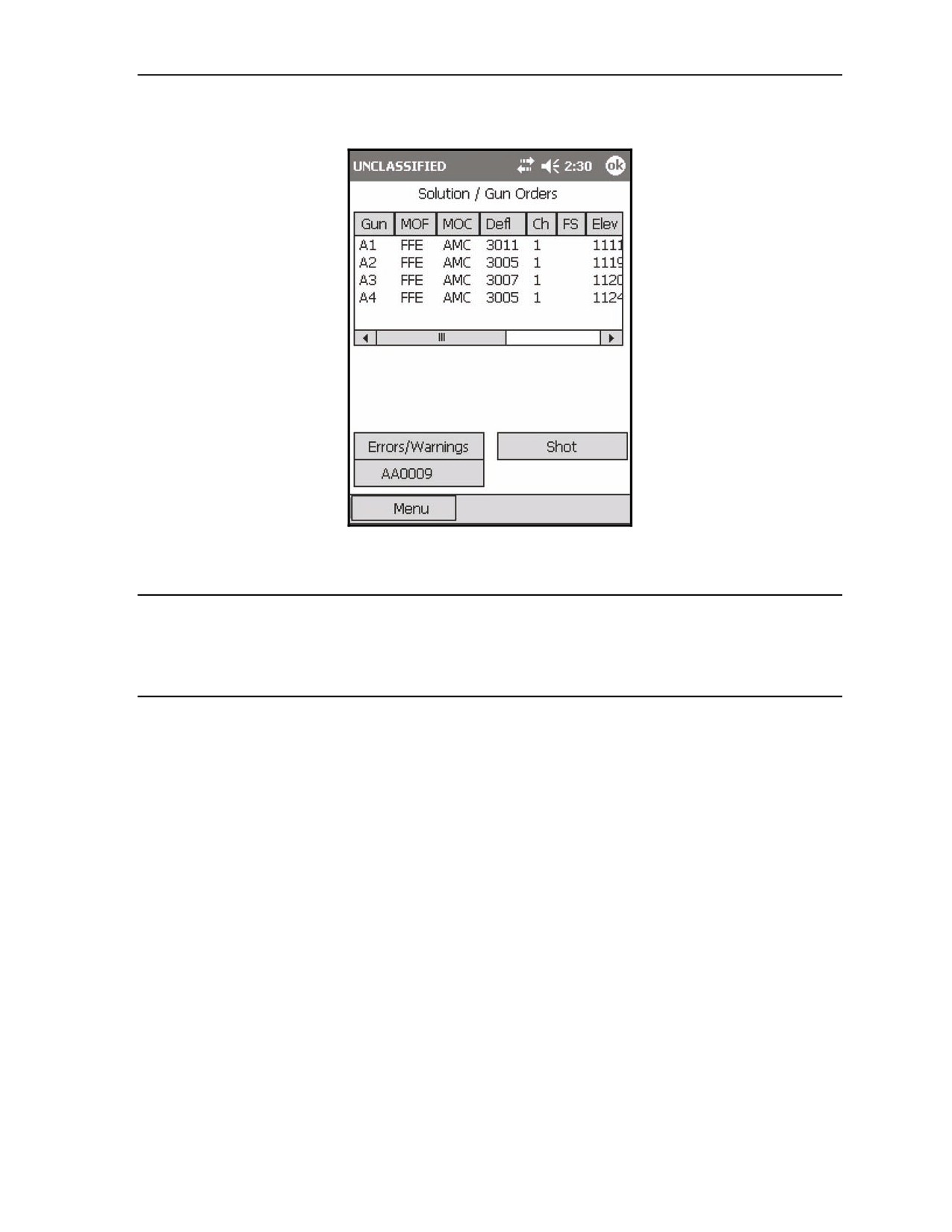
(51) The Solution/Gun Orders screen displays (Figure 18-63).
Figure 18-63. Final Protective Fire: A3’s solution.
(52) Record A2 and A3's (for this example) firing and safety data before sending it to the guns.
EXAMPLE
FO Call: A3 adjusted. Repeat A4.
Record A4's firing/safety data from the Solution/Gun Orders screen.
FO Call: A4 left 10. Sheaf adjusted. EOM RAT 09.
17 July 2008
FM 3-22.91
18-57
Chapter 18
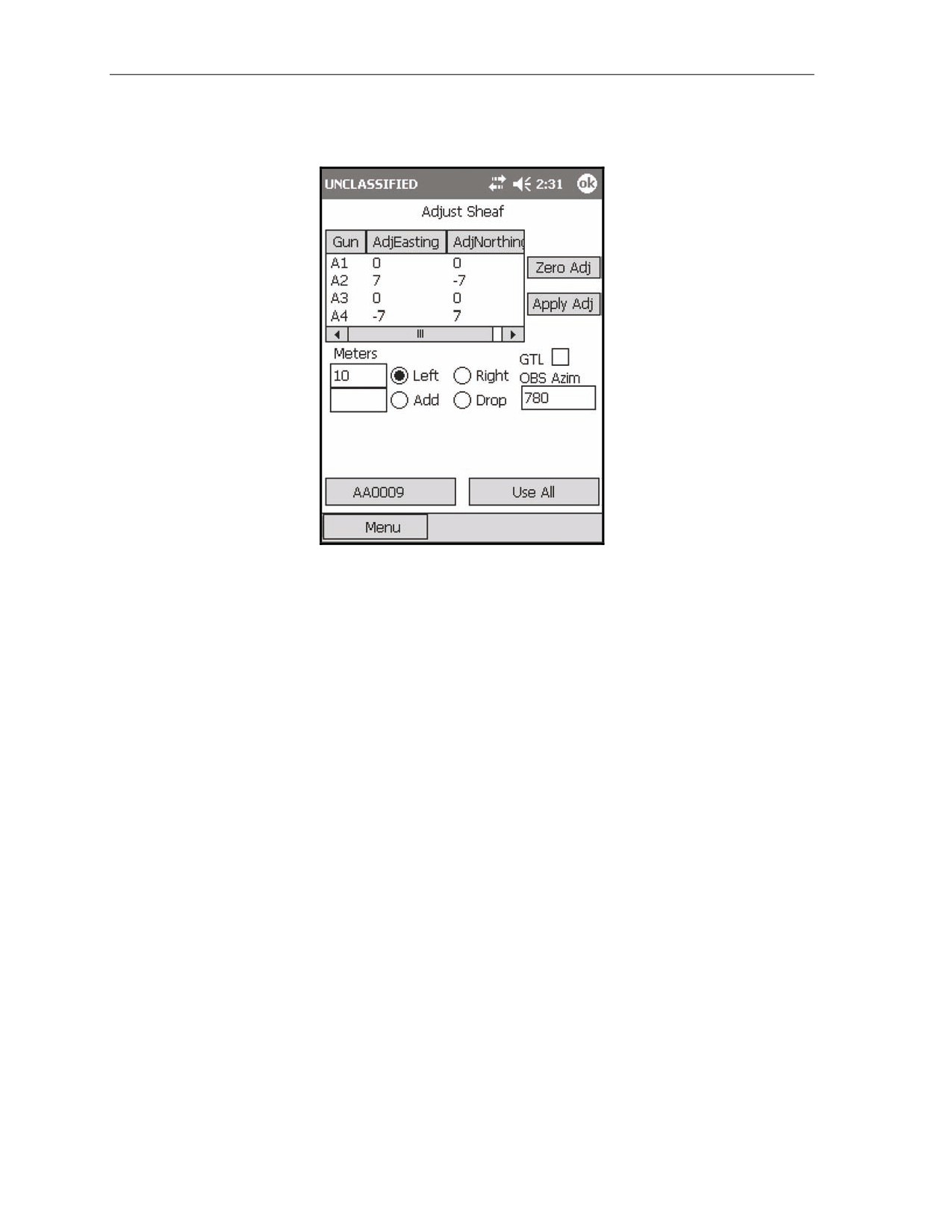
(53) Navigate to the Adjust Sheaf screen, and enter A4's correction as previously described (Figure
18-64).
Figure 18-64. Final Protective Fire: A4’s adjustment solution.
(54) Select Use All.
(55) The Mission Data screen displays.
(56) Select Use All.
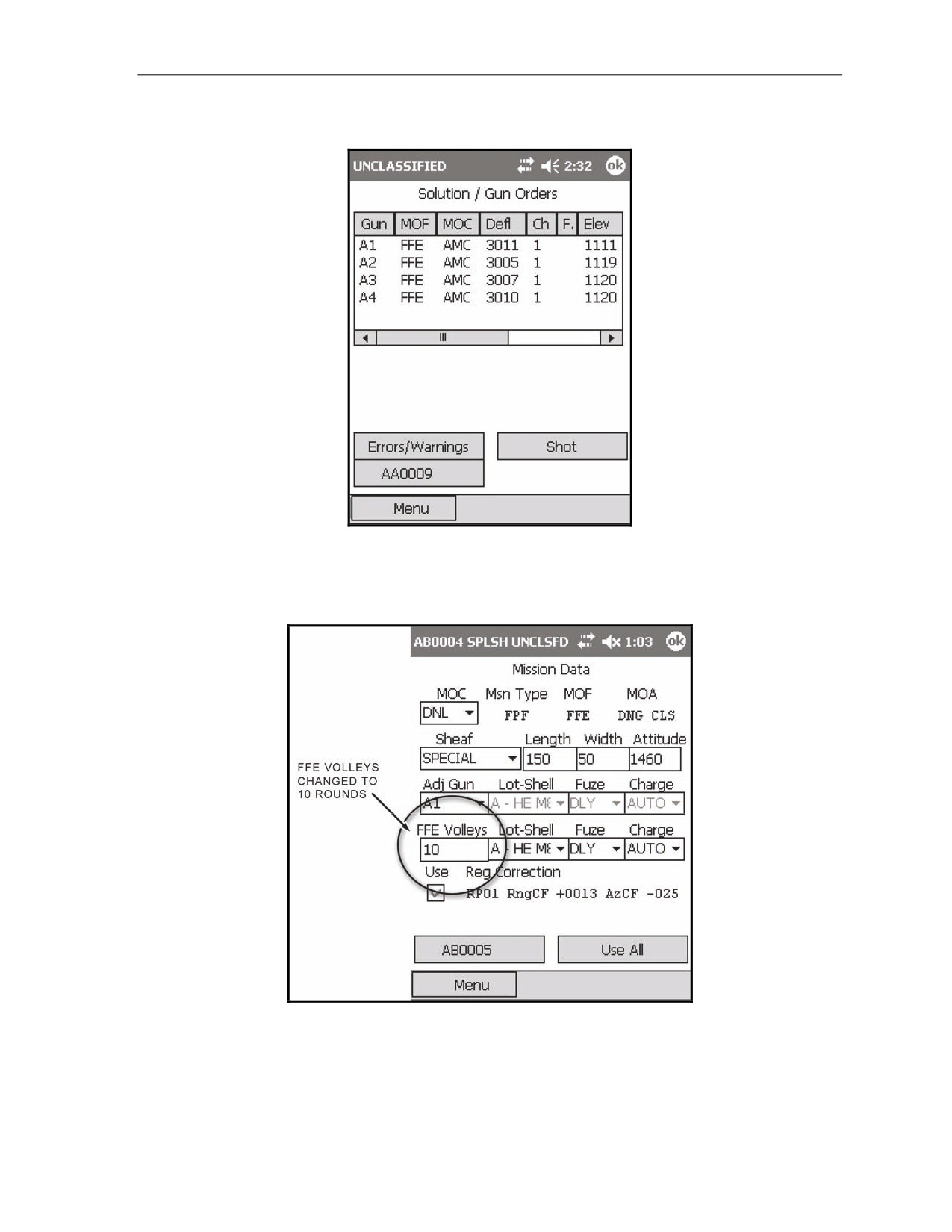
(57) The Solution/Gun Orders screen displays (Figure 18-65).
(58) Record the solution/safety data on DA Form 2399-R.
(59) Select the <Target> button.
18-58
FM 3-22.91
17 July 2008
Fire Missions
(60) The <Target> screen displays.
Figure 18-65. Final Protective Fire: section solution.
(61) Select Mission Data.
(62) The Mission Data screen displays (Figure 18-66).
Figure 18-66. Final Protective Fire: changing the fire for effect volleys.
(63) Change the number of FFE Volleys from 1 to a predetermined number of rounds to be set aside
for the FFE (10 rounds in the example).
17 July 2008
FM 3-22.91
18-59
Chapter 18
NOTE: When an FPF is fired, the section/platoon will continue firing until all rounds are
expended or a cease fire command is given.
(64) Select Use All.
(65) The Solution/Gun Orders screen displays.
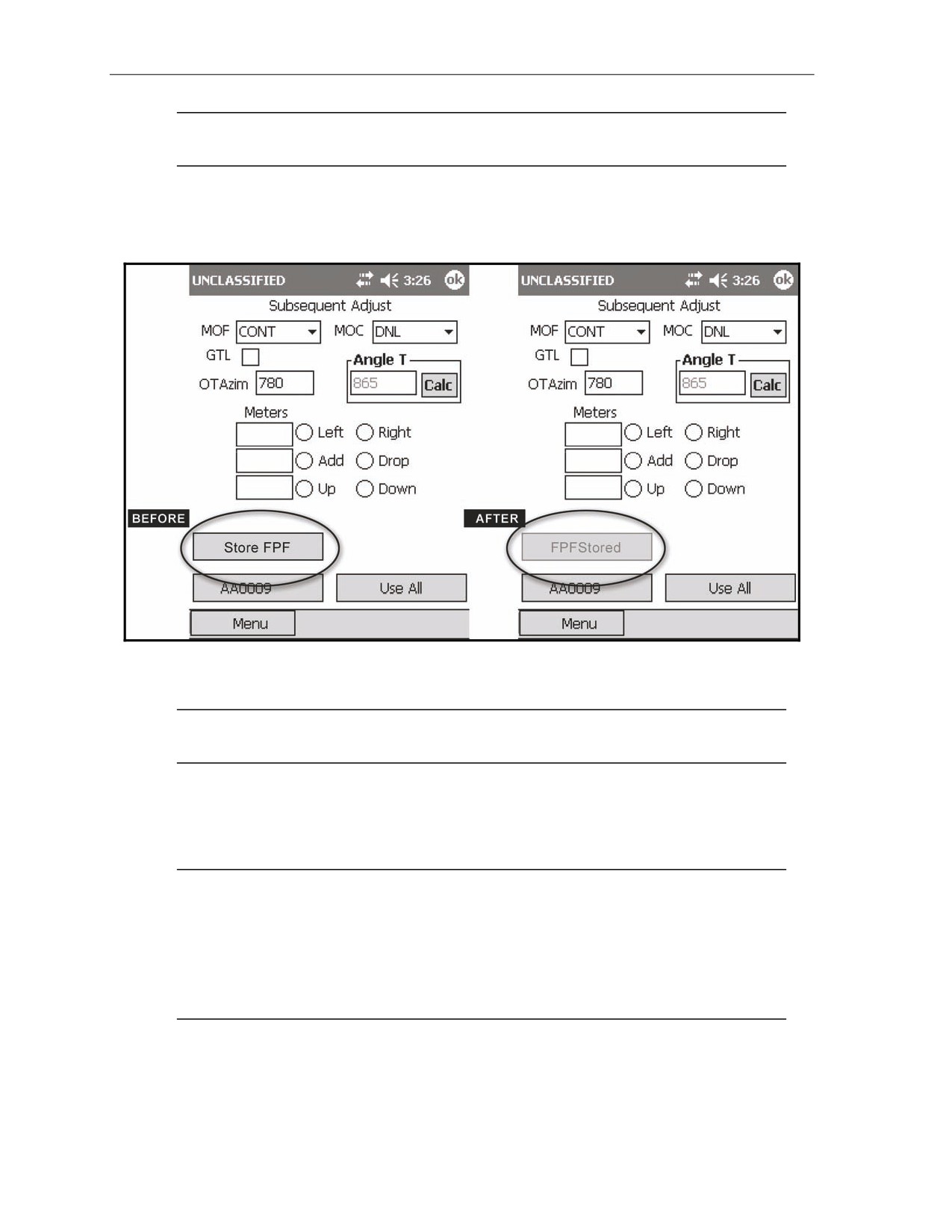
(66) Navigate to the Subsequent Adjust screen (Figure 18-67).
Figure 18-67. Final Protective Fire: storing the final protective fires.
(67) Select Store FPF.
NOTE: The MOF is automatically changed to CONT, and the MOC is automatically changed
to DNL. The Store FPF button is now shaded and reads "FPF Stored."
(68) Select Use All.
(69) The Solution/Gun Orders screen displays.
(70) Record one copy of each gun's firing data, the trigger (such as Budweiser), and a specific
number of rounds to be set aside for the FPF.
NOTES:
1. Each gun must post the FPF data on or near the gun to be fired so that it is
visible at all times.
2. The FPF is left as an active mission until the platoon/section displaces or the
FPF is no longer valid (troops moved, change in mission, etc.). The FPF may
now be accessed through the Missions/FPFs menu using the following path:
Menu/Missions/FPFs/AA0009.
(71) Select the <Target> button.
(72) Select the Mission Data button.
(73) The Mission Data menu displays.
18-60
FM 3-22.91
17 July 2008
Fire Missions
(74) Fire the FPF by performing the following steps:
Change the MOC from DNL to WR.
Select Use All.
The Solution/Gun Orders screen is displayed.
Select Shot.
The Shot Clock is displayed, and the LHMBC records the number of rounds fired.
(75) Select the <Target> button.
(76) The <Target> screen displays.
(77) Select EOM.
(78) The EOM screen displays.
(79) Delete FPF is selected, and all other EOM options are shaded.
(80) Select Use All.
(81) The Ammunition Expended screen displays.
(82) Adjust the total number of rounds fired.
(83) Select Use All.
(84) The Status screen displays.
SMOKE MISSIONS
18-23. Smoke missions are used to conceal ground maneuver, obstacle breaching, and recovery
operations, as well as key assembly areas, supply routes, and logistical facilities. There are two types of
smoke missions: quick and immediate.
QUICK SMOKE MISSIONS
18-24. The standard smoke mission covers a 500-meter front for a predetermined amount of time. This
500-meter front can be scaled up or down using a scaling factor. Quick smoke missions are considered
smoke screening missions.
WARNING
Phosphine is highly toxic; it can easily kill in relatively low
concentrations. Be cautious when handling red or white
phosphorous munitions.
18-25. A quick smoke mission can be initiated using any of the methods of target location.
NOTE: See Chapter 9 for further quick smoke information.
18-26. To initialize a quick smoke mission—
(1) Select Menu.
(2) Select Manual Missions.
(3) Select Grid Mission.
17 July 2008
FM 3-22.91
18-61
Chapter 18
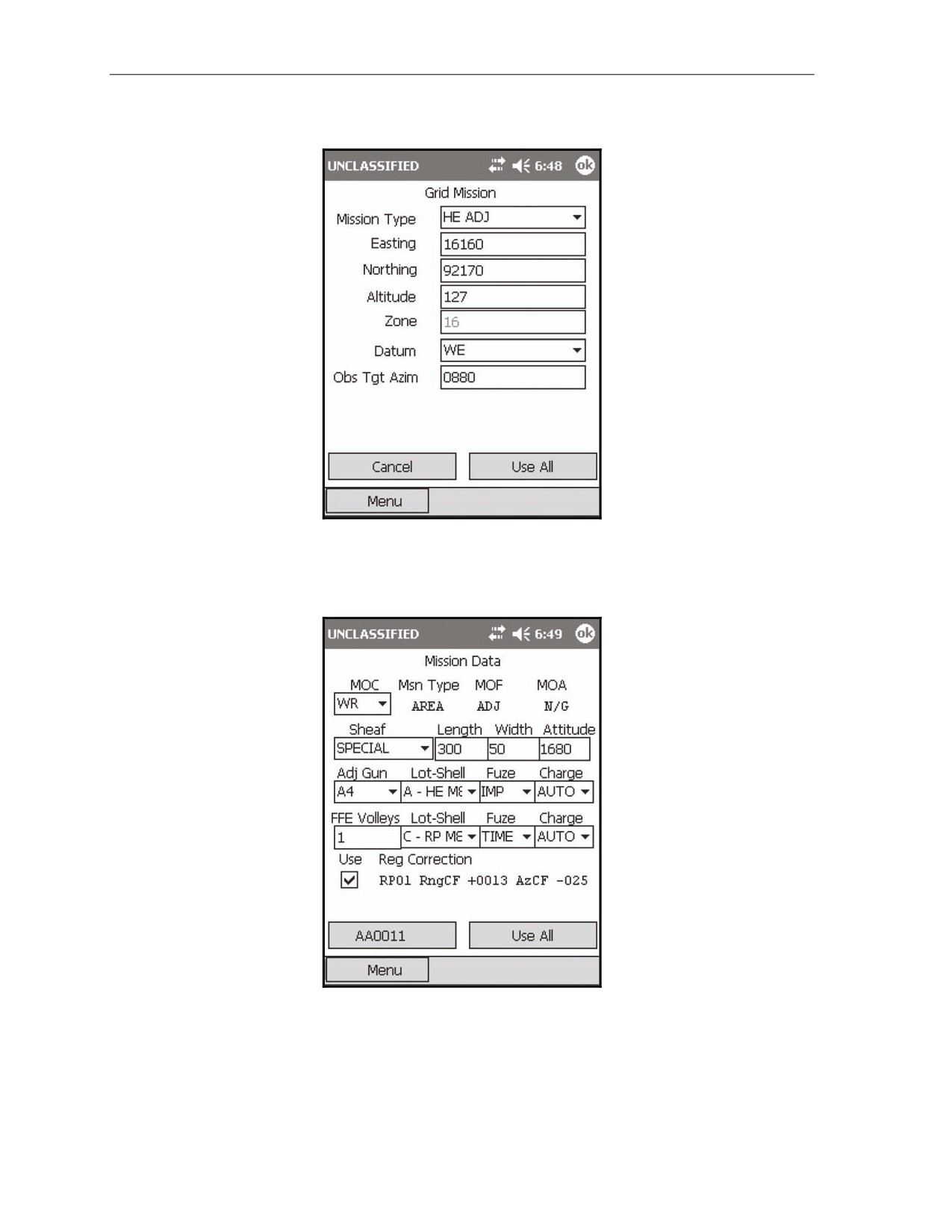
(4) Complete the target location information (Figure 18-68).
Figure 18-68. Quick Smoke: target location information.
(5) Select Use All.
(6) The Mission Data screen (Figure 18-69) displays.
Figure 18-69. Quick Smoke: Mission Initialization screen.
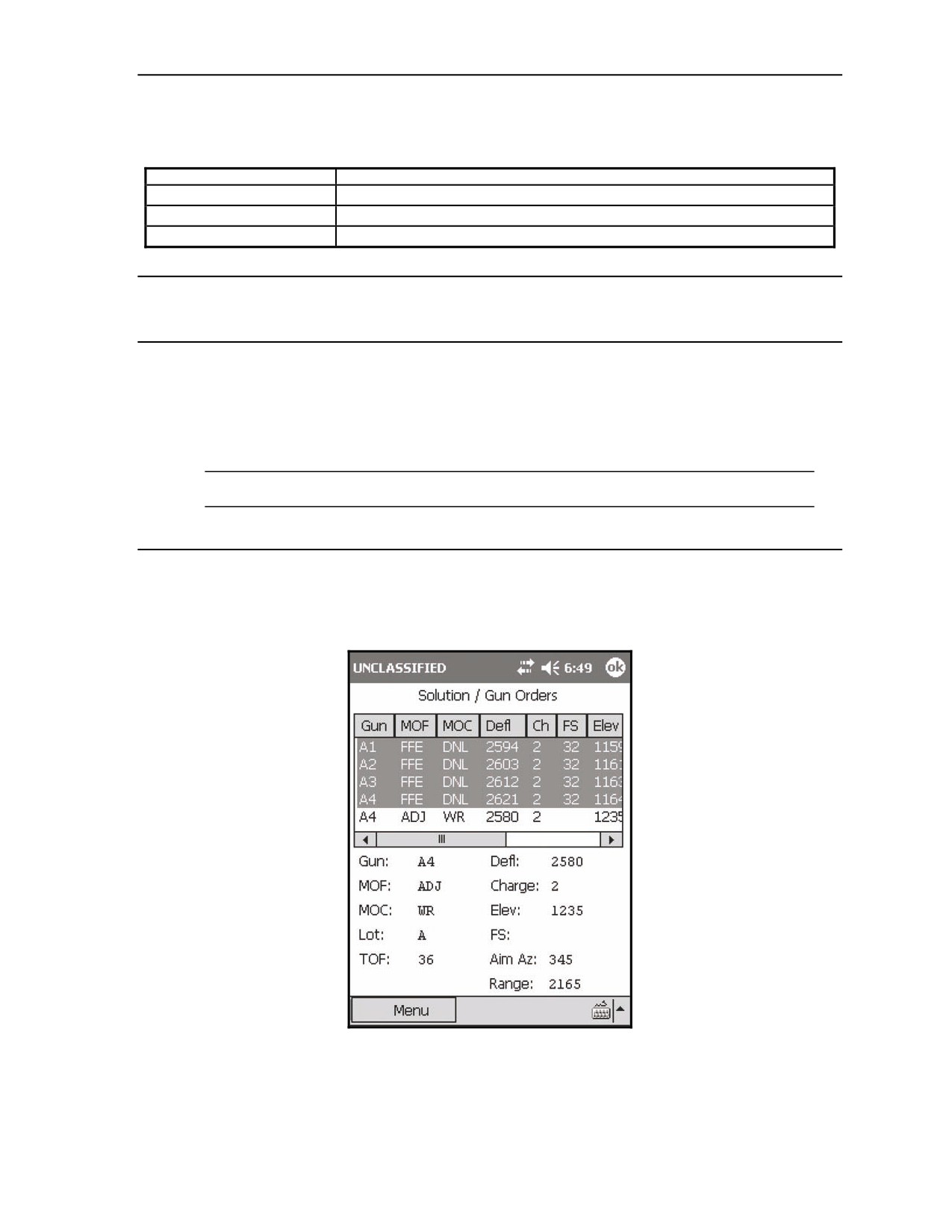
(7) Change the sheaf to SPECIAL.
(8) Three additional fields for target length, width, and attitude display.
18-62
FM 3-22.91
17 July 2008
Fire Missions
(9) Use these fields (outlined in Table 18-14) to enter and view information.
Table 18-14. Quick Smoke: Mission Data screen fields and related information.
FIELD
RELATED INFORMATION
Length
The long edge of the target
Width (depth)
The short edge of the target
Attitude
Read along the target's long edge
EXAMPLE
In this example, change FFE Volleys from 3 to 1, and the FFE Lot-Shell to the RP/WP lot.
(10) Select Use All.
(11) The Solution/Gun Orders screen displays.
(12) Continue to process the mission as a standard grid mission, as shown in the following example
(Figures 18-70 to 18-76).
NOTE: See paragraph 18-2 for more information about processing a grid mission.
EXAMPLE
In this example, the adjusting gun will be the upwind gun. The flank wind is blowing from left to right
(from #4 gun to #1 gun) across the gun line. # 4 is the upwind gun.
Figure 18-70. High-Explosive Adjustment Phase - first solution.
17 July 2008
FM 3-22.91
18-63
Chapter 18
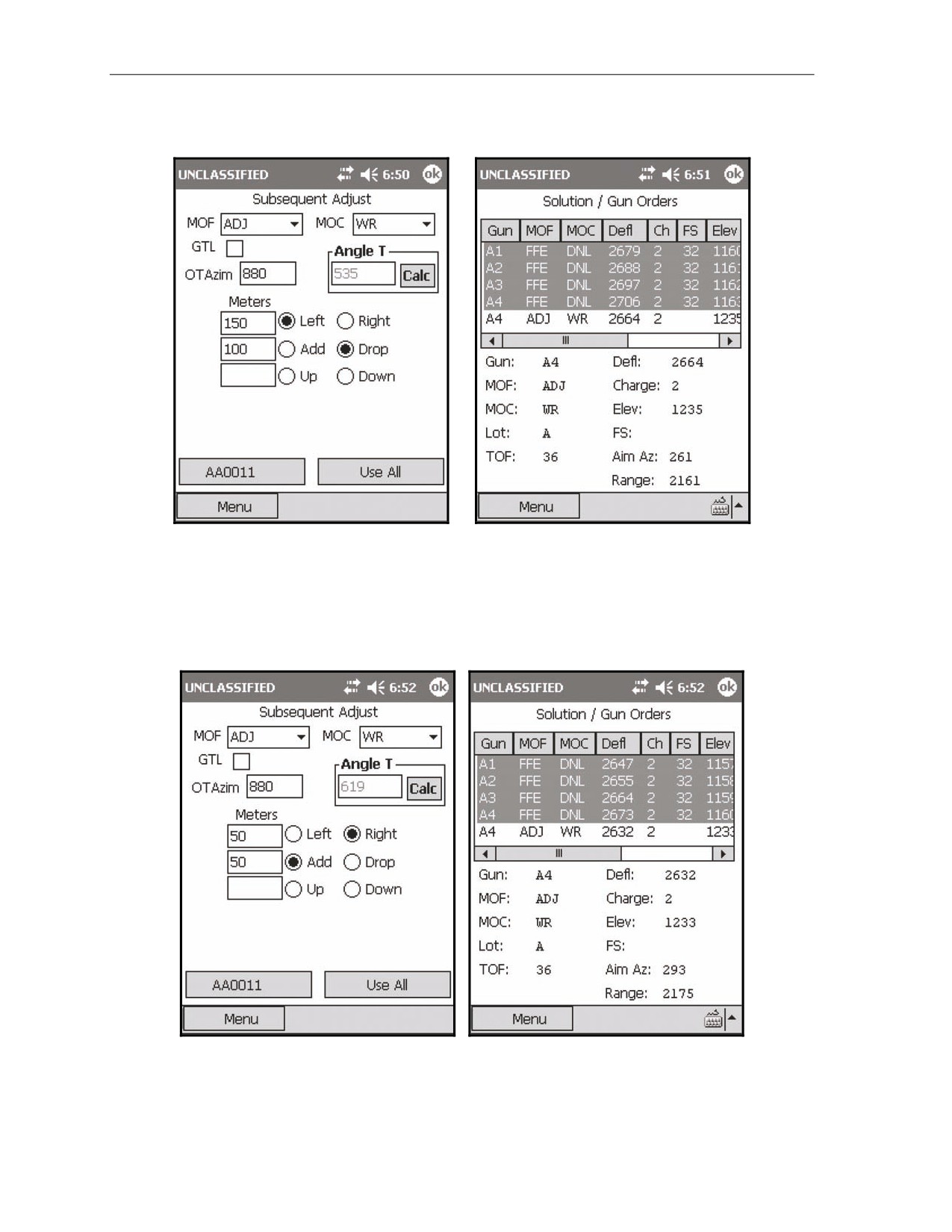
FO Call: Left 150. Drop 100. (Figures 18-71 and 18-72)
Figure 18-71. High-Explosive Adjustment Figure 18-72. High-Explosive Adjustment
Phase: first adjustment.
Phase: first adjustment solution.
FO Call: Right 50. Add 50. (Figures 18-73 and 18-74)
Figure 18-73. High-Explosive Adjustment Figure 18-74. High-Explosive Adjustment
Phase: second adjustment.
Phase: second adjustment solution.
18-64
FM 3-22.91
17 July 2008
Fire Missions
FO Call: Repeat WP.
When the HE has been adjusted, the FO will call for a round of smoke to confirm that the smoke
lands in the proper location and with the desired effects. Then—
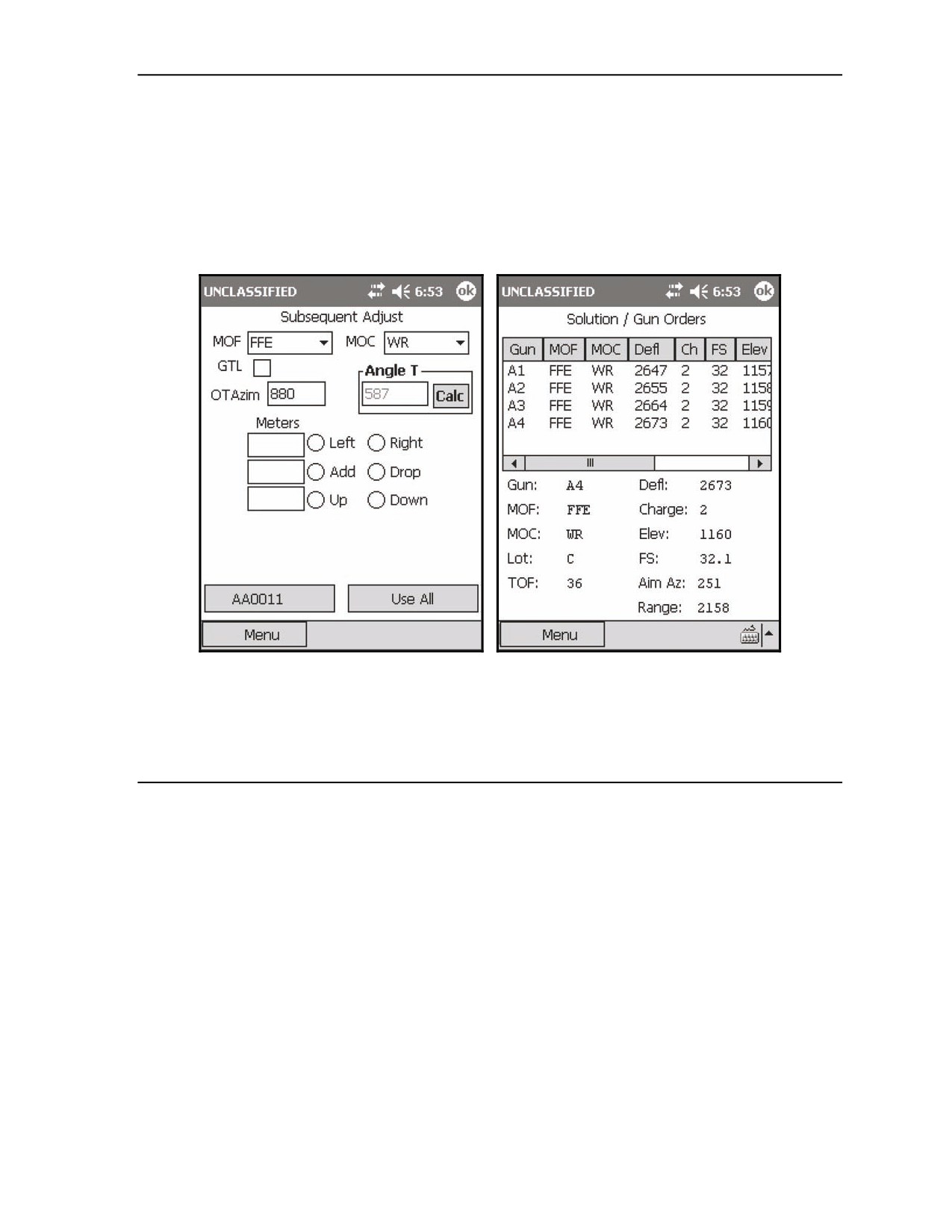
(1) From the Subsequent Adjust screen, change the MOF from ADJ to FFE (Figure 18-75).
(2) Select Use All.
(3) The Solution/Gun Orders screen displays.
Firing data is displayed for all guns; however, A4 is the only gun that will fire the confirmation (Figure
18-76). If the smoke is satisfactory, the adjustment phase is complete.
Figure 18-75. High-Explosive Adjustment Figure 18-76. High-Explosive Adjustment
Phase: change the method of fire from Phase: first confirmation round.
adjust to fire for effect.
17 July 2008
FM 3-22.91
18-65
Chapter 18
(13) Calculate the number of rounds for the establishment and maintenance phases from the
<Target> screen by selecting Smoke Card.
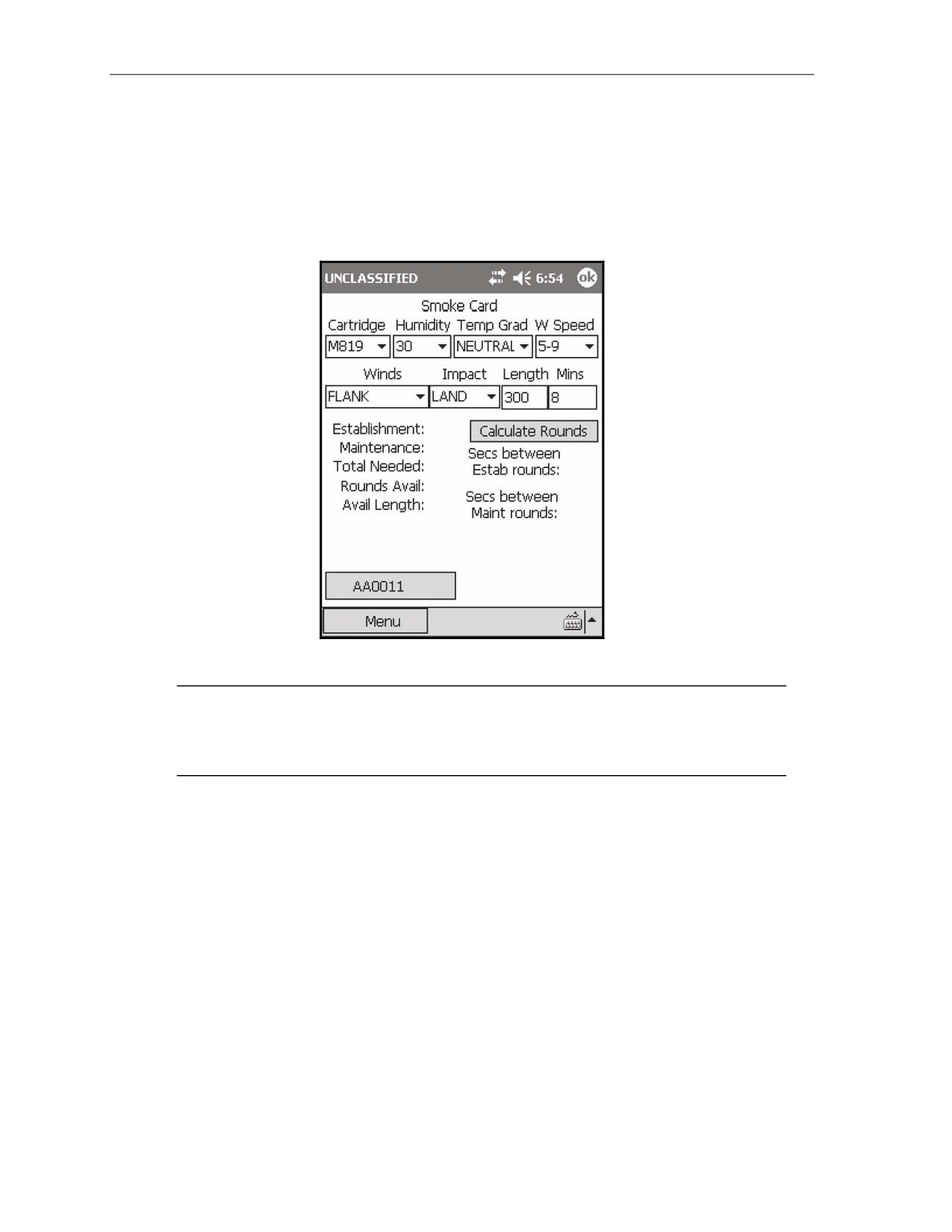
(14) The Smoke Card screen displays (Figure 18-77). The smoke card uses weather and target width
information to calculate the number of rounds required to provide adequate smoke for the given
target area. The weather conditions originate from the meteorological data station or can be
extracted from the current MET message. If using conditions from the current MET message,
humidity will need to be estimated.
Figure 18-77. Smoke Card screen.
NOTE: It is the responsibility of the coordinating FSO to supply weather conditions a
minimum of 20 minutes before firing a coordinated quick smoke mission. This affords the FDC
and gun crew time to process the mission ammunition requirements and prepare the ammunition
for the mission.
(15) After calculating the total number of smoke rounds for the quick smoke mission, divide the
number of rounds necessary for establishment by the number of guns.
18-66
FM 3-22.91
17 July 2008
Fire Missions
EXAMPLE
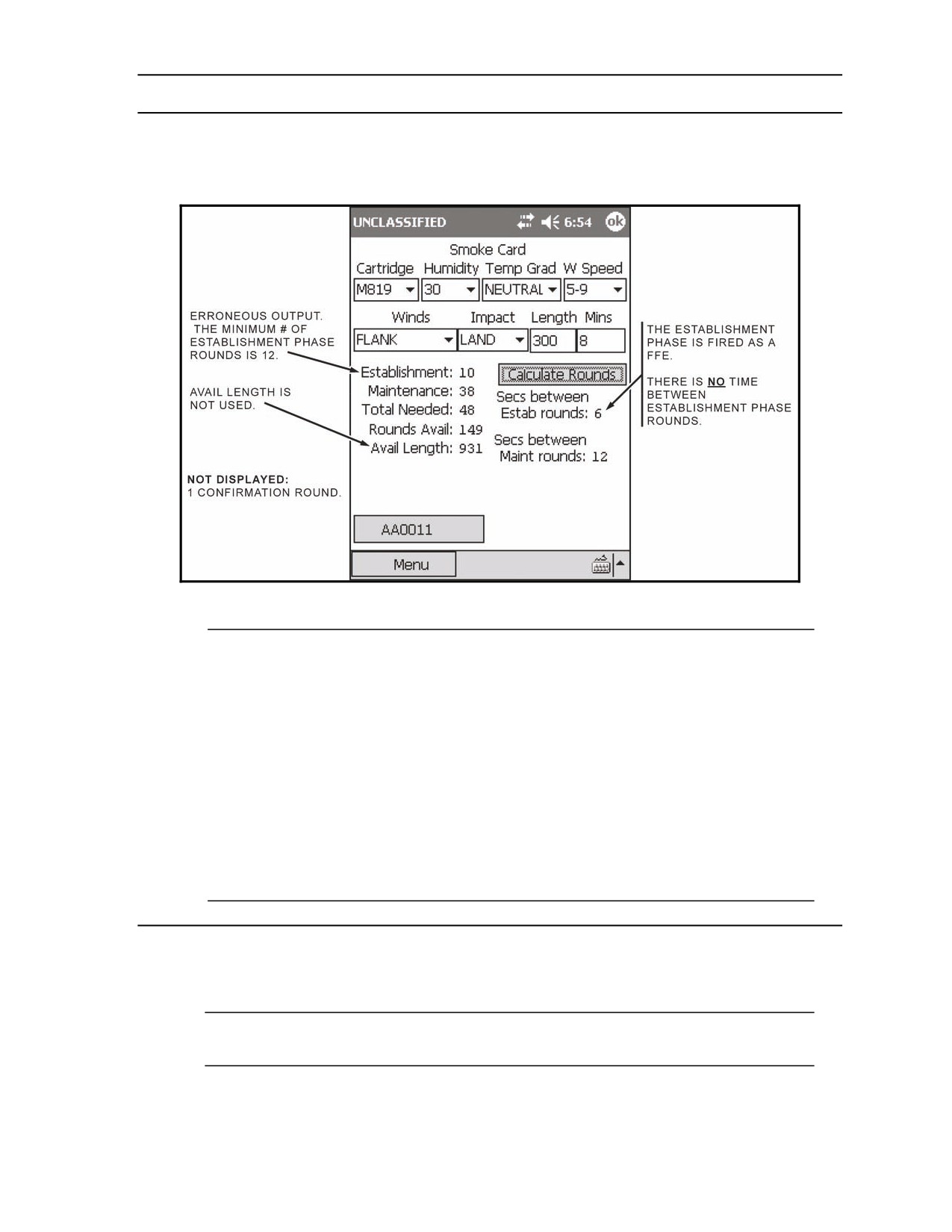
In the example shown in Figure 18-78, the LHMBC calculates that 10 rounds will be necessary to
establish the initial smoke screen.
Figure 18-78. Smoke Card example with solution.
NOTE: All smoke screens are established with a minimum of 12 rounds. If the number
for the establishment phase is not divisible by the number of guns, round up to the next
number that is divisible by the number of guns. For example—
Establishment = 10
Number Guns = 4, round up to 12 rounds
12/4 = 3 rounds per gun
The LHMBC erroneously displays an interval between rounds for establishment (Figure
18-50). There is NO interval between rounds during the establishment phase. The FDC
will control all guns after the first round of the maintaining phase.
(16) When the last round of the establishment phase has been fired, the section will continue firing
the maintaining rounds at the predetermined interval.
NOTE: Individual gun squad leaders will be responsible for ensuring that their guns fire in the
proper sequence, at the proper interval.
17 July 2008
FM 3-22.91
18-67
Chapter 18
EXAMPLE
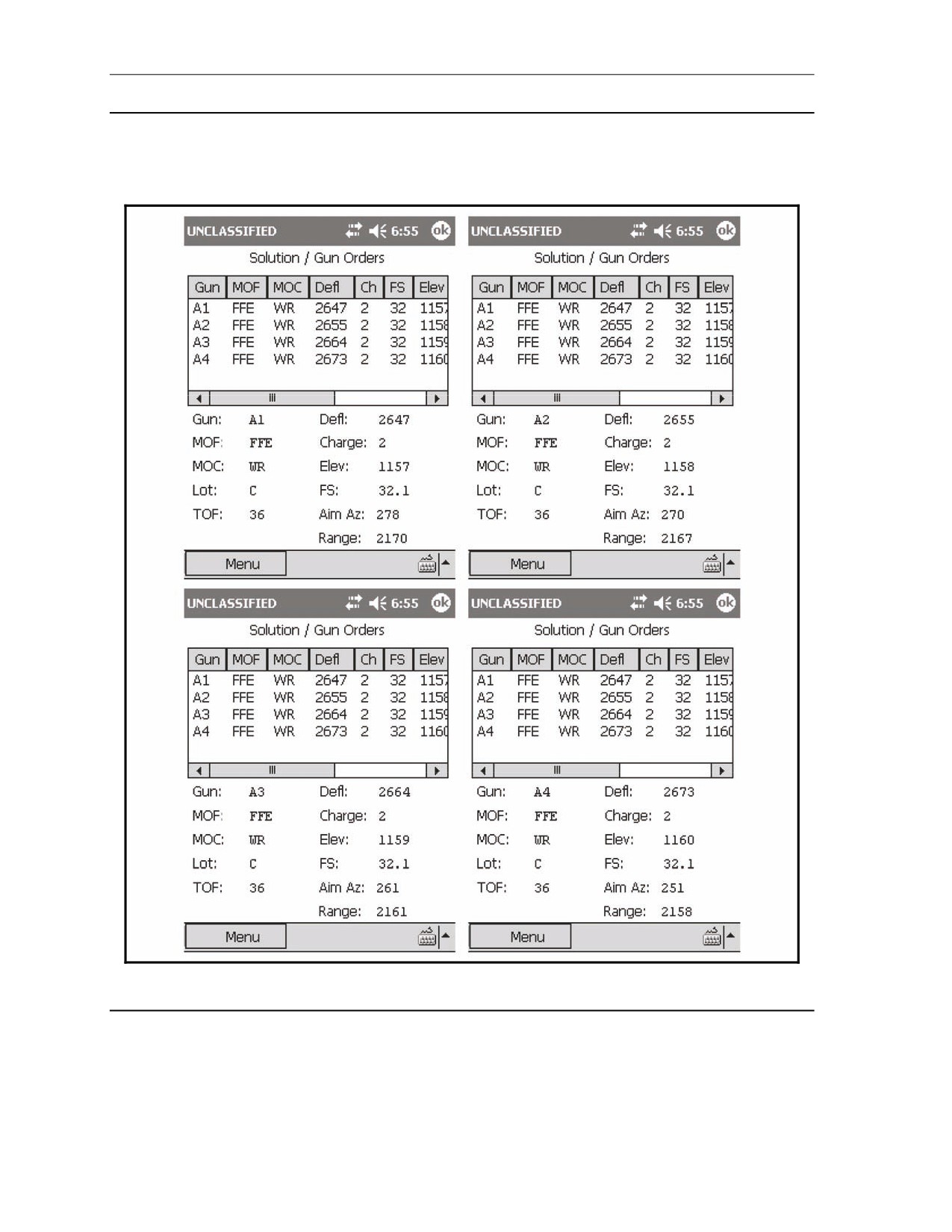
For this example (Figure 18-79), #4 gun is the upwind gun, so the section will fire a section left with a
12-second interval between rounds.
Figure 18-79. Quick Smoke: guns A1, A2, A3, and A4 solutions for the maintaining phase.
18-68
FM 3-22.91
17 July 2008
Fire Missions
(17) After the section announces, “All rounds complete,” the FDC sends an MTO of “All rounds
complete.”
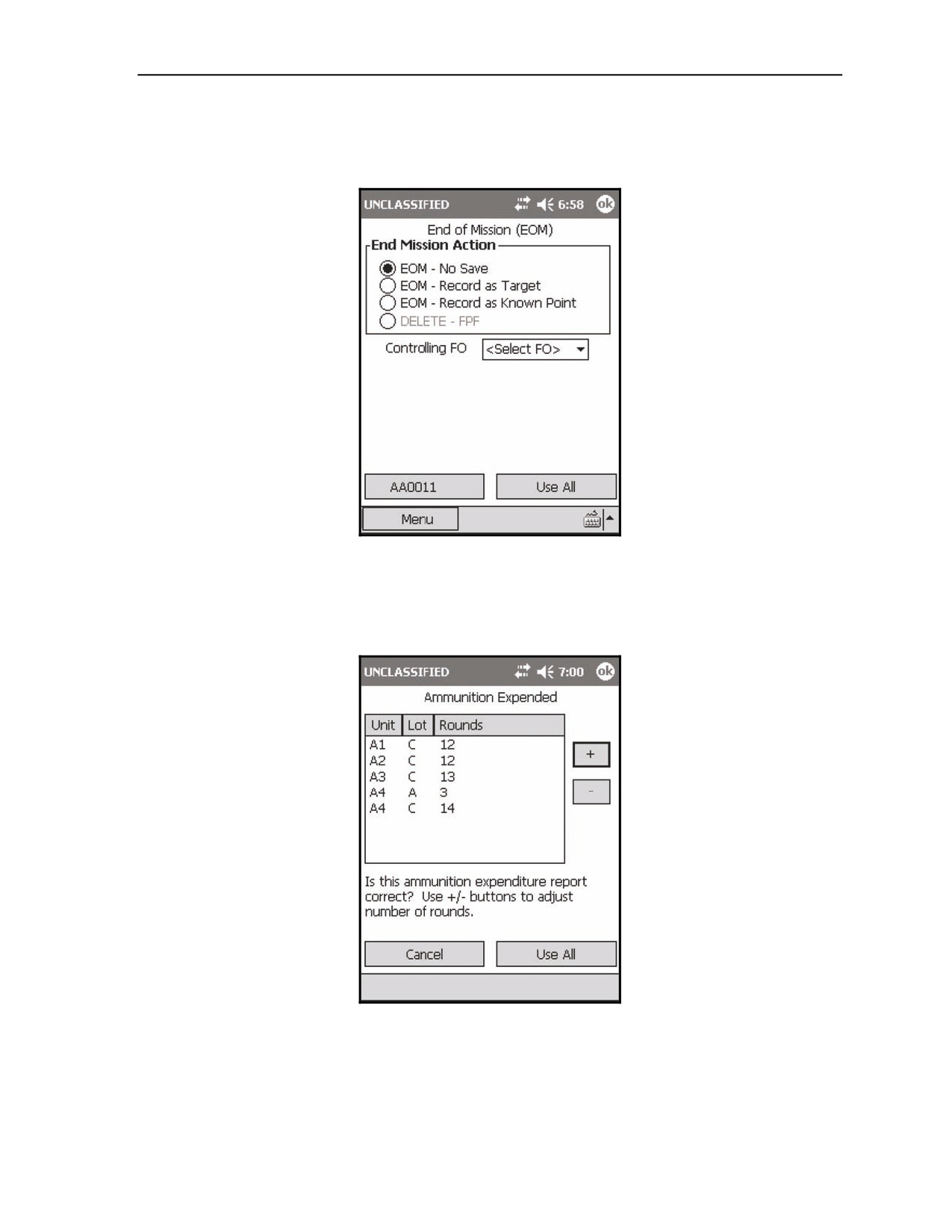
(18) Navigate to the EOM screen (Figure 18-80).
Figure 18-80. Quick Smoke: End of Mission screen.
(19) Select EOM - No Save, EOM - Record as Target, or EOM - Record as Known Point.
(20) Select Use All.
(21) The Ammunition Expended screen displays (Figure 18-81).
Figure 18-81. Quick Smoke: Ammunition Expended screen.
17 July 2008
FM 3-22.91
18-69
Chapter 18
(22) Update the ammunition manually.
NOTE: The quick smoke card is not integrated with the actual mission, so the ammunition
must be updated manually.
(23) Select Use All.
(24) The Status screen displays.
IMMEDIATE SMOKE AND IMMEDIATE SUPPRESSION MISSIONS
18-27. When engaging a planned target or a target of opportunity that has taken friendly forces under
fire, the FO announces (in the CFF) immediate smoke or immediate suppression. The delivery of fires is
performed as quickly as possible. Immediate response is more important than the accuracy of these fires.
Immediate Smoke Missions
18-28. The FO uses immediate smoke to obscure the enemy’s vision, allowing friendly forces to
disengage. It is not intended as a screening mission.
18-29. To initialize an immediate smoke mission—
(1) Select Menu.
(2) Select Manual Missions.
(3) Select Grid Msn.
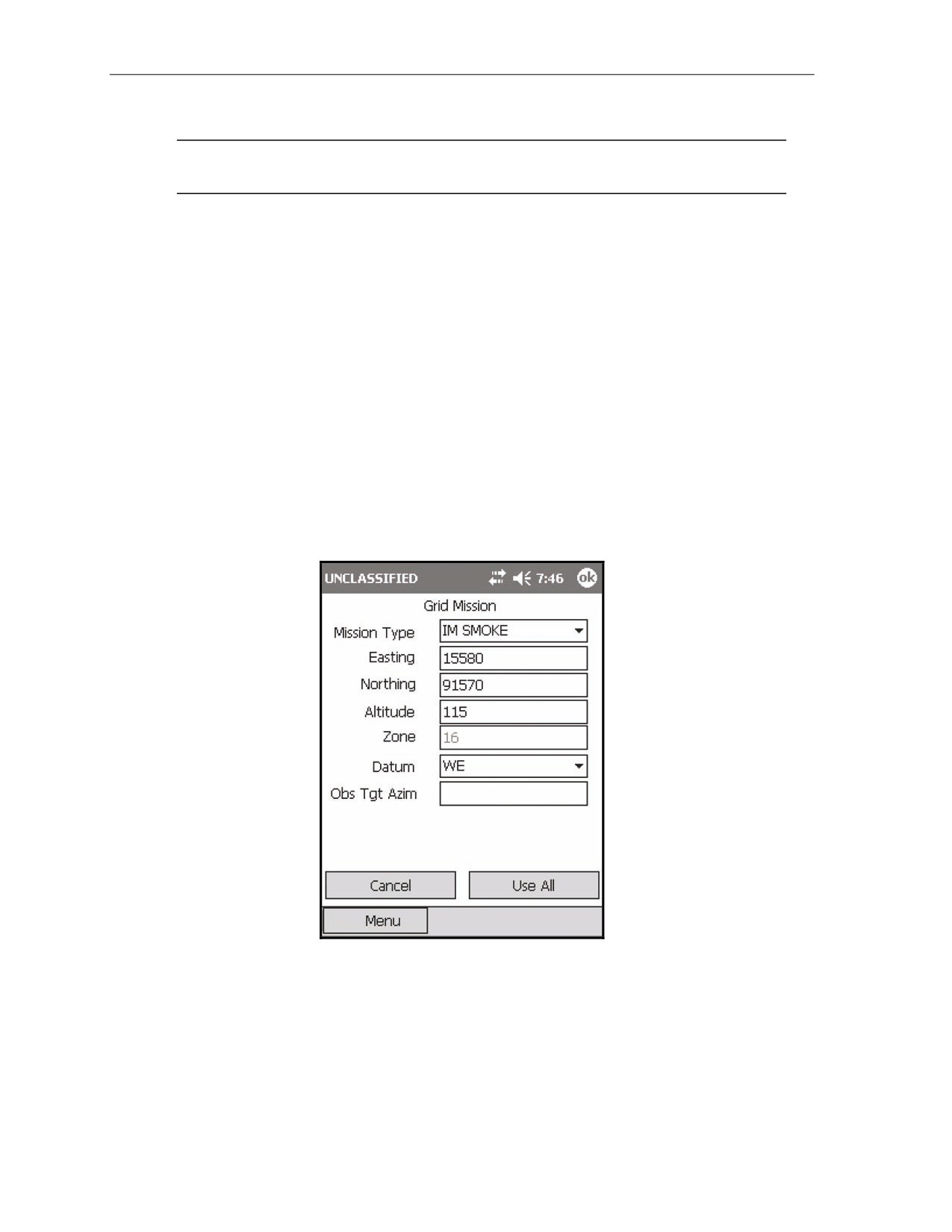
(4) Change the Mission Type to IM SMOKE, and complete the rest of the target location
information (Figure 18-82).
Figure 18-82. Immediate Smoke: Mission Initialization screen.
(5) Select Use All.
18-70
FM 3-22.91
17 July 2008
Fire Missions
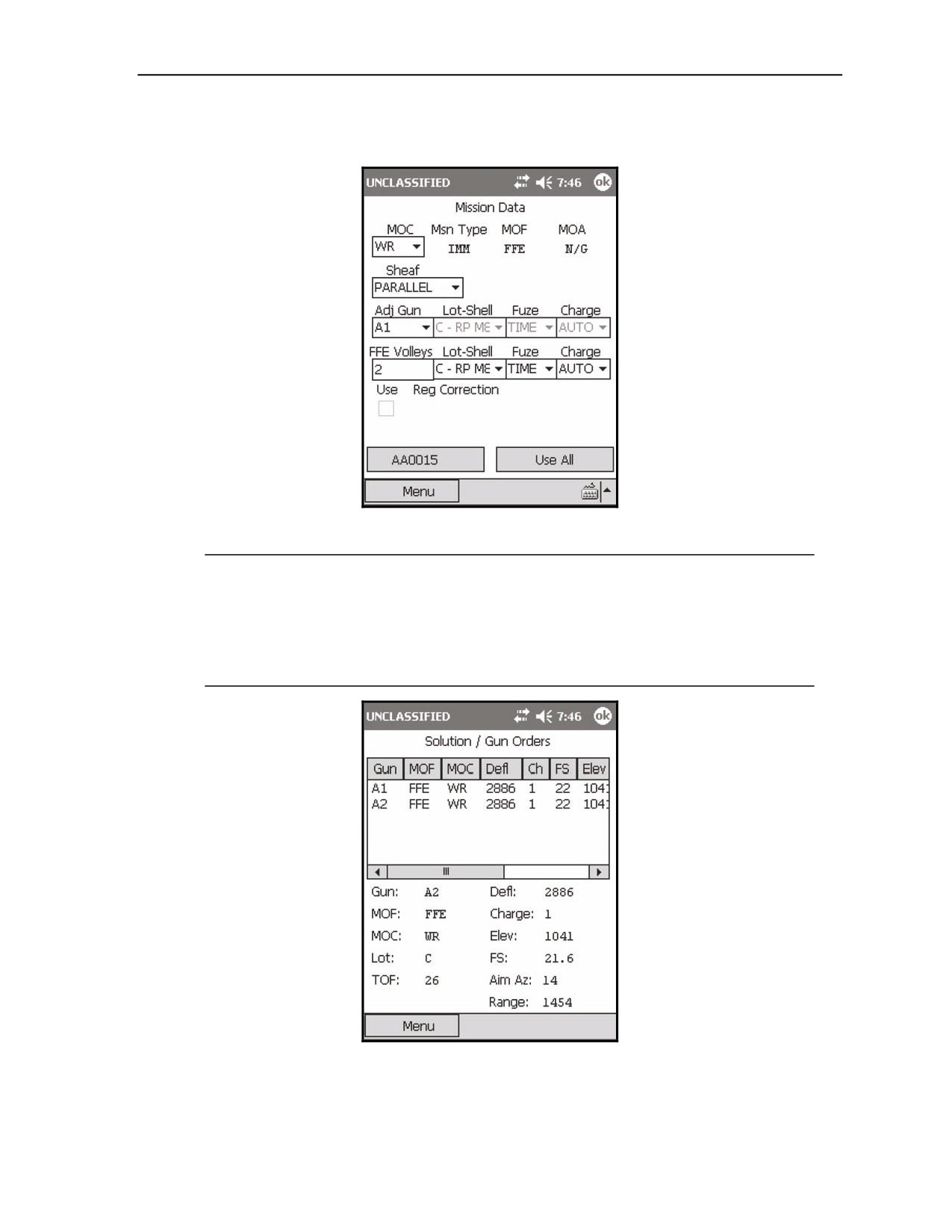
(6) The Mission Data screen displays with a default FFE Volleys of 2 rounds. The Lot-Shell will
default to RP/WP (Figure 18-83).
Figure 18-83. Immediate Smoke: Mission Data screen.
NOTES:
1. The adjusting gun is irrelevant. If adjustments are necessary, all guns included
in the mission will fire each adjustment.
2. The default number of guns that are included is two, A1 and A2 (Figure 18-84).
This may be scaled up or down depending on the target description. The number
of guns to be included in the mission may be changed from the Gun Select screen.
Figure 18-84. Immediate Smoke: Solution/Gun Orders screen.
(7) Upon receipt of an EOM from the FO, end the mission via the EOM screen (See paragraph 18-2).
17 July 2008
FM 3-22.91
18-71
Chapter 18
Immediate Suppression Missions
18-30. The FO uses immediate suppression to indicate that his unit is receiving enemy fire. His request
should be processed at once. These fires are used suppress the enemy and limit his ability to perform his
mission.
18-31. To initialize an immediate suppression mission—
(1) Select Menu.
(2) Select Manual Missions.
(3) Select Grid Msn.
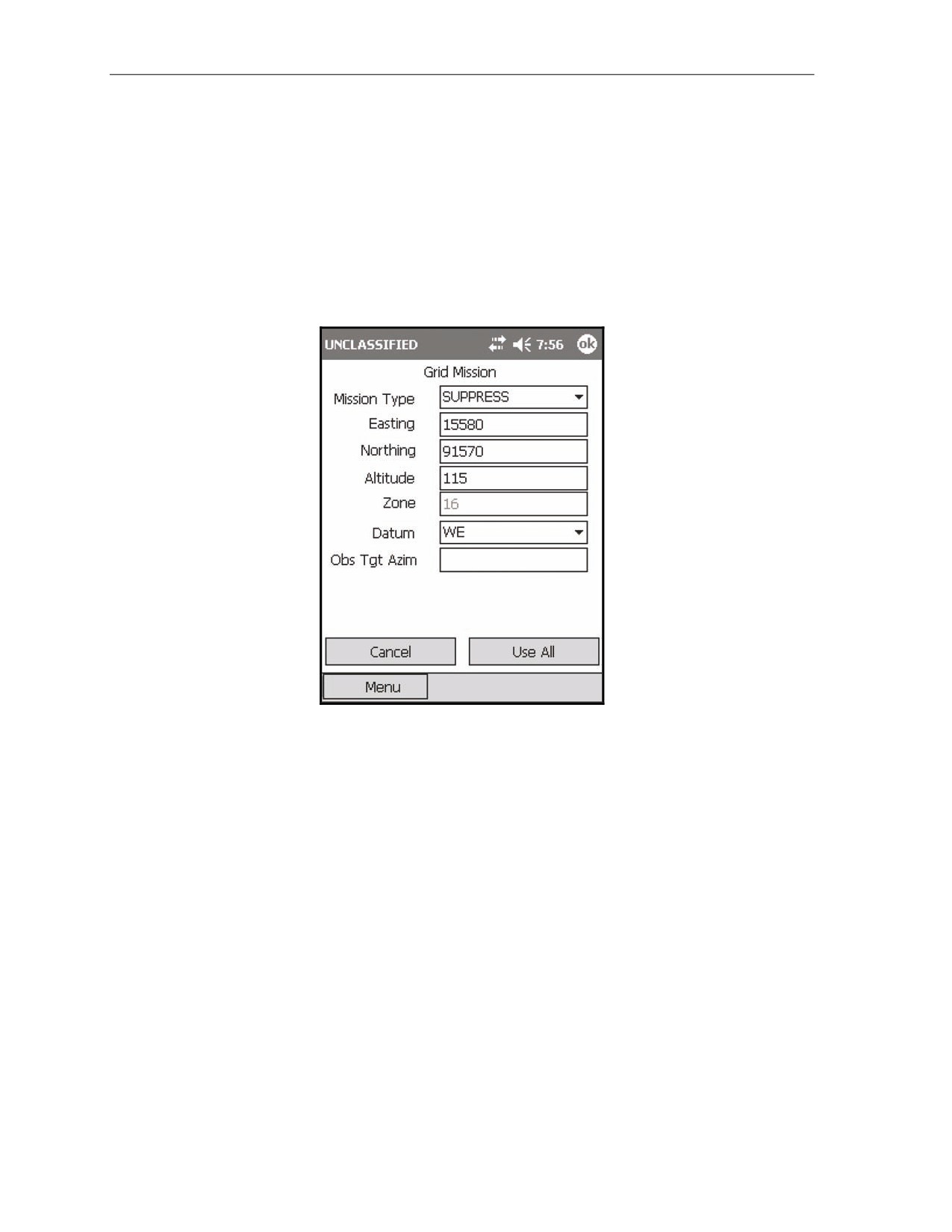
(4) Change the Mission Type to SUPPRESS, and complete the rest of the target location
information (Figure 18-85).
Figure 18-85. Immediate Suppression: Mission Initialization screen.
(5) Select Use All.
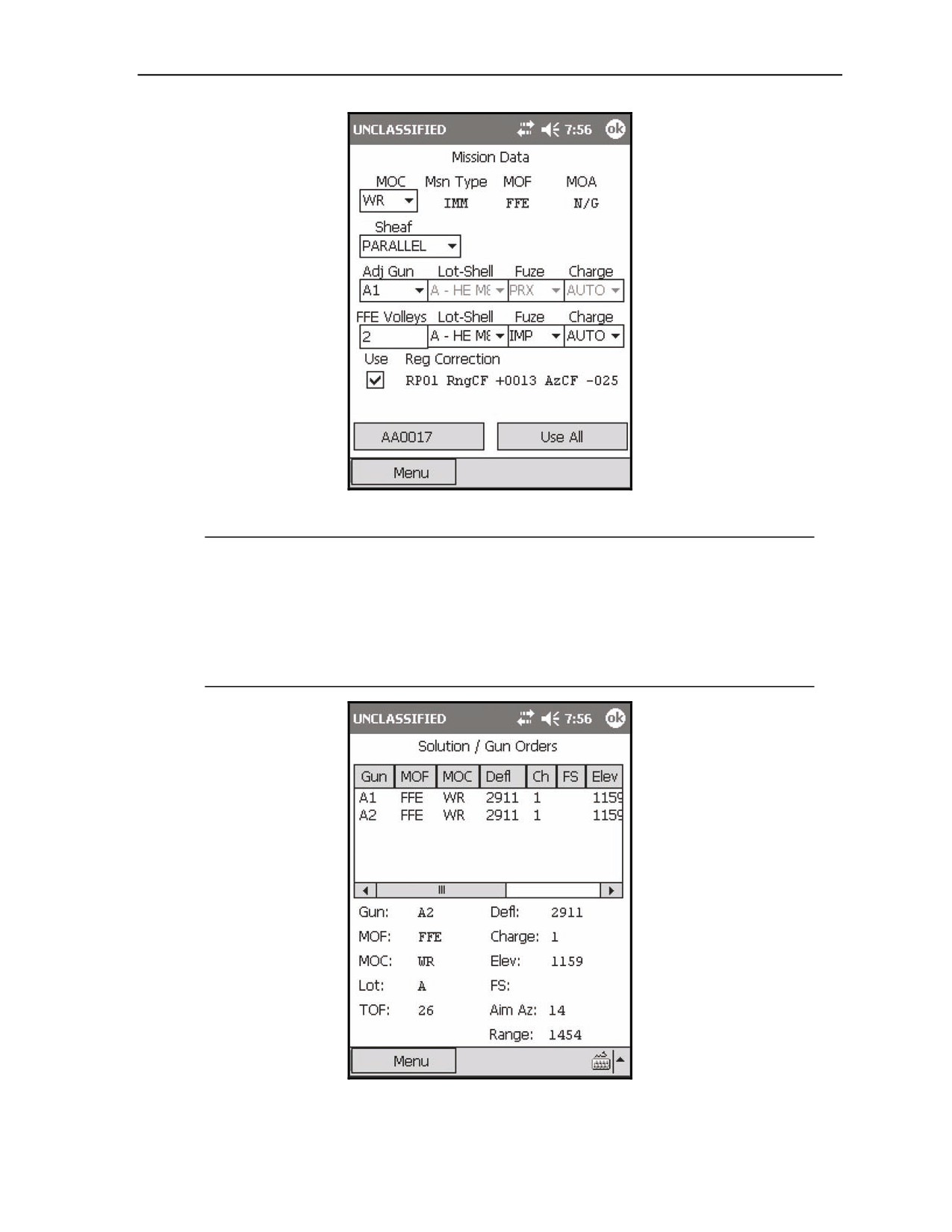
(6) The Mission Data screen displays with a default FFE Volleys of 2 rounds. The Lot-Shell
defaults to HE (Figure 18-86).
18-72
FM 3-22.91
17 July 2008
Fire Missions
Figure 18-86. Immediate Suppression: Mission Data screen.
NOTES:
1. The adjusting gun is irrelevant. If adjustments are necessary, all guns included
in the mission will fire each adjustment.
2. The default number of guns that are included is two, A1 and A2 (Figure 18-87).
This may be scaled up or down depending on the target description. The number
of guns to be included in the mission may be changed from the Gun Select
screen.
Figure 18-87. Immediate Suppression: Solution/Gun Orders screen.
17 July 2008
FM 3-22.91
18-73
Chapter 18
(7) Upon receipt of an EOM from the FO, end the mission via the EOM screen (see paragraph 18-2).
SEARCH AND TRAVERSE MISSIONS
18-32. Mortars use searching and traversing fire when target areas cannot be completely engaged with
linear or open sheaves. To increase the depth of a target area, mortars employ searching fire. To increase
the breadth of a target area, mortars employ traversing fire. Search and traverse may be employed
simultaneously to engage a target that is deeper and wider than a linear sheaf.
NOTES:
1. The example is given for a basic traverse mission, but search missions employ
similar procedures.
2. The LHMBC issues a warning when the gun-target line between individual guns
exceeds 300 mils and when the target is too wide.
3. Due to the angular difference between guns as they search or traverse across the
target area, the LHMBC limits the difference between gun-target lines for
individual guns to 300 mils. This restriction prevents the impact of rounds from
diverging as the guns fire subsequent rounds.
4. A warning will display if the difference in gun-target lines between guns
exceeds 150 mils.
18-33. To initialize a traverse mission—
(1) Select Menu.
(2) Select Manual Missions.
(3) Select Grid Msn.
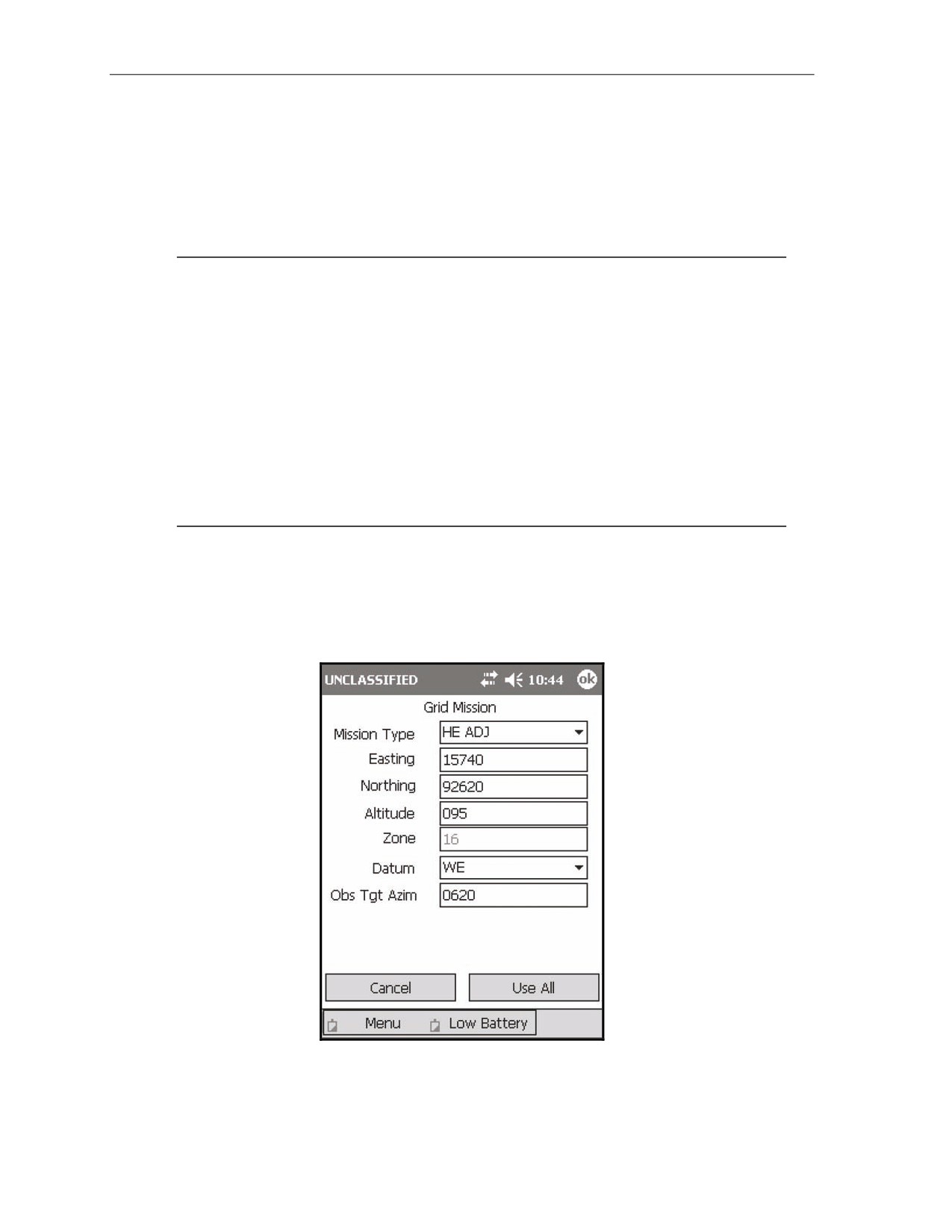
(4) The Grid Mission screen (Figure 18-88) displays.
Figure 18-88. Search and Traverse: Mission Initialization screen.
18-74
FM 3-22.91
17 July 2008
Fire Missions
(5) Enter the grid mission initialization data as described in paragraph 18-2.
(6) Select Use All.
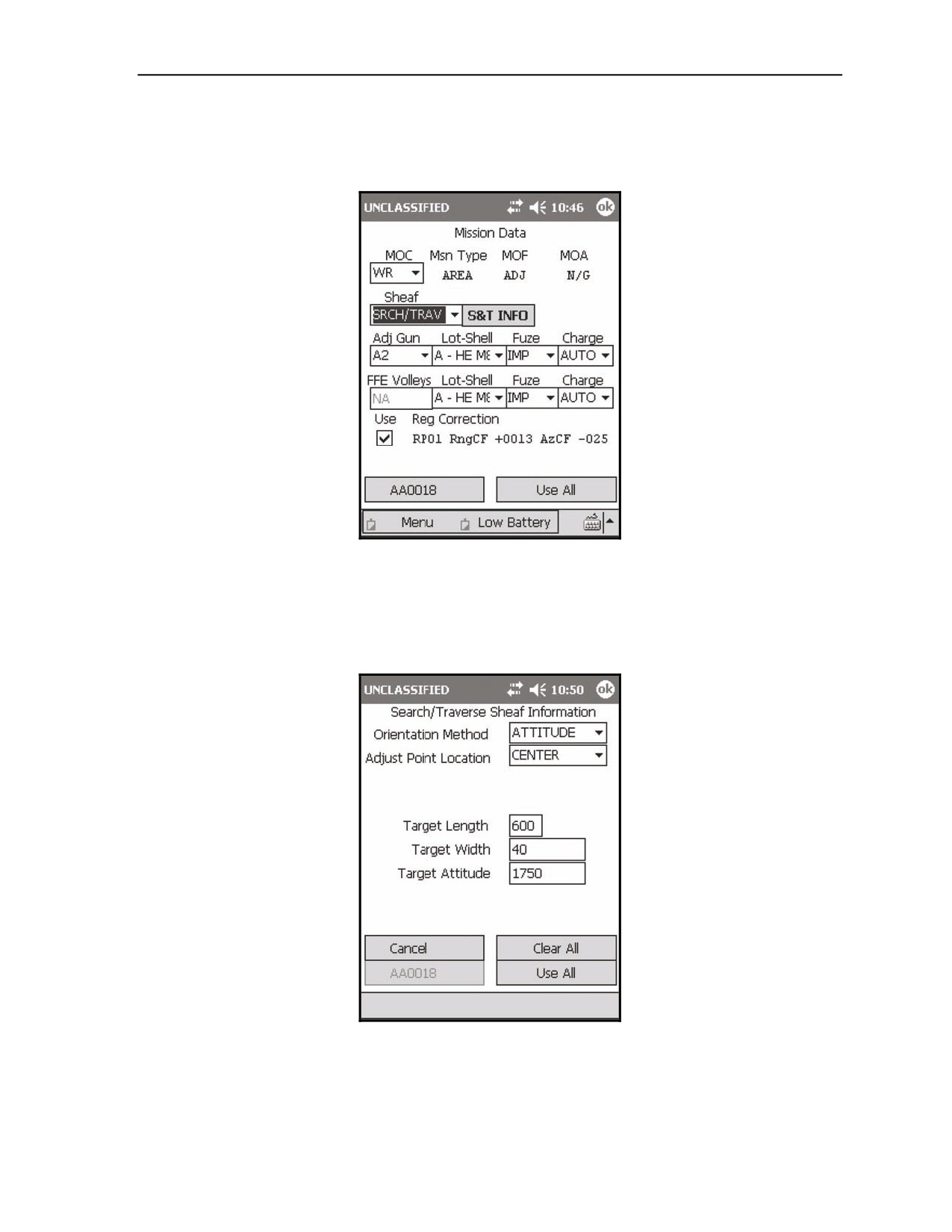
(7) The Mission Data screen (Figure 18-89) displays.
Figure 18-89. Search and Traverse: Mission Data screen.
(8) In the Sheaf field, change the sheaf to SRCH/TRAV.
(9) Select S&T INFO. The Search/Traverse Sheaf Information screen displays. The Search/Traverse
Sheaf Information screen (Figure 18-90) enables the FDC operator to define the target attitude,
the location of the adjusting point, and the size of the target area.
Figure 18-90. Search and Traverse Sheaf Information screen.
17 July 2008
FM 3-22.91
18-75
Chapter 18
(10) Use the fields outlined in Table 18-15 to enter and view information.
Table 18-15. Search and Traverse Sheaf Information screen fields and related information.
FIELD
RELATED INFORMATION
Orientation Method
This field can be set to use a second point (in addition to the initial point called in the
CFF) to determine the attitude of the target, or the actual attitude of the target may be
used.
Adjust Point Location
The FO must specify the adjusting point location to the controlling FDC. This field may
be set to FLANK or CENTER.
•
If the method selected is CENTER, the Target Length, Target Width, and
Target Attitude fields will display.
•
If FLANK is selected, two additional fields, Reference Direction and Reference
Azimuth, will display.
•
The Reference Direction defaults to GUN-TGT Line. This field may be
changed to OTHER to use, for instance, the OT azimuth.
(11) Select Use All.
(12) The Mission Data screen displays.
(13) Select Use All.
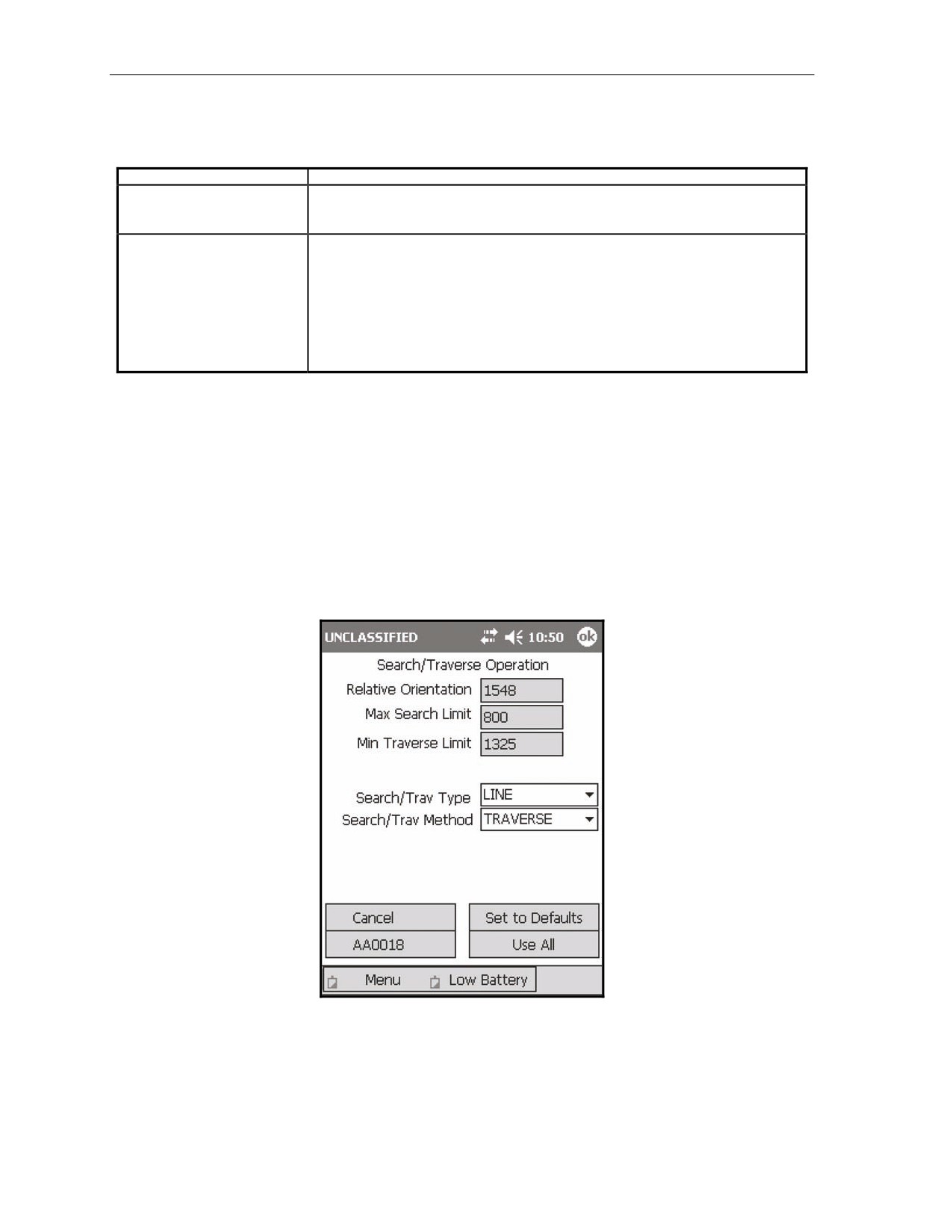
(14) The Search/Traverse Operation screen (Figure 18-91) displays. The Search/Traverse Operation
screen provides the FDC operator with—
Relative Orientation.
Max Search Limit.
Max Traverse Limit.
Search/Trav Type.
Search/Trav Method.
Figure 18-91. Search and Traverse Operation screen.
18-76
FM 3-22.91
17 July 2008
Fire Missions
(15) Use the fields outlined in Table 18-16 to enter and view information.
NOTE: See Table 18-17 for more information about the types and methods outlined in these
fields.
Table 18-16. Search and Traverse Sheaf Operation screen fields and related information.
FIELD
RELATED INFORMATION
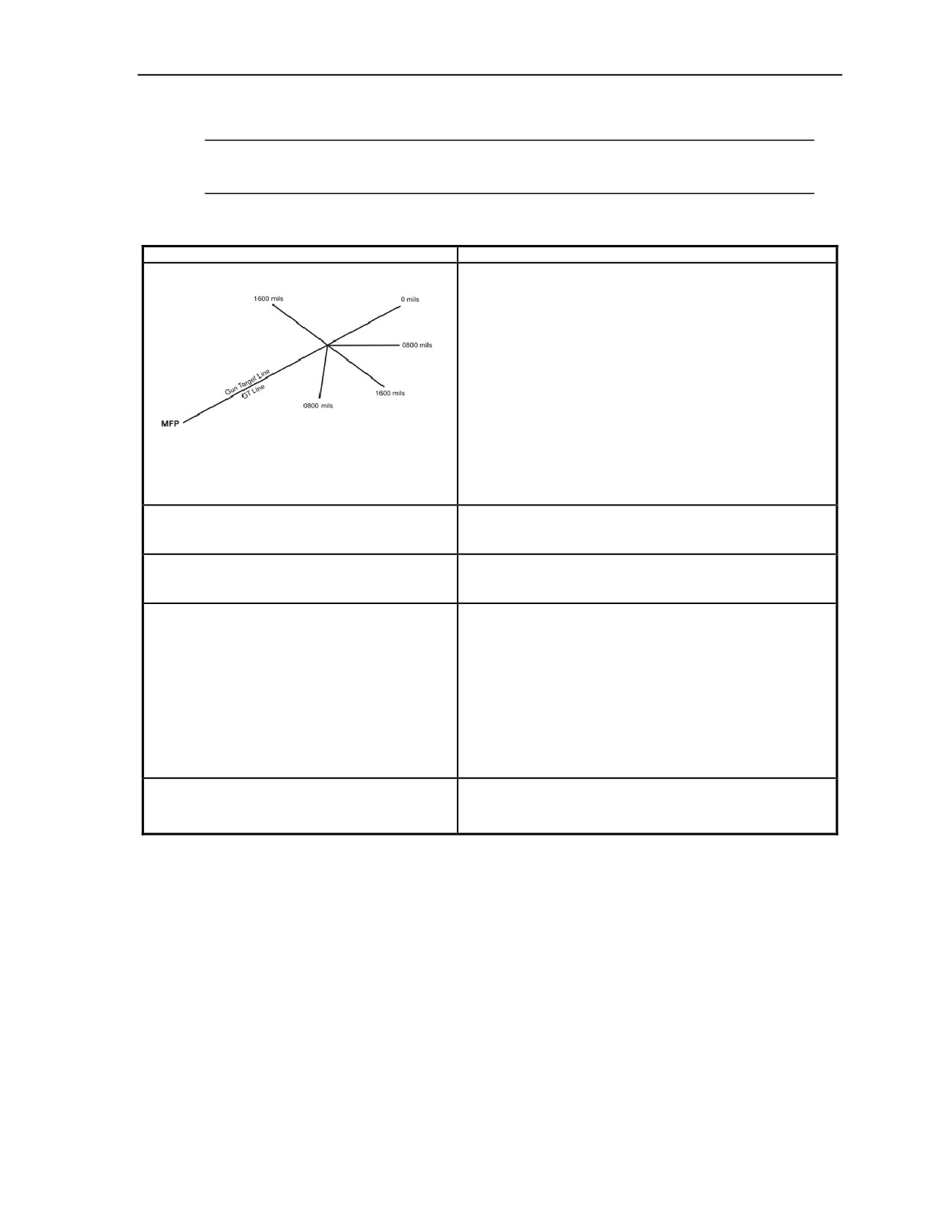
Relative Orientation
The relative orientation is the angular difference, in mils, between
the gun-target line and the target's attitude. The relative
orientation will always be measured between 0 mils (in-line with
the gun-target line) and 1600 mils (perpendicular to the gun-target
line).
The LHMBC will recommend—
•
SEARCH when the relative orientation is nearly 0 mils.
•
TRAVERSE when the relative orientation is nearly 1600
mils.
•
COMBINED search and traverse when the burst radius
of the round is not sufficient to cover the target area
using strictly search or traverse. Although the LHMBC
recommends a search and traverse method, the
LHMBC operator may change to a method he deems
appropriate.
Max Search Limit
This field displays the maximum relative orientation for a search
mission to cover the target area effectively, based on segment
length and burst radius.
Max Traverse Limit
This field displays the minimum relative orientation for a traverse
mission to cover the target area effectively, based on segment
width and burst radius.
Search/Trav Type
This may be either LINE or AREA.
•
A line mission is used to engage a target that does not
exceed the burst diameter of the ammunition being
used to engage the target. The LHMBC has the ability
to calculate both search and traverse missions using
the line method.
•
An area mission is used to engage a target that
exceeds the burst diameter of the ammunition being
used to engage the target. The LHMBC has the ability
to calculate both search and traverse missions using
the area method.
Search/Trav Type
This field may be set to SEARCH, TRAVERSE, or COMBINED
(Table 18-17). The LHMBC operator may change to a method he
deems appropriate.
17 July 2008
FM 3-22.91
18-77
Chapter 18
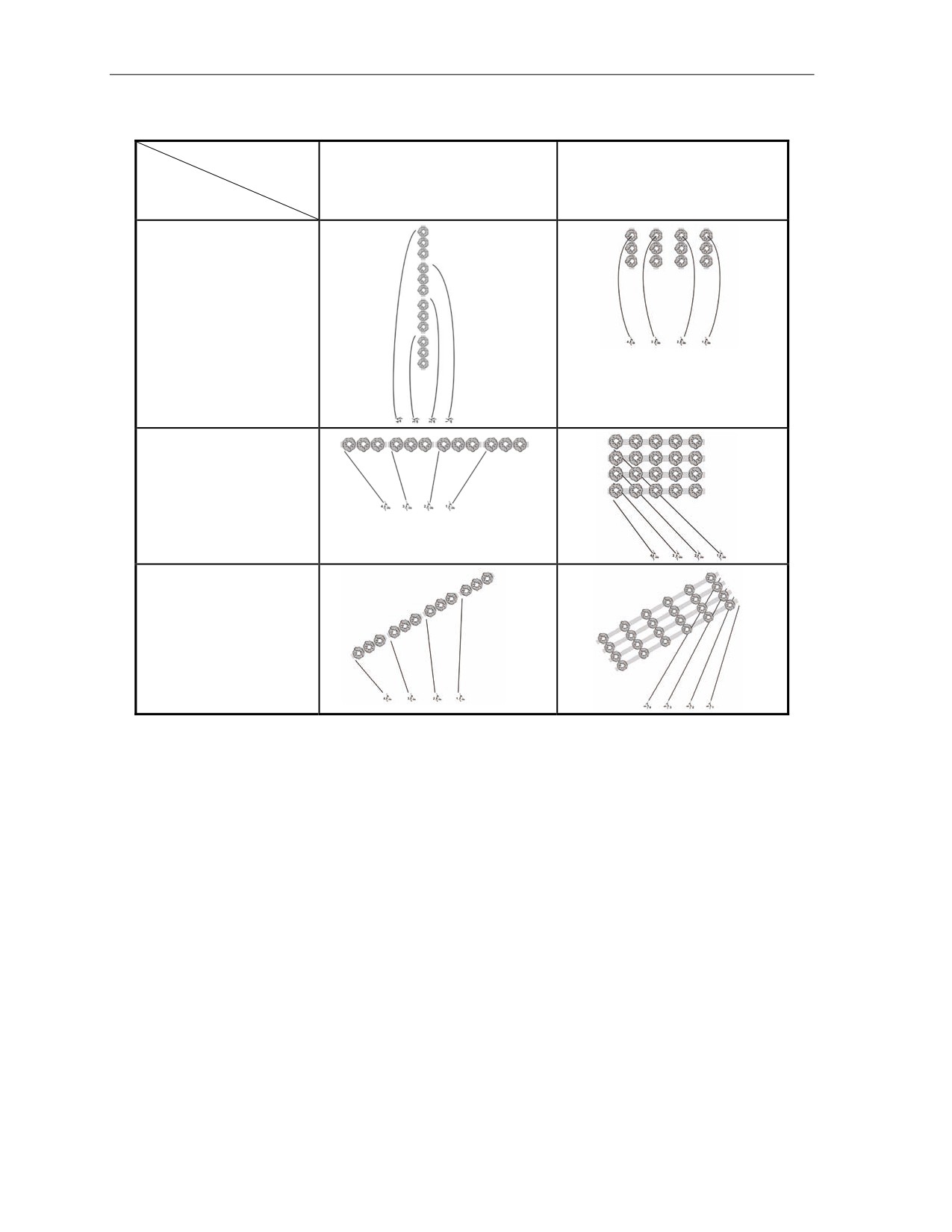
Table 18-17. Search and Traverse types and methods.
Search and
LINE
AREA
Traverse Type
Search and
Traverse Method
Search
Traverse
Combined Search and
Traverse
18-78
FM 3-22.91
17 July 2008
Fire Missions
(16) Select Use All.
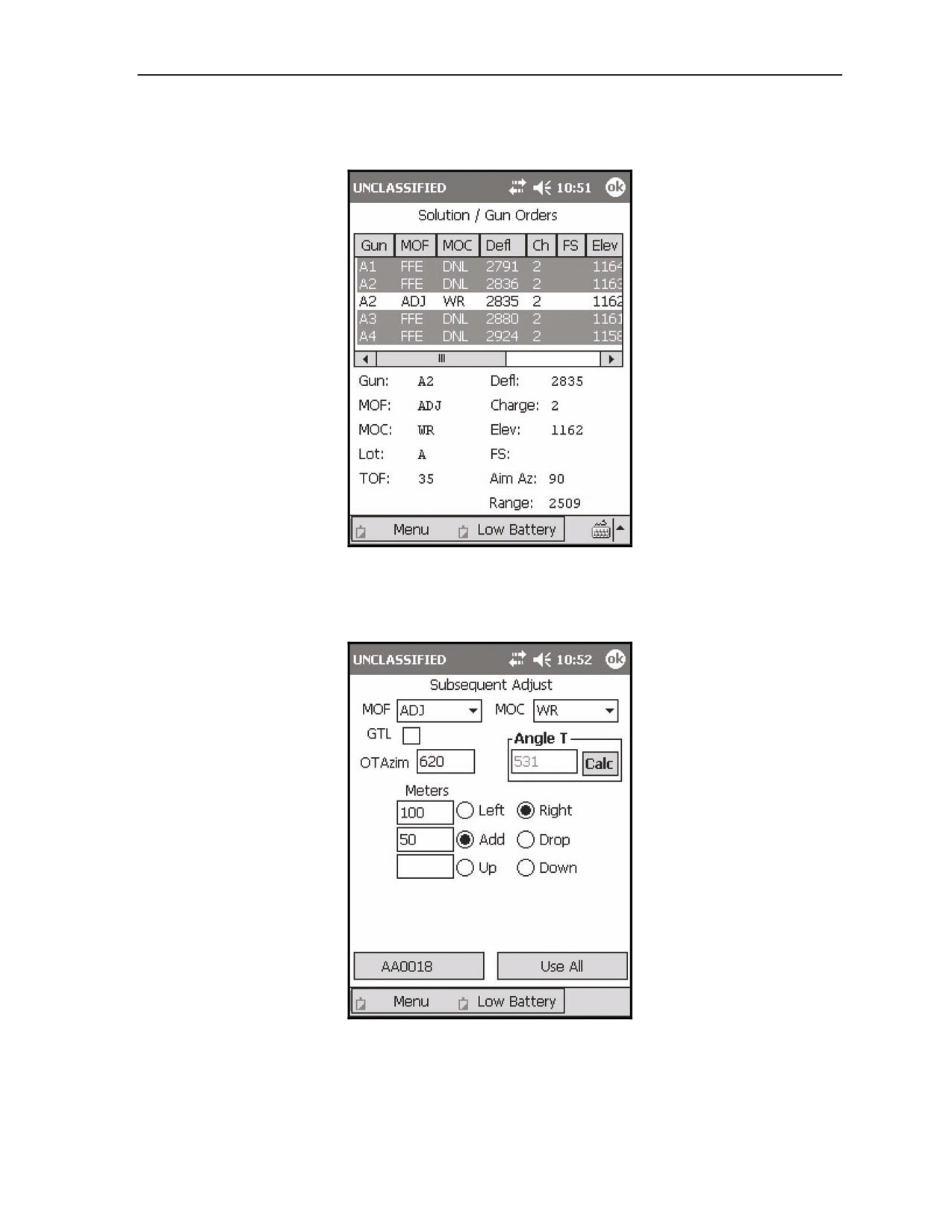
(17) The Solution/Gun Orders screen (Figure 18-92) displays.
Figure 18-92. Search and Traverse: initial solution.
(18) Conduct the adjustment phase of the mission in the same manner as a conventional manual
mission (Figures 18-93 and 18-94).
Figure 18-93. Search and Traverse: first adjustment.
17 July 2008
FM 3-22.91
18-79

Chapter 18
Figure 18-94. Search and Traverse: second solution.
(19) Upon receipt of the FFE command from the FO, from the Subsequent Adjust screen (Figure 18-
95), change the MOF to FFE, and enter any last refinements.
Figure 18-95. Search and Traverse: final adjustment.
18-80
FM 3-22.91
17 July 2008
Fire Missions
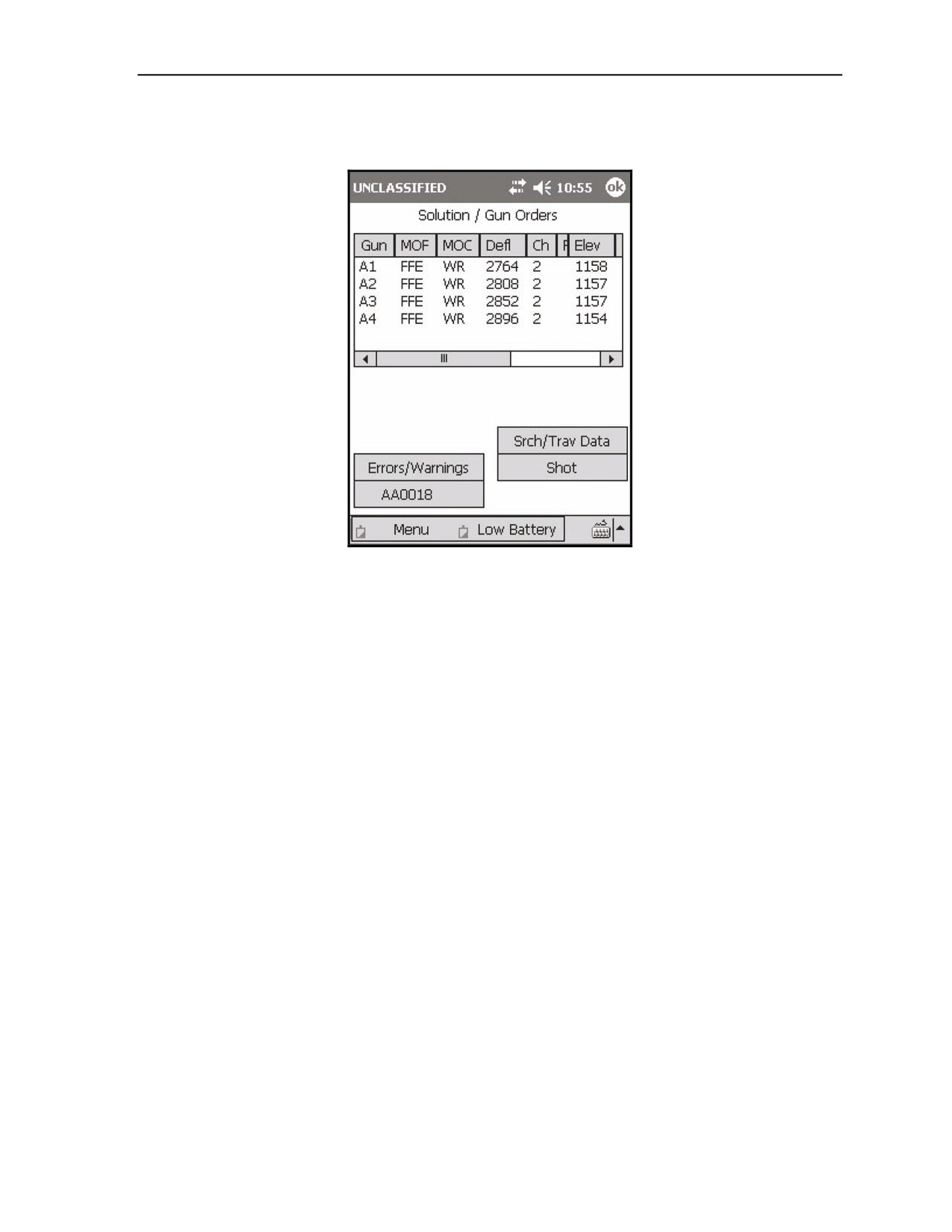
(20) Select Use All.
(21) The Solution/Gun Orders screen (Figure 18-96) displays.
Figure 18-96. Search and Traverse: fire for effect solution.
17 July 2008
FM 3-22.91
18-81
Chapter 18
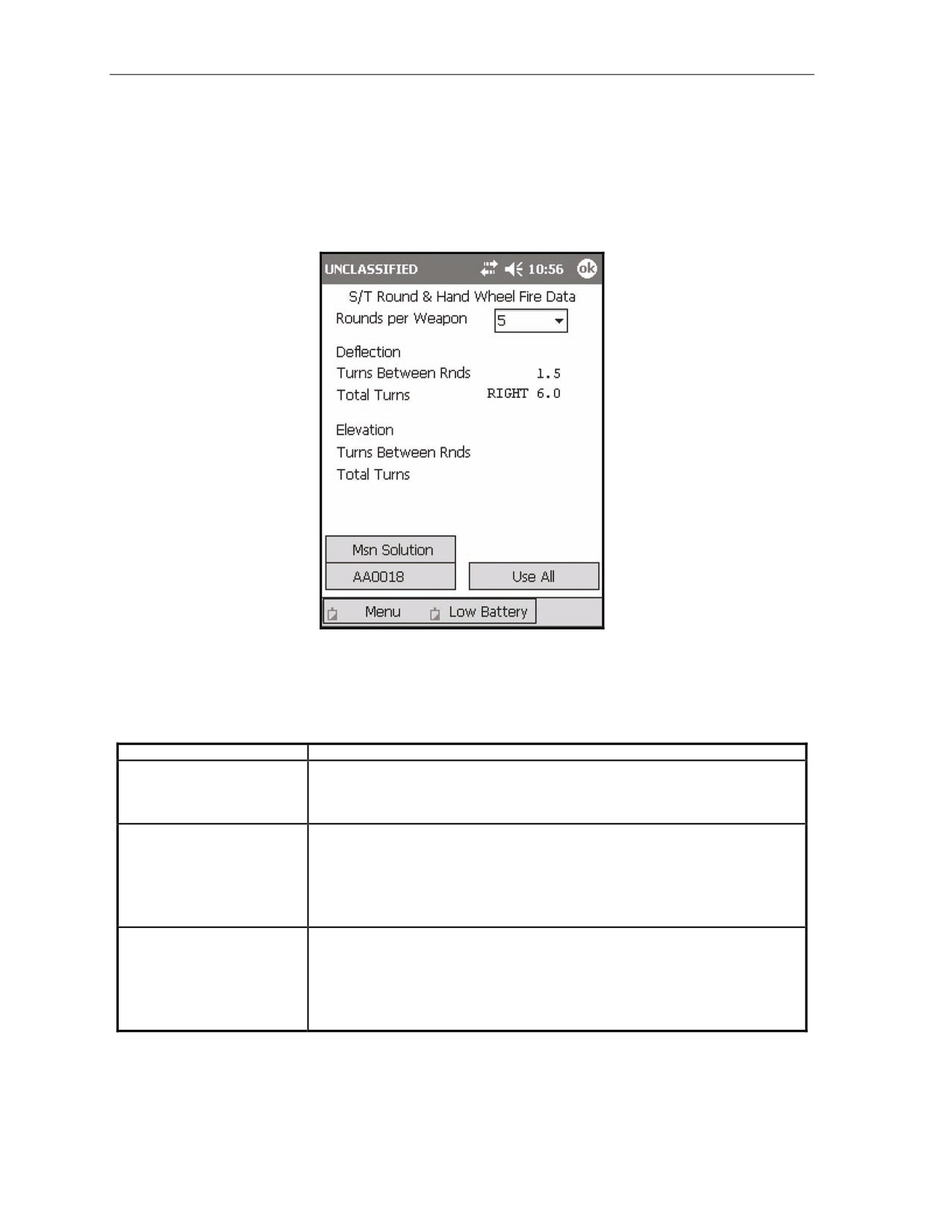
(22) Select Srch/Trav Data.
(23) The S/T Round and Hand Wheel Fire Data screen (Figure 18-97) displays. This screen is
comprised of the following fields:
Rounds per Weapon.
Deflection.
Elevation.
Figure 18-97. Search and Traverse Round and Hand Wheel Fire Data screen.
(24) Use the fields outlined in Table 18-18 to enter and view information.
Table 18-18. Search and Traverse Round and Hand Wheel Fire Data screen fields
and related information.
FIELD
RELATED INFORMATION
Rounds per Weapon
This field defaults to the number of rounds required to properly engage the target area
depending upon the burst radius of the given munitions. This field may be changed to a
lesser number of rounds, which will decrease the effectiveness of the engagement, but
will conserve ammunition.
Deflection
These two fields correspond to traversing across the target area.
•
Turns Between Rnds: This field is read only. The number of turns between
rounds will be adjusted according to the number of rounds to be fired.
•
Total Turns: The total number of turns and the direction to be traversed. This
is calculated by subtracting one from the number of rounds per weapon,
multiplied by the deflection turns between rounds.
Elevation
These two fields correspond to searching across the target area.
•
Turns Between Rnds: This field is read only. The number of turns between
rounds will be adjusted according to the number of rounds to be fired.
•
Total Turns: The total number of turns and the direction to be traversed. This
is calculated by subtracting one from the number of rounds per weapon,
multiplied by elevation turns between rounds.
18-82
FM 3-22.91
17 July 2008
Fire Missions
(25) Record this data on DA Form 2399-R.
(26) Select Use All.
(27) The Solution/Gun Orders screen displays.
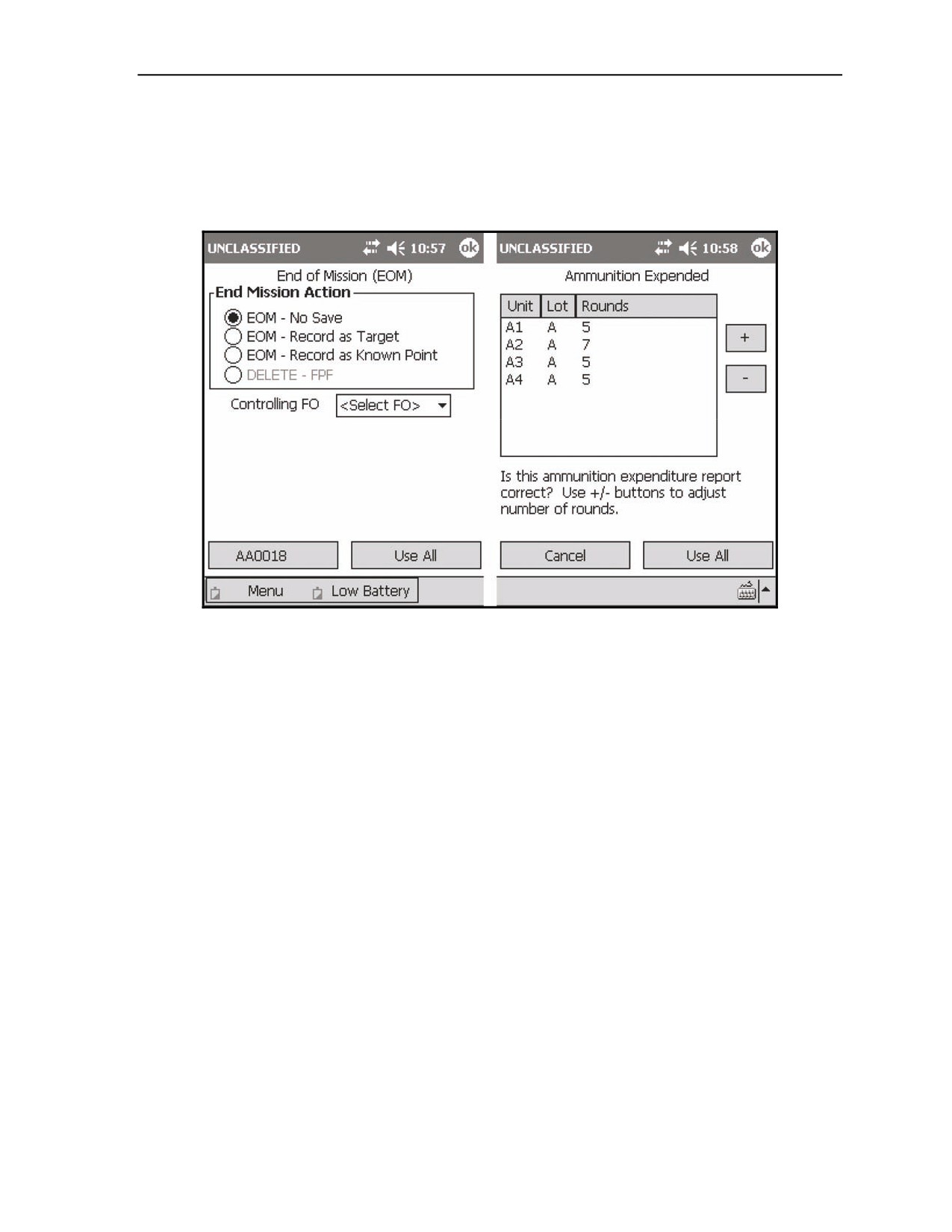
(28) End the mission, and record the ammunition expenditure in the same manner as a standard
manual mission (paragraph 18-2, Basic Manual Missions) (Figure 18-98).
Figure 18-98. Search and Traverse: End of Mission and Ammunition Expended screens.
17 July 2008
FM 3-22.91
18-83