FM 3-22.91 MORTAR FIRE DIRECTION PROCEDURES (July 2008) - page 10
Chapter 16
SUBSEQUENT MESSAGES TO ADJUST ALL THE GUNS
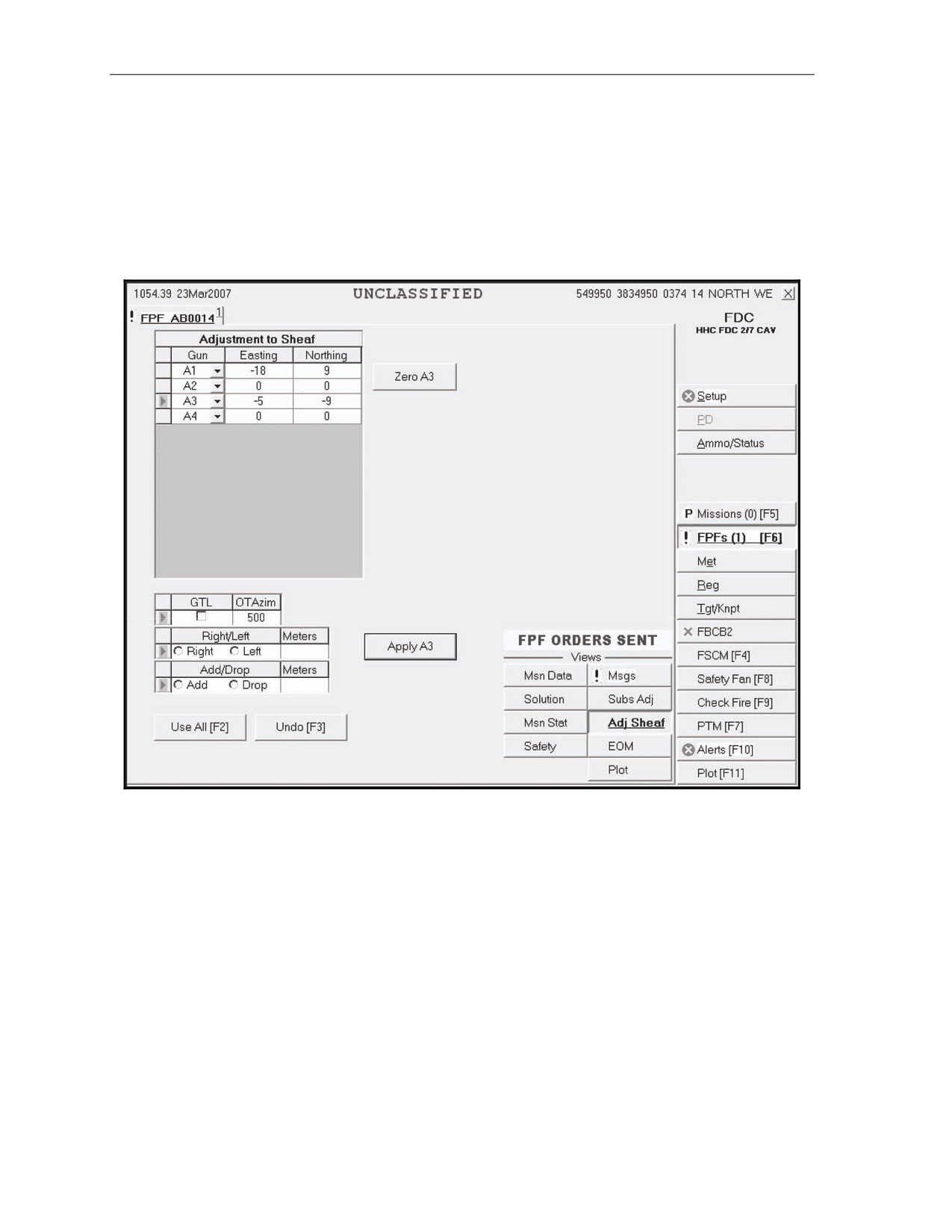
16-77. Once the first gun is adjusted in the sheaf, the FO may transition to each of the other guns until all
are properly adjusted (Figure 16-34). The FDC operator must change the MOF from ADJ to FFE. The Adj
Sheaf button becomes active. The operator enters the OT azimuth or, if the OT azimuth is not available or
not given, uses the GT azimuth. The operator selects the Adj Sheaf button and enters the correction for
each gun by selecting the gun in the Adjustment to Sheaf menu and entering the appropriate correction.
Then, he selects the Apply <Gun number> button. The correction displays in relation to the total correction
to the easting and the total correction to the northing of the burst point grid for the firing gun.
Figure 16-34. Subsequent Adjust screen.
16-40
FM 3-22.91
17 July 2008
Fire Missions
END OF MISSION AND STORE THE FINAL PROTECTIVE FIRE
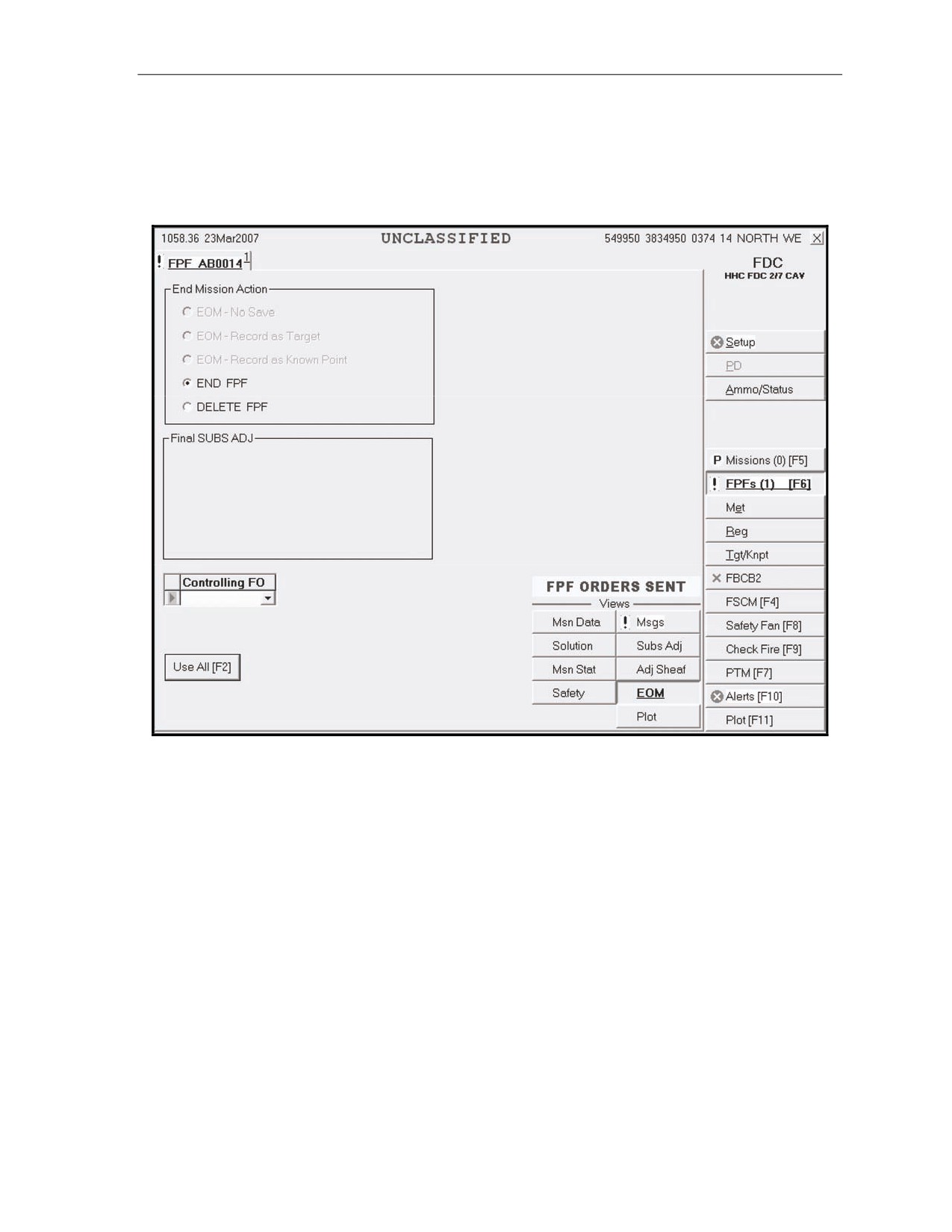
16-78. When the FO or FC orders an EOM, the operator stores the FPF using the EOM screen (Figure
16-35). The EOM-Store FPF option is the only available selection. The operator selects the down arrow in
the Controlling FO field, chooses the correct FO participating in the mission, and then selects Use All. The
Subsequent Message screen is displayed, stating “End of Mission” and the target number.
Figure 16-35. Solution End of Mission screen.
17 July 2008
FM 3-22.91
16-41
Chapter 16
Mission Status Screen
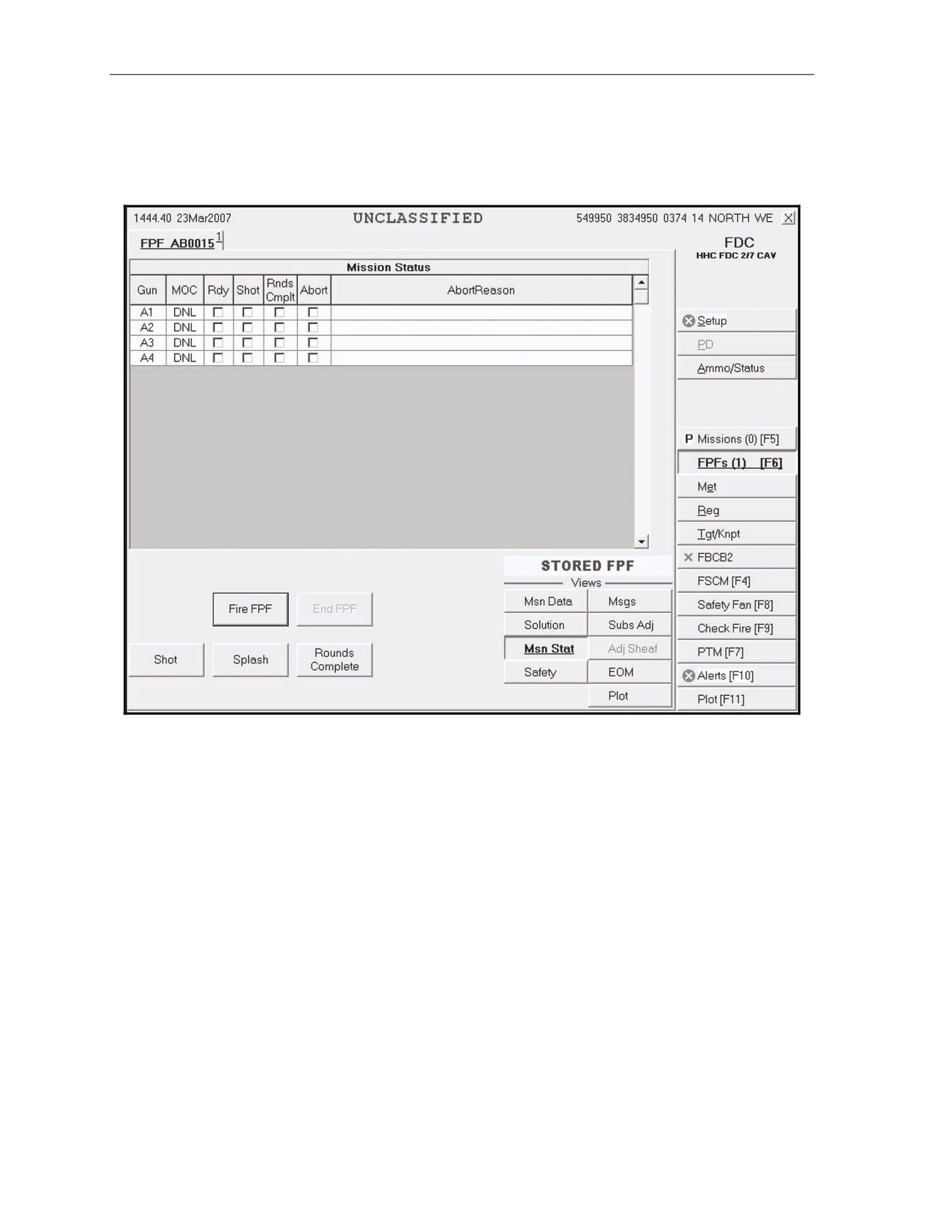
16-79. The words "Stored FPF" are displayed in blue letters over the Views section (Figure 16-36). The
FPF is stored in the FPF buffer and in the gun FPF buffer until the operator receives a plain text or radio
message to fire the FPF.
Figure 16-36. Mission Status screen.
CALL FOR FIRE FROM THE FIRE SUPPORT ELEMENT OR FORWARD OBSERVER TO FIRE THE
FINAL PROTECTIVE FIRE
16-80. Upon receipt of the fire FPF message, the operator selects FPF to bring up the FPF buffer. He
selects the appropriate FPF tab, selects the Msn Stat button in the Views section, and selects Fire FPF. The
operator receives a message to “Confirm Send Fire FPF to Guns.” He selects OK. The Fire FPF button is
shaded, and the End FPF button is displayed. After the guns send “Shot,” the Shot and Splash buttons are
shaded. When ammunition is exhausted, the Rnds Cmplt button is shaded, and End FPF becomes available.
The operator selects End FPF, receives a message to “Confirm Send End FPF to Guns,” and selects OK.
16-42
FM 3-22.91
17 July 2008
Fire Missions
ENDING THE FINAL PROTECTIVE FIRE MISSION
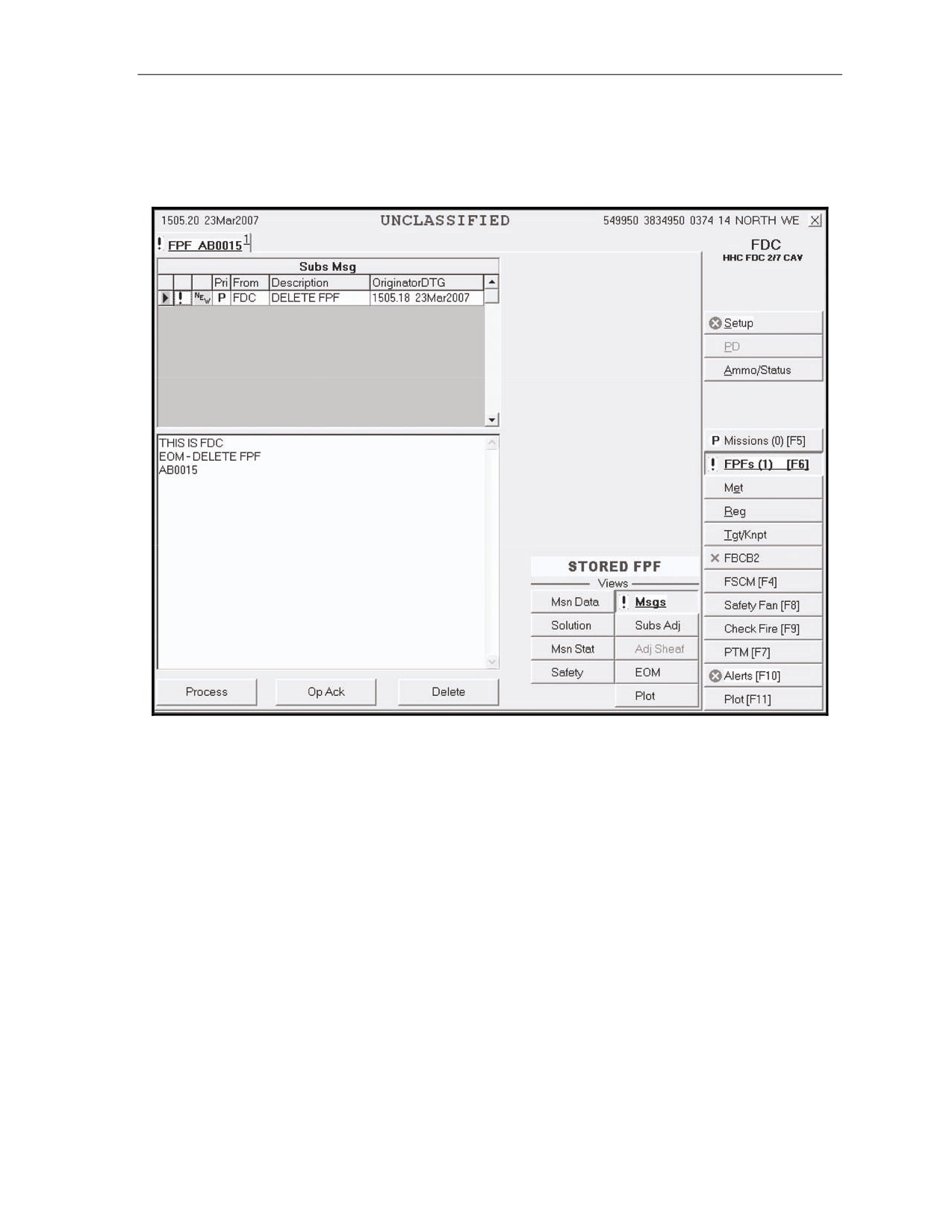
16-81. The operator selects EOM. Delete FPF is the only option. He selects Use All, and the Messages
screen (Figure 16-37) appears. The operator selects Process and deletes the active FPF, which sends a
“Delete FPF” message to the guns and automatically deletes the FPF from their buffer.
Figure 16-37. Messages screen.
MANUALLY CONDUCTED FINAL PROTECTIVE FIRE MISSIONS
16-82. Procedures for a manual FPF mission are similar to those for a digital mission. The only
differences are that the operator must manually initiate the CFF, manually process all adjustments, and
manually select EOM to end the mission.
SMOKE MISSIONS
16-83. Smoke missions are used to conceal ground maneuver, obstacle breaching, and recovery
operations, as well as key assembly areas, supply routes, and logistical facilities. The two types of smoke
missions are quick and immediate.
17 July 2008
FM 3-22.91
16-43
Chapter 16
QUICK SMOKE MISSIONS
16-84. Smoke missions are conducted using a combination of the MFCS and traditional FDC procedures.
The standard smoke mission covers 500 meters for a period of 10 minutes, but this width and time can be
adjusted depending on the mission requirements. The four primary steps in a smoke mission are:
z
The CFF and adjustment.
z
The calculation of the rounds required using the smoke card.
z
The establishment of the smoke screen.
z
The maintenance of the smoke screen.
Call for Fire and Adjustment of the Smoke Mission
16-85. The smoke mission is received digitally or by radio as a standard new CFF. The FO, the MFCS
operator, and the gun adjust the fires using HE. Due to ballistic differences between the HE and smoke
shell and varying wind conditions, a smoke round is fired to confirm the adjustments and wind conditions
in the target area.
Calculation of the Rounds Required Using the Smoke Card
16-86. As the rounds are adjusted, the section sergeant uses the smoke card to determine the number of
rounds required to sustain the smoke screen based on relative humidity, temperature gradient, and wind
speed.
NOTE: See Chapter 9 for details about use of the smoke card.
Establishing the Smoke Screen
16-87. Once the adjustments are made, the guns fire 12 smoke cartridges to establish the curtain. The
M819RP 81-mm smoke cartridge uses a time setting to burst the red phosphorous approximately 175
meters above the target area. The M929WP 120-mm smoke cartridge uses the 120-mm PROX setting to
burst the cartridge 14 feet above the target area.
Maintaining the Smoke Screen
16-88. The guns fire the number of rounds per minute needed to sustain the smoke screen. The FDC
controls these fires by alternating fire between the guns assigned to the mission.
IMMEDIATE SMOKE MISSIONS
16-89. The primary requirement for an immediate smoke mission is speed. The CFF is usually conducted
by voice radio. Manual MFCS methods are used, with the MFCS operator entering the data and then
selecting the Immediate Smoke button.
16-44
FM 3-22.91
17 July 2008
Part Six
Lightweight Handheld
Mortar Ballistic Computer
Chapter 17
Introduction
The LHMBC is a lightweight ruggedized personal digital assistant (RPDA) that has
replaced the M23 MBC in IBCTs. It provides the essential functions of the MFCS
with similar software in a portable package and allows the operator to quickly
calculate accurate ballistic solutions for all current US Army mortar cartridges. The
basic model of the LHMBC can be expanded to include global positioning system
(GPS) and digital communications.
SECTION I. INITIALIZATION AND CONFIGURATION
This section discusses the introduction, initialization, and configuration of the LHMBC.
DESCRIPTION
17-1.
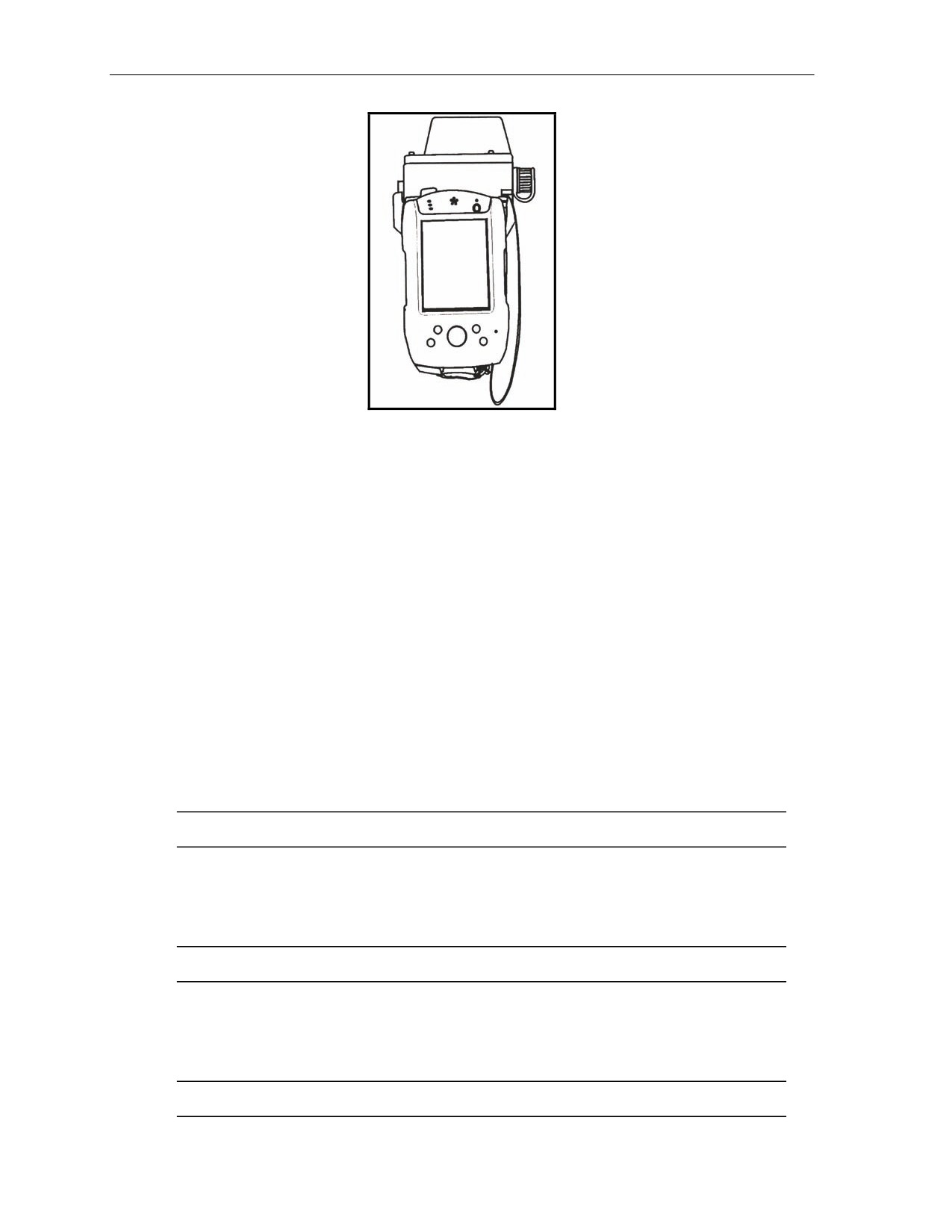
The LHMBC (Figure 17-1) is an automated fire control system designed to improve the command
and control of mortar fires and the speed of employment, accuracy, and survivability of mortars. The
system is comprised of the LHMBC software package installed in an RPDA. The LHMBC software can be
easily upgraded or reinstalled from either a secure digital (SD) card or the onboard system ROM. System
accuracy can be increased through the use of a GPS and digital MET messages. The LHMBC allows for
self-surveying mortars, digital CFF exchange, and automated ballistic solutions.
NOTE: See TM 9-1220-252-12 & P for additional operator instructions on the LHMBC.
17 July 2008
FM 3-22.91
17-1
Chapter 17
Figure 17-1. Lightweight handheld mortar ballistic computer.
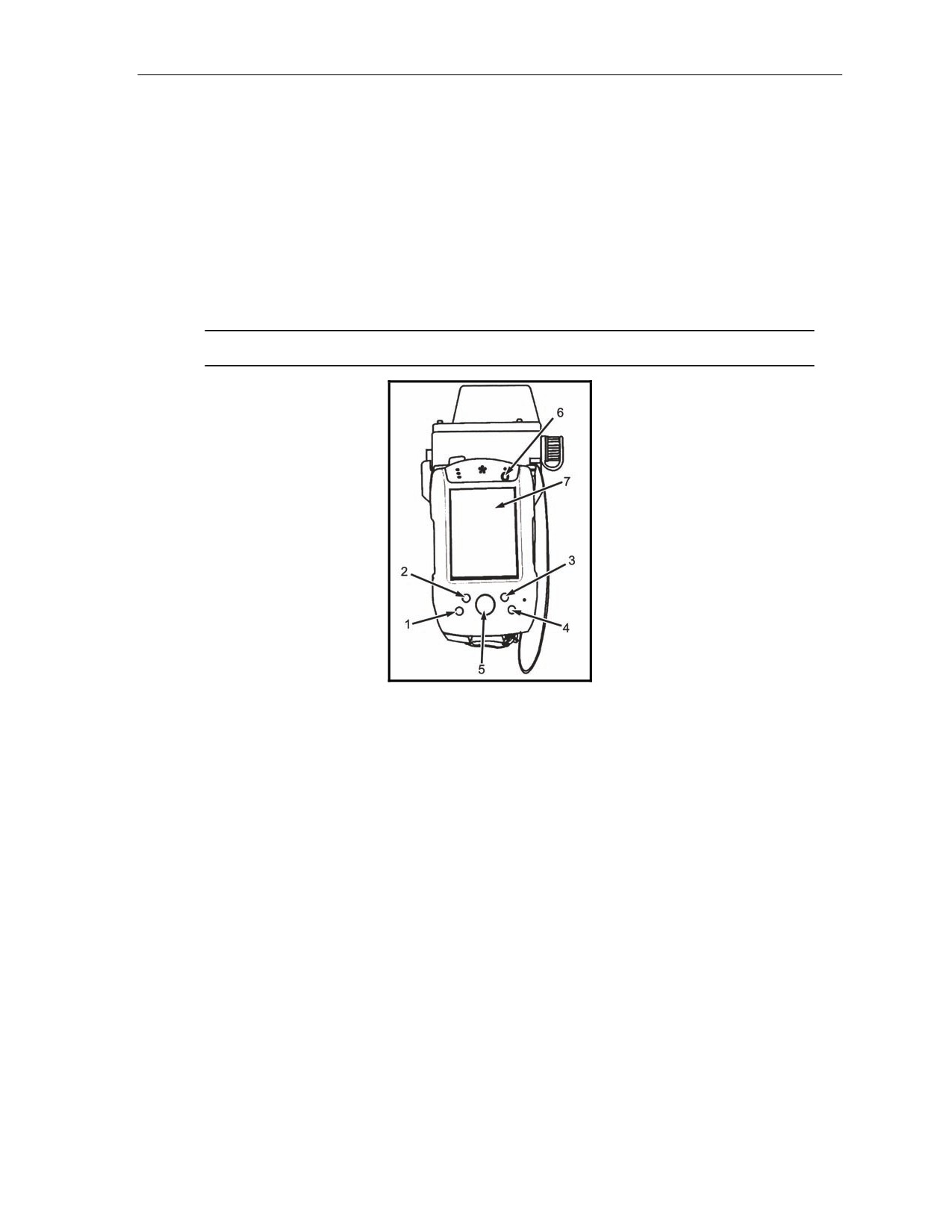
MANUAL ENTRY BUTTONS
17-2.
The manual entry buttons for the LHMBC include the—
z
Manual Missions button.
z
Mission Solution button.
z
Mission Gun Select button.
z
Mission Subsequent Adjust button.
z
CFF button.
z
Sleep button (Power button).
17-3.
See Figure 17-2 for the corresponding buttons.
Manual Missions Button
17-4.
The Manual Missions button (1, Figure 17-2) allows the operator to sequence through active
missions.
Mission Solution Button
17-5.
The Mission Solution button (2, Figure 17-2) displays the solution for the active mission. If
multiple missions are active, the Solution/Gun Orders screen displays.
NOTE: This button is inactive when no missions are active.
Mission Gun Select Button
17-6.
The Mission Gun Select button (3, Figure 17-2) displays the Gun Select screen for the active
mission. If multiple missions are active, the Gun Select screen displays.
NOTE: This button is inactive when no missions are active.
Mission Subsequent Adjust Button
17-7.
The Mission Subsequent Adjust button (4, Figure 17-2) displays the Subsequent Adjust screen for
the active mission.
NOTE: This button is inactive when no missions are active.
17-2
FM 3-22.91
17 July 2008
Introduction
Call for Fire Button
17-8.
If Commo is enabled, the CFF button (5, Figure 17-2) displays the CFF screen.
Sleep Button (Power Button)
17-9.
The Sleep button (6, Figure 17-2) puts computer in sleep mode or toggles backlight on and off.
DISPLAY SCREEN
17-10. The LHMBC (7, Figure 17-2) display screen is a touch-sensitive, transflective, thin-film transistor
(TFT) liquid crystal display (LCD) screen. The display is equally readable in low light and sunlight.
Objects displayed on the screen may be selected, opened, launched, or depressed by tapping directly on the
screen with the stylus.
NOTE: See TM 9-1220-252-12&P for a complete description of controls and indicators.
Figure 17-2. Lightweight handheld mortar ballistic computer interface.
CAPABILITIES
17-11. The LHMBC’s design allows the system to be upgraded to match future system demands.
Currently, the system can—
z
Store 24 gun positions.
z
Store 3 FPFs.
z
Store a combined total of 100 targets and known points.
z
Store 16 RPs.
z
Store 25 FO locations.
z
Accept 100 digital messages.
z
Handle the full range of current mortar ammunition.
z
Conduct registration missions and automatically apply all registration corrections.
z
Receive, compute, and automatically calculate all applied MET corrections.
z
Store 1 safety fan, with up to 10 separate fan segments.
z
Provide a ten-digit grid to impact for all rounds.
z
Connect to radio or wire for digital communications.
17 July 2008
FM 3-22.91
17-3
Chapter 17
BATTERY LIFE
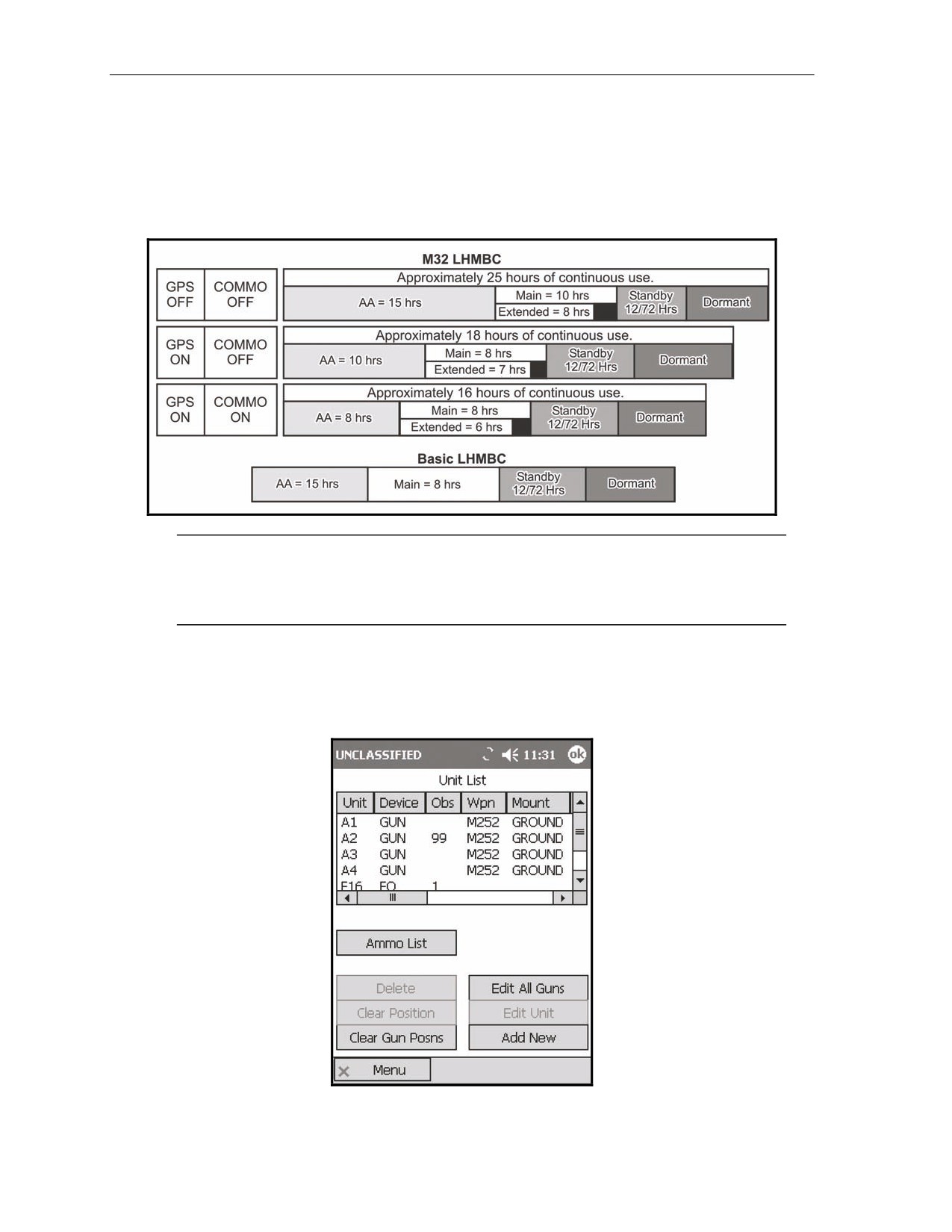
17-12. Table 17-1 illustrates projected battery life for the M32 LHMBC based on continuous operations.
The actual battery life varies greatly depending upon M32 usage, age, and temperature of the batteries; it
will be significantly greater if the unit is not used continuously.
Table 17-1. Battery life expectancy.
NOTE: In the M32 configuration, the extended battery in the expansion pack will charge the
main battery, as the main battery powers the LHMBC. The main battery will power the LHMBC
for approximately one to two hours after the power of the extended battery falls below 3.2 volts
and the extended battery stops charging the main battery.
GRAPHIC USER INTERFACE
17-13. The LHMBC’s graphic user interface (GUI, Figure 17-3) allows the operator to use menus,
windows, and icons, rather than complicated commands.
Figure 17-3. Lightweight handheld mortar ballistic computer graphic user interface.
17-4
FM 3-22.91
17 July 2008
Introduction
SCREEN AREA
17-14. The LHMBC’s screen area displays buttons, tabs, fields, and menus.
Desktop
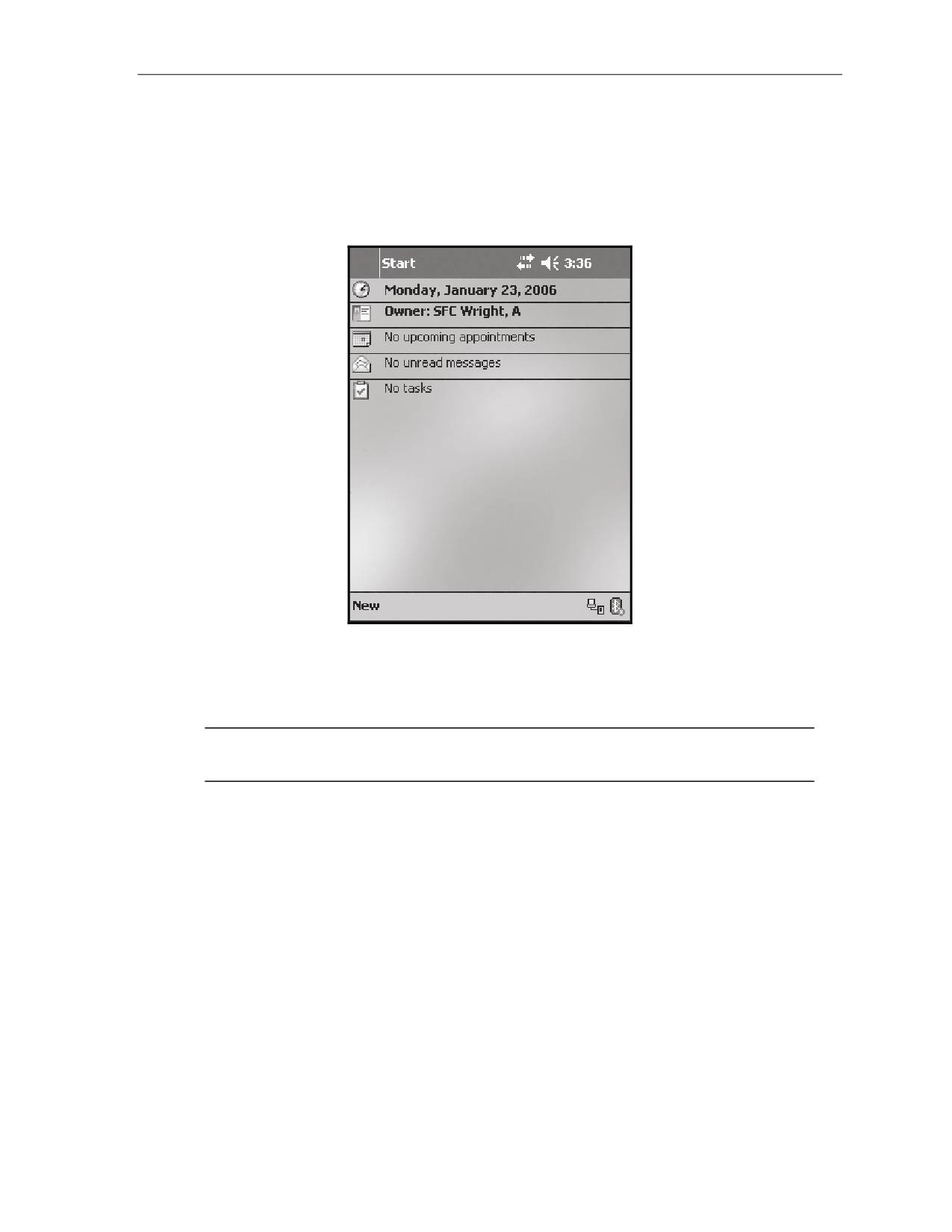
17-15. The desktop (Figure 17-4) consists of various pull-down menus, the Start button, a time display, a
volume control, and a New button. The stylus is used to access all functions from this screen.
Figure 17-4. Desktop.
Action Buttons
17-16. The operator accesses these buttons to add, edit, clear, delete, view, or acknowledge data.
NOTE: These buttons are active only when required fields are filled. Grayed buttons are
inactive.
Scroll Bars
17-17. The operator accesses the scroll bars to view data that does not fit on the screen.
Data Lines
17-18. Data lines display data particular to the screen. The operator adjusts the columns using the stylus
to increase or decrease the field area.
17-19. To display the details of each data line, the operator selects a line with the stylus, drags it to the
bottom of the screen, and lifts the stylus. The data will replace the action buttons at the bottom of the
screen. Then, the operator taps the stylus in the data field to close the details and return action buttons to
the bottom of the screen.
17-20. For a quick reference, the operator presses the stylus on the data line. The details display at the
bottom of the screen until the operator lifts the stylus.
17 July 2008
FM 3-22.91
17-5
Chapter 17
Screen Title
17-21. The screen title displays at the top center of each screen.
Classification
17-22. The classification displays in the upper left corner of the screen.
X or OK
17-23. X or OK displays in the upper right corner. This button has no function in the LHMBC software.
Time
17-24. The time displays in the upper right corner.
Tabs
17-25. Tabs display at the top of the screen after the operator selects a control button.
Pull-Down Menus
17-26. The operator activates pull-down menus by clicking buttons or icons to display a selection of
operations or programs.
COMMON ACTIONS
17-27. When using the LHMBC, the operator repeatedly uses the same commands to perform actions,
such as acknowledging receipt
(OpACK), accepting or denying the messages to observer (MTOs),
selecting the guns to fire the mission, confirming gun orders, and accepting or modifying data. The
operator can quickly access these commands by tapping the stylus on a button on the screen or in response
to a query in a message box.
Recording Data
17-28. Data is transcribed onto DA Form 2399-R or DA Form 2188-R throughout the process to
maintain a record and to preserve data should the LHMBC fail. The phrase “record data” is used
throughout the chapter to indicate this action.
Process or Message to Observer Deny
17-29. To accept and process a mission, the operator selects “Process;” to refuse a mission, the operator
selects “MTO Deny.” This chapter uses these terms to describe these processes.
17-30. If the operator selects the MTO Deny button, the Delete button displays and, when tapped, deletes
the mission. If there is an error beyond FDC control, the only choice is MTO Deny.
Select Action Button/Data Line
17-31. Selecting a button or data field line with the stylus is the equivalent of clicking a button or data
field line on a personal computer with a mouse; therefore, the actions “select and hold” and “select and
drag” are equivalent to “click and hold” and “click and drag” with a standard computer mouse.
17-6
FM 3-22.91
17 July 2008
Introduction
MESSAGE ICONS
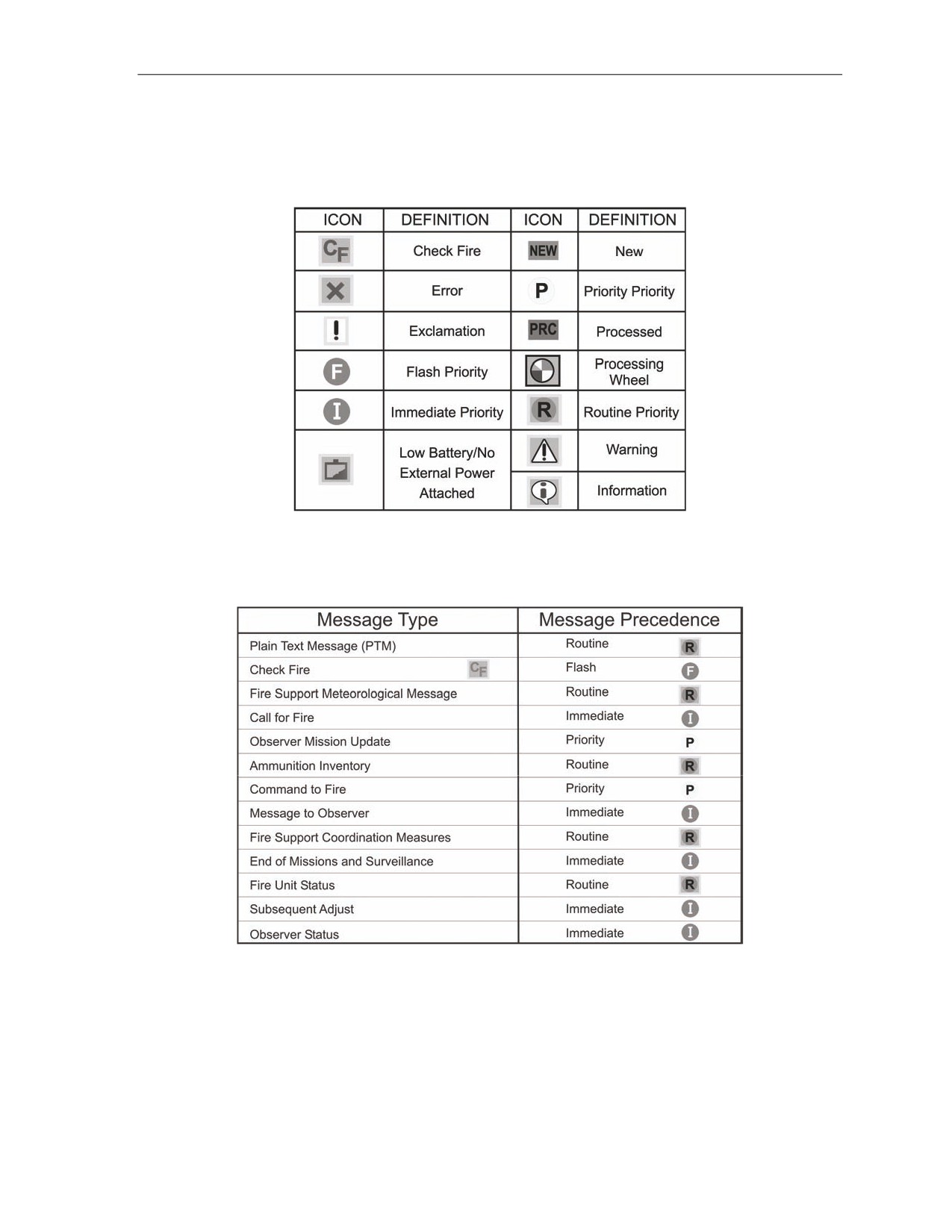
17-32. The LHMBC alerts the operator to warnings, messages, and processing statuses through message
icons and audio alarms. Table 17-2 lists all message icons and their definitions.
Table 17-2. Message icons.
MESSAGE PRIORITIES
17-33. Table 17-3 indicates the priorities of messages received by the LHMBC.
Table 17-3. Message priorities.
17 July 2008
FM 3-22.91
17-7
Chapter 17
ENTERING DATA
17-34. When selecting a field, an alphanumeric or a numeric keyboard that corresponds to the type of
data that may be entered will display. To remove the keyboard from the screen, tap the screen outside of
the keyboard.
17-35. An arrow next to an entry box indicates that a selection list is available. Select the arrow to
display the selection field. Selections also may be made by selecting checkboxes or circles.
17-36. All gray data is read-only and cannot be directly changed.
POSITION ENTRY
17-37. The LHMBC offers four methods for locating a position:
z
Universal Transverse Mercator (UTM) grids.
z
Polar plot.
z
Military Grid Referencing System (MGRS).
z
Latitude and longitude coordinates.
17-38. To select a method from any Position Edit screen, select the tab that corresponds to the desired
method of location.
Universal Transverse Mercator Grids
17-39. UTM grids consist of ten-digit grid coordinates and an altitude with a range of -400 to 9999
meters.
Polar Plot
17-40. Polar plot defines a position as seen from a previously determined position that is already entered
in the unit list.
Military Grid Referencing System
17-41. Similar to UTM grids, MGRS consists of a position entered with its zone; 100,000-meter grid
square identifier; grid coordinates; and altitude.
Latitude and Longitude Coordinates
17-42. Latitude and longitude coordinates may also be used for location.
NOTE: See FM 3-25.26, Map Reading, for more information.
STARTUP
17-43. Two internal batteries power the RPDA:
z
The main internal battery is a 3.2v lithium ion battery capable of powering the unit for
approximately 5 hours.
NOTE: Before starting the LHMBC, ensure that the main internal battery is charged.
z
The backup battery, a smaller 3.2v lithium ion battery, maintains the LHMBC software and data
for short periods of time while the main internal battery is being replaced.
NOTE: The backup battery will not run the LHMBC.
17-44. The RPDA can also accept external power from a variety of conventional power sources, ranging
from 11V-36VDC to 100-240VAC.
NOTE: See TM 9-1220-252-12&P for complete power capabilities/modes and usage.
17-8
FM 3-22.91
17 July 2008
Introduction
SLEEP BUTTON
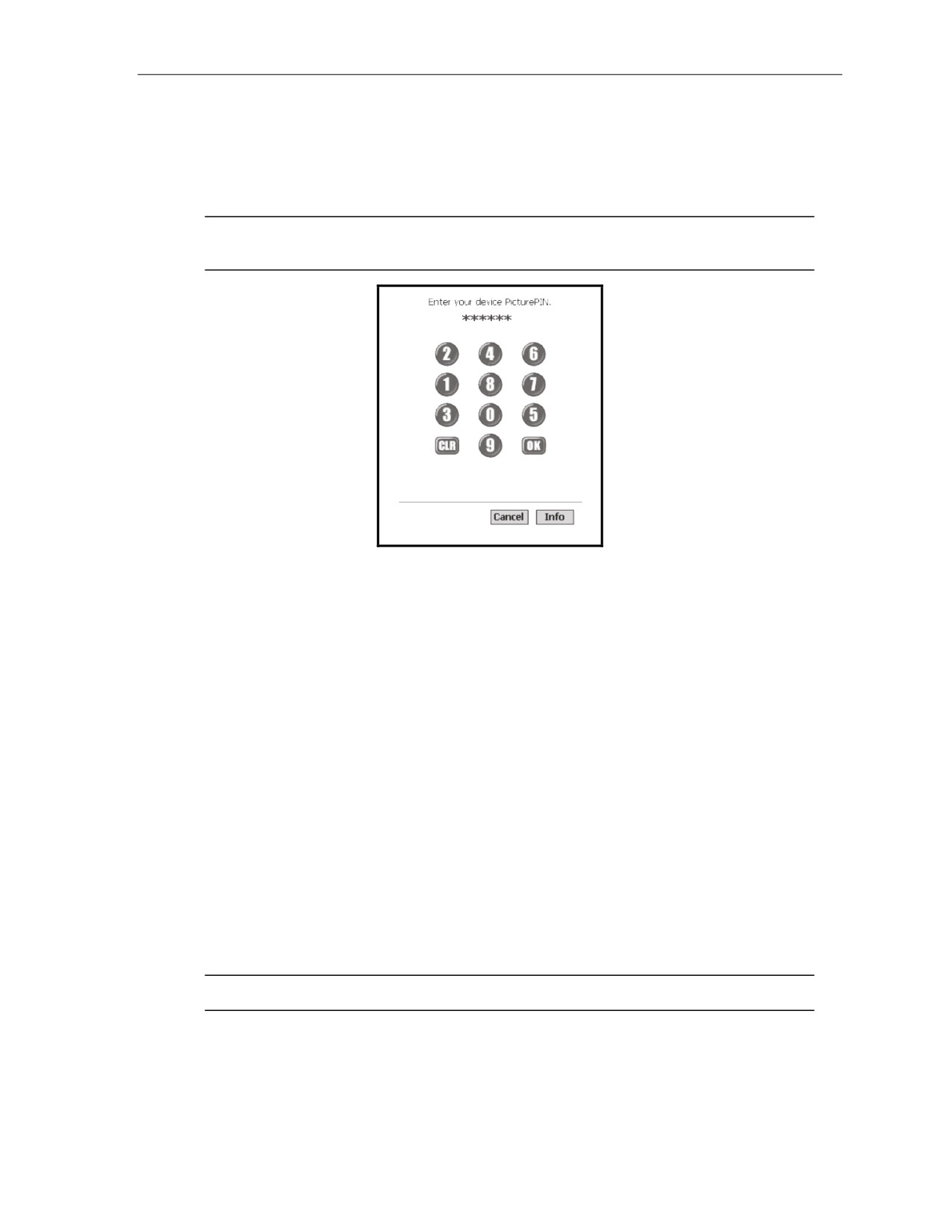
17-45. Press the Sleep button (Power button) to power up the RPDA. The password screen (Figure 17-5)
is displayed. The user password must be entered each time the unit powers on or comes out of sleep mode.
17-46. LHMBC passwords must be six digits long, with no digit used more than twice consecutively. The
default password is 112233.
NOTE: See TM 9-1220-252-12&P, WP 0006, and WP 0004 for complete password software
usage.
Figure 17-5. Password screen.
START BUTTON
17-47. After entering the proper password, the desktop will display. To start the LHMBC software—
(1) Select the Start button at the upper left of the display.
(2) Select LHMBC from the pull-down menu.
USE ALL BUTTON
17-48. Read the DOD security message, and then select Use All.
DATA INITIALIZATION AND CONFIGURATION
17-49. The following procedures describe the process for initializing and configuring the LHMBC.
SYSTEM STARTUP SETTINGS SCREEN
17-50. When the DOD security message is closed, the System Startup Settings screen displays. To
initialize the LHMBC in the basic configuration—
(1) Select Commo Off and GPS Off.
If Commo is on, digital communication will be possible through two-wire (landline)
communication or FM transmission.
If GPS is on, the LHMBC can auto-fill its position as a gun, FDC, FO, etc.
NOTE: See 17-6 for GPS setup.
(2) Select Use All to continue.
17 July 2008
FM 3-22.91
17-9
Chapter 17
SETUP GEOGRAPHICAL REFERENCE SCREEN
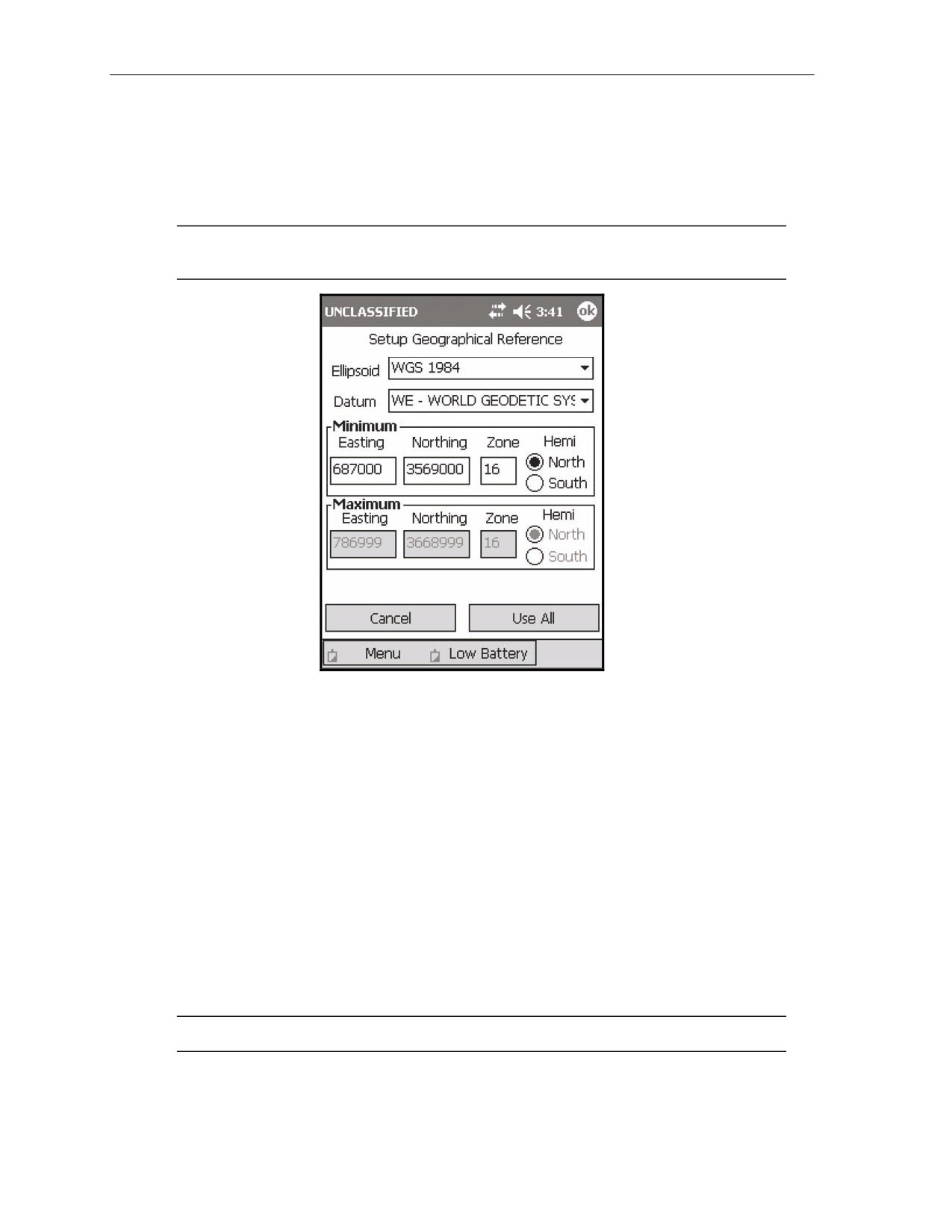
17-51. To access the Setup Geographical Reference screen (Figure 17-6)—
(1) Select Menu.
(2) Select Setup.
(3) Select Geo Ref.
NOTE: The Setup Geographical Reference screen automatically displays if no Geo Ref was
previously set.
Figure 17-6. Setup Geographical Reference screen.
Ellipsoid Field
17-52. The ellipsoid (spheroid) of the map sheet displays in the marginal information. The default
ellipsoid is World Geodetic System (WGS) 1984. Use the Ellipsoid pull-down menu to change the default
setting.
Datum Field
17-53. The default datum is WE - WGS 1984. When the ellipsoid is set, the corresponding default datum
automatically displays.
Minimum Easting and Northing Fields
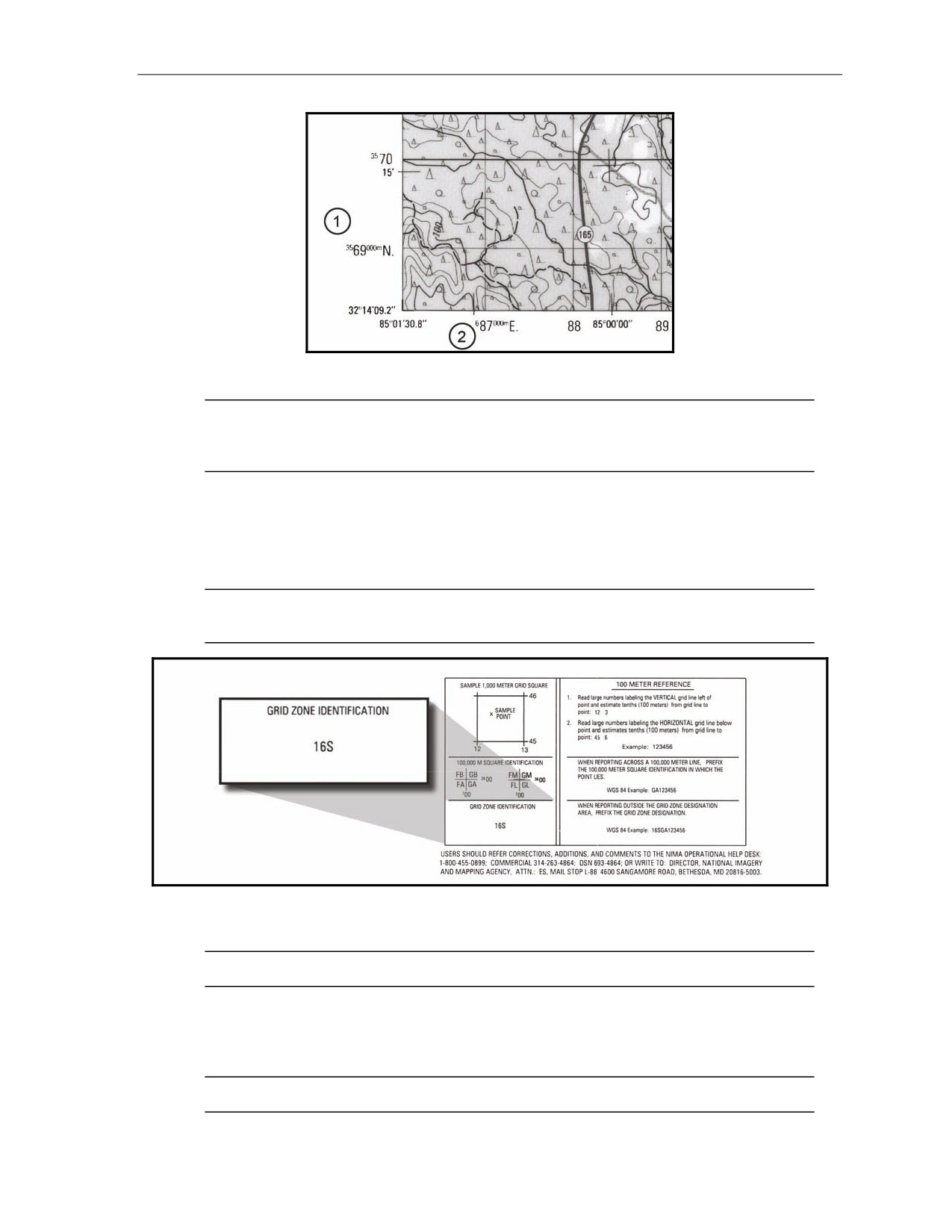
17-54. The minimum easting and northing are entered in the 13-digit format - 6 digits for easting, 7
digits for northing. This information is located in the bottom left corner of the map sheet. The western-most
grid line is labeled as the minimum easting (1, Figure 17-7), and the southern-most grid line is labeled as
the minimum northing (2, Figure 17-7). Figure 17-7 has a minimum easting of 87000 and a minimum
northing of 3569000.
NOTE: The Maximum Easting and Maximum Northing fields are automatically filled.
17-10
FM 3-22.91
17 July 2008
Introduction
Figure 17-7. Minimum easting and northing.
NOTE: If the correct number of digits are not entered in the Minimum Easting or Minimum
Northing fields, an SMI error message will appear (Map Mod ERROR min Easting must be >=
0100000). Select OK, and enter the correct values.
Minimum Zone Field
17-55. The minimum zone must be between 1 and 60 and can be found in the map marginal information
centered at the bottom of the map sheet (Figure 17-8). The grid zone designator consists of two digits and
one letter. The LHMBC does not use the letter.
NOTE: If an invalid Map Mod (Zone) is entered, an SMI error message will appear. Select
OK, and enter the correct values.
Figure 17-8. Locating minimum zone.
17-56. Figure 17-6 has a minimum zone of 16S, which is entered into the LHMBC as 16.
NOTE: The Maximum Zone field is automatically filled.
Hemisphere Field
17-57. Enter north or south in the Hemisphere field to indicate if your unit is operating in the northern or
southern hemisphere.
NOTE: The Hemisphere field is automatically filled.
17 July 2008
FM 3-22.91
17-11
Chapter 17
UNIT LIST SCREEN
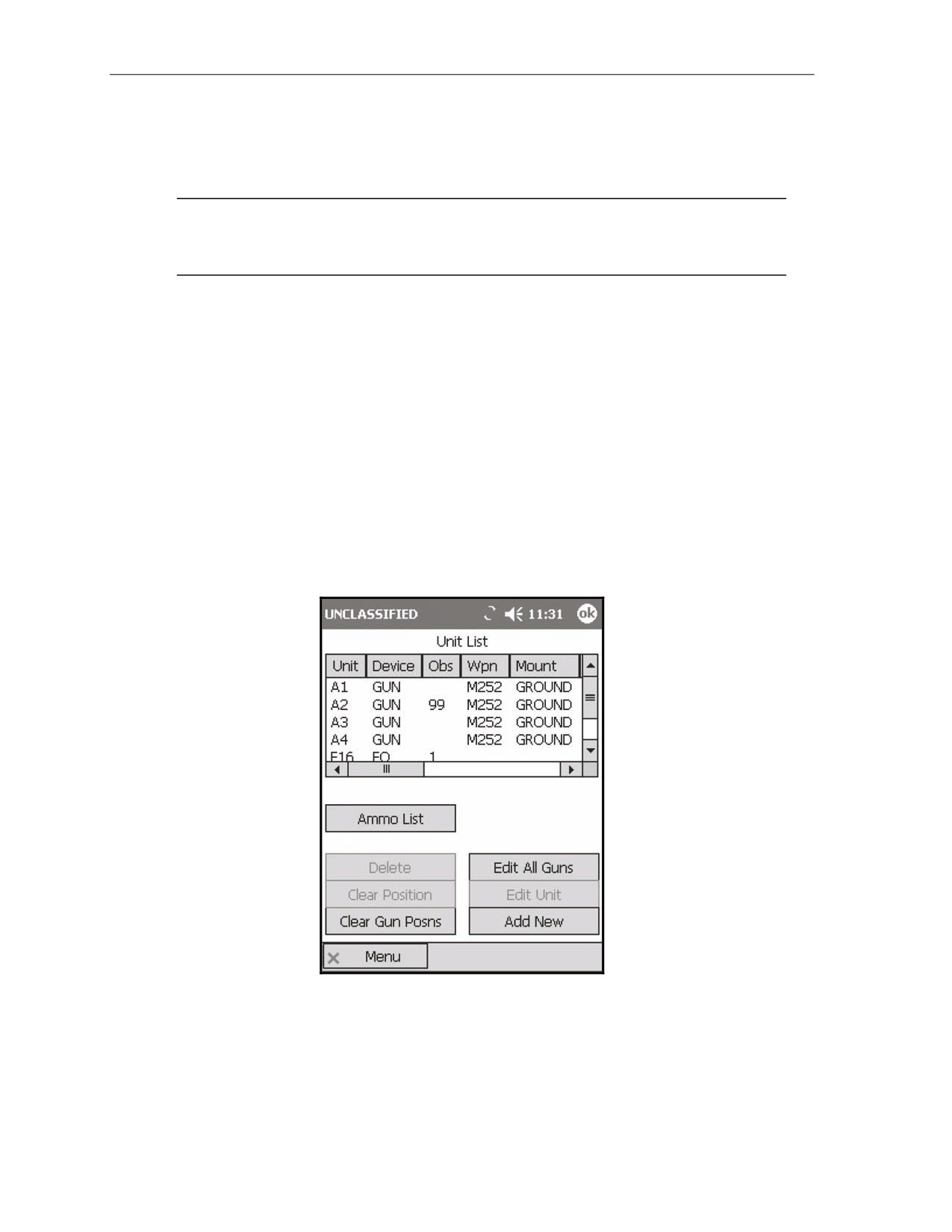
17-58. The Unit List screen (Figure 17-9) lists all of the units assigned or used by the FDC. It allows the
operator to view, enter, edit, or delete the unit name, the device, the observer number, and additional
required entries for specific devices.
NOTES:
1. This screen automatically displays if no devices were previously entered.
2. The FDC is automatically on the list and cannot be deleted.
17-59. This screen is comprised of two areas:
z
The upper half of the screen contains the Unit List field. This field displays information by unit
designation for GUN, FDC, FO, FSE, OR STA, and OTHER.
z
The bottom half of the screen contains seven action buttons:
Ammo List displays the Ammunition screen.
Delete is used to delete the selected unit.
Clear Position is used to clear the position of a selected unit.
Clear Gun Posns is used to clear the positions for all the guns at the same time.
Edit All Guns allows the operator to enter the data for all guns at the same time.
Edit Unit is used to edit the fields of a selected unit.
Add New is used to add a new unit.
17-60. To display the Unit List screen—
(1) Select Menu.
(2) Select Unit List.
Figure 17-9. Unit List screen.
17-12
FM 3-22.91
17 July 2008
Introduction
Unit List Add/Edit Screen
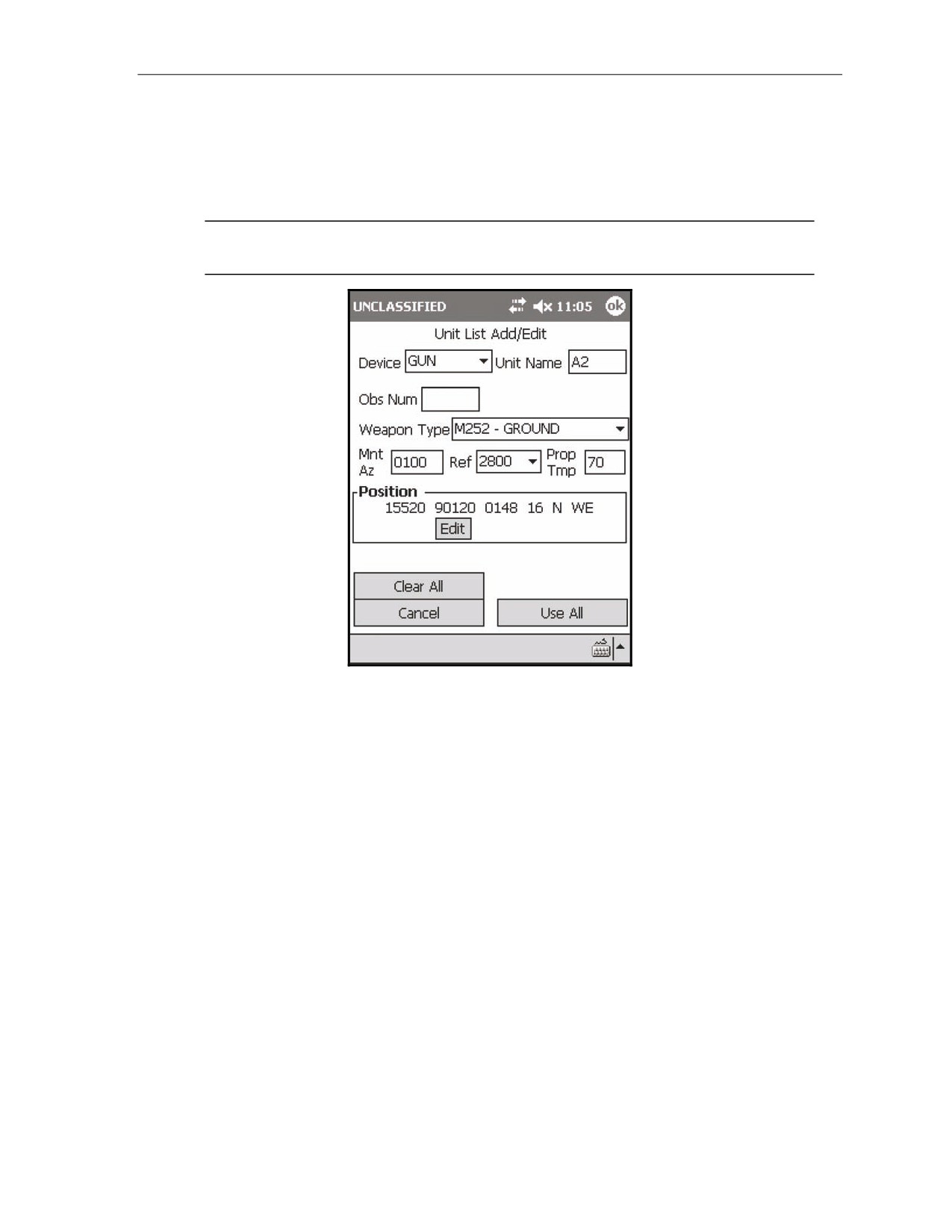
17-61. To add a unit from the Unit List screen (Figure 17-10), select the Add New button. To edit a unit
that is already entered—
(1) Select the appropriate unit data line.
(2) Select Edit Unit.
NOTE: Only the Unit Name, Obs Num, and Device fields will be available until a device is
selected.
Figure 17-10. Unit List Add/Edit screen.
Unit Name Field
17-62. Unit names must be two to four characters in length, and the first character must be a letter. There
is a limit of 100 unit entries.
Device Field
17-63. The available devices are—
z
GUN.
z
FDC.
z
FO.
z
FSE.
z
OR STA.
z
OTHER.
17-64. The required entries change depending on the device selected. When GUN is selected, entry boxes
are displayed for weapon type, mounting azimuth
(Mnt Az), referred deflection
(Ref), propellant
temperature (Prop Tmp), and position (Pos). Later, the operator may add this information for all guns using
the Edit All Guns menu.
17 July 2008
FM 3-22.91
17-13
Chapter 17
Position
17-65. To fill the Position field, use one of the three methods listed:
z
Enter the position manually in the form of 10-digit grid coordinates.
(1) Below the Position field, select Edit. The default positioning mode is UTM grid.
(2) Enter the easting, northing, and altitude of the unit.
(3) Select Use All.
z
Enter the position as a polar plot from a previously entered unit.
(1) Below the Position field, select Edit.
(2) Select the Polar tab.
(3) Select a unit from the Unit pull-down menu.
(4) Enter the direction, distance, and vertical interval from the plotting unit to the unit to be
located.
(5) Select Use All.
z
Auto-fill the position based on satellite information.
(1) If the GPS is installed and on, the GPS Control button will display below the Position field.
Select GPS.
(2) After entering the appropriate information for each unit, select Use All.
NOTE: GPS survey must be conducted at the location of the baseplate for each gun position.
Edit All Guns
17-66. To edit gun setup information for all guns from the Unit List screen, select the Edit All Guns
button. From this menu, you may set the weapon type, mounting azimuth (Mnt Az), referred deflection
(Ref), and propellant temperature (Prop Tmp) for all guns.
AMMUNITION SCREEN
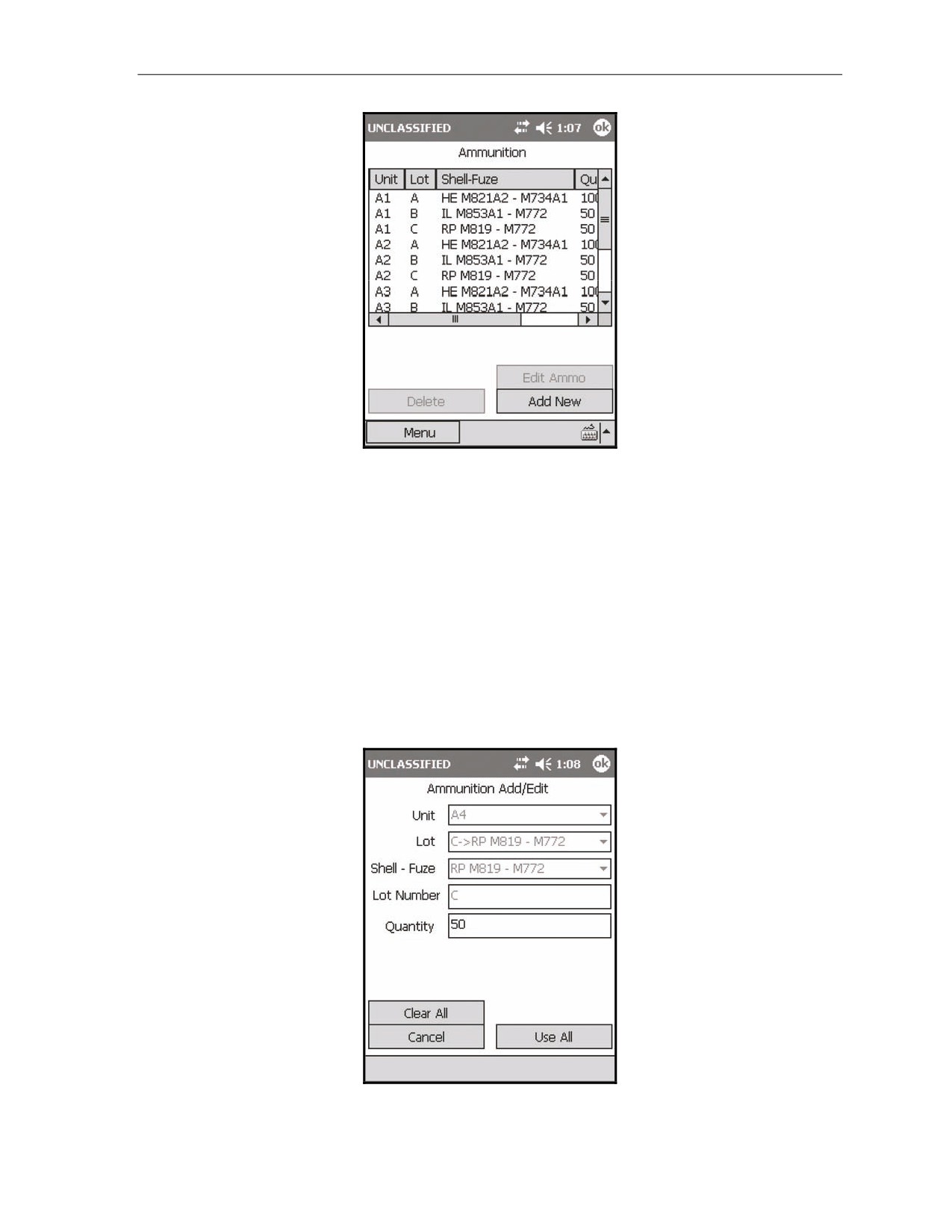
17-67. In the Ammunition screen, the LHMBC tracks ammunition by unit (gun) number.
17-68. To display the Ammunition screen (Figure 17-11), use one of the two methods listed:
z
Select the Ammo List button from the Unit List screen.
z
Access the Ammunition screen using the main menu.
(1) Select Menu.
(2) Select Ammo.
(3) Select Ammo List.
17-69. To add or edit ammunition, use one of the two methods listed:
z
Select Add New for an initial entry.
z
Select Edit Ammo to update the ammunition quantities.
17-14
FM 3-22.91
17 July 2008
Introduction
Figure 17-11. Ammunition screen.
ADD/EDIT SCREEN
17-70. To add ammunition—
(1) Select Add/New. The Ammunition Add/Edit screen (Figure 17-12) appears.
(2) Select the weapon you would like to modify using the Unit field pull-down menu. This menu
displays all weapons that have been entered into the LHMBC.
(3) Select the Lot field to enter the lot letter. Letters range from A to Z.
(4) Select the appropriate ammunition using the Shell - Fuze field pull-down menu. Ammunition is
arranged alphabetically by type - HE, IL, IR, RP, TRN, and WP.
(5) Enter the lot number in the Lot Number field. Lot numbers contain as many as 16 characters.
(6) In the Quantity field, enter the quantity of the lot allocated to the current weapon.
(7) Repeat steps 2 through 6 for the remaining types and quantities of ammunition for each gun.
Figure 17-12. Ammunition Add/Edit screen.
17 July 2008
FM 3-22.91
17-15
Chapter 17
AMMUNITION ROLL-UP SCREEN
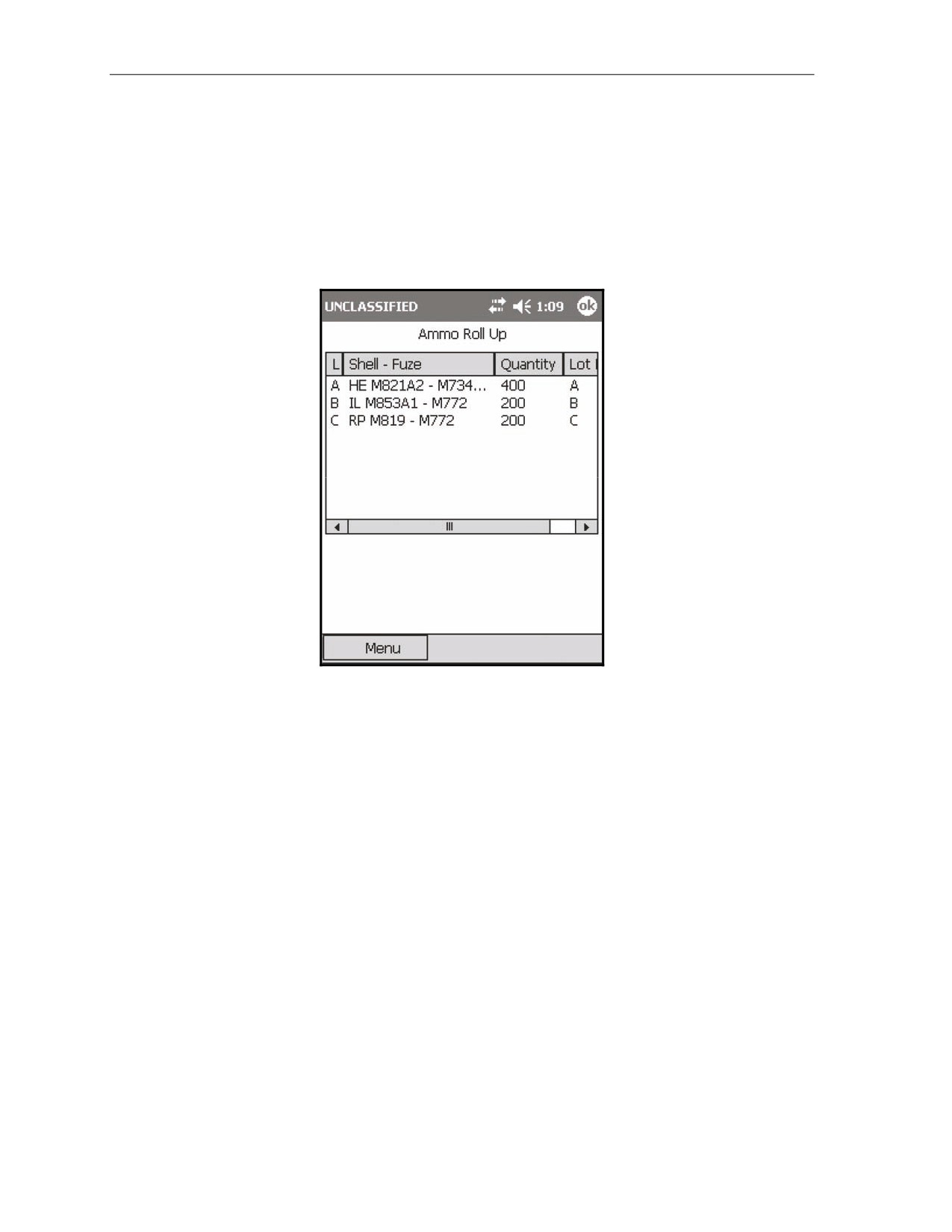
17-71. The Ammunition Roll-Up screen (Figure 17-13) lists the total quantity of ammunition by lot. To
display this screen—
(1) Select Menu.
(2) Select Ammo.
(3) Select Ammo Roll-up.
17-72. If Commo is enabled, the Send to FSE action button will display. Select Send to FSE to send the
ammunition roll-up to the controlling FC.
Figure 17-13. Ammunition Roll-Up screen.
SETUP DATA SCREEN
17-73. The Setup Data screen (Figure 17-14) allows the operator to set the system clock, security mode,
target block, and splash time (if using Commo), and to enable/disable the audio alarm. To display this
screen—
(1) Select Menu.
(2) Select Setup.
(3) Select Data.
Date and Time Fields
17-74. If the GPS is enabled, the GPS Time button will display. Select the GPS Time button to auto-fill
the Date and Time fields.
17-75. If operating in the manual mode, use the stylus to select the portion of the date or time that
requires adjustment, and then use the up or down arrows to adjust the selected portion.
Security Mode Field
17-76. If sensitive information, such as actual target locations or friendly positions, will be received
through the built-in Commo, set the security mode according to the security setting of the sending unit. The
default security setting is unclassified.
17-16
FM 3-22.91
17 July 2008
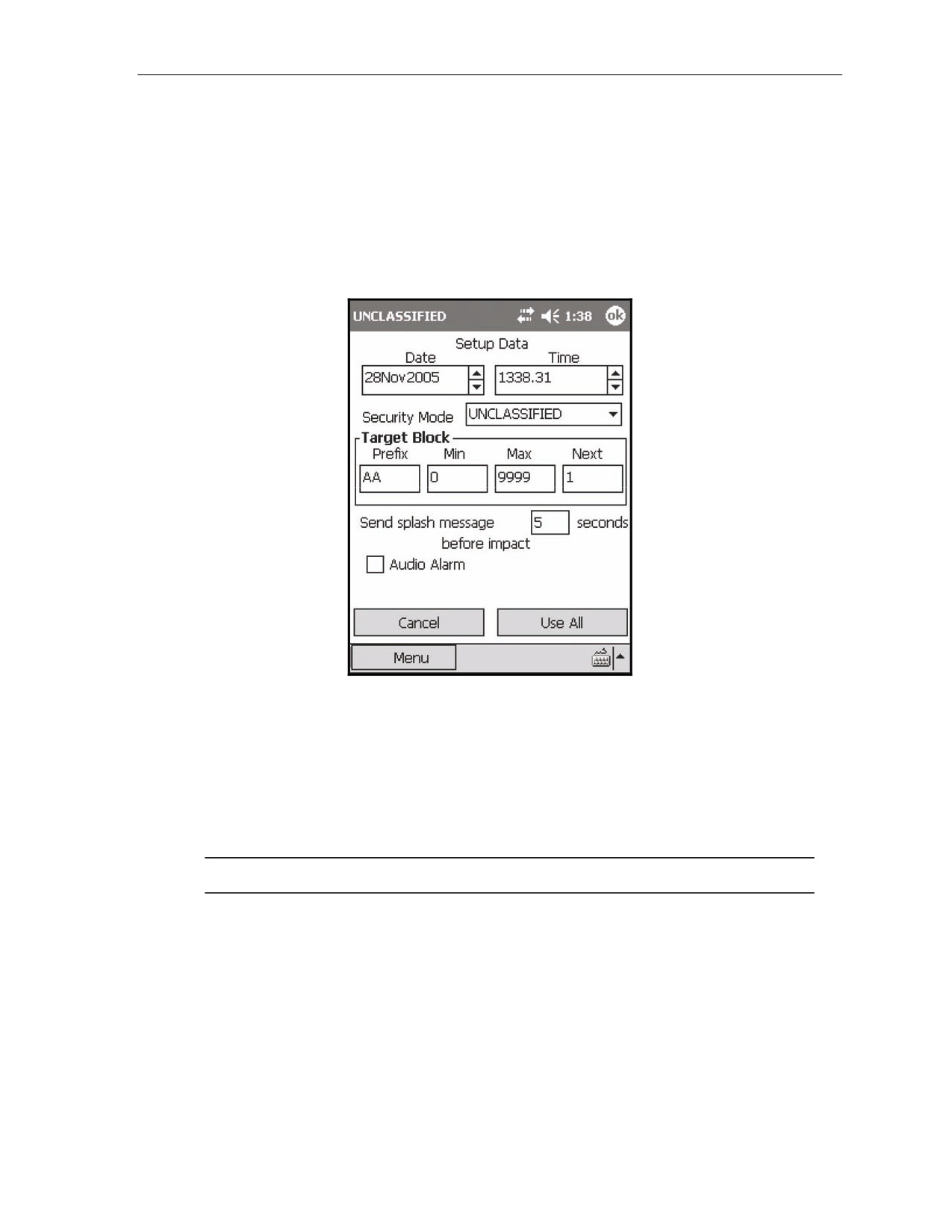
Introduction
Target Block
17-77. These fields contain the unit’s assigned target block. The target block contains a two-letter prefix,
a number between 0 and 9999 for the target block minimum, and a number between 1 and 9999 for the
target block maximum. The Target Block Next field contains a number between 0 and 9999. This does not
prevent other targets from being entered with a different block sequence; it only sets the default target-
labeling sequence.
Send Splash Message Field
17-78. The default splash message time is five seconds.
Figure 17-14. Setup Data screen.
METEOROLOGICAL DATA
17-79. The LHMBC uses a computerized MET message to correct for changes in the atmospheric
condition as they apply to ballistic calculation. When no MET is available, the LHMBC uses the standard
MET that is stored in the LHMBC.
17-80. When a new MET message is received and stored, it becomes the current MET and is applied to
all firing data. The computer MET message may be received digitally or entered manually.
NOTE: Ballistic MET is not compatible with the LHMBC.
APPLYING METEOROLOGICAL DATA
17-81. If the MET is sent digitally, an alert displays to confirm receipt of the MET message. After
confirming receipt, you must apply the MET:
(1) Select Menu.
(2) Select Met.
(3) Select Messages.
(4) Select the most recent message.
(5) Select Process. This message becomes the current MET.
17 July 2008
FM 3-22.91
17-17
Chapter 17
ENTERING MANUAL METEOROLOGICAL DATA MESSAGES
17-82. To enter the MET message, manually record it on DA Form 3677-R (Figure 4-15). Chapter 4
gives a complete overview of meteorological messages.
17-83. To input a new manual MET message—
(1) Select Menu.
(2) Select Met.
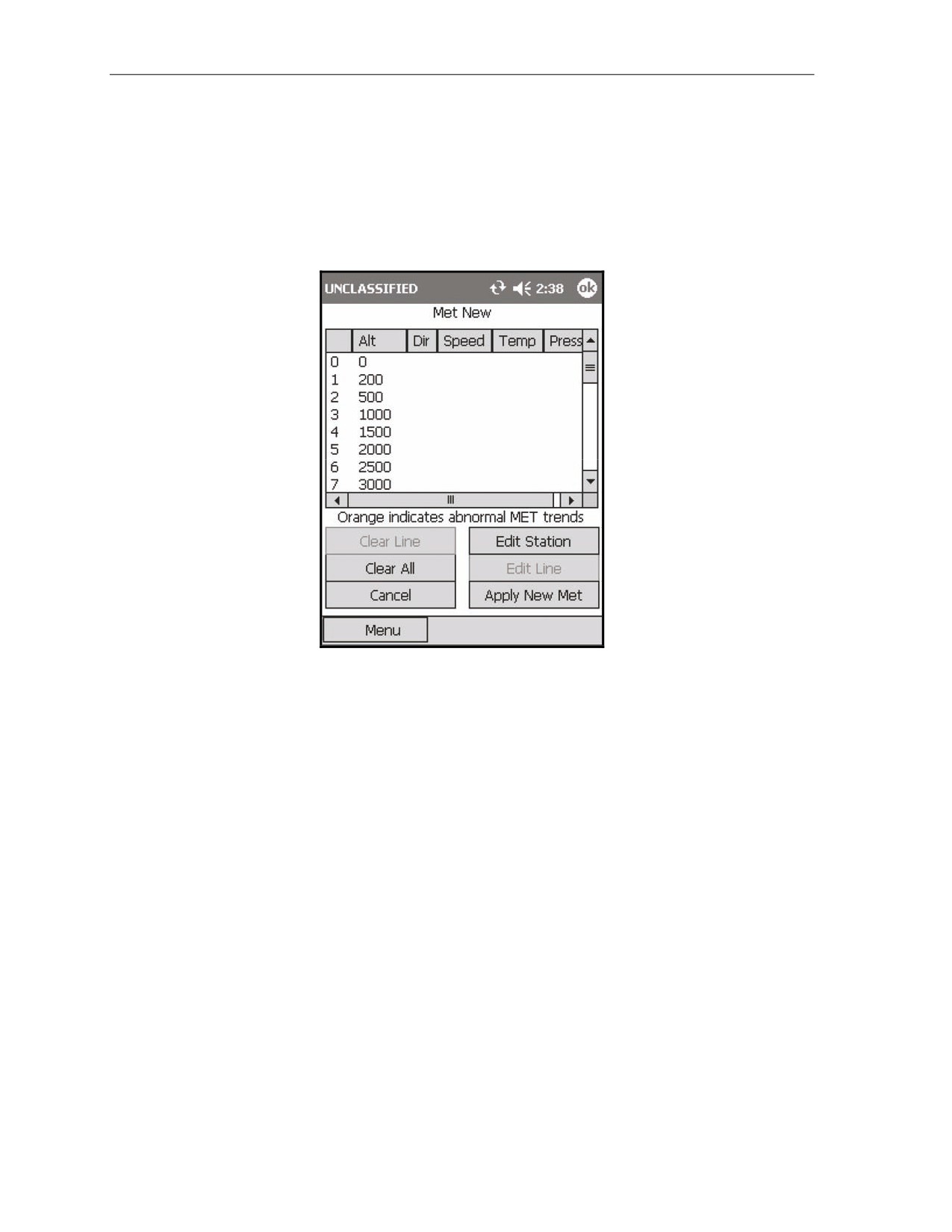
(3) Select New. The Met New screen (Figure 17-15) displays.
Figure 17-15. Met New screen.
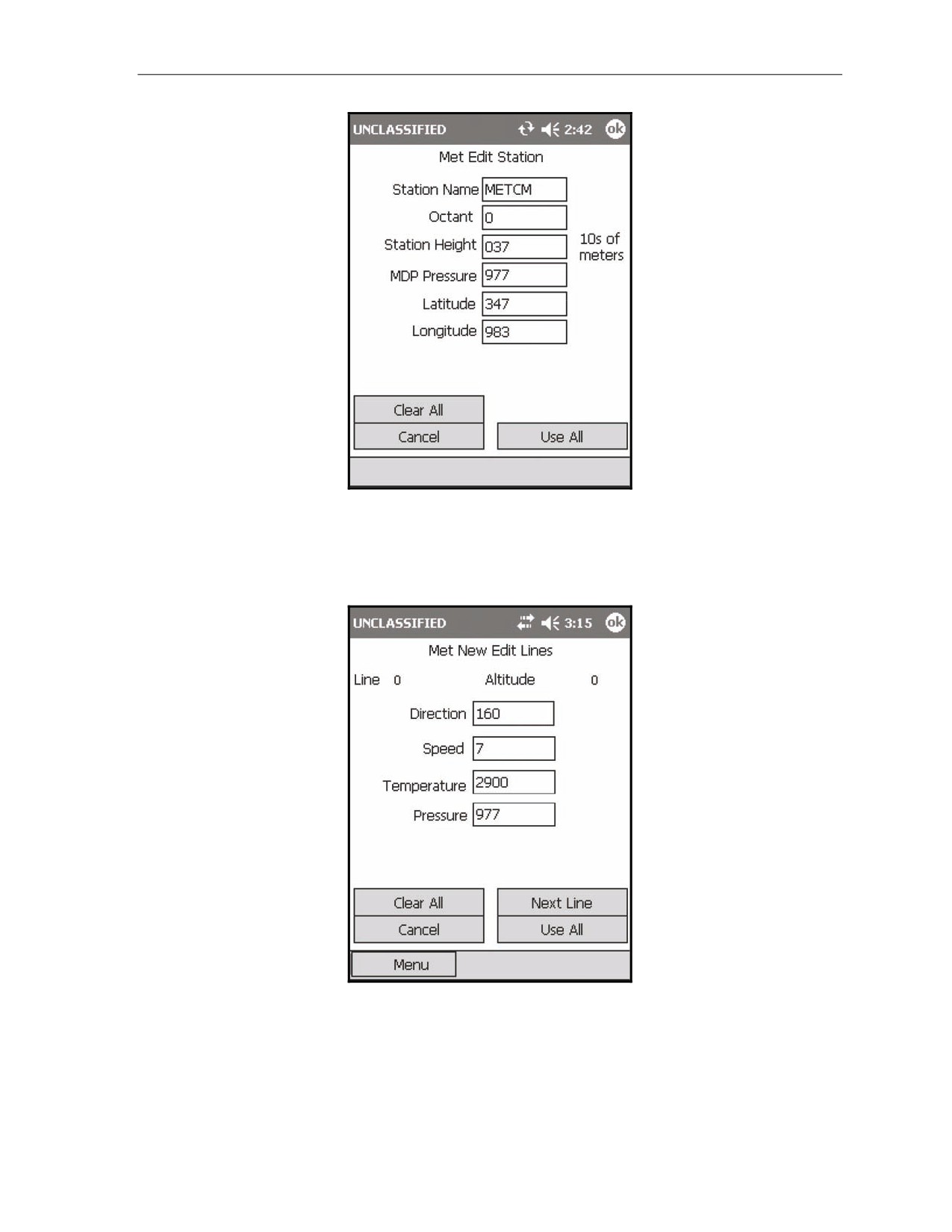
(4) Select Edit Station. The Met Edit Station screen (Figure 17-16) displays.
(5) Fill in the data entry fields using the information received in the computer MET message. The
first two data entry fields, Station Name and Octant, refer to Group 1 of the computer MET
message. The next two fields, Station Height and MDP Pressure, refer to Group 4. Latitude and
Longitude refer to Group 2. Group 3 is not used in the LHMBC.
17-18
FM 3-22.91
17 July 2008
Introduction
Figure 17-16. Met Edit Station screen.
(6) Select Use All. The LHMBC returns to the Met New screen.
(7) Enter surface zone information by selecting line 0 in the data field and selecting Edit Line. The
Met New Edit Lines screen (Figure 17-17) displays.
Figure 17-17. Met New Edit Lines Screen.
(8) Enter surface and zone MET data (Direction, Speed, Temp, and Pressure fields).
(9) Select Next Line to proceed to the next surface zone line. Complete all applicable lines. At a
minimum, the first eight lines must be completed in order to apply MET data.
17 July 2008
FM 3-22.91
17-19
Chapter 17
(10) Select Use All to return to the Met New screen. Any abnormalities in the MET message will be
highlighted in orange. If abnormalities are displayed, validate the MET with the FC.
NOTE: Orange fields only indicate that the MET has an abnormal trend, not that the MET
message is invalid.
(11) Select Apply New Met to use the new MET.
SWITCH BETWEEN METEOROLOGICAL DATA MESSAGES
17-84. To toggle between the current MET and the standard MET from the Met Current screen—
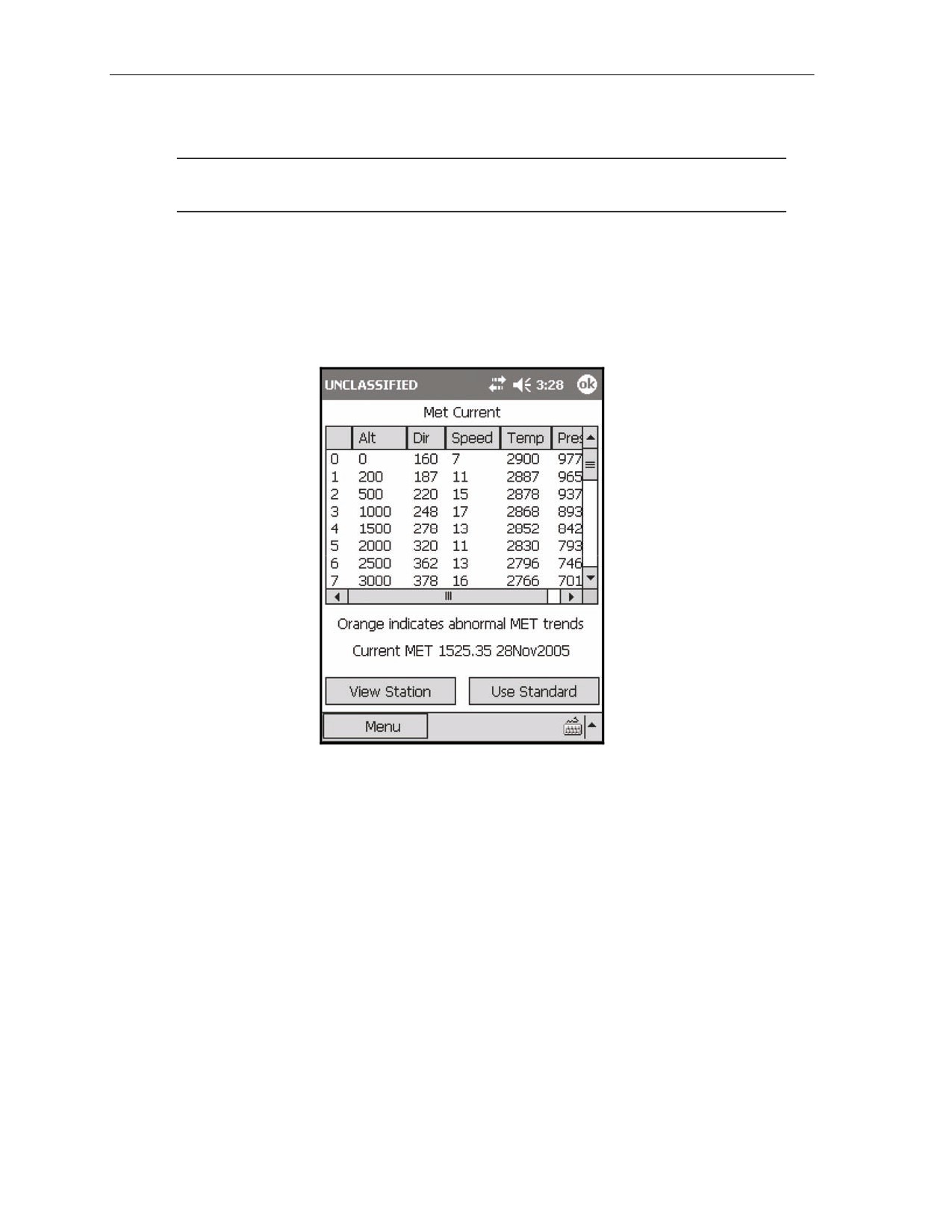
(1) Select Use Standard. The Met Standard screen displays.
(2) Select Use Current. The Met Current screen (Figure 17-18) displays.
Figure 17-18. Met Current screen.
SAFETY FAN
17-85. A safety fan is a restrictive firing measure used during training to ensure that the firing unit does
not process data located outside of the safe zone of impact. Firing units calculate safety fans in accordance
with the Mortar Surface Danger Area (Appendix C).
17-86. The LHMBC stores 1 safety fan with as many as 10 segments (Figure 17-19). Each fan segment is
defined by left and right limits, minimum and maximum ranges, and minimum and maximum charges.
Targets outside of these limits are considered unsafe.
17-87. A safety fan violation cannot be overridden, and data for engagement will not display. If a violation
occurs or if the solution endangers any stored friendly locations, a warning message will display. Friendly
positions are protected by a buffer zone known as the boundary outer limit alert distances (BOLAD). Firing data
that impacts inside of a BOLAD will not be processed, and an error message will display on the Mission
Solution screen for each gun that impacts inside of the BOLAD. The buffer radii are as follows:
z
60-mm
-
100 meters
z
81-mm
-
150 meters
z
120-mm -
200 meters
z
120-mm
-
250 meters (firing M91 Illum)
17-20
FM 3-22.91
17 July 2008
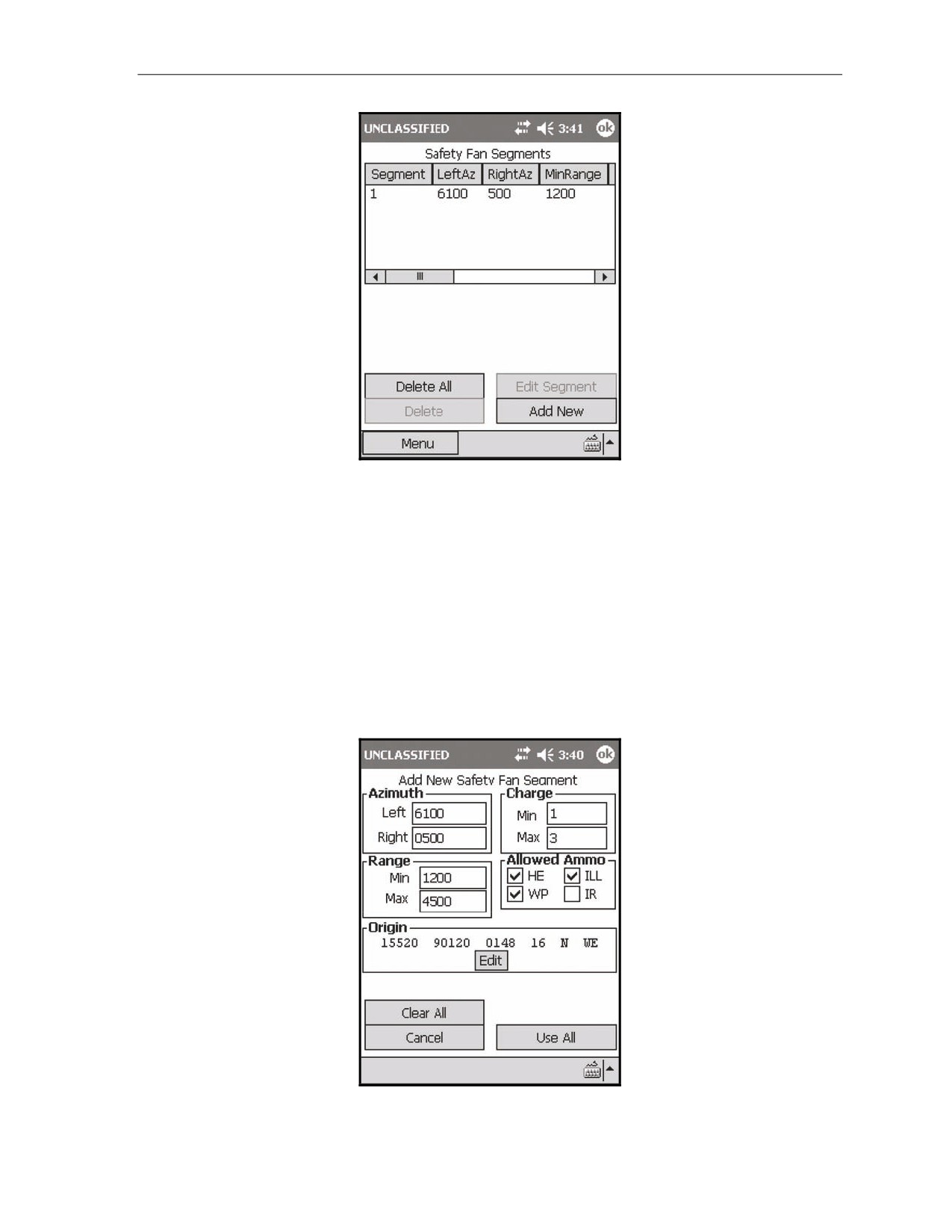
Introduction
Figure 17-19. Safety Fan Segment screen.
ENTER SAFETY FAN INFORMATION
17-88. To enter a safety fan into the LHMBC—
(1) Select Menu.
(2) Select Setup.
(3) Select Safety Fan.
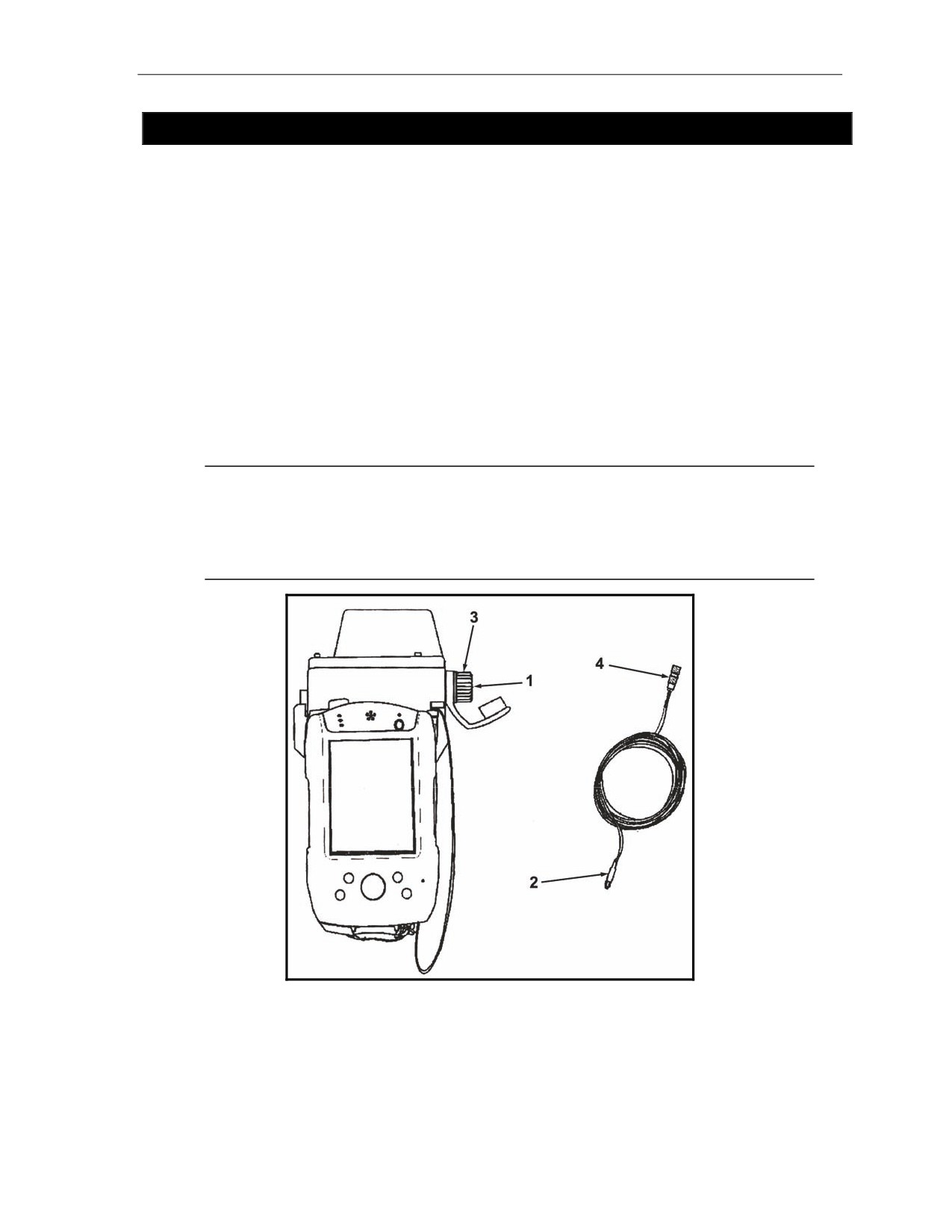
(4) Select Add New. The Add New Safety Fan Segment screen (Figure 17-20) displays.
(5) Enter segments, beginning with the left-most fan segment. Each additional fan segment uses the
previous fan segment’s right azimuth as its left azimuth.
(6) After entering the azimuths and the minimum and maximum ranges, determine the minimum
and maximum charges that may be fired.
Figure 17-20. Add New Safety Fan Segment screen.
17 July 2008
FM 3-22.91
17-21
Chapter 17
DELETE SAFETY FAN INFORMATION
17-89. To delete a specific segment—
(1) Select the bottom (right-most) fan segment from the Safety Fan Segments menu.
(2) Select Delete.
(3) Select Confirm.
(4) Continue deleting segments from the bottom of the Safety Fan Segments menu until the desired
segment has been deleted. For example, to delete the left-most safety fan segment, all fan
segments must be deleted.
17-90. To delete the entire fan, select Delete All and Confirm from the Safety Fan Segments menu.
CHECK FIRE
17-91. To immediately cease fire and preserve data for all missions or for a single target, the mortar
section/platoon implements a check fire. The FO will receive a digital message informing him of the unit’s
check fire status. If the FO initiates a check fire, the LHMBC will receive a digital notification and the
alarm will sound, if enabled.
INITIATE
17-92. To initiate a check fire of all targets—
(1) Select Menu.
(2) Select Check Fire.
(3) Select ChkFire All.
NOTE: All active fire missions will be halted, and all inactive missions will remain inactive
until the check fire is cancelled. A (!) indicator will display, along with a mission number for
every mission.
17-93. To initiate a check fire by target number—
(1) Select Menu.
(2) Select Check Fire.
(3) Select ChkFire Tgt.
NOTE: The selected mission will be halted. All other missions will remain active, and new
missions may be initiated. A (!) indicator will display, along with the target number for the
specified mission.
CANCEL
17-94. To cancel a check fire—
(1) Select Menu.
(2) Select Check Fire.
(3) Select the mission to be removed from check fire status.
(4) Select Cancel ChkFire.
(5) A “Confirm Cancel Check Fire” message will display. Select OK.
NOTE: All selected missions will now be available for mission processing.
17-22
FM 3-22.91
17 July 2008
Introduction
SECTION II. COMMUNICATION
The LHMBC is capable of communicating on the fire support network with the Advanced Field Artillery
Tactical Data System (AFATDS, with PKG11), Forward Observer System (FOS, Version 12 or later), and
legacy systems to integrate mortar fires into the digital fire support network. Digital communication eliminates
the need for voice communications and reduces the risk of human error.
CABLE CONNECTION
17-95. To enable digital communications, select Commo On during initial startup (see 17-51). The
LHMBC can utilize two-wire (landline) or FM communication.
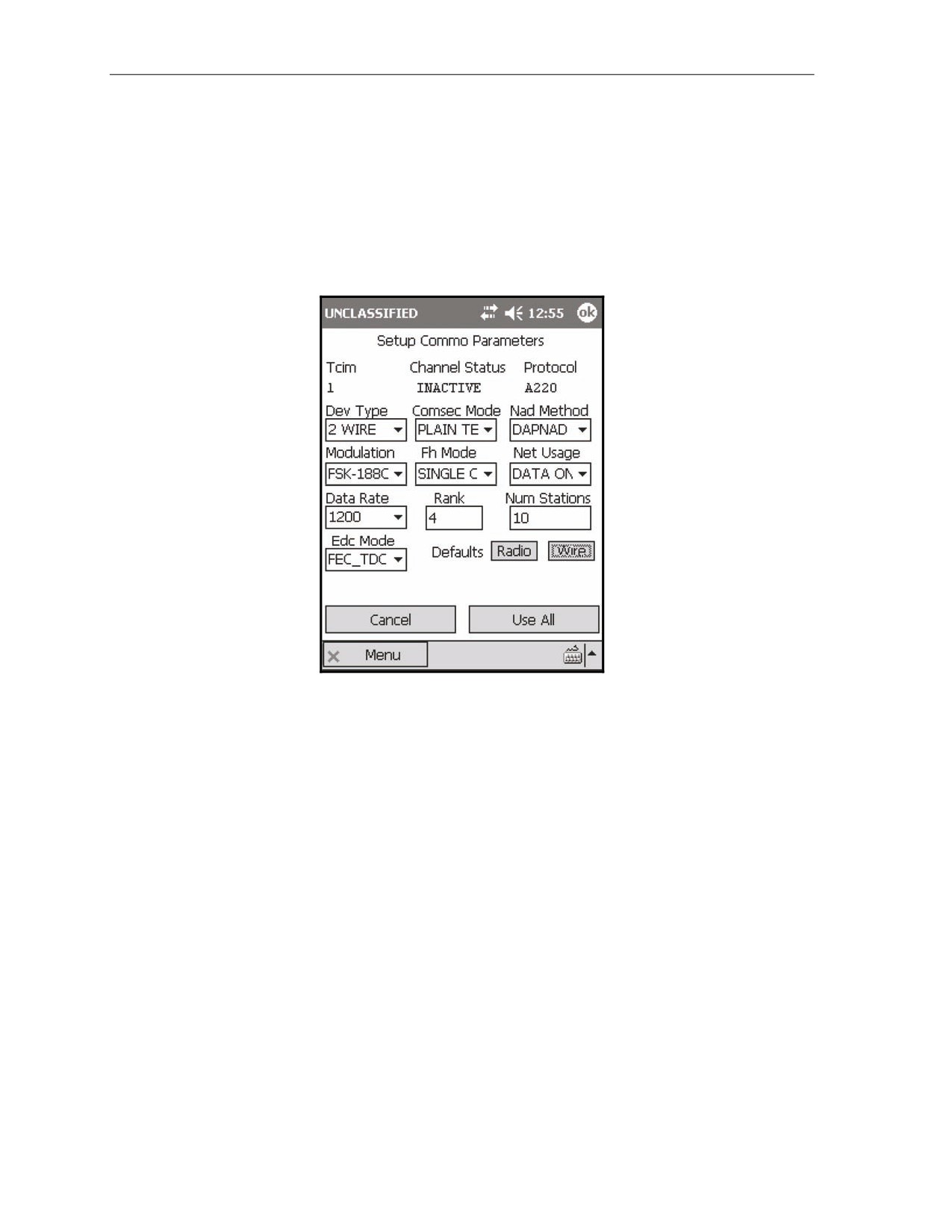
17-96. To install the two-wire connector or the radio cable (Figure 17-21)—
(1) Remove the connector covers from the communications connector on top of the LHMBC (1)
and the cable connector on the two-wire or radio connector (2).
(2) Insert the appropriate cable into the communications connector
(1), and twist the cable
connector (2) back and forth while pushing the cable in until it clicks into place.
(3) Turn the communications connector knob (3) clockwise to secure the cable.
(4) Attach the radio cable connector (4) to the audio data connector on the radio set, or connect the
two-wire connector to the communications loop.
NOTES:
1. For more setup information for FM communications, see the appropriate TM for
your radio set.
2. The two-wire connector will communicate with any other LHMBC or supported
digital device connected in the communications loop.
Figure 17-21. Lightweight handheld mortar ballistics computer communications connector.
17 July 2008
FM 3-22.91
17-23
Chapter 17
PARAMETER SETUP
17-97. To set up parameters—
(1) Select Menu.
(2) Select Commo.
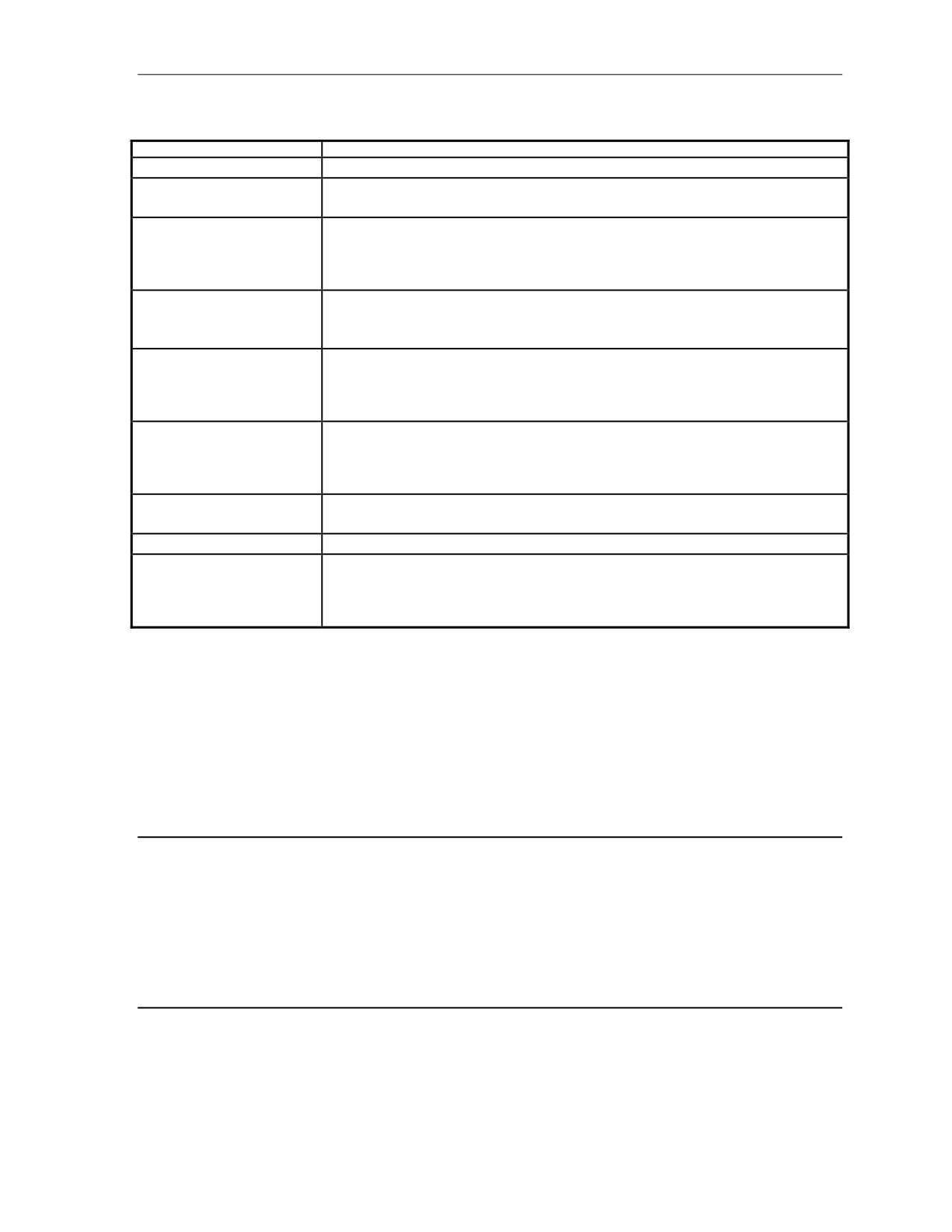
(3) Select Channel Params. The Setup Commo Parameters screen (Figure 17-22) displays.
(4) Select the appropriate device type in the Dev Type field, or enter the default settings by
selecting the Radio or Wire default buttons. The LHMBC and the sending device (FOS,
AFATDS, etc.) must have identical setup in the fields outlined in Table 17-4.
Figure 17-22. Setup Commo Parameters screen.
17-24
FM 3-22.91
17 July 2008
Introduction
Table 17-4. Parameter Setup fields and settings.
FIELD
SETTING AND RELATED INFORMATION
Dev Type
2 Wire or SINCGARS
Comsec Mode
Plain Text for 2 Wire
Plain Text or Cipher Text for SINCGARS
Network Access Delay (Nad)
RANDOM, HYBRID, PRIORITY, DAPNAD, or RROBIN
Method
NOTE: The Network Access Delay ensures that multiple users on a single network all have
transmission opportunities.
Modulation
FSK-188C (default; must be used with the FOS) or NRZ (non-return-to-zero interface)
NOTE: The NRZ interface is used primarily with digital equipment.
Fh Mode
Single channel or frequency hop mode
NOTE: This setting allows the operator to communicate in single channel or frequency hop
mode when the LHMBC is connected through an FM device.
Net Usage
Data or Data and Voice
NOTE: The Data setting is preferable, since it eliminates voice interruptions that take
precedence over data communications.
Data Rate
A baud rate of 600 or 1200 bps for wire communications
A baud rate of 2400 or 4800 bps for FM communications
Num Stations
The total number of units using the network, including the operator
Error Detection and Correction
Double_FEC_TDC, FEC_ONLY, FEC_Scrambling, FEC_TDC, FEC_TDC_Scrambling,
(Edc) Mode
NO_EDC, or Scrambling_Only
NOTE: Error Detection and Correction compensates for errors in transmission.
UNIT PRIORITIES
17-98. Rank determines a unit’s priority on the network. This is the only field that will not be identical to
the channel parameters of other units operating on the network. Each rank is a unique identifier for that
unit. Common priorities for rank are as follows:
z
FSE - 01
z
FO1 - 02
z
FO2 through FO’X’ - 3 - ‘X + 1’
z
FDC - ‘X’ + 2
EXAMPLE
For one FC, three FOs, and one FDC, the standard labeling convention will be:
z
FSE
- Rank = 1
z
FO1
- Rank = 2
z
FO2
- Rank = 3
z
FO3
- Rank = 4
z
FDC - Rank = 5
17 July 2008
FM 3-22.91
17-25
Chapter 17
SET UP A UNIT ADDRESS
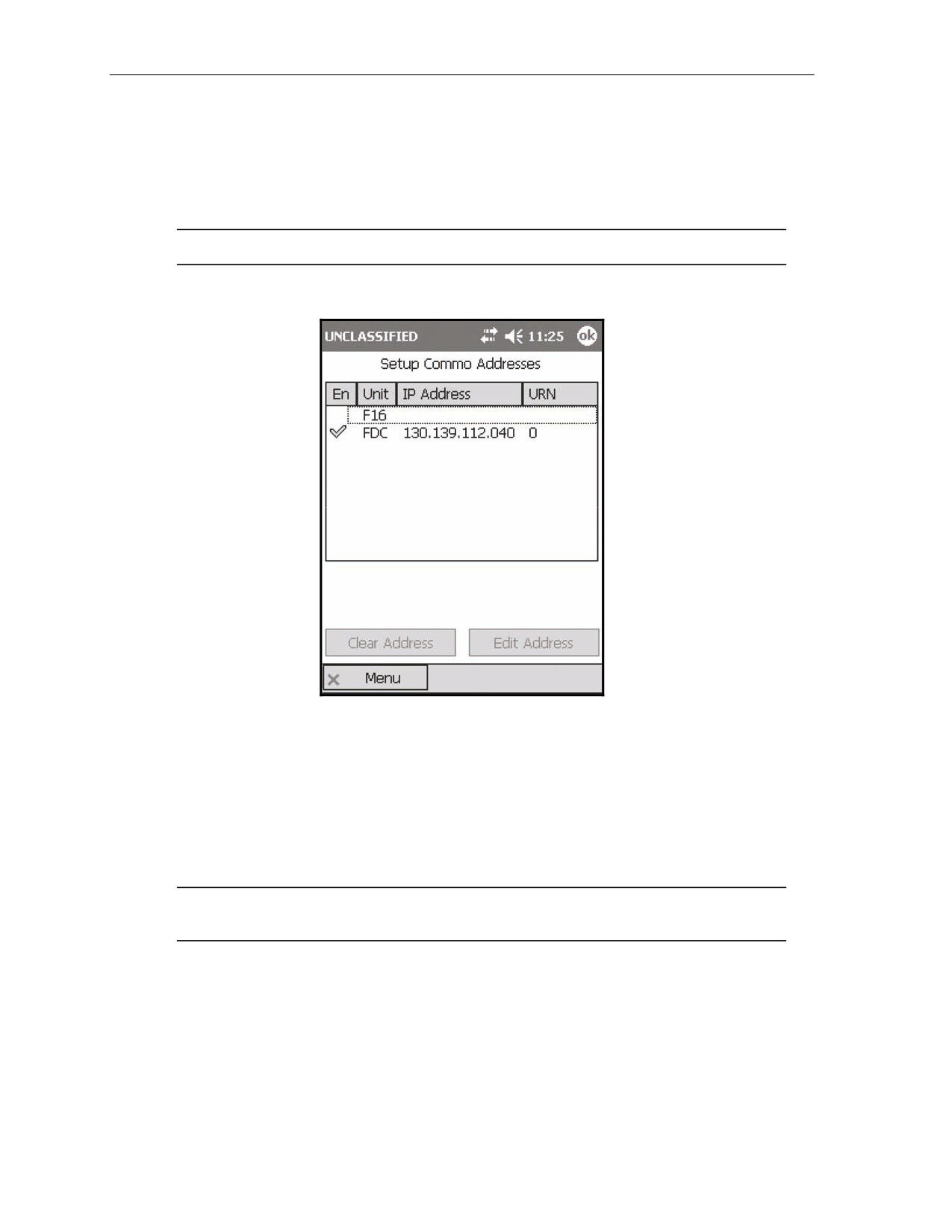
17-99. To set up a unit address—
(1) Display the Setup Commo Addresses screen (Figure 17-23) by:
Selecting Use All.
Selecting Menu, Commo, and then Channel Addrs.
NOTE: All units on the Unit List are listed, except guns.
(2) Enter the FDC address, and then the addresses of other units.
Figure 17-23. Setup Commo Addresses screen.
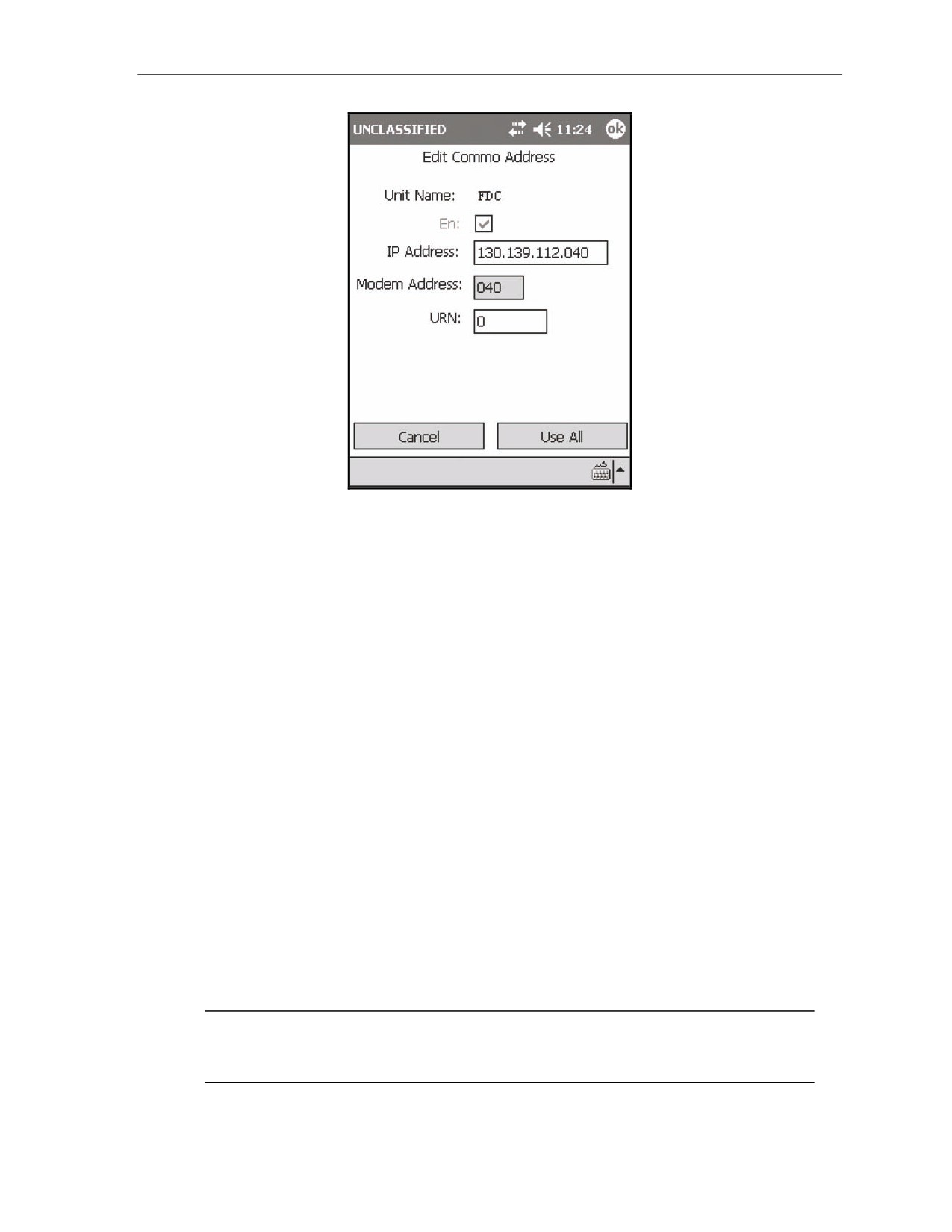
EDIT A UNIT ADDRESS
17-100. To edit a unit—
(1) Select a unit from the list of units.
(2) Select Edit Address. The Edit Commo Address screen (Figure 17-24) displays.
(3) Enter the proper Commo address values.
17-101. Select Use All.
NOTE: If the unit is an FDC, the channel will be enabled, and a checkmark will appear in the
En field of the Setup Commo Address screen.
17-26
FM 3-22.91
17 July 2008
Introduction
Figure 17-24. Edit Commo Address screen.
UNIT NAME FIELD
17-102. The unit name is listed at the top of the Edit Commo Address screen.
EN FIELD
17-103. If the channel has been enabled, the En field will be checked. This field is read-only for FDCs; all
other units may be enabled for communications by selecting this field.
IP ADDRESS FIELD
17-104. The IP address is supplied through the unit Information Manager’s Office.
MODEM ADDRESS FIELD
17-105. The modem address is the last three digits of the IP address and is filled automatically. The
number can range from 040 to 095.
URN FIELD
17-106. The URN identifies the specific LHMBC on the network and has a range from 0 to 16777215.
ENABLE OR DISABLE A CHANNEL
17-107. To enable or disable a channel—
(1) Select Menu.
(2) Select Commo.
(3) Select Enable Channel.
NOTE: A message confirming the channel’s status appears. This message only confirms that
the channel is enabled or that there was an error enabling the channel, not that the network is
working.
17 July 2008
FM 3-22.91
17-27
Chapter 17
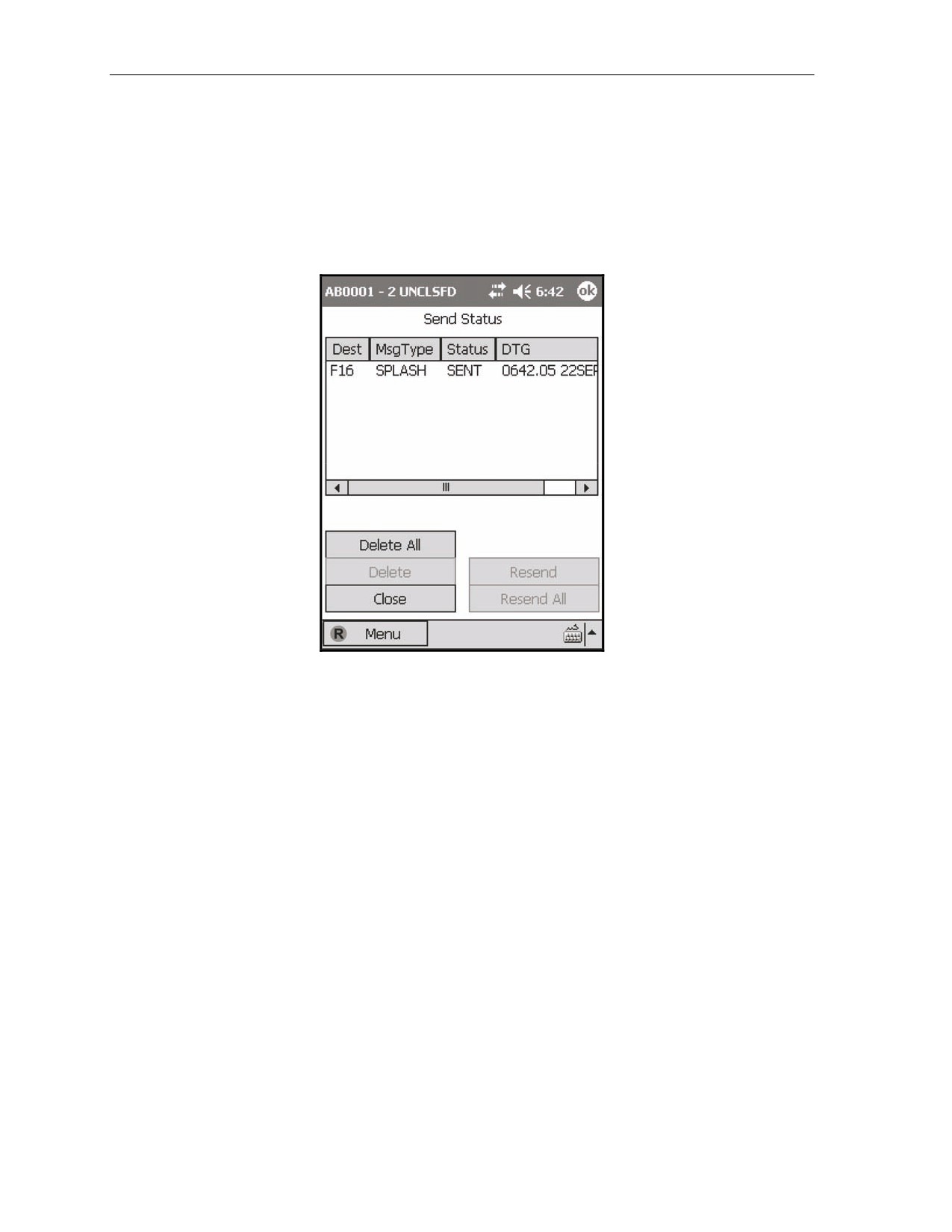
SEND STATUS SCREEN
17-108. If a channel is enabled, Send Status becomes functional. To display the Send Status screen (Figure
17-25)—
(1) Select Menu.
(2) Select Commo.
(3) Select Send Status.
17-109. Once a message has been sent, the Send Status screen automatically displays.
Figure 17-25. Send Status screen.
PLAIN TEXT MESSAGING
17-110. The LHMBC’s plain text messaging
(PTM) function allows all units, except guns, to
communicate via text messaging. Two screens, PTM Send and PTM Read, are available for text messages.
Upon receipt of a PTM, the routine priority icon will display on the left side of the Menu button.
PLAIN TEXT MESSAGING READ SCREEN
17-111. The PTM Read screen consists of a message log and a message log box. To display the PTM Read
screen—
(1) Select Menu.
(2) Select Commo.
(3) Select PTM Read.
17-112. Select a message from the log to display the message in the Message Log box. The Reply button
allows the operator to reply to the message sender by displaying the PTM Send screen.
17-28
FM 3-22.91
17 July 2008
Introduction
PLAIN TEXT MESSAGING SEND SCREEN
17-113. The PTM Send screen contains a message box for typing messages. To display the PTM Send
screen—
z
Select Menu, Commo, and then PTM Send.
OR
z
Select the Reply button on the PTM Read screen.
17-114. To send a message to a specific unit—
(1) Select the unit name from the Unit Name box.
NOTES:
1. If the PTM Send screen was displayed via the Reply button, the sending unit’s
name will be selected in the Unit Name box.
2. To send a message to all units in the Unit Name box, select Check All.
3. To clear units that have been checked, select Check None.
(2) Type your message. To clear a message, select the Clear button.
(3) Select Send. The Send Status screen displays.
SECTION III. GLOBAL POSITIONING SYSTEM
The LHMBC expansion pack contains a built-in GPS receiver. If the LHMBC detects the expansion pack, the
GPS can be enabled from the System Startup Settings screen. An external GPS antenna may be connected to
the LHMBC using the external GPS connector located on the right side of the expansion pack.
NOTES:
1. See TM 9-1220-252-12&P, WP 0034 00 for ordering info.
2. The correct Map Mod (Geo Ref) must be entered to obtain a GPS position
(Figure 17-6).
SETUP AND INITIALIZATION
17-115. To display the GPS Status screen—
(1) Select Menu.
(2) Select Setup.
(3) Select GPS.
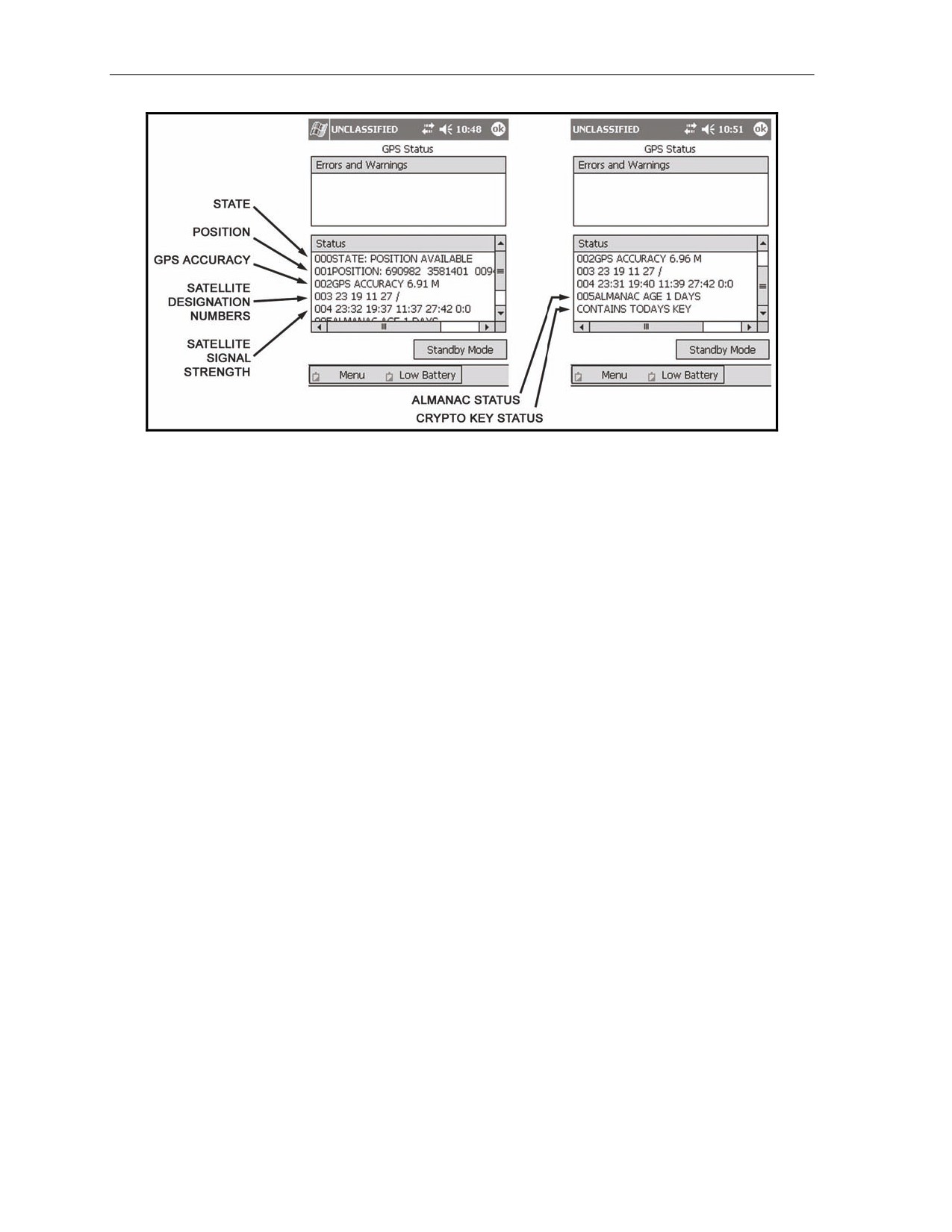
17-116. The GPS Status screen (Figure 17-26) displays the following fields:
z
000State.
z
001Position.
z
002GPS Accuracy.
z
003.
z
004.
z
005ALMANAC AGE or 005NO ALMANAC.
z
006.
17 July 2008
FM 3-22.91
17-29
Chapter 17
Figure 17-26. Global Positioning System Status screen.
00STATE
17-117. This field displays the following:
z
Initialize.
z
Searching.
z
Position Available.
z
Unknown.
001POSITION
17-118. This field displays the present position only when the State field displays “Position Available.”
002GPS ACCURACY
17-119. This field indicates the accuracy of Position. The LHMBC requires the accuracy to be 25 meters
or less before displaying the position.
003
17-120. This field indicates the five satellite designation numbers that the LHMBC is tracking and the
good/weak signal indicator. A slash serves as the good/weak indicator; satellites to the right of the slash
have weak signal strength. For example, 003 4 13 11 / 10 20 indicates that satellites 4, 13, 11, 10, and 20
are the five satellites currently being tracked by the LHMBC. Satellites 4, 13, and 11 have good signal
strength; satellites 10 and 20 have weak signal strength.
004
17-121. This field indicates the strength of a satellite signal. For example, 004 4:36 13:42 11:32 10:12
20:0 indicates that satellite 4 has a signal strength of 36, satellite 13 has a signal strength of 42, and so on.
17-122. Signal strength ranges from 0 (no signal) to 50 (max signal). A signal strength of 30-40 is usually
strong enough for the GPS to receive data.
005ALMANAC AGE OR 005NO ALMANAC
17-123. This field indicates the age of the almanac in days. When the GPS is using NO ALMANAC or an
almanac that is more than a few days old, it will take longer to acquire a position.
17-30
FM 3-22.91
17 July 2008
Introduction
006
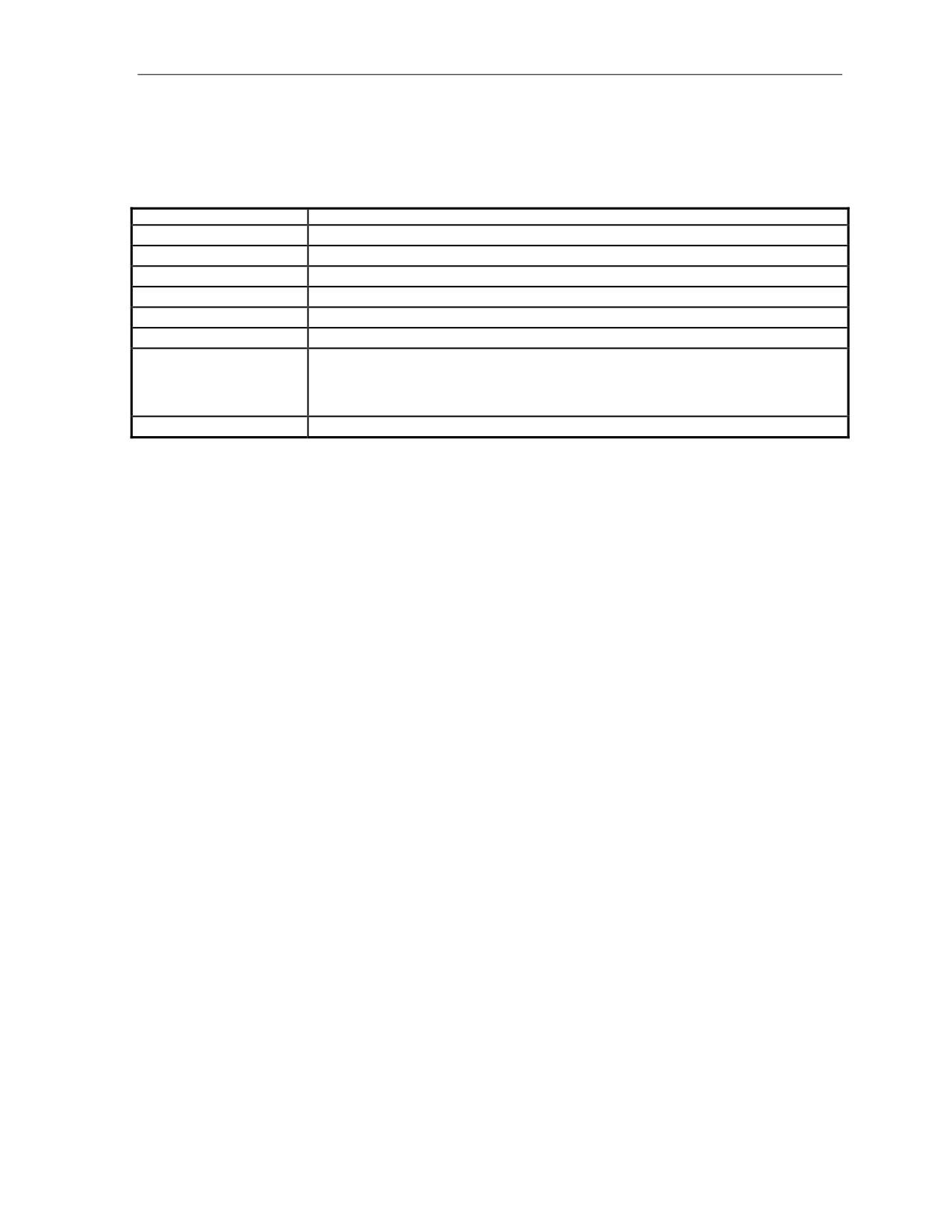
17-124. This field displays the crypto key status. The status displayed are shown in Table 17-5. GPS keys
are required if satellite signals are scrambled.
Table 17-5. Global Positioning System crypto key status and meaning.
CRYPTO KEY STATUS
MEANING
Not Keyed
No key has been loaded.
No Key for Today
The key loaded is invalid or expired.
Contains Todays Key
The key is in use.
Todays Key Incorrect
The group unique variable (GUV) crypto key is invalid.
Waiting for SV Data
The LHMBC is waiting for the satellite vehicle; the crypto key may be installed, but is too old.
CV Zeroize Successful
The crypto variable and almanac have been zeroized.
CV Zeroize Failed
The GPS has failed to zeroize. Perform a soft reset, and then attempt to zeroize the GPS. If
problem continues, perform a hard reset. Attempt to zeroize the GPS again. If problem
persists, evacuate the LHMBC to unit maintenance.
NOTE: See TM 9-1220-252-12&P WP 0040 00 for soft and hard reset procedures).
Key Loaded
This message is displayed for approximately 2 seconds when loading the key.
STANDBY MODE
17-125. Use standby mode to turn the GPS off and save power. The initial position will be available
within 20 minutes of being switched back to continuous mode.
GLOBAL POSITIONING SYSTEM COMSEC KEY
17-126. To fill the LHMBC—
(1) Select Menu.
(2) Select Setup.
(3) Select GPS. The GPS Status screen displays.
17-127. The LHMBC does not require the operator to be on the GPS Status screen to receive the fill, but
this will enable the operator to verify that the LHMBC has received the crypto key and confirm its status.
ZEROIZING THE GLOBAL POSITIONING SYSTEM CRYPTO KEY
17-128. The GPS crypto key may be zeroized from the Maintenance screen. This process will also zeroize
the GPS almanac. To launch the LHMBC Maintenance screen from the desktop—
(1) Select Start.
(2) Select Maintenance.
(3) Select Zeroize GPS.
(4) A call box will display to confirm zeroizing the GPS. Select Yes. The GPS key and almanac are
now zeroized.
17 July 2008
FM 3-22.91
17-31
This page intentionally left blank.
Chapter 18
Fire Missions
The LHMBC provides a standard set of steps and screens to view the fire mission
data for grid, polar plot, laser polar, shift from a known point, quick fire, direct lay,
and hipshoot missions. The sequence of actions from the initial CFF to the end of
mission (EOM) is standard for all CFFs, although some steps may be omitted or
repeated. This chapter consists of three sections: manual fire missions, digital fire
missions, and special fire missions. The LHMBC can handle up to six active missions
at a time.
SECTION I. MANUAL FIRE MISSIONS
Manual missions are fire missions that the FDC does not receive digitally from the FC or FO. A fire mission
can be received from the FO by radio or any other form of verbal communication.
NOTE: Chapter 17 describes the steps required to initialize the LHMBC. Initialization must be
performed before processing most fire missions.
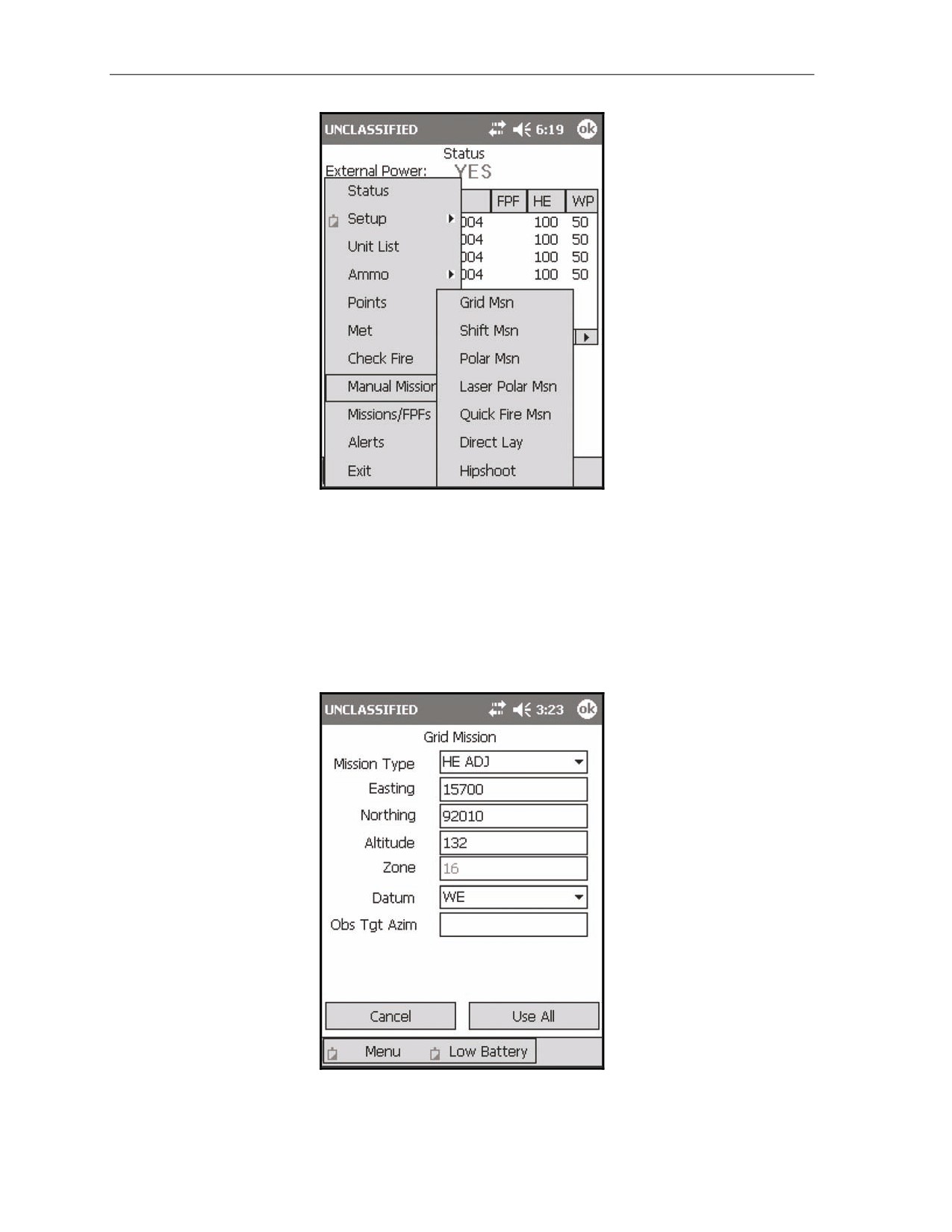
All manual missions are initiated from the Manual Missions menu (Figure 18-1). To access this menu, select
Menu, and then Manual Missions. The Manual Missions submenu is displayed. This menu lists the method of
target location for all manual missions. These methods include—
z
Grid.
z
Polar plot.
z
Laser polar.
z
Shift from a known point.
z
Quick fire.
z
Direct lay.
z
Hipshoot.
NOTE: The following LHMBC grid mission screens depict an actual fire mission. This
example uses no sheaf corrections (Reg/MET).
17 July 2008
FM 3-22.91
18-1
Chapter 18
Figure 18-1. Manual Missions menu.
GRID MISSIONS
18-1.
After recording the CFF on DA Form 2399-R—
(1) Select Menu.
(2) Select Manual Missions.
(3) Select Grid Msn.
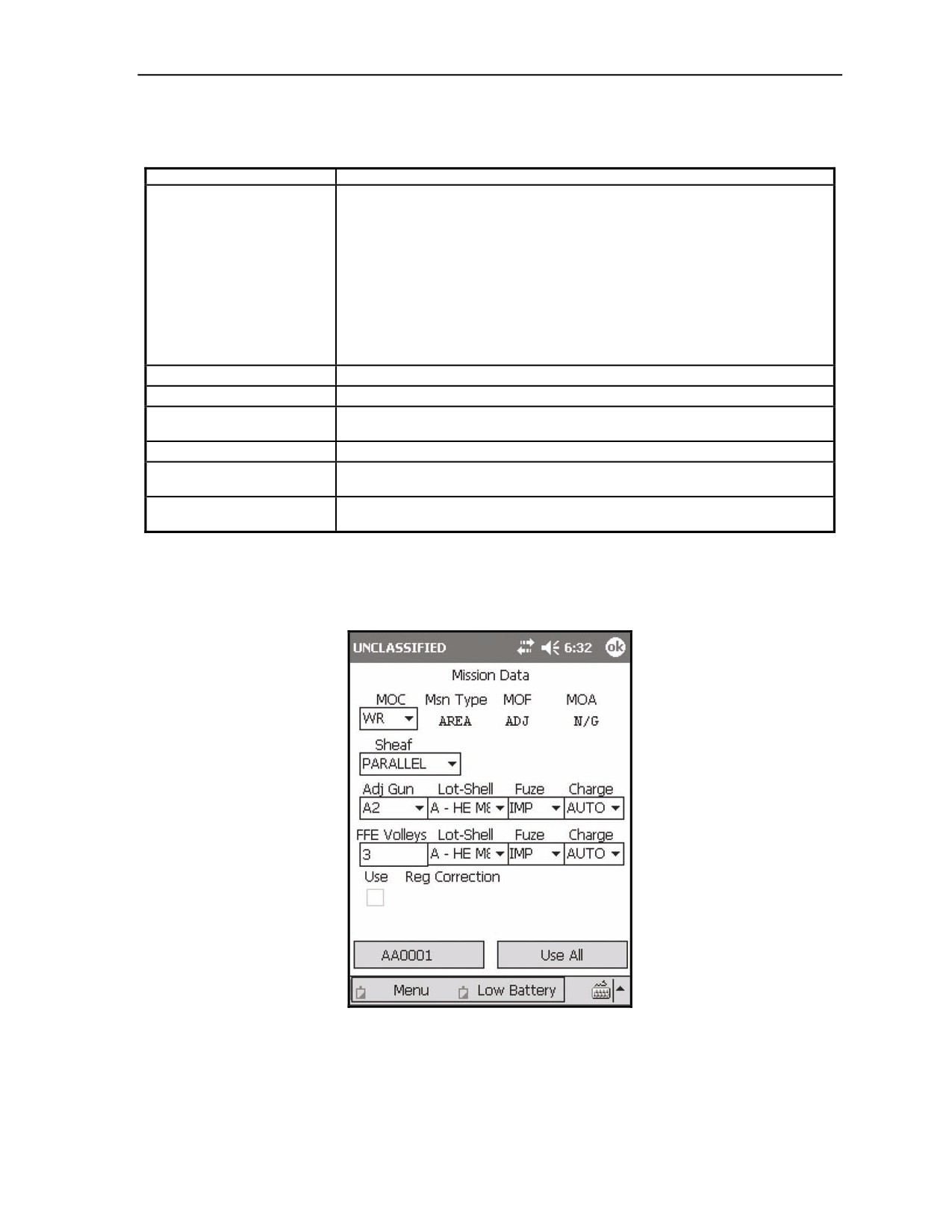
(4) The Grid Mission screen (Figure 18-2) displays.
Figure 18-2. Manual grid mission entry.
18-2
FM 3-22.91
17 July 2008
Fire Missions
(5) Enter all required information in the Grid Mission screen fields (Table 18-1).
Table 18-1. Grid Mission screen fields and related information.
FIELD
RELATED INFORMATION
Mission Type
The Mission Type field defaults to HE ADJ. The options for this field include:
•
High-explosive adjustment (HE ADJ).
•
High-explosive FFE (HE FFE).
•
Illumination adjustment (ILL ADJ).
•
Illumination FFE (ILL FFE).
•
Suppression (SUPPRESS).
•
Immediate smoke (IM SMOKE).
•
Registration.
•
FPF.
Easting
Easting must be entered in a five-digit format.
Northing
Northing must be entered in a five-digit format.
Altitude
The altitude is not required, but is entered if given. If the altitude is not entered, the
target altitude will be calculated at the same altitude as the firing unit.
Zone
The Zone field displays the zone entered in the Geo Ref setup and is read-only.
Datum
The Datum field is auto-filled by the Geo Ref. Although a different datum may be
selected, it will not be saved for future missions.
Observer-Target Azimuth (Obs
The observer-target azimuth must be entered prior to making the first adjustment, or
Tgt Azim)
the LHMBC will default to the gun-target (GT) line.
(6) Select Use All.
(7) The Mission Data screen (Figure 18-3) displays. The Mission Data screen allows the operator to
enter the method of control and gun/sheaf refinements.
Figure 18-3. Mission Data screen.
17 July 2008
FM 3-22.91
18-3