FM 3-22.91 MORTAR FIRE DIRECTION PROCEDURES (July 2008) - page 8
Chapter 15
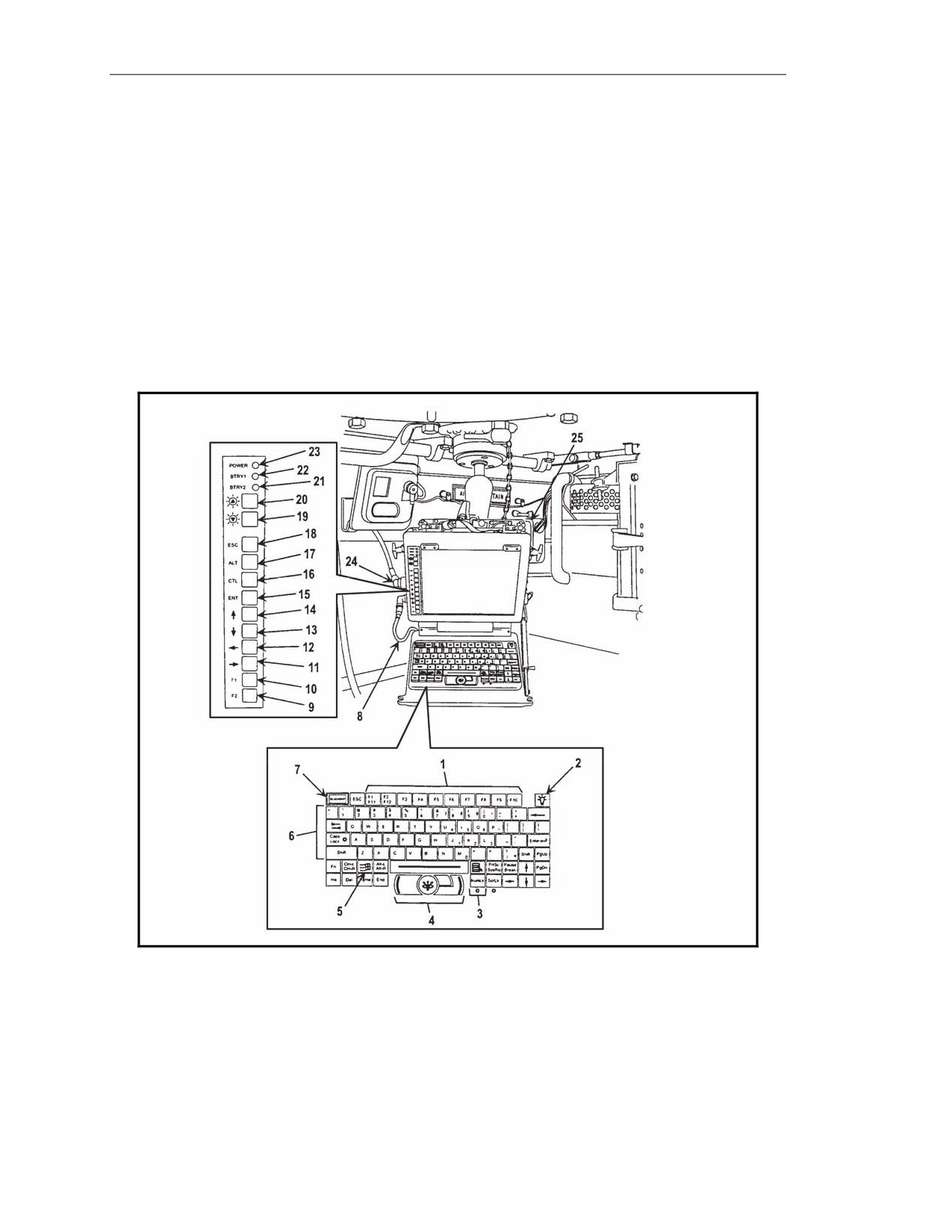
Screen Brightness Intensity Buttons
15-13. The screen brightness intensity buttons (19 and 20, Figure 15-2) decrease and increase the
brightness of the LCD screen.
Battery 1 and Battery 2 Indicators
15-14. The Battery 1 (BTRY1, shown in 22, Figure 15-2) and Battery 2 (BTRY2, shown in 21,
Figure 15-2) indicators illuminate with green light when the capacity of the respective battery is 50 to
100 percent of power, with amber light when capacity is 25 to 50 percent, and with no illumination
when the capacity drops below 25 percent.
Power Indicator
15-15. The Power indicator (23, Figure 15-2) illuminates with green light when the computer is
being powered with external power (PDA, AC/DC adapter) and with amber light when battery power
only is used.
Figure 15-2. Commander’s interface.
POWER DISTRIBUTION ASSEMBLY
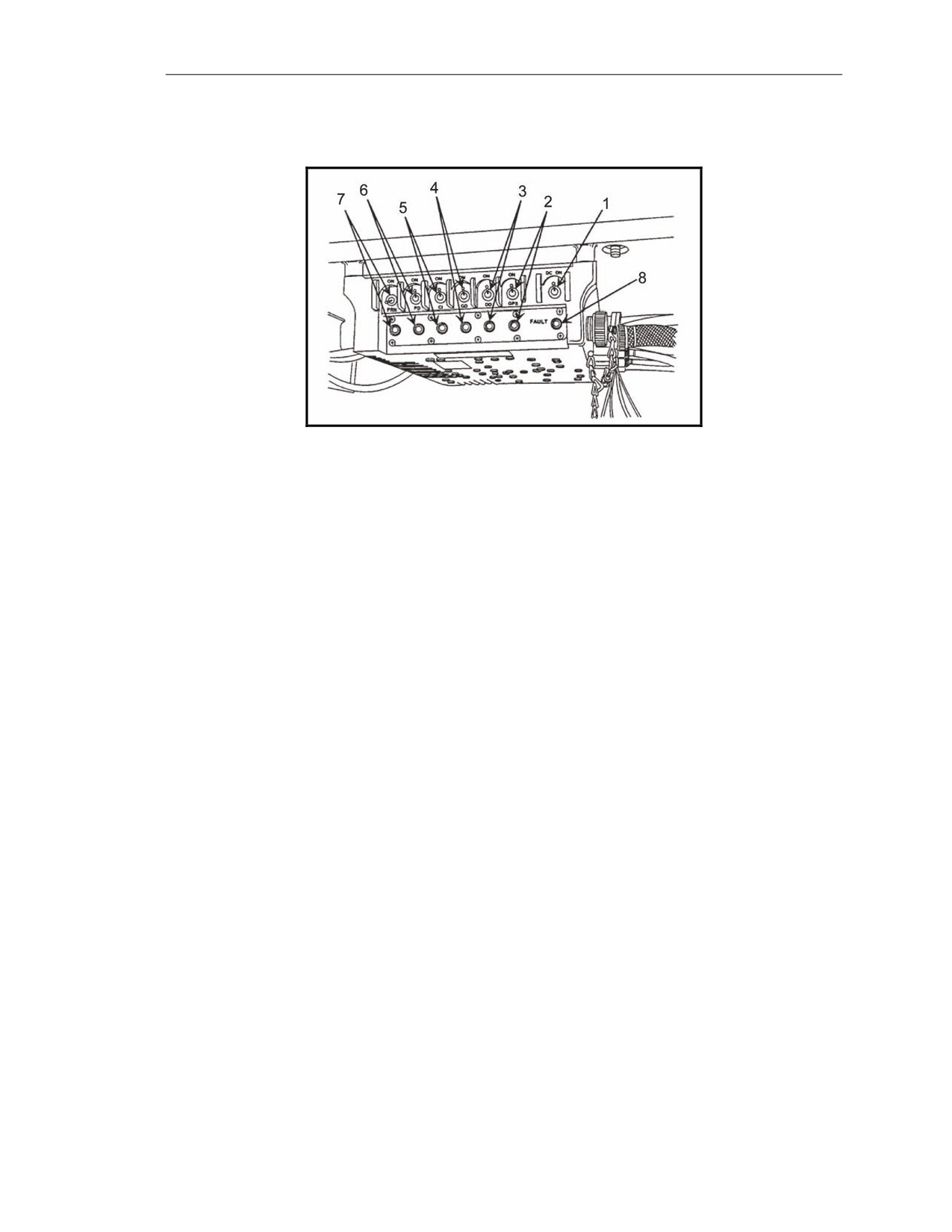
15-16. The power distribution assembly (PDA, shown in Figure 15-3) accepts direct current (DC)
and alternating current (AC) to power the MFCS components. It filters vehicle power through a DC-
to-DC power system that isolates the MFCS components from fluctuations in vehicle power, including
starting the vehicle. It also protects the MFCS components against reverse polarity and power surges.
15-4
FM 3-22.91
17 July 2008
Introduction
To support classroom training and nonfield usage, the PDA also provides a 115-220v AC interface for
connection to available line power, which preserves the battery charge level.
Figure 15-3. Power distribution assembly.
Power On Switch
15-17. The Power On switch (1, Figure 15-3) turns the PDA on and off for DC power only.
Switch and Light-Emitting Diode Indicator for the Global Positioning System
15-18. This switch (2, Figure 15-3) distributes power to the precision lightweight Global Positioning
System receiver (PLGR) on the M1064 only. The LED turns green when the switch is on.
Switch and Light-Emitting Diode Indicator for the Driver’s Display
15-19. This switch (3, Figure 15-3) distributes power to the driver's display (DD) on the M1064
only. The LED turns green when the switch is on.
Switch and Light-Emitting Diode Indicator for the Gunner’s Display
15-20. This switch (4, Figure 15-3) distributes power to the gunner's display (GD) on the M1064
only. The LED turns green when the switch is on.
Switch and Light-Emitting Diode Indicator for the Commander’s Interface
15-21. This switch (5, Figure 15-3) distributes power to the CI. The LED turns green when the
switch is on.
Switch and Light-Emitting Diode Indicator for the Pointing Device
15-22. This switch (6, Figure 15-3) distributes power to the pointing device (PD) on the M1064
only. The LED turns green when the switch is on.
Switch and Light-Emitting Diode Indicator for the Printer
15-23. This switch (7, Figure 15-3) distributes power to the printer, or in an emergency, the printer
port can be used to power the PD. The LED turns green when the switch is on. This switch is not used
in this application except in an emergency situation.
Fault Light-Emitting Diode Indicator
15-24. This indicator (8, Figure 15-3) illuminates with amber light and may flicker if the PDA
malfunctions.
17 July 2008
FM 3-22.91
15-5
Chapter 15
POINTING DEVICE
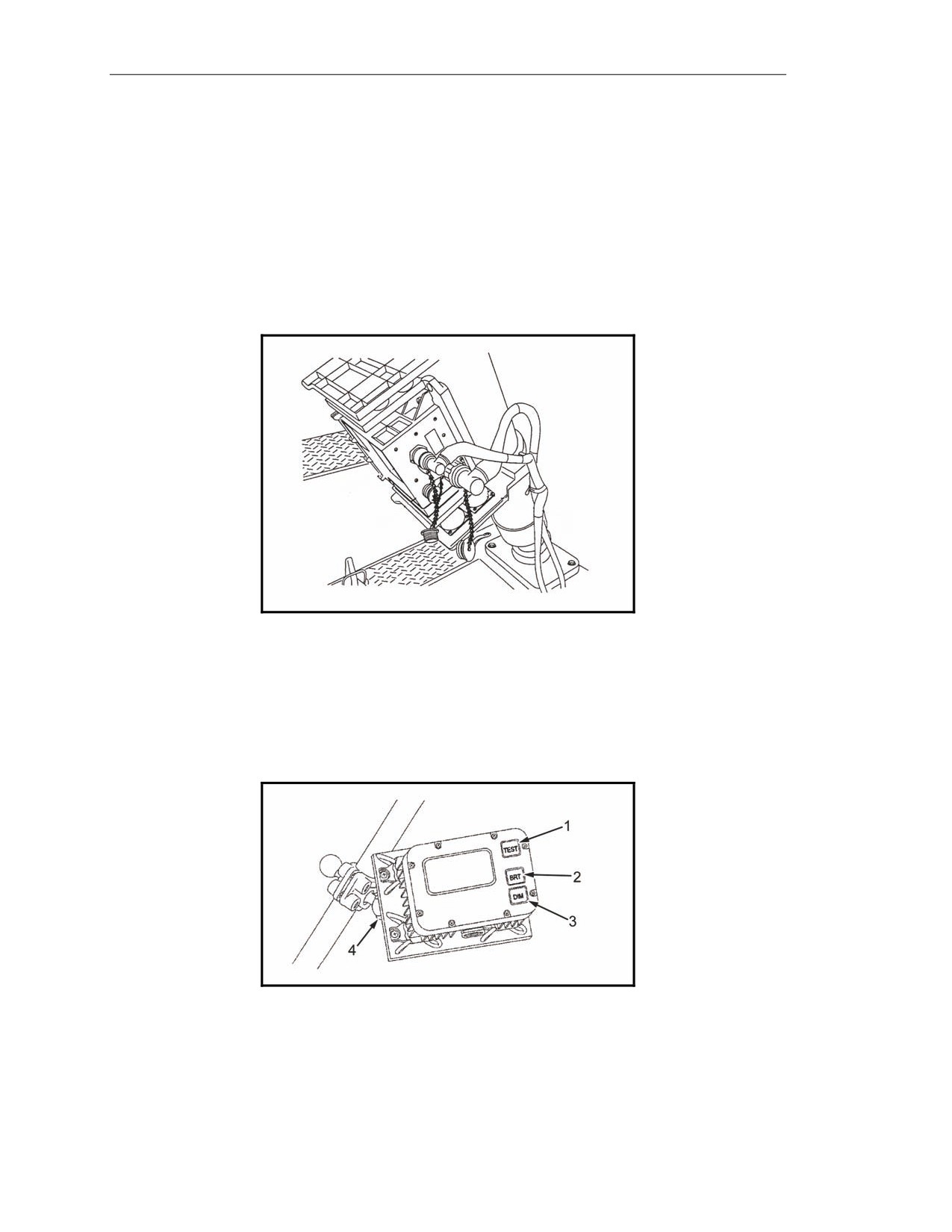
15-25. The PD (Figure 15-4) is mounted in the M1064 mortar carrier and aligns the M121 mortar. It
can maintain alignment and accuracy within 3 mils of the azimuth and 1 mil of the elevation in all
conditions. It provides pointing and positional performance at an operational range of 80 degrees south
to 84 degrees north latitude. An inertial measurement unit (IMU) provides the weapon with absolute
knowledge of vehicle position and mortar barrel azimuth and elevation. The IMU can determine the
orientation of the mortar barrel without survey control points, aiming circles, or aiming posts—
allowing the mortar platoon to emplace anywhere, anytime. To maintain a high degree of accuracy, the
IMU incorporates information from the GPS and a vehicle motion sensor (VMS). The PD's design
allows for loss of the GPS, the VMS, or both devices without substantial degradation of overall
performance.
Figure 15-4. Pointing device.
GUNNER’S DISPLAY
15-26. The GD (Figure 15-5) provides the gunner with the necessary information (deflection,
elevation, check fire, and CFF commands) to aim and fire the mortar. It is mounted to the left center
bipod leg. Function keys are used to start various displays that cover the gunner’s functional needs for
information, status, and reporting.
Figure 15-5. Gunner’s display.
Test Key
15-27. The Test key (1, Figure 15-5) initiates the internal built-in test (BIT) display.
15-6
FM 3-22.91
17 July 2008
Introduction
Bright and Dim Keys
15-28. The Bright (BRT) and Dim (DIM) keys (2 and 3, Figure 15-5) increase and decrease the
brightness of the LCD.
Locking Clamp
15-29. The locking clamp (4, Figure 15-5) is used to allow movement of the GD from the mounting
wall.
DRIVER’S DISPLAY
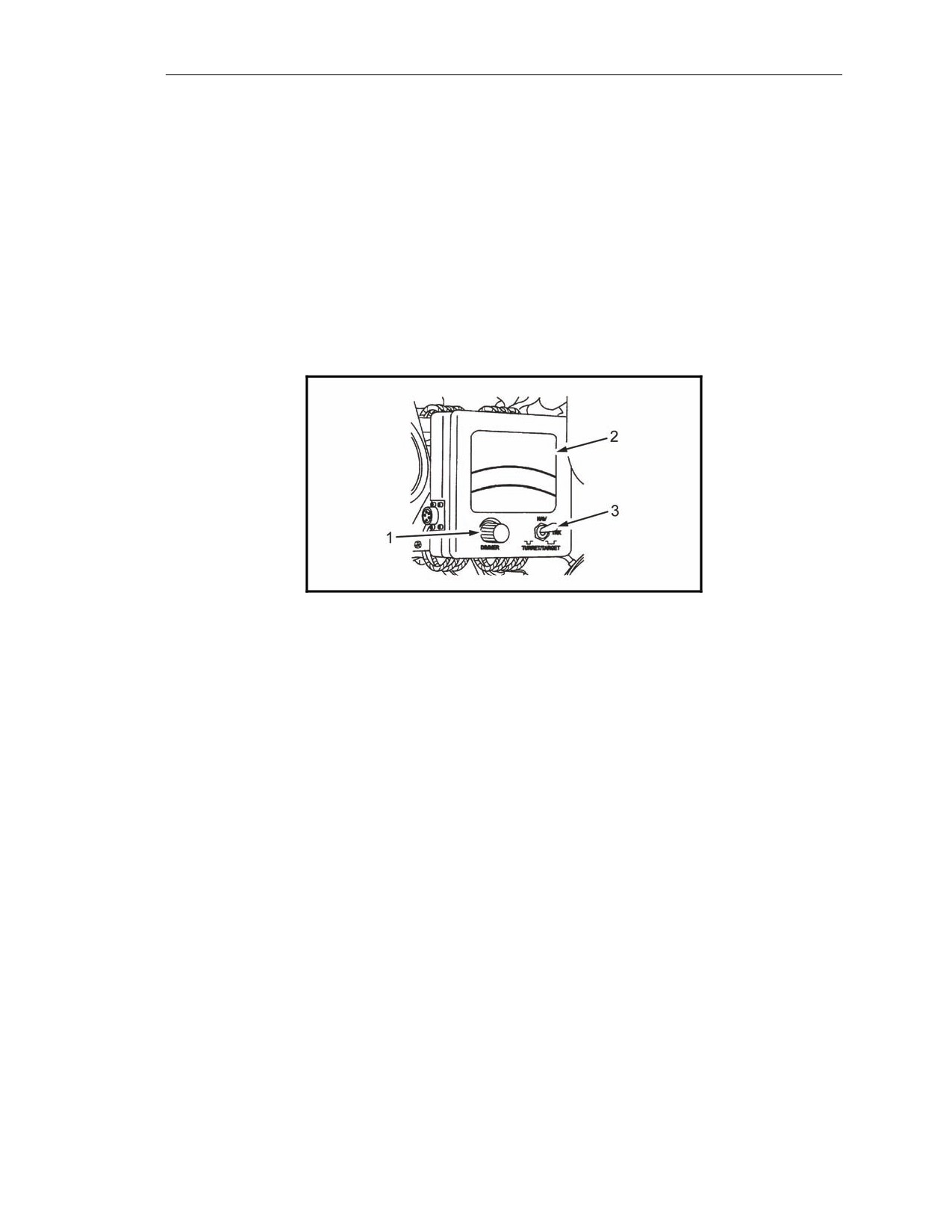
15-30. Located within the driver’s vision, the DD (Figure 15-6) displays the steering directions and
compass orientation to move the vehicle to the next firing location or waypoint. It also provides
information to correctly orient the vehicle at the next emplacement. Information is graphically
displayed for steering directions and compass orientation, and numerically for distance and heading.
Figure 15-6. Driver’s display.
Dimmer Knob
15-31. The dimmer knob (1, Figure 15-6) controls the brightness of the LCD.
Liquid Crystal Display
15-32. The LCD (2, Figure 15-6) displays directions to the next position. The LCD blinks when a
call for fire is received.
Toggle Switch
15-33. With the toggle switch (3, Figure 15-6) turned to NAV, the LCD displays directional
instructions. The TRK and TURRET/TARGET toggle positions are not used.
17 July 2008
FM 3-22.91
15-7
Chapter 15
VEHICLE MOTION SENSOR
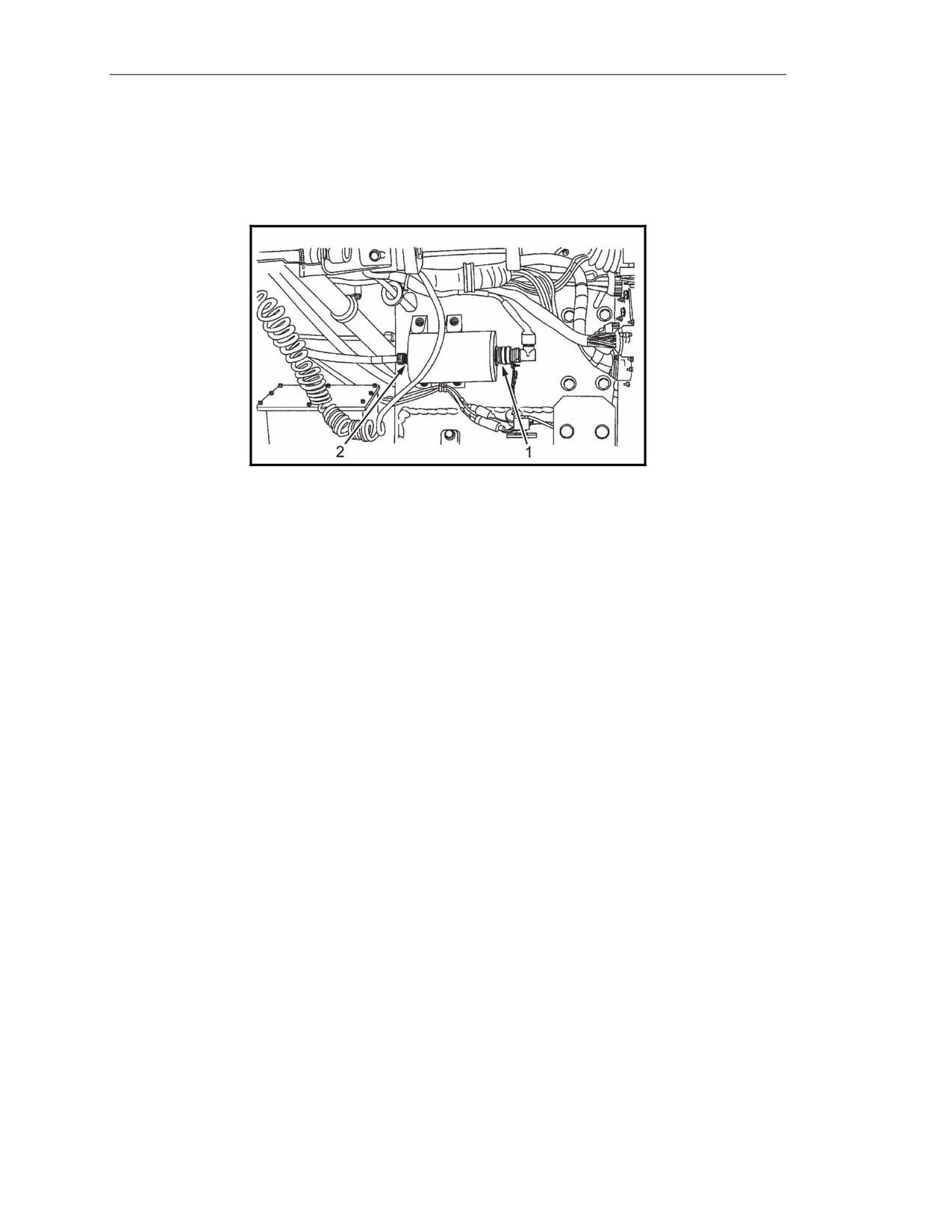
15-34. The VMS (Figure 15-7) provides the PD with vehicle velocity data to reduce the vertical
position error and improve location accuracy. Rotation of the drive wheels, and, thus, motion of the
vehicle, creates a pulse, which represents forward or backward motion of the vehicle. The VMS is
mounted inside the engine compartment in front of the driver’s cab on the M1064 carrier.
Figure 15-7. Vehicle motion sensor.
CAPABILITIES
15-35. The computer design permits the system to be upgraded to match expanding demands on field
terminal equipment. Currently, the MFCS is capable of storing—
z
18 gun positions.
z
3 gun sections.
z
50 known points.
z
50 known targets.
z
16 RPs.
z
3 FPFs.
z
12 FO locations.
COMMANDER’S INTERFACE PROCESSING CAPABILITIES
15-36. The CI can simultaneously process up to six active fire missions, consisting of one to six guns
per mission, as long as no mission consists of guns from different sections and no gun is assigned to
more than one mission concurrently. It can also—
z
Accept up to 100 digital messages.
z
Handle a full range of mortar ammunition per type.
z
Conduct registration missions and apply all registration corrections automatically.
z
Receive, compute, and automatically apply all MET corrections.
z
Store a maximum of 10 safety fans.
z
Provide a 13-digit grid to impact for all rounds.
z
Provide azimuth and range from the gun to the impact for each round.
z
Connect to radio or wire for digital communications.
15-37. The CI can be powered with dual nickel metal hydride (NiMh) rechargeable lithium batteries.
Power can also be supplied through power adapter options of 12- to 32-volt DC or 110- or 220-volt
AC power. The CI also contains power-saving circuitry.
15-8
FM 3-22.91
17 July 2008
Introduction
15-38. The CI accepts digital messages from the Forward Observer System (FOS), the Advanced
Field Artillery Tactical Data System
(AFATDS), and the interim fire support artillery software
(IFSAS) to support FSCMs and digital messaging devices (DMDs). It has an integral speaker and
software to control its output and provides the following safety geometry:
z
No-fire areas (NFA).
z
Coordinated fire lines (CFL).
z
Restricted fire areas (RFA).
z
Restricted fire lines (RFL).
z
Lateral boundaries (LB).
z
Airspace coordination areas (ACA).
z
Forward line of own troops (FLOT).
COMMANDER’S INTERFACE BATTERY SPECIFICATIONS
15-39. The CI holds two rechargeable NiMh batteries, which are for backup power purposes only.
The CI can operate without batteries. It also includes the following features:
z
Single batteries can be replaced while the system is in operation.
z
Batteries cannot be installed incorrectly.
z
Battery power will last for approximately four hours at ambient conditions.
WARNINGS
1. The battery indicator is no longer reliable. The conditioning
process recalibrates the battery indicator, and without
recalibration, that indicator becomes inaccurate.
Remaining battery life can be determined by applying
external power to the CI and observing the BTRY1 and
BTRY2 indicators. See MAM 06-019 for more information.
2. CI batteries DO NOT REQUIRE CONDITIONING OR DEEP
CYCLING. The CI should never be used to condition
batteries.
3. Charging two batteries simultaneously can create internal
noise and grounding loops in the CI. Ensure that only one
battery is installed in the CI at all times.
SOLDIER GRAPHIC USER INTERFACE
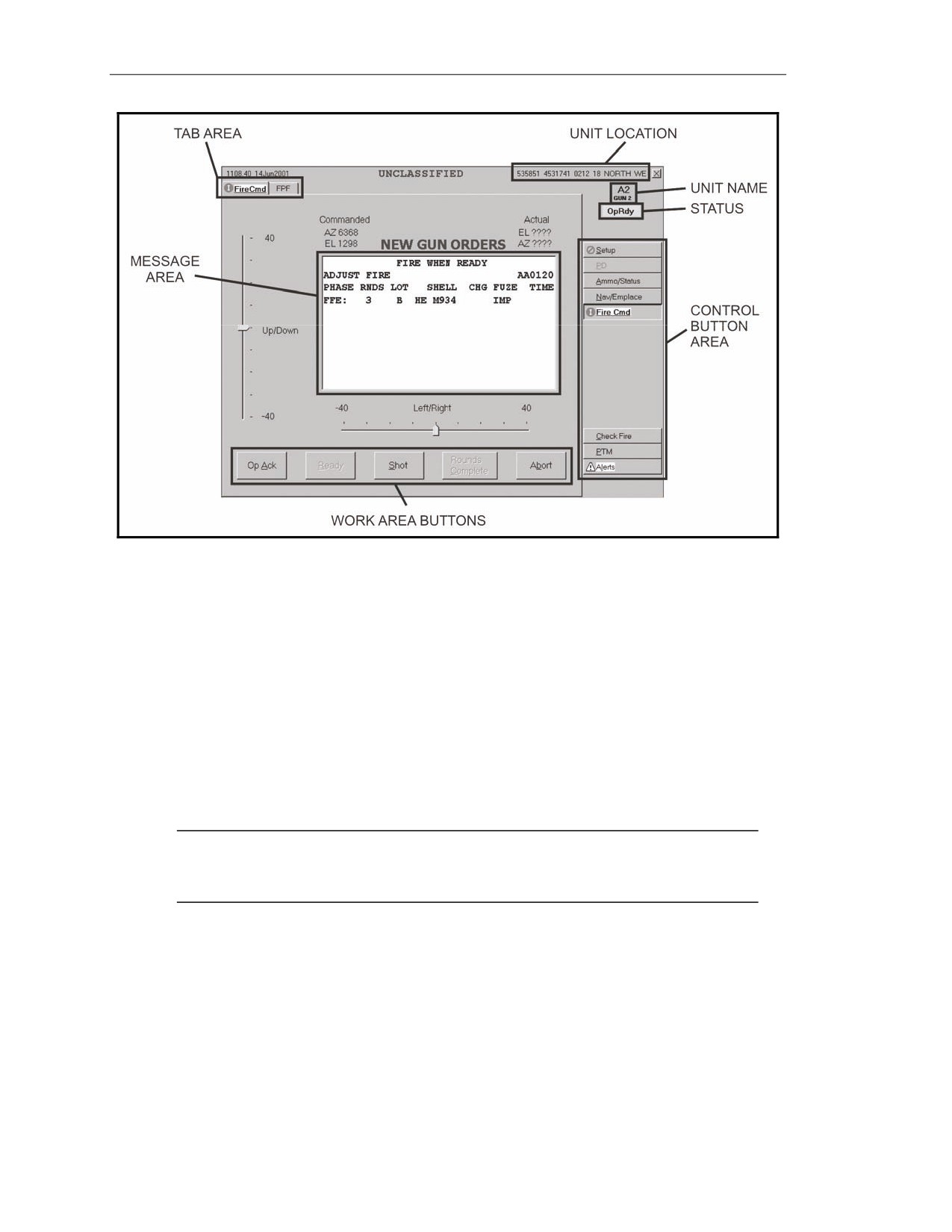
15-40. A Soldier GUI (Figure 15-8) is a display that allows the operator to use menus, windows, and
icons rather than type complicated commands.
SCREEN AREA
15-41. The screen area is located on the screen of the laptop computer. The screen will display an
image with buttons, tabs, fields, and menus. It displays the classification of the information on the
current screen in the upper center of the screen.
17 July 2008
FM 3-22.91
15-9
Chapter 15
Figure 15-8. Graphic user interface.
Control Button Area
15-42. The control button area displays the buttons used to access all available MFCS functions for
the gun and is located on the right side of the GUI. The buttons include—
z
Setup.
z
Pointing Device (PD).
z
Ammunition/Status (Ammo/Status).
z
Navigation/Emplacement (Nav/Emplace).
z
Fire Command (Fire Cmd).
z
Check Fire.
z
Plain Text Messages (PTM).
z
Alerts.
NOTE: The control button area displays only those buttons available for the function
currently being used. For example, the setup display above does not include the fire mission
functions of FPF, FSCMs, MET, and so on.
Tabs
15-43. Tabs are similar to buttons and are displayed at the top of the screen after a control button has
been selected. When a tab is selected, the appropriate screen appears, and the operator can review and
enter information and execute actions.
Work Area
15-44. The work area is located in the center of the screen. This is where information can be viewed,
selected, or modified.
15-10
FM 3-22.91
17 July 2008
Introduction
Work Area Buttons
15-45. Work area buttons are located in the center and at the bottom of the screen. They are used to
accept, process, or refuse data presented in the work area.
Position Location
15-46. Position location is in the upper right corner of the screen. It can be the actual position, a
series of question marks (if the position is not established), or a note such as “Position Not Available.”
Unit Name and Long Name
15-47. These are located just below the position location.
COMMON ACTIONS
15-48. When using the MFCS, the operator repeatedly uses the same commands. These are usually
done by clicking buttons in the working button area of the screen or responding to a query in a
message box. These commands include—
z
Operationally acknowledge (OpAck).
z
Record data.
z
Message to the observer (MTO) accept or deny.
z
Process or delete.
z
Select the guns to fire the mission.
z
Confirm gun orders.
z
Accept or modify data.
Operationally Acknowledge
15-49. Clicking the operationally acknowledge (OpAck) button acknowledges receipt of a message
and, if turned on, deactivates the audio alarm. The phrase “click the OpAck button” is used throughout
the chapter to indicate this action.
Record Data
15-50. Data is recorded throughout the process to maintain a record and to preserve data should the
MFCS fail. Data is transcribed onto DA Form 2399-R or DA Form 2188-R. The phrase “record data”
is used throughout the chapter to indicate this action.
Message to the Observer Accept or Deny
15-51. The phrases "click MTO Accept to accept the mission" or "click MTO Deny to refuse the
mission" are used throughout the chapter to indicate these actions. If the operator selects MTO Deny,
the Delete button becomes visible and, when clicked, deletes the mission. If an error is beyond FDC
control, the only choice is MTO Deny.
Process or Delete
15-52. The MFCS usually presents a choice to process or delete the fire mission. The operator can
click Process to continue with the mission or Delete to end the mission. The terms “process” and
“delete” are used throughout the chapter to indicate these actions.
Select the Guns to Fire the Mission
15-53. Guns for the mission are preselected by the software and are checked in the Sel box in Gun
Select. The operator can modify these selections by clicking in the Sel box to select or deselect any
operationally ready (OpRdy) gun. The operator can also select all or none of the guns listed by
clicking All or None. The phrase “select guns” is used throughout the chapter to indicate this action.
15-54.
17 July 2008
FM 3-22.91
15-11
Chapter 15
Confirm Gun Orders
15-55. When a solution is displayed and the operator is satisfied with the data, the operator will
select “Send Gun Orders.” A message box will be displayed to confirm the order. The operator clicks
“Yes” to confirm the action.
Accept or Modify Data
15-56. If required, the operator makes adjustments to the mission data. To undo any changes, he
clicks Undo Changes, and the data fields display the original data. To accept all changes made, click
Use All. If no changes are made, click Use All. The phrase “modify data if necessary” is used
throughout the chapter to indicate this action.
STARTUP
15-57. Starting the MFCS on the M1064 must be done in sequence to ensure that the system
performs properly. Follow these steps to start the MFCS and its ancillary equipment.
(1) Ensure that the radios are in the stand-by mode, and turn on the vehicular or AC power.
Ensure that sufficient vehicular or auxiliary power is available by checking the power gauge
meter on the driver’s instrument panel.
(2) Turn on the power distribution assembly (PDA). The PDA distributes power to the MFCS
components and the PLGR. Use the toggle switch to turn on power for each.
(3) Turn on the PLGR. The PLGR self-test is successfully performed when the PLGR screen
states, “No faults found.” For all MFCS operations, the PLGR must have current COMSEC
codes installed.
(4) Turn on the PD. The PLGR screen states, “Remote control only zeroized key activated.”
(5) Turn on the CI. Check to see if the batteries are installed in the battery compartment and the
power cable is connected to the computer. Turn on the CI switch on the PDA. If the Power
indicator illuminates with amber light, the CI is not receiving external power. If the Power
indicator illuminates with green light, the CI has external power.
(6) Establish continuous mode for the PLGR. The upper left portion of the PLGR screen should
display “Cont.”
(7) Turn on the radios
(8) Turn on the DD.
(9) Turn on the GD.
NOTE: See TM 9-1220-248-10 for more detailed information.
LOG-IN PROCEDURES
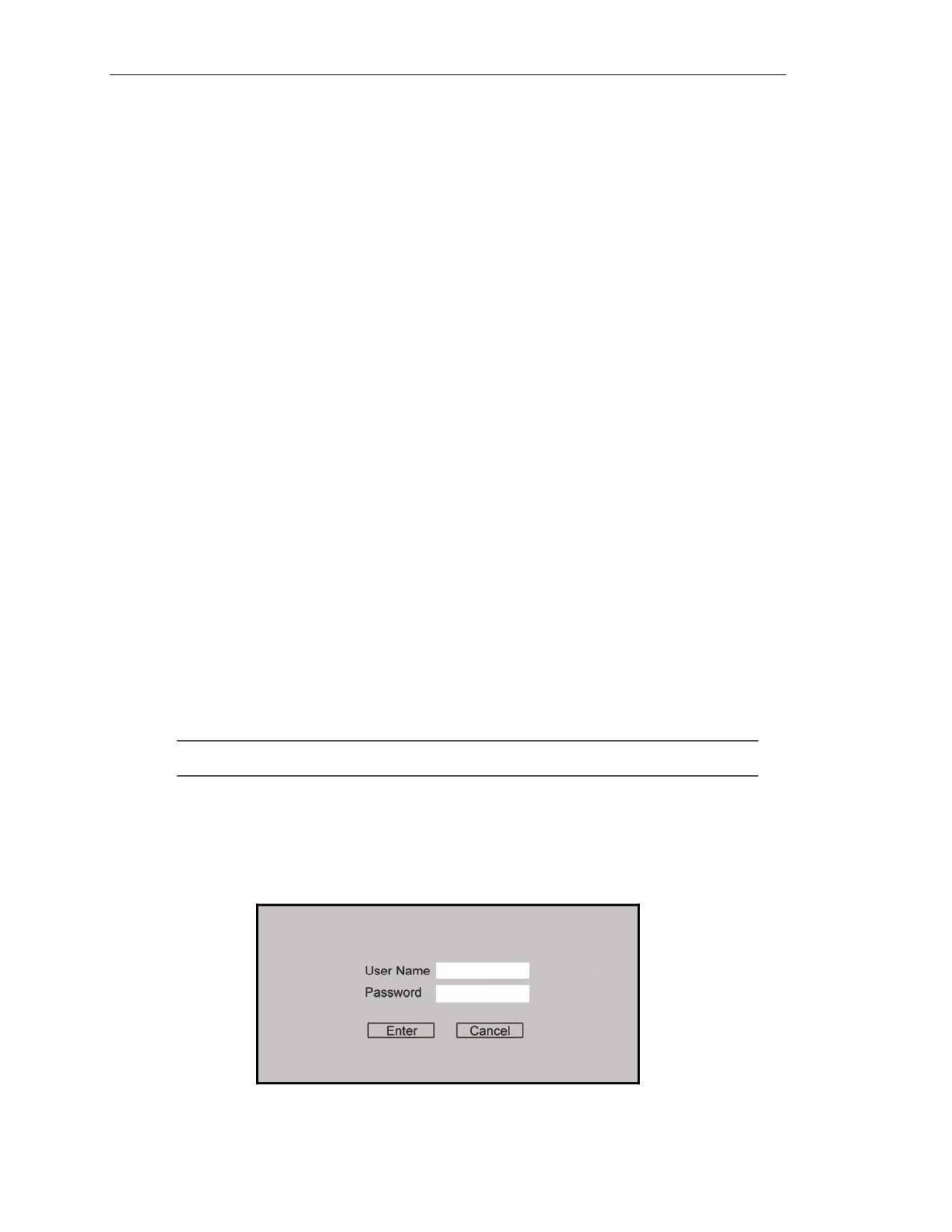
15-58. The log-in screen (Figure 15-9) is displayed after system startup is complete. The log-in
screen ensures that only authorized personnel have access to the system. The operator enters his name
and password, and then clicks the Enter button.
Figure 15-9. Log-in screen.
15-12
FM 3-22.91
17 July 2008
Introduction
DATA INITIALIZATION AND SYSTEM CONFIGURATION
15-59. CI initialization and configuration is performed after the startup is completed. The operator
inputs or selects information for fields to provide the system with the necessary information. The
operator configures the system to the platform using the mouse or keyboard.
15-60. Various symbols or icons may appear on the screen while using the CI. These symbols assist
the operator by highlighting actions that must be completed, such as status of operations and changes
to data.
NOTE: See TM 9-1220-248-10 for a list of these icons.
15-61. To initialize and configure the MFCS—
NOTE: Until the system is configured, only the Setup and Alert buttons appear. The Setup
button is located at the top of the control button area.
(1) Click the Setup button.
(2) The Unit List screen appears.
NOTE: The Unit List and Configuration tabs are the only tabs shown.
(3) Enter the required information for the Unit List and Configuration screens.
NOTE: All other setup tabs display.
(4) Enter, modify, or confirm the information on each of these screens:
Data.
Geographical Reference.
Position.
Channel A and Channel B.
UNIT LIST SCREEN
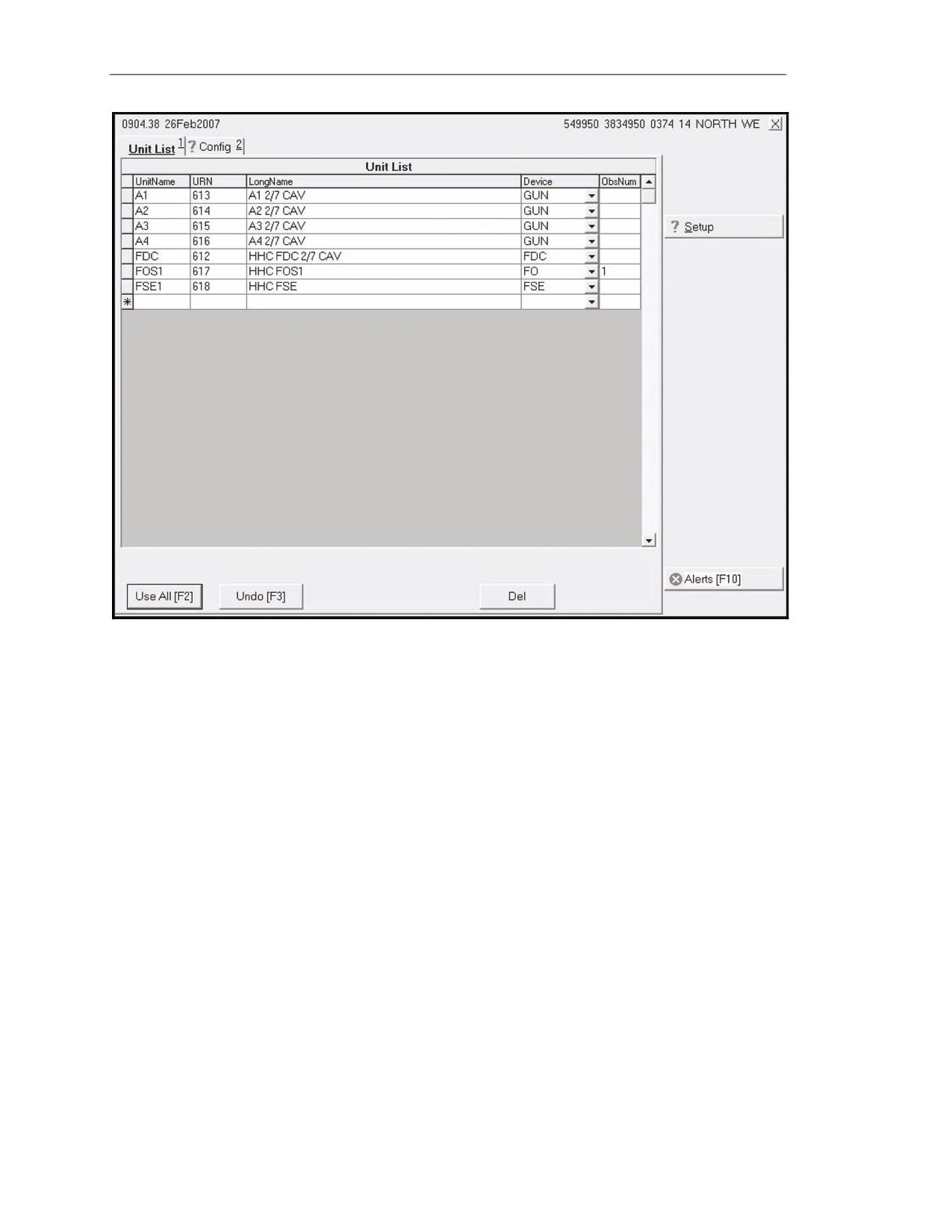
15-62. The Unit List screen is the default screen; it appears after the operator clicks the Setup button.
The Unit List screen (Figure 15-10) lists all of the units assigned or used by the FDC. This screen
allows the operator to view, enter, edit, or delete a—
z
Unit name.
z
URN.
z
Long name.
z
Device.
z
Observer number.
NOTES:
1. If previously configured, the system defaults to the data already entered.
2. There is a limit of 100 unit entries.
15-63. Once complete, the operator accepts the existing or modified data. A red question mark
displays until the system is configured with Use All on the Config tab. When the system is configured,
additional tab choices will display, and the remaining control buttons will be enabled.
17 July 2008
FM 3-22.91
15-13
Chapter 15
Figure 15-10. Unit List screen.
Unit Name
15-64. A lock icon displays in the index box at the beginning of a row when that platform has
already been assigned a unit name. The unit name must be two to four characters long, and the first
character must be a letter.
Unit Reference Number
15-65. The unit reference number (URN) must be unique to the unit.
Long Name
15-66. The long name must be less than 30 characters long.
Device
15-67. The operator accesses the drop-down menu in the Device field to select FDC, GUN, FO,
FSE, or OTHER.
Observer Number
15-68. In the last field, ObsNum, the operator assigns a number to each observer or any unit that may
act as an observer.
15-14
FM 3-22.91
17 July 2008
Introduction
CONFIGURATION SCREEN
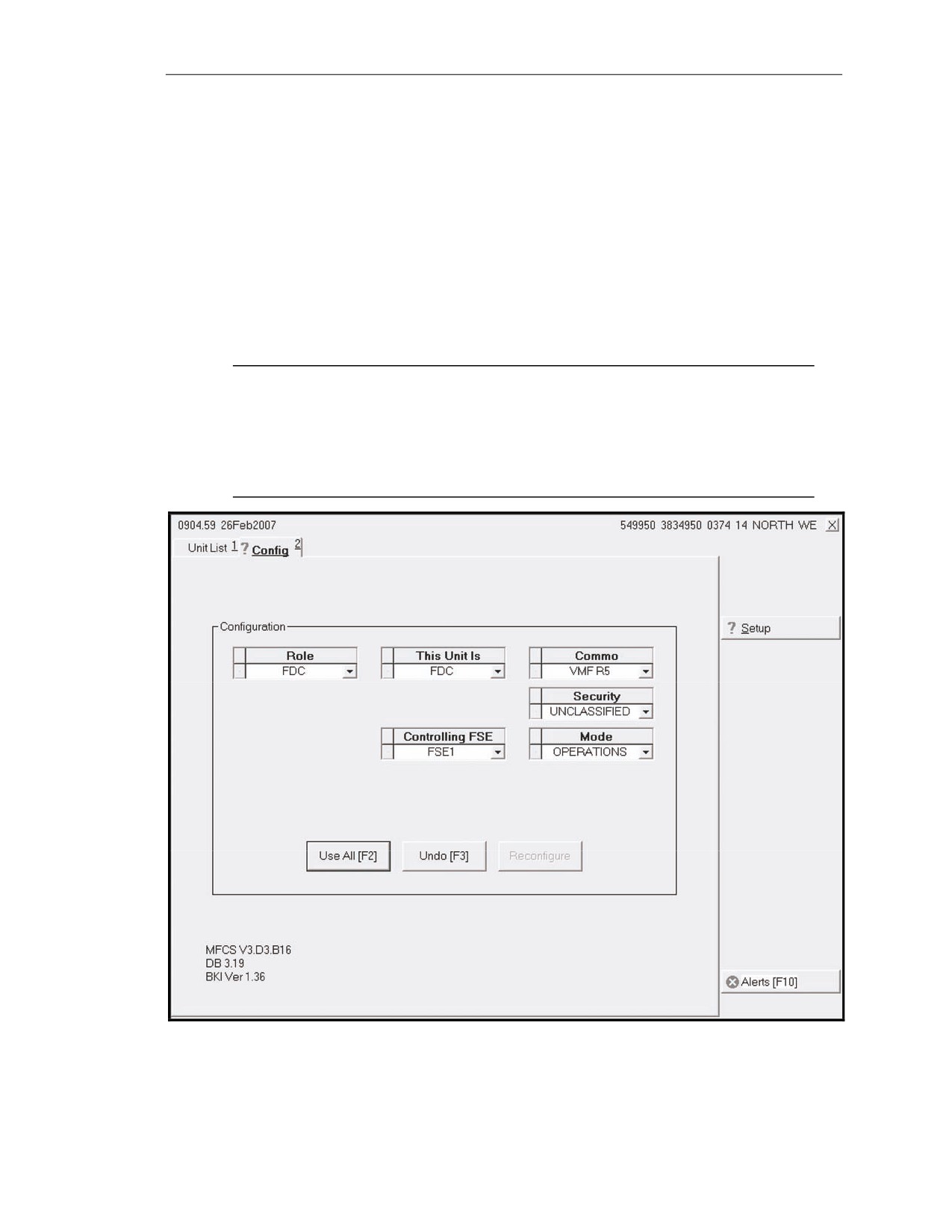
15-69. The operator selects the Use All working area button on the Unit List screen to display the
Configuration screen
(Figure
15-11). This screen allows the operator to enter or reconfigure
information by selecting one of the options on the drop-down menus for—
z
Platform.
z
Role.
z
Unit.
z
Communication (Commo, see note).
z
Security Classification.
z
Mode.
z
Controlling FSE.
15-70. A red question mark displays on the Config tab until the operator clicks Use All.
NOTES:
1. If previously configured, the system defaults to the data already entered.
2. MFCS Versions 3.0 and later include a Commo field. This field is used to
select Variable Message Format (VMF) PKG11 or VMF R5. If using FOS
Version 7.1 or AFATDS Version 6.4 or later, select VMF R5. Otherwise,
select VMF PKG11.
Figure 15-11. Unit Configuration screen.
17 July 2008
FM 3-22.91
15-15
Chapter 15
DATA SCREEN
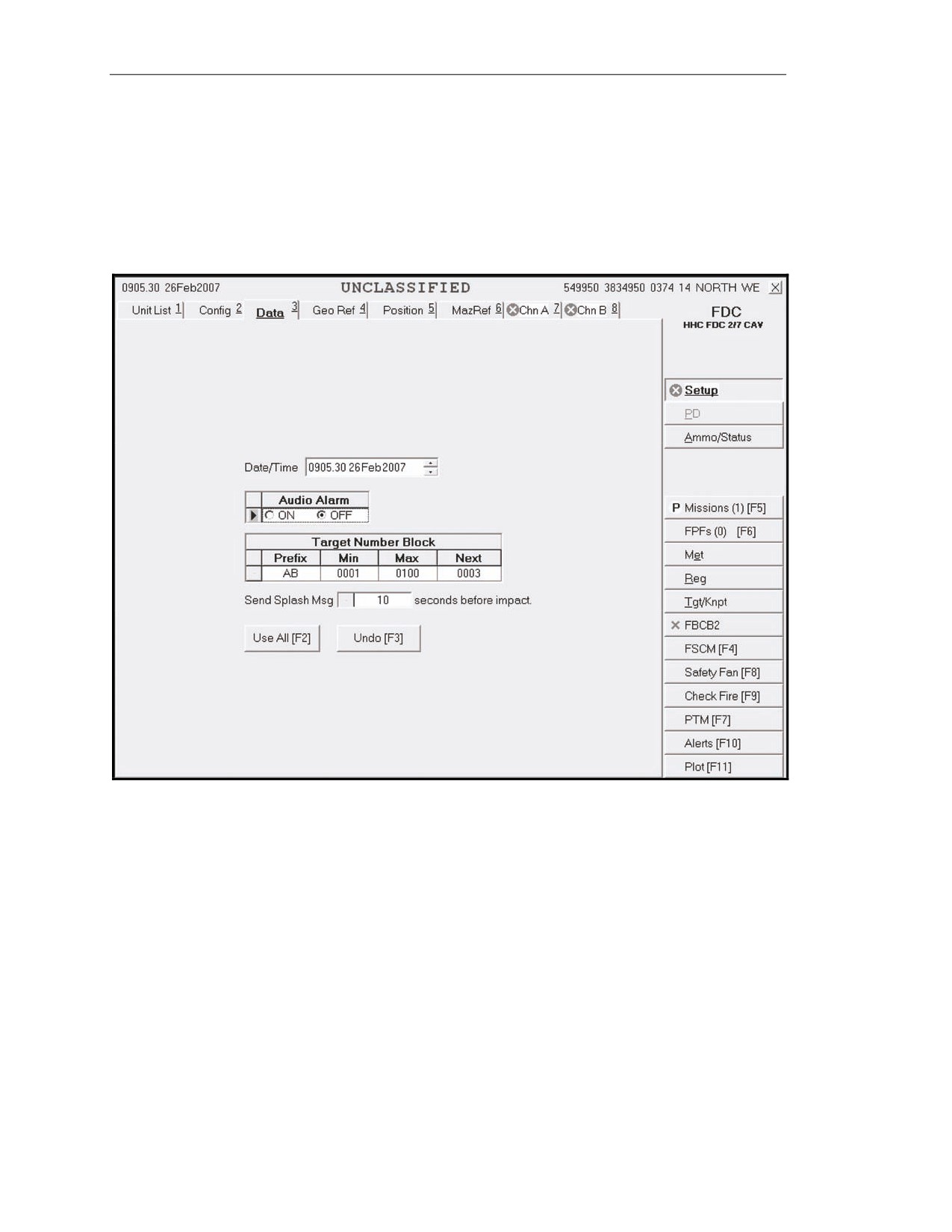
15-71. The operator selects the Data tab to display the Data screen (Figure 15-12). This screen
allows the operator to verify, view, or set the—
z
System date/time.
z
Audio alarm.
z
Target number.
z
Splash offset.
Figure 15-12. Data screen.
GEOGRAPHIC REFERENCE SCREEN
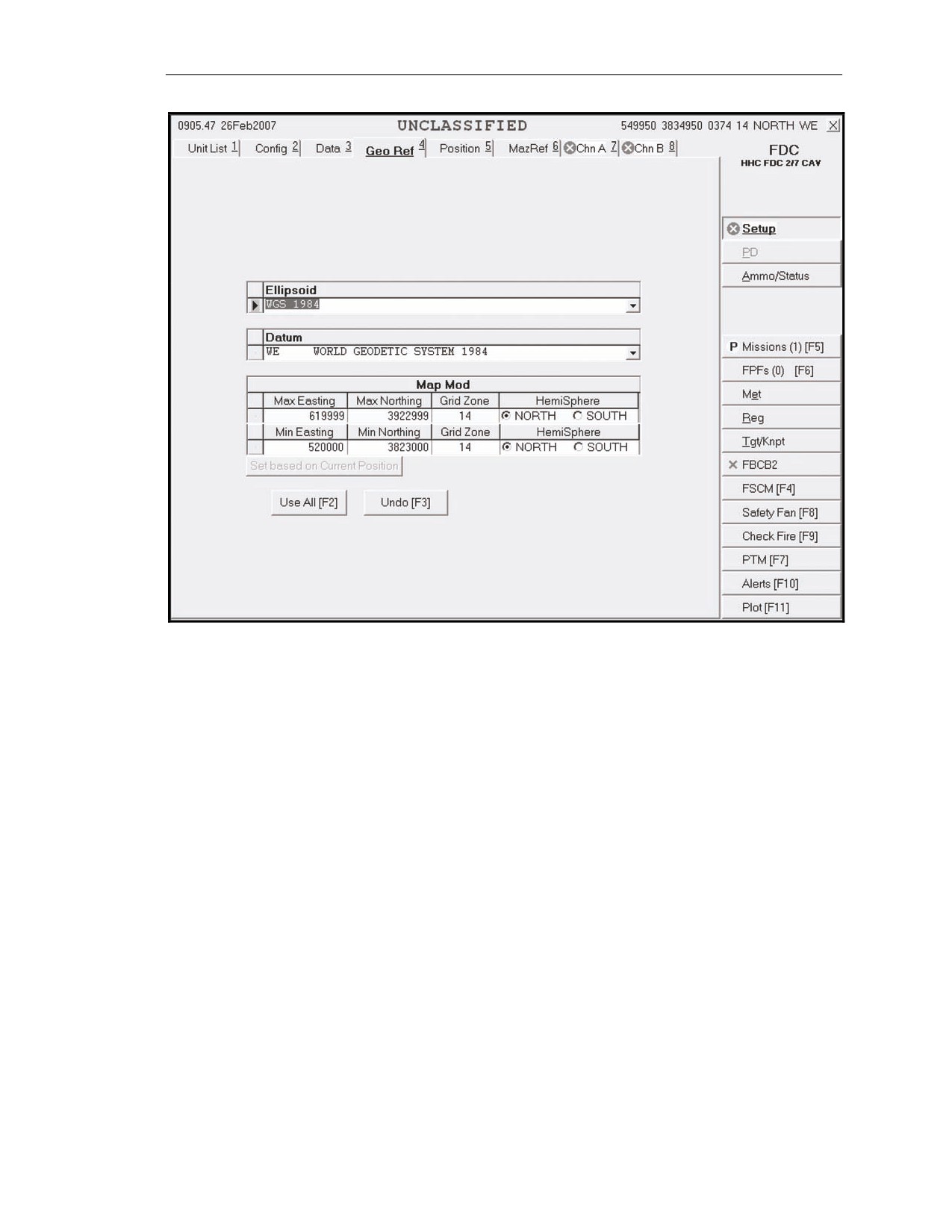
15-72. This screen (Figure 15-13) allows the operator to set the geographic positioning system by
filling the following fields:
z
Ellipsoid.
z
Datum.
z
Map Mod.
15-16
FM 3-22.91
17 July 2008
Introduction
Figure 15-13. Geographic Reference screen.
Ellipsoid and Datum Fields
15-73. To fill the Ellipsoid and Datum fields—
(1) Click the down arrow in the Ellipsoid field, and select the appropriate choice.
(2) The corresponding default datum for the ellipsoid automatically displays in the Datum field.
(3) Change the Datum field by choosing another option.
(4) The screen value is updated, and a pencil icon displays in the index box at the beginning of
each row.
15-74. To undo the changes, click Undo Changes; any unsaved changes (indicated by a pencil icon)
are refreshed with the original data.
Map Mod Field
15-75. The Map Mod field is comprised of eight sub-fields:
z
Maximum Easting (Max Easting).
z
Maximum Northing (Max Northing).
z
Grid Zone (maximum field row).
z
Hemisphere (HemiSphere, maximum field row).
z
Minimum Easting (Min Easting).
z
Minimum Northing (Min Northing).
z
Grid Zone (minimum field row).
z
Hemisphere (HemiSphere, minimum field row).
17 July 2008
FM 3-22.91
15-17
Chapter 15
Maximum Easting and Northing Fields
15-76. The Max Easting and Max Northing fields are read-only and are automatically filled when the
operator enters the fields.
Grid Zone and Hemisphere Fields (Maximum Field Row)
15-77. The Grid Zone and HemiSphere fields in the Maximum field row are also read-only and are
automatically filled and updated when the operator enters the Minimum values.
Minimum Easting and Northing Fields
15-78. The Min Easting and Min Northing fields are disabled if there are any active missions. The
MFCS uses the 13-digit Military Grid Reference System (MGRS) to calculate the map modification.
The minimum easting must be six digits long; the minimum northing must be seven digits long.
Grid Zone and Hemisphere Fields (Minimum Field Row)
15-79. The grid zone and hemisphere can be determined using the map sheet. The Grid Zone
Designation is located in the Grid Reference box at the bottom center of the map sheet. It consists of
two numbers and a letter. The letter is not entered into the MFCS. The HemiSphere field is set to north
if operating north of the equator, or south if operating south of the equator.
POSITION SCREEN
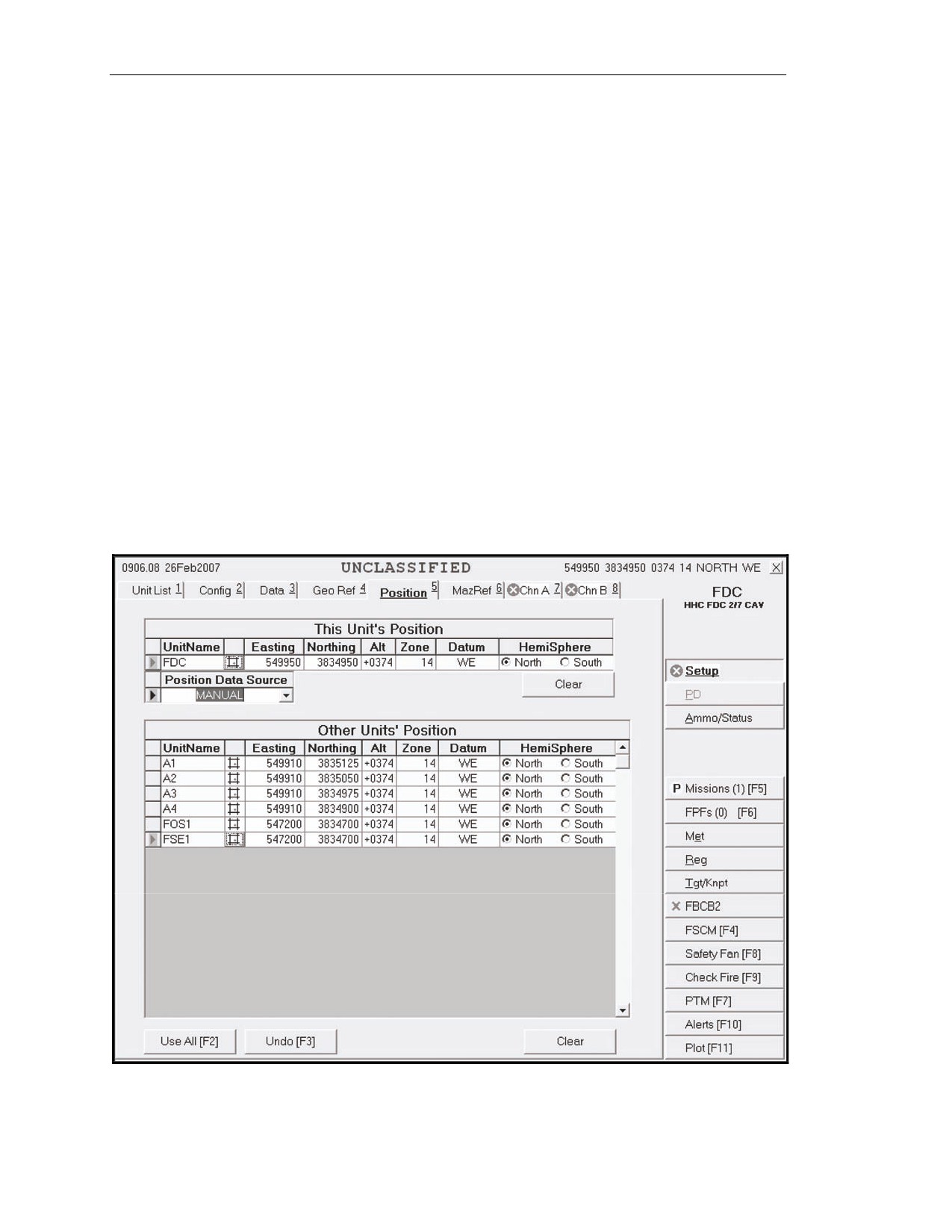
15-80. The operator selects the Position tab to display the Position screen (Figure 15-14). This
screen allows the operator to view or update his and other units’ current positions. The operator must
update the position if a red circle with an X through it displays on the Position tab.
Figure 15-14. Position screen.
15-18
FM 3-22.91
17 July 2008
Introduction
This Unit’s Position
15-81. This portion of the screen contains eight fields:
z
Unit Name (UnitName).
z
Easting.
z
Northing.
z
Altitude (Alt).
z
Zone.
z
Datum.
z
Hemisphere (HemiSphere).
z
Position Data Source.
15-82. As necessary, the operator may click—
z
Use All.
z
Undo.
z
Cancel.
Unit Name Field
15-83. The UnitName field is read-only and is automatically filled with the unit names selected in
the Configuration screen.
Zone, Datum, and Hemisphere Fields
15-84. The Zone, Datum, and HemiSphere fields are also read-only and are automatically filled
when the operator enters the Map Mod field.
Position Data Source, Easting, Northing, and Altitude Fields
15-85. With the Position Data Source field set to Manual, the operator can also manually update or
modify the fields as follows:
z
The Easting field with six digits.
z
The Northing field with seven digits.
z
The Alt field with a range of values from -400 to 9999 meters.
NOTE: If the PD is available and operational, the operator must ensure that the position
data source is set to PD, GPS, or FBCB2. These fields are read-only.
Other Units' Position Fields
15-86. This portion of the screen contains seven fields:
z
Unit Name (UnitName).
z
Easting.
z
Northing.
z
Altitude (Alt).
z
Zone.
z
Datum.
z
Hemisphere (HemiSphere).
15-87. As necessary, the operator clicks Use All, Undo, or Cancel.
Unit Name Field
15-88. The UnitName field is read-only and is automatically filled with the unit names selected in
the Configuration screen.
17 July 2008
FM 3-22.91
15-19
Chapter 15
Zone, Datum, and Hemisphere Fields
15-89. The Zone, Datum, and HemiSphere fields are also read-only and are automatically filled
when the operator enters the Map Mod field.
Easting, Northing, and Altitude Fields
15-90. Although the values for Easting, Northing, and Alt are transmitted from the gun, the operator
has the option to update them manually, as follows:
z
The Easting field with six digits.
z
The Northing field with seven digits.
z
The Alt field with a range of values from -400 to 9999 meters.
15-91. If the operator enters a value which is not within the map modification, a message box will
appear indicating the incorrect range.
NOTE: The operator’s position is now displayed in the upper right corner of the screen.
Alternate Methods of Entering Position
15-92. Using pop-up screens, the operator may also enter positions using universal transverse
mercator
(UTM), polar coordinates, Military Grid Reference System
(MGRS), or latitude and
longitude. These methods may be used in a voice CFF.
15-93. To use these methods—
(1) Click the
icon on the appropriate unit’s row.
(2) The Enter Position screen appears.
(3) Click the desired alternate method to enter the unit’s location.
Universal Transverse Mercator
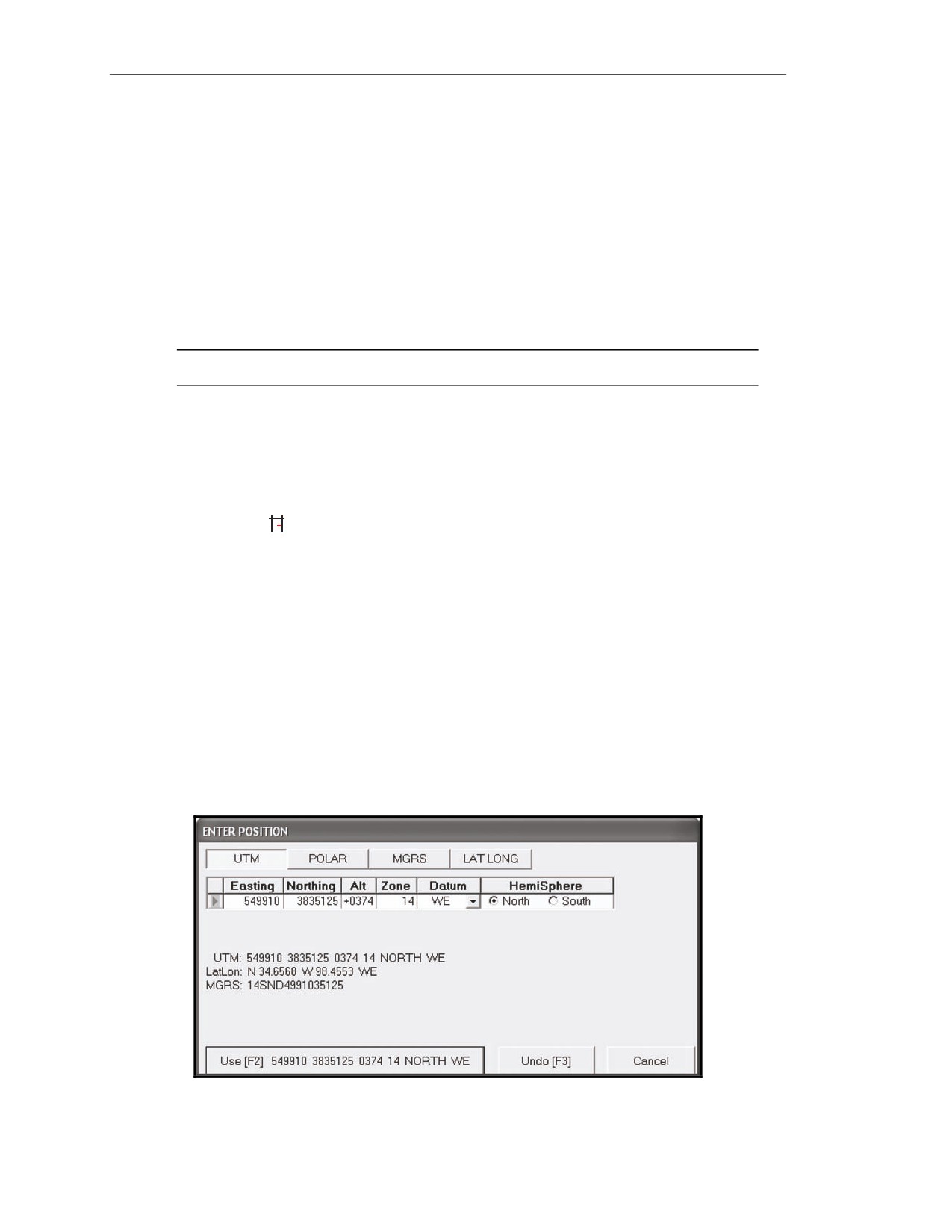
15-94. To enter the unit’s location using UTM (Figure 15-15), enter the following for the selected
unit—
z
Easting.
z
Northing.
z
Altitude (Alt).
z
Zone.
z
Datum.
z
Hemisphere (HemiSphere).
15-95. If the coordinates entered are for a valid location, they will appear on the Use button.
Figure 15-15. Universal Transverse Mercator Alternate Methods screen.
15-20
FM 3-22.91
17 July 2008
Introduction
Polar Coordinates
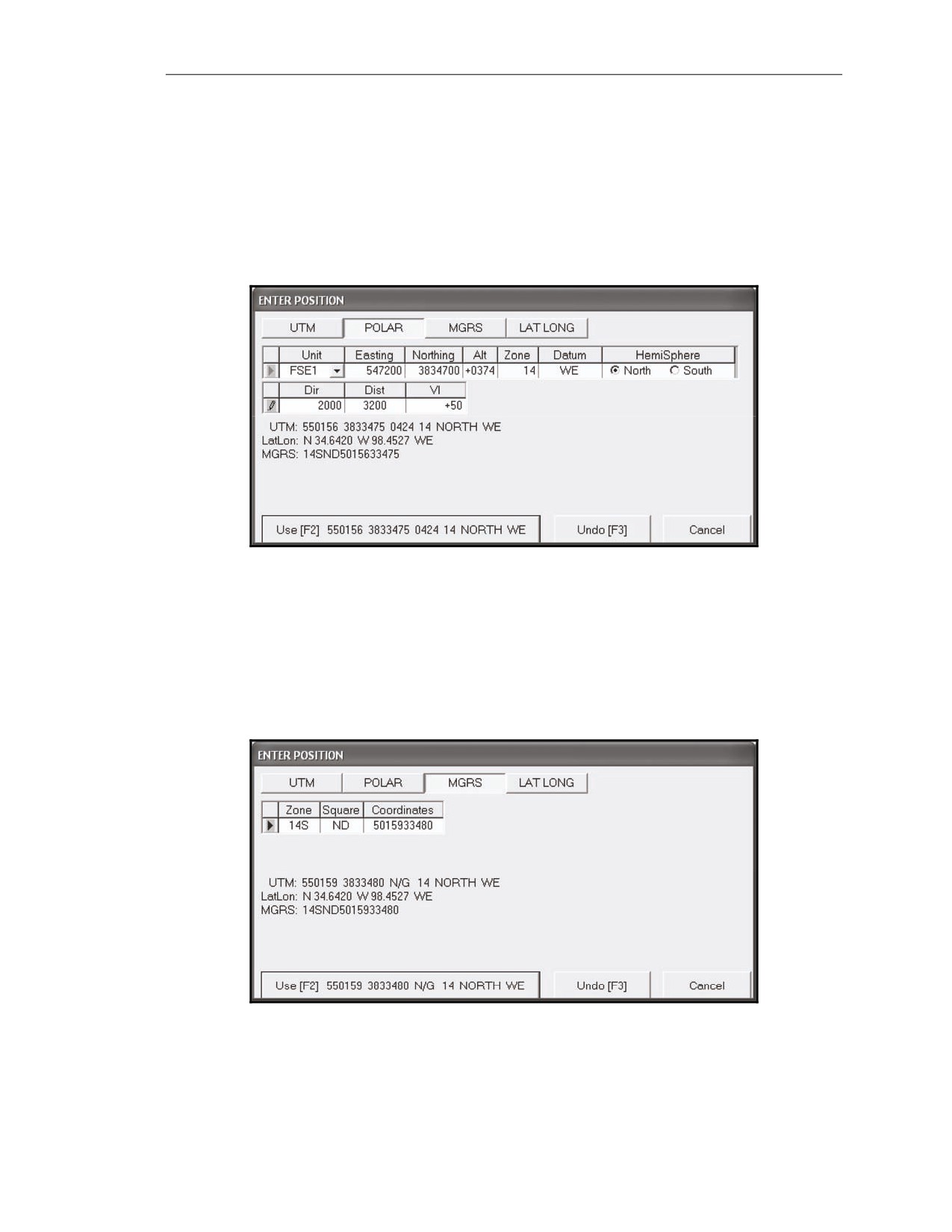
15-96. To enter the unit’s location using polar coordinates (Figure 15-16), enter the following for the
selected unit—
z
Direction (Dir).
z
Horizontal distance (Dist).
z
Vertical interval (VI), indicating the direction + (for up [default]) or - (for down).
15-97. If the location is valid, UTM coordinates will be displayed on the Use button. Easting,
Northing, Alt, Zone, Datum, and HemiSphere will auto-fill.
Figure 15-16. Polar Alternate Methods screen.
Military Grid Reference System
15-98. To enter the unit’s location using the MGRS (Figure 15-17), enter the following for the
selected unit—
z
Zone.
z
Square (100,000 square meter identifier).
z
Coordinates.
Figure 15-17. Military Grid Reference System Alternate Methods screen.
17 July 2008
FM 3-22.91
15-21
Chapter 15
Latitude and Longitude
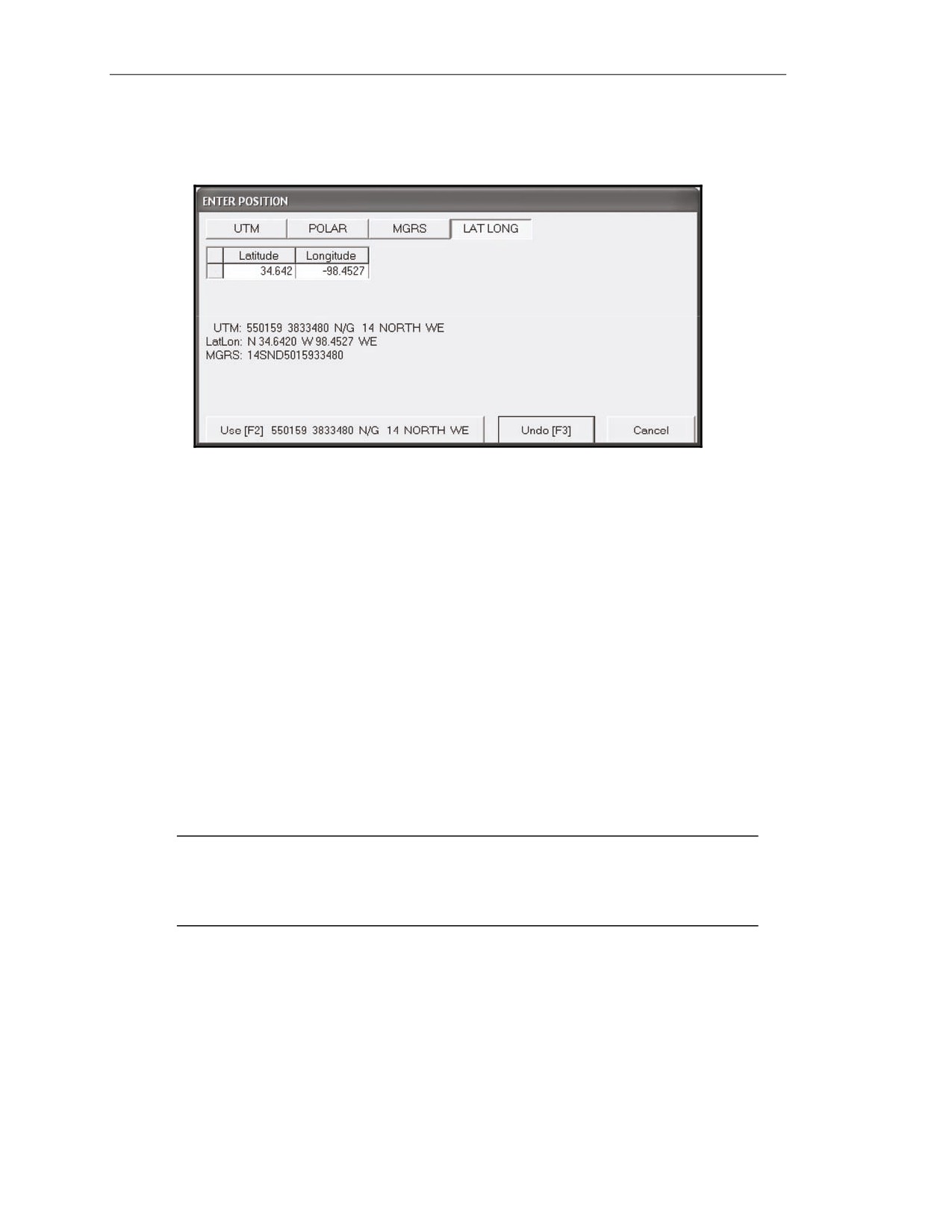
15-99. To enter the unit’s location using the latitude and longitude (Figure 15-18), enter the latitude
and longitude. If the location is valid, UTM coordinates will be displayed on the Use button.
Figure 15-18. Latitude/ Longitude Alternate Methods screen.
Undo, Cancel, and Use Buttons
15-100. For all of the alternative methods, the operator can click Undo to undo the entries, Cancel to
exit without using the information, or Use to accept the entries. The unit’s coordinates are now
displayed on the Position screen. The coordinates are saved by clicking Use All on the Position screen.
MOUNTING AZIMUTH AND REFERENCE SCREEN
15-101. When necessary, the MFCS can be operated in conventional mode by mounting an M67 sight
and placing aiming stakes as described in FM 3-22.90. To display deflections, a mounting azimuth and
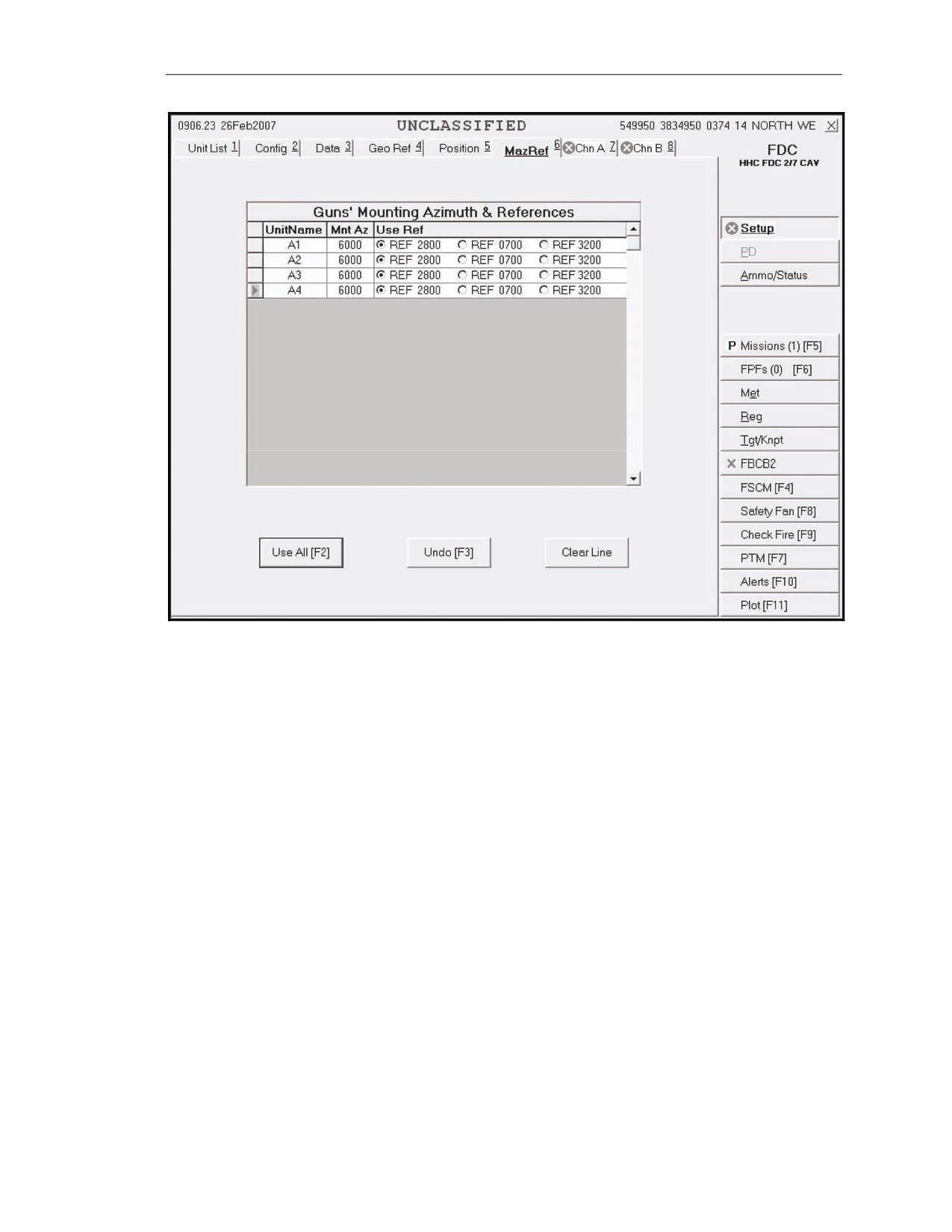
referred deflection must be entered on the MazRef screen (Figure 15-19).
15-102. To manually enter the MazRef, complete the following fields, and then click Use All.
z
Unit Name (UnitName).
z
Mounting Azimuth (Mnt Az).
z
Use Reference (Use Ref).
15-103. When a gun's PD is not operational or available, the gun operator must provide MazRef data
for the MFCS to compute deflection solutions. The FDC operator does not need the MazRef data if
deflection information is not required. If the situation permits, the gun operator completes the MazRef
data to provide backup capability should the PD malfunction during a mission.
NOTE: If a gun is operating using a manual position data source, the FDC operator must
enter and save the MazRef data for that gun before checking the Manual (Man) box in the
Status, by Gun section of the Status Fire Unit screen. Then, the MFCS can compute gun
orders in deflection.
15-22
FM 3-22.91
17 July 2008
Introduction
Figure 15-19. Mounting Azimuth and References screen.
Unit Name Field
15-104. This field is read-only from the guns listed in the Unit List screen.
Mounting Azimuth Field
15-105. In this field, the operator enters the mounting azimuth for the appropriate gun. The last digit
must be a zero.
Use Reference Field
15-106. In this field, the operator may choose REF 2800, REF 0700, or REF 3200 by clicking in the
appropriate circle.
Undo Button
15-107. The operator can press this button to undo entries before saving.
Clear Line Button
15-108. The operator can press this button to erase a line of information.
Use All Button
15-109. The operator can press this button to save all of the information on the screen.
CHANNEL A AND CHANNEL B SCREENS
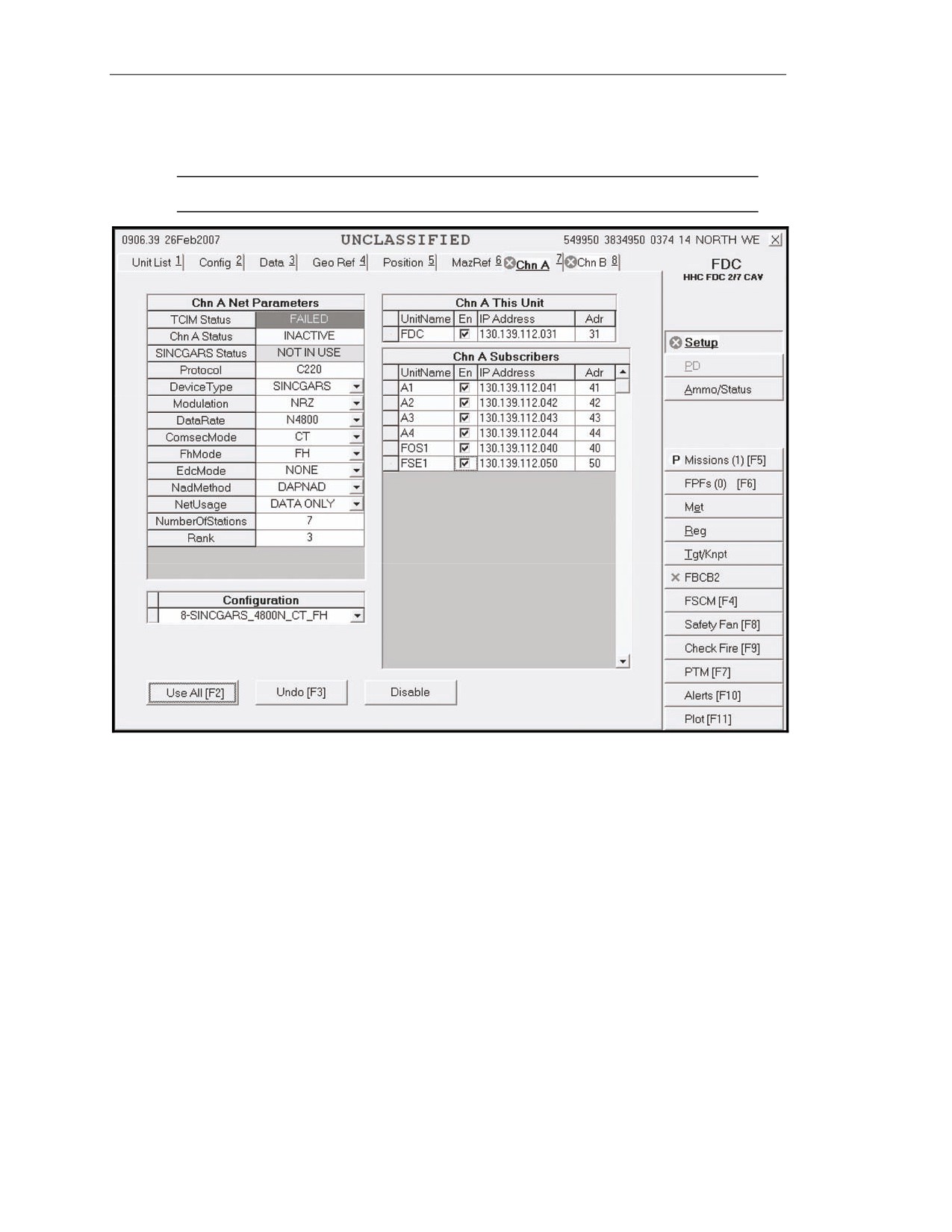
15-110. These screens (Figure 15-20) allow the operator to enter, view, or update net parameters for
Channel A or B subscribers. Both channels share the same setup procedures and can be set up for
17 July 2008
FM 3-22.91
15-23
Chapter 15
SINCGARS, but only Channel A can be set up for wire. Using Channel A for SINCGARS and digital
communication between the FDC and the gun tracks is recommended. If a red circle with an X through
it displays on the Chn A or Chn B tab, the parameters and subscribers must be set up.
NOTE: If a channel is not being used, click the Disable button for that channel.
Figure 15-20. Channel A screen.
Channel A and Channel B Net Parameters Fields
15-111. The operator sets the radio or wire defaults or manually selects the parameters to set the net
parameters. To determine the parameters, he coordinates with the communications officer.
15-112. Channel A and Channel B Net Parameters fields include the following sub-fields:
z
Tactical Communication Interface Modem (TCIM) Status.
z
Channel A/Channel B Status (Chn A/Chn B Status).
z
SINCGARS Status.
z
Protocol.
z
Device Type.
z
Modulation.
z
Data Rate (DataRate).
z
Communication Security Mode (ComsecMode).
z
Frequency Hop Mode (FhMode).
z
Error Detection and Correction Mode (EdcMode).
z
Network Access Delay Method (NadMethod).
z
Network Usage (NetUsage).
15-24
FM 3-22.91
17 July 2008
Introduction
z
Number of Stations (NumberOfStations).
z
Rank.
NOTE: Only white fields are editable. All yellow fields are auto-filled and cannot be
changed.
Tactical Communication Interface Modem Status, Channel A Status, Channel B Status, and Protocol
Fields
15-113. Tactical Communication Interface Modem (TCIM) Status, Chn A Status, Chn B Status, and
Protocol are read-only and are automatically filled. TCIM Status and Chn A/Chn B Status reflect the
current status.
Device Type, Modulation, Data Rate, Communication Security Mode, Frequency Hop Mode, Error
Detection and Correction Mode, Network Access Delay Method, and Network Usage Fields
15-114. The operator clicks the Configuration working area button to select the radio defaults for
Device Type, Modulation, DataRate (Baud), ComsecMode, FhMode, EdcMode, NadMethod, and
NetUsage.
NOTE: When using SINCGARS FSK188-C, ensure that SINCGARS is the Device Type
and FSK188-C is the Modulation.
Number Of Stations and Rank Fields
15-115. The operator enters the number of stations and rank, as supplied by the communications
officer.
Channel A and Channel B This Unit Fields
15-116. Channel A and Channel B This Unit fields include the following sub-fields:
z
Unit Name (UnitName).
z
Internet Protocol (IP) Address.
z
Abbreviated Address (Adr).
Unit Name Field
15-117. The UnitName field is read-only and is automatically filled with the unit name listed in the
Unit List screen.
Internet Protocol Address Field
15-118. To update or enter the IP address, the operator types the correct address. Each IP address has
four sets of numbers, three digits in each set. The first set must range from 128 to 254. The second and
third sets must range from 001 to 254. The fourth set must range from 004 to 095.
Abbreviated Address Field
15-119. The fourth set of numbers in the IP address is the abbreviated address of the unit.
Channel A and Channel B Subscriber Fields
15-120. Channel A and Channel B This Unit fields include the following sub-fields:
z
Unit Name (UnitName).
z
Enabled (En)
z
Internet Protocol (IP) Address.
z
Abbreviated Address (Adr).
17 July 2008
FM 3-22.91
15-25
Chapter 15
Unit Name Field
15-121. The UnitName field is read-only and is automatically filled with the unit names listed in the
Unit List screen.
Internet Protocol Address Field
15-122. In the IP Address field, the operator enters the last two digits of the IP address for each unit
name.
Abbreviated Address Field
15-123. This field is automatically filled when the operator enters the last two digits of the IP address
for each unit name and moves to another field.
Enabled Box
15-124. The operator clicks the En box for each unit name to enable communication with that
subscriber. A green checkmark is displayed in the box when communication has been established.
Undo Changes Button
15-125. To undo any changes, the operator clicks Undo Changes; any unsaved changes (indicated by
a pencil icon at the beginning of the row) are refreshed with the original data.
Use All Button
15-126. The operator clicks the Use All working area button to save all screen information and
activate the channel status, which will cause Chn A Status to go from inactive to loading to active, and
TCIM Status to go from operating to downloading to operating.
NOTE: Allow some time for the channel activation. Do not keep clicking the Use All
button.
Disable Button
15-127. If disabling communication becomes necessary, the operator clicks Disable.
SECTION II. ADDITIONAL FUNCTIONS
Additional functions and procedures of the MFCS include—
z
Determining ammunition status.
z
Transmitting check fires.
z
Sending and receiving plain text messages (PTMs).
z
Using the Alerts function.
z
Using the Plot function.
This section displays the sequences used to review, modify, and use data during FDC operations. As
previously discussed, the MFCS operator uses the GUI or keystrokes to navigate and use the system.
15-26
FM 3-22.91
17 July 2008
Introduction
AMMUNITION/STATUS FUNCTION
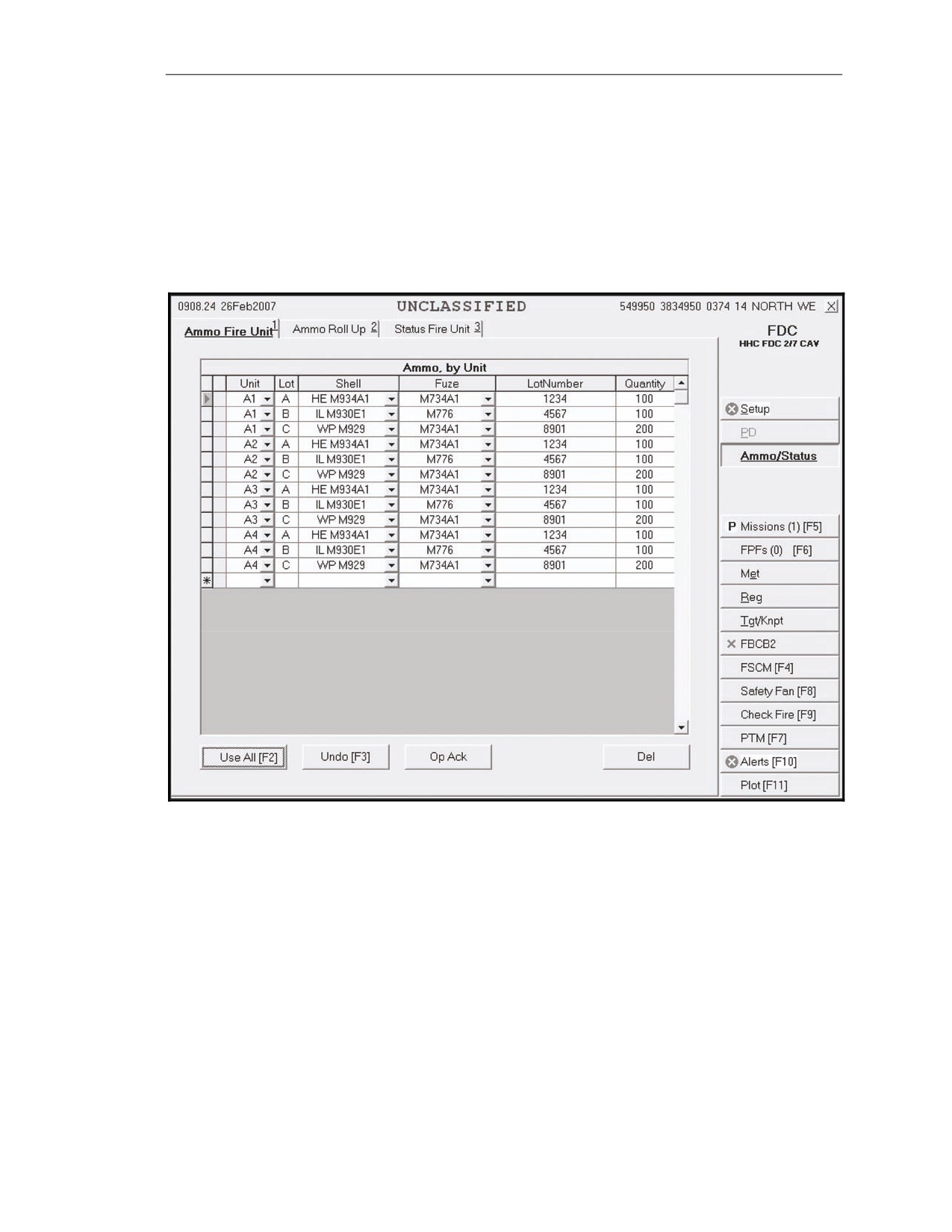
15-128. Ammunition information about the unit, lot, shell, lot number, and quantity is transmitted
digitally from the gun tracks. This function allows the operator to enter, modify, delete, and sort these
data. This button also includes procedures for checking, entering, or changing ammunition status.
When the operator presses the Ammo/Status button, three tabs display:
z
Ammo Fire Unit.
z
Ammo Roll Up.
z
Status Fire Unit.
Figure 15-21. Ammo By Unit screen.
AMMO FIRE UNIT SCREEN
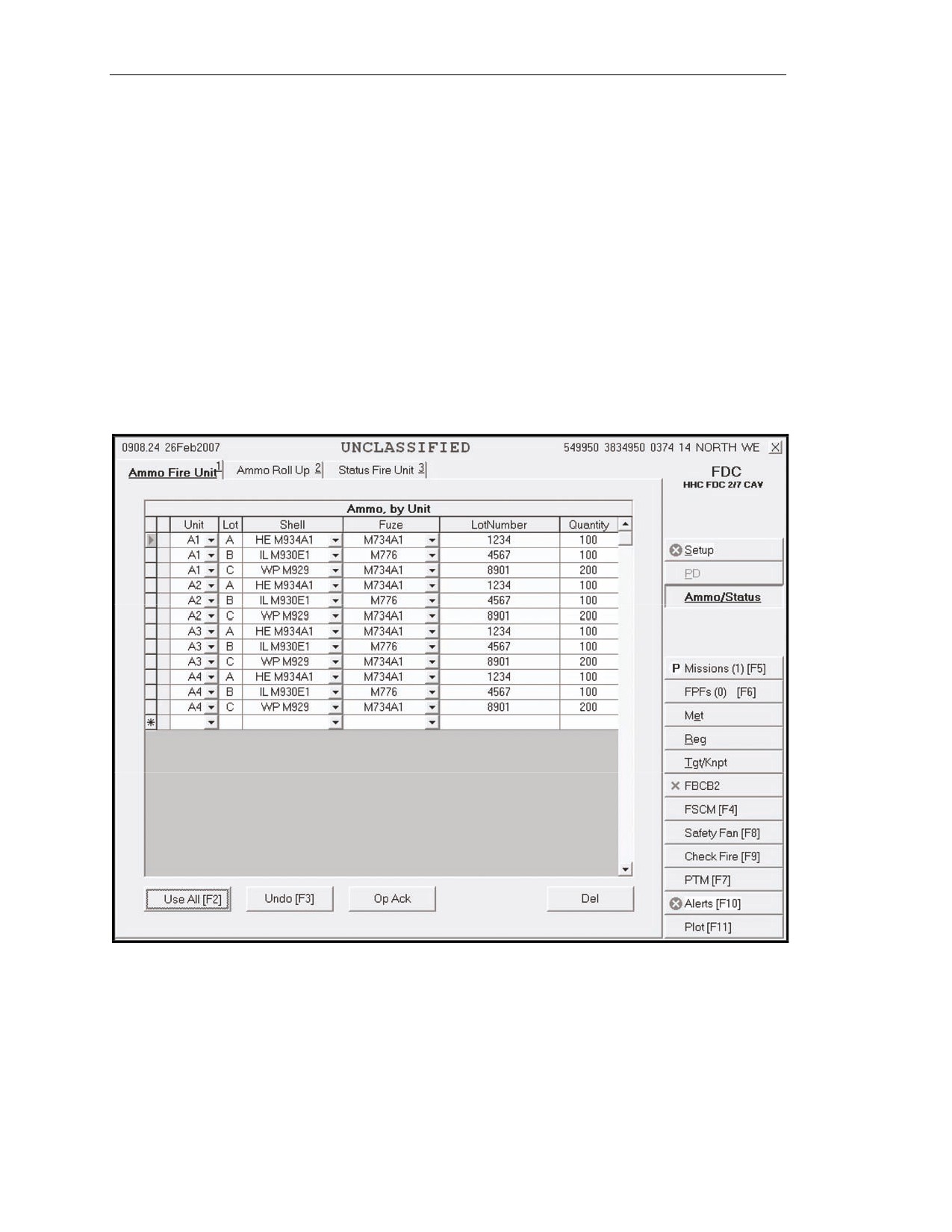
15-129. The operator clicks the Ammo/Status button in the control button area, and then clicks the
Ammo Fire Unit tab to display the Ammo Fire Unit screen (Figure 15-22).
15-130. This screen include the following fields:
z
Unit.
z
Lot.
z
Shell.
z
Fuze.
z
Lot Number (LotNumber).
z
Quantity.
17 July 2008
FM 3-22.91
15-27
Chapter 15
15-131. The Ammo Fire Unit Screen uses symbols and colors to provide information. A green
sunburst icon on the Ammo/Status button indicates that the ammunition has been changed. When an
ammunition report is digitally received from the guns, an exclamation point (!) is displayed in the
index at the beginning of each row for which ammunition is received. A field with a red background
indicates a discrepancy between the data residing in the MFCS and the data received from the gun
track.
15-132. Ammunition information about the unit, lot, shell, fuze, lot number, and quantity is received
digitally from the gun, but the FDC can manually update ammunition. When the Use All tab is clicked,
the ammunition data is automatically transmitted to the guns.
15-133. The system automatically arranges ammunition alphabetically by lot, but the operator can
click another column heading to sort data by another field.
15-134. The operator can click—
z
Use All to save information.
z
Del to delete information.
z
Undo to undo any changes.
z
OpAck to acknowledge receipt of ammunition status and turn off the alarm.
Figure 15-22. Ammo Fire Unit screen.
15-28
FM 3-22.91
17 July 2008
Introduction
AMMO ROLL UP SCREEN
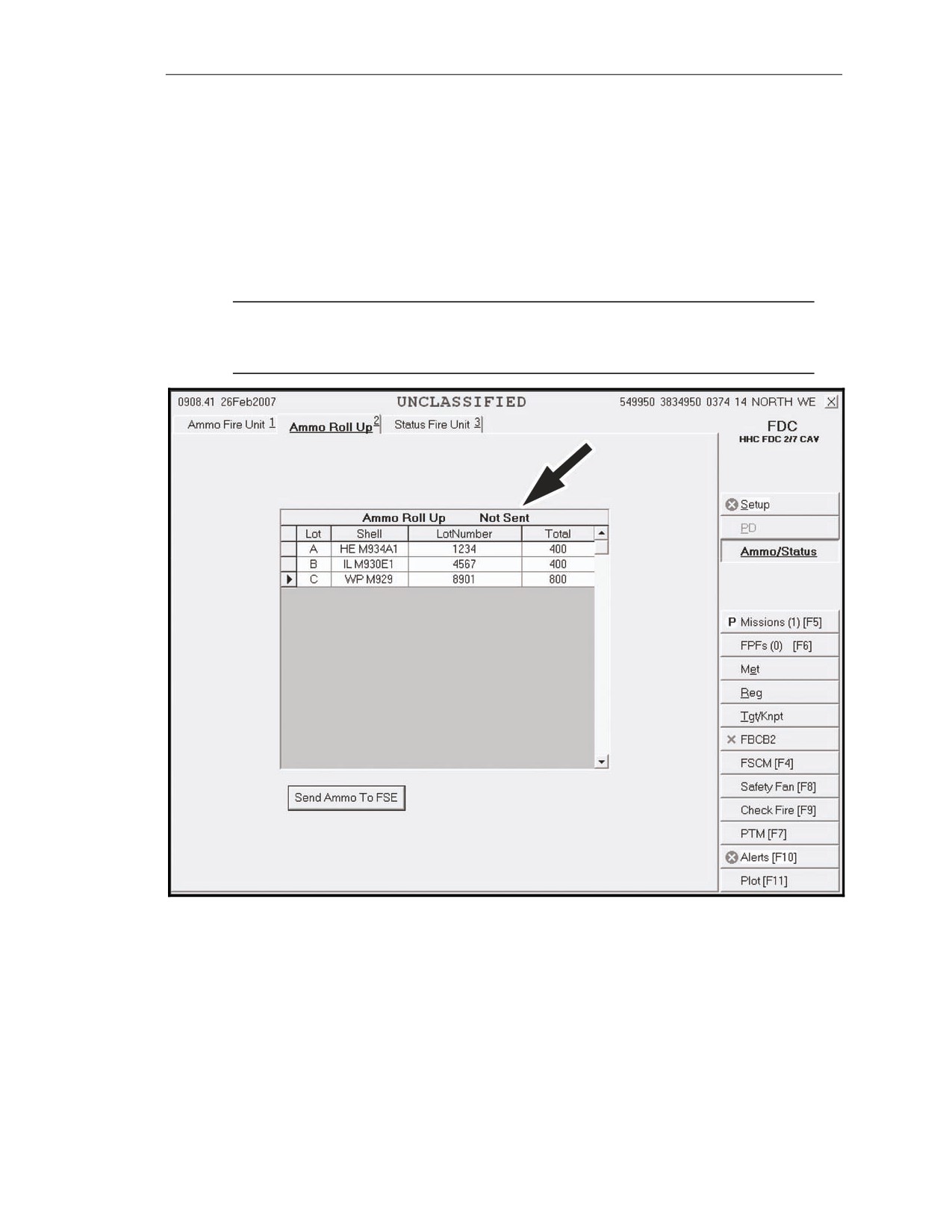
15-135. This screen
(Figure
15-23) displays all of the ammunition carried by the gun carrier.
Ammunition information is read-only, is automatically filled, and includes the following information:
z
Lot.
z
Shell.
z
Lot number.
z
Total number of rounds.
15-136. To send the FU ammunition status to the FC, the operator clicks the Send Ammo to FSE
button.
NOTE: The message “Not Sent” (Figure 15-23) will be displayed after the Ammo Roll-Up
heading if the ammunition has not been sent from the guns. If the ammunition has been
sent, the date and time group of when it was sent will be displayed.
Figure 15-23. Ammo Roll Up screen.
17 July 2008
FM 3-22.91
15-29
Chapter 15
STATUS FIRE UNIT SCREEN
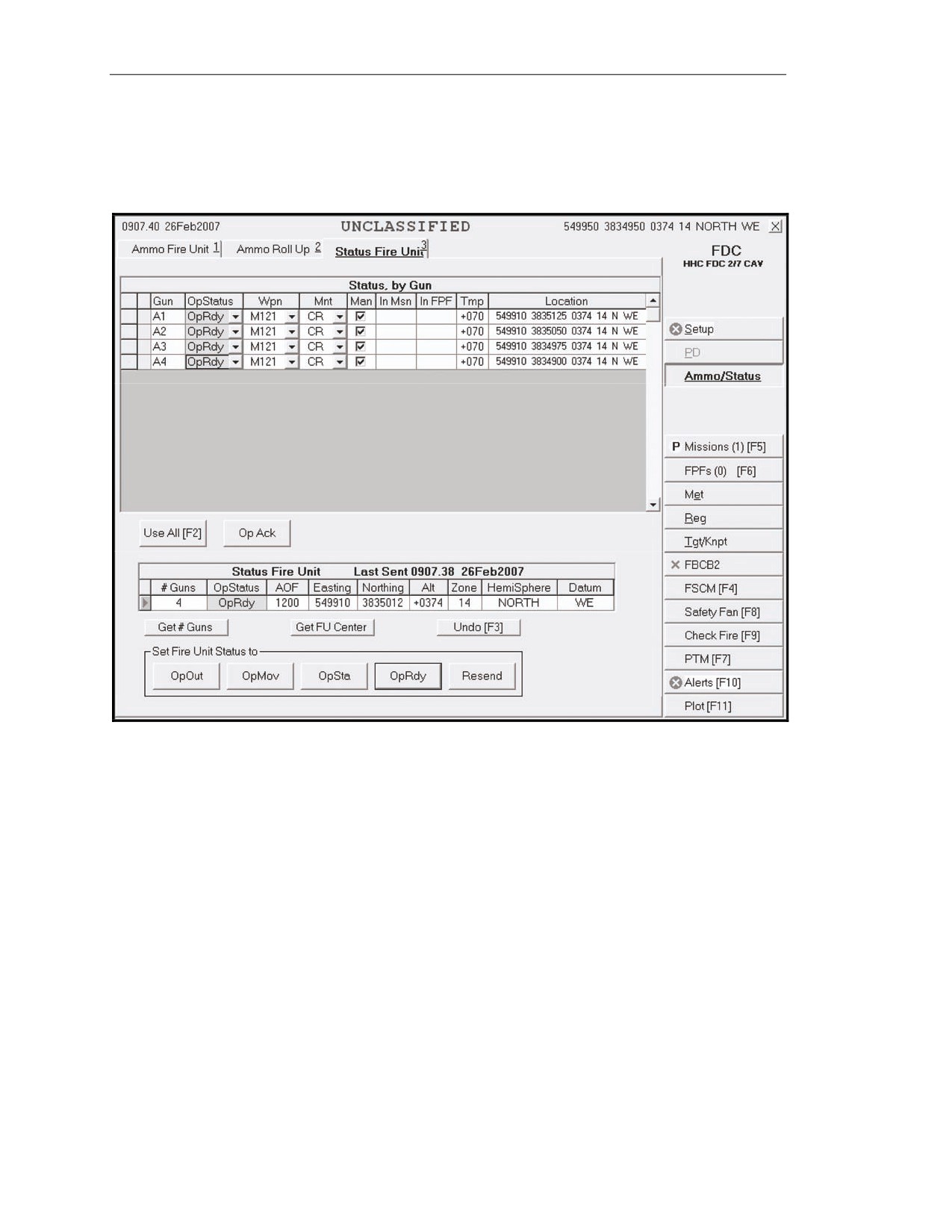
15-137. This screen (Figure 15-24) contains two parts:
z
Status, by Gun.
z
Status Fire Unit.
Figure 15-24. Status Fire Unit screen.
Status, By Gun
15-138. Status is received digitally from the guns, and the information is automatically filled.
Meteorological data (MET) is automatically sent to the FDC Alerts messages when a gun reports
“OpRdy.”
15-139. This section contains the following fields:
z
Gun.
z
Operational Status (OpStatus).
z
Weapon (Wpn).
z
Mount (Mnt).
z
Manual (Man).
z
In Mission (In Msn).
z
In FPF.
z
Temperature (Tmp).
z
Location.
Gun, In Mission, In Final Protective Fire, and Location Fields
15-140. These fields are read-only.
15-30
FM 3-22.91
17 July 2008
Introduction
Operational Status Field
15-141. The operator may change the OpStatus field using the drop-down menu. The options for this
menu include—
z
Operationally Moving (OpMov).
z
Operationally Stationary (OpSta).
z
Operationally Ready (OpRdy).
z
Operationally Out (OpOut).
z
Operationally Detached (OpDet).
NOTE: OpDet is used in split section operations. When more than one FDC is active in the
platoon, the gun reports his normal status to the controlling FDC and OpDet to a
noncontrolling FDC.
Weapon Field
15-142. The operator may change the Wpn field using the drop-down menu. A warning alerts the
operator that entering a weapon type that differs from the gun will cause a solution mismatch and asks
if the operator still wants to change it. If the operator chooses Yes, he must select a weapon type from
the pull-down list.
Mount Field
15-143. The operator may change the mount status using the drop-down menu. A warning alerts the
operator that entering a mount type that differs from the gun will cause a solution mismatch and asks if
the operator still wants to change it. If the operator chooses Yes, he must select a type of mount from
the list that is displayed.
Manual Box
15-144. The operator must check the Man box if a gun is operating using a manual position data
source. However, the FDC operator must have the mounting azimuth and reference data entered and
saved for that gun before checking the Man box.
Temperature Field
15-145. The operator may enter or change the temperature by clicking in the Tmp field, but he must
override a warning.
Status Fire Unit
15-146. This section provides the overall status of all of the firing units assigned to the FDC. It
contains the following fields:
z
Number of Guns (# Guns).
z
Operational Status (OpStatus).
z
Azimuth of Fire (AOF).
z
Easting.
z
Northing.
z
Altitude (Alt).
z
Zone.
z
Hemisphere (HemiSphere).
z
Datum.
17 July 2008
FM 3-22.91
15-31
Chapter 15
15-147. It also includes the following buttons:
z
Get Number of Guns (Get # Guns).
z
Get the Fire Unit Center (Get FU Center).
z
Undo.
z
Set Fire Unit Status to:
OpOut.
OpMov.
OpSta.
OpRdy.
Resend.
Number of Guns Field
15-148. To enter or change the number of guns, the operator clicks the field and enters the correct
number within a range of 0 through 18. Then, he selects the Get # Guns button, and the field
automatically updates according to the number of guns enabled.
Operational Status and Ammunition Fields
15-149. The OpStatus and Ammo fields are read-only.
Azimuth Of Fire Field
15-150. The operator enters data into the AOF field.
Easting, Northing, and Altitude Fields, and Get Fire Unit Center Button
15-151. To get the geographical center of the firing unit, the operator clicks Get FU Center, which
displays the easting, northing, and altitude to the center point of all available guns. To manually enter
or change the FU center location, the operator enters data in the Easting (6 digits), Northing (7 digits),
and Alt fields (-400 through 9999 meters).
Zone, Hemisphere, and Datum Fields
15-152. Zone, HemiSphere and Datum fields are read-only.
Set Fire Unit Status Buttons
15-153. If the FC is not on the Unit List, the Set Fire Unit Status buttons are not available. A line at
the bottom of the screen states “FSE UNKNOWN.” The buttons for OpOut, OpMov, OpSta, and
OpRdy are also shaded.
15-154. If the FC is on the Unit List, the operator clicks OpOut, OpMov, OpSta, or OpRdy, as
appropriate, to send the status to the FC. To resend, he clicks the Resend button.
METEOROLOGICAL DATA SCREEN
15-155. The MET data provides the same information as DA Form 3675-R and DA Form 3677-R.
MET data provides the corrections needed to compensate for air temperature and density, and the wind
speed and direction. New MET data may be received digitally or entered manually. Upon digital
receipt of new MET data, the operator receives a message and an option to apply the new MET data.
To apply, click Process, and the new MET is displayed (Figure 15-25).
15-156. The MET Data screen contains three tabs:
z
Msgs.
z
New.
z
Current.
15-32
FM 3-22.91
17 July 2008
Introduction
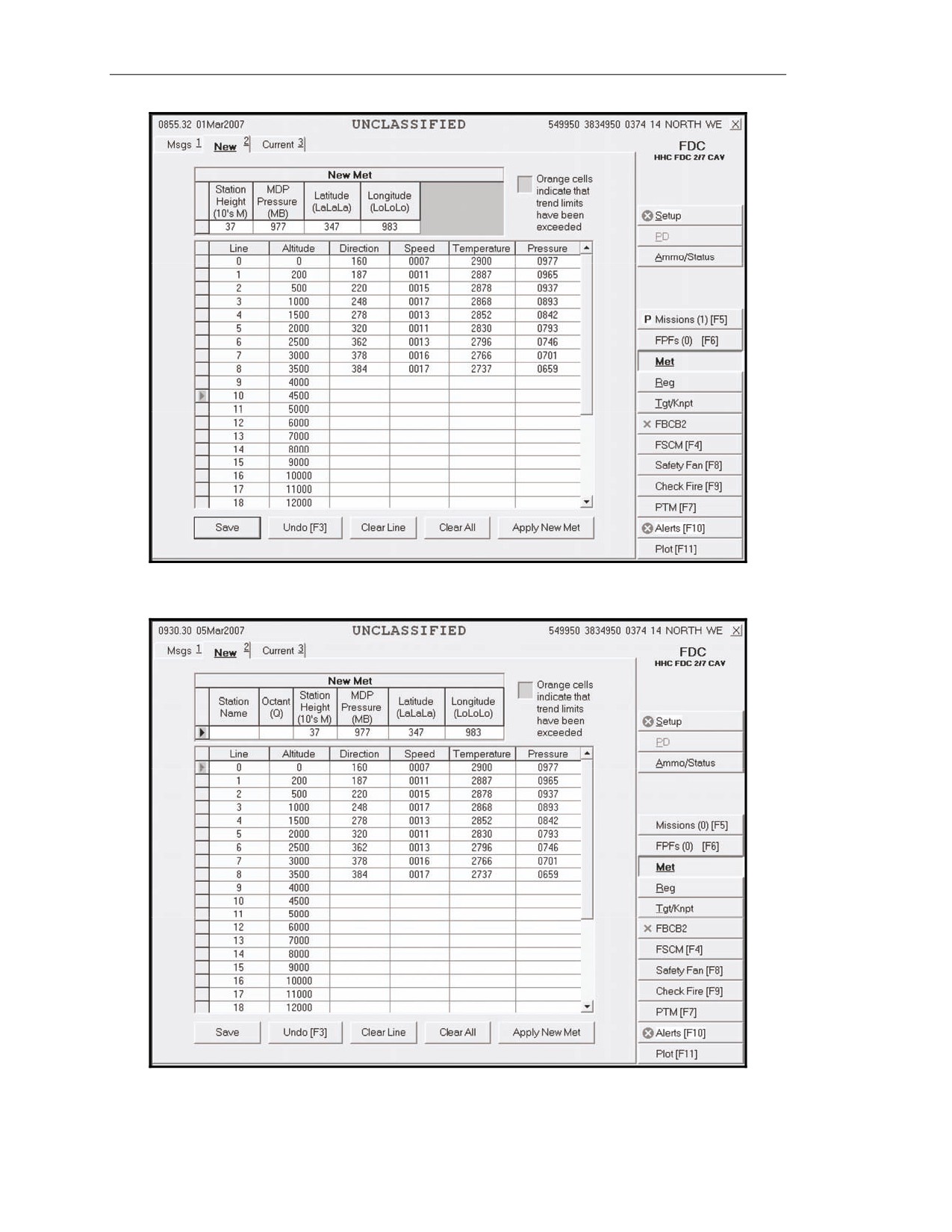
METEOROLOGICAL DATA—NEW TAB
15-157. This tab contains the following fields:
z
Station Name.
z
Octant.
z
Station Height (10's M).
z
MDP Pressure (MB).
z
Latitude (LaLaLa).
z
Longitude (LoLoLo).
z
Line.
z
Altitude.
z
Direction.
z
Speed.
z
Temperature.
z
Pressure.
NOTE: If the MFCS is configured using VMF R5 (Figure 15-25), Station Name and
Octant are not used and will not be displayed. If the MFCS is configured using VMF
PKG11 (Figure 15-26), Station Name and Octant are displayed.
15-158. It also contains the following buttons:
z
Save.
z
Undo.
z
Clear Line.
z
Clear All.
z
Apply New Met.
15-159. If the MET data is acceptable, the operator clicks Save and Apply New Met. To manually
enter or edit the new MET, the operator enters information as appropriate. To clear a line, the operator
places the triangular pointer icon in the index box of the line to be cleared and clicks the Clear Line
working area button. To clear all entries for direction, speed, temperature, and pressure, he clicks
Clear All. To undo any changes before saving, he clicks Undo Changes. Once the operator verifies
that the changes are correct, he clicks Save. Then, he clicks Apply New Met.
15-160. The new MET becomes the current MET, and the view changes to the Current tab. The
current MET (the newly active MET) is automatically transmitted to the guns. The operator then
receives an alert from the guns indicating whether the new MET has been successfully processed.
NOTE: The new MET cannot be processed while a fire mission or FPF is active and will
cause an alert message.
17 July 2008
FM 3-22.91
15-33
Chapter 15
Figure 15-25. New Meteorological Data screen using VMF R5.
Figure 15-26. New Meteorological Data screen using VMF PKG 11.
15-34
FM 3-22.91
17 July 2008
Introduction
METEOROLOGICAL DATA—CURRENT TAB
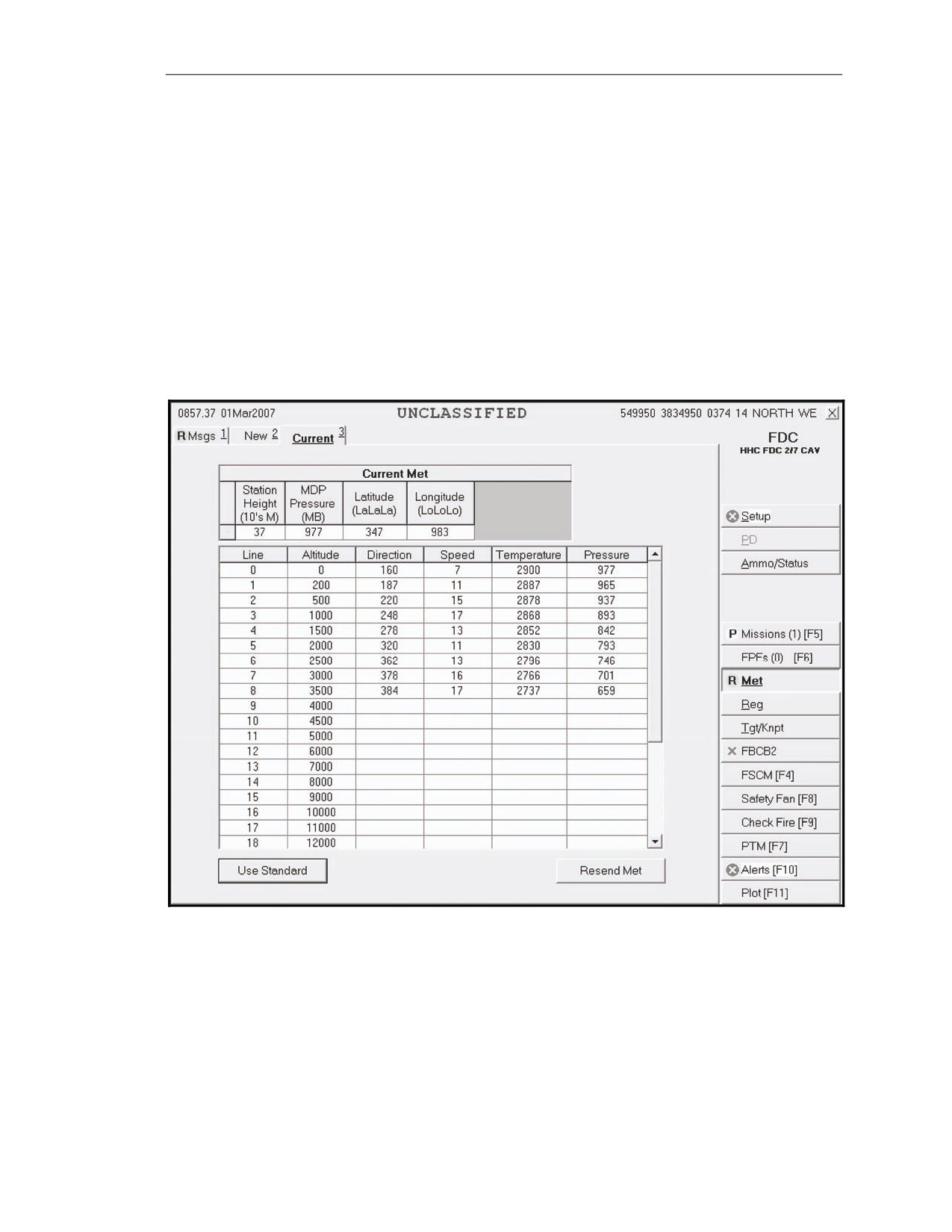
15-161. When the Current tab is selected, the screen in Figure 15-27 is displayed. This screen
contains the same fields as the New screen, but the entries on this screen are read-only; the fields can
be accessed by clicking on the Current tab or Apply New Met via the New tab.
15-162. This screen also contains two buttons:
z
Use Standard.
z
Resend Met.
15-163. When a gun reports OpRdy, the current MET is automatically sent to the gun as an alert.
Resend Meteorological Data Button
15-164. To send the MET message to the guns again, the operator clicks Resend Met.
Use Standard Button
15-165. To use the standard MET, the operator clicks Use Standard.
Figure 15-27. Current screen.
17 July 2008
FM 3-22.91
15-35
Chapter 15
Meteorological Data Trend Limits
15-166. The MFCS also has MET trend limits to check the MET data for possible incorrect data.
When these limits are exceeded, a visual indicator appears on the Current MET screen—the cell will
be orange. The trend limits compare the current data entries with data from the previous message. The
following is a list of parameter thresholds which, when exceeded, result in an indicator appearing in
the cell:
z
Direction--If the difference is more than 100 (10s of mils).
z
Speed--If the difference is more than 15 knots.
z
Temperature--If the difference is more than 20 degrees Kelvin.
z
Pressure--If the air pressure increases on a higher line number (pressure should decrease as
altitude increases).
TARGET/KNOWN POINT SCREEN
15-167. Targets and known points are locations that can be entered into the MFCS and used as targets
or target references. They can also be a known point selected by an observer, a planned target
designated by the unit commander, or the location of a completed mission. Target and known points
can be entered or edited manually by the operator or designated at the end of a previous mission.
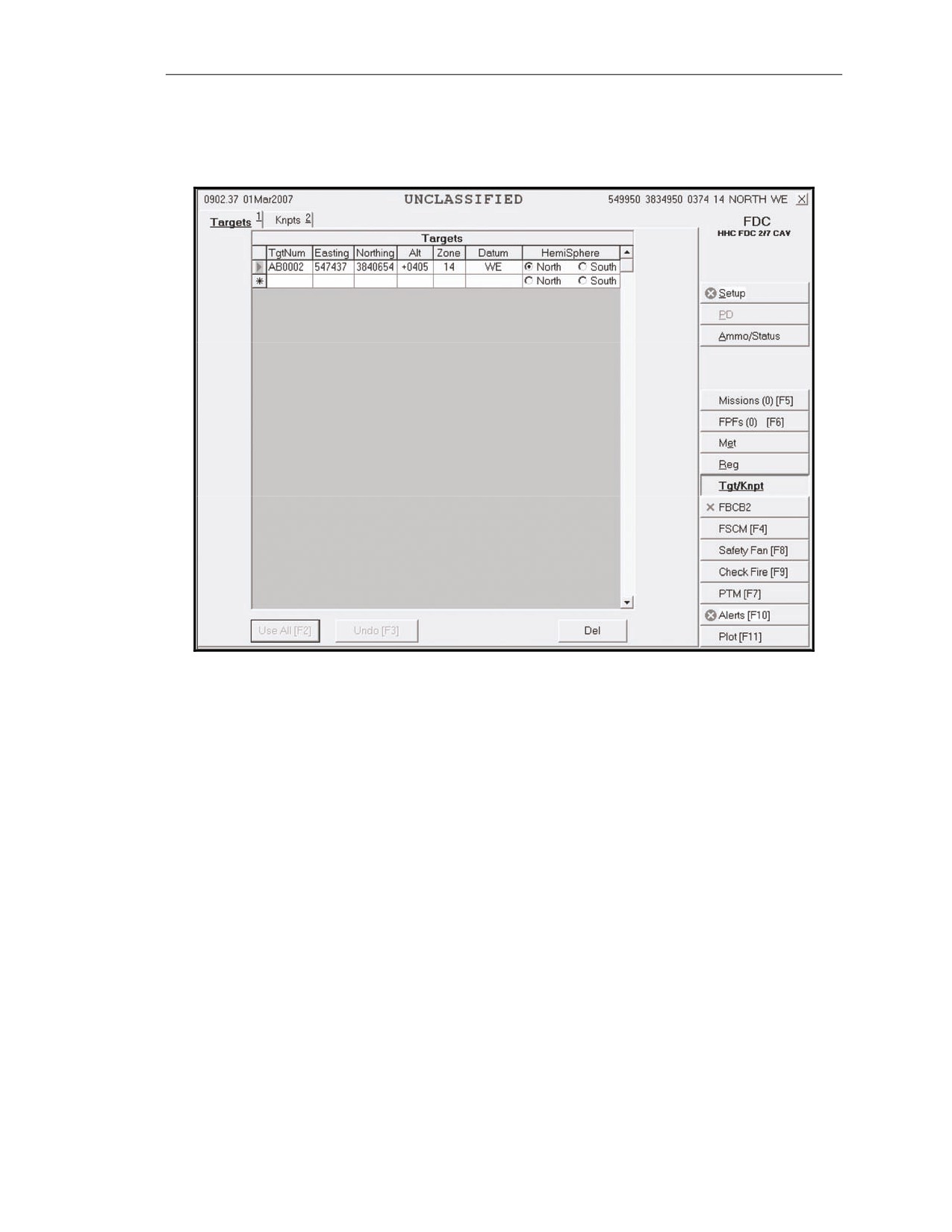
15-168. When the Tgt/KnPt button is selected, the screen in Figure 15-28 is displayed.
TARGETS SCREEN
15-169. This screen contains the following fields:
z
Target Number (TgtNum).
z
Easting.
z
Northing.
z
Altitude (Alt).
z
Zone.
z
Datum.
z
Hemisphere (HemiSphere).
15-170. It also contains three buttons:
z
Use All.
z
Undo.
z
Delete (Del).
15-171. Targets are received digitally at the EOM or can be entered and edited manually by the
operator.
Target Number Field
15-172. To manually enter or edit the target number, the operator enters the two-letter target number
prefix (AA to ZZ), followed by a four-digit target number (0000 to 9999).
Easting, Northing, Altitude, Zone, Datum, and Hemisphere Fields
15-173. The operator enters easting, northing, altitude, zone, and choice of datum or hemisphere data
into the fields.
Use All Button
15-174. To save information, the operator clicks Use All.
Undo Button
15-175. To undo changes, the operator clicks the Undo button.
15-36
FM 3-22.91
17 July 2008
Introduction
Delete Button
15-176. To delete an entry, the operator highlights the index box in front of the entry that he wants to
delete and clicks Del.
Figure 15-28. Targets screen.
KNOWN POINTS SCREEN
15-177. Known points are received digitally at the EOM or can be entered manually by the operator.
A known point must be associated with an observer.
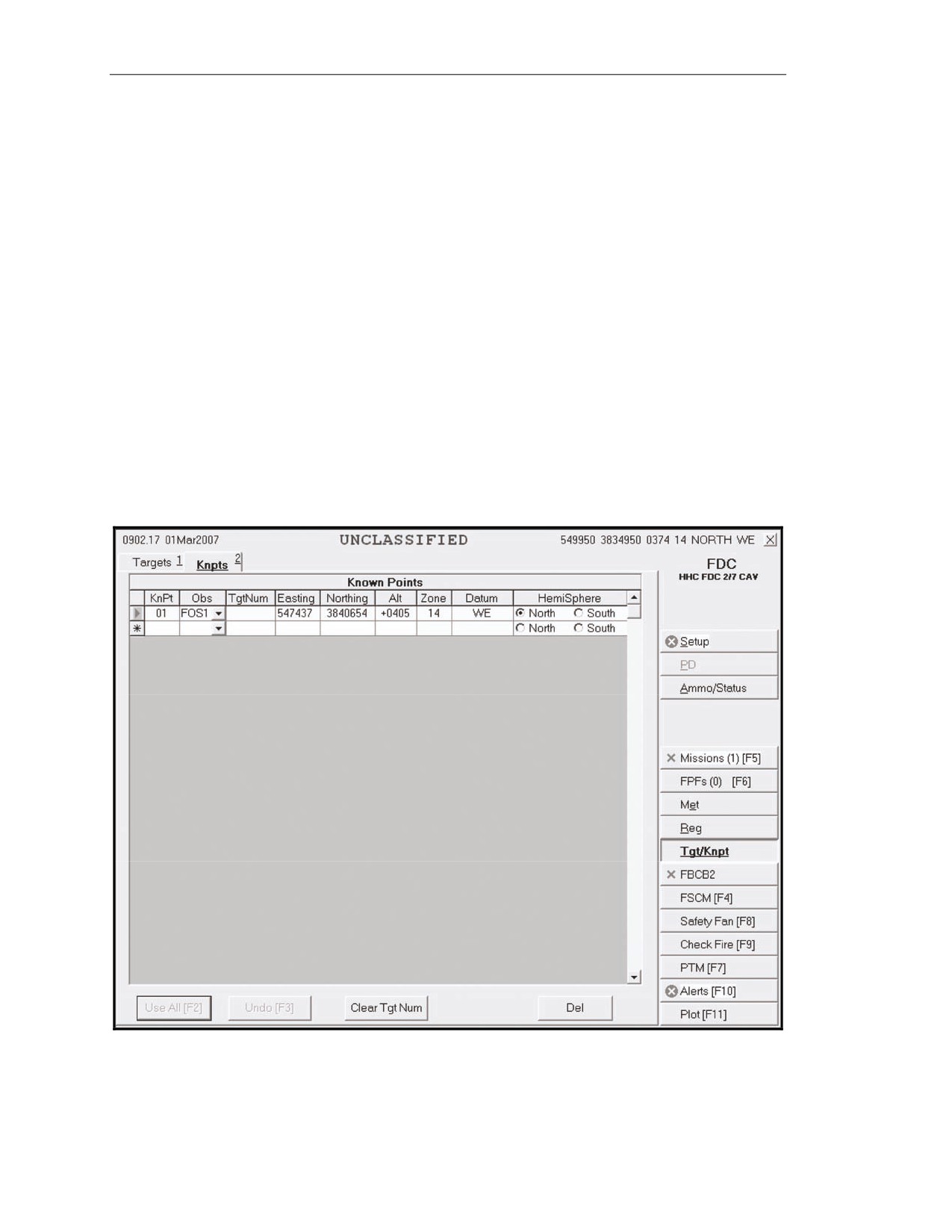
15-178. When the KnPts tab is selected, the screen in Figure 15-29 is displayed. This screen contains
the following fields:
z
Known Point (KnPt).
z
Observer (Obs).
z
Target Number (TgtNum).
z
Easting.
z
Northing.
z
Altitude (Alt).
z
Zone.
z
Datum.
z
Hemisphere (HemiSphere).
15-179. It also contains four buttons:
z
Use All.
z
Undo.
z
Clear Target Number (Clear Tgt Num).
z
Delete (Del).
17 July 2008
FM 3-22.91
15-37
Chapter 15
Known Point Field
15-180. To manually enter or edit a known point, the operator enters a two-digit number from 00 to
99. A duplicate known point will only be accepted if it is associated with a different observer.
Observer Field
15-181. To manually enter or edit information in this field, the operator chooses the observer from the
list.
Easting, Northing, Altitude, Zone, Datum, and Hemisphere Fields
15-182. The operator enters easting, northing, altitude, zone, and choice of datum or hemisphere data
into the fields.
Use All Button
15-183. To save information, the operator clicks Use All.
Undo Button
15-184. To undo changes, the operator clicks the Undo button.
Delete Button
15-185. To delete an entry, the operator highlights the index box in front of the entry that he wants to
delete and clicks Del.
Figure 15-29. Known Points screen.
15-38
FM 3-22.91
17 July 2008
Introduction
SAFETY FAN SCREEN
15-186. The safety fan operation enables the FDC to enter and modify data originating at the FDC and
to review safety fans generated from other sources. The MFCS then alerts the FDC if the fire mission
violates the boundaries of a safety fan. The operator cannot override a safety fan violation, and gun
orders are not displayed or transmitted to the gun(s) causing the violation.
15-187. Up to 10 safety fans can be stored in the MFCS. The operator can manually input safety fan
data into the system.
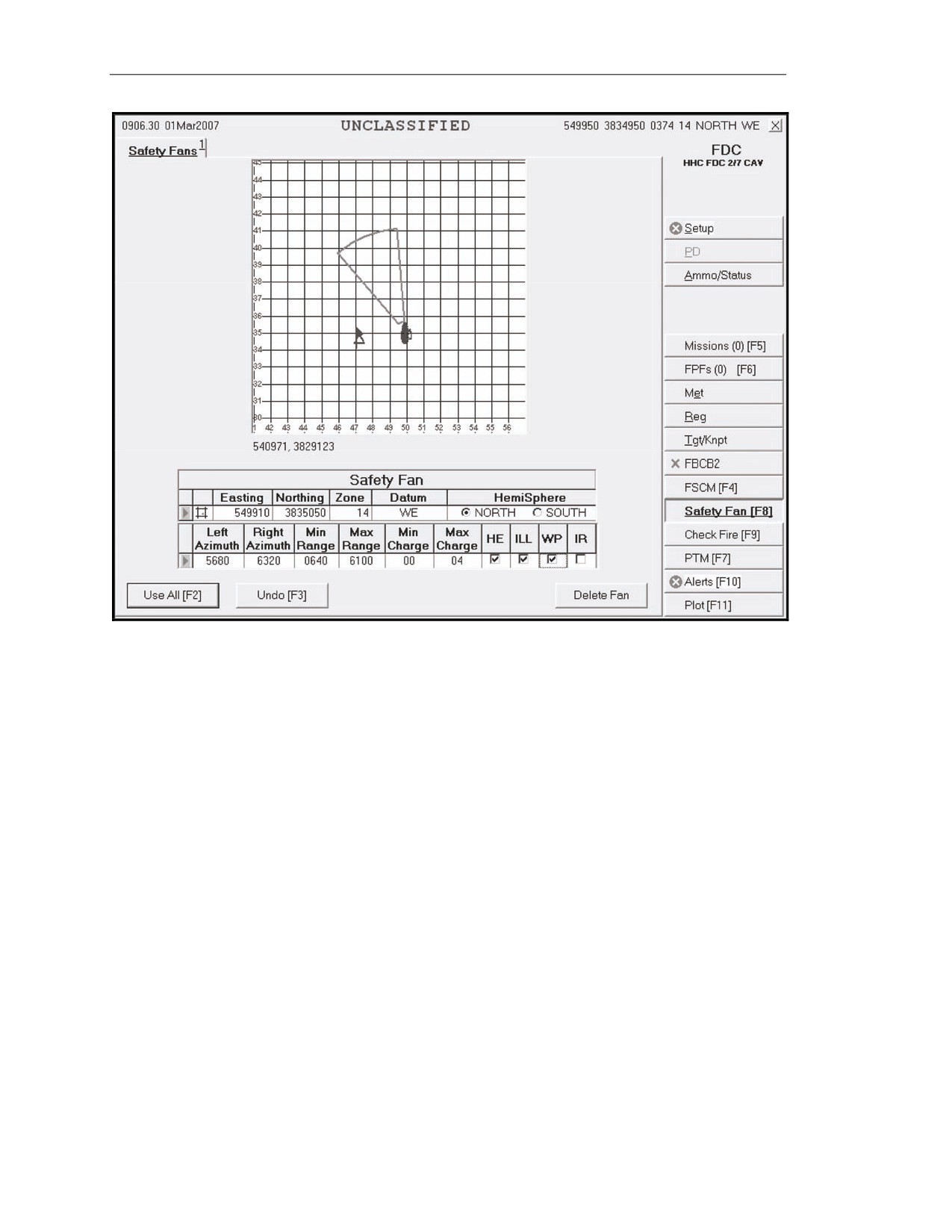
15-188. When the Safety Fan button is selected, the Safety Fans screen (Figure 15-30) is displayed.
This screen contains the following fields:
z
Easting.
z
Northing.
z
Zone.
z
Datum.
z
Hemisphere (HemiSphere).
z
Left Azimuth.
z
Right Azimuth.
z
Minimum Range (Min Range).
z
Maximum Range (Max Range).
z
Minimum Charge (Min Charge).
z
Maximum Charge (Max Charge).
15-189. Perform the following steps to enter data for a safety fan:
(1) Enter the easting and northing of the firing point location. Zone, Datum and HemiSphere
fields will auto-fill. You may also utilize the alternate methods of entering a position (as
described in 15-92 to 15-93) by clicking the
icon.
(2) Enter the left and right azimuth (0 to 6399).
NOTE: The interior angle must not exceed 3200 mils.
(3) Enter the minimum range (0 to 7,999 meters) and the maximum range (1 to 8,000 meters).
(4) Enter the minimum charge (0 to 9) and the maximum charge (0 to 10) based on the
ammunition.
(5) Select the ammunition to be used inside the safety fan. The choices are high-explosive
(HE), illumination (ILL), white phosphorus (WP), or infrared (IR).
(6) In the upper part of the screen, the safety fan displays the UTM (short coordinates) as seen
on the map, units, targets, burst points, and canister points. To obtain information about a
particular icon on the plot, place the cursor over the icon.
(7) To undo entries, click Undo. Click Use All to display the safety fan. To delete the safety
fan, click Delete Fan. All of the fields will be cleared, and the Plot screen deleted.
17 July 2008
FM 3-22.91
15-39
Chapter 15
Figure 15-30. Safety Fans screen.
CHECK FIRE
15-190. The Check Fire button lets the FDC send a message to the guns to immediately cease fire and
preserve data. When a Check Fire command is received, all active fire missions come to a halt, and
inactive fire missions cannot be activated. When a Check Fire by Target Number command is
received, the specified fire mission is halted. A Check Fire message from the FC or FO is sent as an
alert.
15-191. When the operator receives a Check Fire command from the FC—
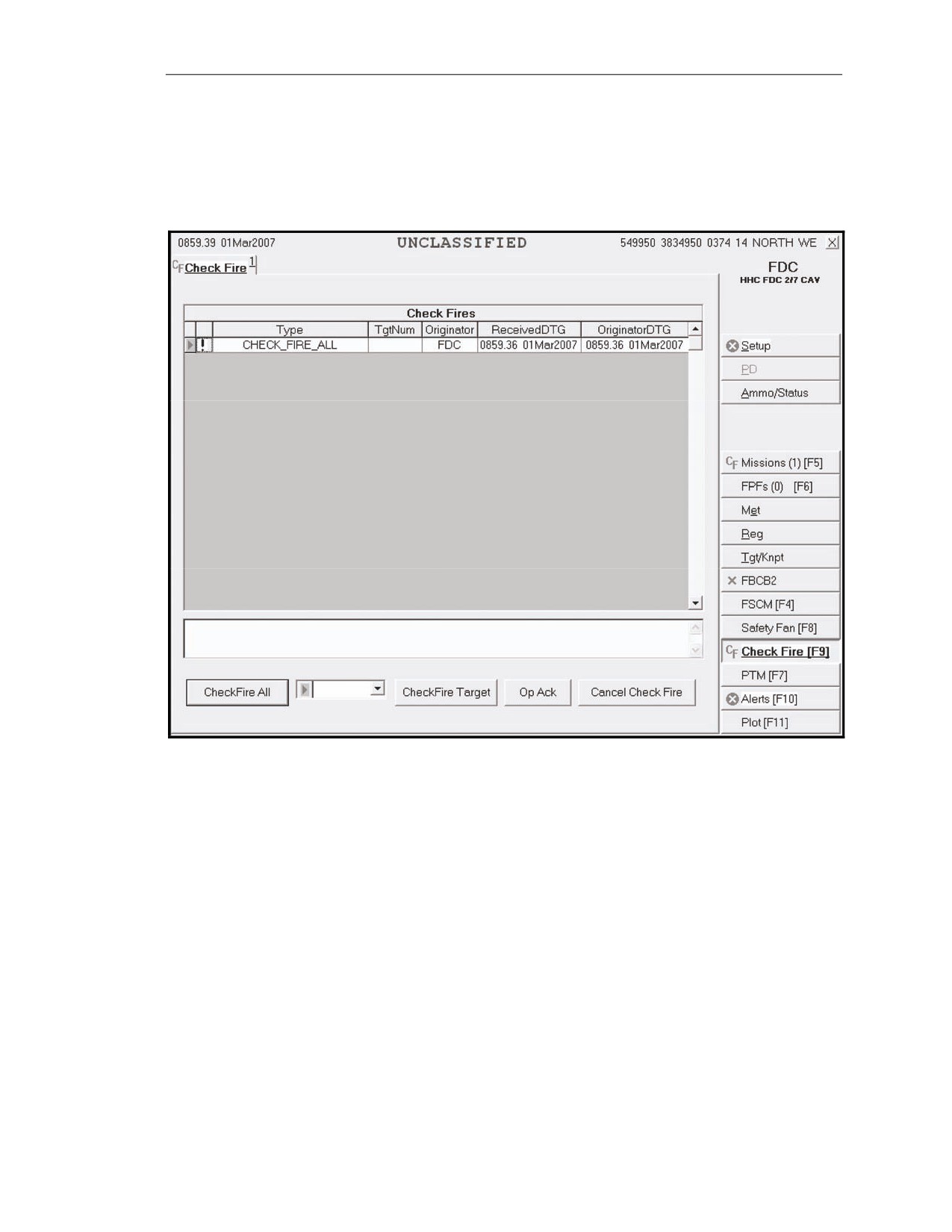
(1) A red “CF” message displays in the control tab area in front of Missions and Check Fire.
(2) Click the Check Fire button to display the Check Fire screen (Figure 15-31).
(3) An exclamation point (!) indicator is displayed in the index box.
(4) Click OpAck to acknowledge the message; the indicator and audio alarm (if set) will be
turned off.
15-192. To initiate or transmit a Check Fire message to all guns in the firing unit—
(1) Click the Check Fire All button on the Check Fire screen.
(2) This sends a Check Fire banner message to all guns and halts the mission until a valid
Cancel Check Fire command is transmitted.
15-193. To initiate a Check Fire Target message—
(1) Enter the target number.
(2) Click Check Fire Target.
(3) This transmits a Check Fire banner to the guns engaged in a mission with the associated
target.
15-40
FM 3-22.91
17 July 2008
Introduction
15-194. To cancel the Check Fire command—
(1) Click the indicator for the appropriate Check Fire message.
(2) Click Cancel Check Fire.
(3) This forwards the Cancel Check Fire message to all units in the firing unit. Fire missions
may then continue.
Figure 15-31. Check Fire screen.
PLAIN TEXT MESSAGES
15-195. The plain text messages (PTM) function allows the FDC to send and receive messages
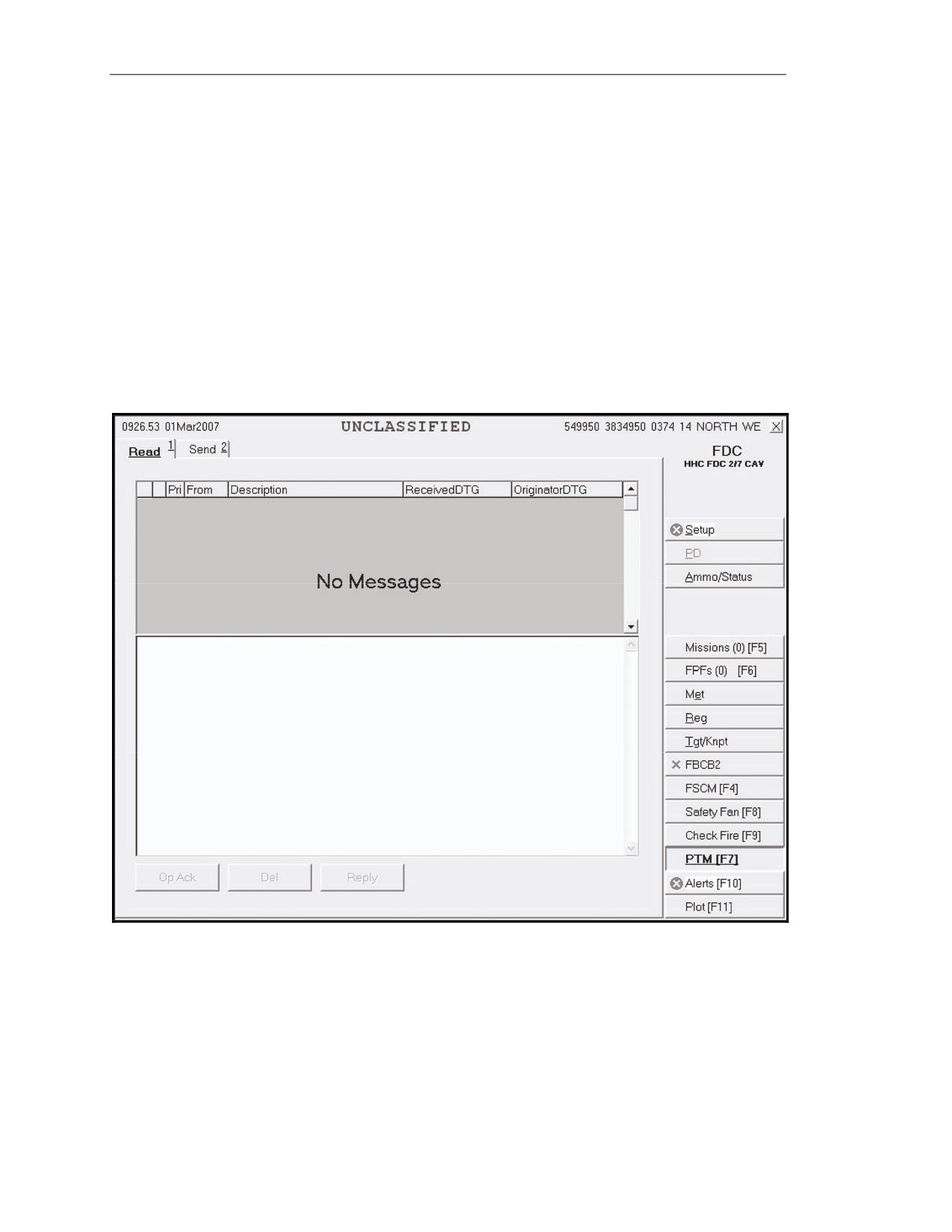
concerning supply, administration, or other subjects. When the PTM button is selected, the screen in
Figure 15-32 is displayed.
READ SCREEN
15-196. Upon receipt of a PTM, an indicator displays on the PTM button. The operator clicks the
PTM button to display the Read screen (Figure 15-32). Messages are listed with—
z
Priority.
z
From.
z
Description.
z
Received DTG.
z
Originator DTG.
17 July 2008
FM 3-22.91
15-41
Chapter 15
15-197. Messages also have four categories:
z
Flash (F).
z
Immediate (I).
z
Priority (P).
z
Routine (R).
15-198. When a message is received, an exclamation point (!) indicator will display in the status box
before the priority. The triangle pointer in the index box indicates which message is being read.
15-199. Follow these steps to read a message:
(1) Access the PTM screen by clicking the PTM button.
(2) Click the Read tab to read messages.
(3) Click OpAck to acknowledge receipt of a new message. This will delete the exclamation
point (!) indicator from the status box and turn off the alarm, if activated.
(4) Click Reply to send a reply. The Send screen is displayed.
(5) To delete a message, highlight it and click Del.
Figure 15-32. Plain Text Message Read screen.
15-42
FM 3-22.91
17 July 2008
Introduction
SEND SCREEN
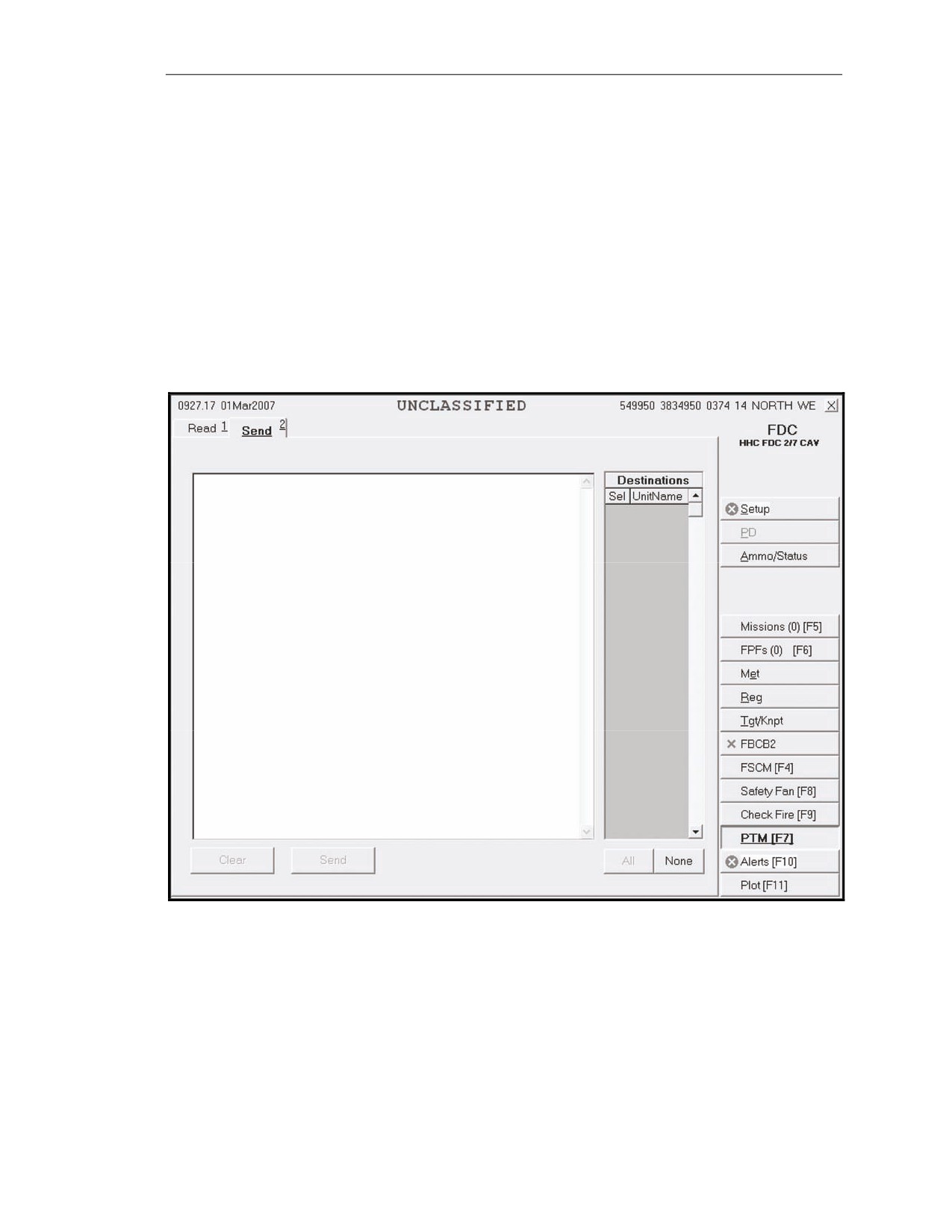
15-200. The operator selects the Send tab to display the Send screen (Figure 15-33). Follow these
steps to read a message:
(1) Either click Sel in Destinations to select the units to which you will send the message,
choose Click All to send the message to everyone in Destinations, or select None to deselect
all units in Designations.
(2) Type the message using the keyboard.
(3) Click Send.
(4) A Send Status box displays, showing the destination and status. The status options
include—
Machine Acknowledgement (MAck).
Retry (the system is retrying).
Failed (the message did not reach the destination).
Figure 15-33. Send screen.
17 July 2008
FM 3-22.91
15-43