FM 3-22.91 MORTAR FIRE DIRECTION PROCEDURES (July 2008) - page 9
Chapter 15
ALERTS FUNCTION
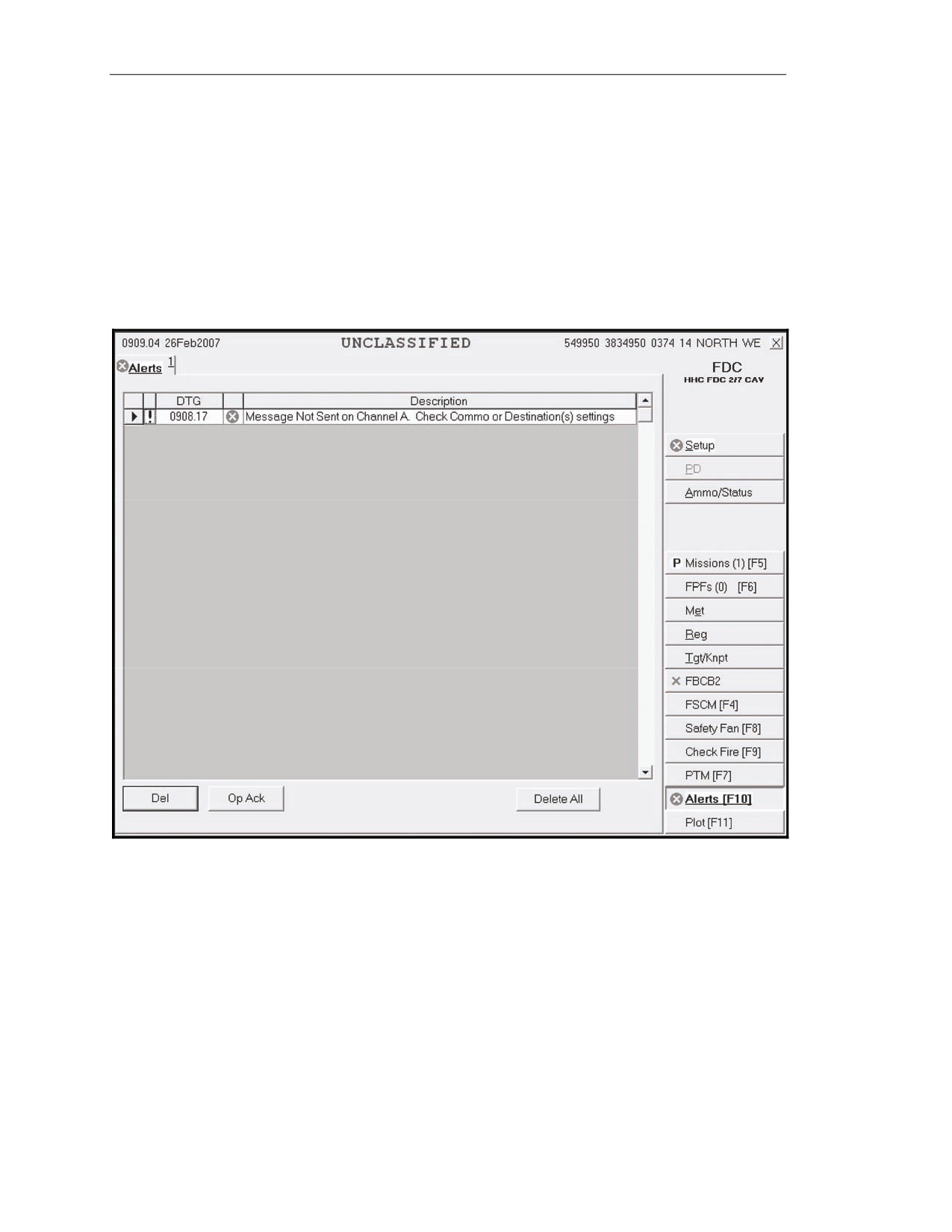
15-201. The Alerts function
(Figure
15-34) allows the operator to receive automated system
messages, such as information, error, and warning alerts.
15-202. When an icon indicating that there are alerts in the queue displays, the operator selects the
Alerts button. The Alert screen is displays, showing the—
z
Date-time group (DTG).
z
Type (TY).
z
Description.
15-203. Then, he selects OpAck to deactivate the alarm. To delete an alert, the operator clicks the row
to be deleted and clicks Del.
Figure 15-34. Alerts screen.
15-44
FM 3-22.91
17 July 2008
Chapter 16
Fire Missions
This chapter consists of three sections: parts of a standard fire mission; basic fire
missions, which contains basic digital and manual fire mission procedures; and
special missions, which details specific missions such as registration, illumination,
coordinated illumination, and FPF.
SECTION I. PARTS OF A STANDARD FIRE MISSION
This section discusses the features of basic digitally and manually generated MFCS fire missions. It includes
the sequence of actions and screens used by the MFCS operator during a fire mission, and common actions
performed throughout the operation. This section explains the steps common to all digital and manual fire
missions.
STANDARD FIRE MISSION PROCEDURES
16-1.
The MFCS provides a standard set of steps and screens to view the fire mission data for grid,
polar plot, shift from a known point, and quick fire missions, whether the missions are input manually or
received digitally. From the initial CFF to the EOM, the sequence of actions is standard, although some
steps may be omitted or repeated for all CFF, regardless of the type of equipment supporting the FDC. The
MFCS also uses common actions to process fire missions and transmit commands. Special missions
(registration, illumination, coordinated illumination, and FPF) also use the standard set of screens, as well
as the same common actions.
SEQUENCE OF ACTIONS FROM THE INITIAL CALL FOR FIRE TO
THE END OF MISSION
16-2.
Fire missions are composed of four basic components: the initial CFF, adjustment to the initial
data to move the fire onto the target, an FFE, and an EOM. The sequence can also be stopped at any time
with an EOM from the FC or FO. This sequence is as follows:
(1) The initial fire mission occurs. The initial fire mission can be a new or an established target.
(2) The fire is adjusted onto the target. This may be omitted if the initial impact hits within the
target area or if the mission is an FFE.
(3) The FO or FC calls for an FFE.
(4) An EOM is sent from the FC or FO, and the mission is saved or deleted.
17 July 2008
FM 3-22.91
16-1
Chapter 16
DIGITAL AND MANUAL FIRE MISSION TABS AND SCREENS
16-3.
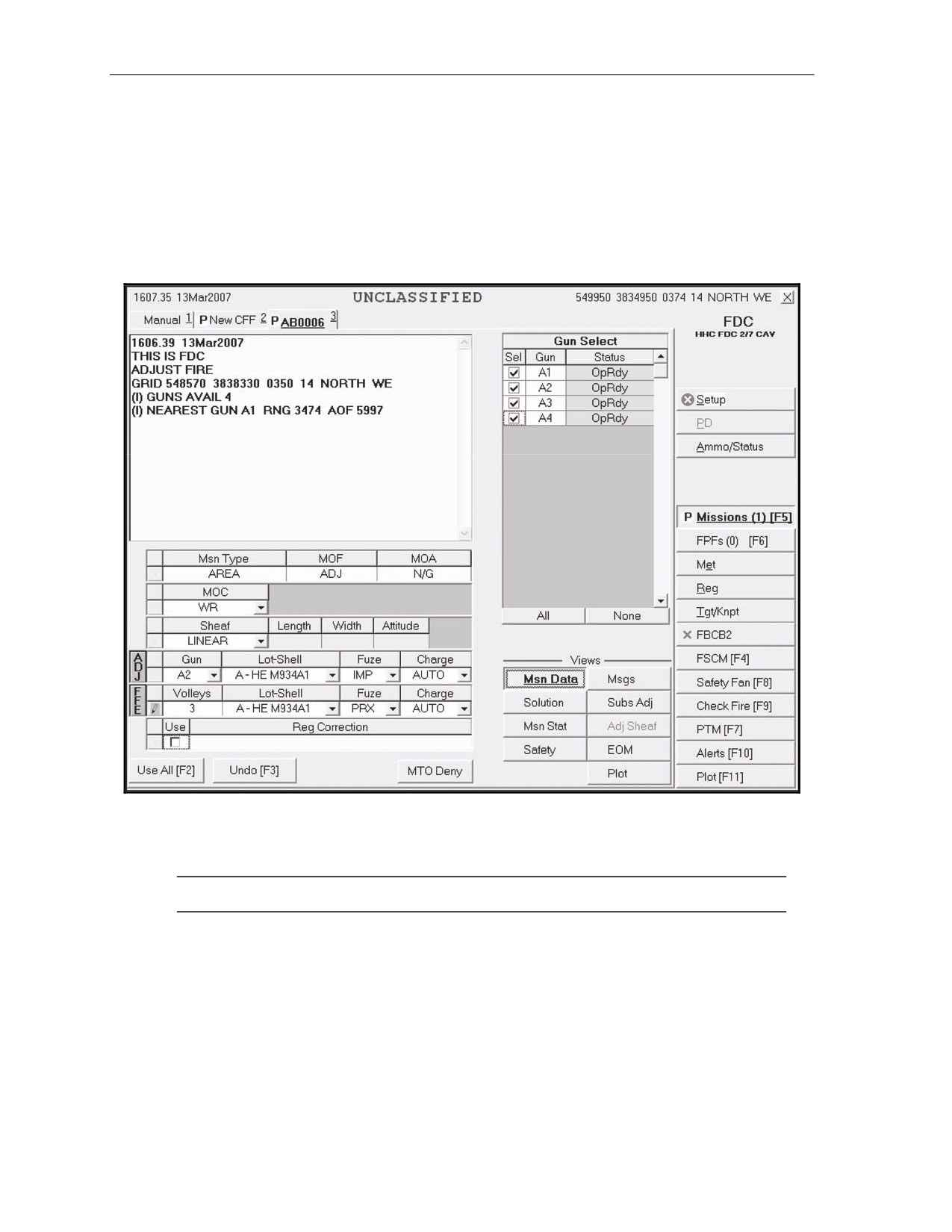
Figure 16-1 illustrates the format of all View screens. The control button area, displayed to the
right, is used to select the MFCS functions. The tab area, located at the top of the screen, displays the types
of missions available to the user (Manual, New CFF, or a previously saved mission). The working button
area, located at the bottom of the screen, contains buttons to accept, modify, or refuse the data shown in the
working area. The working area can have up to four subareas: the Messages screen, the gun status area, the
Fire Command fields, and the View button areas. The View button area provides the operator with the
means to select different fields for viewing data.
Figure 16-1. Mission Data screen.
16-4.
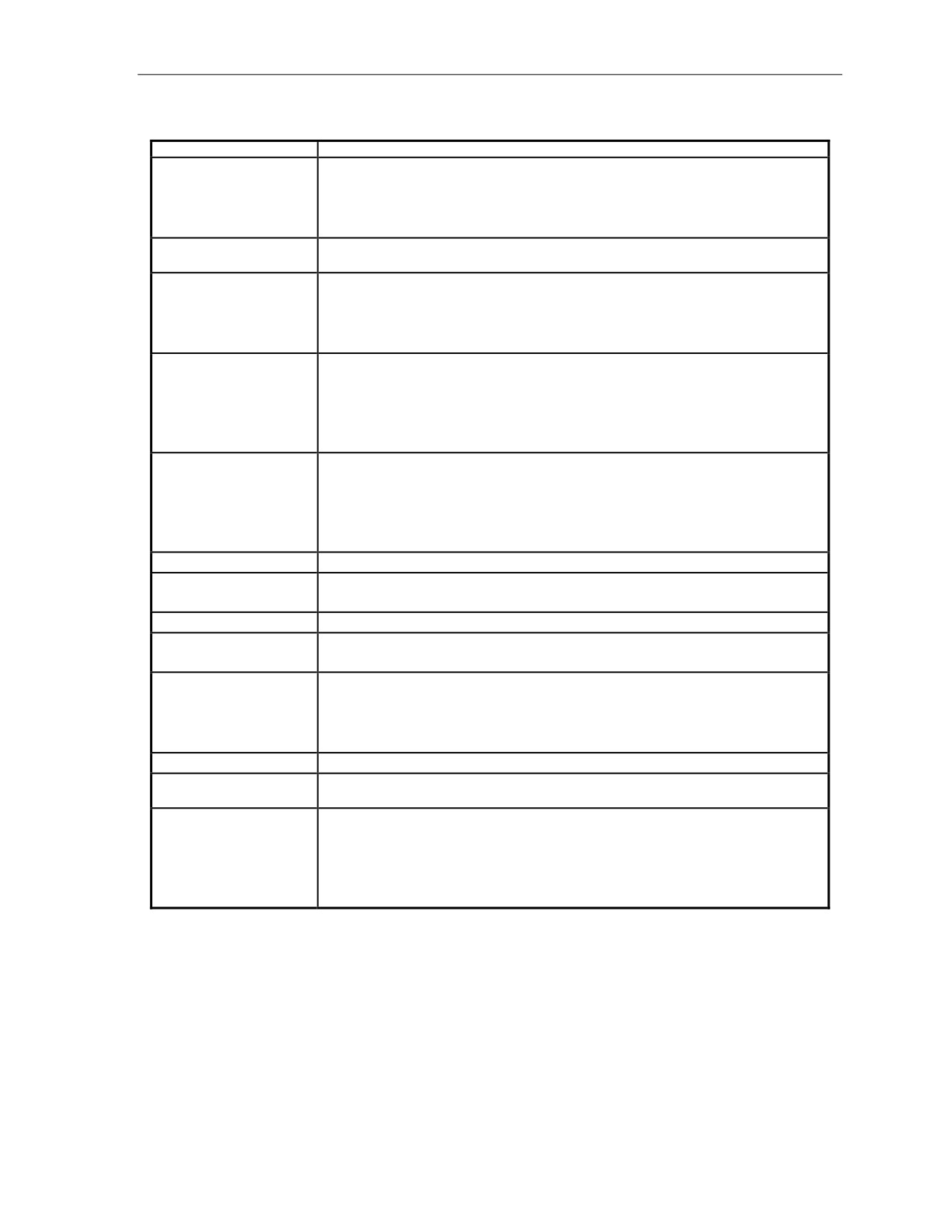
The MFCS uses tabs and views to display the mission and related data. Table 16-1 lists the tabs
and screens typically used during digital, manual, and special fire missions.
NOTE: For more information about special fire missions, see Section III of this chapter.
16-2
FM 3-22.91
17 July 2008
Fire Missions
Table 16-1. Tabs and screens.
TABS OR SCREEN
INFORMATION AND ACTIONS
New Call for Fire Tab
The operator—
•
Receives the new CFF.
•
Accepts (Process) the fire mission.
•
Refuses (MTO Deny) the fire mission.
Manual Call for Fire Tab
The operator manually designates and performs grid, polar plot, shift from a known point,
or quick fire missions.
Mission Tab
The operator—
•
Receives the CFF for a previously saved mission.
•
Accepts (Process) the fire mission.
•
Refuses (MTO Deny) the fire mission.
Mission Data Screen
This screen displays—
•
Target number.
•
CFF.
•
Mission data.
The operator reviews data and makes adjustments.
Solution Screen
This screen displays—
•
Gun orders.
•
Errors and warnings.
•
Selected guns.
The operator sends orders to the guns.
Mission Status Screen
The operator monitors the mission.
Safety Data Screen
This screen displays safety data.
The operator reviews and records data.
Messages Screen
The operator receives subsequent messages.
Subsequent Adjust Screen
This screen displays adjustment data.
The operator reviews and adjusts data.
EOM Screen
This screen houses these features:
•
Not save the mission.
•
Save as a target.
•
Save as a known point.
Plot Screen
This screen displays a digital plot of the mission with icons for key data.
Manual Subsequent Adjust
The operator manually performs a subsequent adjustment.
Screen
Manual EOM
The operator manually records the mission as a target (known point).
This screen houses these features:
•
Not save the mission.
•
Save as a target.
•
Save as a known point.
17 July 2008
FM 3-22.91
16-3
Chapter 16
COMMON ACTIONS
16-5.
The MFCS operator repeatedly uses commands throughout the fire mission. These commands are
usually performed by selecting a button or responding to a query in a message box. Common actions
include—
z
Acknowledging receipt of the message.
z
Accepting or refusing the mission.
z
Processing or deleting the mission.
z
Selecting the guns to fire the mission.
z
Confirming gun orders.
z
Accepting or modifying data.
ACKNOWLEDGING RECEIPT
16-6.
The operator selects the OpAck button to acknowledge receipt of a message and deactivate the
audio alarm, if it is turned on. The phrase “acknowledge receipt by selecting the OpAck button” is used
throughout the chapter to indicate this action.
RECORDING DATA
16-7.
The operator records data throughout the process to maintain a record and to preserve data should
the MFCS fail. He transcribes data onto DA Form 2399-R or DA Form 2188-R. The phrase “record data”
is used throughout the chapter to indicate this action.
MESSAGE TO THE OBSERVER ACCEPT OR MESSAGE TO THE OBSERVER DENY
16-8.
The MFCS operator selects message to the observer (MTO) Accept to accept the mission and
MTO Deny to refuse the mission. If the operator selects MTO Deny, the Delete button becomes visible
and, when selected, deletes the mission. If there is an error beyond FDC control, the only choice is MTO
Deny. The phrase “select MTO Accept to accept the mission or select MTO Deny to refuse the mission" is
used throughout the chapter to indicate this action.
PROCESS OR DELETE
16-9.
The operator may select Process to continue with the mission or Delete to stop the mission. The
terms “process” and “delete” are used throughout the chapter to indicate this action.
SELECTING THE GUNS TO FIRE THE MISSION
16-10. The software preselects guns for the mission; they are checked in the Sel box in Gun Select. The
operator can modify these selections by checking or removing the checkmark in the Sel box beside any
OpRdy gun. The operator may also select all or none of the guns listed by selecting All or None. The
phrase “select guns” is used throughout the chapter to indicate this action.
ACCEPTING OR MODIFYING DATA
16-11. If required, the operator adjusts the mission data. To undo any changes, he selects Undo Changes,
and the data fields display the original data. If any changes were made, he selects Use All to accept all of
the changes. If no changes were made, he selects Use All. The phrase “modify data if necessary” is used
throughout the chapter to indicate this action.
16-4
FM 3-22.91
17 July 2008
Fire Missions
SECTION II. BASIC FIRE MISSIONS
This section details how the MFCS is used to conduct digital and manual fire missions using each method of
target location. It also explains how the MFCS records RPs, targets, and known points.
BASIC DIGITAL MISSIONS
16-12. New basic fire missions are received digitally from the FC or FO. The FC or FO identifies the
target's location using grid coordinates, polar plots, or shifts from a known point. Once a mission has been
fired, it can be saved and designated as a target or known point.
16-13. The following screen shots provide an example of a new digital CFF using the grid method of
target location. The process is the same when using the polar plot or shift from a known point method of
target location. Except for the initial CFF screen, the adjustment of fires, FFE, and previously fired
missions are conducted in the same manner.
RECEIPT OF A FIRE MISSION
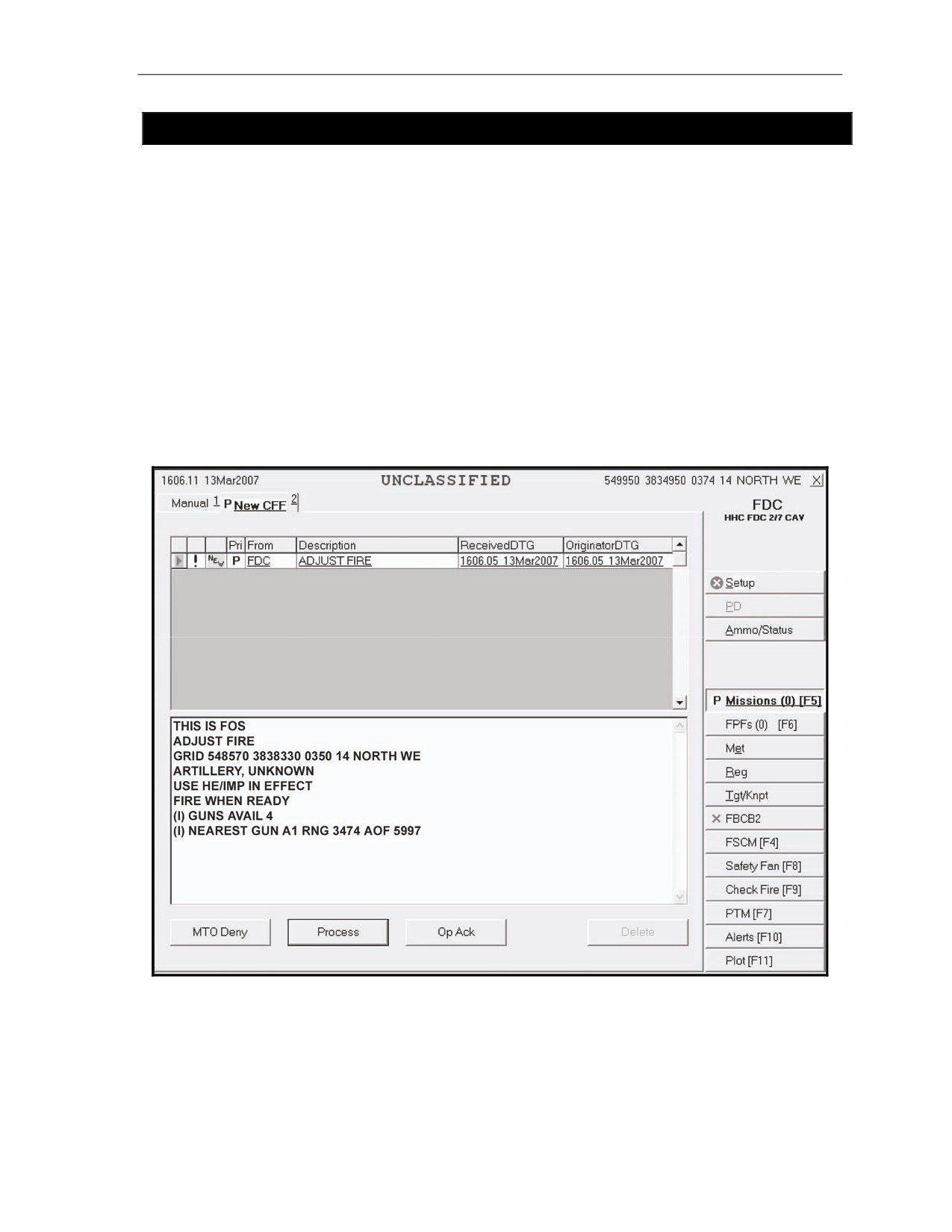
16-14. Upon receipt of a fire mission, the Missions button is highlighted and, if enabled, the audio alarm
sounds. The operator selects the Missions button, and the New CFF tab appears (Figure 16-2). The
operator can select MTO Deny to deny the mission or Process to display the Mission Data screen.
Figure 16-2. New Call for Fire screen.
17 July 2008
FM 3-22.91
16-5
Chapter 16
MISSION DATA SCREEN
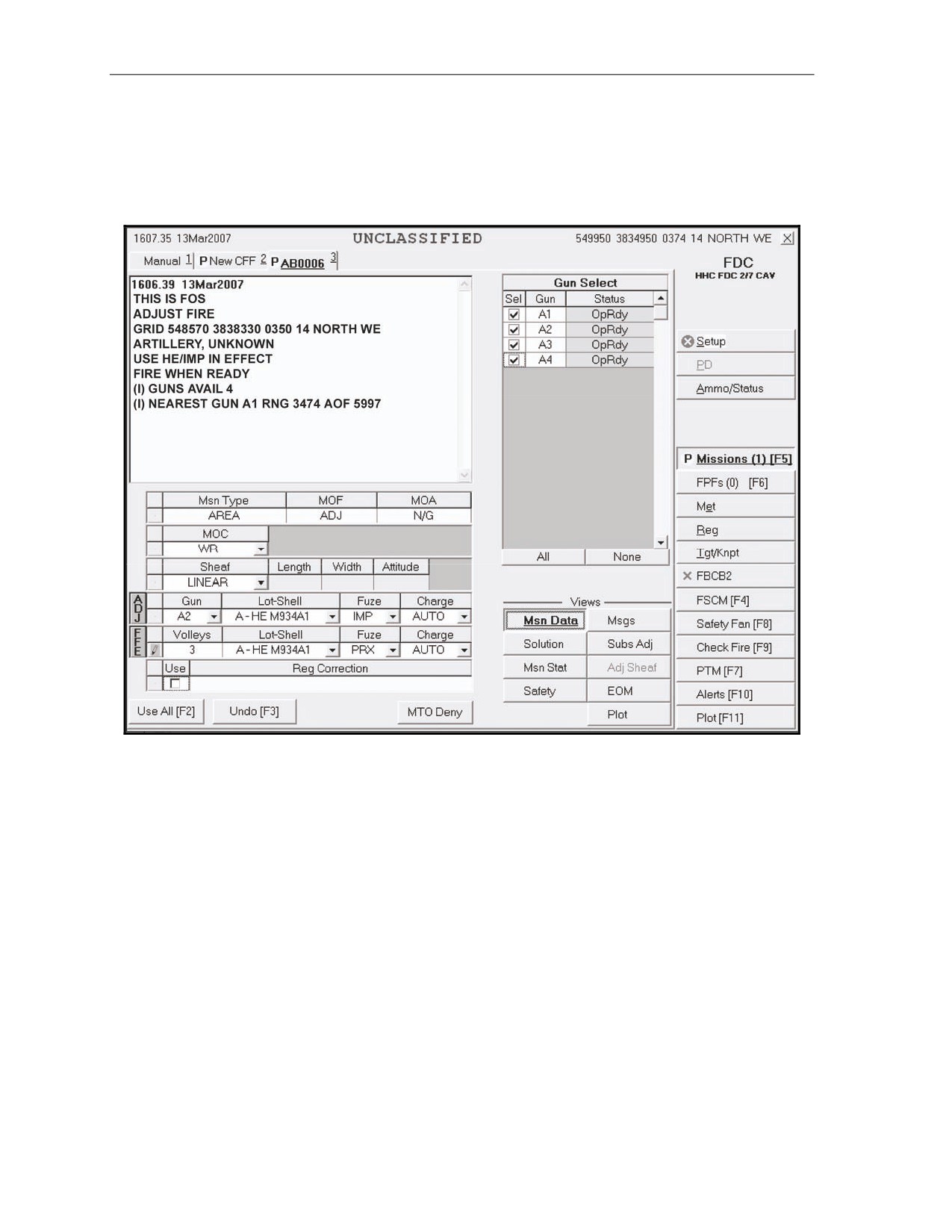
16-15. The Mission Data screen (Figure 16-3) automatically generates a new target number and displays
the mission data. It allows the operator to review, record, and adjust mission data, such as the guns to fire
the mission, method of control (MOC), type of sheaf, and fuze-shell combinations. Once satisfied, the
operator selects Use All (if he made any changes) or Solution.
Figure 16-3. Mission Data screen.
16-6
FM 3-22.91
17 July 2008
Fire Missions
SOLUTION SCREEN
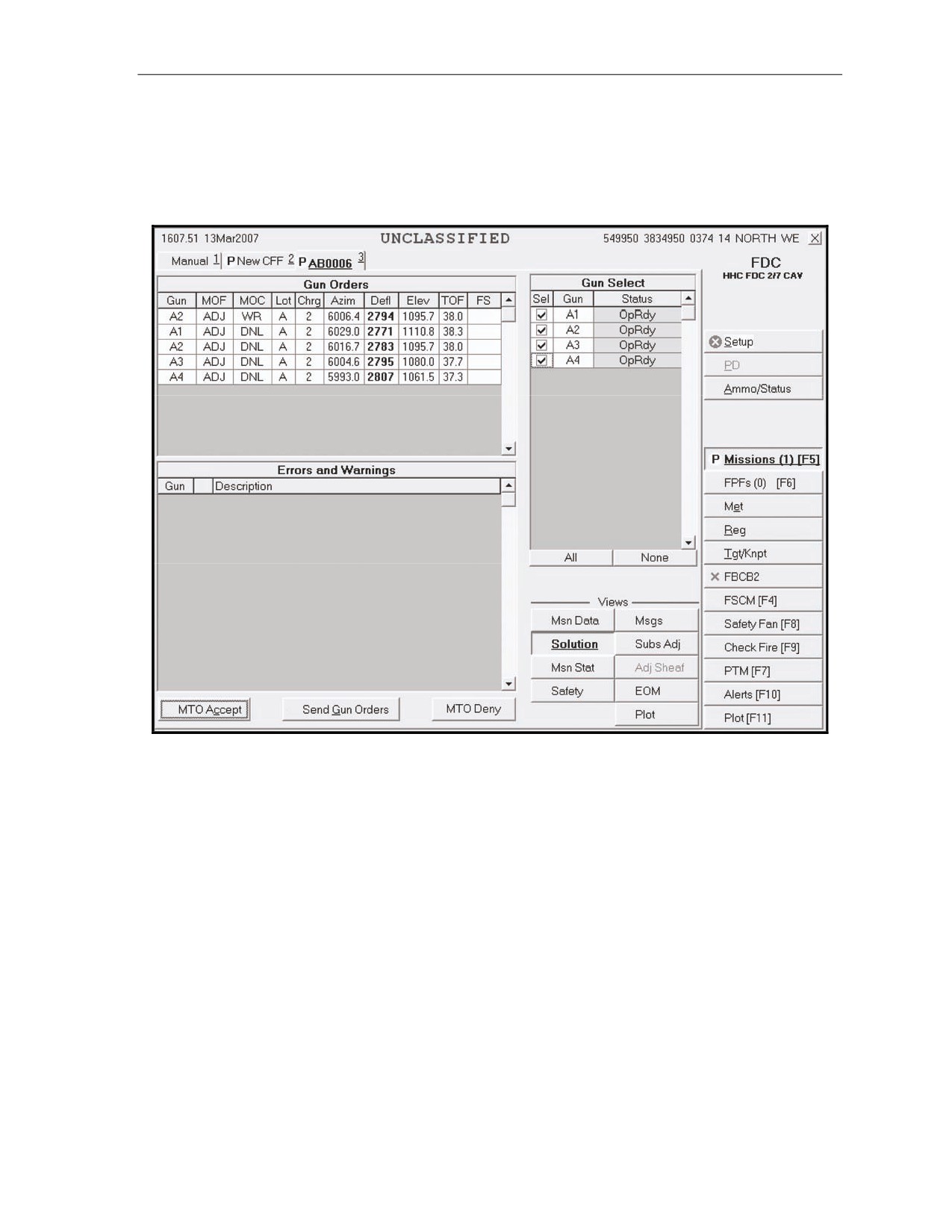
16-16. The Solution screen (Figure 16-4) shows the gun orders, the guns selected, and errors and
warnings. This screen allows the operator to review the gun status and to change the gun selection based on
any errors and warnings received. From this screen, the operator can select MTO Deny (if necessary) and
send gun orders.
Figure 16-4. Solution screen.
17 July 2008
FM 3-22.91
16-7
Chapter 16
SAFETY DATA SCREEN
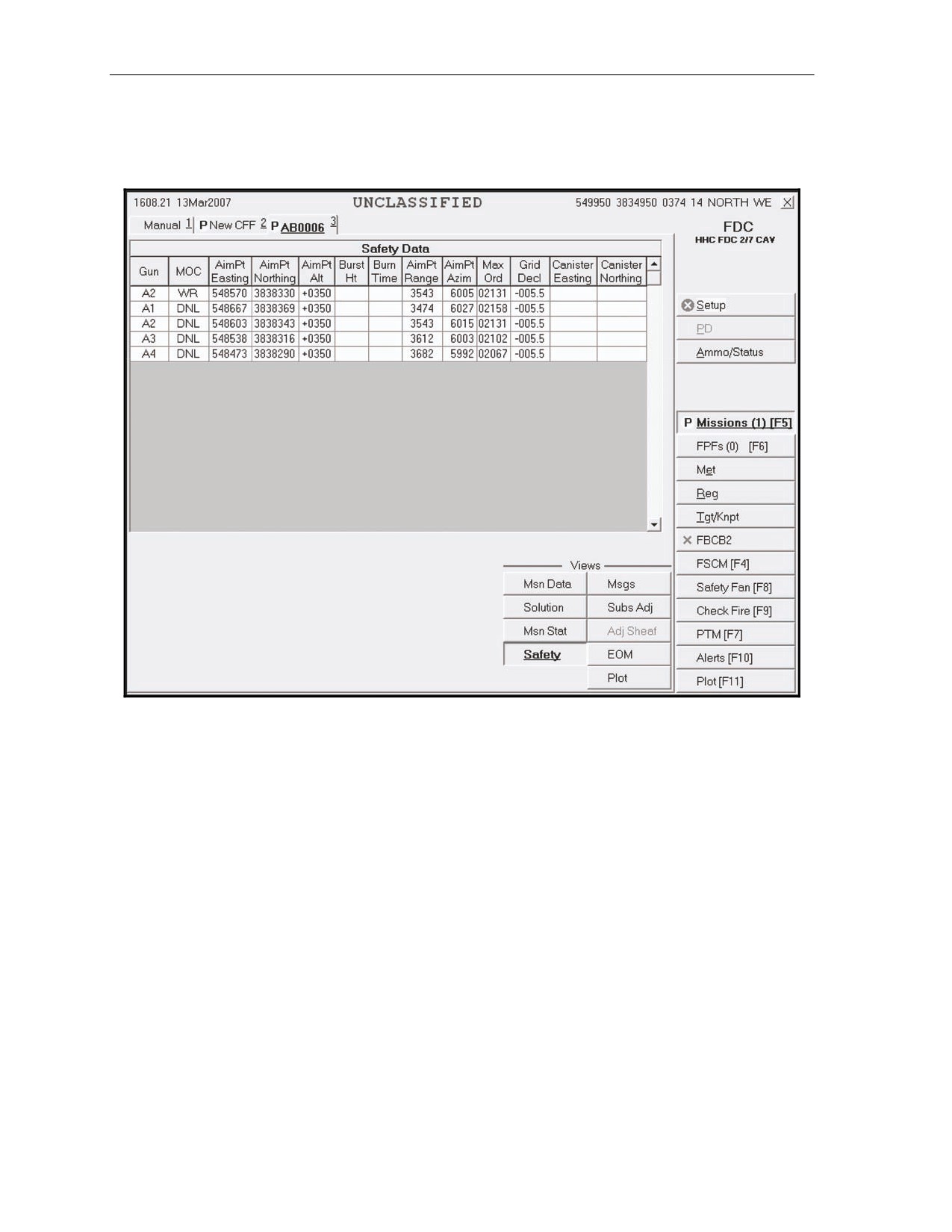
16-17. Prior to sending gun orders or at any time, the operator can review and record the safety data
using the Safety Data screen (Figure 16-5).
Figure 16-5. Safety Data screen.
16-8
FM 3-22.91
17 July 2008
Fire Missions
PLOT SCREEN
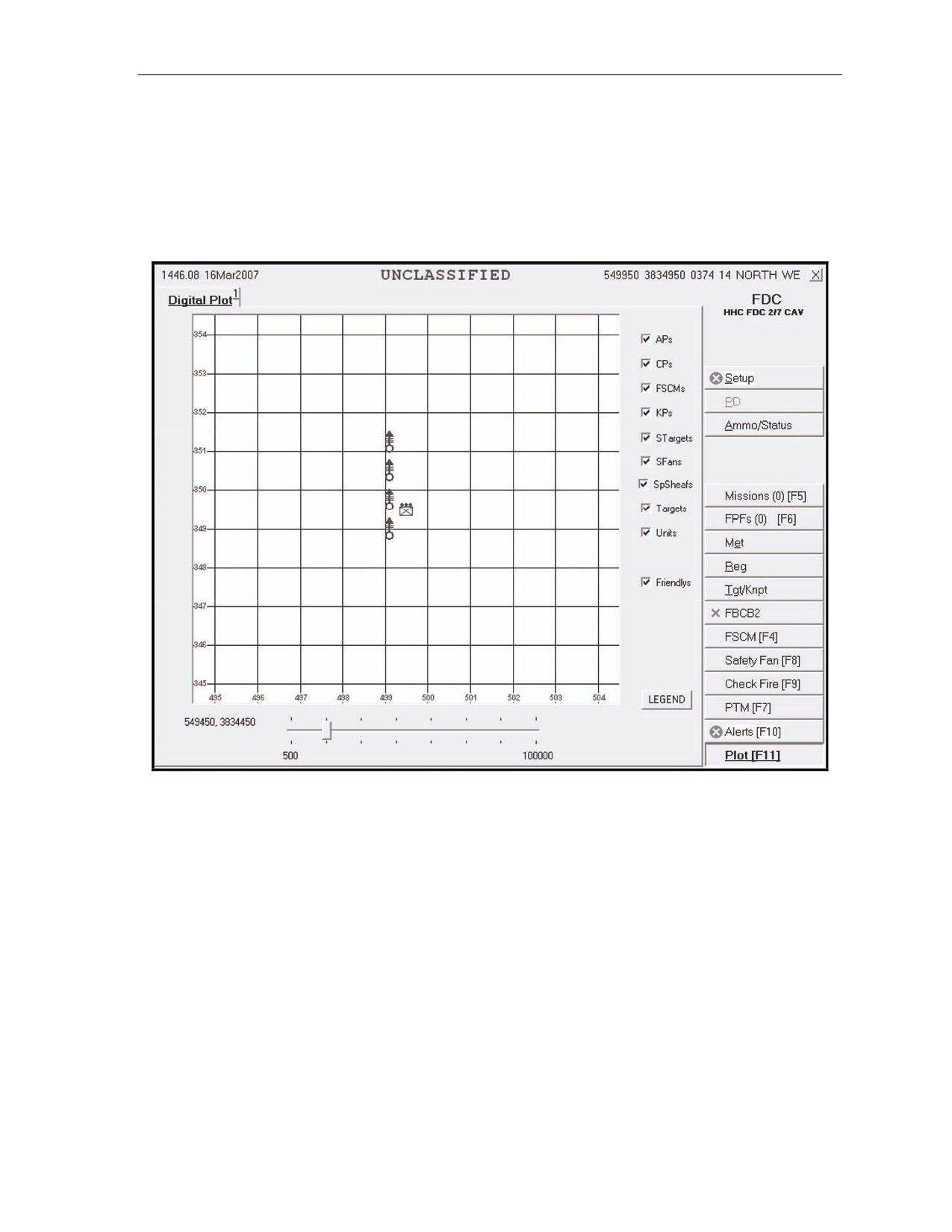
16-18. The Plot screen (Figure 16-6) is available at any time during the mission. This screen displays
burst points, canister points, FSCMs, known points, stored targets, units, and waypoints. When connected
to FBCB2, it also stores friendly unit locations. The operator can change the items displayed by selecting
or deselecting the boxes in the list above the Legends button (the default shows all items checked). To
obtain information about an icon on the plot, the operator places the cursor over the icon. To return to the
Solution screen, he selects the Solution button.
Figure 16-6. Plot screen.
17 July 2008
FM 3-22.91
16-9
Chapter 16
SOLUTION SCREEN
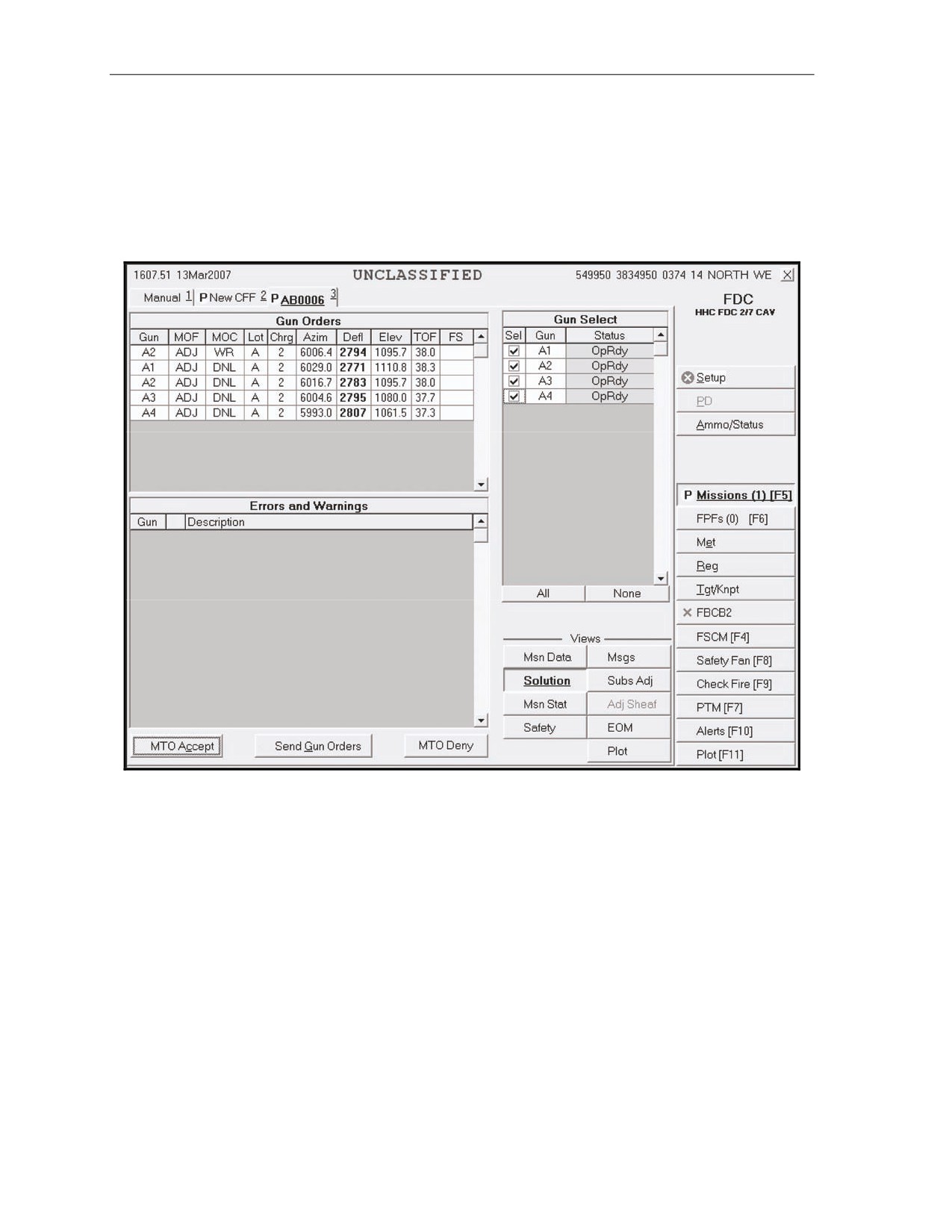
16-19. On the Solution screen (Figure 16-7), the operator reviews the gun orders and other data. Once
satisfied with the data, the operator selects the Send Gun Orders button. A message box appears for the
operator to confirm the order; the operator selects Yes to confirm. A Send Status box is displayed, showing
the destination and status of the message to the guns. The status shows Machine Acknowledgement
(MAck), Retry (the system is retrying), or Failed (the message did not reach its destination). The Mission
Status Screen is then displayed.
Figure 16-7. Solution screen.
16-10
FM 3-22.91
17 July 2008
Fire Missions
MISSION STATUS SCREEN
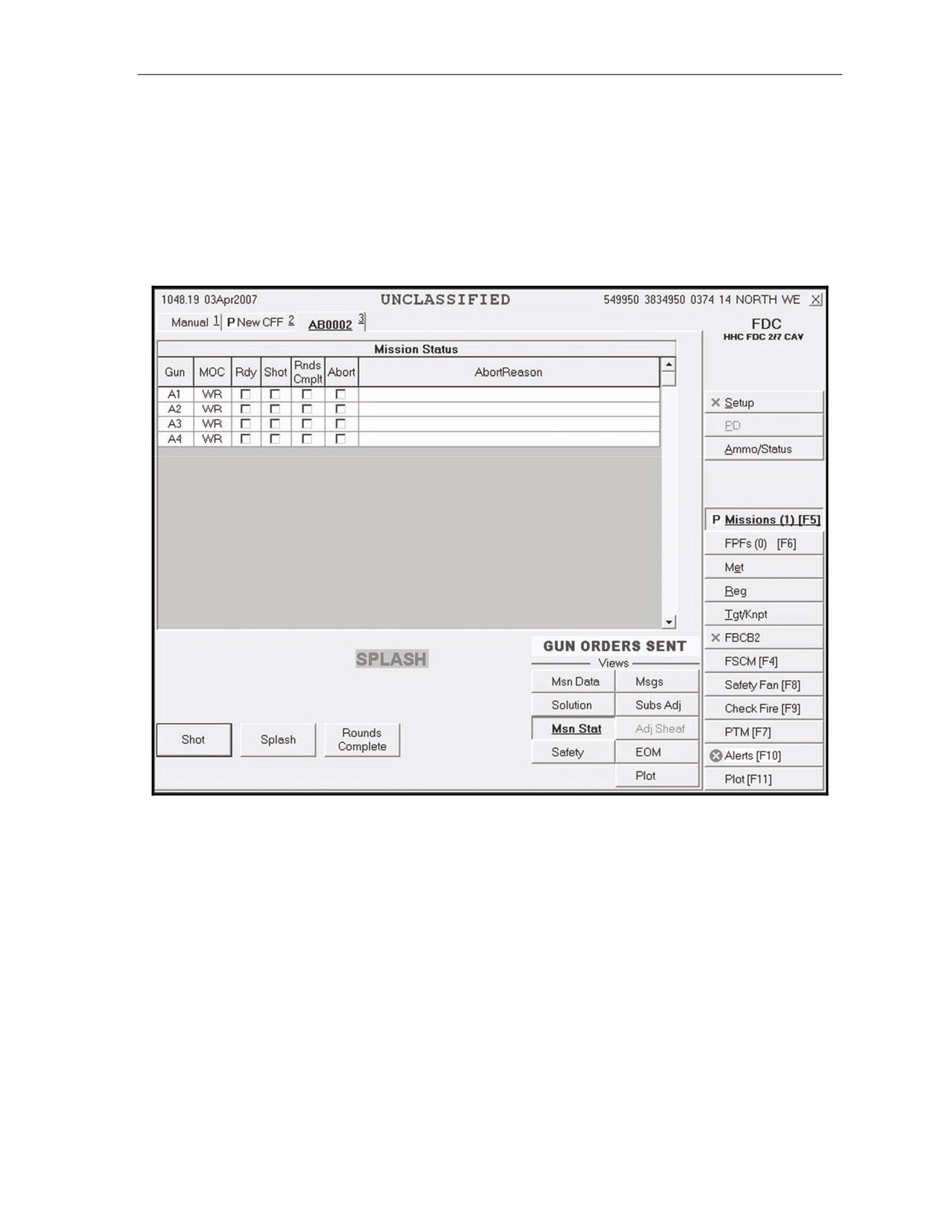
16-20. When the operator sends gun orders, the Mission Status screen (Figure 16-8) is shown, and the
words “Gun Orders Sent” appear. The operator monitors the mission from this screen. The operator
updates the status of the guns (Ready, Shot, Rounds Complete, and Abort) from this screen, and the MFCS
automatically sends this information to the FC or FO.
z
On receiving “Shot,” a checkmark appears in the checkbox, and the box turns green. The time of
flight and a red splash sign are also displayed.
z
If a gun aborts the mission, a checkmark appears in the Abort box, and a reason is displayed.
Figure 16-8. Mission Status screen.
17 July 2008
FM 3-22.91
16-11
Chapter 16
SUBSEQUENT ADJUSTMENT, MESSAGES SCREEN
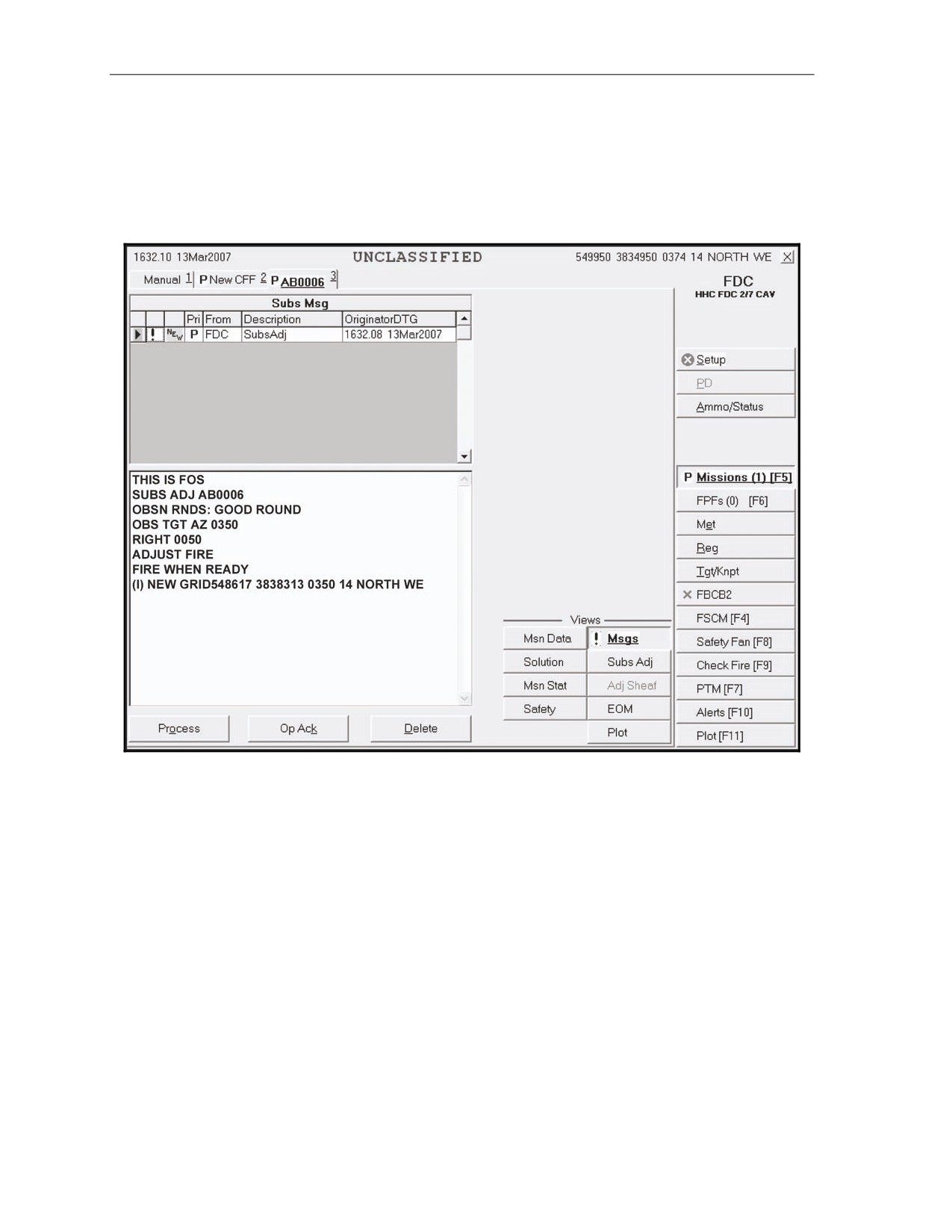
16-21. The operator selects the Messages screen (Figure 16-9) and waits for subsequent messages. There
are two main subsequent messages: adjust fire and FFE. The FC or FO can order an FFE or continue to
make adjustments. For subsequent adjustments, the operator can choose to process or modify the data, or
delete the adjustment. Upon receipt of “Adjust Fire,” the operator records the data and selects OpAck to
deactivate the audio alarm. Then, he selects Process to display the Mission Data screen.
Figure 16-9. Messages screen.
16-12
FM 3-22.91
17 July 2008
Fire Missions
SUBSEQUENT ADJUST-ADJUST FIRE
16-22. Until an FFE or EOM is ordered, the operator can make adjustments using the steps described in
paragraphs 16-15 to 16-20. The operator continues to review and modify data on the Mission Data,
Solution, and Safety Data screens. He also controls the mission on the Mission Status screen.
SUBSEQUENT ADJUST-FIRE FOR EFFECT
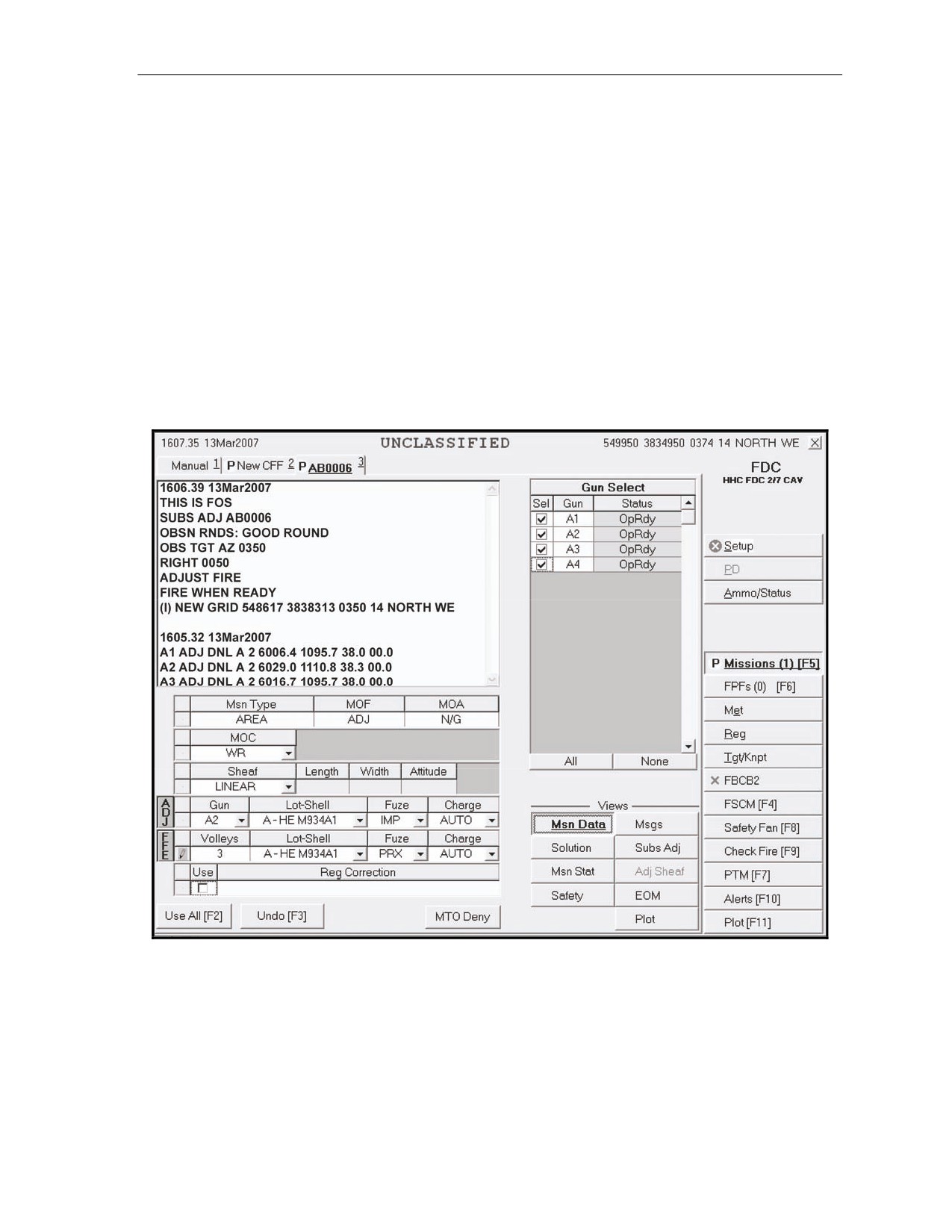
16-23. The Mission Data screen (Figure 16-10) appears when an FFE command is received. The operator
records the data and selects OpAck to deactivate the audio alarm. He can choose Process or Delete. If he
selects Process, the Mission Data screen appears, and he can change the guns to fire the mission and other
mission data, such as MOC, type of sheaf, and fuze-shell combinations. Once satisfied, the operator selects
Use All (if he made any changes) or Solution. The Solution screen appears. The operator can also select the
Safety Data screen. If the MOC is “at my command" (AMC), the Ready and Fire buttons appear on the
Mission Status screen. When the gun sends “Ready,” the Ready button becomes shaded, and a green
checkmark appears in the Rdy box on the Mission Status screen. The FDC operator then selects the Fire
button. A checkmark appears in the Rounds Complete box when the guns send the information. Then, the
operator selects the Message button and waits for subsequent messages to appear on the Messages screen.
Figure 16-10. Mission Data screen.
17 July 2008
FM 3-22.91
16-13
Chapter 16
END OF MISSION
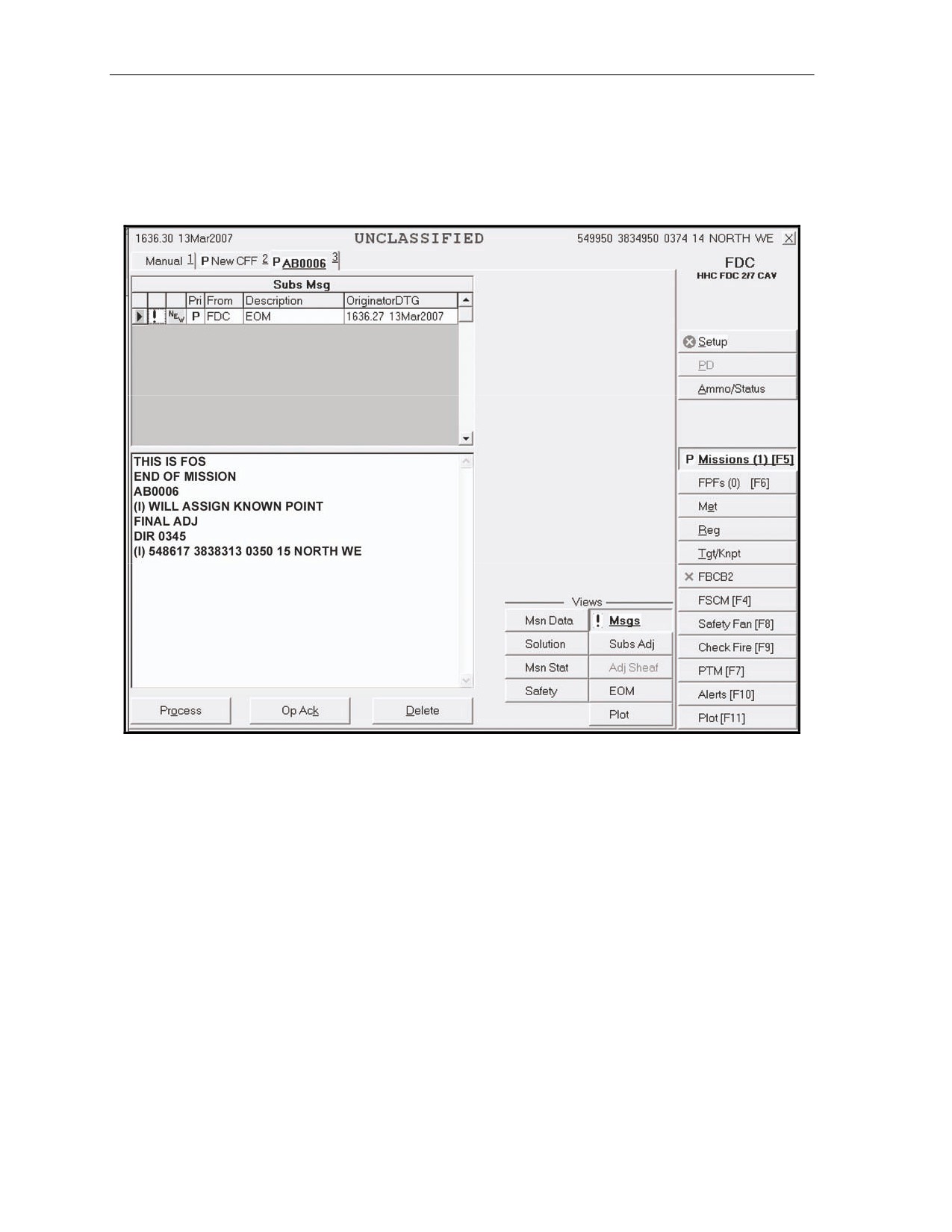
16-24. The operator can end any active mission or receive an EOM at any point in the mission. The
Messages screen displays an EOM message from the FO (Figure 16-11). If the operator does not need to
save or record the mission, he selects Process. The New CFF tab for the fired mission appears, and the
operator selects Delete.
Figure 16-11. End of Mission message.
16-14
FM 3-22.91
17 July 2008
Fire Missions
SAVE DATA
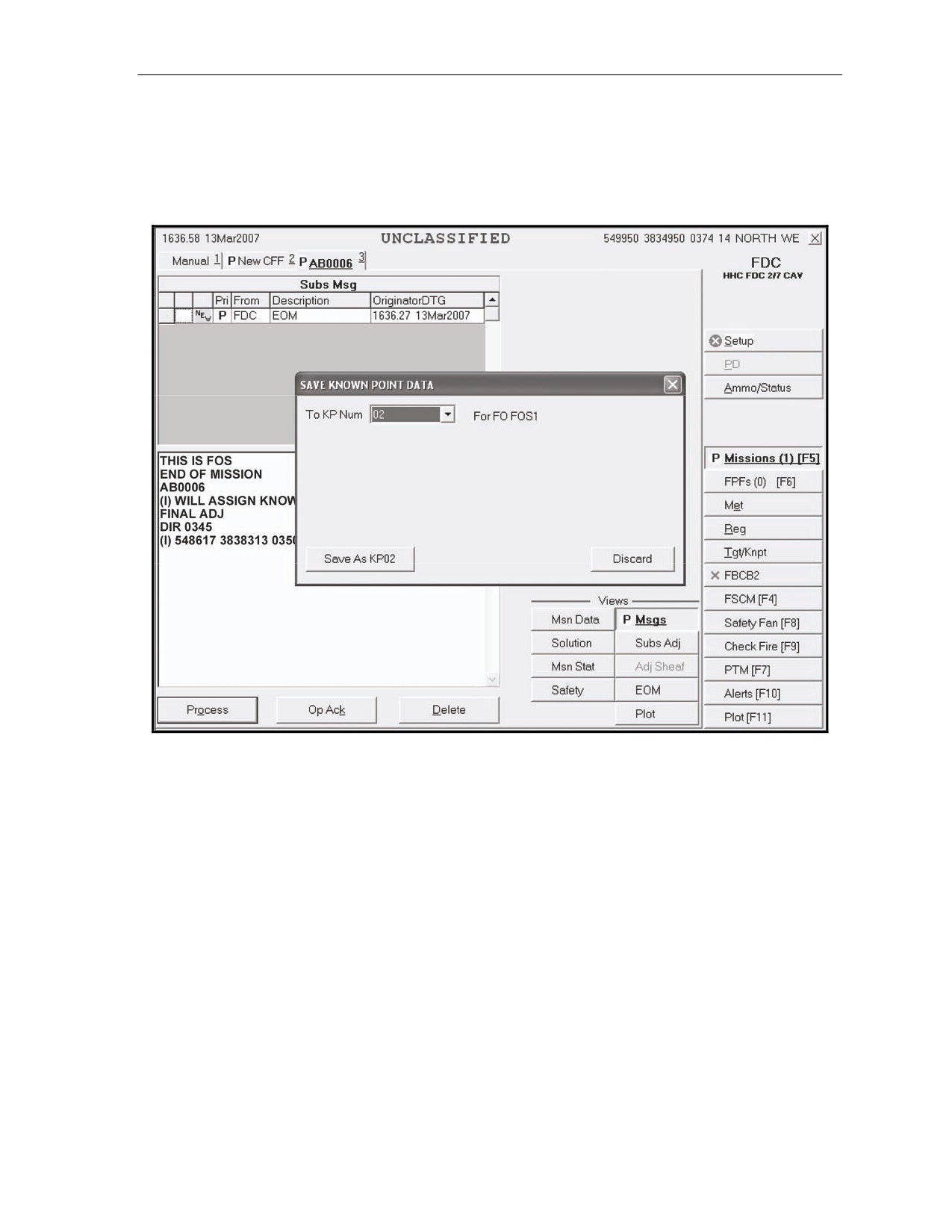
16-25. When the operator receives an EOM message with instructions to record the mission (from the FC
or FO), he can save it as a known point or as a target. A box appears on the screen, and the operator
completes the information required (Figure 16-12). He then selects Process and deletes the mission. The
operator can also use the EOM button to do the same.
Figure 16-12. Save Data screen.
17 July 2008
FM 3-22.91
16-15
Chapter 16
MANUAL MISSIONS
16-26. During manual fire missions, the FDC receives the data from the FC or FO by radio or some other
non-digital means. On the Manual Mission screen, the operator selects the type of mission (grid, polar plot,
shift from a known point, or quick fire) and enters the required data into the displayed fields. Once the type
of mission and the initial firing data are entered, a manual fire mission is processed in the same manner as a
digital mission, except for commands from the FO. The example outlined in the screenshots uses a grid
mission to explain the steps involved in a manual mission.
NOTE: For a manual fire mission, commands from the FO have to be entered into the MFCS.
After the data have been entered, the operator processes missions using the sequence of screens
described in paragraphs 16-13 to 16-25.
MANUAL CALL FOR FIRE
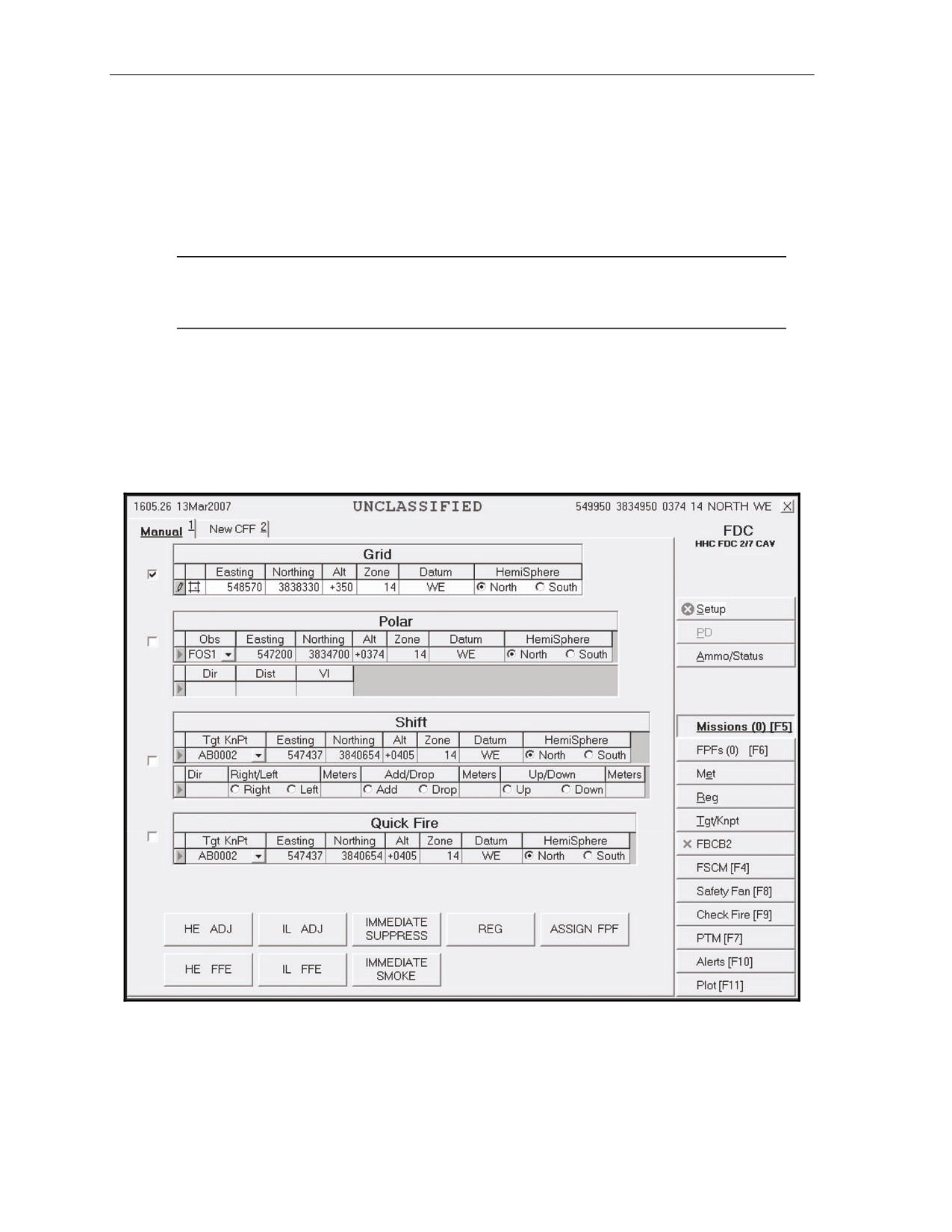
16-27. The operator selects the Missions button and the Manual tab. The Manual CFF screen (Figure 16-
13) is displayed. This screen allows the user to select and enter data for one of the four types of missions:
grid, polar plot, shift from a known point, and quick fire. After selecting the desired ammunition/mission
combination, the New CFF tab is displayed. The operator uses the procedures described in paragraphs 16-
15 to 16-24 to process the new CFF.
Figure 16-13. Manual Call for Fire screen.
16-16
FM 3-22.91
17 July 2008
Fire Missions
Data Common for all Missions
16-28. The operator enters data into the Easting, Northing, and Alt fields. The Zone, Datum, and
Hemisphere fields are auto-filled. At the bottom of the screen, he also selects the type of round and the
method of fire (HE ADJ is used in the example).
Data for Polar Plot Missions
16-29. In addition to the common data, the operator enters the following data for a polar plot mission:
z
Observer (Obs) (from a pick list).
z
Direction (Dir) from 0000 to 6399.
z
Distance (Dist) from 0000 to 9999.
z
Vertical interval (VI) between the observer and the target (a plus sign for up [up is also the
default setting] or a minus sign for down, and four digits from 0000 to 9999). The VI is not
required.
Data for Shift From a Known Point Missions
16-30. In addition to the common data, the operator enters the following data for a shift from a known
point mission:
z
Observer (Obs) (from a pick list).
z
Known point (KnPt) (from a pick list).
z
Direction (Dir) from 0000 to 6399.
z
Lateral displacement direction of right or left and a lateral displacement distance from 0000 to
9999.
z
Range displacement direction of add or drop and a range displacement distance from 0000 to
9999.
z
VI (up/down) between the observer and the target (a plus sign for up [up is also the default
setting] or a minus sign for down, and four digits from 0000 to 9999). The VI is not required.
Quick Fire
16-31. In addition to the common data, the operator enters the following data for a quick fire mission:
z
Target number (from a pick list).
z
HE FFE or IL FFE (from the bottom of the screen).
17 July 2008
FM 3-22.91
16-17
Chapter 16
MANUAL ADJUST FIRE
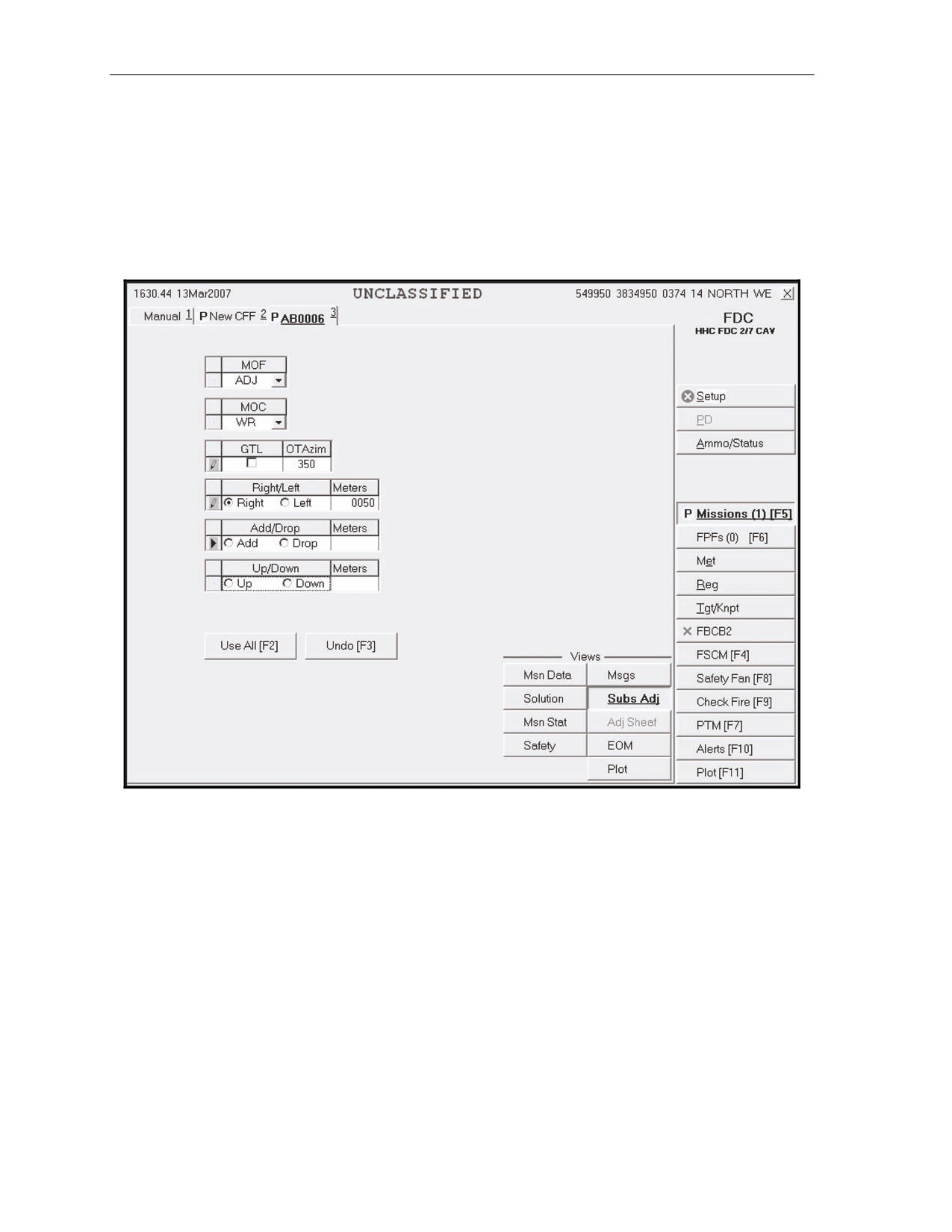
16-32. The operator waits for subsequent messages by selecting the Messages screen. If the FO requests
an adjust fire, the operator enters the data from the message into the MFCS by selecting the Subsequent
Adjust button in the Mission Status screen (Figure 16-14). Then, he enters the FO's adjustment, and the
MFCS calculates the gun orders.
16-33. Next, the operator processes the manual adjust fire mission as he would a digital adjust fire
mission (see paragraph 16-21). He repeats this step until he receives an FFE or an EOM. At the FFE
command, the operator uses the procedures described in paragraph 16-23.
Figure 16-14. Manual Adjust Fire screen.
16-18
FM 3-22.91
17 July 2008
Fire Missions
MANUAL END OF MISSION
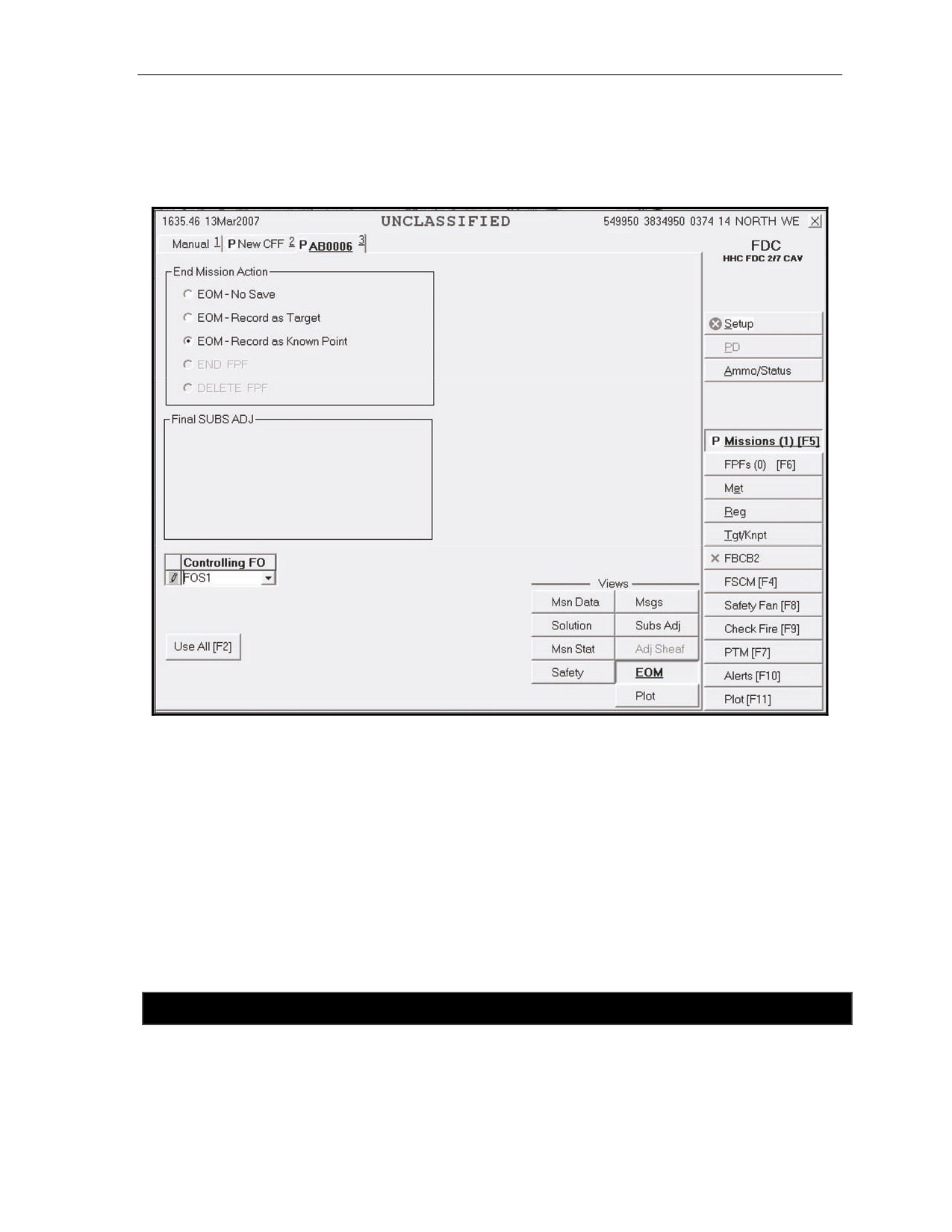
16-34. To end the mission, the operator selects the EOM button. The Manual End of Mission screen
(Figure 16-15) is displayed. The operator can choose one of the three options: EOM-No Save, EOM-
Record as a Target, or EOM-Record as a Known Point.
Figure 16-15. Manual End of Mission screen.
End Of Mission-No Save
16-35. If the operator does not need to save or record the mission, he selects Process. The New CFF
screen appears, and the operator selects Delete.
End Of Mission -Record as Target
16-36. The Subsequent Message screen is displayed, with the words “End of Mission with Known
Point.” The operator selects Process, and the New CFF screen appears. Then, he selects Delete.
End Of Mission -Record as Known Point
16-37. On the EOM screen, the operator selects the controlling FO, and then selects Use All. A message
box appears, and the operator selects the known point number and the Save As button.
SECTION III. SPECIAL MISSIONS
In addition to manual and digital fire missions, the MFCS operator can process special fire missions, which
include registration, illumination, coordinated illumination, and FPFs. Each special mission has a button in the
control button area.
17 July 2008
FM 3-22.91
16-19
Chapter 16
REGISTRATION POINT
16-38. An RP is a surveyed terrain feature or other designated point on which fire is adjusted for the
purpose of obtaining corrections to firing data. The MFCS provides procedures for entering, updating, and
storing RP data. The FC or FDC determines whether the mission should be saved as an RP.
FIRING THE REGISTRATION
16-39. A registration fire mission is conducted in the same way as a digital or manual fire mission. A grid
mission must be fired before it can be saved as an RP.
SAVING THE REGISTRATION AFTER A DIGITAL MISSION
16-40. At the end of a grid mission, the FC or FO sends an EOM.
z
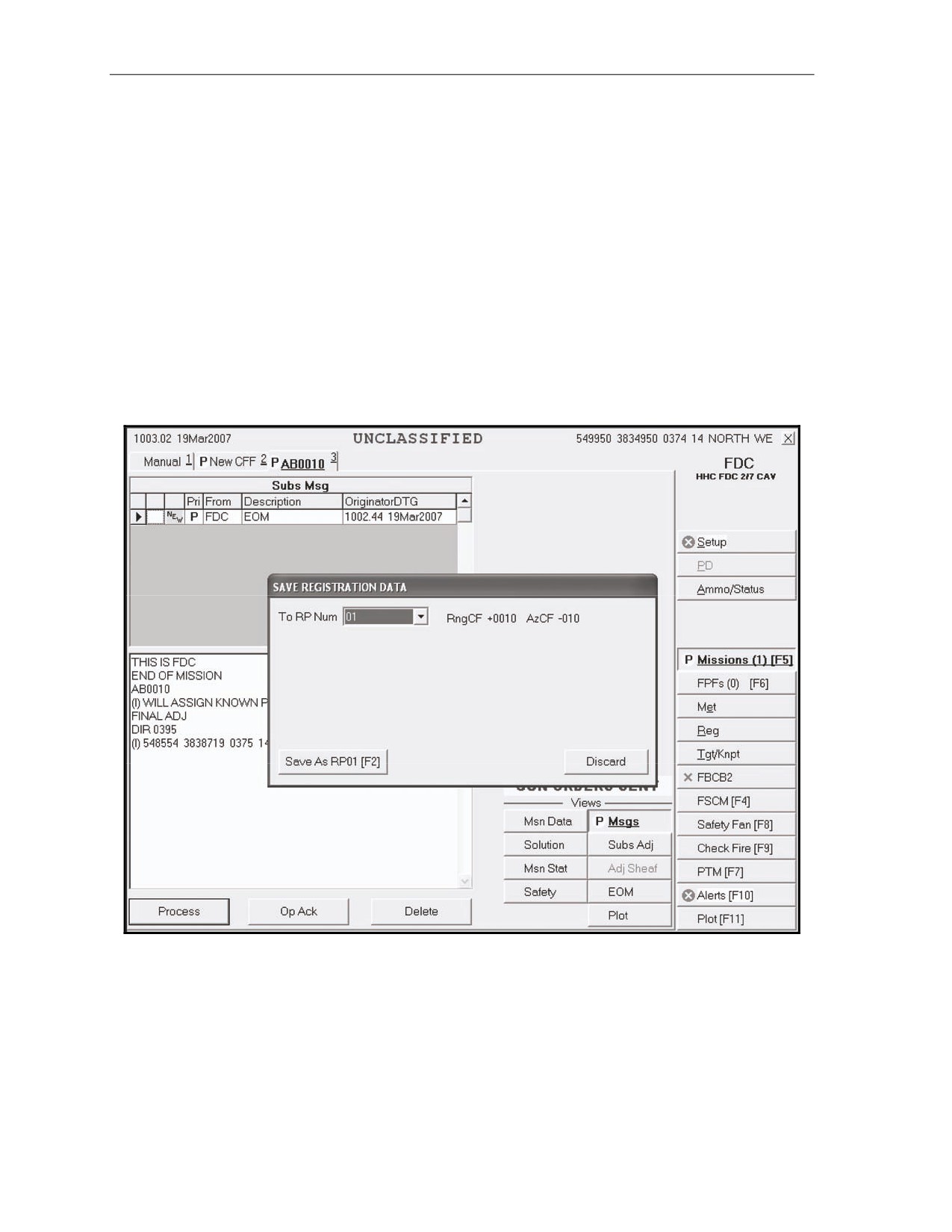
To record the RP number, the operator selects the RP number and then selects the Save As RP
button when the Save Registration Data box is displayed (Figure 16-16). The range and azimuth
correction factors are also displayed.
z
The data can also be discarded by pressing the Discard button.
Figure 16-16. Save Registration screen.
SAVING THE REGISTRATION AFTER A MANUAL MISSION
16-41. On the Manual screen, the operator enters the same data as he would during a manual grid
mission. He selects Registration (Reg) at the bottom of the screen and processes the mission using the
procedures described in paragraphs 16-27 to 16-39. The mission can be saved manually and recorded as a
known point by following the instructions in paragraph 16-16.
16-20
FM 3-22.91
17 July 2008
Fire Missions
REGISTRATION SCREEN
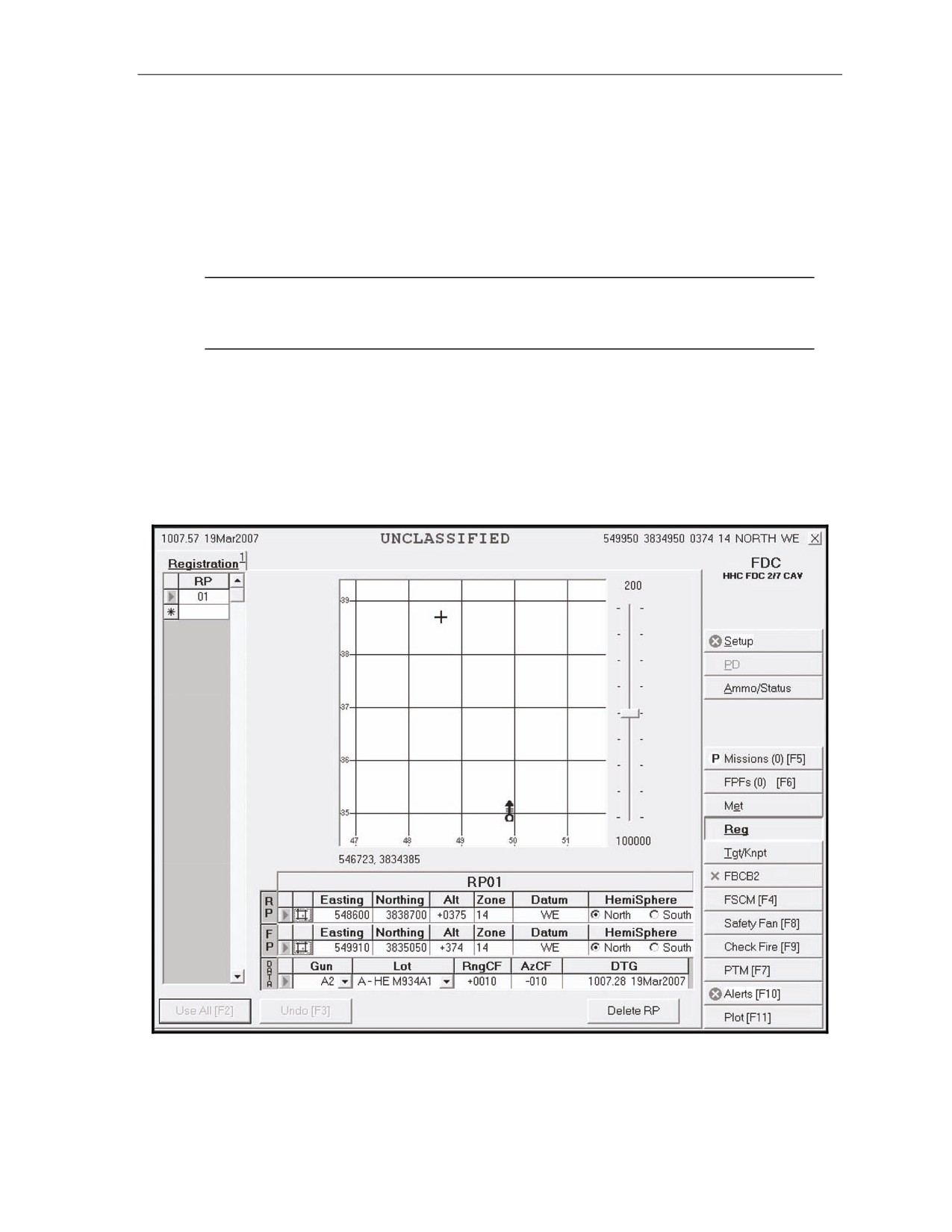
16-42. When the Reg button is selected, the Registration screen (Figure 16-17) is displayed. This screen
displays the data for up to sixteen stored RPs. The plot portion of the screen includes icons showing RPs,
firing points, and units. To view a specific RP, the operator uses the following procedures:
(1) Select the index box in front of the desired RP at the top left of the screen. Information auto-fills
into the fields.
(2) To zoom in on a point in the plot, move the plot area slider control within a range of 200 to
100,000 meters.
NOTE: If the operator leaves this screen and later returns, the slider control resets to its default
position at the center of the slider control. The program does not allow the operator to zoom or
recenter beyond the map mod specified in the geographic reference (GeoRef).
(3) To center on a particular point, double-click on the point.
(4) To obtain information about a particular icon on the plot, place the cursor over the icon.
(5) To enter or update data, enter the appropriate information, and select Use All. This also updates
the Plot screen.
(6) To undo changes that have not been committed to the database, select Undo Changes.
(7) To delete an RP, highlight the RP to be deleted, and select Delete RP. All fields are cleared, and
the Plot screen is deleted.
Figure 16-17. Registration screen.
17 July 2008
FM 3-22.91
16-21
Chapter 16
TARGET/KNOWN POINT
16-43. The MFCS provides procedures for viewing and entering up to 50 targets and 50 known points.
The procedures for both are essentially the same, except that known points must be assigned to a
designated observer. When the Tgt/KnPt button is selected, the operator can choose the Tgts or KnPts tab.
TARGETS SCREEN
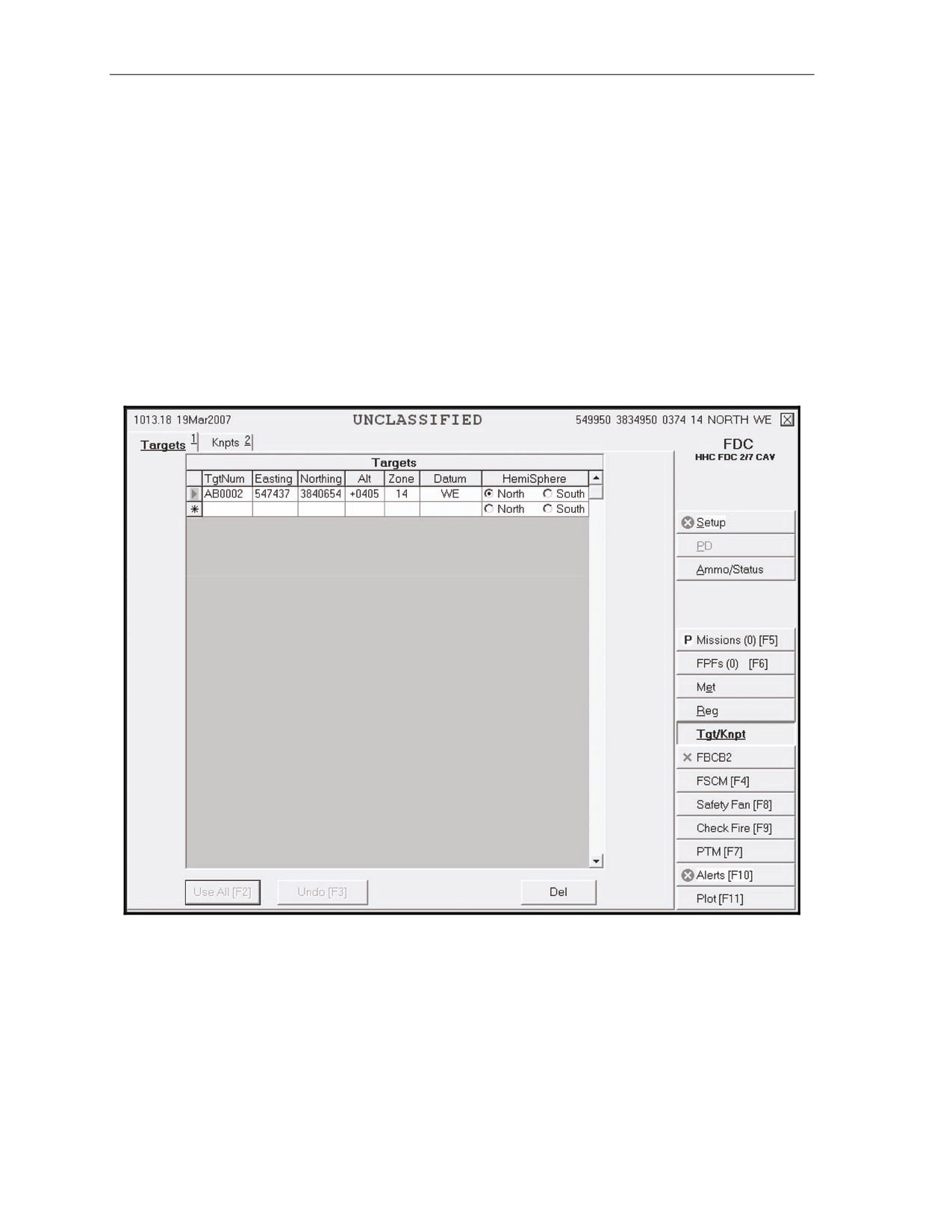
16-44. When the operator selects Tgts, the Targets screen (Figure 16-18) appears. All of the targets
designated at the EOM are listed. The operator can also manually enter or edit targets. To manually enter
or edit a target, use the following procedures:
(1) Enter the two letters (AA to ZZ) and the target number prefix, followed by a four-digit target
number (0000 to 9999) (for example, AA0027).
(2) Enter the easting, northing, altitude (Alt), zone, and choice of datum and hemisphere.
(3) Select Use All when completed. Select Undo Changes to undo all changes. Delete a target by
highlighting the index box in front of the entry that you want to delete and selecting Del.
Figure 16-18. Targets screen.
16-22
FM 3-22.91
17 July 2008
Fire Missions
KNOWN POINTS SCREEN
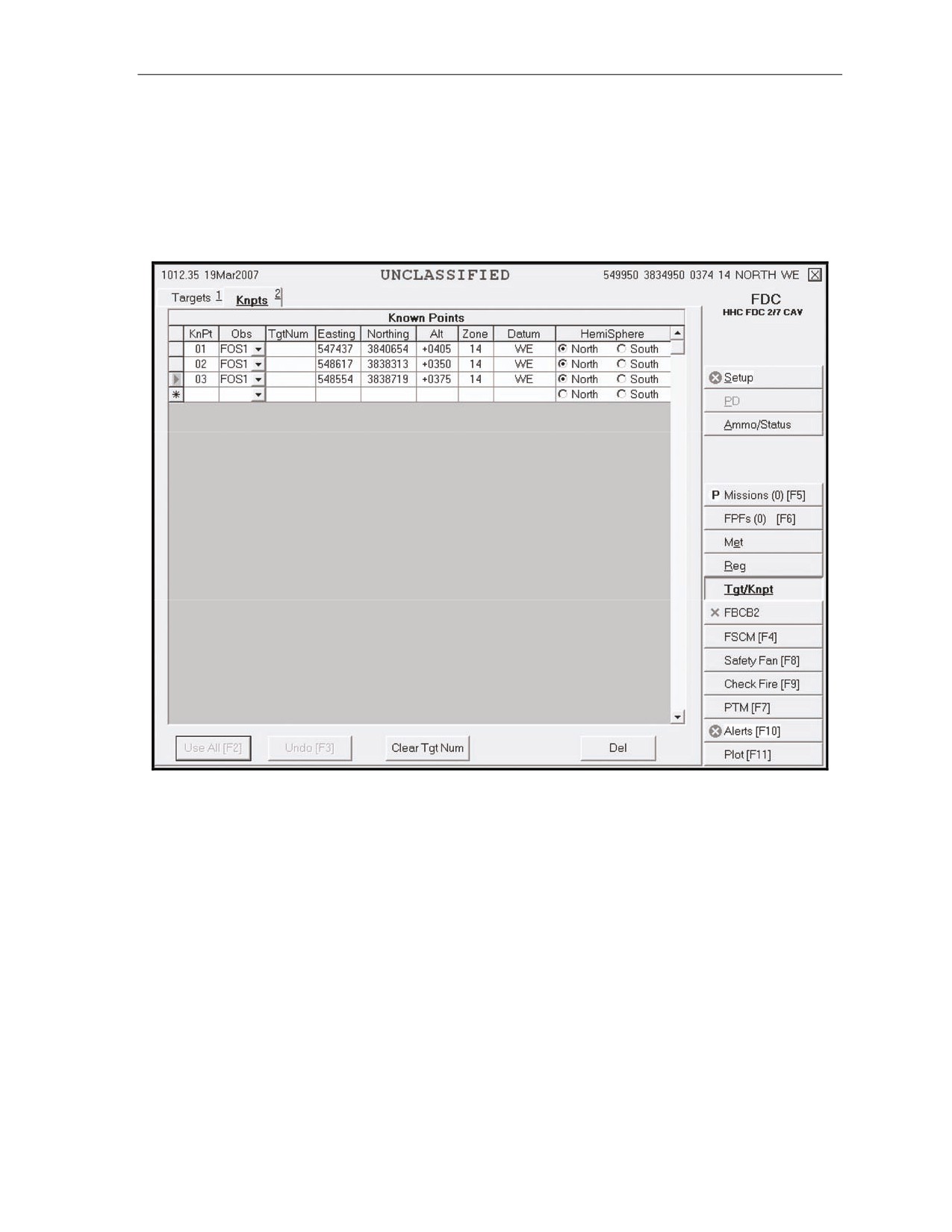
16-45. Known points are received digitally at the EOM, and a dialog box is displayed to enter the
required data (Figure 16-19). A known point must be associated with an observer. The operator can also
enter known points manually by performing the same actions described above for targets, except that he
must fill the KnPt field with a two-digit number from 00 to 99 and choose an observer (Obs) from the pick
list. Once the operator has reviewed the data and made the necessary changes, he selects Use All to save
the information.
Figure 16-19. Known Points screen.
17 July 2008
FM 3-22.91
16-23
Chapter 16
ILLUMINATION MISSION
16-46. Illumination missions are used to reveal the location of enemy forces hidden by darkness. The
following screen captures use the grid method of target location to illustrate the procedures, but the same
methods apply to targets located using the polar plot and shift from a known point methods of target
location.
16-47. The procedures for an illumination mission are generally the same as the ones described for a
digital CFF; therefore, only the general procedures, sequence, and differences in the procedures are
described.
NEW CALL FOR FIRE SCREEN
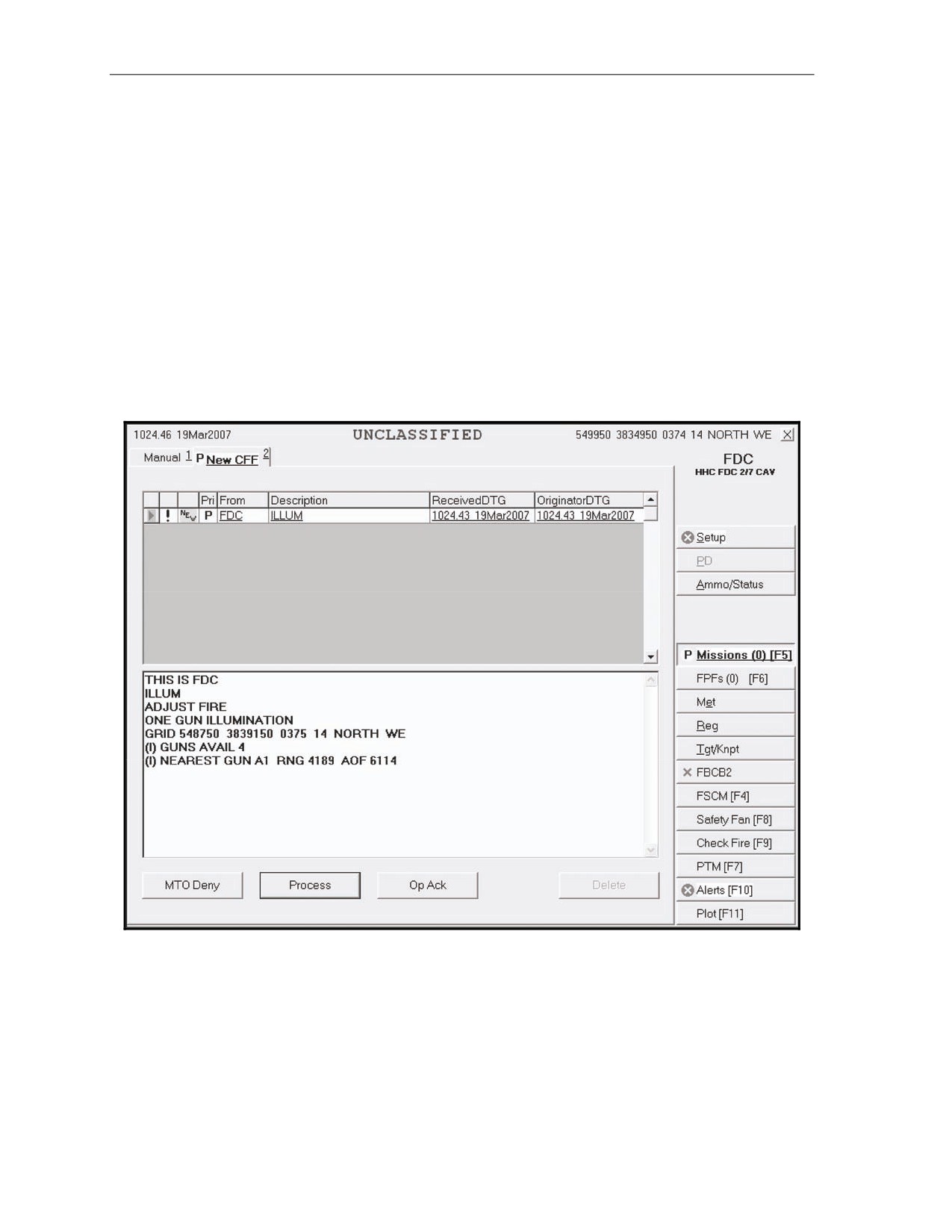
16-48. Upon receipt of a fire mission, the Missions button is highlighted. The operator selects the
Missions button to display the mission data on a New CFF screen (Figure 16-20). The operator can accept
the mission by selecting the Process button or refuse it by selecting the MTO Deny button.
z
If there is an error beyond FDC control, the only choice is MTO Deny.
z
The Mission Data screen appears when the Process button is selected.
Figure 16-20. New Call for Fire screen.
16-24
FM 3-22.91
17 July 2008
Fire Missions
MISSION DATA SCREEN
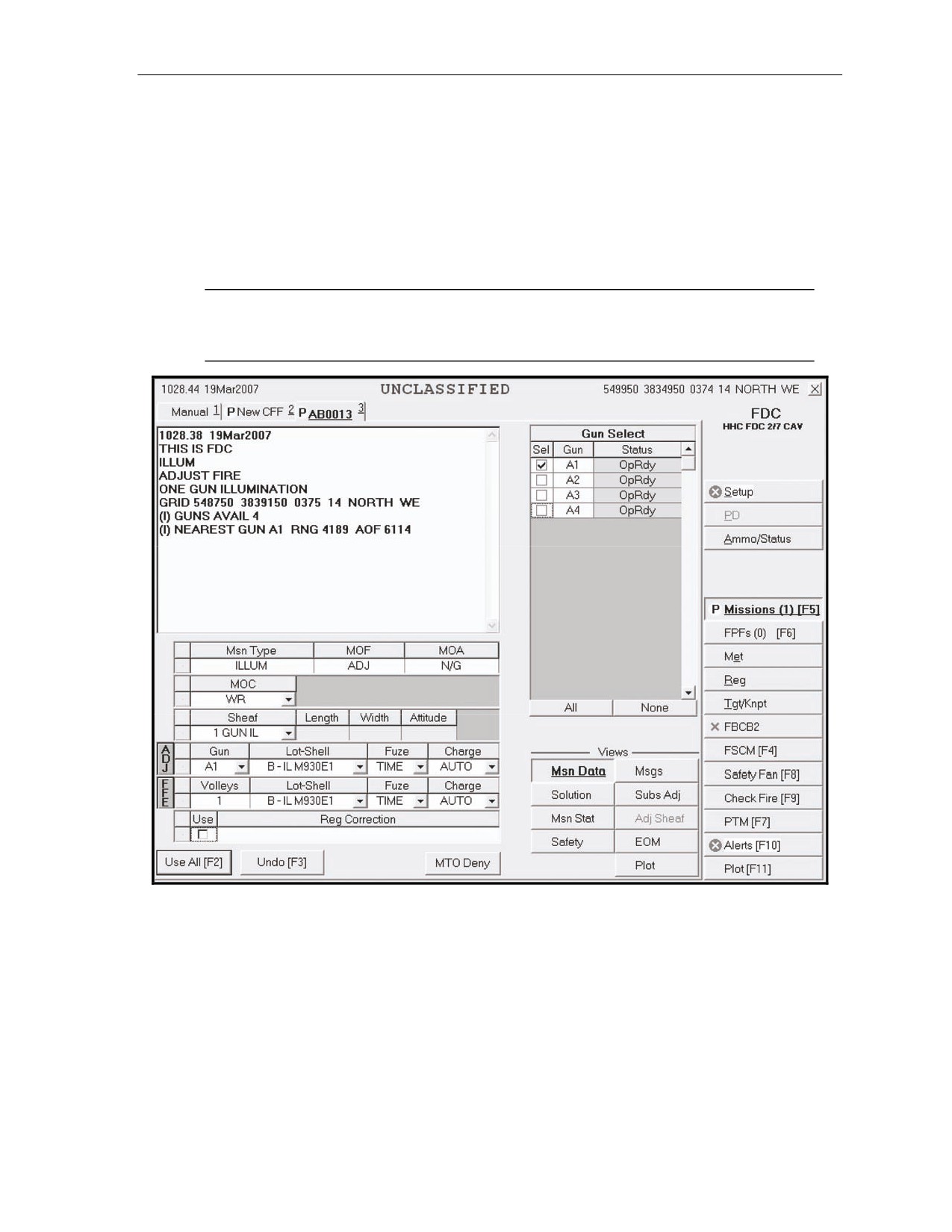
16-49. The Mission Data screen (Figure 16-21) presents mission data and a new target number. It allows
the operator to review mission data and make any necessary adjustments. Guns for the mission are
preselected, but the operator can modify the selection by checking the box beside any OpRdy gun. In a
one-gun illumination mission, when deselecting one gun and selecting another, the ammunition and sheaf
selections in the Fire Command fields automatically change to an HE round and linear sheaf. The operator
must reselect the correct shell, and the sheaf automatically defaults to “1 Gun IL.” If necessary, the
operator makes adjustments to the mission data. For example, he may change the MOC from WR to AMC.
Then, he selects the Use All button to display the Solution screen.
NOTE: Two-gun lateral sheaves are recommended for area targets, and two-gun illumination
sheaves are recommended for point targets. The standard coverage for
120-mm mortar
illumination is 1,500 meters.
Figure 16-21. Mission Data screen.
17 July 2008
FM 3-22.91
16-25
Chapter 16
SOLUTION SCREEN
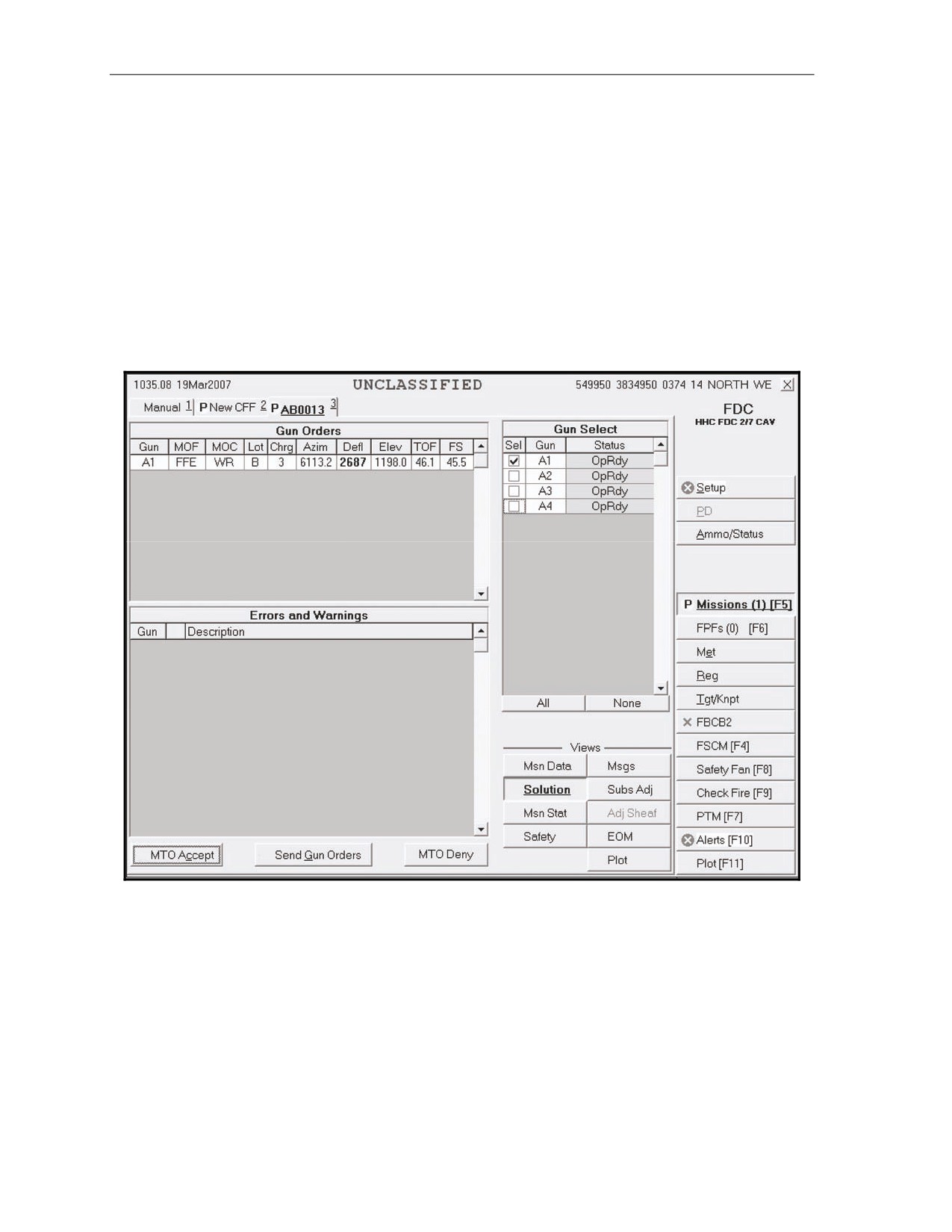
16-50. The Solution screen (Figure 16-22) allows the operator to—
z
View and send gun orders.
z
Review the selected guns, and any errors and warnings.
z
Review gun status.
z
Change the gun selection based on errors and warnings received.
16-51. The operator uses this screen to review, change, and record the mission data. The operator can
either accept (MTO Accept) or refuse (MTO Deny) the mission.
z
If the indicated errors cannot be corrected, the operator’s only choice is MTO Deny.
z
If the indicated warnings cannot be corrected, the operator can continue the mission, if
authorized.
16-52. The operator can change the guns selected based on errors and warnings.
Figure 16-22. Solution screen.
16-26
FM 3-22.91
17 July 2008
Fire Missions
SAFETY DATA SCREEN
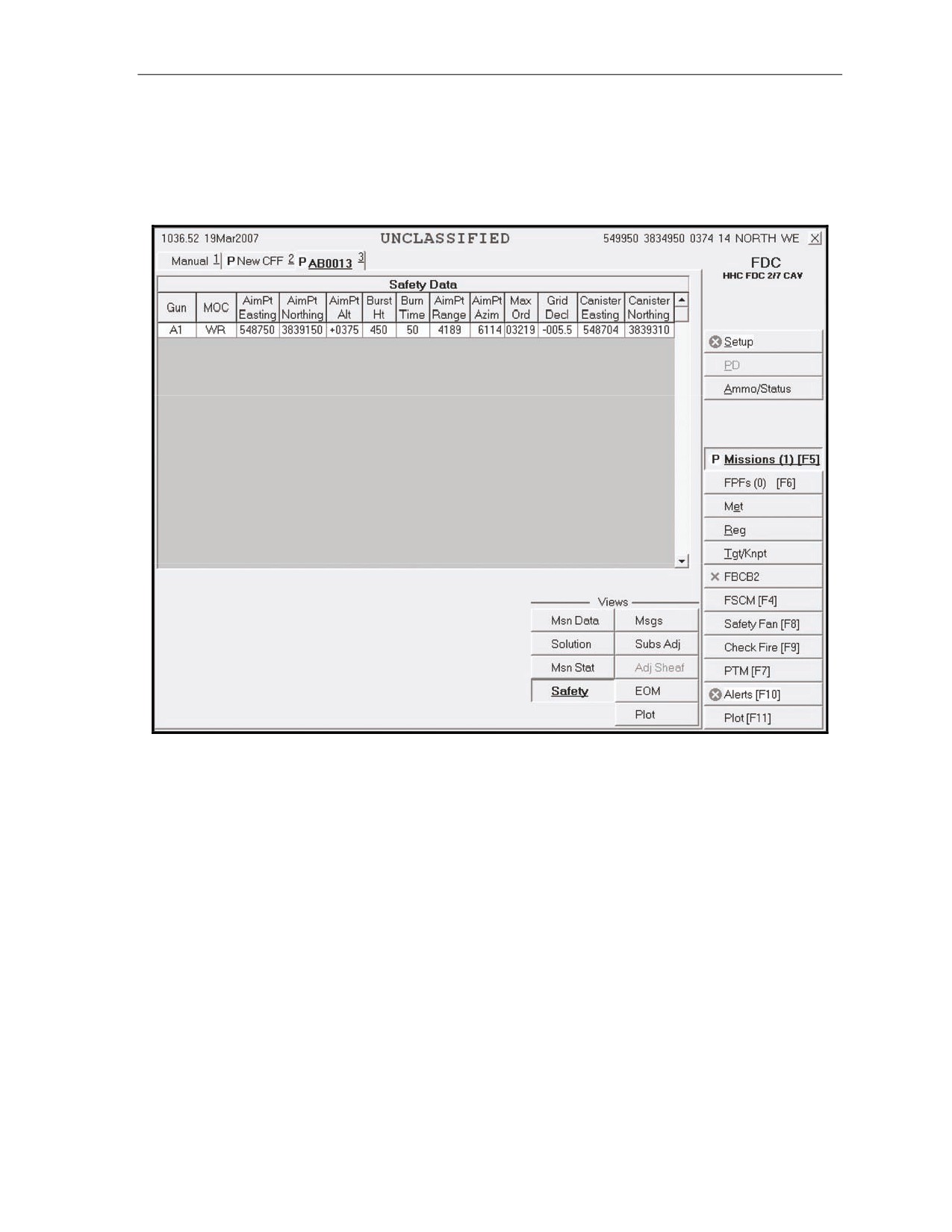
16-53. Before sending gun orders or at any time during the mission, the operator can check the safety
data by selecting the Safety Data button. This screen (Figure 16-23) includes the location and altitude of
burst, and the impact point of the canister. The Plot button is available to review the plot at any time during
the mission.
Figure 16-23. Safety Data screen.
17 July 2008
FM 3-22.91
16-27
Chapter 16
SOLUTION SCREEN
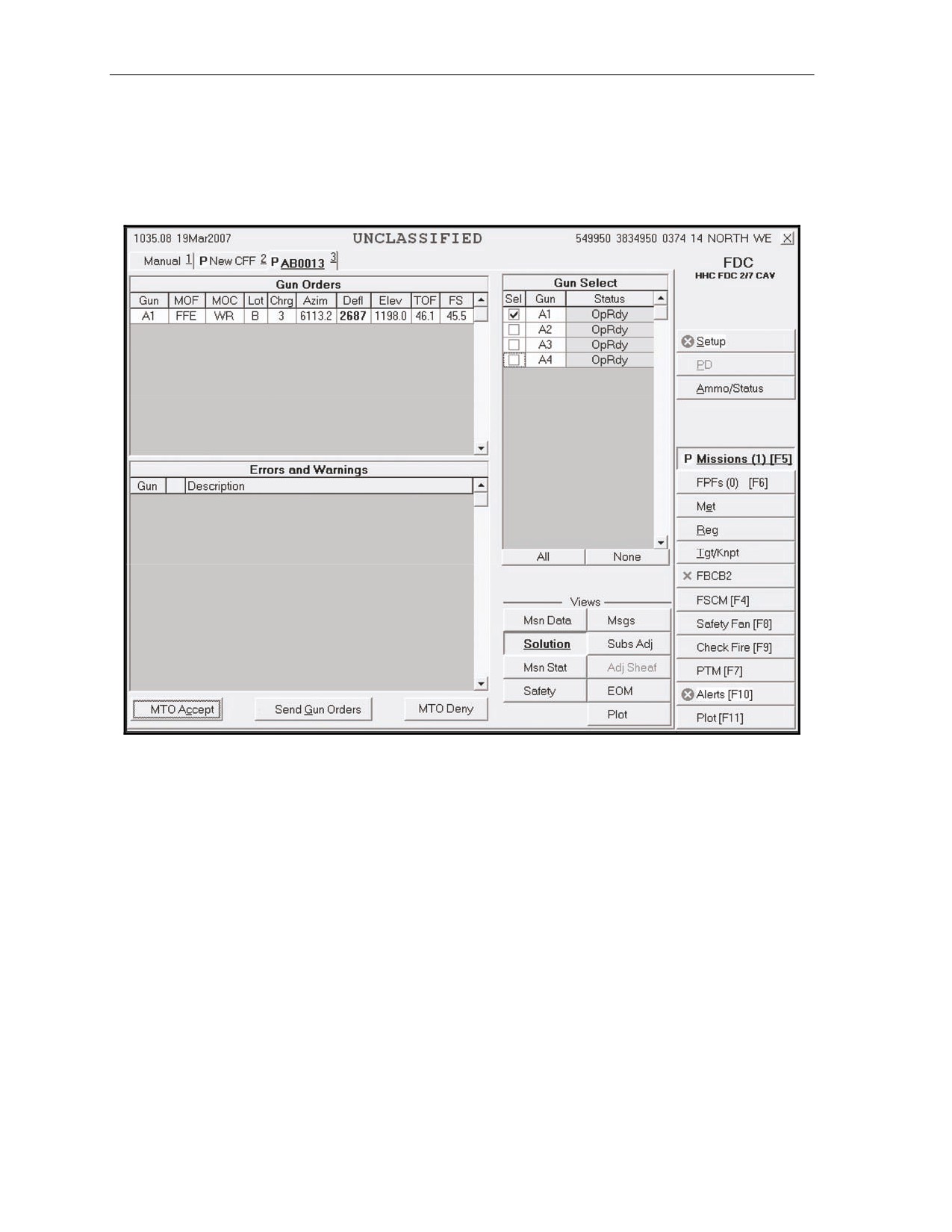
16-54. Once the operator is satisfied with the mission and safety data, he returns to the Solution screen
(Figure 16-24) and selects the Send Gun Orders button. He also confirms the order by selecting Yes in the
box with the message “Confirm Send Gun Orders Yes/No.” A Send Status box is then displayed, showing
the destination and status.
Figure 16-24. Solution screen.
16-28
FM 3-22.91
17 July 2008
Fire Missions
MISSION STATUS SCREEN
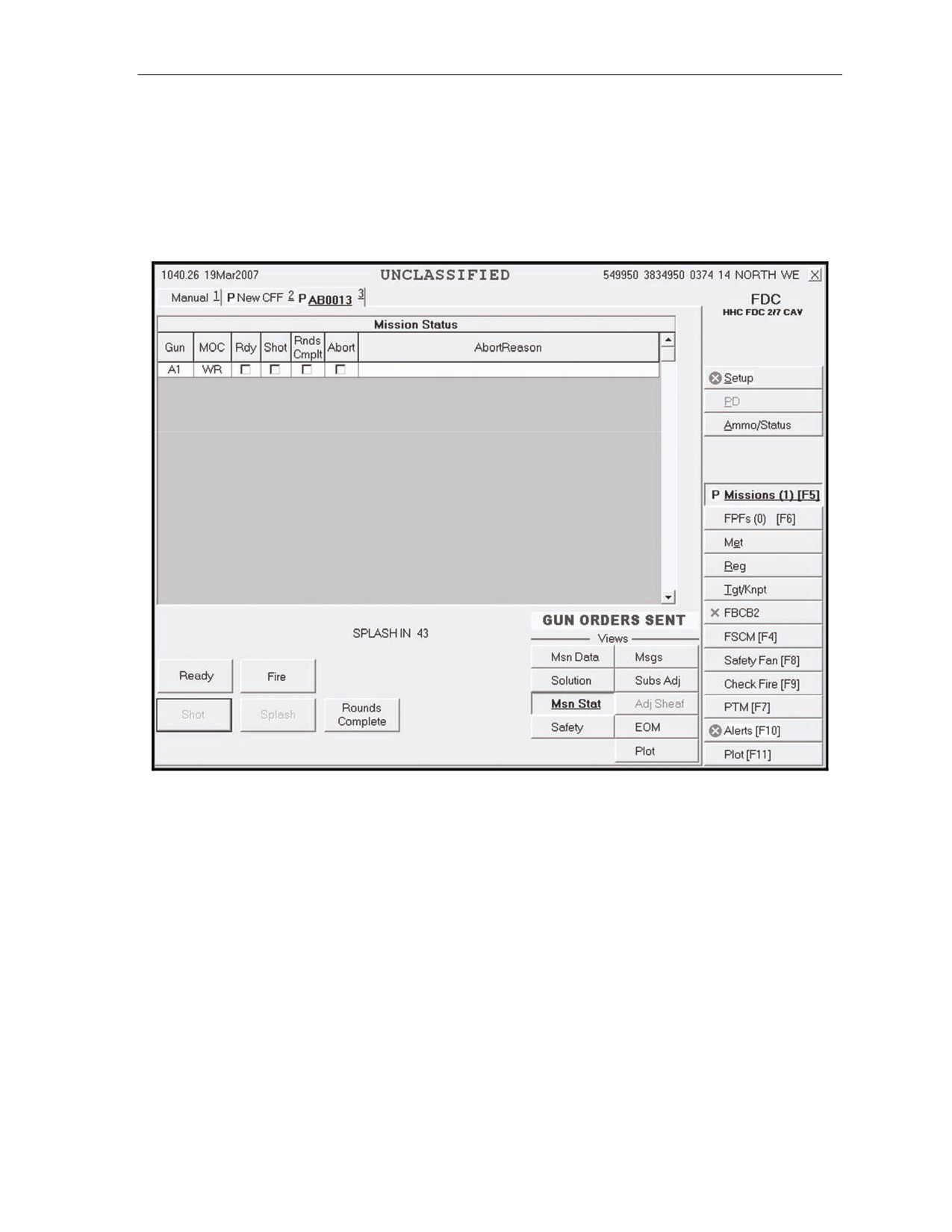
16-55. When the operator sends gun orders, the Mission Status screen (Figure 16-25) appears, and the
words “Gun Orders Sent” are displayed in the Views section. The Fire button is displayed because the
MOC was AMC. When the guns send “Ready,” the Ready button is shaded, and the operator can select the
Fire button when required or when ordered by the FO or FC. The mission is monitored from this screen.
The operator updates the status of the guns (Ready, Shot, Rounds Complete, and Abort) from this screen,
and the MFCS automatically sends this information to the FC or FO.
Figure 16-25. Mission Status screen.
17 July 2008
FM 3-22.91
16-29
Chapter 16
SUBSEQUENT MESSAGES ADJUST FIRE
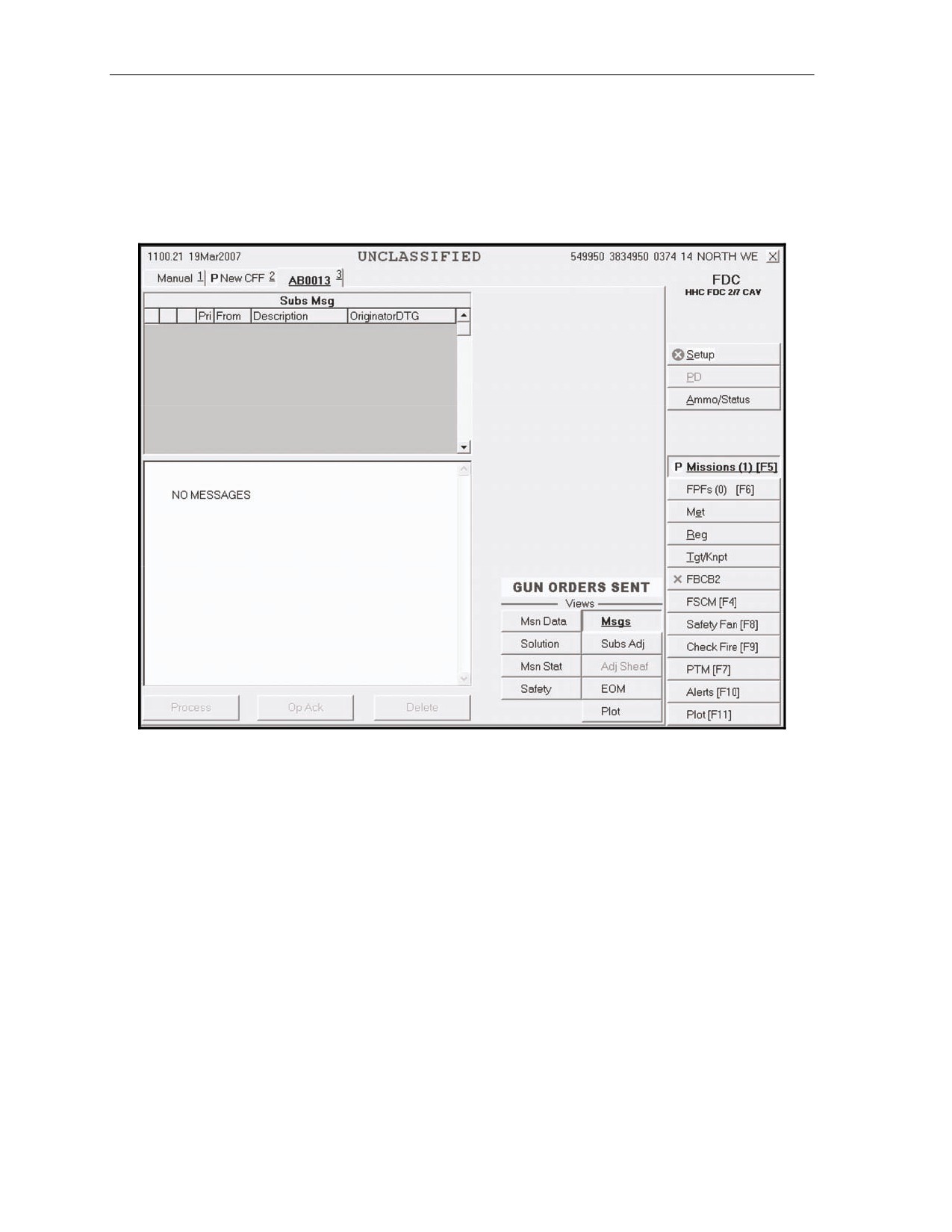
16-56. When the operator selects the Msgs button, the Messages screen (Figure 16-26) appears, and the
operator waits for subsequent messages from the FO or FC. Upon receipt of an adjust fire message, data
are recorded, and the operator acknowledges receipt. The operator has a choice to Process or Delete the
adjustment. When Process is selected, the Mission Data screen is displayed. The operator makes the
necessary adjustments to the data and selects the Solution or Use All button.
Figure 16-26. Messages screen.
16-57. To complete the illumination mission, the operator continues to make adjustments to the
illumination until he receives an EOM message or another mission, such as coordinated illumination, from
the FO or FC.
16-58. The FC or FO contacts the FDC to “Mark Illumination,” and the operator records the mark time.
The MFCS operator also sends a plain text message to the illumination gun to inform the squad leader that
the illumination has been marked and that he needs to maintain a minimum of three to five rounds with the
current data. The mission stays open in case corrections are needed later.
COORDINATED ILLUMINATION MISSION
16-59. Illumination fires are often coordinated with HE fires to expose and kill or suppress the enemy.
This mission is essentially two separate fire missions, with the operator alternating between the
illumination and HE fire missions by clicking the tabs for each mission. The type of round and fuze
combination used with illumination depends on the type of target. For example, HE is used for troops in
open areas, and WP used for a suspected POL point. There are three parts to a coordinated illumination
mission:
z
Adjustment of the illumination and ordering its fire during the HE adjustment and FFE.
z
The adjustment of the HE.
z
The coordination of illumination and HE fires.
16-30
FM 3-22.91
17 July 2008
Fire Missions
ADJUSTMENT AND FIRING OF THE ILLUMINATION
16-60. The adjustment and firing of the illumination mission is similar to that of the digital fire mission.
Illumination is fired and, if necessary, adjusted throughout the coordinated illumination mission. Once the
illumination is adjusted, the operator receives a subsequent adjust message for FFE for the illumination gun
mission and processes it without adjustments using the Mission Status screen. During the HE adjustment
and FFE, the operator receives subsequent messages (from the FO) to fire illumination in coordination with
the HE. To do this, he alternates between the Illumination Mission tab and the HE Mission tab. After the
illumination is adjusted, the method of command for both fires is changed from WR to AMC.
HIGH-EXPLOSIVE ADJUSTMENT
16-61. In illumination missions, the procedures associated with HE adjustment are similar those that
occur during the adjustment phase of a basic digital mission.
(1) Upon receipt of a fire mission, the Missions button is highlighted. The operator selects the
Missions button, and a New CFF tab appears.
NOTE: Because of present software limitations, the CFF message states that this is an
illumination mission, but it also serves for a coordinated illumination mission.
The operator decides whether to deny or process the mission. If the mission is acceptable, he
records the data and selects Process.
(2) The screen now displays the mission data. The operator processes the mission in the same way
and uses the same screens as he would for a regular HE adjustment, except for the MOC. The
MOC is changed from WR to AMC. After making any other adjustments to the data, he selects
Use All, and the Solution screen appears.
(3) The Solution screen shows the gun orders, the guns selected, and errors and warnings. This
screen allows the operator to review the gun status and to change the gun selection based on
errors and warnings received. From this screen, the operator can select MTO Deny
(if
necessary) or MTO Accept, and send gun orders.
(4) Before sending the gun orders, the operator checks the safety data by selecting the Safety Data
button (he can also check the Plot screen). He reviews and records the safety data and selects the
Solution button to return to the Solution screen.
(5) When ready, the operator selects Send Gun Orders and confirms the order. A Send Status box
showing the destination and status now appears.
(6) The Mission Status screen appears, displaying the words “Gun Orders Sent.” The mission is
monitored from this screen. Gun status is checked off as completed, and messages are
automatically sent to the FO or FC. When the adjusting HE gun sends “Ready,” the operator
begins coordinating the illumination and HE fires.
(7) A Subsequent Adjust message is received for the illumination gun mission. The operator
processes the mission without adjustment and selects the Fire button.
(8) The operator waits for the appropriate mark time and clicks the Fire button for the HE mission.
(9) The operator continues to perform the steps above until the Subsequent Adjust FFE or EOM
message is received.
FIRE FOR EFFECT
16-62. Upon receipt of the Subsequent Adjust FFE message, the operator records the data and can either
process or delete the mission. Selecting Process displays the Mission Data screen.
(1) The operator changes the method of command from WR to AMC. When complete, he selects
the Use All or Solution button.
(2) At the Solution screen, the operator reviews and records data. He also checks the Safety Data
and Plot screens. Then, he selects the Solution button to return to the Solution screen. When
satisfied, the operator selects Send Gun Orders and confirms the order. Then, he waits for all
guns to report a “Ready” status.
17 July 2008
FM 3-22.91
16-31
Chapter 16
(3) A Subsequent Adjust message is received for the illumination gun mission. The operator
processes the mission without adjustment and selects the Fire button.
(4) The operator waits for the splash signal and the appropriate mark time. He then selects Fire for
the HE mission.
(5) When each gun reports "Rounds Complete," a checkmark appears in the Rnds Complt box. The
operator then responds to any subsequent messages.
(6) When the EOM message is received, the HE mission can be saved as a target. The operator
discards or saves the mission using the procedures described in paragraphs 16-24 and 16-25. He
can save it manually by following the instructions in paragraphs 16-36 to 16-39.
(7) The operator also ends the illumination mission but does not save it.
CALL FOR FIRE FROM FIRE SUPPORT ELEMENT OR FORWARD OBSERVER —
ILLUMINATION AND COORDINATED ILLUMINATION POLAR PLOT MISSION
16-63. These missions are conducted the same way as grid missions, but the New CFF screen has the
Polar method checked.
CALL FOR FIRE FROM FIRE SUPPORT ELEMENT OR FORWARD OBSERVER—ILLUMINATION
AND COORDINATED ILLUMINATION SHIFT FROM A KNOWN POINT MISSION
16-64. These missions are conducted the same way as grid missions, but the New CFF screen has the
Shift method checked. The FO automatically converts a shift from a known point mission to a grid mission
before the FDC receives it. The location is not as precise as a regular grid mission since the last digits of
the direction, the lateral displacement distance, and the range displacement distance are automatically
changed to zero.
MANUAL ILLUMINATION AND COORDINATED ILLUMINATION MISSIONS
16-65. Procedures for a manual mission are similar to those for a digital mission. The only differences
are that the operator must manually initiate the CFF, manually select Subs Adj whenever a subsequent
adjust is warranted, and manually click EOM to end the mission.
NOTE: See paragraphs 16-13 through 16-25 for details on manual missions.
FINAL PROTECTIVE FIRES
16-66. An FPF is an immediately available, prearranged barrier of fire designed to impede enemy
movement across defensive lines or areas. The MFCS can store up to three FPFs at a time. If an active
mission is in progress and an FPF order is received, the FPF mission has the higher priority.
NOTE: This paragraph uses a grid mission to illustrate the process of receiving, adjusting,
saving, and firing an FPF. Missions using the polar plot or shift from a known point method to
locate the FPF are conducted the same way.
16-32
FM 3-22.91
17 July 2008
Fire Missions
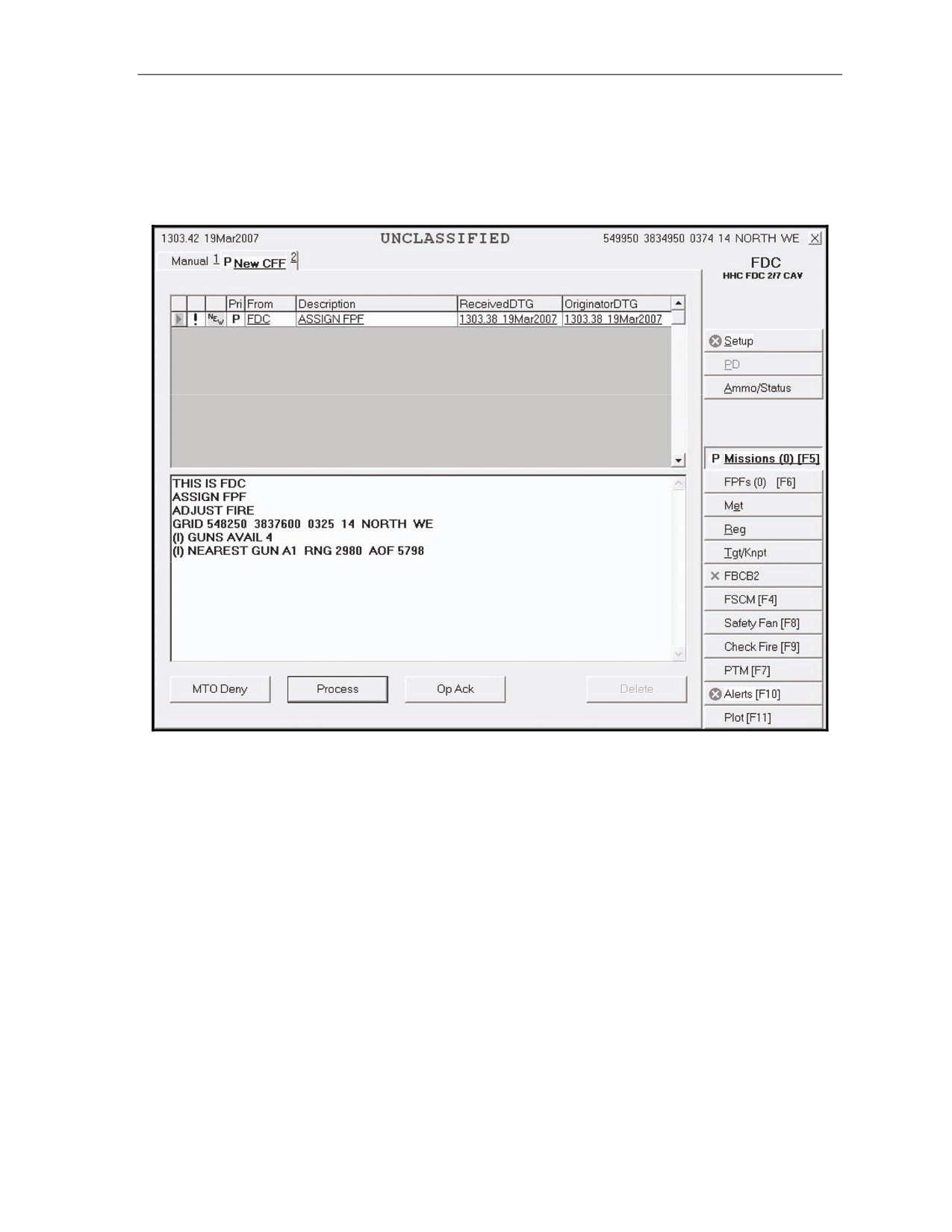
NEW CALL FOR FIRE
16-67. Upon receipt of a fire mission, the Missions button is highlighted, and the audio alarm sounds (if
enabled). The operator selects the Missions button, and the New CFF screen (Figure 16-27) appears. The
message contains the words “Assign FPF.” The operator selects OpAck to deactivate the audio alarm and
acknowledge receipt of the message. If the mission is acceptable, he selects Process.
Figure 16-27. New Call for Fire screen.
17 July 2008
FM 3-22.91
16-33
Chapter 16
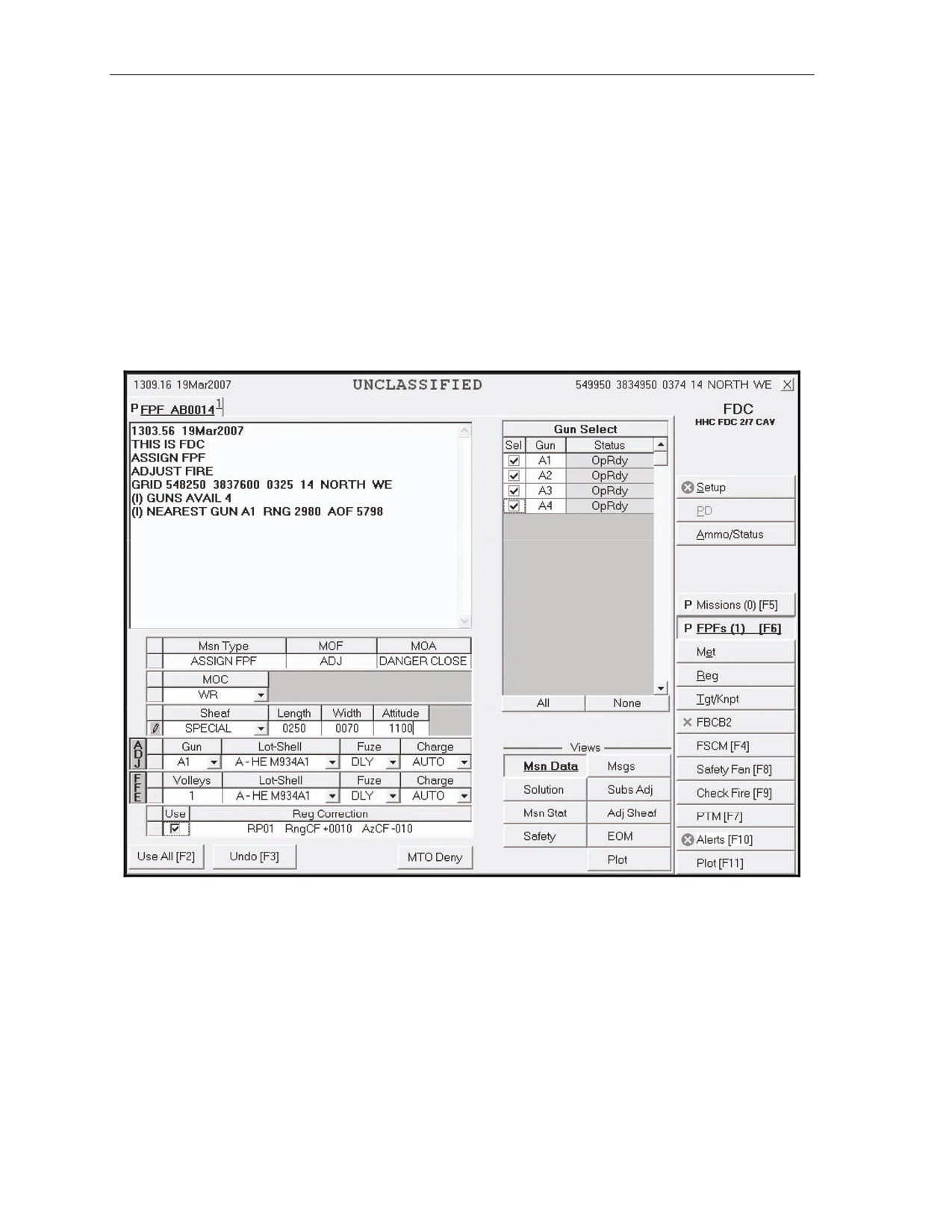
MISSION DATA SCREEN
16-68. The operator selects Process and the FPF button; the screen displays a New FPF Target Number
tab and the Mission Data screen (Figure 16-28). Guns for the mission are preselected by the software, but
can be modified by the operator. If necessary, the operator makes adjustments to the mission data. In
Figure 16-28, the MOF is ADJ, and the MOA is danger close; these fields are auto-filled and read-only.
The MOC is AMC. The sheaf defaults to Linear, but the preferred sheaf for an FPF is Special. For a special
sheaf, the system allows the operator to enter the length, width, and attitude. Based on the attitude of the
target, the operator ensures that the adjusting gun is the one closest to the FPF. Since the FPF mission is
also danger close, the preferred fuze to adjust is Delay. In the ADJ section, the operator chooses DLY for
Fuze, if available. The Use box is checked automatically when a registration correction is available. If a
registration correction is available, the operator has the option to use Reg Correction. If the operator
decides not to use it, he selects the checkmark in the Use box to deselect it. If no changes are made, he
selects the Solution button or selects Use All to display the Solution screen.
Figure 16-28. Final Protective Fire Mission Data screen.
16-34
FM 3-22.91
17 July 2008
Fire Missions
SOLUTION SCREEN
16-69. In this step, the operator can review the gun status and change the gun selection based on errors
and warnings received. He also checks the safety data.
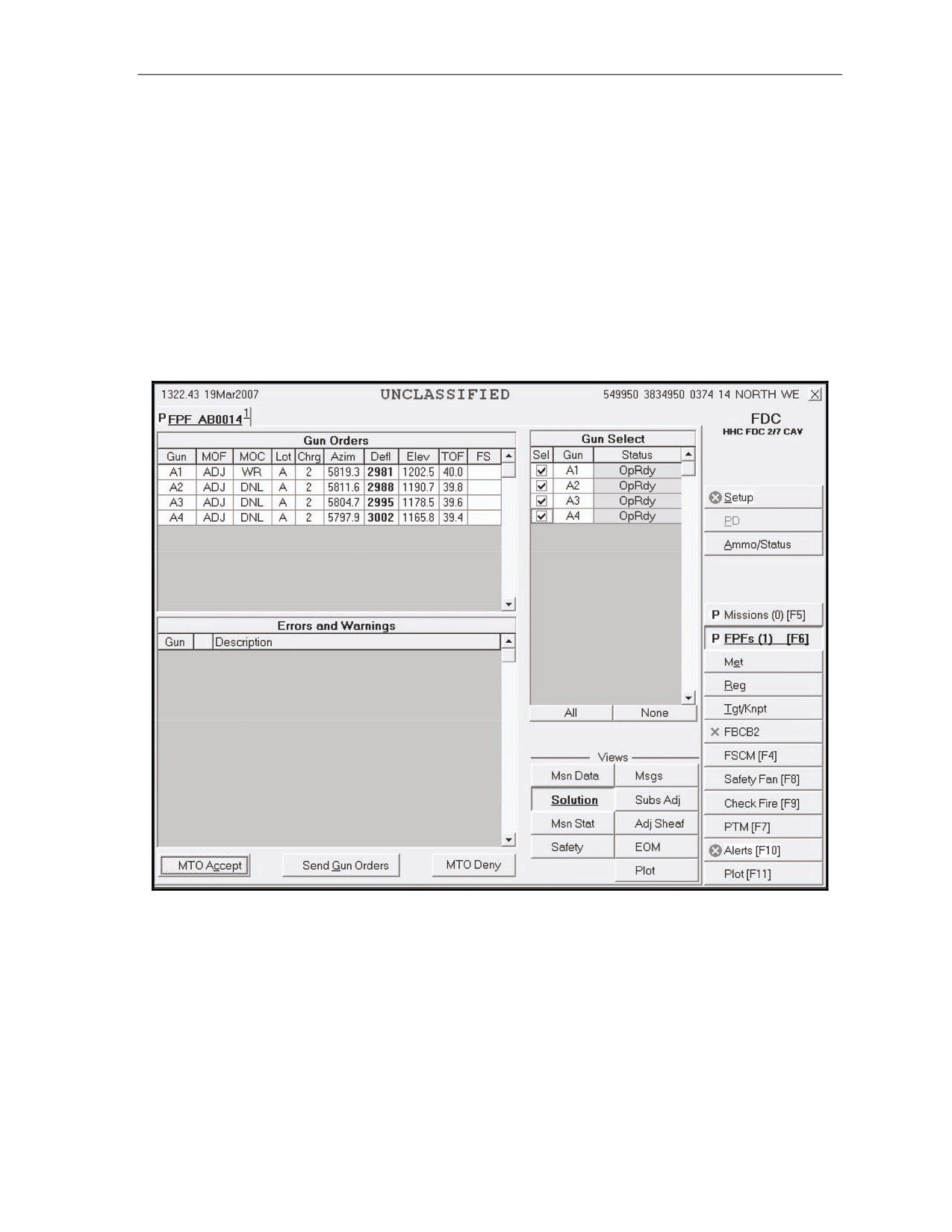
FINAL PROTECTIVE FIRE SOLUTION SCREEN
16-70. The Solution screen (Figure 16-29) shows gun orders, selected guns, and any errors and warnings.
It also allows the operator to accept (MTO Accept) or refuse (MTO Deny) a mission, and send gun orders.
The operator reviews the screen and records data.
z
If any indicated errors cannot be corrected, the operator’s only choice is MTO Deny.
z
If any indicated warnings cannot be corrected, the operator can continue the mission, if
authorized. If MTO Accept is selected, a green checkmark is displayed before MTO Accept, and
MTO Deny is shaded.
16-71. The operator can change the gun selection based on errors and warnings, if necessary.
Figure 16-29. Final Protective Fire Solution screen.
17 July 2008
FM 3-22.91
16-35
Chapter 16
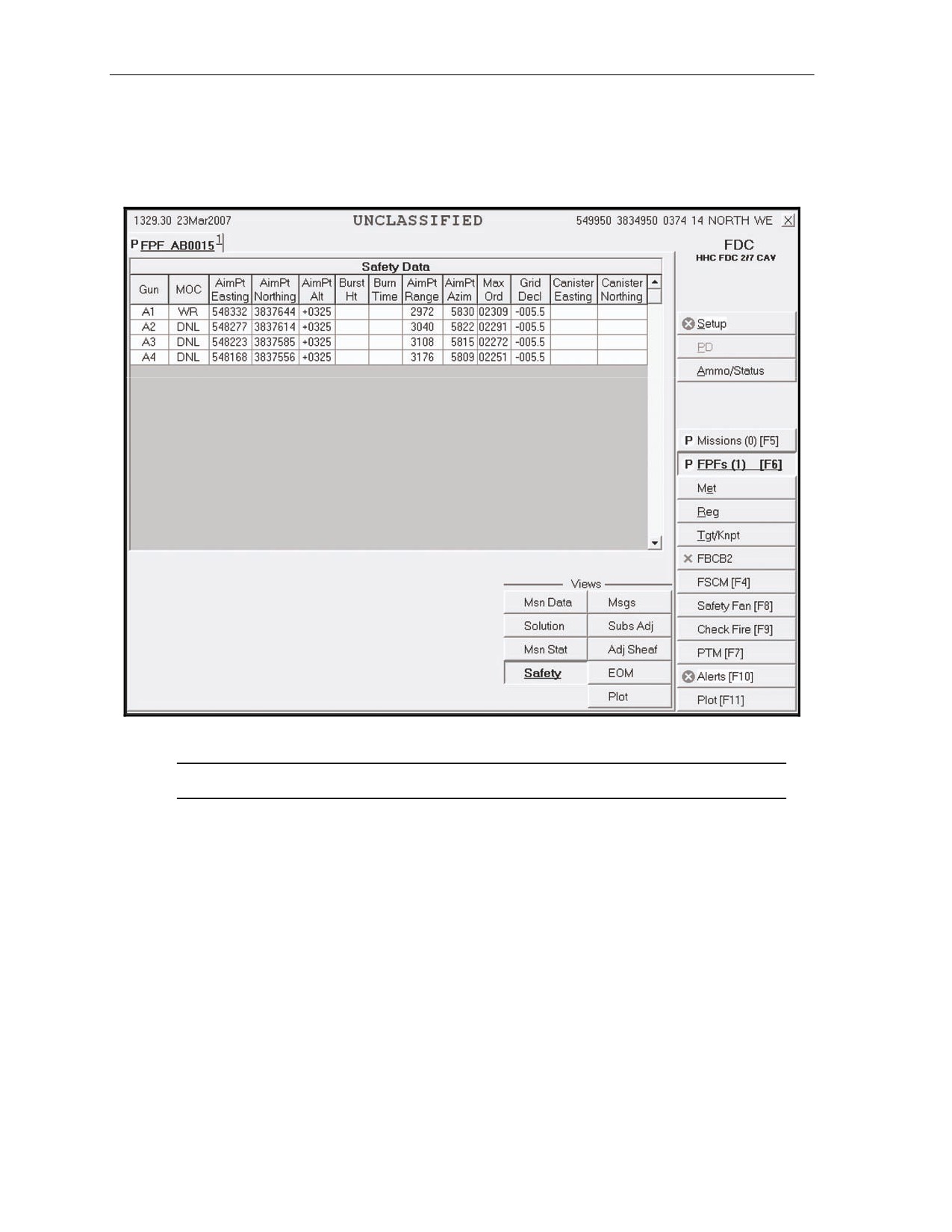
SAFETY DATA SCREEN
16-72. Before sending gun orders, the operator checks the safety data by selecting the Safety Data button.
The Safety Data screen (Figure 16-30) displays. The operator reviews and records the safety data and,
when satisfied, selects the Solution button.
Figure 16-30. Safety Data screen.
NOTE: The Plot screen is available to review the plot at any time during the mission.
16-36
FM 3-22.91
17 July 2008
Fire Missions
SOLUTION SCREEN
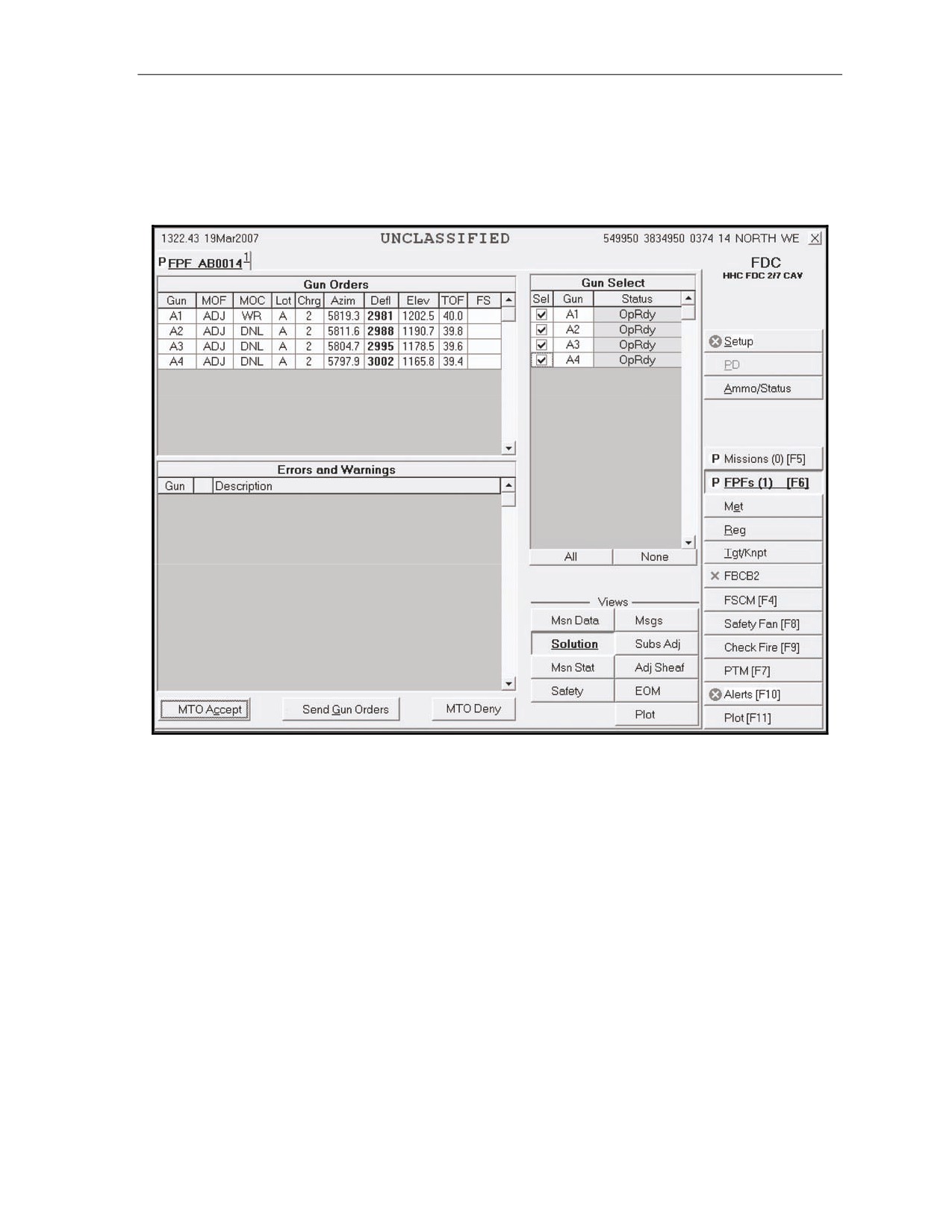
16-73. The operator selects Solution to return to the Solution screen (Figure 16-31). In this example, the
MOC for the adjusting gun is AMC; do not load (DNL) is the MOC for the other guns. When satisfied that
all information is correct, the operator selects Send Gun Orders and confirms them. A Send Status box is
displayed, showing the destination and status.
Figure 16-31. Solution screen.
17 July 2008
FM 3-22.91
16-37
Chapter 16
PLOT SCREEN
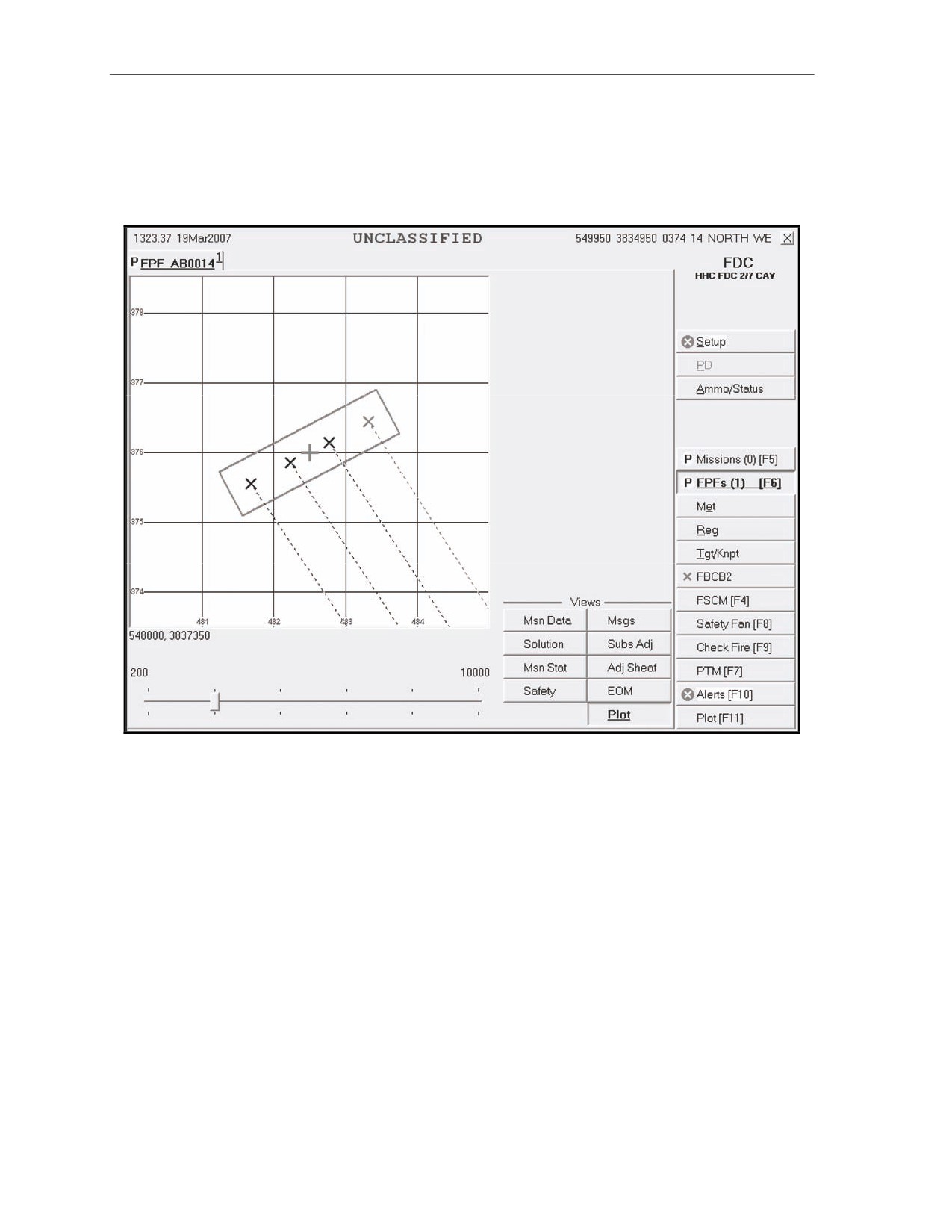
16-74. The operator may view a graphic depiction of the FPF by choosing the Plot button. The Plot
screen (Figure 16-32) displays. The operator may zoom in or out on the image using the slider and may
double-click on any point in the image to re-center the image. The operator may place the cursor over any
icon to display a description of that icon.
Figure 16-32. Plot screen.
16-38
FM 3-22.91
17 July 2008
Fire Missions
MISSION STATUS SCREEN
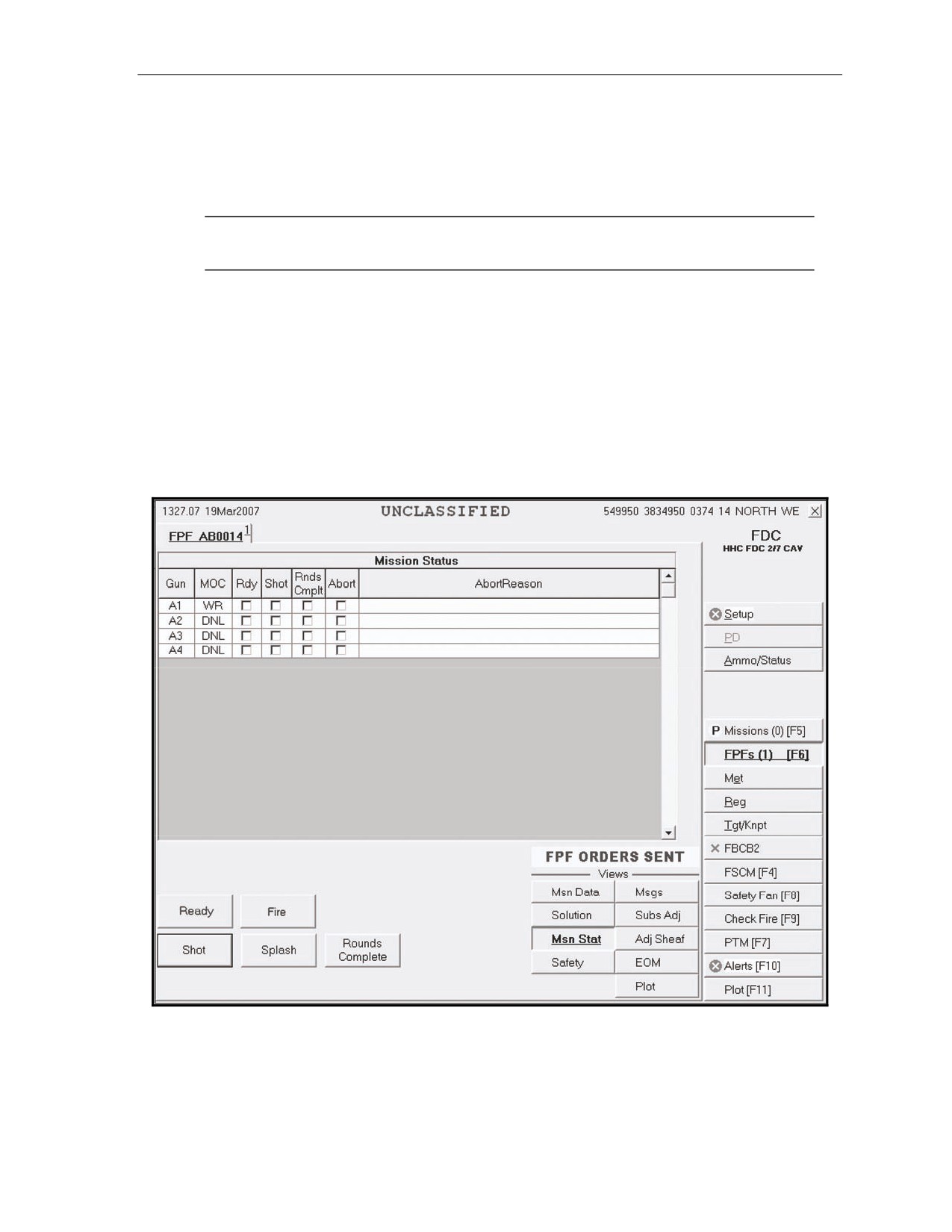
16-75. When the operator sends gun orders, the Mission Status screen (Figure 16-33) is displayed, and
the words “FPF Orders Sent” are displayed in the Views section. The mission is monitored from this
screen. The operator updates the status of the guns (Ready, Shot, Rounds Complete, and Abort) from this
screen, and the MFCS automatically sends this information to the FC or FO.
NOTE: Once gun orders are sent, the operator must process a subsequent adjust before
computing and sending a new set of gun orders.
z
When the adjusting gun sends “Ready,” the operator selects the Ready button to send the
message to the FC or FO.
z
If the mission is AMC, the operator receives an order to fire from the FC or FO, and then selects
the Fire button. The Fire button is shaded.
z
Upon receiving “Shot,” a checkmark appears in the Shot box, the box turns green, and the Shot
button is shaded. The time of flight and a red splash are then displayed, and the Splash button is
shaded.
z
If the gun aborts the mission, a checkmark appears in the Abort box, and the reason for the abort
is displayed in the Abort Reason field.
16-76. The operator continues to process the orders until the gun is adjusted.
Figure 16-33. Mission Status screen.
17 July 2008
FM 3-22.91
16-39