FM 3-22.91 MORTAR FIRE DIRECTION PROCEDURES (July 2008) - page 11
Chapter 18
(8) Use the fields outlined in Table 18-2 to enter and view information.
Table 18-2. Mission Data screen fields and related information.
FIELD
RELATED INFORMATION
Method of control (MOC)
The options for the MOC field include—
•
When ready (WR).
•
At my command (AMC).
•
Do not load (DNL)/ Do not Fire.
Mission type (Msn Type)
Msn Type, MOF, and MOA fields are read-only. They are displayed for an operator’s
reference only. Each field is set according to the mission type selected.
Method of fire (MOF)
Method of adjustment (MOA)
Sheaf
The operator must use the ammunition available to determine the mission to be fired
and the target description to choose the appropriate sheaf. The options for the Sheaf
field include—
•
LINEAR.
•
OPEN.
•
CONVERGED.
•
SPECIAL.
•
PARALLEL (default).
•
Search and traverse (SRCH/TRAV).
NOTE: SPECIAL and SRCH/TRV sheaves will display additional fields for required
entries. These fields are described in detail later in this chapter.
Adjusting gun (Adj Gun)
The adjusting gun defaults to the gun nearest to the center of the firing unit. The FDC
operator must ensure that the proper adjusting gun is used for calculations.
Lot, Shell, and Charge
These fields allow the operator to designate the ammunition to be fired during the
adjustment phase (from available lots) and the fuze setting, and enable the operator to
force the charge, if so desired. If the mission is an FFE, there will be no adjustment
phase, and these fields will be read-only.
FFE Volleys
These four fields designate the number of rounds to be fired during the FFE phase. The
LHMBC defaults to three rounds.
NOTES: 1. There must be enough ammunition entered for the number of volleys
selected. The Lot-Shell field will only display the appropriate ammunition available from
the Ammunition List.
2. The available fuze settings will correlate with the mission type selected (i.e.,
illumination missions will include MTSQ).
3. See Appendix B of FM 7-90, Tactical Employment of Mortars, for joint munitions
effectiveness manuals (JMEMS), charts, and additional engagement criteria.
Use Registration Correction
If an RP is recorded, the Use Reg Correction box will be checked. To process a
(Use Reg Correction)
mission without the registration corrections, deselect the checkbox.
(9) Select Use All.
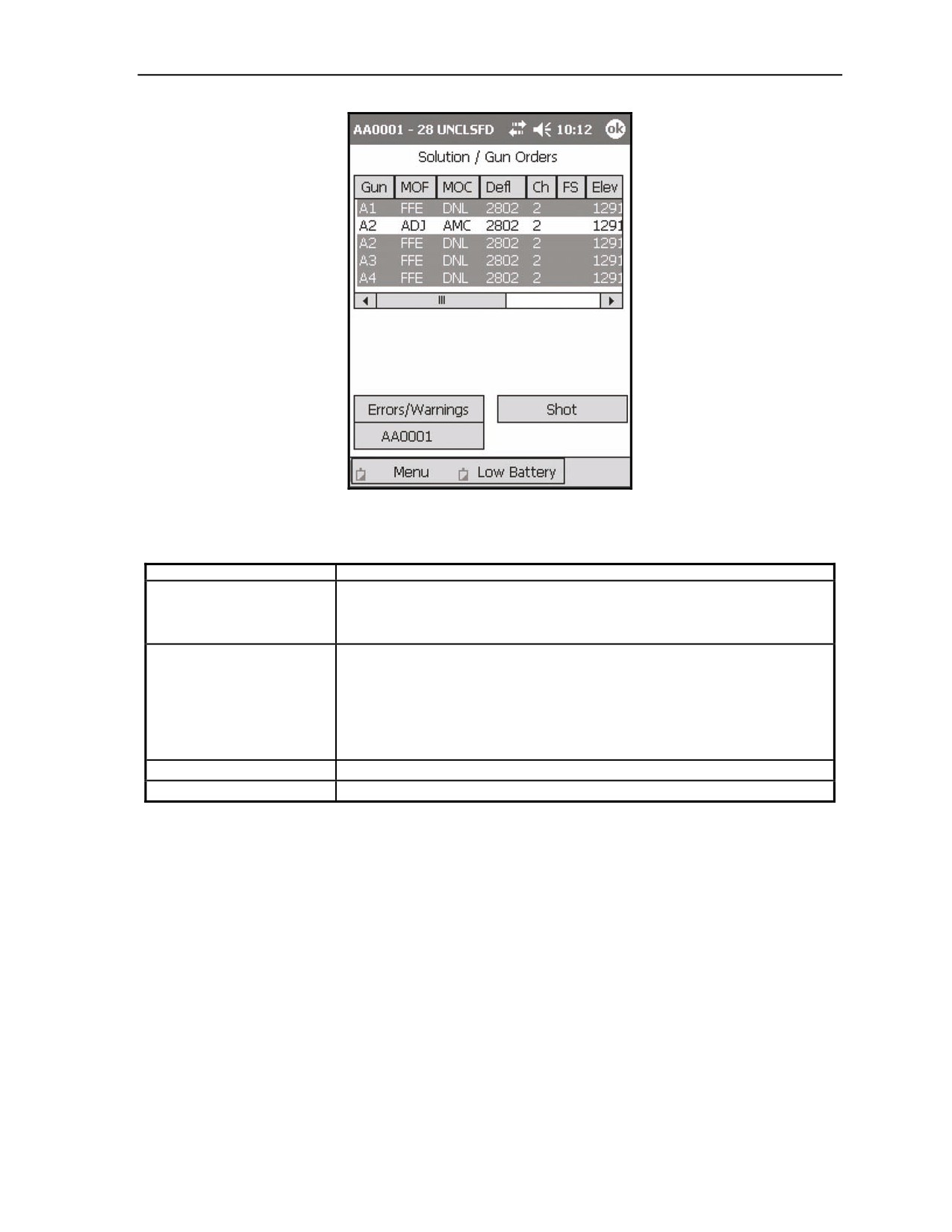
(10) If there are no errors or warnings, the Solution/Gun Orders screen (Figure 18-4) displays. Table
18-3 outlines all Solution/Gun Orders screen fields and buttons, and related information.
NOTES:
1. If there are errors or warnings, they will be displayed on an Errors and
Warnings screen. This screen warns the FDC operator of a possible danger or an
actual firing violation.
2. The Solution/Gun Orders screen may also be accessed from the active mission
menu by selecting Solution. The active mission menu (labeled with the mission
number) can be accessed by selecting Menu, Missions, FPFs, and then the
mission number.
18-4
FM 3-22.91
17 July 2008
Fire Missions
Figure 18-4. Solution/Gun Orders screen.
Table 18-3. Solution/Gun Orders screen fields and buttons, and related information.
FIELD/BUTTON
RELATED INFORMATION
Shot button
The shot clock is displayed in the top left corner (with the mission number) and counts
down from the time of flight to 0. The Shot button acts as a shot clock in the manual
mode and will notify the observer of a shot in the digital mode. This button also acts as
an accumulator for the rounds fired for the mission.
Gun Data field
In this field, FFE data will display for all guns in red during the adjustment phase. This
allows non-firing guns to follow the adjustment more accurately. The adjusting round
will display with black lettering on a white background. Gun data may display at the
bottom of the screen by selecting the desired line with the stylus and dragging it to the
bottom of the screen.
NOTE: To display the action buttons, tap anywhere outside of the displayed gun data.
Errors/Warnings button
This button displays the Errors/Warnings screen.
<Target> button
The <Target> button (labeled AA0001 in Figure 18-5) displays the <Target> screen.
17 July 2008
FM 3-22.91
18-5
Chapter 18
(11) Select the Shot button.
(12) Select the <Target> button.
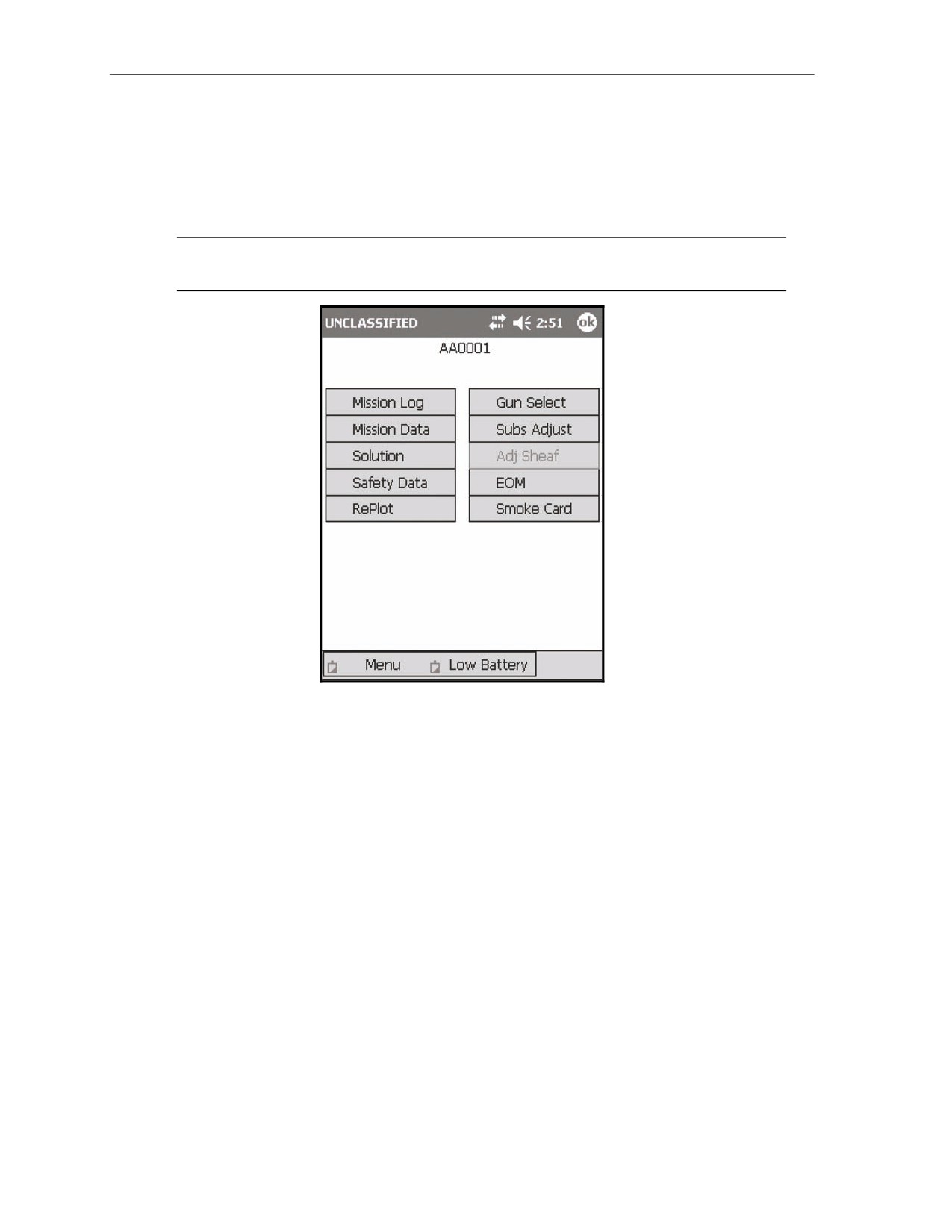
(13) The <Target> screen (Figure 18-5) displays. The <Target> screen allows the operator to review,
verify, and adjust fires; and modify or end the active mission; and provides access to all mission
functions of the active mission. The target number is displayed at the top of the screen (AA0001
in the example). Table 18-4 outlines all <Target> screen buttons and related information.
NOTE: The <Target> screen can be accessed by selecting Menu/Missions/FPFs/<target
number>, or by selecting the <Target> button from any mission screen.
Figure 18-5. <Target> screen.
18-6
FM 3-22.91
17 July 2008
Fire Missions
Table 18-4. <Target> screen buttons and related information.
BUTTON
RELATED INFORMATION
Mission Log
The Mission Log stores a chronological history of all information entered for the active
mission.
Mission Data
This button displays the Mission Data screen.
Solution
This button displays the Solution/Gun Orders screen.
Safety Data
This button displays the Safety Data screen.
RePlot
This button displays the Mission RePlot screen. This function is used to designate the
altitude of a previously processed target. This will adjust the burst point grid to that of
the corrected target height and trajectory.
Gun Select
This button displays a screen used to designate guns to support the active mission. To
process two simultaneous missions, for instance, this screen would be used to
designate which guns fire each mission.
Subsequent Adjustments
This button displays a screen used to input subsequent adjustments.
(Subs Adjust)
Adjust Sheaf (Adj Sheaf)
This button displays the Adjust Sheaf screen. This screen is read-only until the FFE
phase. The Adjust Sheaf screen enables the operator to make adjustments to any gun
that is used in the active mission.
NOTE: Section III covers registration and sheaf adjustment.
End of Mission (EOM)
This button displays the EOM screen.
Smoke Card
This button displays the Smoke Card screen. This function is available from the
<Target> screen.
NOTE: Section III covers smoke missions and the use of the smoke card.
(14) Select Solution.
(15) Select <Target>.
(16) Select Safety Data.
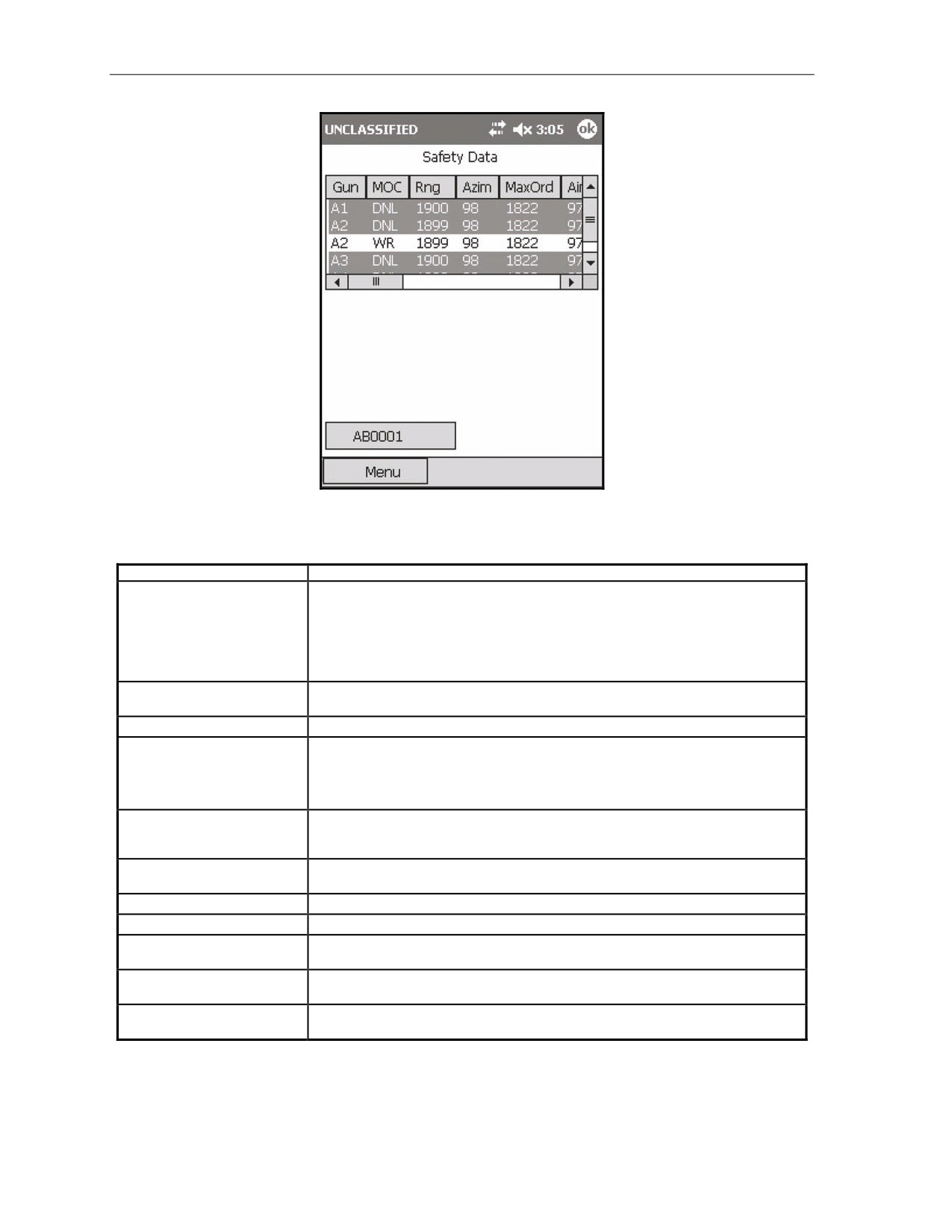
(17) The Safety Data screen (Figure 18-6) displays. This screen allows the operator to review and
verify the safety data for each gun in the active mission. All guns used in the mission are
displayed on the left side of the screen. Data for each gun is listed to the right. Table 18-5
displays the data fields for this screen.
17 July 2008
FM 3-22.91
18-7
Chapter 18
Figure 18-6. Safety Data screen.
Table 18-5. Safety Data screen fields and related information.
FIELD
RELATED INFORMATION
Method of Control (MOC)
The options for the MOC field include—
•
At my command (AMC).
•
Do not load (DNL).
•
Fire for effect (FFE).
•
When ready (WR).
Range (Rng)
This field contains the range to the target, expressed as a linear horizontal distance to
the target. Differences in altitude (slope range) are not included.
Azimuth (Azim)
This field contains the grid azimuth to the target.
Maximum Ordnance (MaxOrd)
This field contains the maximum ordnance, expressed as the actual height of the round
at its summit.
NOTE: The maximum ordnance takes into account the actual station height.
Aiming Point Azimuth
This field contains the direction the mortar must be aimed to hit the target. This
direction takes into account the total correction from exterior ballistics, such as
registration and MET.
Aiming Point
This field contains the grid location for the specified gun to impact at its correct location
in the sheaf.
Burst Height
This field contains the calculated height at which the round will burst.
Burn Time
This field contains the amount of time the round will burn before burning out.
Canister Easting
This field contains the easting to where the canister will impact if the round
malfunctions.
Canister Northing
This field contains the northing to where the canister will impact if the round
malfunctions.
Grid Declination
This field contains the grid declination constant for the area of operations. The grid
declination constant accounts for the difference between grid north and magnetic north.
18-8
FM 3-22.91
17 July 2008
Fire Missions
(18) Select the <Target> button.
(19) The <Target> screen displays.
(20) Select Subs Adjust.
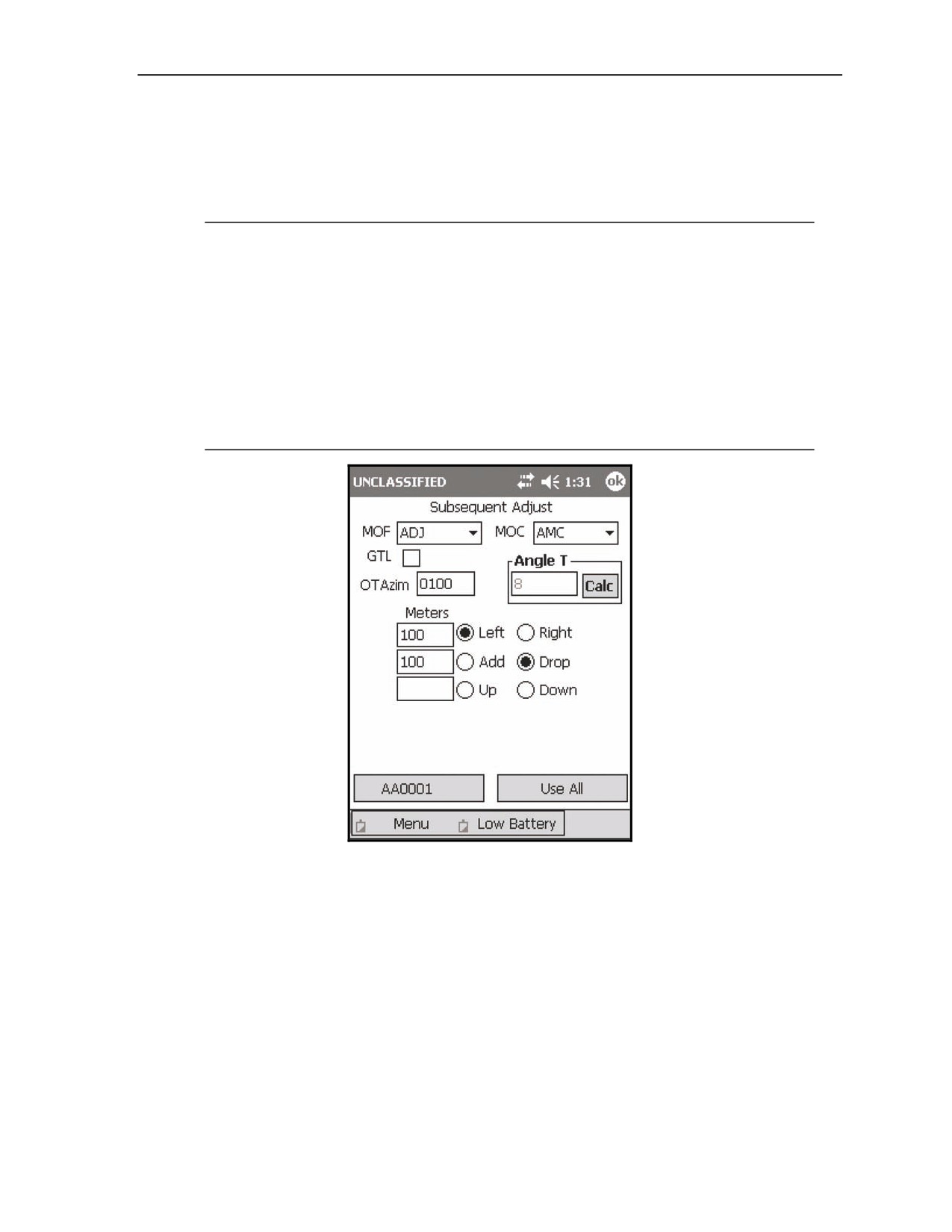
(21) The Subsequent Adjust screen displays. The Subsequent Adjust screen (Figure 18-7) enables the
operator to make gun adjustments. Table 18-6 displays the data fields for this screen.
NOTES:
1. Adjustments may be made using the observer-target azimuth (OTAzim) or, if
made from the gun position, using the gun-target line (GTL). If using the
observer-target (OT) azimuth, the observer must give his azimuth to the target
prior to the first correction. This may be either a part of the initial CFF or the
first part of the initial adjustment transmission.
2. The following LHMBC Subsequent Adjust screen depicts an actual fire mission.
This example uses no sheaf corrections (Reg/MET). It also uses the following
FO call to show the appropriate positioning of information:
FO Call: Dir 100. Left 100. Drop 100.
Figure 18-7. Subsequent Adjust screen.
17 July 2008
FM 3-22.91
18-9
Chapter 18
Table 18-6. Subsequent Adjust screen fields and related information.
FIELD
RELATED INFORMATION
Method of Fire (MOF)
MOF options are—
•
ADJ.
•
CONT.
•
FFE.
•
Repeat FFE (RFFE).
Method of Control (MOC)
MOC options are—
•
AMC.
•
WR.
•
DNL.
(22) Select Use All.
(23) The Solution/Gun Orders screen displays.
(24) Select Shot.
(25) Select the <Target> button.
(26) The <Target> screen displays.
(27) Select Subs Adjust.
(28) Change MOF from Adjust to FFE.
(29) Select Use All.
(30) The Solution/Gun Orders screen displays.
(31) Select Shot.
(32) Select the <Target> button.
(33) The <Target> screen displays.
(34) Select EOM.
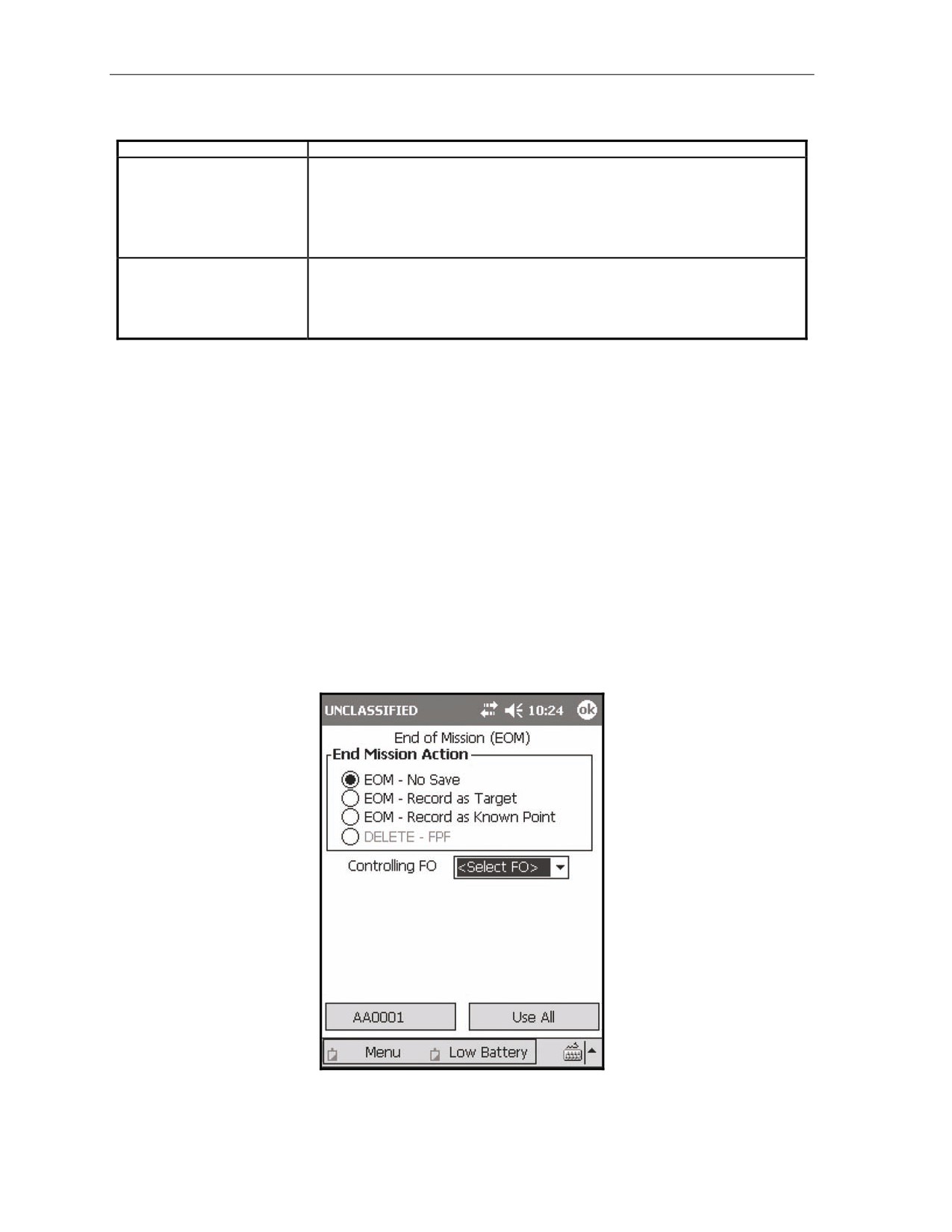
(35) The End of Mission screen (Figure 18-8) displays. The EOM screen enables the operator to end
the active mission and to discard the data or save it as a target or a known point.
Figure 18-8. End of Mission screen.
18-10
FM 3-22.91
17 July 2008
Fire Missions
(36) Choose one of the selections outlined in Table 18-7.
Table 18-7. End of Mission screen selections and related information.
BUTTON
RELATED INFORMATION
EOM - No Save
Choose this option to display the Status screen without recording the known point data.
EOM - Record as Target
If the mission is saved as a target, it will be saved as the target number used to fire the
mission.
EOM - Record as Known Point
If the mission is saved as a known point, a controlling FO must be selected when
saving the mission. After selecting Use All, the Select Known Point Number screen
displays. The Known Point pull-down menu displays a list of known point numbers,
defaulting to the next available known point number. Known point numbers in use will
display, with the words “In Use” next to the known point number. If the operator picks a
known point number currently in use, the previously stored data for that number will be
overwritten, and the Save As KP# control button will display Overwrite KP#. When a
known point is entered with a target number, the target also appears on the target
screen.
DELETE - FPF
The DELETE - FPF option is active only during an FPF mission and will end the
mission without storing or applying FPF corrections.
(37) Select Use All.
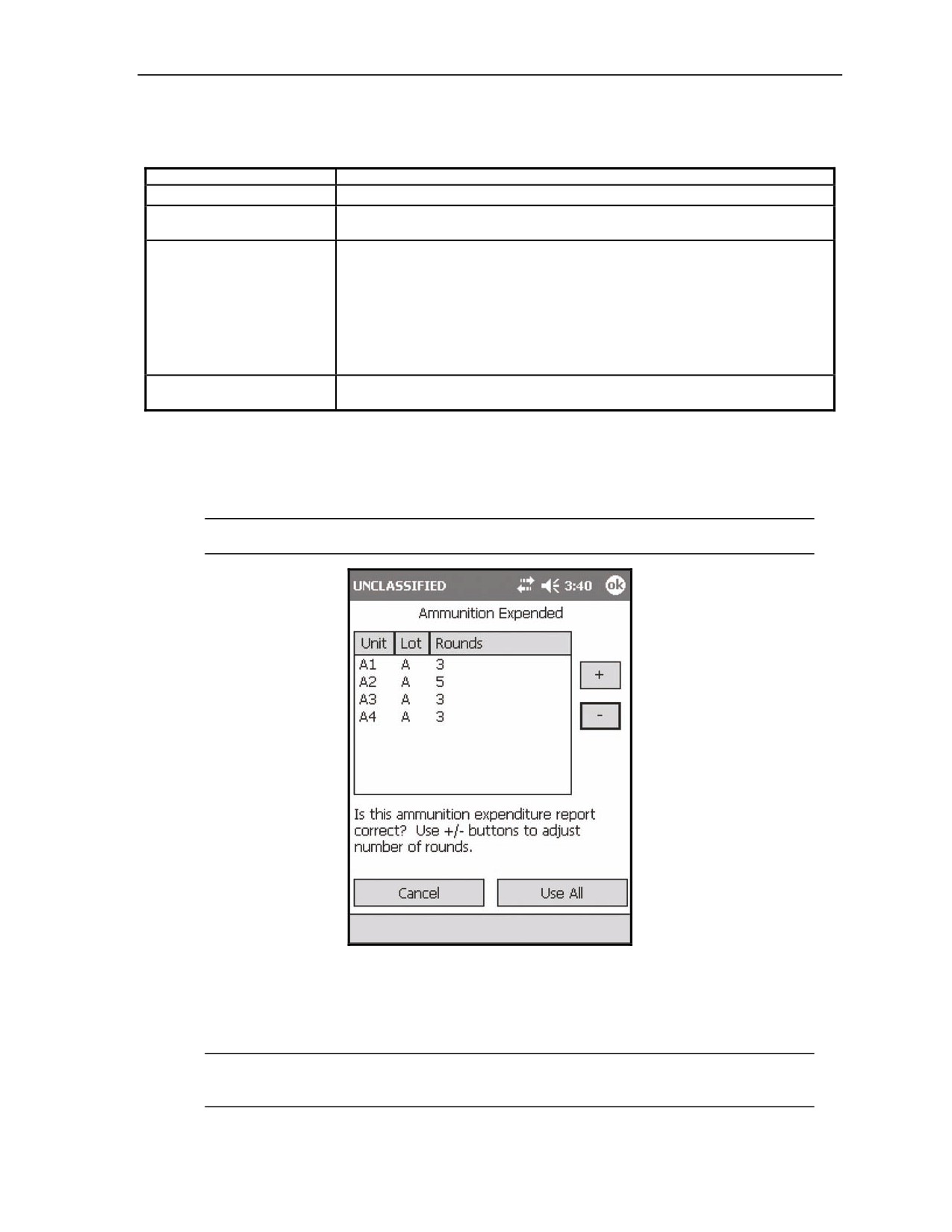
(38) The Ammunition Expended screen (Figure 18-9) displays. The Ammunition Expended screen enables the
operator to view or edit the number of rounds that have been expended by each gun used in the active
mission.
NOTE: The ammunition is displayed as a number of rounds used of each lot by each gun.
Figure 18-9. Ammunition Expended screen.
(39) Increase or decrease the number of rounds per gun by selecting the gun number, and then using
the plus and minus signs to adjust the number of rounds for the selected gun.
(40) Select Use All to update the ammunition inventory.
NOTE: If Cancel is selected, the message “Ammo expended for mission must be adjusted
manually in inventory” displays.
17 July 2008
FM 3-22.91
18-11
Chapter 18
SHIFT FROM A KNOWN POINT MISSIONS
18-2.
Prior to calling a shift from a known point mission, both the observer’s position and the location
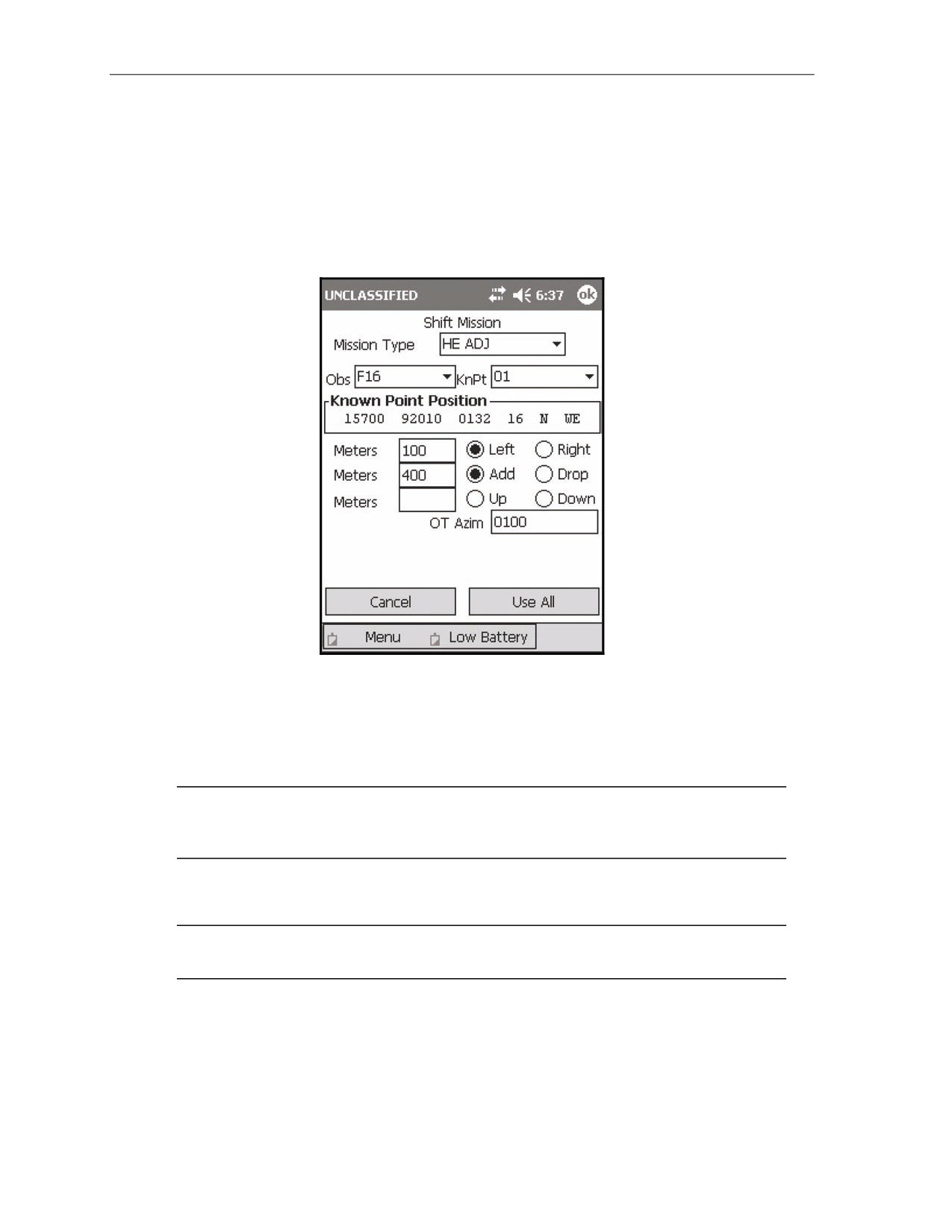
of the known point must be entered into the LHMBC. After recording the CFF on DA Form 2399-R—
(1) Select Menu.
(2) Select Manual Missions.
(3) Select Shift Msn.
(4) The Shift Mission screen (Figure 18-10) displays.
Figure 18-10. Shift Mission screen.
(5) Set the mission type (HE ADJ, HE FFE, ILL ADJ, ILL FFE, or FPF).
(6) Enter the observer name and the number of the known point to be shifted from.
(7) The known point position displays.
(8) Enter the initial shift data in the appropriate fields.
NOTE: If no modification is entered into a field, the modification is assumed to be the same as
the known point. For instance, if there is no up or down given, the altitude for the target will be
the same as the known point.
(9) Enter the OT azimuth.
(10) Select Use All to process the mission.
NOTE: After the initial method of target location is given, the mission is completed in the same
manner as a basic grid mission.
18-12
FM 3-22.91
17 July 2008
Fire Missions
POLAR PLOT MISSIONS
18-3.
After recording the CFF on DA Form 2399-R—
(1) Select Menu.
(2) Select Manual Missions.
(3) Select Polar Msn.
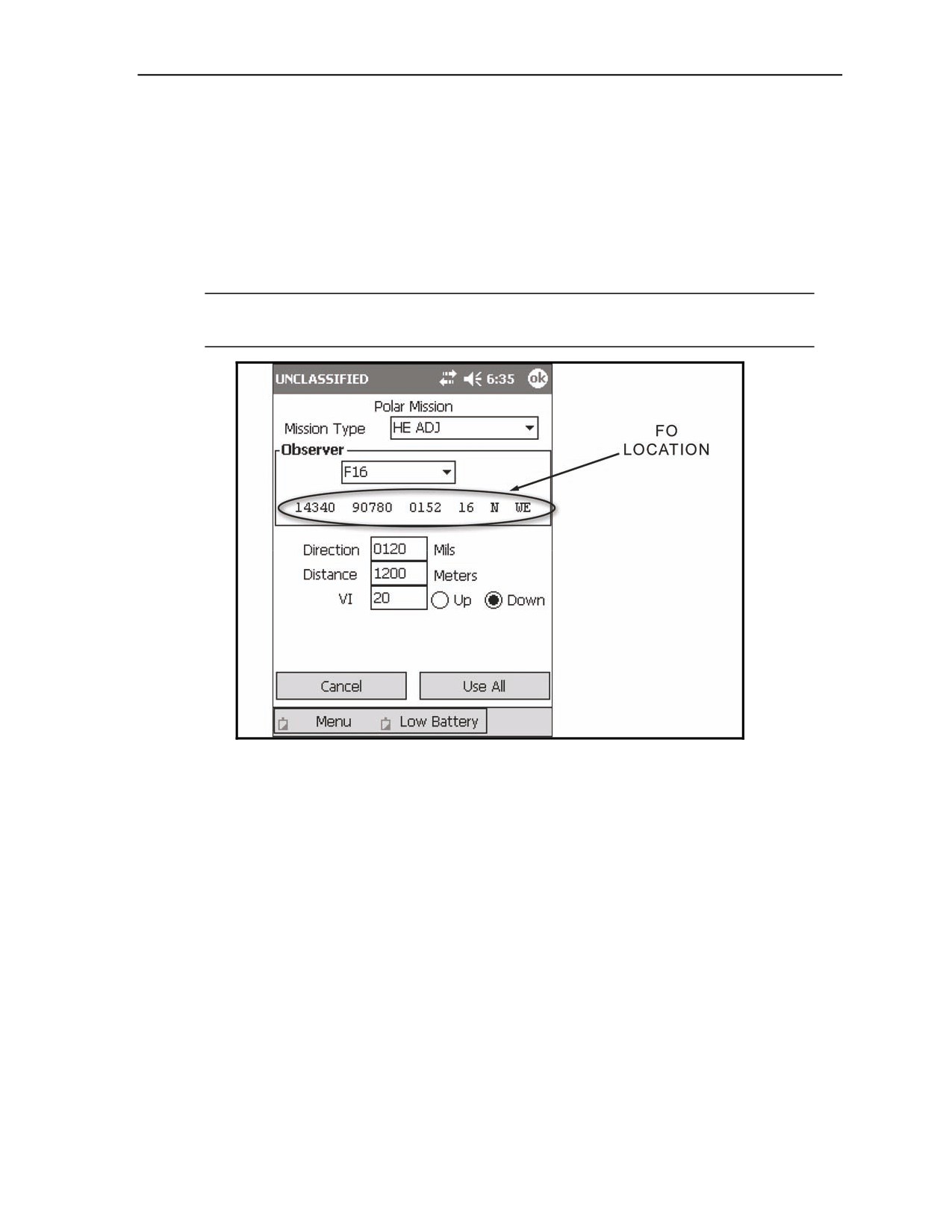
(4) The Polar Mission screen (Figure 18-11) displays.
(5) Select the mission type.
(6) Enter the unit name and the direction, distance, and VI from the observer's location.
NOTE: After the initial method of target location is given, the mission is completed in the same
manner as a basic grid mission.
Figure 18-11. Polar Mission screen.
17 July 2008
FM 3-22.91
18-13
Chapter 18
LASER POLAR PLOT MISSIONS
18-4.
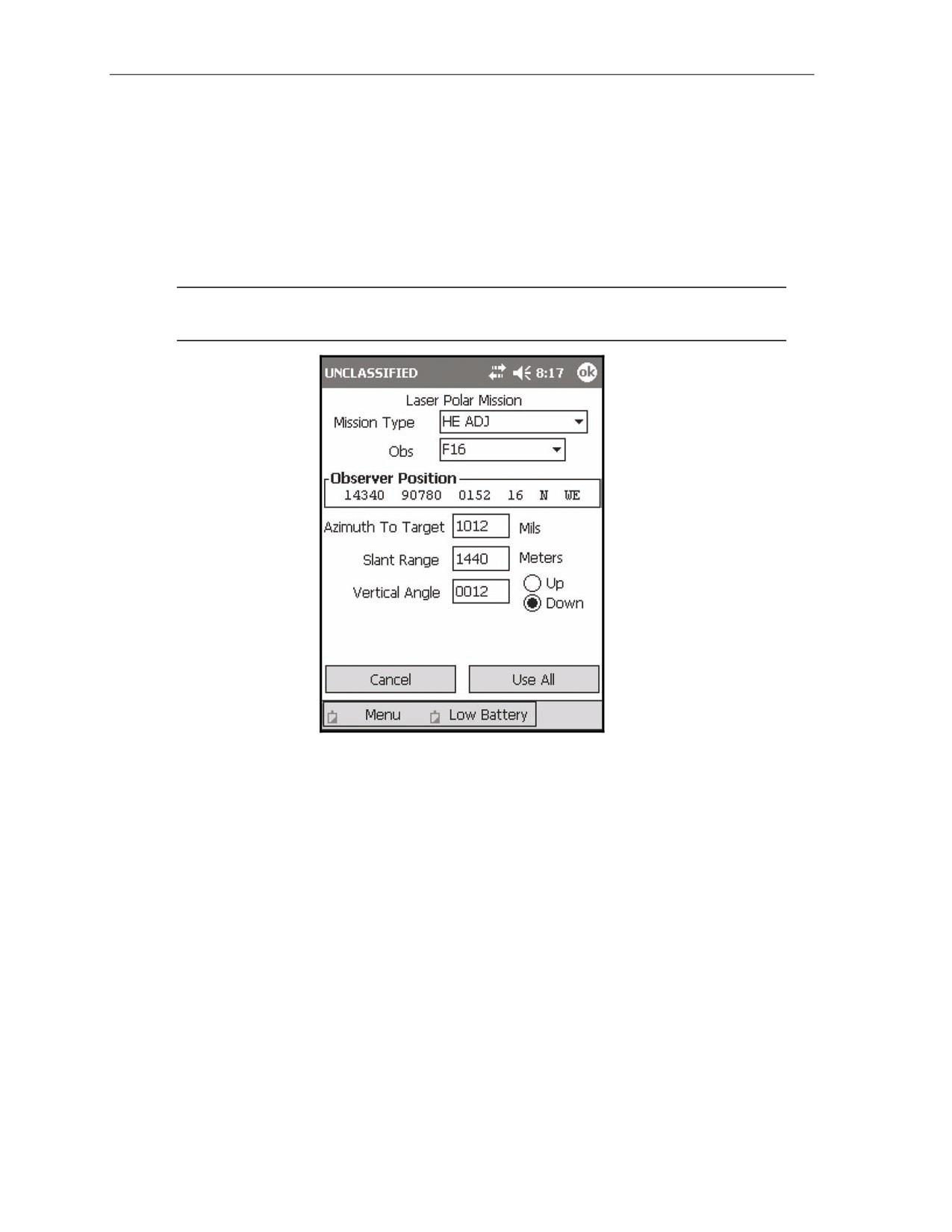
The laser polar plot mission differs from the standard polar plot mission in that the laser takes into
account the full range to the target including the altitude change (slant range). The altitude correction is
expressed as a vertical angle, expressed in mils. After recording the CFF on DA Form 2399-R—
(1) Select Menu.
(2) Select Manual Missions.
(3) Select Laser Polar Msn.
(4) The Manual Laser Polar Mission screen (Figure 18-12) displays.
NOTE: After the initial method of target location is given, the mission is completed in the same
manner as a basic grid mission.
Figure 18-12. Laser Polar Mission screen.
18-14
FM 3-22.91
17 July 2008
Fire Missions
QUICK FIRE MISSIONS
18-5.
The quick fire mission is used to fire a previously engaged target. After recording the CFF on DA
Form 2399-R—
(1) Select Menu.
(2) Select Manual Missions.
(3) Select Quick Fire Msn.
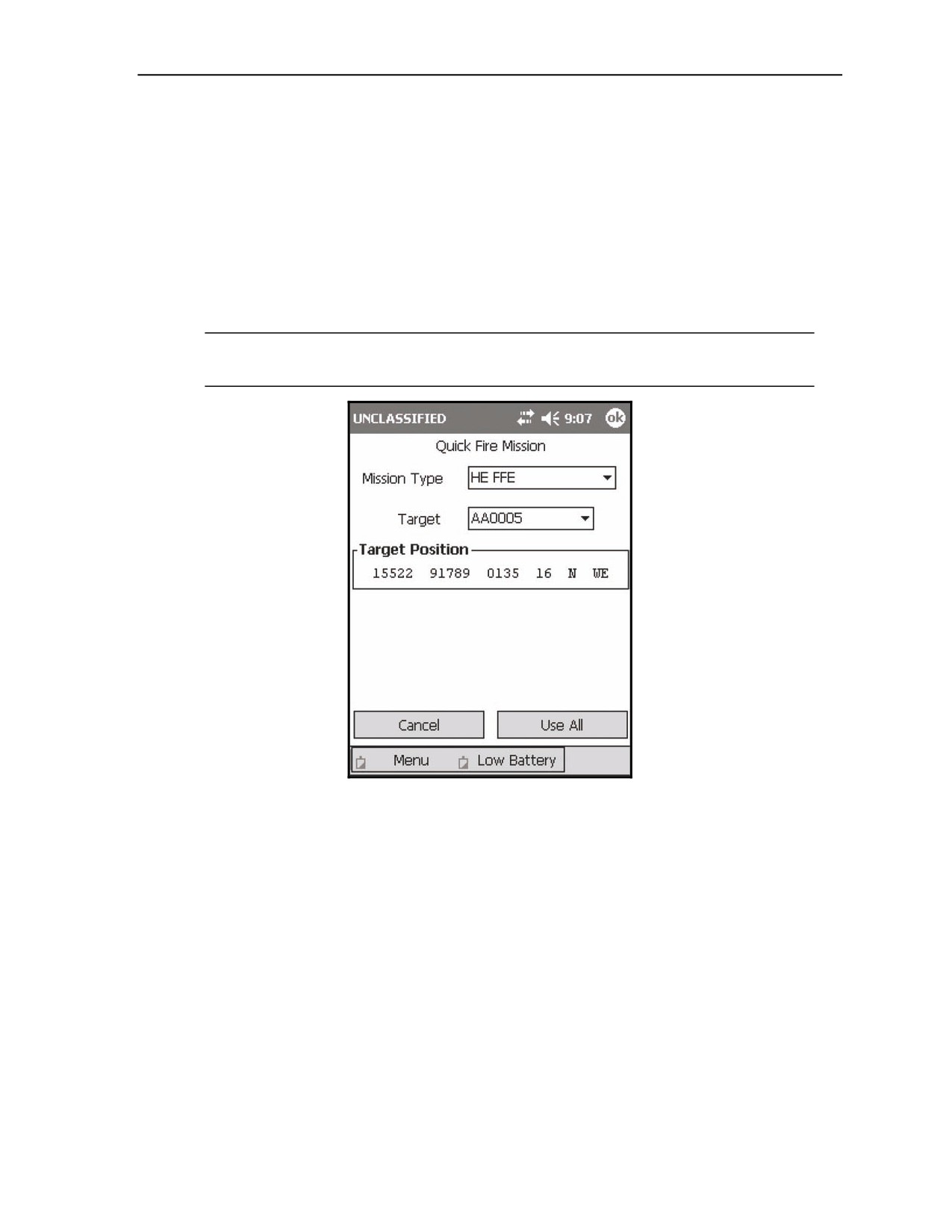
(4) The Quick Fire Mission screen (Figure 18-13) displays.
(5) Set the mission type (HE FFE, ILL FFE, SUPPRESS, IM SMOKE, or FPF).
(6) Select the target to be fired from the pull-down menu.
(7) Verify the target grid displayed in the Target Position field.
NOTE: After the initial method of target location is given, the mission is completed in the same
manner as a basic grid mission.
Figure 18-13. Quick Fire Mission screen.
17 July 2008
FM 3-22.91
18-15
Chapter 18
DIRECT LAY MISSIONS
18-6.
The direct lay mission generates the proper charge, elevation, fuze setting, and time of flight
(TOF) to engage a target at a designated range. In the direct lay method, the gunner sees the target through
the mortar sight. No directional posts, aiming posts, FOs, or FDCs are used. The LHMBC includes the
direct lay mission as an automated firing table/ballistic calculator. To fire a direct lay mission—
(1) Select Menu.
(2) Select Manual Missions.
(3) Select Direct Lay.
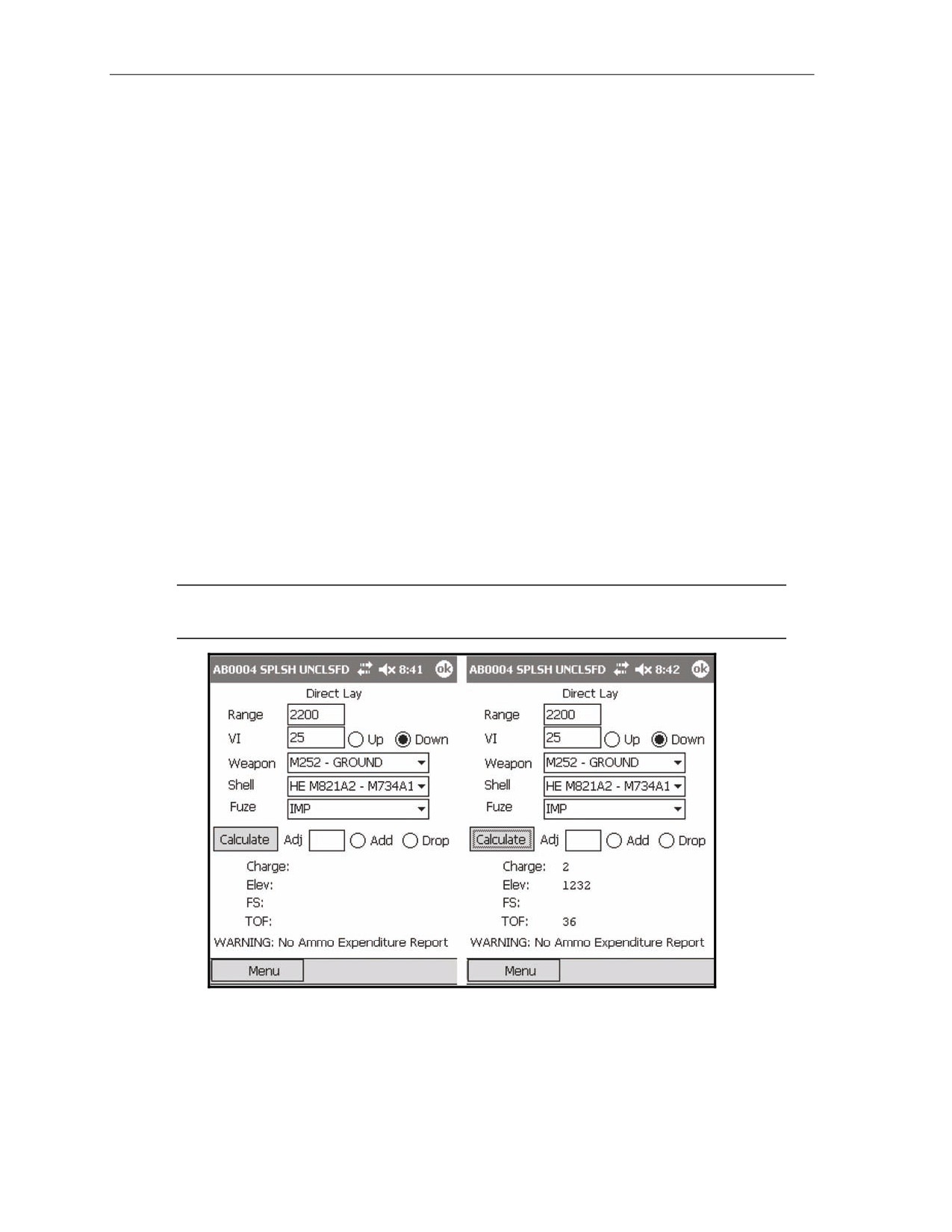
(4) The Direct Lay Mission screen (Figure 18-14) displays.
(5) Enter the range to the target and the vertical interval (VI) between the target and the mortar
position (optional). If the target is above the mortar position, select Up. If the target is below the
mortar position, select Down.
(6) Enter the appropriate weapon type from the pull-down menu.
(7) Enter the proper charge from the pull-down menu.
(8) Enter the proper fuze from the pull-down menu.
(9) Select Calculate.
(10) The LHMBC displays the proper charge, elevation, fuze setting (when applicable), and TOF.
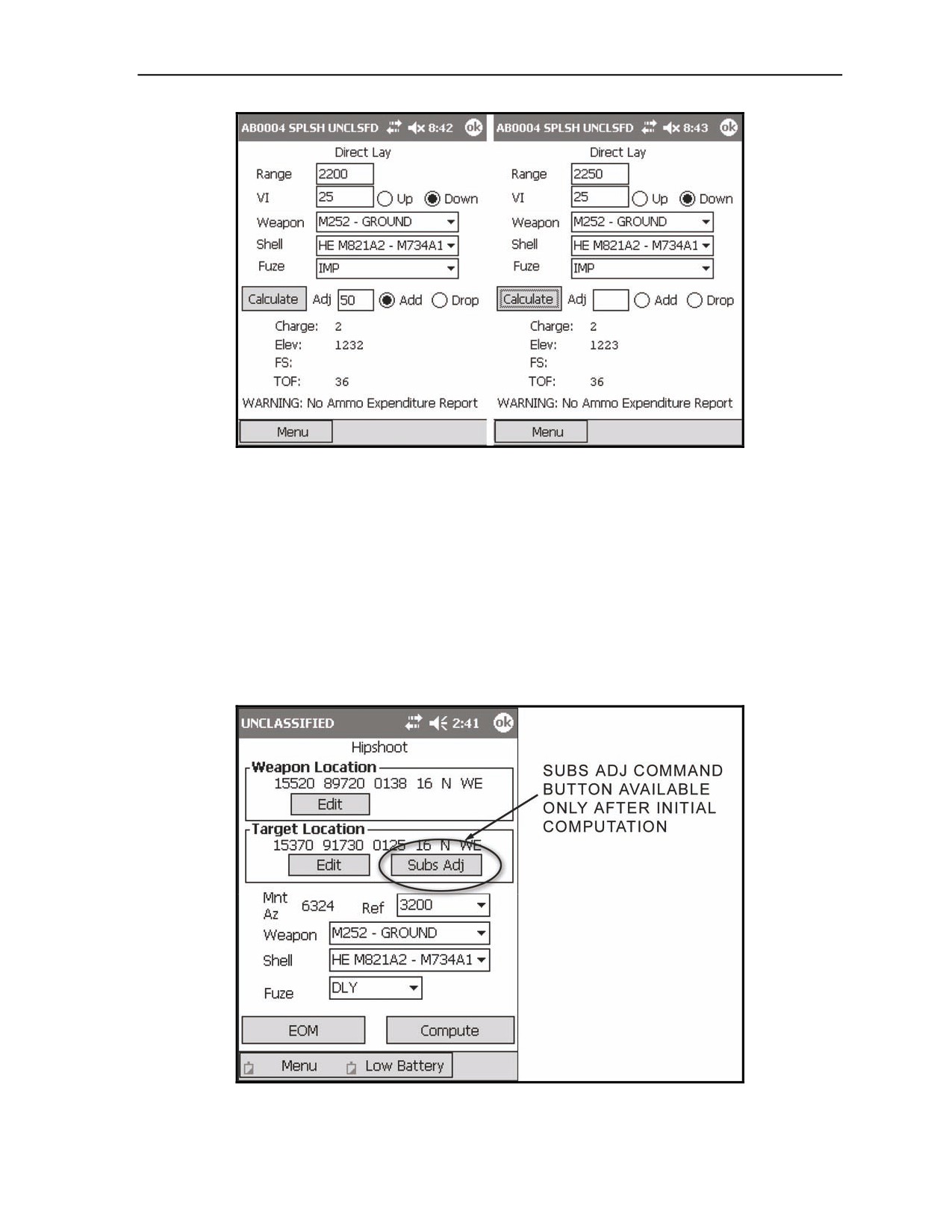
(11) Enter subsequent range corrections in the Adj field.
(12) If the target's estimated range has increased, select Add; if it has decreased, select Drop.
18-7.
Figure 18-14 shows the Direct Lay Mission screen before and after the Calculate button has been
selected. Figure 18-15 depicts a correction being entered. After the correction has been entered by
selecting Calculate, the Display field and the radio button are cleared. The new charge, elevation, fuze
setting, and TOF are displayed.
NOTE: For more information about the procedures used to conduct a direct lay mission, see
Fire without a Fire Direction Center in FM 3-22.90.
Figure 18-14. Direct Lay Mission screen.
18-16
FM 3-22.91
17 July 2008
Fire Missions
Figure 18-15. Direct Lay: first adjustment.
HIPSHOOT MISSIONS
18-8.
Hipshoot missions provide a means to obtain firing data when the firing unit is on the move.
When firing a hipshoot mission, the only setup information required prior to entering the mission is the
geographical reference.
18-9.
After recording the CFF on DA Form 2399-R—
(1) Select Menu.
(2) Select Manual Missions.
(3) Select Hipshoot.
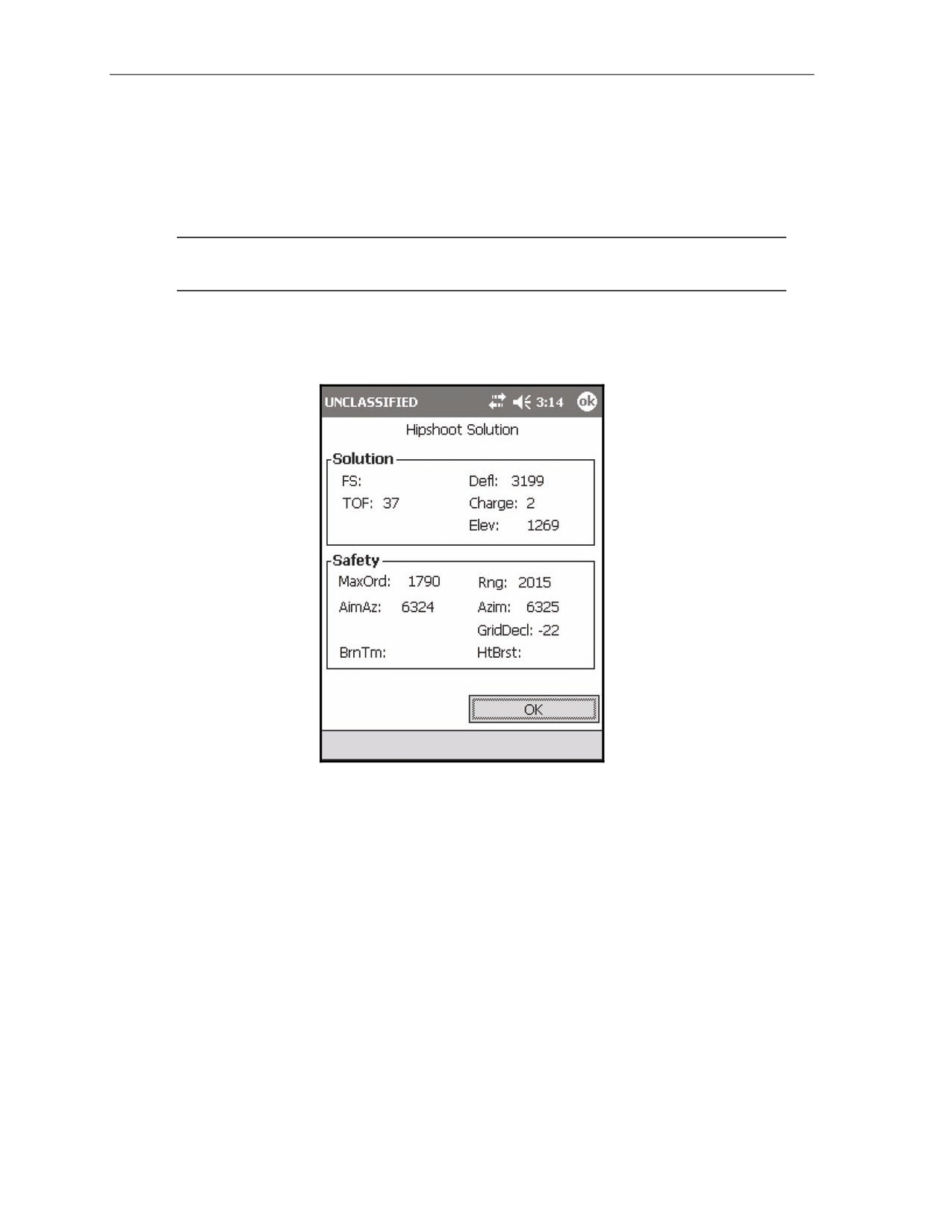
(4) The Hipshoot Mission screen (Figure 18-16) displays.
Figure 18-16. Hipshoot Mission screen.
17 July 2008
FM 3-22.91
18-17
Chapter 18
(5) Enter your location, the target location, and the proper weapon, shell, and fuze type.
(6) Select a referred deflection from the quick-fill values (0700, 2800, or 3200), or enter a value
between 0000 and 6399 manually.
(7) Select a fuze. The available fuze options will correspond to the shell and fuze selected. For
example, the M734A1 multi-option fuze may be set to Delay (DLY), Impact (IMP), or
Proximity (PRX).
NOTE: Unlike other basic missions, there is no target screen for the hipshoot mission, nor is
the ammunition list updated when the mission is completed.
(8) Select Compute to process the mission.
(9) The Hipshoot Solution screen (Figure 18-17) displays. All solution and safety data for the
hipshoot mission is displayed on the Hipshoot Solution screen.
Figure 18-17. Hipshoot Solution screen.
(10) Select OK.
(11) The Hipshoot Mission screen displays.
18-18
FM 3-22.91
17 July 2008
Fire Missions
18-10. To process observer corrections on the Hipshoot Mission screen—
(1) Select Subs Adjust in the Target Location field.
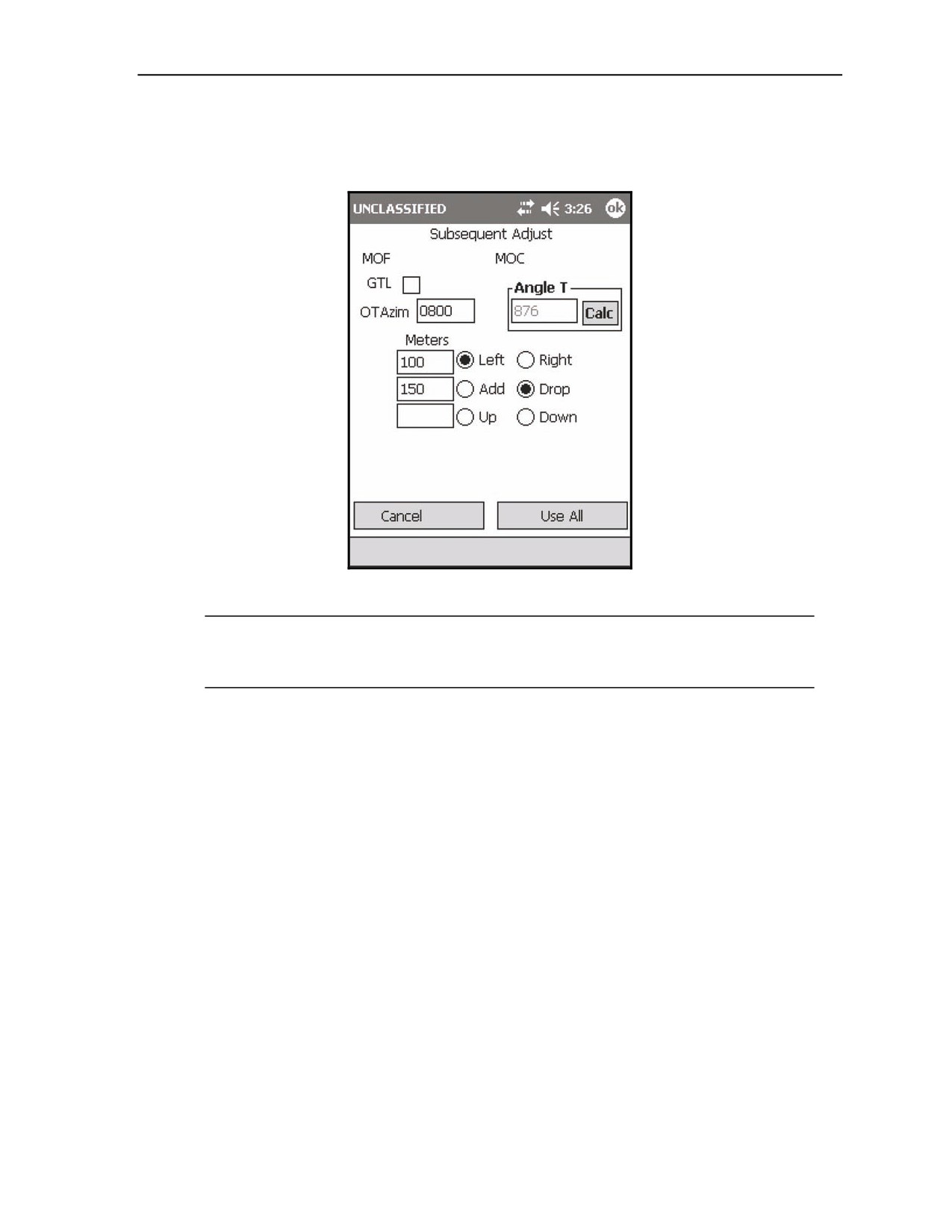
(2) The Hipshoot Subsequent Adjust screen (Figure 18-18) displays.
Figure 18-18. Hipshoot: Subsequent Adjustment screen.
NOTE: This screen is identical to the Subsequent Adjust screen used for grid missions, except
the <Target> control button has been replaced with the Cancel button. Select Cancel to return to
the Hipshoot Mission screen without processing data.
(3) Make the appropriate adjustments.
(4) Process the adjustments by selecting Use All.
(5) The Hipshoot Solution screen displays.
17 July 2008
FM 3-22.91
18-19
Chapter 18
18-11. After EOM has been announced by the FO—
(1) Select EOM from the Hipshoot screen.
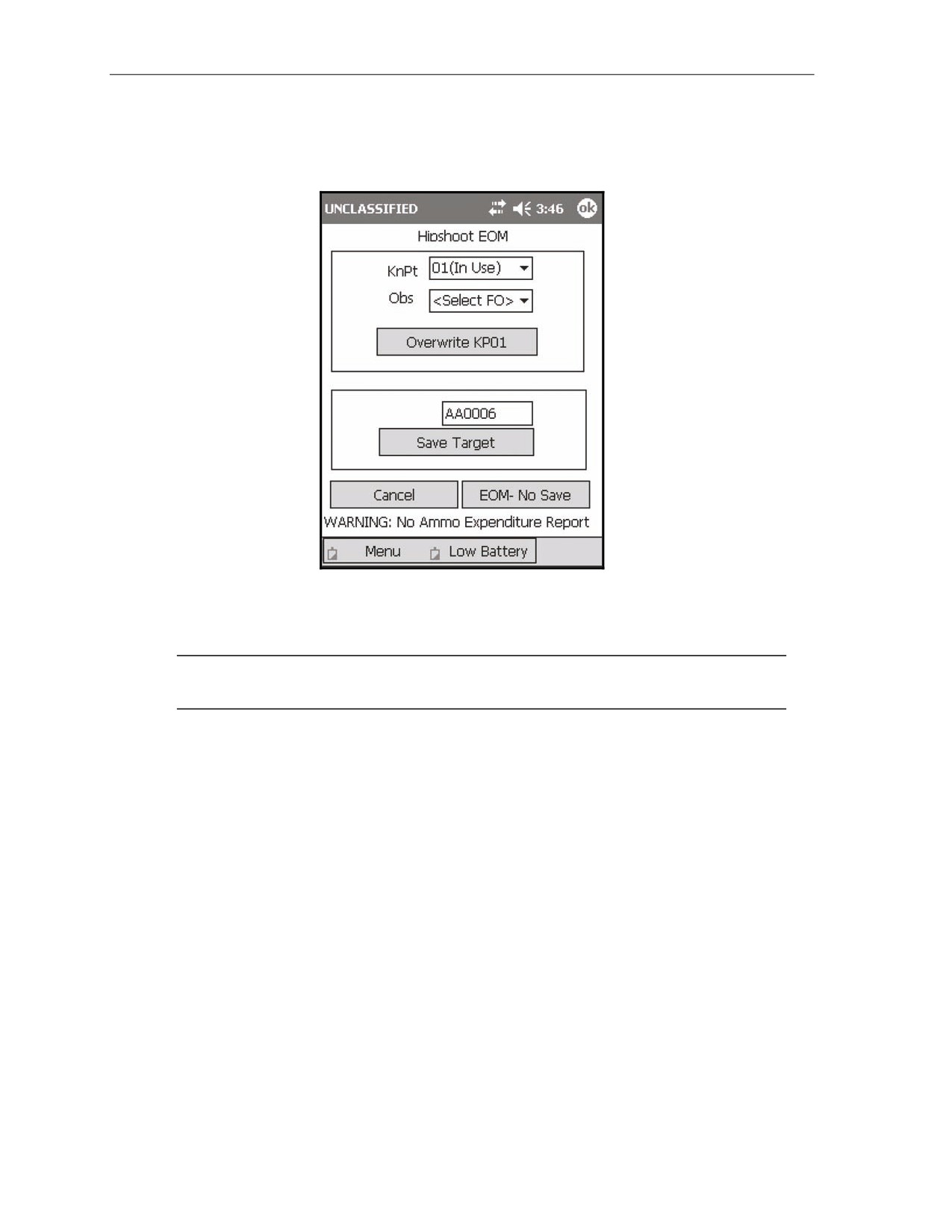
(2) The Hipshoot EOM screen (Figure 18-19) displays.
Figure 18-19. Hipshoot End of Mission screen.
(3) Save the target as a known point or a target, or end the mission without saving by selecting the
EOM-No Save control button.
NOTE: To save a mission as a known point, the FO who called the mission must be recorded
in the Obs field.
18-20
FM 3-22.91
17 July 2008
Fire Missions
TARGETS/KNOWN POINTS
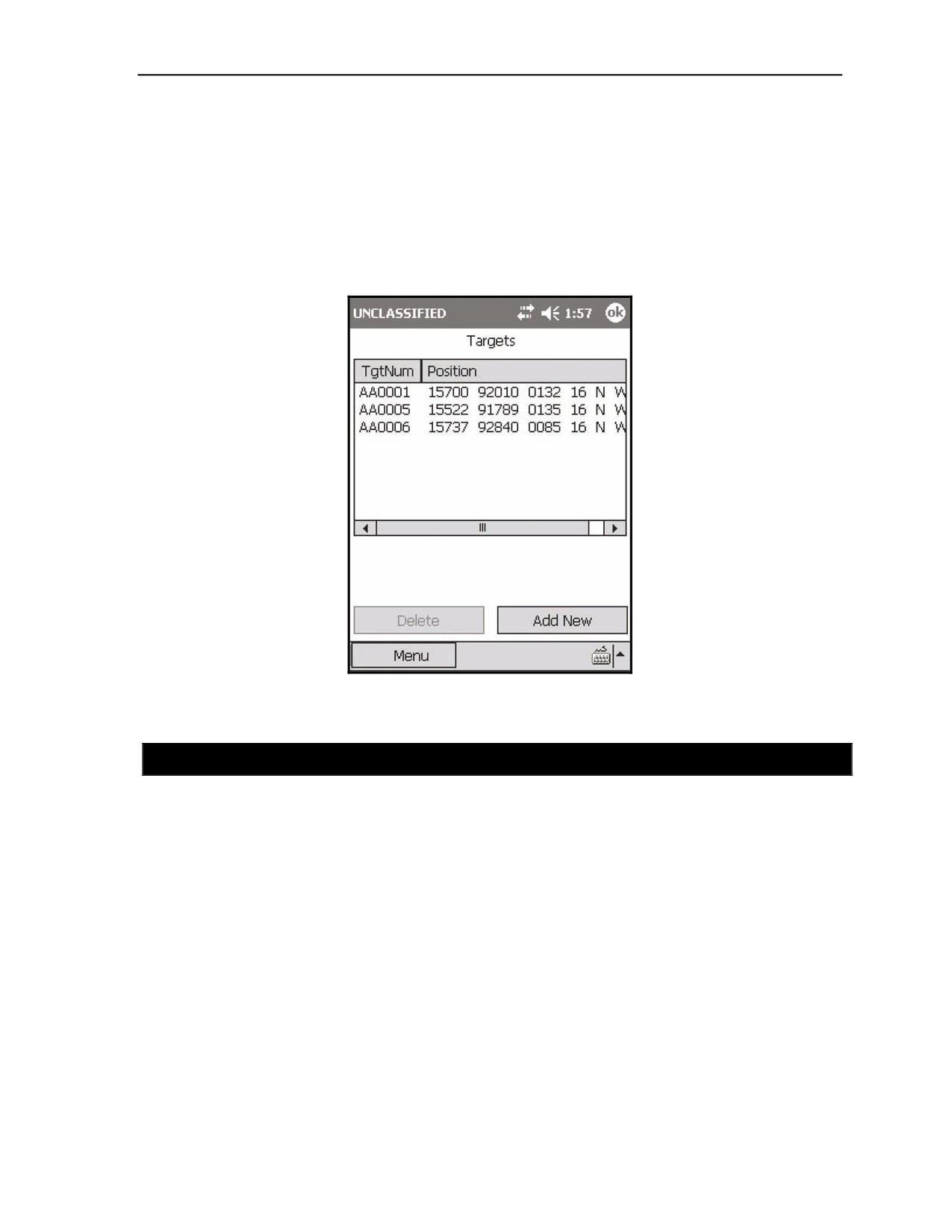
18-12. The LHMBC provides the means to view, add, edit, and delete targets and known points. There
are 99 available slots for a combination of targets and known points. When a known point is entered with a
target number, the target also appears on the Targets screen. To view the Targets screen—
(26) Select Menu.
(27) Select Points.
(28) Select Targets.
(29) The Targets screen displays (Figure 18-20).
Figure 18-20. Targets screen.
SECTION II. DIGITAL FIRE MISSIONS
Like manual missions, digital missions generally have the same sequence of screens for processing a mission.
The LHMBC automatically processes the proper method of target location. The FDC operator must read the
initial CFF and ensure that he records the method of target location on DA Form 2399-R.
17 July 2008
FM 3-22.91
18-21
Chapter 18
RECEIPT OF THE MESSAGE
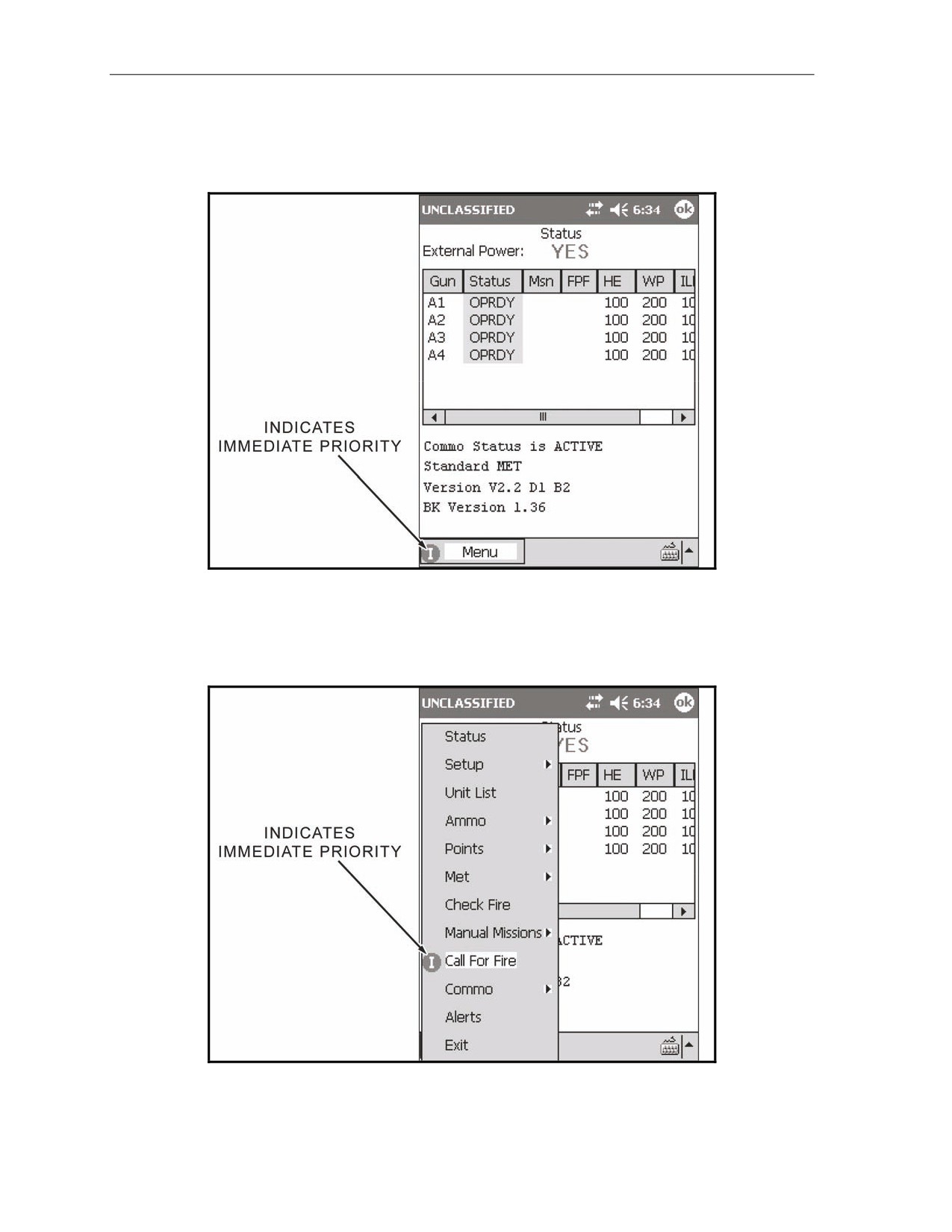
18-13. When operating digitally, notification of a message is made both audibly, through the audio alarm
(if set to ON), and visibly, using a mission priority icon displayed on the Menu button (Figure 18-21).
Figure 18-21. Mission priority icon displayed on the Menu button.
18-14. To follow the priority message icons through the menu—
(1) Select Menu.
(2) Select Call For Fire (Figure 18-22).
Figure 18-22. Call for fire menu selection.
18-22
FM 3-22.91
17 July 2008
Fire Missions
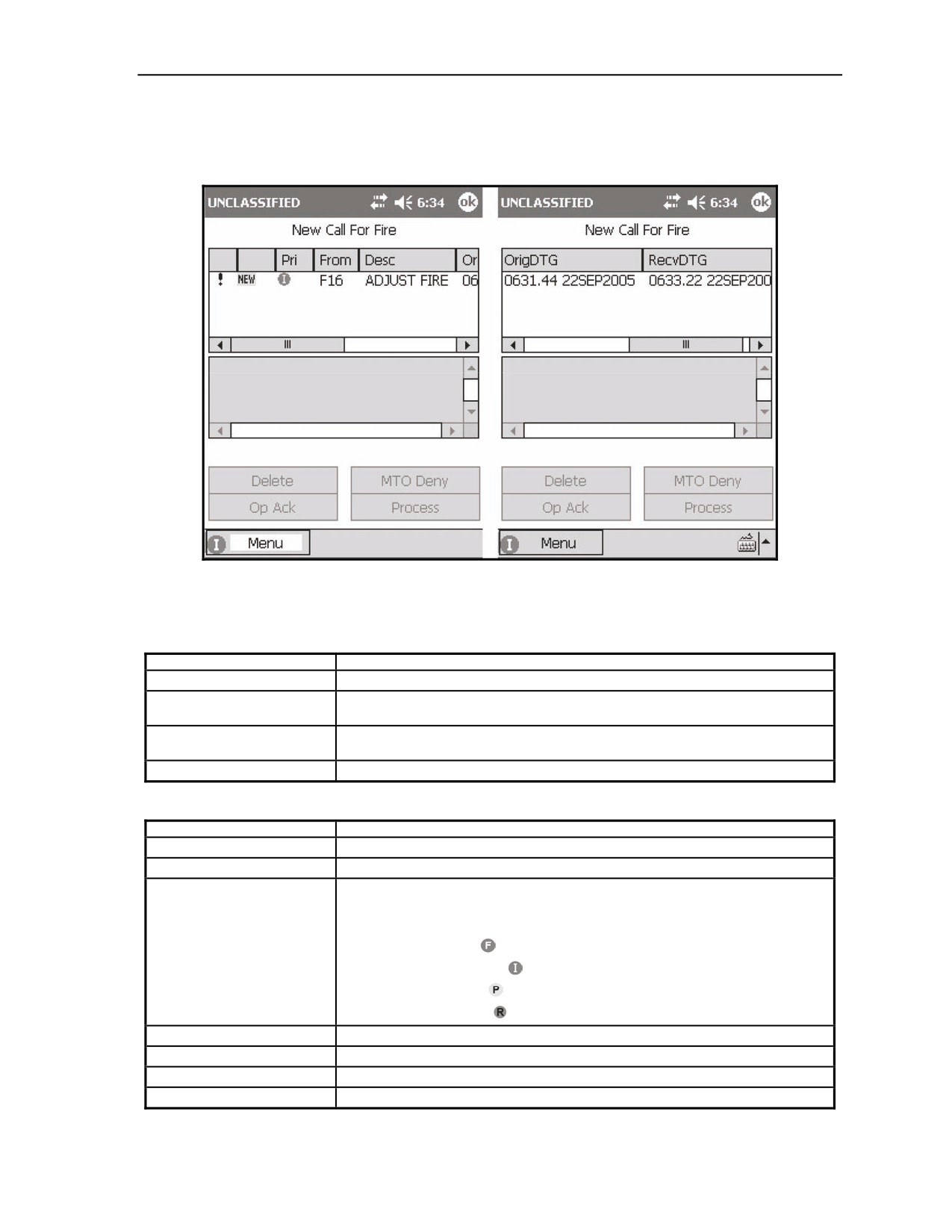
(3) The New Call For Fire screen (Figure 18-23) displays. The New Call For Fire screen is
comprised of four control buttons (Table 18-8), the Message window and its seven fields (Table
18-9), and the Message Log window.
Figure 18-23. Digital Fire Mission: New Call For Fire screen.
Table 18-8. Digital Fire Mission: New Call For Fire screen control buttons
and related information.
BUTTON
RELATED INFORMATION
Delete
Delete button allows for the manual deletion of messages.
Operator Acknowledge
OpAck button acknowledges receipt of the MTO.
(OpAck)
Message to the Observer Deny
MTO Deny button sends an MTO that the mission must be denied.
(MTO Deny)
Process
Process button is used to accept and process the mission.
Table 18-9. Digital Fire Mission: Message box fields and purposes.
FIELD
PURPOSE
Unlabelled
This field serves as a message indicator.
Unlabelled
This field serves as a message status.
Pri
This field lists the priority of the message received.
The priorities are (in order of precedence)—
•
Flash Priority (
).
•
Immediate Priority (
).
•
Priority Priority (
).
•
Routine Priority (
).
From
This field identifies the sending unit.
Desc
This field identifies the type of mission.
OrigDTG
This field notes the date and time group of the sending unit’s transmission.
RecvDTG
This field notes the date and time group of the receiving unit upon receipt.
17 July 2008
FM 3-22.91
18-23
Chapter 18
(4) Select a message from the Message window to view the message.
(5) The message displays in the Message Log window.
(6) If the mission is acceptable, record this information on DA Form 2399-R.
(7) Select OpAck.
NOTE: An exclamation point displays next to the mission
(Figure
18-23) until it is
acknowledged by selecting OpAck. This action also disables the audio alarm if the alarm is set
to ON.
(8) Select Process.
NOTE: The
icon displays to the left of the message until it has been processed
(Figure 18-23).
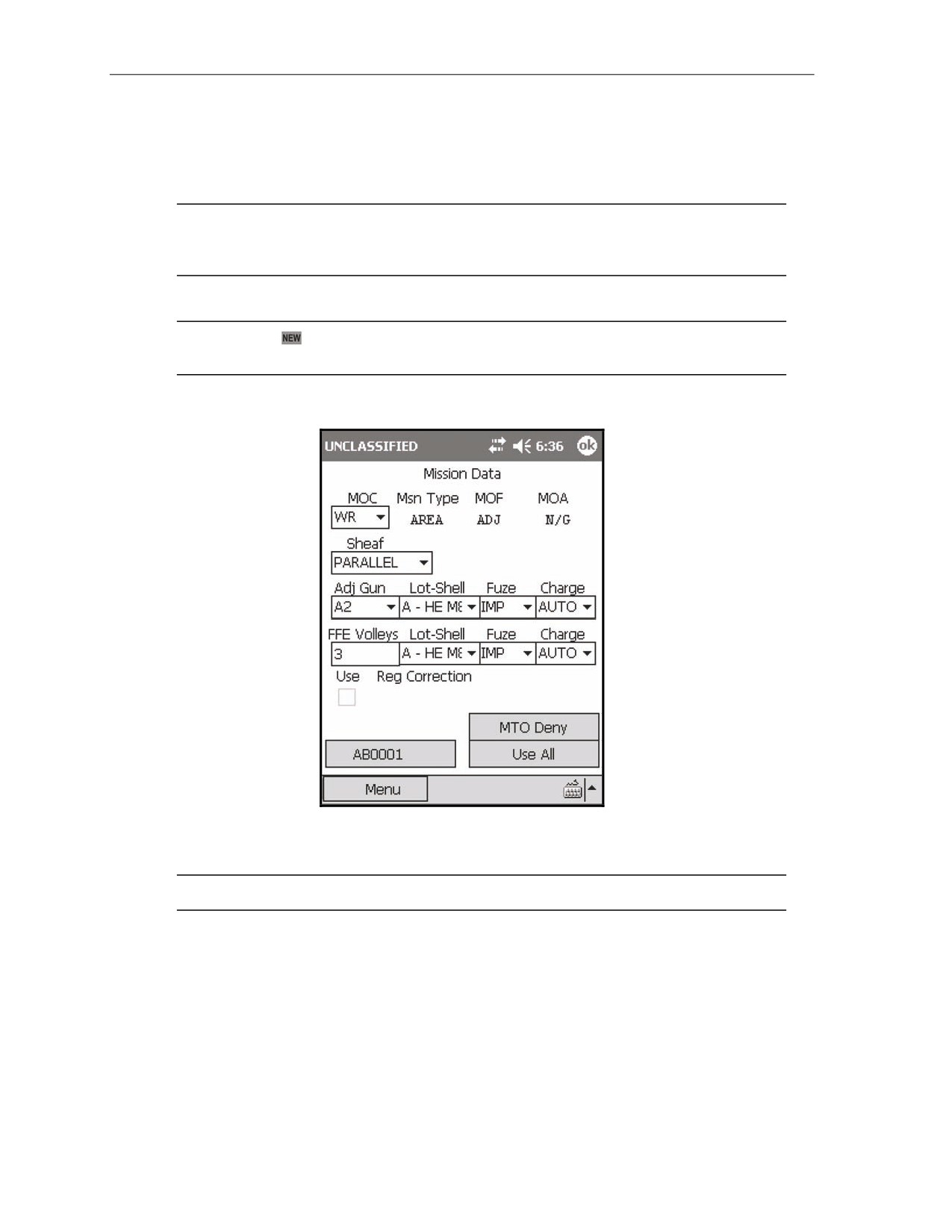
(9) The Mission Data screen (Figure 18-24) displays.
Figure 18-24. Digital Fire Mission: Mission Data screen.
(10) Review the Mission Data screen to ensure that all of the information is correct.
NOTE: Use the MTO Deny control button to send an MTO if the mission cannot be fired.
(11) If the data is correct, select Use All.
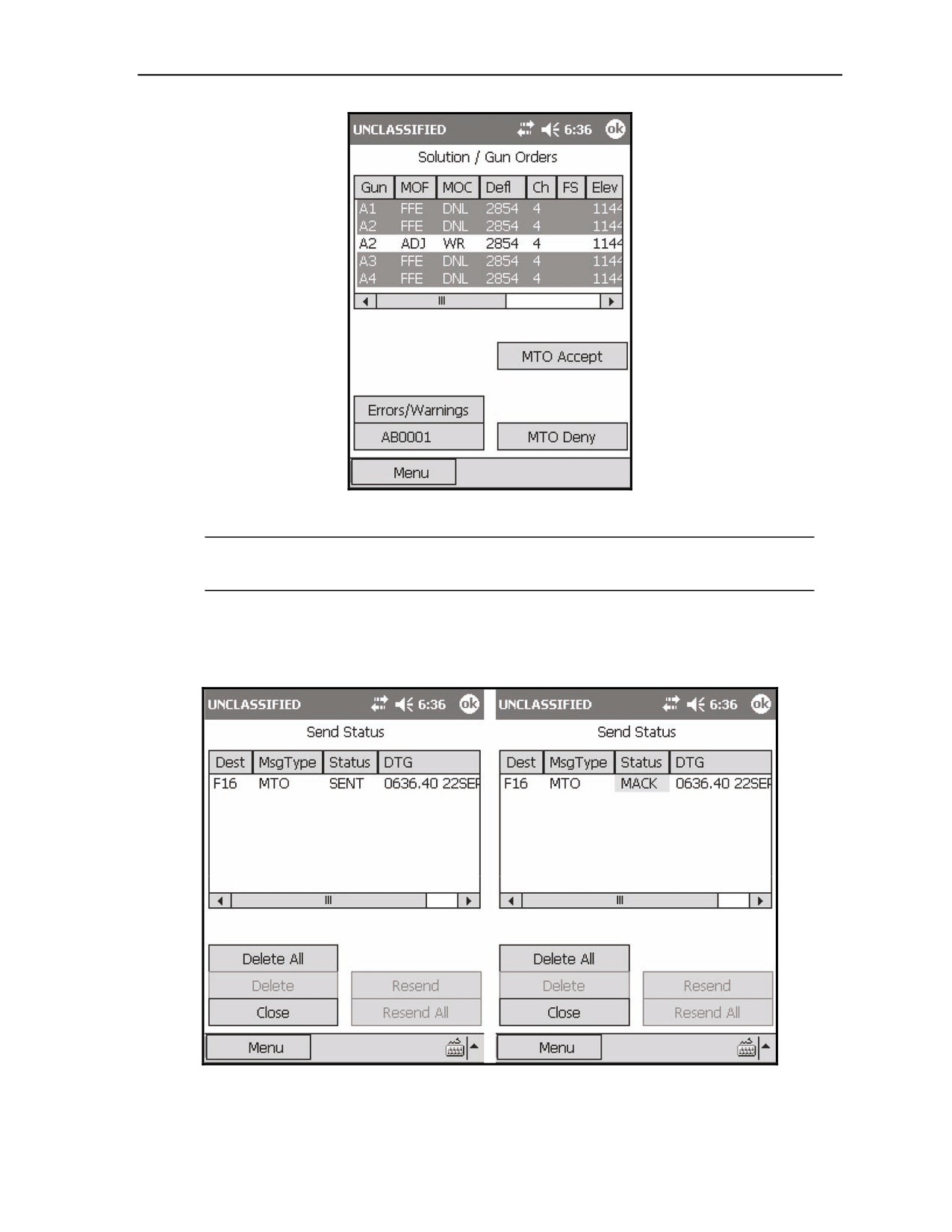
(12) The Solution/Gun Orders screen (Figure 18-25) displays.
18-24
FM 3-22.91
17 July 2008
Fire Missions
Figure 18-25. Digital Fire Mission: Solution/Gun Orders screen.
NOTE: If an Errors and Warning screen displays, correct any solution errors or warnings. If
the errors or warnings cannot be corrected, select MTO Deny.
(13) If there are no Errors or Warnings, record the gun and safety data on DA Form 2399-R.
(14) Select MTO Accept.
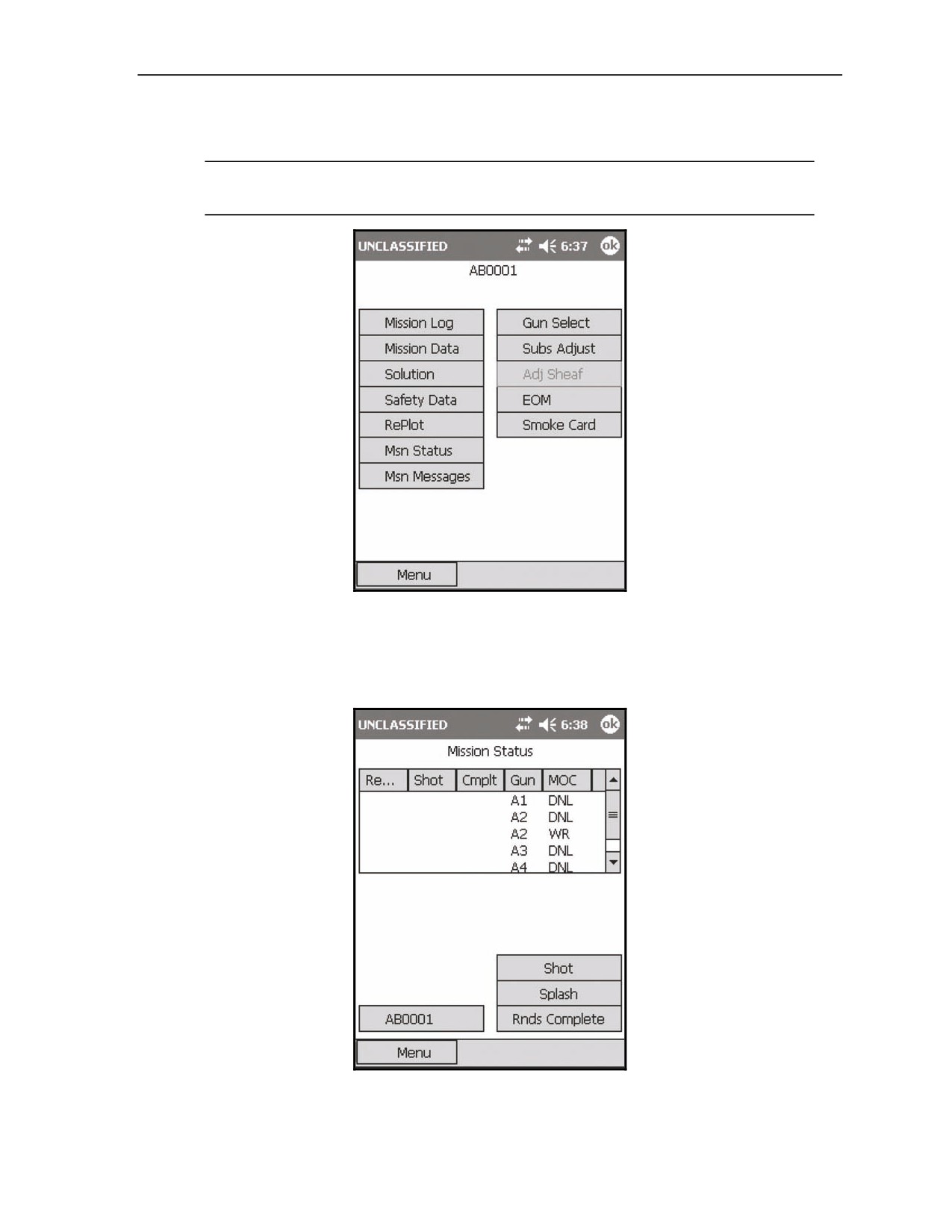
(15) The Send Status screen (Figure 18-26) displays.
Figure 18-26. Digital Fire Mission: Message Send Status screens.
17 July 2008
FM 3-22.91
18-25

Chapter 18
(16) Review the information in the four fields displayed in the Message window (Table 18-10).
Table 18-10. Digital Fire Mission: Send Status screen Message window fields and purposes.
FIELD
PURPOSE
Destination (Dest)
This field displays the unit ID of the recipient.
Message Type (Msg Type)
This field displays the category of message.
The message categories include—
•
MTO.
•
PTM.
•
FUC (Fire Unit Center).
•
AMMO - INV.
•
OBS NOTIFICATION.
Status
This field displays the status of the message transmittal.
The statuses include—
•
SENT - The message has been received, but has not been read (Figure 18-
26).
•
MACK (Machine Acknowledgement) - The message has been received and
read (Figure 18-26).
•
RETRY - The message is being resent. The LHMBC will attempt to resend
the message twice before displaying a fault status of FAILED.
•
FAILED - The message failed to reach the intended unit. To resend the
message, select it in the Message window, and then select RETRY.
•
QUEUED - The LHMBC will attempt to send the message after the currently
transmitting message has been sent or fails.
Date and Time Group (DTG)
This field displays the date and time group of the message transmission.
(17) Select Close.
(18) The Solution/Gun Orders screen displays.
18-26
FM 3-22.91
17 July 2008
Fire Missions
(19) Select the <Target> button.
(20) The <Target> screen (Figure 18-27) displays.
NOTE: When operating in the digital mode, the <Target> screen displays two additional
control buttons, Msn Status and Msn Messages (Figure 18-27).
Figure 18-27. Digital Fire Mission: <Target> screen.
(21) Select the Msn Status button.
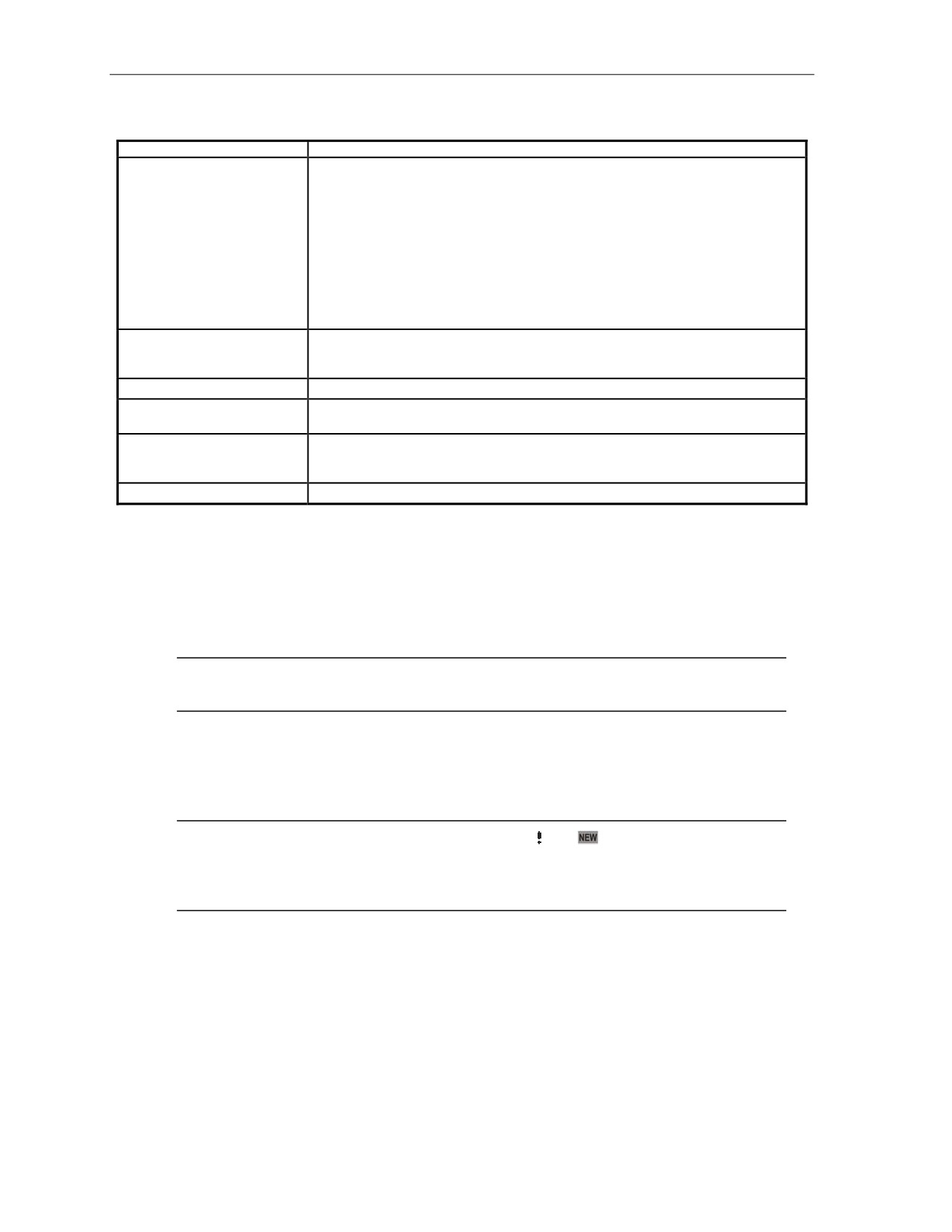
(22) The Mission Status screen (Figure 18-28) displays. The Mission Status screen is only available for
digital messaging. This screen contains a Status window and five control buttons (Table 18-11).
Figure 18-28. Digital Fire Mission: Mission Status screen.
17 July 2008
FM 3-22.91
18-27
Chapter 18
Table 18-11. Digital Fire Mission: Mission Status screen fields and buttons, and purposes.
FIELD/BUTTON
PURPOSE
Status window
The Status Window contains a list of guns active in the mission with four additional
fields:
•
Ready - This field displays a green checkmark when the guns have been
reported ready, when the MOC is AMC, or after Shot or Rounds Complete
has been transmitted.
•
Shot - This field displays a green checkmark when the Shot has been
transmitted.
•
Cmplt - This field displays a green checkmark when Rounds Complete has
been sent.
•
Method of Control - This field displays the MOC for each solution calculated.
Shot button
When selected, this button sends a message to the FO that shots were fired, and the
shot clock begins to count down from the time of flight to 0. When the countdown
reaches the predefined splash time, splash is transmitted to the FO automatically.
Splash button
This button sends a splash message to the FO without displaying the shot clock.
Rounds Complete button
This button calculates the number of rounds fired during the mission. It is used after the
(Rnds Complete)
FFE is complete and notifies the observer that the last round has been fired.
Ready button
This button displays only when the MOC is AMC. When all guns are up and ready to
fire, selecting this button will notify the FO that the section is ready to fire. A green
checkmark appears in the Ready column of all guns active in the mission.
<Target> button
This button displays the <Target> screen.
(23) After sending a message to the FO by selecting one of the mission status buttons, select OK in
the call box that displays.
(24) The Send Status screen displays.
(25) The Send Status screen now displays the message and its current status.
(26) Select the Close control button.
(27) The Mission Status screen displays.
NOTE: The Ready and Shot fields both display a green checkmark for the guns used during
this shot.
(28) Select the <Target> button.
(29) The <Target> screen displays.
(30) Select the Msn Messages button to await the first/next adjustment.
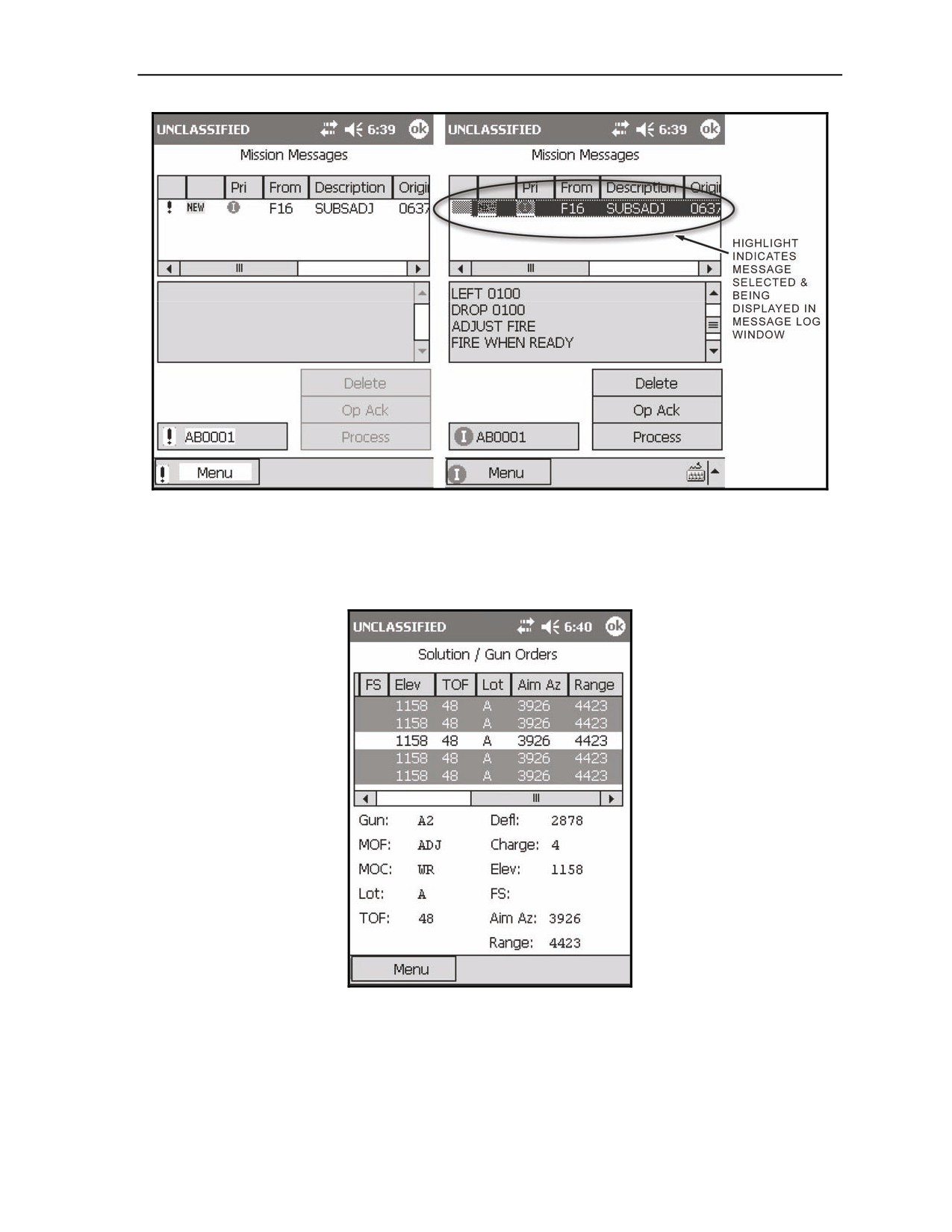
(31) The Mission Messages screen (Figure 18-29) displays.
NOTE: The Mission Messages screen will display the and
icons in the same manner as
the New Call For Fire screen (Figure 18-23). The two screens are essentially the same, except
that the MTO Deny button of the New Call For Fire screen has been replaced with the <Target>
command button to return to the <Target> screen.
18-28
FM 3-22.91
17 July 2008
Fire Missions
Figure 18-29. Digital Fire Mission: Mission Messages screens.
(32) Review and record this information as described for the New Call For Fire screen.
(33) Select Process.
(34) The Solution/Gun Orders screen (Figure 18-30) displays.
Figure 18-30. Digital Fire Mission: first adjustment.
(35) Record all information from the Solution/Gun Orders screen on DA Form 2399-R.
(36) Select the <Target> control button.
(37) The Target screen displays.
(38) Select Msn Status.
17 July 2008
FM 3-22.91
18-29
Chapter 18
(39) Select Shot to transmit the shot to the FO.
(40) Select OK when the shot confirmation call box appears.
(41) The Send Status screen displays.
(42) Confirm the information displayed.
(43) Select the Close control button.
(44) Continue to process the mission as described in the steps above.
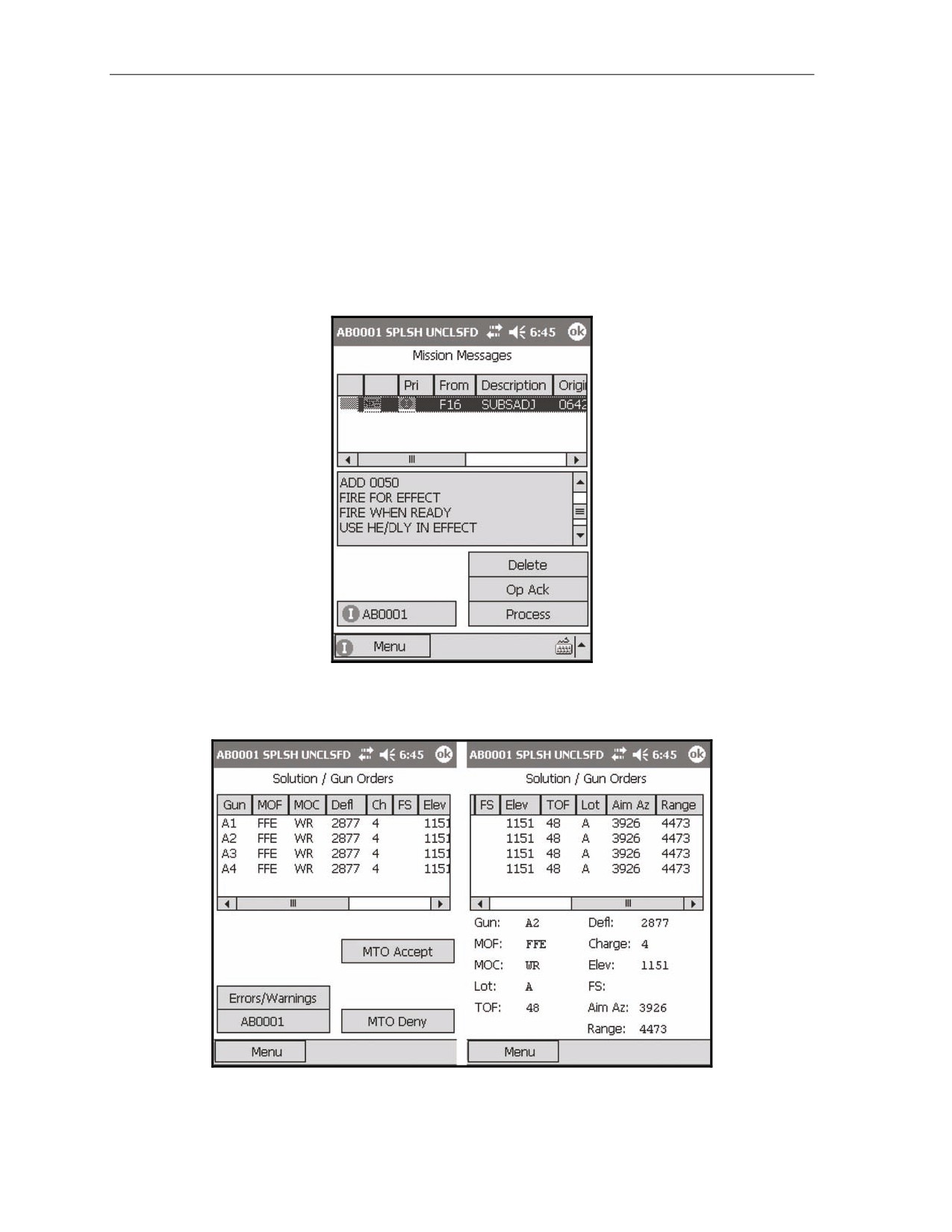
(45) When the FO transmits the final adjustment (Figure 18-31) and requests an FFE, review and
record the message.
(46) Select Process.
Figure 18-31. Digital Fire Mission: final adjustment.
(47) The Solution/Gun Orders screen (Figure 18-32) displays.
Figure 18-32. Digital Fire Mission: Fire for Effect Solution screen.
18-30
FM 3-22.91
17 July 2008
Fire Missions
NOTE: When the MOF is FFE, the LHMBC displays data for each gun. In Figure 18-32, the
sheaf is parallel so all solutions are the same. In all other instances, each gun will have unique
data.
(48) Review and record the data.
(49) Select MTO Accept.
(50) Select the <Target> control button.
(51) The <Target> screen displays.
(52) Select the Msn Status button.
(53) Select Shot.
(54) When the call box displays, select OK to notify the observer that the first round has been fired.
(55) The Send Status screen displays.
NOTE: The message and its current status are listed.
(56) Navigate to the Mission Status screen.
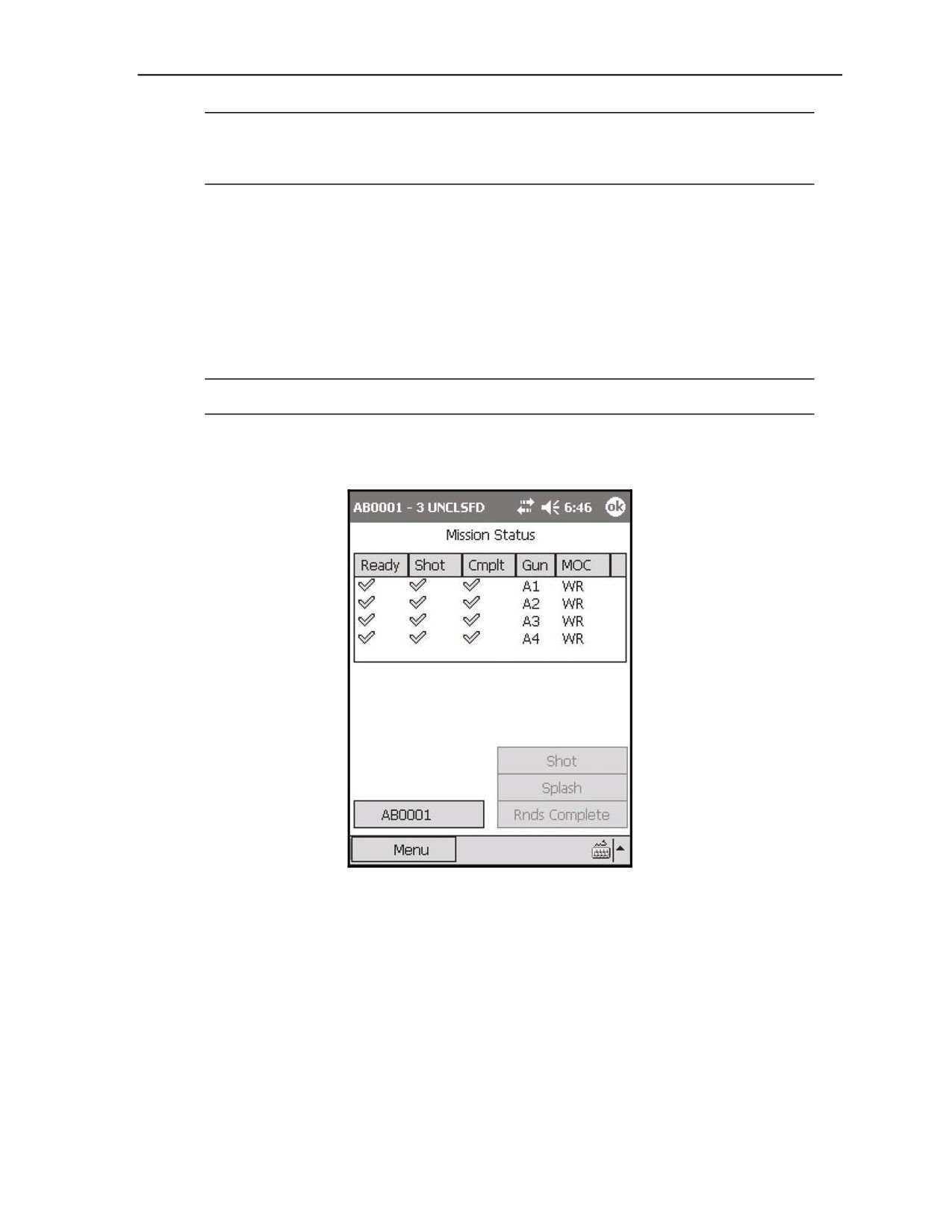
(57) When the last round has been fired, select Rnds Complete (Figure 18-33).
Figure 18-33. Digital Fire Mission: selecting Rnds Complete.
(58) Select the <Target> control button.
(59) The <Target> screen displays.
(60) Select the Msn Message button.
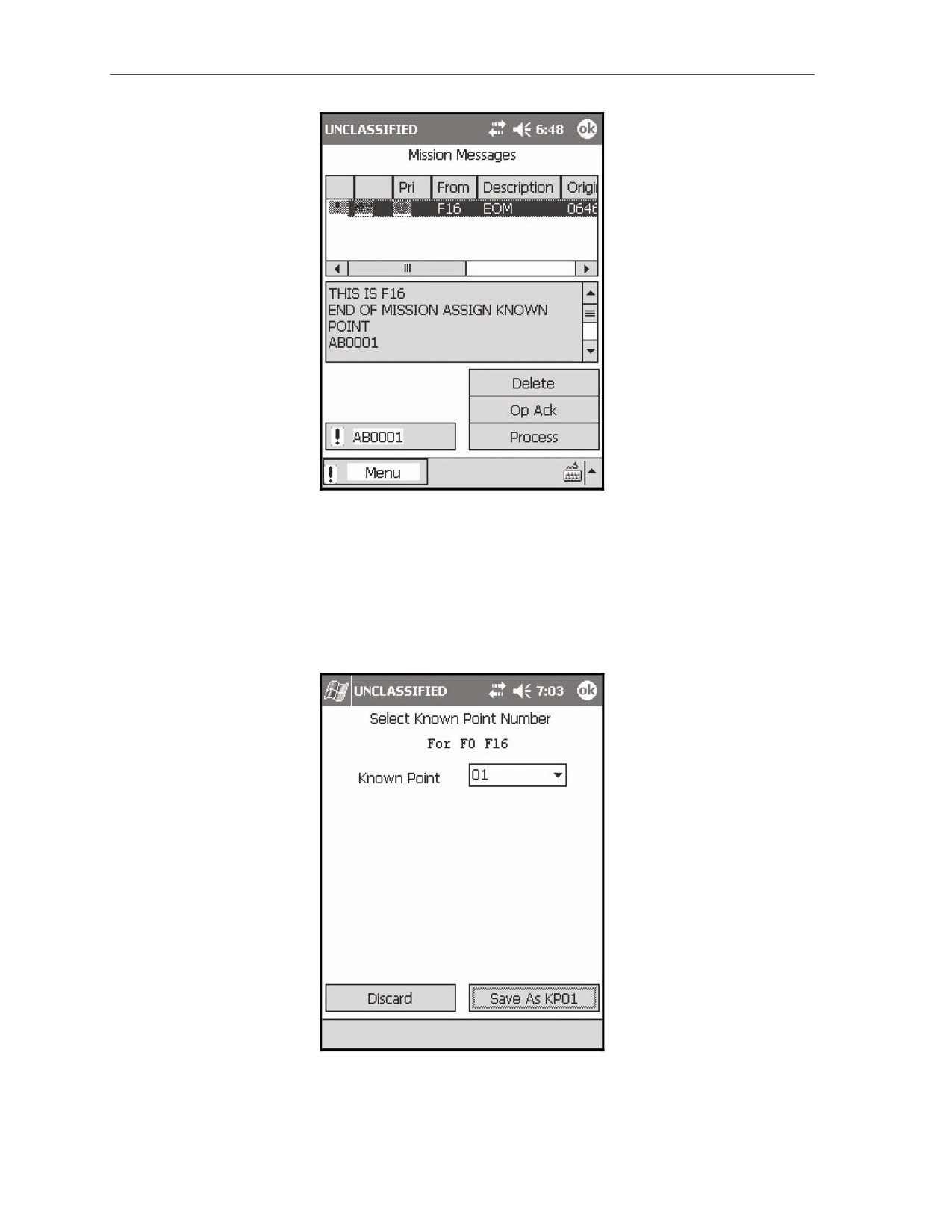
(61) The Msn Message screen (Figure 18-34) displays. The screen shot on the left depicts the
mission message before it is acknowledged. The screen shot on the right depicts the mission
message after it is acknowledged.
17 July 2008
FM 3-22.91
18-31
Chapter 18
Figure 18-34. Digital Fire Mission: end of mission message.
(62) Await the next message.
(63) Select the message to review it.
(64) Select OpAck to acknowledge receipt of the message and turn off the audio alarm.
(65) Select the message again.
(66) Select Process.
(67) The Select Known Point Number screen displays (Figure 18-35).
Figure 18-35. Digital Fire Mission: Select Known Point Number screen.
18-32
FM 3-22.91
17 July 2008
Fire Missions
(68) From the pull-down menu, select a known point to save (Save as KP [number of known point])
or discard (Discard). Select the Save As KP# control button.
NOTES:
1. The Known Point pull-down menu displays a list of known point numbers,
defaulting to the next available known point number.
2. Known point numbers that are in use display "In Use" next to the known point
number. If the operator picks a known point number that is currently in use, the
previously stored data for that number will be overwritten, and the Save As KP#
control button will read Overwrite KP#.
3. If Discard is tapped, the Status screen will be displayed without recording the
known point data.
(69) The Ammunition Expended screen displays. The Ammunition Expended screen enables the
operator to view and edit the number of rounds that have been expended by each gun used in the
active mission.
NOTE: The ammunition is displayed as a number of rounds used of each lot (by alpha
number).
(70) To increase or decrease the number of rounds per gun, select the gun number, and then use the
plus and minus signs to adjust the number of rounds for the selected gun.
NOTE: If Cancel is selected, the message “Ammo expended for mission must be adjusted
manually in inventory” displays.
(71) Select Use All. The ammunition inventory will be updated accordingly.
(72) The Status screen displays.
(73) Update DA Form 2188-R using the information listed on DA Form 2399-R. Verify that the
ammunition amounts are correct and that the proper target numbers have been assigned.
SECTION III. SPECIAL MISSIONS
In addition to the basic fire missions covered in the previous section, the LHMBC includes special missions that
allow the mortar section to correct for interior/exterior ballistic variances and engage unique targets. Depending
upon the method of target location, each special mission is available from the Mission Type pull-down menu on
the Mission screen. These missions are—
z
Registration.
z
Illumination.
z
Coordinated illumination.
z
FPF.
z
Smoke.
z
Search and traverse.
17 July 2008
FM 3-22.91
18-33
Chapter 18
REGISTRATION MISSIONS
18-15. If time and the tactical situation permit, registration will be the first mission fired. A registration
mission requires surveyed target and mortar positions. It follows the steps of a normal grid mission until
the FFE stage.
NOTES:
1. For a complete overview of registration, see Chapter 14.
2. This chapter illustrates an LHMBC manual registration mission.
(1) Select Menu.
(2) Select Manual Missions.
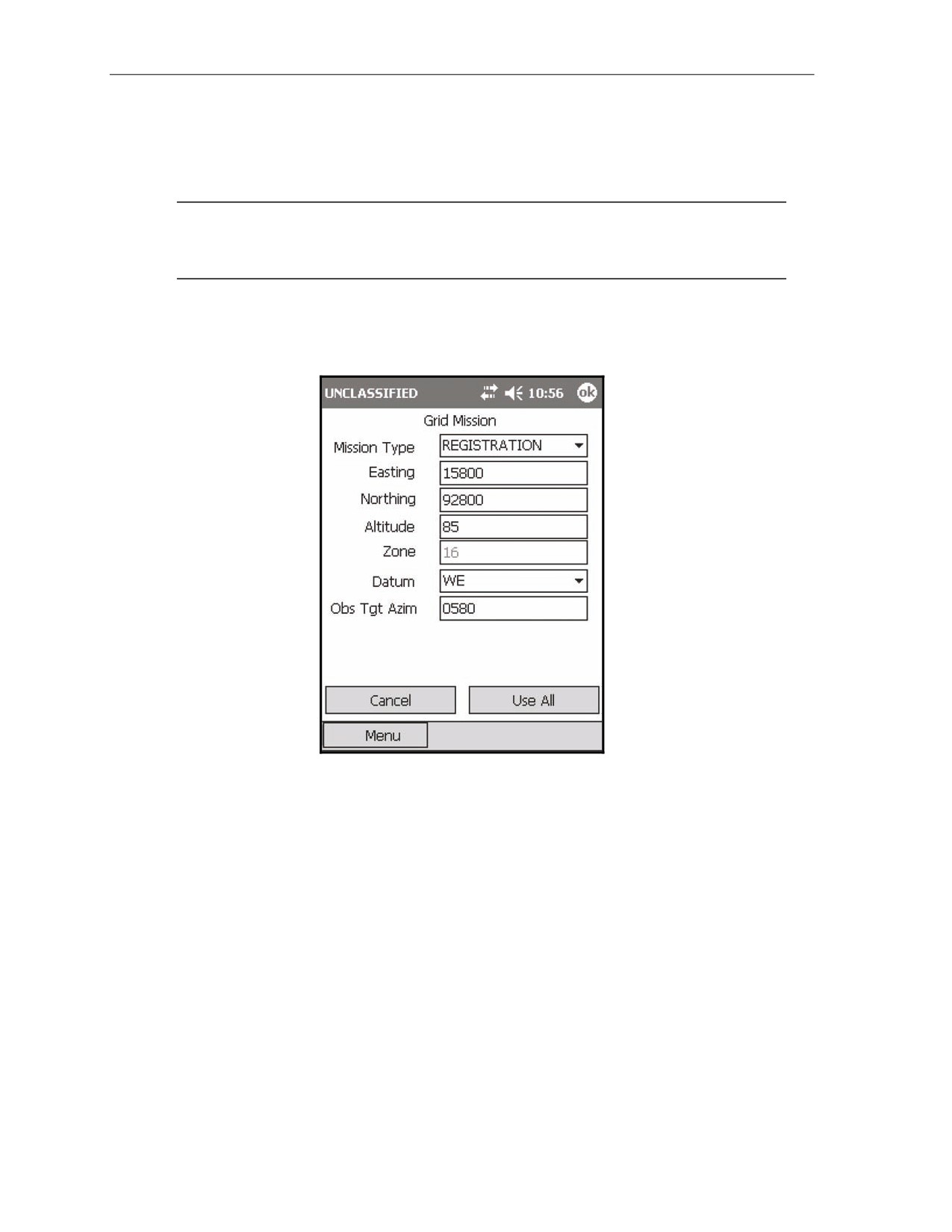
(3) Select Grid Msn. The Grid Mission screen (Figure 18-36) displays.
Figure 18-36. Registration: Mission Initialization screen.
(4) Change Mission Type from HE ADJ to REGISTRATION.
(5) Select Use All.
(6) The Mission Data screen displays.
(7) Verify that the Mission Data information is correct.
(8) If the mortar section is not set up in a linear formation, change Sheaf from PARALLEL to
LINEAR.
(9) Select Use All.
18-34
FM 3-22.91
17 July 2008
Fire Missions
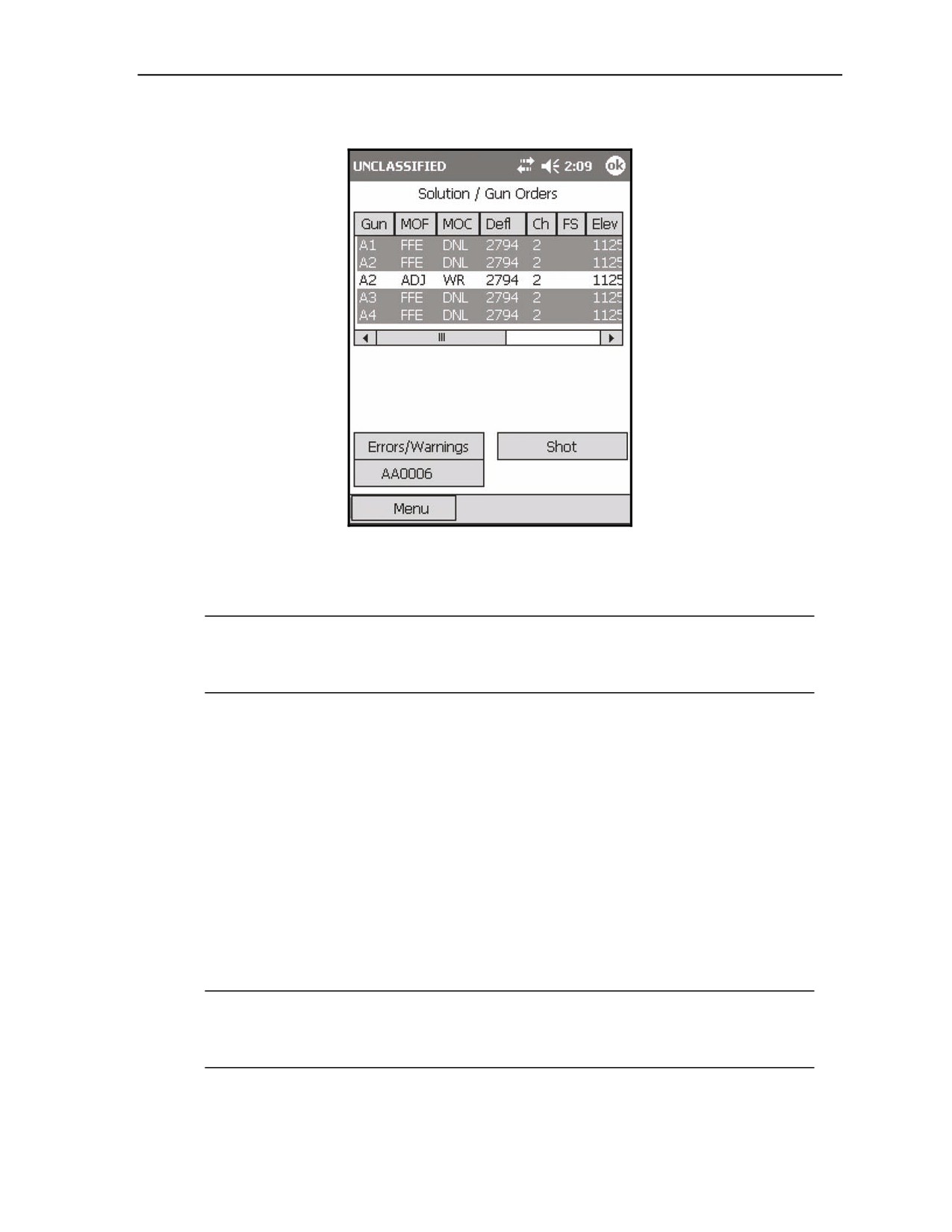
(10) The Solution/Gun Orders screen (Figure 18-37) displays.
Figure 18-37. Registration: Solution/Gun Orders screen.
(11) Select Shot.
(12) The Shot Clock displays.
NOTES:
1. The Shot Clock counts down to zero.
2. If operating digitally, the FO receives both shot and splash notifications.
(13) Select the <Target> button (AA0006 in the example).
(14) The <Target> screen displays.
(15) Enter corrections by selecting Subs Adjust.
(16) The Subsequent Adjust screen displays.
(17) Make the appropriate adjustments using the Left, Right, Add, Drop, Up, and Down buttons in
the Meters field.
(18) Select Use All.
(19) The Solution/Gun Order screen displays.
(20) Continue adjusting in this manner until the adjusting gun is adjusted.
(21) When the adjusting gun is adjusted, change the MOF field to FFE.
(22) Select Use All.
(23) The Solution/Gun Order screen displays.
(24) Record the Solution/Gun Orders Data.
NOTES:
1. If corrections exceed 50 meters (deviation left or right only), the mortar must be refired.
2. Range corrections are ignored if they are less than 50 meters.
(25) Enter the appropriate information in the proper fields on DA Form 2399-R.
17 July 2008
FM 3-22.91
18-35
Chapter 18
EXAMPLE
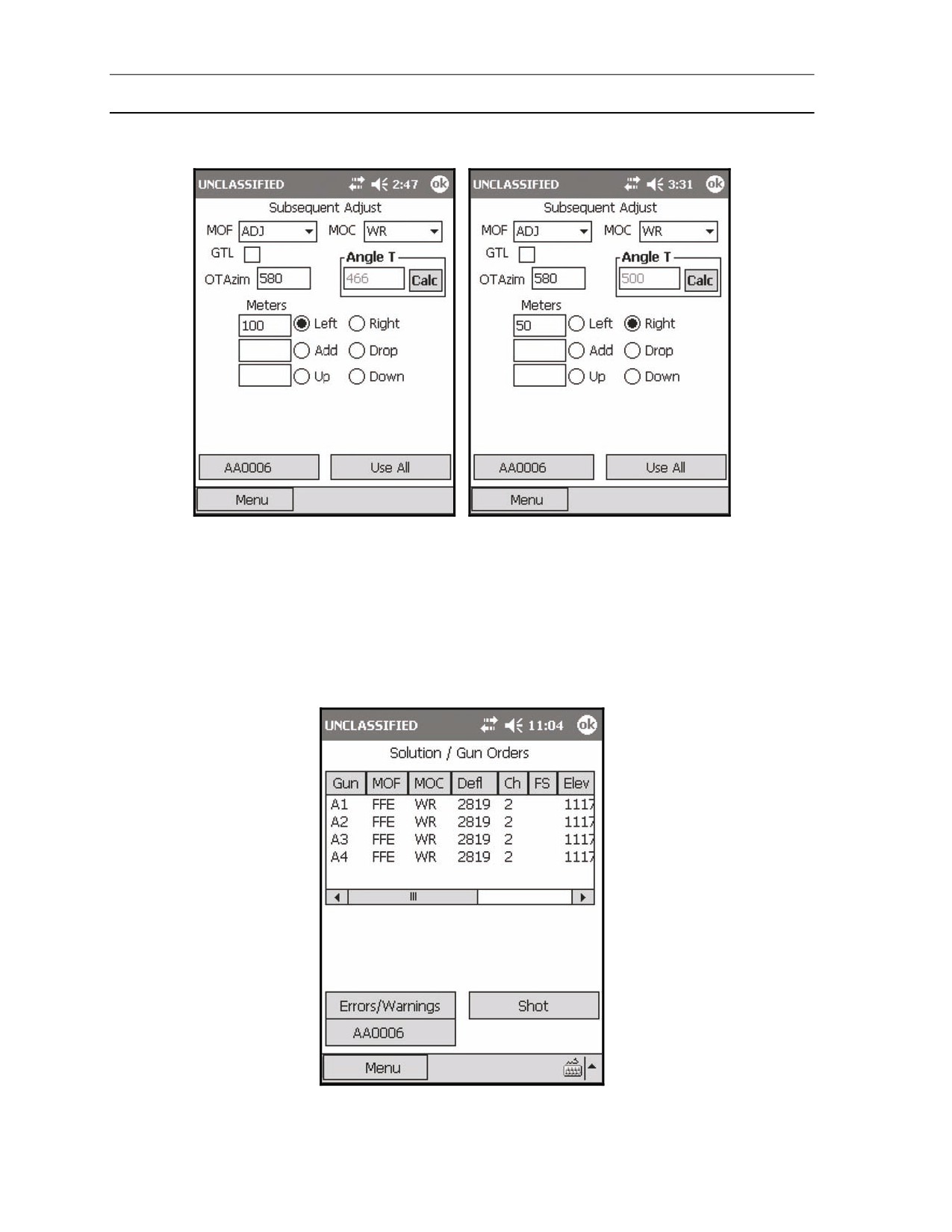
FO Call: Left 100 (Figure 18-38).
FO Call: Right 50 (Figure 18-39).
Figure 18-38. Registration: first
Figure 18-39. Registration: second
subsequent adjustment.
subsequent adjustment.
FO Call: Left 25. Registration complete.
To enter the fire for effect stage, MOF must be changed to FFE. As an example—
(1) From the Subs Adjust screen, change MOF to FFE and input Add 25.
(2) Select Use All.
(3) The Solution/Gun Order screen displays (Figure 18-40).
Figure 18-40. Registration: Fire For Effect Solution screen.
18-36
FM 3-22.91
17 July 2008
Fire Missions
(4) Record the Solution/Gun Orders data.
NOTE: A2’s last deviation correction was "left 25." This gun will not fire when the sheaf
is adjusted.
(5) In the Mortar to Fire and Method of Fire columns of DA Form 2399-R, enter SEC S/R
1RD #2 DNF (Section - Section Right, 1 Rd, #2 Gun Do Not Fire).
NOTE: The sheaf must now be adjusted to ensure that the mortars are firing parallel to each
other. The FDC coordinates with the FO to determine the method of fire. If the FO requests, for
example, section right, the mortars will fire the sheaf, starting from the right (#1 Gun), with a set
interval (normally 5 seconds) between the rounds. If the angle T is greater than 499 mils, the
sheaf is converged, and the mortars are adjusted onto the RP.
(26) Select the <Target> button.
(27) The <Target> screen displays.
(28) Select Adj Sheaf.
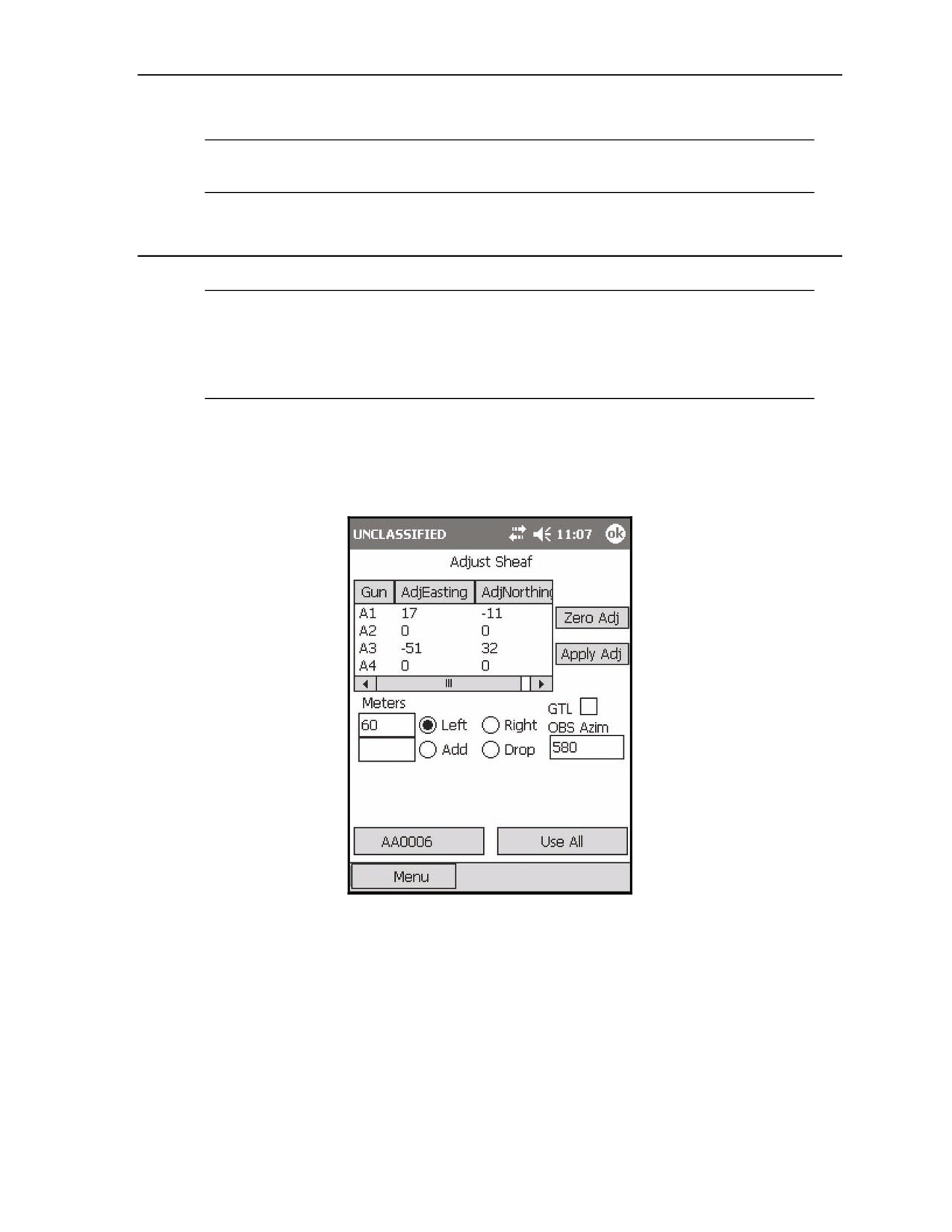
(29) The Adjust Sheaf screen (Figure 18-41) displays.
Figure 18-41. Registration: Adjust Sheaf screen.
(30) Enter the corrections for each gun, as described in the <Target> screen summary (see paragraph
18-13).
(31) Select Use All.
(32) The Mission Data screen displays.
(33) Verify the information, and select Use All.
17 July 2008
FM 3-22.91
18-37
Chapter 18
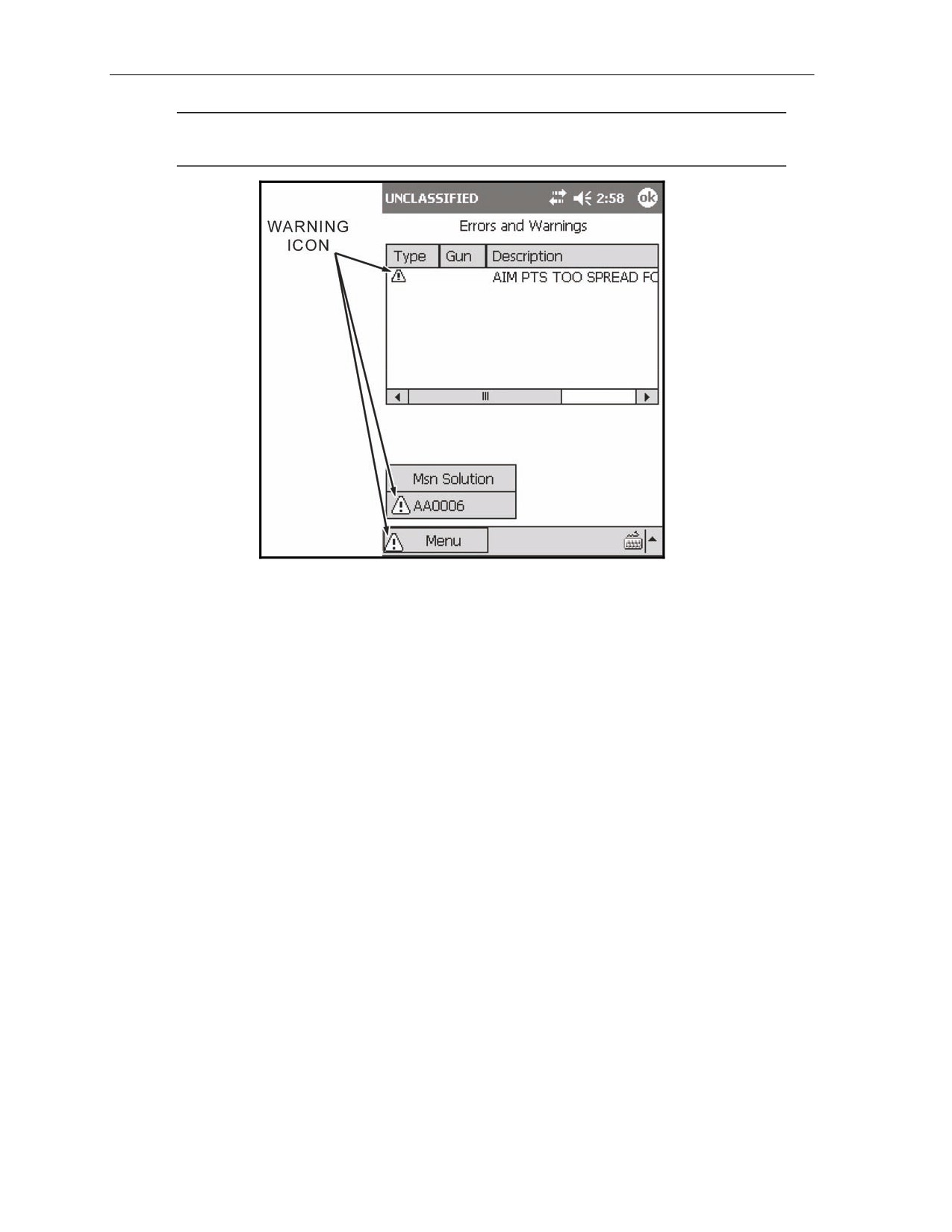
NOTE: A warning (Figure 18-42) displays if the calculated impact point of the guns does not
conform to the requirements of a linear sheaf. This message is normal.
Figure 18-42. Registration: Error and Warnings screen.
(34) Select Msn Solution.
(35) The Solution/Gun Orders screen displays, and the firing data is recorded.
(36) Announce new data, such as deflections and methods of fire.
(37) If the adjustment is more than 50 meters, the mortar must be refired.
(38) Select Shot.
(39) Select the <Target> button.
(40) The <Target> screen displays.
(41) Select EOM.
(42) Select Discard, or if the RP is to be recorded as a known point, select EOM - Record as Known
Point.
(43) Select the controlling FO from the pull-down menu.
(44) Select Use All.
18-38
FM 3-22.91
17 July 2008
Fire Missions
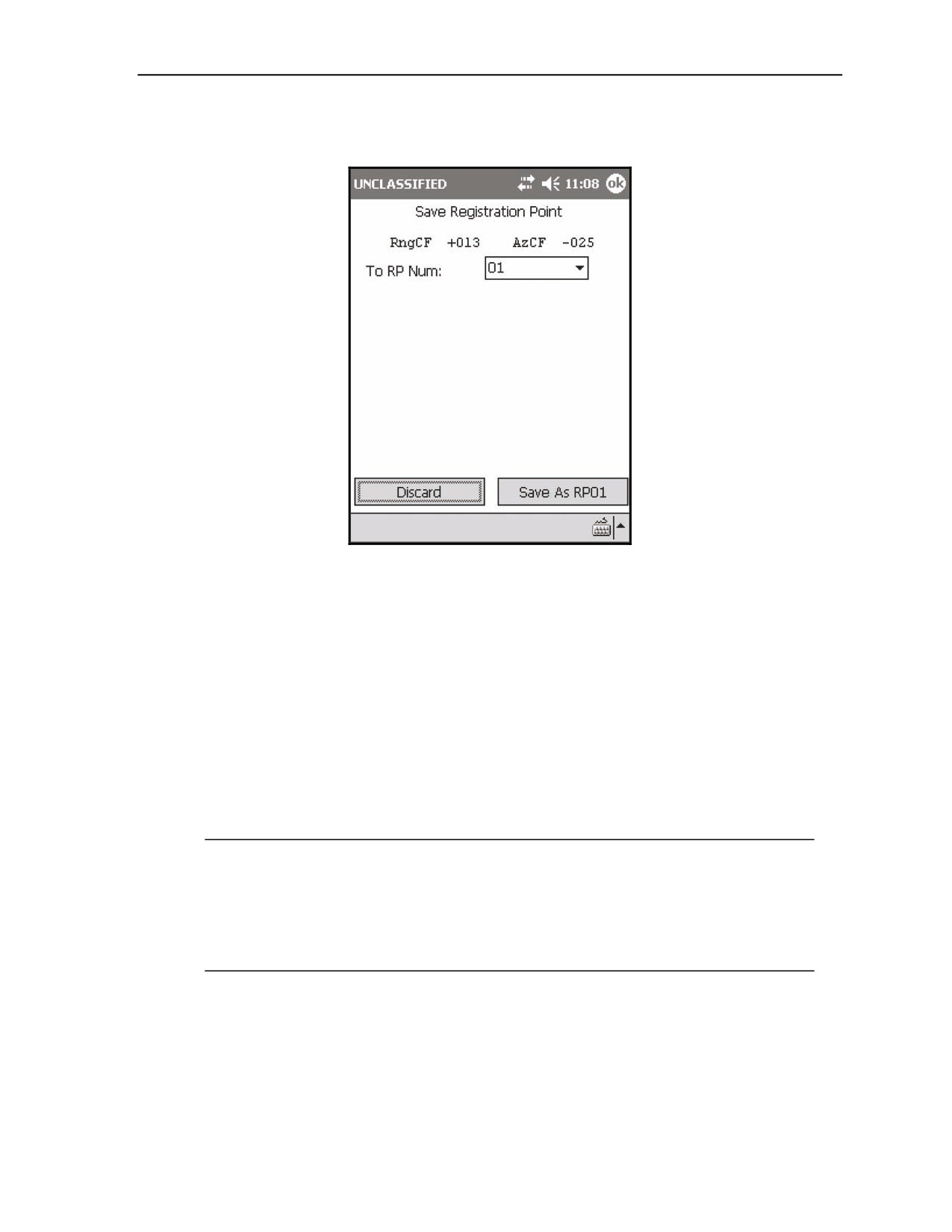
(45) The Save Registration Point screen (Figure 18-43) displays. This screen displays the range
correction factor (RngCF) and the azimuth correction factor (AzCF).
Figure 18-43. Registration: Save Registration Point screen.
(46) Record this information on DA Form 2399-R.
(47) Select Save As RP01.
(48) The Ammunition Expended screen displays.
(49) Ensure that the number of rounds expended for each gun is correct.
(50) Select Use All.
(51) The Status screen displays.
(52) Update DA Form 2188-1-R accordingly.
ILLUMINATION MISSIONS
18-16. Illumination missions are used to reveal the location of enemy forces hidden by the cover of
darkness. Digital missions are processed as described in Section II, with the addition of fuze time settings
and vertical adjustments (up or down) as listed in this section.
NOTES:
1. A mark time must be recorded for illumination, and is discussed in detail in the
example.
2. This paragraph uses a grid mission to illustrate the process of receiving,
adjusting, saving, and firing an illumination mission. Missions using polar plots
or shifts from a known point are conducted in the same way.
18-17. Upon receipt of a CFF, record the information and initiate the illumination mission using the
following procedures:
(1) Select Menu.
(2) Select Manual Missions.
(3) Select Grid Msn.
17 July 2008
FM 3-22.91
18-39
Chapter 18
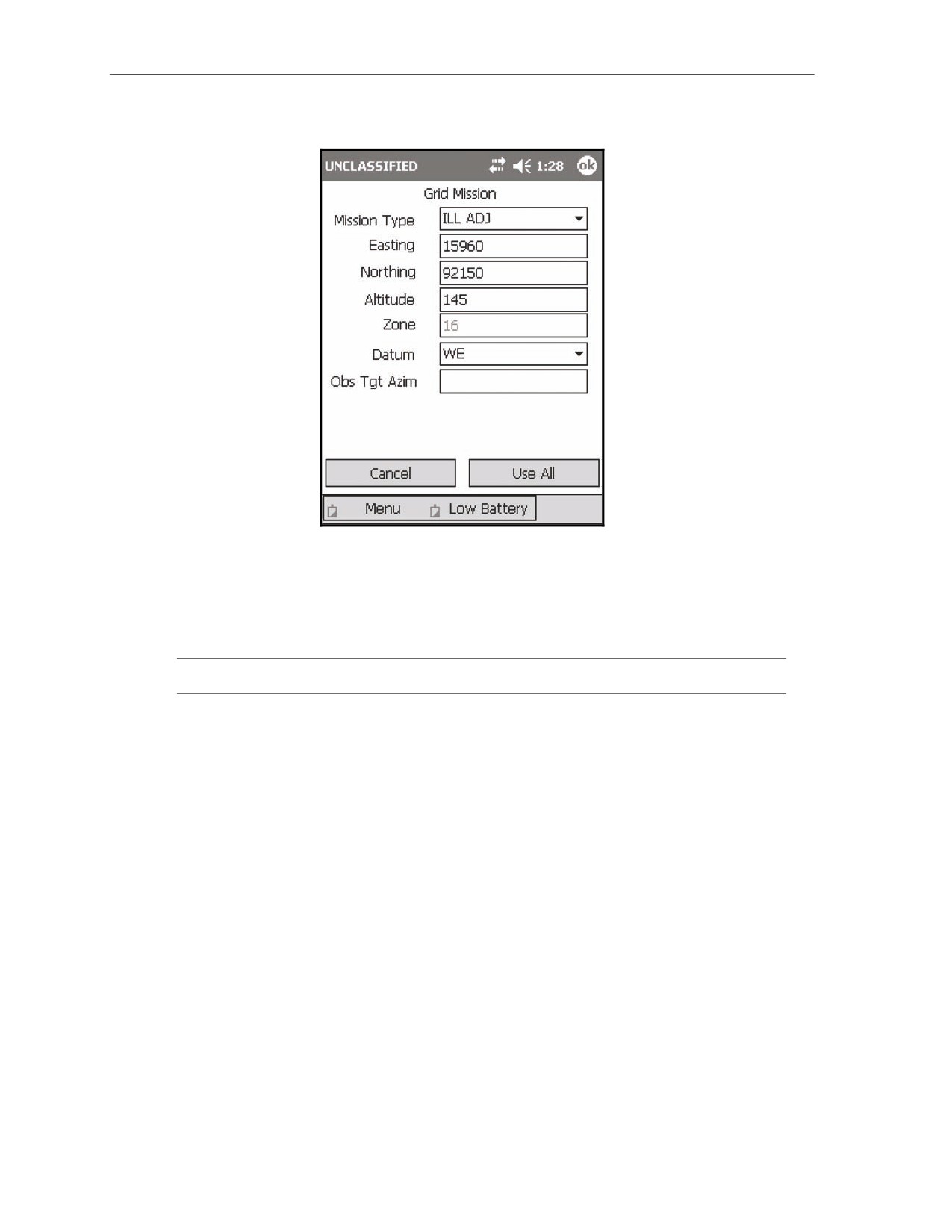
(4) The Grid Mission screen (Figure 18-44) displays.
Figure 18-44. Illumination: Mission Initialization screen.
(5) Fill out this screen as described in paragraph 18-2. The mission type will be Ill Adj.
(6) Select Use All.
(7) The Mission Data screen is displayed.
(8) Set the Sheaf field to the number of guns firing the illumination mission.
NOTE: The guns selected must match this number.
(9) Select Use All.
(10) The Solution/Gun Orders screen displays.
(11) Select the <Target> button.
(12) The <Target> screen displays.
(13) Select the Gun Select button.
(14) The Gun Select screen displays.
(15) Deselect guns A2, A3, and A4 by clearing the appropriate checkboxes.
(16) Select Use All.
18-40
FM 3-22.91
17 July 2008
Fire Missions
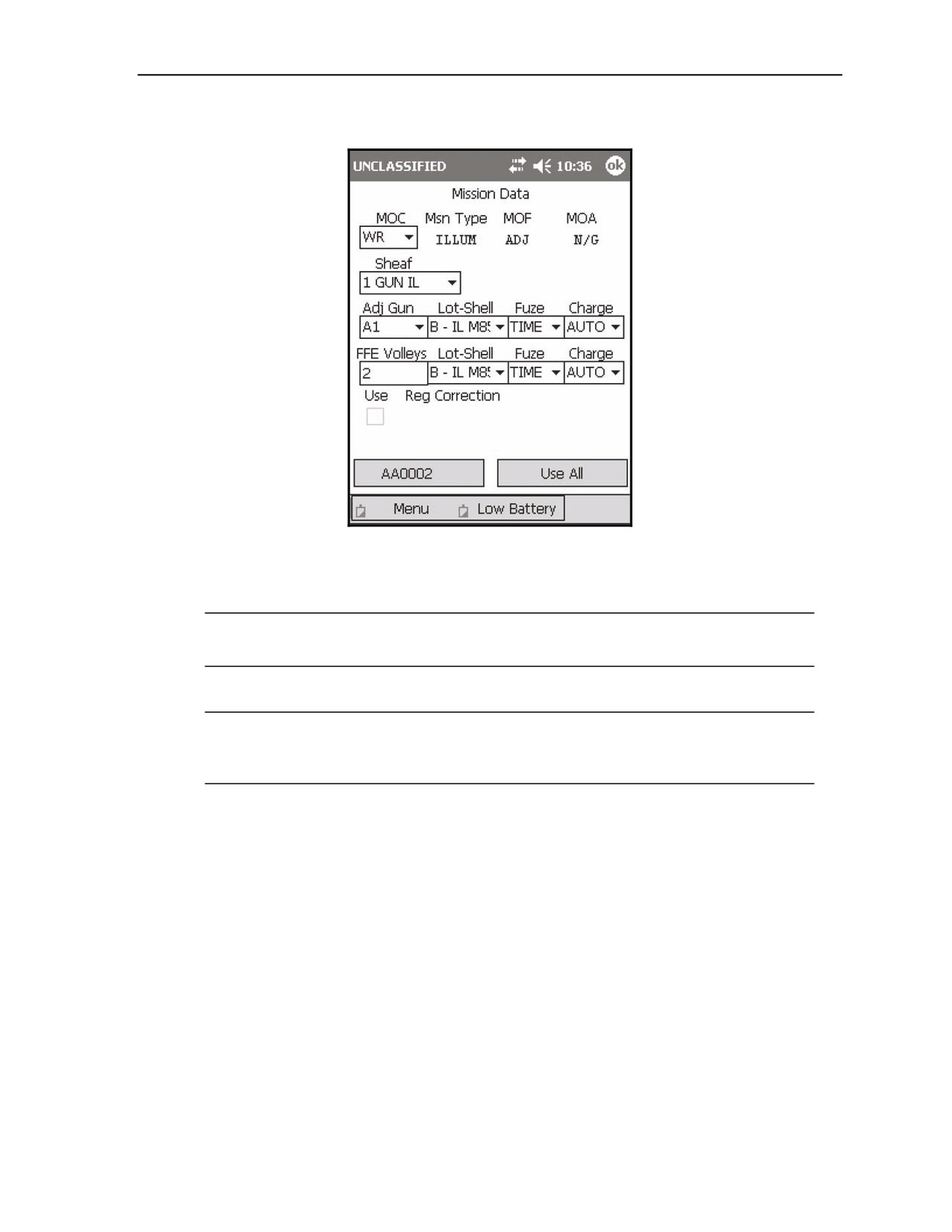
(17) The Mission Data screen displays (Figure 18-45).
Figure 18-45. Illumination: Targets screen.
(18) Choose the adjusting gun.
NOTE: Using a flank gun to fire illumination enables the normal adjusting piece to focus on
the task of engaging possible targets. For this example, we will adjust illumination with A1.
(19) Choose a type of sheaf.
NOTE: In addition to all of the normal sheaves available for HE, illumination makes use of 5
additional sheaves: 1 GUN Il, 2 GUN Il, 2 GUN L, 2 GUN R, and 4 GUN Il. The differences in
sheaves are indicated in Table 18-12.
17 July 2008
FM 3-22.91
18-41
Chapter 18
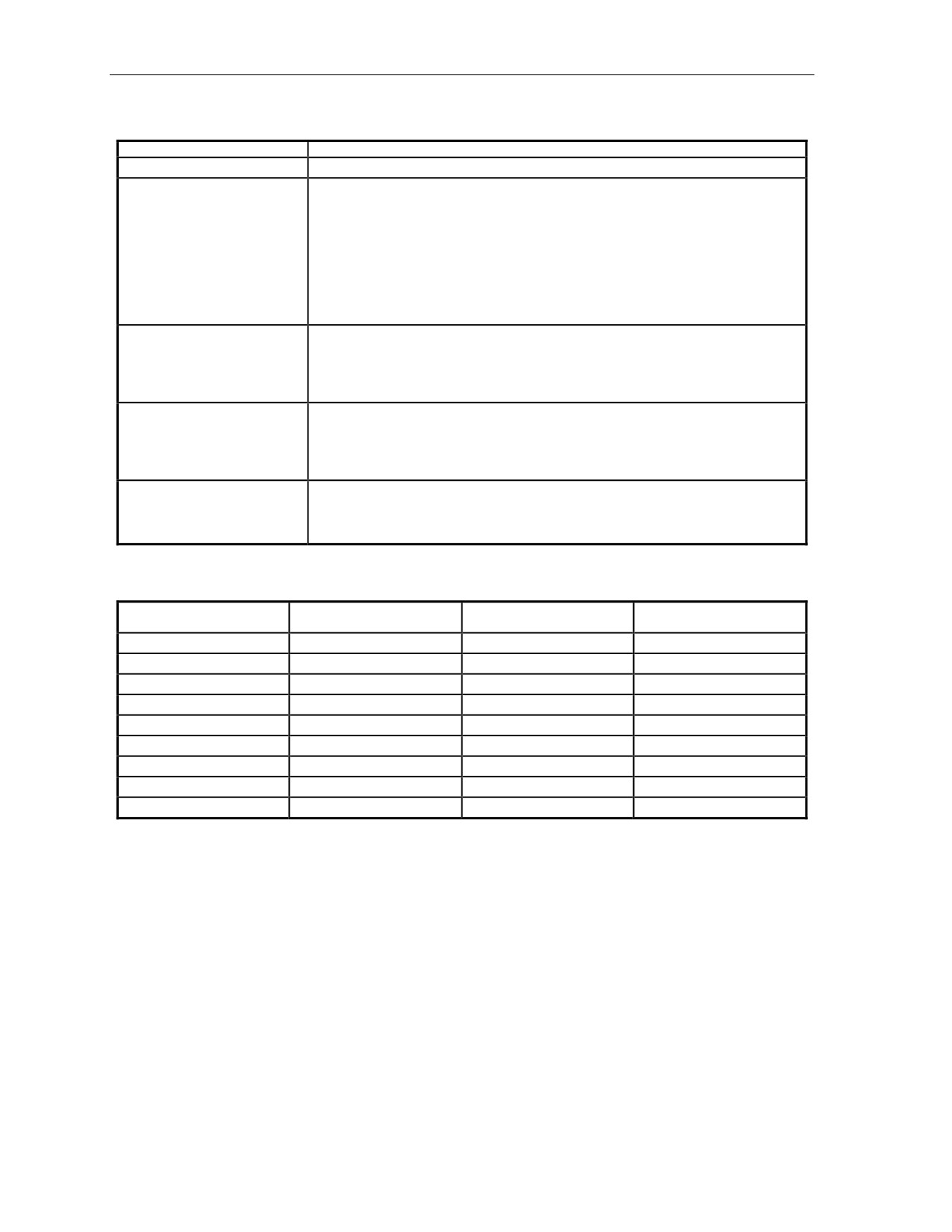
Table 18-12. Illumination: additional sheaves and related information.
BUTTON
RELATED INFORMATION
1 GUN Il
This type of sheaf utilizes one gun firing illumination rounds.
2 GUN Il
This type of sheaf utilizes two mortars to provide greater illumination for a point or area
target.
The LHMBC will provide fire orders for two guns, with calculated burst points for each
round (separated by the distances):
•
120-mm: 105 meters.
•
81-mm: 60 meters.
•
60-mm: 45 meters.
2 GUN Il L (Lateral)
This type of sheaf utilizes two mortars to provide greater illumination for a linear or area
target. The LHMBC will calculate different deflections for each gun, thus producing
illumination perpendicular to the gun-target line with the resulting calculated burst
points centered around the target location, perpendicular to the gun-target line. See
Table 18-13 for distance between rounds.
2 GUN Il R (Range)
This type of sheaf utilizes two mortars to provide greater illumination for a linear/area
target. The LHMBC will calculate different elevations for each gun, thus producing
illumination along the adjusting gun’s gun-to-target line with the resulting calculated
burst points centered around the target's location. See Table 18-13 for the distance
between rounds.
4 GUN Il
This type of sheaf utilizes four mortars to combine both range and lateral spread to
provide illumination over a large area. The flank mortars will fire the lateral spread
rounds. The two center guns will fire the near- and far-ranging rounds. The LHMBC will
select which gun fires which round, ensuring that the rounds do not cross.
Table 18-13. Illumination: two-gun range and lateral spread distances.
GUN SYSTEM
ROUND
FUZE
DISTANCE BETWEEN
BURST POINTS (METERS)
M224 60-mm
ILL M721
MTSQ M776
800
M224 60-mm
ILL M83A3
TIME M65A1
300
M224 60-mm
IR XM767
MTSQ M776
500
M252 81-mm
ILL M301A3
TIME M84A1
500
M252 81-mm
ILL M853A1
MTSQ M772
500
M252 81-mm
IR XM816
MTSQ M772
500
M303 81-mm
ILL M301A3
TIME M772
500
M120 120-mm
ILL M930
MTSQ
1500
M120 120-mm
IR M983
MTSQ
1500
18-42
FM 3-22.91
17 July 2008
Fire Missions
EXAMPLE
Change Sheaf to 1 GUN IL, and select A1 as the adjusting gun. Change Lot-Shell to illumination.
Change FFE Volleys to 2.
NOTE: Registration corrections are not applied to illumination missions. The Use Reg
Correction box is deselected and cannot be enabled.
(20) Select Use All.
(21) The Solution/Gun Orders screen is displayed.
(22) Read and record the data on DA Form 2399-R.
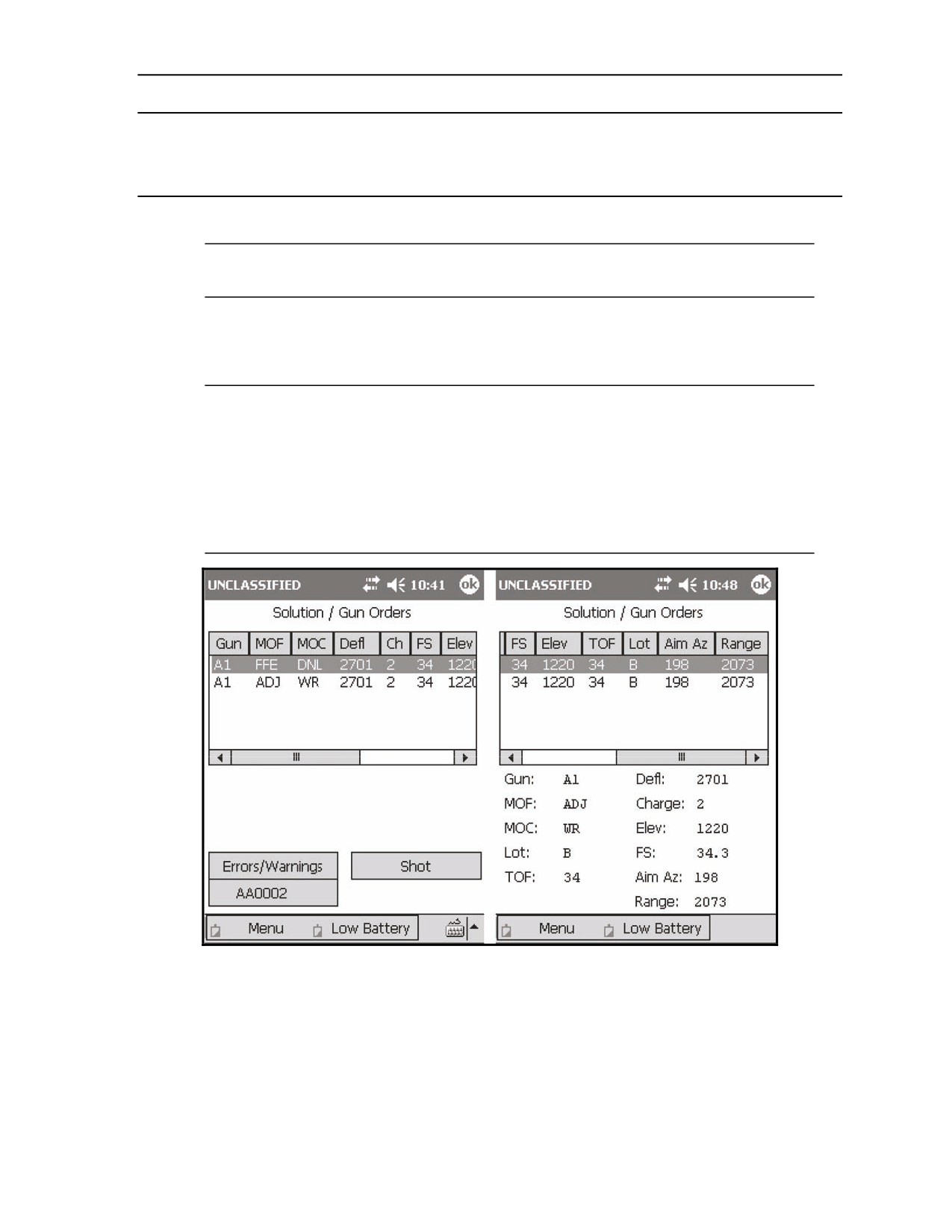
NOTES:
1. Do not read the fuze setting from the data window. When displayed in the Gun
Solution data line, only the integer part of the fuze setting is listed. Select the A1
ADJ data line, and drag the stylus to the bottom of the screen to read the proper
fuze setting. Select the fuze setting again before performing the next step. (See
Figure 18-46)
2. The Solution/Gun Orders screen is read and recorded for illumination the same
as with a standard HE mission.
Figure 18-46. Illumination: solution and display of fuze setting.
17 July 2008
FM 3-22.91
18-43