FM 6-02.90 UHF TACSAT /DAMA MULTI-SERVICE TACTICS, TECHNIQUES, AND PROCEDURES FOR ULTRA HIGH FREQUENCY TACTICAL SATELLITE AND DEMAND ASSIGNED MULTIPLE ACCESS OPERATIONS (AUGUST 2004) - page 4
40.
Change radio on/off switch to F2.
25-kHz AD HOC DAMA
41.
Load Orderwire Keys, LANT =
ERROR CODES = DO THIS
SETUP GUIDE - AN/PSC-
C5594 (positions 3-4), IO = C5596
(PREVENTIVE MEASURE)
(positions 1-2) (Input the same key
5C/D RADIOS
set in positions). Do not connect the
77 = Talk to net NCS. NCS needs
cable until the ANCD says “connect
to check with Naples to insure the
1.
The following are required before
to radio”. Cycle the radio to CT and
TBA is on line.
setup:
return to F2 if it continually fails to
a.
AN/PSC-5C/D
load. Be patient.
82 = Check the TBA entered into
b.
Satellite Antenna
42.
Return on/off switch back to CT.
the radio to ensure it is correct.
c.
Proper Crypto (ANDVT)
43.
Go to Current Mode (1) and hit
(pmcs)
d.
Proper Orderwire set
enter.
e.
Good batteries
90 = This is a busy signal. Call
44.
Change mode back to DAMA; hit
2.
Turn radio on to PT, let the BIT
back later.
enter.
finish, then ESC.
45.
Press Preset #1, hit the 1 key on
92 = Indicates conference call to
3.
Go to Set Presets (3), enter.
the keypad; hit enter.
more than one terminal was made. At
4.
Choose Set Mode Presets (1).
46.
Enter correct TK##; hit enter.
least one terminal is not on the air but
5.
> to DAMA; hit enter.
47.
Hit enter to confirm the remainder
others are.
6.
Choose Preset number 1; hit enter.
of the settings until SEND STATUS
•
Choose COMSEC fill slot: Use TEK
Troubleshooting DAMA problems
B YES/NO appears.
01 as the default fill slot for ANDVT.
48.
Ensure antenna is connected at this
7.
Choose type of Crypto: ANDVT;
Problem: Fail to get past 25-kHz
time, with antenna on azimuth to
enter.
AC - Acquiring M - Idle when attempting
satellite
8.
Choose Data transfer rate—
first connection after initial setup. No up
49.
At SEND STATUS B, select YES,
•
2400; enter.
and down arrows displayed on the right
hit enter.
9.
Choose 25-kHz, enter.
side of the screen.
50.
Select the service preset desired
10.
Channel number; enter.
(P01, P02, etc), hit enter twice.
Solution: Ensure the current
11.
> Normal; enter
51.
Radio screen will blink, an arrow in
Orderwire key segment is loaded in fill
12.
TPWR select 43dbm; enter.
the right side of the screen will go
slots 1-4 in F2. Lack of the current
13.
Code 60; enter.
up and then down once or twice,
orderwire COMSEC loaded and/or not in
14.
OW: CT; enter.
then see acquiring, then range,
1 - 4 will cause a connection stop at the
15.
Range: Active, enter.
then 25-kHz AC connected-SRV-
25-kHz AC - Acquiring - Idle window
16.
Send Status B, YES
idle
during initial connection.
17.
Hit ESC X 2.
52.
NOTE: AD HOC DAMA WILL
18.
Select Current Mode; enter.
Problem: Cannot get the Orderwire
ALLOW TBA-TO-TBA, TBA TO
19.
Change mode to LOS; enter.
COMSEC to load.
MULTIPLE TBA, AND TBA TO
20.
Hit ESC.
NETWORK CONNECTIONS.
21.
Go to Database Options (2), enter.
Solution: Do not connect the
53.
Hit next to Service Setup (1),
22.
Go to Guard List (2), enter.
ANCD cable to the radio until the ANCD
select R (Routine), then enter the
23.
> ADD, enter ##### (the network
displays Connect ANCD to Radio. Press
TBA, MULTIPLE TBA’S, OR TO A
ID number from the SOI) enter.
the down arrow after connecting the
NETWORK ADDRESS enter time
(DO NOT PUT THE TBA HERE!)
cable, follow on screen instructions.
required, hit enter and then Send,
24.
Hit ESC twice.
enter.
Problem: COMSEC Alarm
25.
Go to Configuration (4), enter.
54.
Radio screen will show arrows on
continues to popup.
26.
Go to Terminal Data (1), enter.
the right going up and down and
27.
Enter ADDRESS ##### (the TBA,
Solution: Refill keys in F1.
then the screen will display 25-kHz
from the SOI) hit enter. (DO NOT
AC SRV-RX/TX (the station or
PUT A NETWORK ADDRESS
Problem: CTIC alarm.
network called will change at the
HERE!)
same time).
Solution: Refill the orderwire key in
28.
DS-101 ADD, ignore.
55.
Ready to talk as normal (be
the correct positions - F2.
29.
Backlight Timer, (user pref), enter.
patient).
30.
Msg Release: Manual. Enter.
Problem: Data communications not
56.
To terminate setup, select
31.
ENTER LAT N
getting through but voice
Teardown (2) THE CONNECTION
LON E
communications are.
MUST BE TORN DOWN AFTER
TIME = ZULU TIME
COMPLETING TRAFFIC TO
Solution: Run Link Test. It is item 7
(not required)
AVOID INTERFERING WITH
in DAMA menu, needs to be run at 32
32.
Platform: Stationary, hit enter.
OTHER STATIONS’ TRAFFIC.
kbps, and the Symbol Errors need to be
33.
Freq Bands: Unlimited.
57.
Terminal will be in idle mode.
less than 100 when transmitting data.
34.
Ext PA Opt: Normal.
35.
Remote Opt: PRCD.
NOTE: To send data: (for
Takes about a minute to run and lets the
operator know a better signal is needed.
36.
Press ESC twice.
example, KL-43 or V-Mail) change the
Info Code 93 appears, send back
37.
Change radio on/off switch to F1.
V2400 to D2400.
information report and wait since
38.
Input ANDVT in fill slot 1.
NOTE: If the radio is not working
someone else is running the test.
39.
Follow the on screen instructions
properly cycle the radio off/on several
for filling the key. Watch for the Key
times. Filter Tune does not correct all
Filled message on the screen. Be
as it did with older versions of radios!
patient.
38. Do not connect the cable until the
25-kHz TDMA DAMA
ERROR CODES = DO THIS
ANCD says “connect to radio”.
D-19
Cycle the radio to CT and return to
SETUP GUIDE AN/PSC-5
(PREVENTIVE MEASURE)
F2 if it continually fails to load. Be
patient. Return on/off switch back to
77 = Talk to the NCS. NCS needs
1.
The following are required before setu
CT.
to check with Naples to ensure the
a. AN/PSC-5
39.
Go to Current Mode (1) and hit
network is on line.
b. Satellite Antenna
enter.
c. Proper Crypto (ANDVT)
40.
Change mode back to DAMA; hit
82 = Check the TBA entered into
d. Proper Orderwire set
enter.
the radio to ensure it is correct.
e. Good batteries
41.
Press Preset #1, hit the 1 key on
(PMCS)
2.
Turn radio on to PT; let the BIT
the keypad; hit enter.
finish, then ESC.
90 = This is a busy signal. should
42.
Enter correct TEK# for the mode (V
3.
Go to Set Presets (3), enter.
not be seen with TDMA.
or D); hit enter.
4.
Choose Set Mode Presets (1).
43.
Hit enter to confirm the remainder
92 = Indicates more than one
5.
> to DAMA; hit enter.
of the settings until SEND STATUS
party was called. At least one party is
6.
Choose Preset number 1; hit enter.
B YES/NO appears.
not on the air but others are.
7.
Choose COMSEC fill slot: Use TEK
44.
Verify connection to an antenna at
01 as the default fill slot for ANDVT.
this time, with antenna on azimuth
Troubleshooting DAMA problems
8.
Choose type of Crypto: ANDVT; hit
to satellite
Problem: Fail to get past 25-kHz
enter.
45.
When SEND STATUS B appears,
9.
Choose Data transfer rate—
AC - Acquiring - SVC - Idle when
select YES, hit enter.
attempting first connection after initial
•
2400; hit enter.
46.
Select the desired service preset
setup. No up and down arrows displayed
10.
Choose 25-kHz, enter.
(P01, P02, etc), hit enter twice.
on the right side of the screen.
11.
TPWR select 43dbm; enter.
47.
Radio screen will blink, an arrow in
12.
Channel number; enter.
the right side of the screen will go
Solution: Ensure the current
13.
Code 60; enter.
up and then down once or twice,
Orderwire key segment are loaded in fill
14.
OW: CT; enter.
then see acquiring, then range,
slots 1 - 4 in F2. Lack of the current
15.
Normal; enter.
then 25-kHz AC connected-SRV-
orderwire COMSEC loaded and/or not in
16.
Range: Active, enter.
idle.
1 - 4 will cause a connection stop at the
17.
Send Status B, YES.
48.
NOTE: TDMA DAMA WILL NOT
25-kHz AC - Acquiring -SVC - Idle
18.
Hit ESC.
ALLOW TBA-TO-TBA
window during initial connection.
19.
Select Current Mode; enter.
CONNECTIONS. SERVICE MUST
20.
Change mode to LOS; enter.
BE SET UP SERVICE TO THE
Problem: COMSEC Alarm
21.
Hit ESC.
NETWORK ADDRESS.
continues to popup.
22.
Go to Database Options (2), enter.
MULTIPLE STATIONS CAN BE
Solution: Refill ANDVT key in F1.
23.
Go to Guard List (2), enter.
CONNECTED AT ONE TIME BUT
24.
> ADD, enter ##### (the Guard
THEY SHARE THE “CHANNEL”.
Problem: CTIC alarm.
list/NETWORK ID number from the
49.
Hit next to Service Setup (1),
SOI) enter. (DO NOT PUT THE
select R (Routine), then enter the
Solution: Refill the orderwire key in
TBA HERE!)
NETWORK ADDRESS (6???? Or
the correct positions (F2).
25.
Hit ESC once.
5????) enter 00 ind (required for
Problem: Data communications not
26.
Go to Terminal Data (3), enter
TDMA) hit enter and then Send,
getting through but voice
27.
Enter ADDRESS ##### (TBA, from
enter. DO NOT SET UP A
communications are.
the SOI) hit enter. ( DO NOT PUT
SERVICE TO A TBA! THIS WILL
THE NETWORK ADDRESS
LOCK UP THE NETWORK.
Solution: Run Link Test. It is item 7
HERE!)
50.
Radio screen will show arrows on
in DAMA menu, needs to be run at 32
28.
Backlight Timer, (user pref), enter.
the right going up and down and
kbps, and the Symbol Errors need to be
29.
Msg Release: Manual. Enter.
then the screen will display 25-kHz
less than 100 when transmitting data.
30.
ENTER LAT N
AC SRV-RX/TX (the called station
Takes about a minute to run and lets
LON E
will change at the same time).
operator know a better signal is needed.
TIME = ZULU TIME
51.
Ready to talk as normal (be
Info Code 93 appears, send back
(not required)
patient).
information report and wait since
31.
Platform: Stationary, hit enter.
52.
To terminate setup, select
someone else is running the test.
32.
Press ESC twice.
Teardown (2) Terminal will be in
33.
Change radio on/off switch to F1.
idle mode.
34.
Input ANDVT in fill slot 1.
53.
TEARDOWN IS NOT REQUIRED
35.
Follow the on screen instructions
IN TDMA. Terminal can remain
for filling the key. Watch for the Key
connected and monitor traffic
Filled message on the screen. Be
without interfering with other
patient.
stations if desired.
36.
Change radio on/off switch to F2.
NOTE: To send data: (for
37.
Load Orderwire Keys, LANT =
example, KL-43 or V-Mail) change the
C5594 (positions 3-4), IO = C5596
V2400 to D2400. If the radio is not
(positions 1-2) (Input the same key
working properly cycle the radio
set in positions).
off/on, then filter tune the radio and
run a second BIT.
39. Input ANDVT in fill slot 1.
25-kHz TDMA DAMA
NOTE 1: To send data: (for example,
40. Follow the on screen instructions for
SETUP GUIDE - AN/PSC-
filling the key. Watch for the Key
KL-43 or V-Mail) change the V2400 to
D2400.
Filled message on the screen. Be
D-20
patient.
5C/D RADIOS
NOTE: If the radio is not working
41.
Change radio on/off switch to F2.
properly cycle the radio off/on several
42.
Load Orderwire Keys, LANT =
times. Filter Tune does not correct all
1.
The following are required before
C5594 (positions 3-4), IO = C5596
as it did with older versions of radios!
starting setup:
(positions 1-2) (Input the same key
a. AN/PSC-5C/D
set in positions). Do not connect the
ERROR CODES = DO THIS
b. Satellite Antenna
cable until the ANCD says “connect
(PREVENTIVE MEASURE)
c. Proper Crypto (ANDVT)
to radio”. Cycle the radio to CT and
d. Proper Orderwire set
return to F2 if it continually fails to
77 = Talk to the NCS. NCS needs to
e. Good batteries
load. Be patient.
check with NAPLES to ensure the TBA
2.
Turn radio on to PT, let the BIT
43.
Return on/off switch back to CT.
is on line.
finish, then ESC.
44.
Go to Current Mode (1) and hit
82 = Check the TBA entered into the
3.
Go to Set Presets (3), enter.
enter.
radio to ensure it is correct. (PMCS)
4.
Choose Set Mode Presets (1).
45.
Change mode back to DAMA; hit
5.
> to DAMA; hit enter.
enter.
90 = This is a busy signal -- should not
6.
Choose Preset number 1; hit enter.
46.
Press Preset #1, hit the 1 key on the
be seen with TDMA.
7.
Choose COMSEC fill slot—
keypad; hit enter.
•
Use TEK 01 as the default fill slot for
47.
Enter correct TK##; hit enter.
92 = Indicates more than one party
ANDVT.
48.
Hit enter to confirm the remainder of
was called. At least one party is not on
8.
Choose type of Crypto: ANDVT; hit
the settings until SEND STATUS B
the air but others are. Check service
enter.
YES/NO appears.
state (3) for who is connected.
9.
Choose Data transfer rate—
49.
Verify connection to an antenna at
Troubleshooting DAMA problems
•
2400; hit enter.
this time, with antenna on azimuth to
10.
2400 for voice; hit enter. Choose
satellite.
Problem: Fail to get past 25-kHz AC -
25-kHz, enter.
50.
When SEND STATUS B appears,
Acquiring M - Idle when attempting first
11.
Channel number; enter.
select YES, hit enter.
connection after initial setup. No up and
12.
> Normal; enter.
51.
Select the service desired preset
down arrows displayed on the right side
13.
TPWR select 43 dbm; enter.
(P01, P02, etc), hit enter twice.
of the screen.
14.
Code 60; enter.
52.
Radio screen will blink, an arrow in
Solution: Ensure the current Orderwire
15.
OW: CT; enter.
the right side of the screen will go up
key segment is loaded in fill slots 1-4 in
16.
Range: Active, enter.
and then down once or twice, then
F2. Lack of the current orderwire
17.
Send Status B, YES.
see acquiring, then range, then
COMSEC loaded and/or not in 1 - 4 will
18.
Hit ESC X 2.
25-kHz AC connected-SRV-idle
cause a connection stop at the 25-kHz
19.
Select Current Mode; enter.
53.
NOTE: TDMA DAMA WILL NOT
AC - Acquiring - Idle window during
20.
Change mode to LOS; enter.
ALLOW TBA-TO-TBA
initial connection.
21.
Hit ESC.
CONNECTIONS. SET UP SERVICE
22.
Go to Database Options (2), enter.
TO THE NETWORK ADDRESS.
Problem: Cannot get the Orderwire
23.
Go to Guard List (2), enter.
MULTIPLE STATIONS CAN BE
COMSEC to load.
24.
> ADD, enter ##### (the network ID
CONNECTED AT ONE TIME BUT
Solution: Do not connect the ANCD
number from the SOI) enter. (DO
THEY SHARE THE “CHANNEL”.
cable to the radio until the ANCD displays
NOT PUT THE TBA HERE!)
54.
Hit next to Service Setup (1), select
Connect ANCD to Radio. Press the down
25.
Hit ESC twice.
R (Routine), then enter the
arrow after connecting the cable, follow
26.
Go to Configuration (4), enter.
NETWORK ADDRESS (6???? Or
on screen instructions.
27.
Go to Terminal Data (1), enter.
5????) enter 00 ind (required for
28.
Enter ADDRESS ##### (the TBA,
TDMA) hit enter and then Send,
Problem: COMSEC Alarm continues to
from the SOI) hit enter. (DO NOT
enter. DO NOT SET UP SERVICE
popup.
PUT A NETWORK ADDRESS
TO A TBA, IT WILL LOCK UP THE
Solution: Refill ANDVT key in F1.
HERE!)
NETWORK.
55.
Radio screen will show arrows on
Problem: CTIC alarm
29.
DS-101 ADD, ignore.
30.
Backlight Timer, (user pref), enter.
the right going up and down and
Solution: Refill the orderwire key in the
31.
Msg Release: Manual. Enter.
then the screen will display 25-kHz
correct positions (F2).
32.
ENTER LAT N
AC SRV-RX/TX (the station or
Problem: Data communications not
LON E
network called will change at the
getting through but voice communications
TIME = ZULU TIME
same time).
are.
(not required)
56.
Ready to talk as normal (be patient).
33.
Platform: Stationary, hit enter.
57.
To terminate setup, select Teardown
Solution: Run Link Test. It is item 7 in
34.
Freq Bands: Unlimited.
(2) Terminal will be in idle mode.
DAMA menu, needs to be run at 32 kbps,
35.
Ext PA Opt: Normal.
58.
TEARDOWN IS NOT REQUIRED IN
and the Symbol Errors need to be less
36.
Remote Opt: PRCD.
TDMA. It is possible to remain
than 100 when transmitting data. Takes
37.
Press ESC twice.
connected and monitor traffic
about a minute to run and lets them know
38.
Change radio on/off switch to F1.
without interfering with other
they need a better signal. Info Code 93
stations if desired.
appears, send back information report
and wait since someone else is running
the test.
D-21
Table D-8. 5-kHz DAMA Operations (Same Footprint/MHOP) Guide
Procedure
Steps/Notes
1. Turn on the radio; go to PT.
Load presets for
2. Escape to main menu.
5-kHz DAMA
3. Scroll to set presets; press enter or 3.
4. Select mode DAMA (press ⇒ to get to DAMA).
1. Enter preset number 2.
2. Enter encryption device: ANDVT.
3. Enter D.
4. Enter data rate 2400.
Enter 5-kHz DAMA
5. Enter 5-kHz (for type of DAMA).
channel
6. Enter channel number.
7. Enter configuration code N/A.
8. Enter OW: CT.
9. Enter mode of operations: normal.
10. Enter range: active
Load database
From current menu, scroll to database options and enter (or press 2).
1. From database menu, press enter (or 1).
2. Use arrow keys to scroll through options—VIEW, ADD, DELETE, MODIFY.
3. Enter on ADD.
4. Enter guard list addresses
Notes. Guard list includes addresses for which operator wishes to receive
services; it does not impact who is called.
Enter guard list
Each address must be 5 digits long.
addresses
Up to 15 different addresses may be entered.
Always enter network address in the guard list. Terminal addresses may
be entered if the operator wishes to listen to calls made to that address.
In 5-kHz DAMA, if a terminal address is entered in the guard list, the
controller also logs in that TBA. When the terminal attempts to log in, it is
denied. Be careful.
1. Enter LAT—N or S and four-digit number N.
2. Enter LON—E or W and four-digit number E.
Enter terminal data
3. Enter time—Must be Zulu time (if no time was entered, the time reflected is how
LAT, LON, TIME
long the terminal is turned on).
Note. This needs to be entered only if terminal is set up for silent, passive mode
in 5-kHz DAMA. This is NOT the preferred method.
TBA from the SOI.
Enter terminal
Note: Every terminal must have its own terminal address; no two terminals can
address
come up on a DAMA channel with the same address.
Enter platform
Enter stationary.
Enter type of MSG
Enter MANUAL if the radio is to hold the message, AUTO if the message is to go
release
straight into the data device (rule of thumb, KL-43, DMDG, PSC-2A, use MANUAL;
VDC-400/computer, use AUTO).
5-kHz message
Note: If voice is used, this field always reverts to manual.
queue only.
Enter 5-KHZ I/O
Check only the ones used. If voice is used, 2400 bps must be checked.
data rates
5-kHz DAMA only
D-22
Table D-8. 5-kHz DAMA Operations (Same Footprint/MHOP) Guide
Procedure
Steps/Notes
Not required
Note: This information is obtained from the unit frequency manager (who gets it
from the SMC). It is required only if terminal is set up for silent, passive
Enter satellite
mode.
ephemeris data
There are eight positions to input satellite ephemeris data.
This information changes. Information used for one exercise may differ for
the next exercise.
1. Change mode selector switch to CT.
2. Scroll to database options and enter (press 2).
Check COMSEC
3. Scroll to COMSEC key states and enter (press 7).
keys
4. Scroll through key positions to ensure key was filled. Update column should
state 0, unless some of the keys were updated.
1. Change mode selector switch to F2 position. Before loading orderwire keys, it
Load orderwire
is best to have the COMSEC keys already loaded. Key positions 1 through 8 are
keys
available. Orderwire keys need to be put in positions 1 to 4 only.
2. Positions 5 to 8 are reserved for over-the-air rekeying in the future.
Check orderwire
The only way to check to see if keys were loaded is to go to F2 and see if the
keys
numbers are on the line.
1. Go to current mode screen.
2. Change mode to DAMA.
3. Press preset number for channel and enter (press 2).
4. Ensure all information is correct from preset by pressing enter through all fields.
(The TEK is not part of the presets so special attention should be given to this field
to ensure it is correct.)
5. Press enter on start DAMA (radio does not change to DAMA mode until enter
Change to DAMA
on network is done).
preset and enter
Notes Watch screen for 5-kHz ACQUIRING; 5-kHz RANGE; 5-kHz LOGIN PND.
DAMA network
If the radio does not go to 5-kHz LOGIN PND or an M is on the net
acquiring line, check the following:
Adjust antenna.
Adjust output power.
Refill keys.
Ensure the proper key is loaded and in correct position.
Radio automatically log in—check for status messages.
Respond and view as necessary to all status messages received.
D-23

Table D-8. 5-kHz DAMA Operations (Same Footprint/MHOP) Guide
Procedure
Steps/Notes
1. Ensure the radio is at the 5-kHz —LOG IN screen.
2. Press enter.
3. Screen states LOGIN; Over-the-air; SEND—press enter to send.
Notes: Do not perform this step until the first line states 5-kHz —LOGIN and last
line states LOGIN.
When accepted by the controller, screen changes to 5-kHz —
CONNECTED.
Many other OWs may be sent and received by the terminal; one to
especially watch for is the guard list being changed.
Only one over-the-air log in is transmitted without sending an over-the-air
log out. If more than one is attempted, the terminal receives an error
Log in manual—
message from the controller.
over-the-air
Log in rejected.
Not authorized.
Log in rejected, invalid log in address.
These messages let the operator know that log in was attempted too many
times.
It is also possible to receive the above messages because the controller
did not activate the terminal address in the database. In this case, the unit
frequency manager intervenes.
Now, the terminal is ready to communicate with other radios. The terminal
is able to respond to service requests from other radios or send service
requests to other radios.
1. Ensure the radio is at 5-kHz LOGIN.
2. Press enter.
3. Screen states LOGIN; over-the-air—change to preassigned
4. New screen appears; ensure the maximum precedence is correct and the
demarcation point (DMARK) is at 49999 (unless told otherwise by the frequency
manager).
5. Press enter on send.
Notes: OWs are not received from the controller; this is only a means for telling
the terminal that it needs to be logged in.
Log in, manual,
If the terminal was not previously logged in (except when a SILENT
preassigned
terminal), an attempt to set up a service is denied and the reason given is
the terminal is not logged in. In this case, send the over-the-air log in.
This is used when an over-the-air log in was already sent and the terminal
needs to come back up in the DAMA network—OR—when a service
connection has been torn down and re-access is required but the terminal
has not logged off the net.
The controller has the maximum precedence already stored in its
database. If that precedence is exceeded when attempting to set up a
service, the controller may log the terminal out of the system. The
operator needs to go back and send an over-the-air log in.
1. Ensure current mode screen reflects D.
2. Ensure screen states 5-kHz CONNECTED—SVC IDLE.
Set up circuit
3. Scroll to service set up and enter (or press) 1.
service—
4. Information displayed is the same information as in current mode (what was put
data/terminal for
in the preset). Change anything that does not reflect data, 2400 bps, ANDVT.
MHOP
5. In Destination, enter TBA (NOT network address) that is in the other footprint.
Enter on Send
Communicate
When SRVCASGND message is received, press enter to ACCEPT. Pass traffic
D-24

Table D-8. 5-kHz DAMA Operations (Same Footprint/MHOP) Guide
Procedure
Steps/Notes
with VDC-400 CARD. Traffic takes longer over multiple footprints in the MHOP
service.
1. Check to ensure 5-kHz connected; may check service state whether in a
service, pending a service, or preempted from a service (also when idle).
2. Scroll to check service state and enter (or press 3).
Note: Information only screen displays how many services there are (up to 3)—
change the first number by pressing 2/3 to see other services and their
Check service state
status.
Who set up the service/who was the destination address.
CIR or MSG service.
V or D; PT/CT; and precedence sent.
LOCAL (in the same footprint) or MHOP.
ACTIVE, PENDING, or QUEUED.
1. Ensure 5-kHz connected.
2. Scroll to check network state and enter (or press 4).
3. Displays information about the DAMA network:
PCC address—address assigned to the DAMA control station (not to be
confused with 00000).
4. MHOP indicates the controller is capable of sending messages across
footprints.
Note: LIO (limited input/output)—if displayed, controller does not accept services
of 2400 bps or higher. If using data, use a lower data rate if possible when
setting up a service. If using voice (which is highly discouraged on 5-kHz
DAMA), terminal is denied if a service set up is sent for voice
communications.
Check network
FOW Miss—number of OWs missed from the controller. This is a running
state
total (which means misses could be intermittent). However, if the terminal
misses 200 consecutive OWs, the terminal is supposed to be logged out of
the network by the controller and goes to acquiring on its own.
Link Quality—values are from 26.0 to 57.5. The terminal requires a
minimum of 36 to access DAMA communications, 45 or better for data
communications.
Precedence/Precedence—indicates minimum precedence for network
access (if the net is a routine net and this displays priority, the entire
network is unable to gain access to the DAMA channel). Second
precedence indicates the maximum precedence for the terminal; the
frequency manager should provide this information. This is a way to check
what is in the controller's database.
1. Ensure the terminal is at 5-kHz CONNECTED and SVC IDLE; if there are any
services active, teardown.
2. Scroll to log out and enter (or press 6).
Log out
3. Select over-the-air log out and send.
4. Radio is now ready to be shut down. Terminal should receive a log out
acknowledgement message.
5. Turn off the radio or go to another preset channel for other modes of operation.
D-25
Appendix E
LST-5D Radios
1. LST-5D LOS Procedures (Updated: 02 APR 98)
a. Reminder.
(1) HD SET—Use a 6-pin audio connector plain text handset connector only.
(2) LOS—Refers to line of sight. The radio is configured in the AM mode. This
may be used for ground-to-air and air-to-ground communications. If FM is required in a
LOS environment, the radio is configured in the SATCOM mode.
(3) Audio/Data/Fill Connector—Connects to handset in secure voice modes, data
devices in secure data modes, or fill devices in fill modes.
b. Prior to COLD START, press 0 and right arrow together. Then turn on the
radio. This will MASTER CLEAR all settings and crypto in the radio, if needed.
c. Cold start initialization.
Note: The down arrow button works as the “enter” button.
(1) When unit is powered up in an un-initialized state, the unit performs system
tests and then displays a blinking ALARM message. (If the alarm blinks without going
to self-test, press ESC twice and then self-test begins.) The speaker shaped icon in the
lower left corner of the display is an ALARM annunciator. As long as the internal
COMSEC KG is not initialized, the radio set remains in the ALARM condition and
displays the ALARM message.
(2) Rotate the key management (KGMT)switch to the LD KG position, then
depress and release the ESC on the front panel keypad twice. The SELF TESTING
message is displayed after the internal COMSEC KG successfully performs its power up
tests.
(3) Once the radio completes and passes all power up tests (approximately 60 to
70 seconds) the radio displays a prompt to connect a fill device.
(4) The radio is not used in a secure mode, move the KGMT switch to operate
(OP) position.
(5) The three-digit alarm code in the lower right corner of the display should
read 050.
(6) The three digit error code 255 is a catchall error code. Reinitiate the radio.
E-1
d. Programming operating modes.
Note: The left and right arrow buttons move to the menu option needed.
(1) Turn the mode select to OP position.
(2) At the function screen, usethe right arrow button to select PROG and then
depress the down arrow button.
(3) The program menu displays MODES and FREQS.
(4) Select FREQS depress the right arrow button followed by the down arrow
button to enter.
(5) The Program Freqs Menu displays CH1 with the RX—TX
(DOWNLINK/UPLINK) UHF frequencies. Insert the appropriate frequencies in the
channels (there are nine channels to use).
(6) Depress the up arrow until STORE FREQ menu is displayed. Select YES and
depress the down arrow button to enter and save.
(7) At the program screen, select MODES using the left arrow button followed by
the down arrow button to enter.
(8) Select the preset to store the configuration into (enter a number) and depress
the down arrow button.
(9) Scroll through the terminal selections and select LOS, depress the down
arrow button.
(10) Display/SOURCE KG, select PT, depress the down arrow button.
(11) Display/RADIO SCAN, select OFF, depress the down arrow button.
(12) Display/CHANNEL SELECT, select the preset channel, depress the down
arrow button.
(13) Display/POWER ADJ, select LOW or HIGH, depress the down arrow
button.
(14) Select SAVE, depress the down arrow button to store.
(15) Display/STORE INTO PRESET (what ever the circuit preset is 1 to 6)
(16) Press ESC until the OP screen is displayed and select OP.
(17) Recall the PRESET.
E-2
(18) After recalling the preset, the display shows a monetary alarm condition.
Radio initializes for a minute or so. Then the radio automatically accesses the
frequencies and the display reads as—
PRESET # 1
LOS PLAIN TEXT
I I I I I I I I I I I
(power bars)
SIG
CH#1 FREQ
RX
e. Upon completion of the circuit, depress the ESC button or the up arrow button to
the FUNCTION menu.
f. Remember, communications are only as good as antennas.
2. LST-5D SATCOM Procedures
a. SATCOM. SATCOM refers to satellite communications. When using plain text
voice communication, this is FM modulation. Using secure communication is frequency-
shift keying (FSK) or phase-shift keying (PSK) depending on the data rate.
b. Cold start initialization.
(1) When unit is powered up in an un-initialized state, the unit performs system
tests and then displays a blinking ALARM message. (If the alarm blinks without going
to self test, press ESC twice and then self test begins.) The speaker shaped icon in the
lower left corner of the display is an ALARM annunciator. As long as the internal
COMSEC KG is not initialized, the radio set remains in the ALARM condition and
displays the ALARM message.
(2) Rotate the key management (KGMT) switch to the LD KG position, then
depress and release the ESC on the front panel keypad twice. The SELF TESTING
message is displayed after the internal COMSEC KG successfully performs its power up
tests.
(3) Once the radio completes and passes all the power up tests (approximately 60
to 70 seconds) the radio displays a prompt to connect a fill device.
(4) If the radio is not used in a secure mode, move the KGMT switch to OP.
(5) If the radio is used in a secure mode, the internal COMSEC KG is initialized
and the KGMT switch is placed in the LD KG position.
(6) The three-digit alarm code in the lower right corner of the display should
read “050".
(7) The three digit error code 255 is a catchall error code. Reinitiate the radio.
(8) The COMSEC KG within the radio has six key variable storage locations.
Locations 1 to 4 are user selectable traffic variable locations, 5 and 6 are used for Saville
advanced remote keying (SARK).
(9) Switch the KGMT to LD KG.
(10) CONNECT FILL DEVIC” blinks, connect KYK-13 to the ADF connector.
(11) Turn on KYK-13 and screen displays KG VARIABLE FILL (put fill in any of
the variable, KG1 to KG4) depress the down arrow button.
E-3
(12) After pushing the variable position to fill location, depress the STO/RCL
button.
(13) The fill device light flashes. Display reads KG FILL IN PROGRESS.
(14) Turn off KYK-13 and disconnect, the display reads KG FILL
SUCCESSFUL. (This verifies the correct transfer of the variable).
c. Programming operating modes.
Note: The left and right arrow buttons move to the menu option needed.
(1) Turn the mode select to OP position.
(2) At the function screen, select PROG use the right arrow button then depress
the down arrow button.
(3) The program menu displays MODES and FREQS.
(4) Select FREQS use the right arrow button followed by the down arrow button
to enter.
(5) The Program Freqs Menu displays CH1 with the RX - TX
(DOWNLINK/UPLINK) satellite frequencies. Insert the appropriate frequencies in the
channels (there are nine channels to use).
(6) Depress the up arrow button until STORE FREQ menu is displayed. Select
YES and depress the down arrow button to enter to save.
(7) At the program screen select MODES use the left arrow button, then the
down arrow button to enter.
(8) Select a preset channel to store the configuration (a number must be entered)
and depress the down arrow button.
(9) Scroll through the terminal selections and select SATCOM, depress the down
arrow button.
(10) Display/SOURCE KG, select INT KG, depress the down arrow button.
(11) Display/CRYPTO MODE, select ANDVT, depress the down arrow button.
(12) Display/ KG VARIABLE, select VARIABLE POSITION THAT IS LOADED
(1 to 6), depress the down arrow button.
(13) Display/PHASING, select NORMAL, depress the down arrow button.
(14) Display/TX MODE, select NORMAL, depress the down arrow button.
(15) Display/DATA INVERT, select DISABLE, (for SATCOM), depress the down
arrow button.
(16) Display/RADIO SCAN, select OFF, depress the down arrow button.
(17) Display/CHANNEL SELECT, select the channel previously entered, depress
the down arrow button.
(18) Display/POWER ADJ, select desired level (for example, 12) up to 18,
depress the down arrow button.
E-4
(19) Select SAVE, the down arrow button to store in desired preset (a number
must be entered ).
(20) Press ESC until the OP screen is displayed and select OP.
(21) Recall the PRESET.
(22) After recalling the preset, the display shows a monetary alarm condition.
Radio initializes for a minute or so. Then the radio automatically accesses the satellite
and the display reads as—
PRESET # 1
SATCOM ANDVT V2.4V1
I I I I I I I I
(power bars)
SIG
CH#1 FREQ
RX
d. Upon completion of the circuit, depress the ESC of the up arrow button to the
FUNCTION menu.
3. Key Variable Zeroization
a. The radio has six fill positions. To zeroize all six key variables, pull and rotate
the KMGT switch to the extreme counter clockwise position. This is labeled ZALL. If
the radio set is in a mode that has the COMSEC hardware turned on, the display
immediately shows the ALARM message signifying a successful ZEROIZATION. The
preset operating modes are not affected by ZEROIZATION. If the radio is in a mode
with COMSEC hardware off, the display may not immediately display the ALARM
message after a ZALL. However, if a mode is entered that causes the COMSEC
hardware to turn on, the ALARM message l appears and a KG initialization is required.
b. The radio can be zeroized by two other means. Removing the standby battery
when the radio set is turned off zeroizes all key variables. Also, unauthorized attempts
to access the COMSEC compartment zeroizes the key variables.
c. To zeroize a specific key variable location, rotate the KMGT switch to the ZSEL.
Select (use the left or right arrow keys on the keypad) the key variable storage location
number (KG1 -to KG6) desired to zeroize.
d. Once the proper location for the key variable is entered and verified on the
display, press and release the STO/RCL button on the keypad. If a KG variable is
selected, the message ZSEL IN PROGRESS is displayed briefly. The message ZSEL
SUCCESSFUL is displayed when the operation is completed successfully. The ZSEL IN
PROGRESS display should be brief and may not be identifiable.
4. LST-5D DAMA 25-kHz AC Procedures (For MOD-3 and Below)
a. Under AC, 25-kHZ AC is 25-kHz DAMA. This terminal is used for satellite
communication in either voice or data mode. The channel width is 25-kHz.
b. DAMA is a channel access scheme in which access of a channel from
geographically distributed communications terminals is allocated based on demand.
c. AC is an operating mode that allows communications slots within the waveform
to be dynamically assigned to terminals requiring access to the slots.
E-5
d. Prior to COLD START, press 0 and right arrow together and then turn on the
radio.
e. This will MASTER CLEAR all settings and crypto in the radio, if needed.
5. Cold Start Initialization
a. When unit is powered up in an un-initialized state, the unit performs system
tests and then displays a blinking ALARM message. (If the alarm blinks without going
to self-test, press ESC twice and then self-test begins.) The speaker shaped icon in the
lower left corner of the display is an ALARM annunciator. As long as the internal
COMSEC KG is not initialized, the radio set remains in the ALARM condition and
displays the ALARM message. Do not power up the unit in the OP position and then
toggle the KGMT switch to the LDOW position.
b. The three-digit alarm code in the lower right corner of the display should read
050.
c. The three digit error code 255 is a catchall error code. Reinitiate the radio.
6. Loading LST-5D for DAMA Use
a. To initiate the internal fill, the KMGT switch must be placed in the LDOW
position for the internal modem to initialize. The fill device cannot be connected before
the internal modem initializes. During the initialization process, the message LOAD
CTIC ORDERWIRE INITIALIZING is displayed. If the initialization is longer than
5 minutes, toggle the switch to OP and then back to LDOW. The menu should change
within a few minutes. If the fill device connects before the modem completes
initializing, the message LOAD CTIC ORDERWIRE DISCNCT FILL DEVICE is
displayed and the fill device must be disconnected. After the modem completes
initialization, the message CONNECT FILL DEVICE blinks until a device is connected
and/or turned on or the KMGT switch is moved to another position.
b. After the fill device is connected, the message LOAD CTIC ORDERWIRE KEY 1
is displayed. Load the appropriate keymat in all variable positions by pressing and
releasing the STO/RCL button. Do this for all variables. The lamp on the KYK-13
flashes when the button is pressed and the message OW FILL IN PROGRESS is
displayed. If the fill is completed successfully , the message OW FILL SUCCESSFUL is
displayed. In addition, when the KYK-13 is turned off, the CONNECT FILL DEVICE
message is displayed. Toggle the KGMT switch to the LDKG position and load the
ANDVT) keymat in load variable 1 of the LST-5D by pressing and releasing the
STO/RCL button. When the KGMT switch is toggled to the LDKG and the ALARM 255
flashes in the lower right corner, press the ESC button. The radio goes into an ALARM
050 and then to self-testing. Wait for the CONNECT FILL DEVICE to flash and then
load the ANDVT keymat.
7. Programming Operating Modes
a. Turn the mode select to the OP position.
b. At the function screen, use the right arrow button to select PROG and then
depress the down arrow button.
c. The program menu displays MODES and FREQS.
E-6
d. Select FREQS using the right arrow button followed by the down arrow button to
enter.
e. The Program Freqs Menu displays CH1 with the RX - TX (Downlink/Uplink)
satellite frequencies. Insert the appropriate frequencies in the channels (there are nine
channels to use).
f. To save the frequencies depress the up arrow button until STORE FREQ menu
displays. Select YES and depress the down arrow to enter.
g. At the program screen, select MODES using the left arrow button and then the
down arrow button to enter.
h. Select a preset channel in which to store the configuration (a number must be
entered) and depress the down arrow button.
i.
Scroll thru the terminal selections and select 25-kHz AC and depress the down
arrow button to enter.
j.
Select the frequency channel the satellite frequencies are stored in and then
depress the down arrow button to enter.
k. Adjust the power up to 18 watts. Depress the down arrow button.
l.
Select ranging NORMAL. Depress the down arrow button.
m. TX INHIBIT: select NO. Depress the down arrow button.
n. XMODE ADDR: insert the TBA for that radio. The communication plan should
have this information.
o. INTKG ADDR: automatically changes to the next higher number. Depress the
down arrow button.
p. INTKG is displayed with 25-kHZ AC.
q. ORDERWIRE: select ENABLE. Depress the down arrow button.
r. CRYPTO MODE: select ANDVT. Depress the down arrow button.
s. KG VARIABLE: insert 1. ANDVT keymat should have been inserted in
variable 1. Depress the down arrow button.
t. DATA INVERT: can select DISABLE or ENABLE. (Does not matter with voice).
Depress the down arrow button.
u. DEST ADDR: insert the NET # from the COMM STATUS REPORT. Depress
the down arrow button.
v. CONFIG CODE: insert the number from the COMM STATUS REPORT.
Depress the down arrow button.
w. ALLOW CONSTANT KEY: select NO. Depress the down arrow button.
x. XMODE now displayed with 25-kHZ AC.
y. Throughout XMODE menus, depress the down arrow button. Do not change any
of the menus. Used only with external crypto.
z. GUARD ADDR 01: insert the NET #. Depress the down arrow button.
E-7
aa. INTKG should flash. Leave as is. Depress the down arrow button.
bb. GUARD ADDR 02: Leave as is. (all XMODE menus are leave as is). Depress the
down arrow button.
cc. Arrow over to SAVE. Depress the down arrow button.
dd. STORE INTO PRESET: insert desired preset which is to be stored. (Enter
number).
ee. Hit ESC or UP ARROW until the FUNCTION MENU is displayed. Arrow over
to OP and depress the down arrow button.
ff. RECALL PRESET: enter the number where the preset is stored.The display
shows a monetary alarm condition. The menu reads as—
PRESET 1 SU
25KAC ANDVT V2.41
INITIALIZING
gg. Once the radio completes initializing, source dual port reads as—
DAMA DL/IL OK
SOURCE: DUAL PORT
hh. The menu reads as—
STAT REPROT B (either) NACKED or
ACKED
*DOWN ARROW TO NEXT
ii. Depress the down arrow button. The menu reads as—
XMODE NOT CONNECTED
INTKG NOT CONNECTED
jj. Depress the down arrow button. The menu reads as—
REQUEST CALL
TERMINATE CALL
SEND STAT REPORT B
*RESERVED
kk. Depress the down arrow button. The menu reads as—
INHIBIT TX
PAGE USER(S)
SEND INFO REPORT
ll. Depress the down arrow button. The menu reads as—
OUT OF SERVICE
PERFORM LINK TEST
*RESERVED*
EXIT PRESET
mm. Depress the down arrow button, returns to DAMA DL/UL OK menu.
nn. To make calls on air.
(1) Go to the REQUEST CALL menu
(2) Press number 1.
E-8
(3) DAMA CALL REQUEST
(4) CH PREC
= ROUTINE
(5) PORT INTKG OR XMODE appears
(6) Use INTKG, press the down arrow button
(7) CALL PREC: ROUTINE appears (This is the call precedence. Press the
down arrow button.)
(8) CONFERENCE CALL? Yes or No
(9) USER 1
(10) Enter the NET number. Press the down arrow button.
(11) Radio emits RCCOW and displays if it is or is not connected.
(12) If the menu states the RCCOW NACKED, go back to the REQUEST CALL
menu and reinitiate.
(13) After completing the use of the circuit, press the ESC or the up arrow
button and scroll until the EXIT PRESET is displayed and press number 4.
8. Fill Procedures Using A KYX-15
a. On the KYX-15, select the desired key to be loaded (1 to 16), then set the switch
to the LD position. On the radio, enter and verify on the display the proper storage
location for the variable. Press and release the STO/RCL button on the radio set’s
keypad and the lamp on the KYX-15 flashes when the button is pressed. The message
KG FILL IN PROGRESS is displayed. To verify correct transfer of the variable,
disconnect the KYX-15. If the fill completed successfully, the message KG FILL
SUCCESSFUL is displayed.
b. Continue with the operating procedures.
9. Key Variable Zeroization
See section 3 above.
E-9
Appendix F
AN/ARC-231/SKYFIRE
1. Skyfire Operator Training
a. Obtain basic operational knowledge of the AN/ARC-231(V3).
b. Radio (Skyfire) system characteristics and capabilities.
c. Understand basic operations of the Skyfire radio.
d. Load COMSEC variables.
e. Load presets manually and through software/PCMCIA.
f. Place Skyfire radio into various modes of operation, to include plain and Cipher
text modes.
g. Change from preset to manual operations and back to preset.
2. Skyfire Characteristics and Capabilities
Multi-band receiver/transmitter that provide the following modes of communication:
a. LOS 30- to 400-MHz.
b. Maritime voice communications 156- to 162.025-MHz.
c. HAVE QUICK (HQ) voice communications 225- to 400-MHz.
d. Single channel ground and airborne radio system voice and data 30- to
87.975-MHz.
e. SATCOM DAMA 5-kHz and 25-kHz channel spacing voice and data 225- to
400-MHz.
f. Non-DAMA SATCOM voice and data 225- to 400-MHz.
g. ADF 30- to 400-MHz.
h. Beacon transmission 30 to 400 MHz.
i.
Scan mode up to ten preset frequencies and transmit on one stored frequency,
3. Capabilities and Features
a. Menu driven operations displayed on a 5 line by 20 character control interface
b. Internal diagnostics that continuously run built in test routines.
c. Embedded COMSEC functions provide VINSON, ANDVT), KG-84 modes 1 to 4,
and FASCINATOR.
d. Preset mode allows storage of 20 sets of parameters for the following modes:
LOS, Maritime, HQ, single channel ground and airborne radio system, and non-DAMA
SATCOM.
F-1
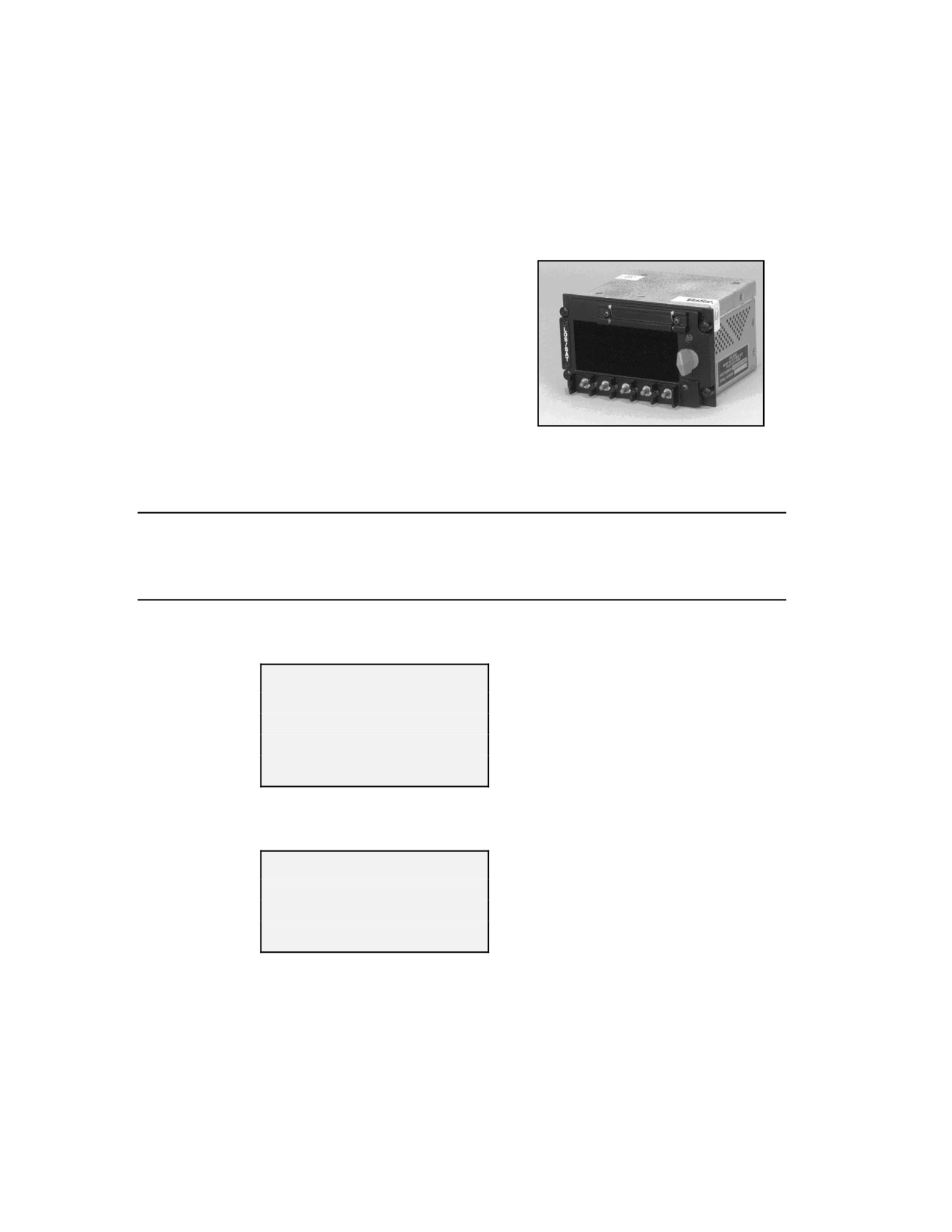
e. DAMA SATCOM mode allows storage of 30 presets.
f. The radio stores the last operating mode and all presets in non-volatile memory.
In addition, COMSEC keys are retained up to 20 minutes when internal battery is fully
charged, or indefinitely using an external hold up power source.
4. Control/Fill Panel
a. Data display 5 line 20 characters.
b. Preset card slot
c. Selector control
d. Enter encryption key switch
e. Fill connector
f. Mode select switch
g. Toggle switches
Figure F-1. Control/Fill Panel
5. Loading COMSEC
Note: Unless stated otherwise, all switches and controls called out in this
procedure are on the control indicator (CI).
Until directed, do not connect fill device.
Always load key position number 1 first, for proper key recall.
STEP 1. Set mode switch on fill panel from PT to CT position.
The following message appears-
COMSEC RANDOMIZE
PROCEED TO F1 AND
PRESS ENT TWICE
(0)
S/G M/Z D/D P/N X/E
The following message appears-
INITIALIZING
TERMINAL FOR
KEY FILL
S/G M/Z D/D P/N X/E
STEP 2. Press the X/E ↓Control Enter switch down, the (0) field changes to (1).
STEP 3. Press the X/E ↓ Control Enter switch down again, the (1) field changes to
(2).
STEP 4. Press the ENTER switch twice on the fill panel to ensure COMSEC is
randomized
F-2
The following message appears-
F1: COMSEC
CONNECT DEVICE
S/G M/Z D/D P/N X/E
STEP 5. Connect desired fill device such as, KYK-13, KYX-15, or CYZ-10
(configured for DS-102) to the fill panel connector; the display shows the COMSEC fill
menu when the fill device is turned on.
F1: COMSEC
DS-102
COMSEC Key: _ _
KEY TYPE: VINSN
S/G M/Z D/D P/N X/E
STEP 6. Rotate the selector control knob clockwise, as required, to select COMSEC
key storage position (01 to 19). Next press ENTER (X/E) ↓
STEP 7. Rotate selector control knob to select desired key type (ANDVT, FASCN,
VINSN, or #KG84, where #=1, 2, 3, or 4).
(Field defaults to over-the-air rekeying if
position 20 was selected.)
F1: COMSEC
DS-102
COMSEC Key: 01
KEY TYPE: VINSN
S/G M/Z D/D P/N X/E
STEP 8. Set address select (fill) switch on KYK-13 to the desired position.
STEP 9. Press (X/E) ↓ Enter switch on the control indicator and observe that LED
on KYK-13 flashes.
STEP 10. The CI display shows the message Key Filled or Key Fill Failure.
F1: COMSEC
KEY FILLED
COMSEC Key: _ _
KEY TYPE: VINSN
S/G M/Z D/D P/N X/E
STEP 11. If key fill failed message appears, repeat steps 6 through 9 and try to fill
radio again.
F-3
STEP 12. If additional keys need to be filled, select desired key on fill device (if
applicable) and repeat steps 6 through 9. If key fill operation is complete, turn off and
disconnect COMSEC fill device from fill panel. Rotate mode select from F1 to CT or PT
position.
Note: If at any time, the radio displays an alarm condition; follow the instruction
given by the radio to clear the alarm properly.
If an alarm condition does not clear using the instructions given, press
the ↑ X/E switch to escape the menu and reset the radio.
If an alarm condition persists, turn off radio for 15 to 30 seconds and then
turn the radio on in PT mode. Allow the radio to go through BIT to
ensure fault is not a system failure. Once BIT is complete and the radio
goes into the current operations mode, continue previous operation.
6. Download Presets
Note: Unless stated otherwise, all switches and controls called out in this
procedure are on the control indicator (CI).
STEP 1. Set mode switch on fill panel to PT. After BIT is complete, the display
shows the last active operational CURRENT MODE.
LOS-P01 Rx-PT-120
AM V16K
R378.050 T378.050
GUARD: OFF
S/G M/Z D/D P/N X/E
STEP 2. Press MODE (M/Z)↑. The display shows the CI mode menu.
STEP 3. Insert the pre-loaded PCMCIA card into PCMCIA port on the CI.
STEP 4. Rotate selector control knob to select LOAD PRESETS and press ENTER
(ENT) ↓.
CI MENU
CMD: SAVE PRESETS
ENT
STEP 5. The display shows the LOAD PRESETS submenu. Notice toggle switches
on CI change function and are re-identified.
STEP 6. Press LOAD switch up or down to activate loading process.
F-4
CI MENU
LOAD PRESETS
LOADING PRESETS
LOAD EXIT
STEP 7. When message PRESET LOAD COMPLETE is displayed, the PCMCIA
card may be removed from PCMCIA port on the CI.
CI MENU
LOAD PRESETS
PRESET LOAD COMPLETE
LOAD
EXIT
STEP 8. Press EXIT switch up or down to deactivate LOAD PRESET function.
STEP 9. The display returns to the main CI mode menu.
CI MENU
CMD: SAVE PRESETS
ENT
STEP 10. To return to radio operating menus, rotate selector control knob to select
CONTROL RT and press ENTER (ENT).↓
CI MENU
CMD: CONTROL RT
ENT
STEP 11. The radio returns to the main menu with cursor flashing over number 1.
Press the ENTER (X/E)↓ switch to return to the current operating mode.
MAIN MENU
1 - CURRENT MO
2 - DATABASE OPTIONS
3 - SET PRESETS
S/G M/Z D/D P/N X/E
7. Save Presets Manually
STEP 1. From the current operating mode, press the ESCAPE/ENTER ↑(X/E)
switch to proceed to the main menu.
F-5
MAIN MENU
1 - CURRENT MODE
2 - DATABASE OPTIONS
3 - SET PRESETS
S/G M/Z D/D P/N X/E
STEP 2. Press the (P/N) ↓ switch until cursor is flashing over number 3, then press
the ENTER (X/E)↓ switch to activate the preset submenu. With cursor flashing over the
number 1, press the ENTER (X/E)↓ switch to activate the preset submenu.
MAIN MENU
SET PRESETS
1 - CURRENT MODE
1 - SET MODE PRESETS
2 - DATABASE OPTIONS
2 - 5-K SERVICE
3 -SET PRESETS
3 - 25K SERVICE
S/G M/Z D/D P/N X/E
S/G M/Z D/D P/N X/E
STEP 3. Rotate the selector control knob to move through available selections, or
select numeric value using the (D/D) ↑ number switch to change the numeric value and
the (X/E) ↓ to accept the number. Press the ENTER (X/E)↓ switch to save choice in the
non-volatile memory.
SET MODE PRESET
LOS-P01 Sq- -39
TK 01 AM VINSN V16K
R378.050 T378.050
GUARD: OFF
NORMAL Tpwr 43 dbm
STEP 4. After setting all desired presets; press the ESCAPE/ENTER ↑(X/E) switch
twice to proceed to the main menu.
MAIN MENU
1 - CURRENT MODE
2 - DATABASE OPTIONS
3 - SET PRESETS
S/G M/Z D/D P/N X/E
STEP 5. Press the ENTER (X/E)↓ switch to return to the current operating mode.
8. Brightness Adjustment
STEP 1. Press MODE (M/G)↑. The display shows the CI mode menu.
F-6
STEP 2. Rotate selector control knob to select BRIGHTNESS and press ENTER
(ENT) ↓
CI MENU
CMD: BRIGHTNESS
ENT
STEP 3. Rotate the selector knob to brighten or dim the display. Press the EXIT
switch up or down to save the brightness setting and return to the CI mode menu.
Press the NVG or NORM switch up or down to apply or remove the NVG brightness
delta respectively.
CI MENU
BRIGHTNESS
NVG NORM EXIT
STEP 4. Press the EXIT switch up or down to deactivate brightness menu.
STEP 5. The display returns to the main CI mode menu.
CI MENU
CMD: SAVE PRESETS
ENT
STEP 6. To return to radio operating menu, rotate selector control knob to select
CONTROL RT and press ENTER. (ENT) ↓.
CI MENU
CMD: CONTROL RT
ENT
STEP 7. The radio returns to the main menu with cursor flashing over number 1.
Press the ENTER (X/E)↓ switch to return to the current operating mode.
MAIN MENU
1 - CURRENT MODE
2 - DATABASE OPTIONS
3 - SET PRESETS
S/G M/Z D/D P/N X/E
9. LOS Operations
a. Preset operation.
F-7
Note: Unless, stated otherwise, all switches and controls called out in this
procedure are on the Control Indicator (CI). Do not proceed to CT
operations until radio initialized in PT.
STEP 1. Set mode switch on fill panel to PT. Initialization BIT runs for
approximately 30 seconds when PT is selected.
STEP 2. With cursor flashing in the display mode field, rotate selector control knob
left or right until LOS appears then press ENTER (X/E) ↓. The cursor moves to preset
the field.
STEP 3. Rotate selector control knob for desired preset (01 to 20) and press ENTER
(X/E) ↓.
LOS-P01 Sq- -030
AM V16K
R378.050 T378.050
GUARD: OFF/ NONE
S/G M/Z D/D P/N X/E
STEP 4. For CT operations change mode switch to CT, ensure prior to LOS
operations, proper key is loaded according to COMSEC loading procedures. If required,
rotate selector control knob to select desired key (01 to 19) then press (X/E) ↓. to
configure radio.
LOS-P01 Tx-CT-38 TK 01
AM VINSN V16K
R378.050 T378.050
GUARD: OFF
S/G M/Z D/D P/N X/E
STEP 5. Begin communications.
b. Manual LOS operation
For manual operation, make desired changes to CURRENT MODE menu (for
example, transmit power, operating frequency, and so forth). After making changes, the
“—P” field changes to “—M” to indicate manual operation.
LOS-M01 Sq- -30
STEP 1. Press PREVIOUS/NEXT (P/N) ↓↑ to move to desired field(s) for changes.
STEP 2. Rotate selector control knob to move through available selections, or select
numeric value using the (D/D) ↑ switch to change the numeric value
STEP 3. Press ENTER (X/E) ↓. Switch to accept change and configure radio.
STEP 4. Begin communications
10. LOS Guard Operations
a. Perform the following steps to control guard operation:
F-8
(1) On = Activates guard receiver.
(2) Off = Deactivates guard receiver.
(3) Emergency = Disables guard receiver and tunes main receiver to guard
channel.
STEP 1. Press NEXT (P/N) ↓ to scroll down menu to guard field.
STEP 2. Rotate selector control knob to select On, Off, or Emergency.
LOS-P01 Sq- -30
TK 01 AM VINSN V16K
R378.050 T378.050
GUARD: ON
S/G M/Z D/D P/N X/E
STEP 3. Press ENTER (X/E) ↓.
STEP 4. Begin communications.
11. SATCOM Operations
a. Preset operation.
Note: Unless stated otherwise, all switches and controls called out in this
procedure are on the control indicator (CI). It is assumed proper
COMSEC key material is loaded and system is initialized in PT mode.
STEP 1. Set mode switch on fill panel to CT.
STEP 2. With cursor in the display mode field, rotate selector control knob to
SATCOM and press ENTER (X/E) ↓.
STEP 3. Rotate selector control knob for desired preset (01 to 20) and press ENTER
(X/E) ↓. Radio reconfigures.
SATCOM-P01 Rx-CT-120
TK 01 FSK VINSN V16K
CHANNEL NUMBER: 100
R295.975 T262.375
S/G M/Z D/D P/N X/E
STEP 4. Begin communications.
b. Manual operation.
Note: For manual operation, simply make desired changes to CURRENT MODE
menu (for example, transmit power, channel number, and so forth.). After
making changes, the preset “—P” field changes to “—M” to indicate
manual operation.
STEP 1. Press PREVIOUS/NEXT (P/N) ↓↑ to move to desired field(s) for changes.
F-9
STEP 2. Rotate selector control knob to move through available selections, or select
numeric value using the (D/D) ↑ number switch to change the numeric value.
STEP 3. Press ENTER (X/E) ↓ press the Enter switch to configure to radio.
SATCOM-M01 Rx-CT-120
TK 01 FSK VINSN V16K
CHANNEL NUMBER: 100
R295.975 T262.375
S/G M/Z D/D P/N X/E
STEP 4. Begin communications.
F-10
Appendix G
AN/WSC-3
1. Setting Up for DAMA
At antenna controller, dial in the elevation and azimuth of satellite (such as, UHF
follow-on 6) that the assigned channel is located. This setting depends on a ship’s
location and it changes as the ship travels the ocean. There is an azimuth/elevation
computation aid used to determine these values; each ship has one or more.
a. Verify all power to the SA-2000 is on and all switches are turned on.
b. On WSC-3 turn on or set as follows:
(1) Turn power on.
(2) Place standby/operate switch to operate.
(3) Place control switch to local.
(4) Place SATCOM/LOS switch to SATCOM.
(5) Place modulation switch to EXT Modem.
(6) For frequency select switches, dial the uplink frequency from Daily Comm
Status message for the operational channel (for example, CONUS DAMA 1).
(7) Completely turn power control knob clockwise, then turn back approximately
one-quarter turn.
(8) Partially extend radio from chassis.
(a) Set SATCOM offset switch to offset 4. (This is the normal setting if the
difference between uplink and downlink frequency is 41-MHz. Sometimes offset 3 is
used if the difference is 33.6-MHz.)
(b) This switch sets the downlink frequency in the radio.
(c) Set TDMA/non-TDMA switch to TDMA position.
(d) Return radio into chassis.
c. At SB-4125 or SB-4126 IF patch panel, patch the TD-1271 Xmt to the
transmitting radio. Patch the TD-1271 Rcv to the receiving radio. (Usually it is the
same radio.)
d. On the SB-4124 PATCH panel on the OK-454 or OK-455 equipment rack, ensure
the TD-1271 XMT position is either normal thru’d or patched to the radio used to
transmit. This TD-1271 XMT position is the top left position on the panel (A1J1).
e. At the TD-1271.
(1) Turn on the TD-1271.
(2) Ensure the transmit inhibit switch is off.
G-1
(3) Load proper current keymat variable into the KGV-11 memory position called
for in the Daily Comm Status message for the operational channel and according to the
ship’s CMS procedures.
(4) Normally, loading is performed with a KYK-13 or KOI-18.
(5) Set KGV mode switch to Fill.
(6) Attach fill device to front of KGV-11, set the KYK-13 to the proper position in
which the key variable is located and turned on.
(7) Depress bite alarm reset pushbutton. Any bite alarm should clear.
(8) Use the numeric keypad to depress the memory position number specified in
the Daily Comm Status message (for example, 0 or 1 CONUS, 2 or 3 LANT). Then press
Fill pushbutton. The KG alarm light should go out.
(9) If using a KOI-18 pull tape through tape reader. KG alarm light should go
out.
(10) Shut off and remove fill device
(11) Set KGV mode switch to operate.
(12) If everything above is lined up and loaded correctly, the TD-1271 acquires
and logs on the channel within approximately 5 to 10 seconds. An indication this
happened is a 6 (randomly a D) displayed in the front window of the multiplexer. If a B
displayed, check the crypto load for currency or proper memory location. If a C
displayed, check the IF patching on the SB-4125/4126, TD-1271 XMT control patching
on the SB-4124 patch panel, and satellite antenna azimuth/elevation alignment.
(13) If the 6 (randomly a D) display is observed, the terminal is operating in
DAMA.
(14) Press number 1 followed by the ENTER key to transmit the status report.
Acceptance and completion of this is observed by the ACCPT, XMT, and ACK lamps on
the front panel of the TD-1271. Upon receipt of the status report, the channel controller
automatically issues a channel change command, the TD-1271 alarms, automatically
enter port 1 and display an information code of AAA99. Enter number 600000 and
depress the ENTER key to clear the alarm. (This clear sequence has to be repeated in
the other ports as they were entered.)
(15) Use the command *6 to exit port1. (The ENTER key is not required.)
(16) Connect to the proper circuit(s). From the Daily Comm Status message for
the operational channel, record the guard number and configuration code of the circuit
where communications are established. For example—
CIRCUIT GUARD CC
SATHICOM 15014 60
f. On the SB-4124 patch panel, find the baseband device (such as, ANDVT) and
either normal-through or patch the device to one of the four TD-1271 I/O ports.
Assuming port 2.
g. On the TD-1271, use the following keystroke to enter port 2:
G-2
(1) Enter *92 then depress the Enter key. (Port 1 is *91, port 3 is *93, and port 4
is *94.)
(2) Enter number 600000 then depress the Enter key to clear any AAA99 IR
codes.
(3) Enter the configuration code *5 60 then depress the Enter key. The TD-1271
transmits the configuration of the port to the channel controller. This is observed by the
ACCPT, XMT, and ACK lamps on the front panel of the TD-1271.
(4) Enter the guard number into the port—*1 15014—then depress the Enter
key. A momentary 01 is displayed if that is the only guard in the multiplexer port. If
more than one guard is in the port a 02 or higher number is displayed. The preference is
to have only one guard in each port and that the same guard number is not put into any
other port. To read what guards are entered in the port, depress number 2 and watch
the display. A number is displayed for two seconds, which is the TBA of the port (for
example, 02157). Each guard number in the port is displayed for two seconds. To
remove unwanted guard numbers use the command number 4 followed by the guard
number then depress the Enter key (for example, number 4 15008 ENTER).
(5) Use the keystrokes—#76 15014 ENTER—to request a connection to the
appropriate guard. The ACCPT, XMT, and ACK lamps on the front panel of the TD-
1271 cycle. If the guard number is a valid guard for the channel, the proper
configuration code was entered, and the terminal is an authorized user on the channel.
The channel controller responds with a guard connect command. (If one of the previous
actions is not valid, an information code is returned.) There is a laminated sheet with
the codes and their meanings). If everything is correct, the port connects to the correct
time-slot (guard) and beeps five times to indicate a connection. The CALL CONN lamp
should illuminate.
(6) Enter *7 to display the guard number the terminal connected to.
(7) Enter *6 to exit the port.
(8) Repeat above steps for other circuits/baseband equipment configurations.
h. When a connection is no longer required or desired—
(1) Enter the appropriate port with a *91, *92, *93, or *94 command.
(2) Enter—*4 ##### Enter-to remove the guard number (for example, *4 15014
ENTER).
(3) Enter number 4 to disconnect from the circuit.
(4) Enter *6 to exit the port.
Notes: Be observant of KGV-11 keymat rollover dates and memory locations.
They are listed in the Daily Comm Status messages. If mux front panel
PREC display goes to a B, it is an indication of improper key or memory
location.
Do not put the same guard number in two or more ports.
If the TD-1271 beeps entering a guard connect request (for example,
number 76 #####) and refuses to take the guard, it indicates the port is
keyed already. The source of the key must be removed before the TD-
G-3
1271 accepts entry of the guard connect request.
Call COMM (843) 218-4937/4939 or DSN 588-4937/4939, SPAWAR
Charleston if problems are experienced.
G-4

Appendix H
EMI CHARACTERIZATION CHECKLIST
Extract from CJCSM 3320.02, Joint Spectrum Interference Resolution (JSIR)
Procedures.
Table H-1. EMI Characterization Checklist
COMPLETE
STEP
ACTION
Y/N
001
Start a log and collect as much information as possible.
002
Record what interference sounds like. If appropriate measurement equipment is
available, an attempt should be made to quantify the characteristics of the
interference signal. These characteristics include the interfering source’s center
frequency, bandwidth, relative amplitude, modulation, direction of interference,
time of occurrence, and any other characteristics that can be obtained.
003
Geographical Information.
003-01
Check with other units in the geographical area to determine the area affected.
003-02
Verify exact location of receiver using global positioning system, if available.
004
Determine interference start and stop times.
005
Ensure affected system is operating correctly.
005-01
Ensure all connectors are tight.
005-02
Ensure antenna cables are in good condition.
005-03
Have maintenance personnel ensure equipment is operating IAW technical
manual specifications and frequency assignment parameters.
006
Verify antenna is on the correct azimuth and elevation.
007
Environment Information
007-01
Contact all nearby units to determine if they have recently installed any new
equipment.
007-02
Check with equipment maintenance personnel to determine if the interference is
the result of maintenance actions or an equipment malfunction. This should
include non-RF equipment that can cause spark-type interference used to
support the operation of RF equipment (e.g., thermostat-controlled devices,
electric motors, welders, etc.)
007-03
Check to see if construction is being conducted in the immediate area.
007-04
Determine whether the natural environment is the cause of the problem; see
Enclosure F.
008
Frequency Assignment Information
008-01
Verify through service Component or JTF spectrum manager that a valid
frequency assignment and/or satellite authorization exists.
008-02
If no assignment exists, cease transmission and request new frequency.
008-03
If valid assignment exists, change to alternate frequency and determine if
interference is present. If interference is to a satellite communications system,
skip to step 9.
008-04
If a valid assignment exists and the interference goes away after changing to an
H-1
COMPLETE
STEP
ACTION
Y/N
alternate frequency, submit an interference report through next higher
headquarters and info JSC.
008-05
Where co-channel or adjacent channel interference is suspected (i.e., the
interfering signal overlaps the operating bandwidth of the victim receiver), check
with local and area frequency management personnel to determine if other
locally operated equipment has been recently assigned a co-channel or adjacent
channel frequency.
009
Satellite Communications Interference for MILSATCOM
009-01
Net Control Station should contact the supporting SSC and determine if they can
identify interference on the satellite. A determination shall be made at this time
as to whether the interference is on the uplink or downlink of the satellite
channel. If two or more users separated by 300 miles are observing the same
interference, the interference is likely on the uplink.
009-02
If no interference is present on the satellite uplink frequency, request to be
switched to an alternate channel in a different part of the frequency band.
009-03
If SSC reports a steady receive key (SRK) on the channel, have all users vacate
the net.
009-04
Once all users are off the net, contact SSC and ask if the SRK is present.
009-05
If SRK is gone, have users re-access the net one at a time while SSC monitors;
once the user that was causing the interference moves back onto the net the
SRK will re-appear.
009-06
If SRK is present, request another channel for testing. Have users move to the
new channel, one at a time, while monitoring the channel.
009-07
Once all users have moved to new channel, determine if SRK is present on the
original channel.
009-08
If SRK is present on original channel, initiate a harmful interference report.
010
Combatant command or JTF will request JSC support to help resolve
interference to terrestrial systems.
011
Combatant command or JTF will request resources to support interference
resolution to space systems.
012
Provide feedback through the chain of command to the affected unit of actions
taken and the resolution.
H-2
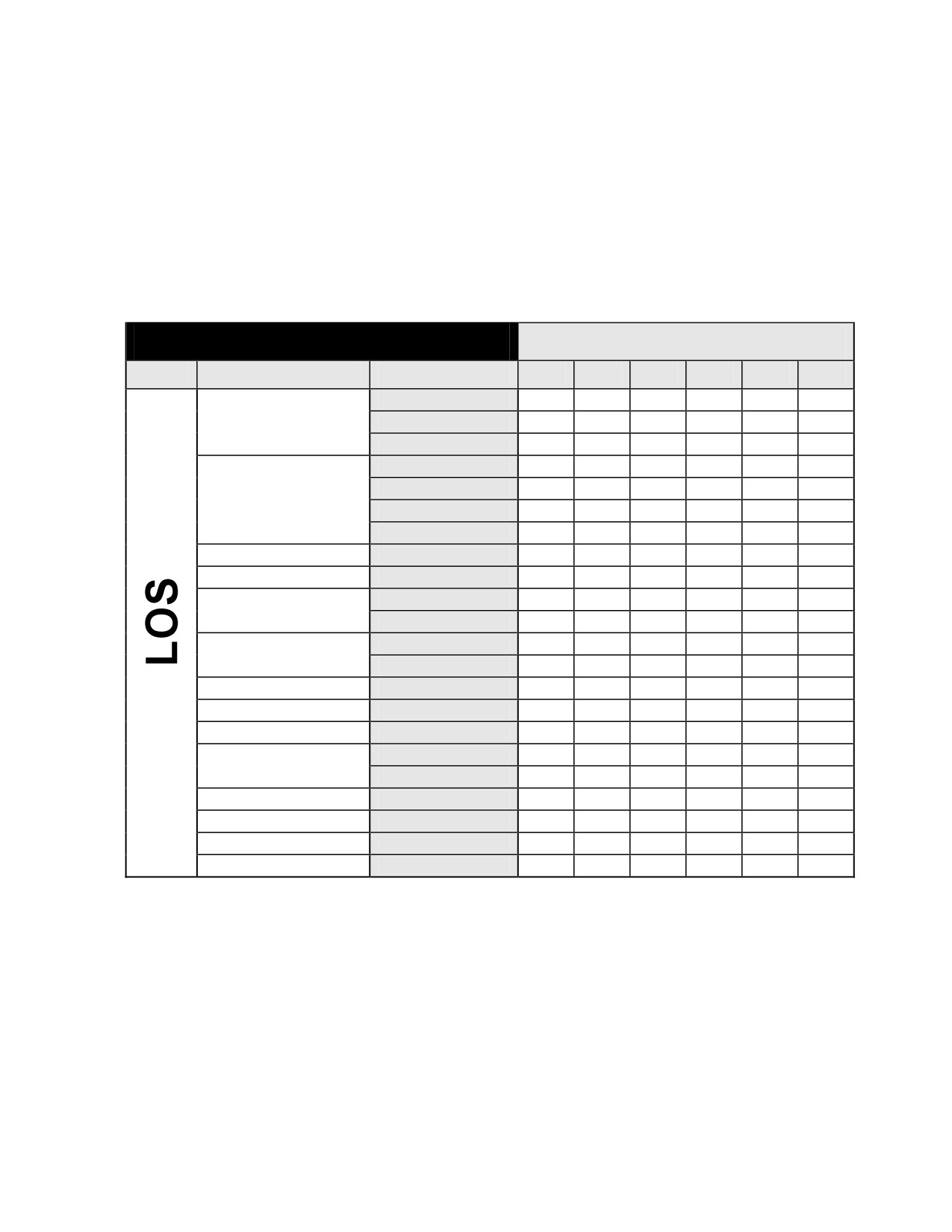
Appendix J
CUT SHEETS
The following figures are examples of cut sheets. Each unit may have developed cut
sheets specific to their unit or mission.
LOS Cut Sheet
Presets
Mode
Parameter
Value
1
2
3
4
5
6
AM
Modulation
FM
FSK
VINSON
FASCINATOR
Encryption
4-KG84
3-KG84
ANDVT
KYV5
VOICE
Communications
DATA
12k
Data Rate
16k
32k
56k
64k
NORMAL
Scan Mode
SCAN
TX Power (dBm)
RX Frequency
TX Frequency
Mode Switch
PT or CT
Figure J-1. Sample of LOS Cut Sheet
J-1
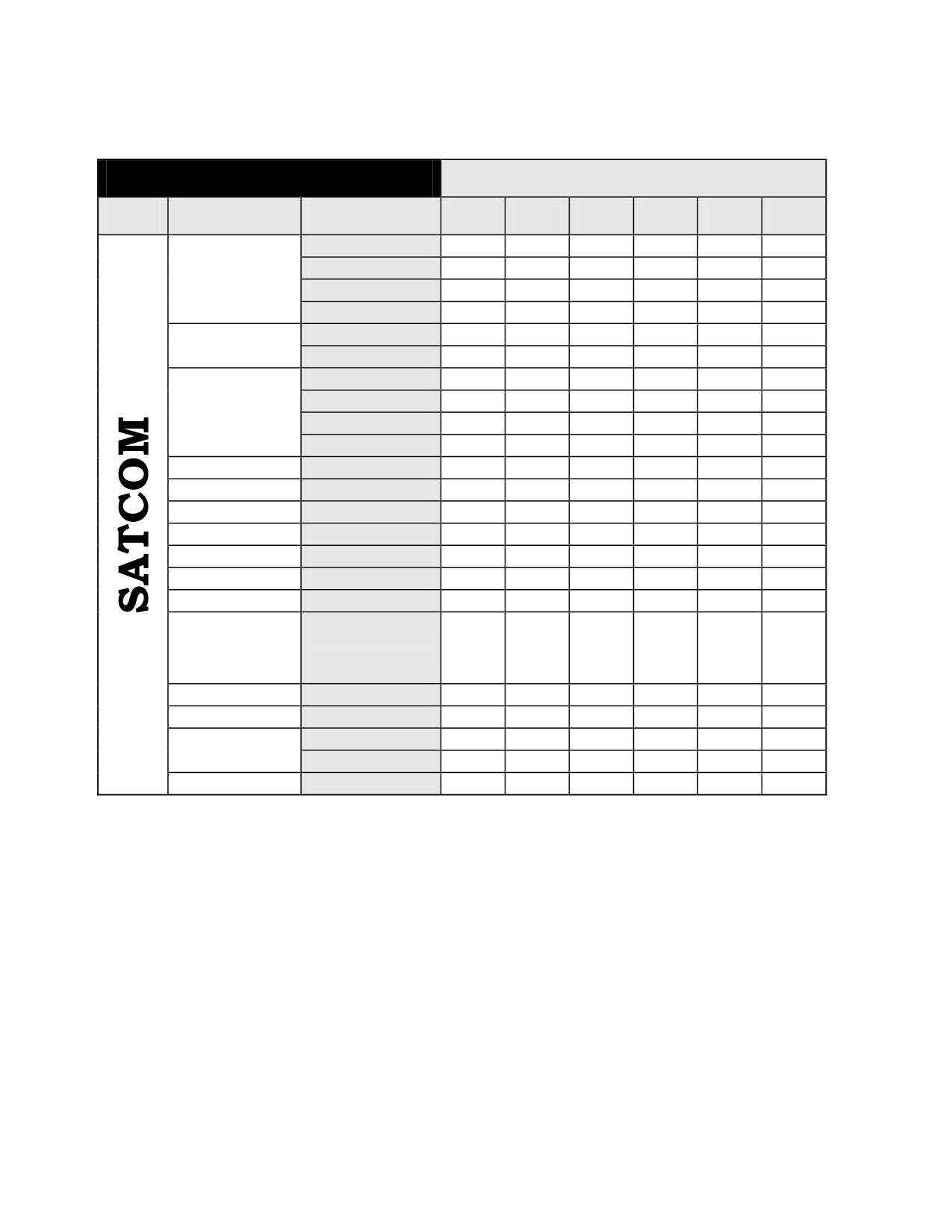
SATCOM Cut Sheet
Presets
Mode
Parameter
Value
1
2
3
4
5
6
ANDVT/MELP
VINSON
Encryption
4-KG84
3-KG84
VOICE
Communications
DATA
1200
2400
Data Rate
9600
16k
19.2k
28.8k
32k
38.4k
48k
56k
TX Power (dBm)
Home Channel
Number
9 to 239
(no SATCOM
or 999
loopback if 999)
RX Frequency
required if 999
TX Frequency
required if 999
DIFF
Encoding
Non-DIFF
Mode Switch
PT or CT
Figure J-2. Sample of SATCOM Cut Sheet
J-2
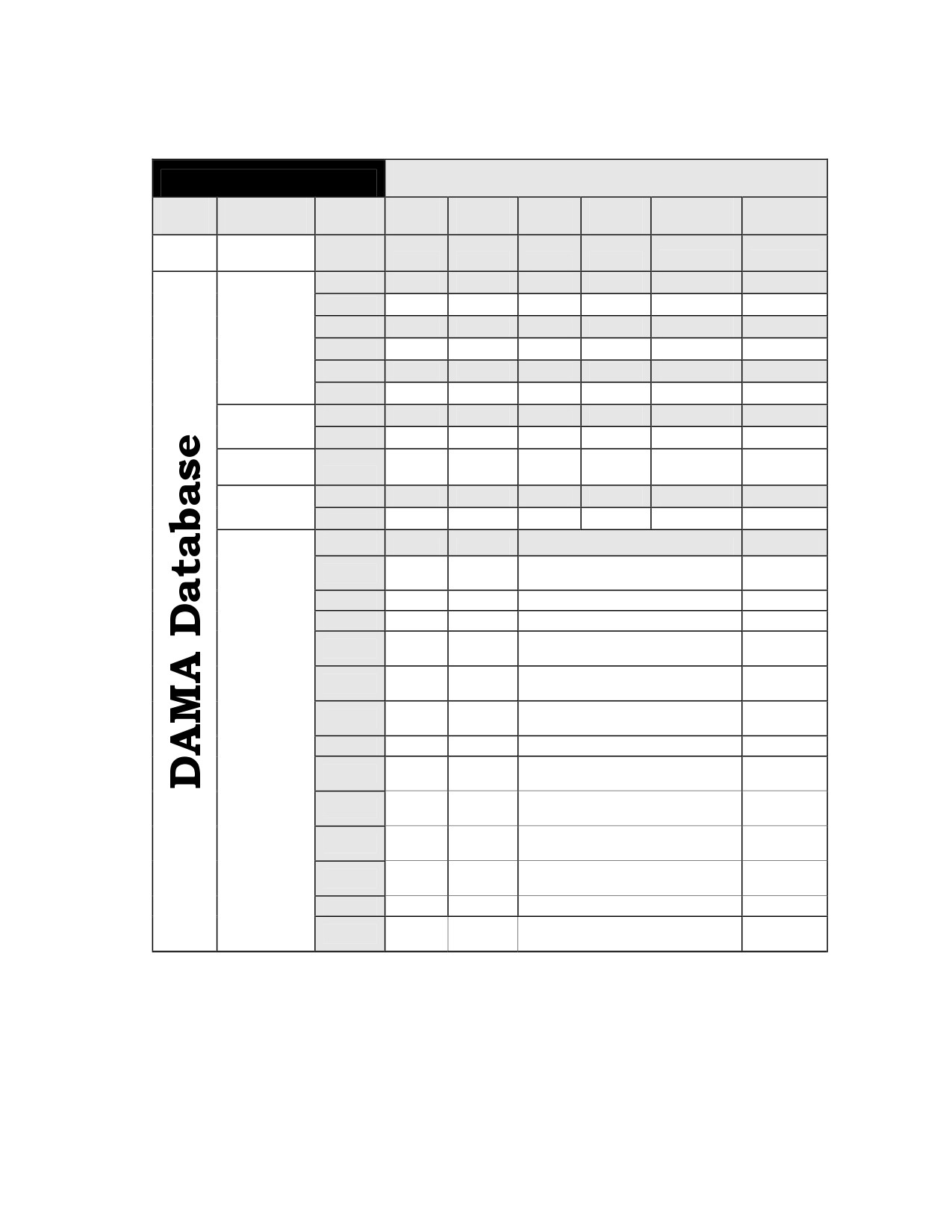
DAMA Database Set up
Presets
Mode
Parameter
Values
1
2
3
4
5
6
Backlight
2 to 60
Timer
seconds
1
2
3
4
5
6
7
8
9
10
11
12
Guard List
13
14
15
Terminal
LAT
LON
Zulu
Address
Platform
Msg. Rel.
Data
Stationary
Manual
5-kHz I/O
Data Rate
2400
Satellite
ID #
LON
Ascen.
Inc.
Ephemeris
AC/DC
Request
Meaning
Response
AC
N/A
70
Network address not in guard list
AC
71
Violated Maximum Precedence
N/A
AC
72
Already have a pending service
N/A
Requester sent teardown
AC
75
message
N/A
Terminal address not in
AC
77
database
N/A
Data rate incorrect - check
Information
AC
81
configuration code
N/A
Codes
(25-kHz
AC
82
Address called incorrect
N/A
Only)
Configuration code incorrect for
AC
88
network
N/A
Configuration code does not
AC
89
match distant end
N/A
All addresses called are not
AC
90
available
N/A
Some addresses called are not
AC
92
available
N/A
AC
93
Someone else is running link test
N/A
Two or more addresses are
AC
98
network addresses
N/A
Figure J-3. Sample of DAMA Cut Sheet page 1
J-3
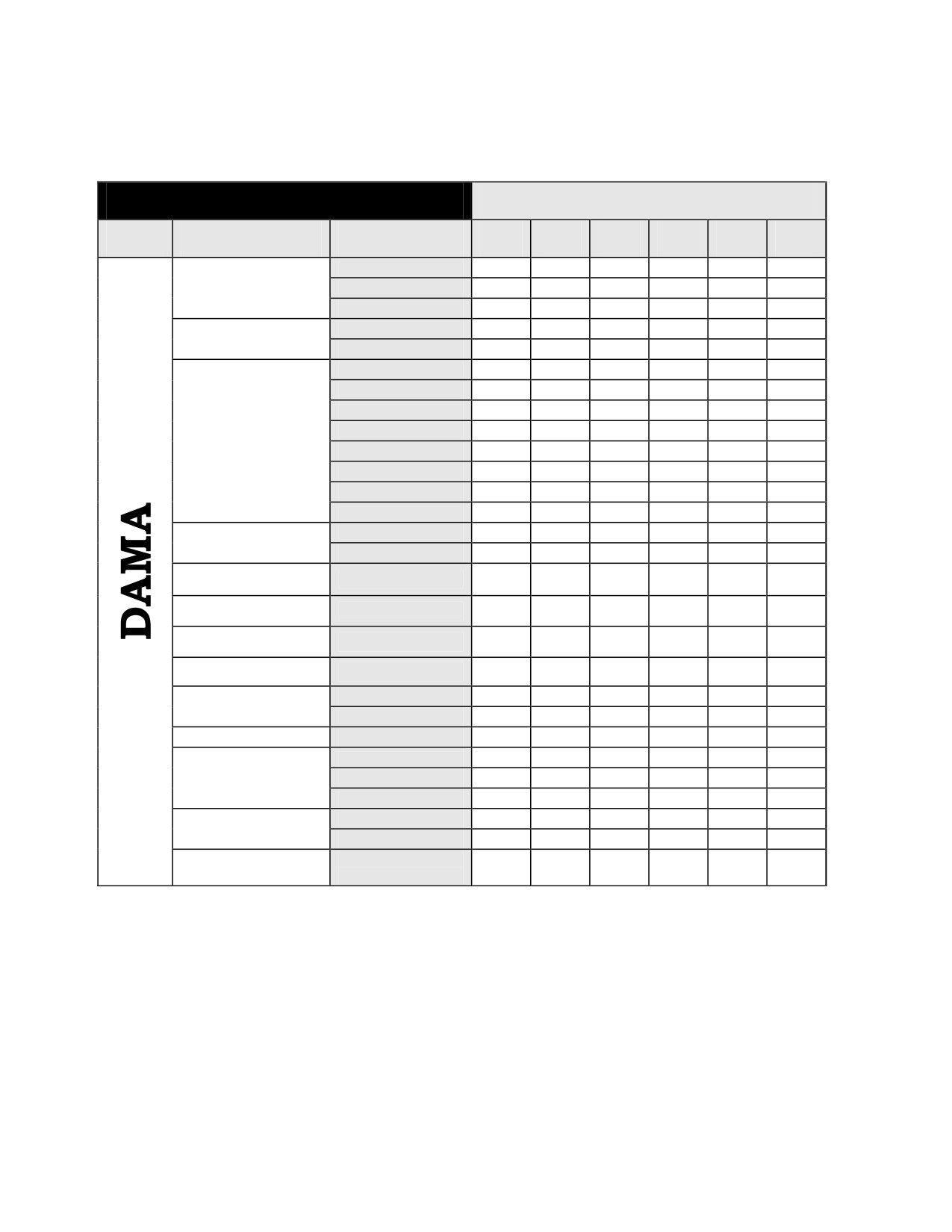
DAMA Cut Sheet
Presets
Mode
Parameter
Value
1
2
3
4
5
6
ANDVT
Encryption
VINSON
KG-84
VOICE
Communications
DATA
75
300
600
1200
Data Rate
2400
4800
9600
16k
5-kHz
Channel Variant
25-kHz
TX Power (dbm)
23 to 43
Channel Number
9 to 239
RX Frequency
For Reference Only
TX Frequency
For Reference Only
5-kHz
Configuration Code
25-kHz
OW Encryption
PT or CT
Normal
Mode of Operation
EMCON
Silent
Active
Ranging
Passive
Passive Ranging
Satellite ID Number
Only (1 to 8)
Figure J-4. Sample of DAMA Cut Sheet page 2
J-4
Appendix K
Prioritization Scheme
Table K-1. SATCOM Priority Table
SATCOM PRIORITY TABLE
Note: CINCs and other users rank order within a category when multiple accesses are
assigned the same priority
Priority User
Category
Priority 1
Strategic Order (Essential to National Survival)
1A
System Control/Orderwire
1B
National Command Authorities
1B1
Presidential Support
1B2
Secretary of Defense Support
1B3
Envoy and Emissary Support
1C
Strategic and Threat Warning/Intelligence
1D
SIOP/Force Direction Requirements
Priority 2
Warfighting Requirements
2A
Department of State Diplomatic Negotiations
2B
CJCS Support
2C
COCOM Operations
2D
JTF or CTF Operations
2E
Component Operations (Theater Forces)
2F
Tactical Warning and Intelligence
2G
CJCS-Sponsored Select Exercises
2H
Counternarcotics Operations
Priority 3
Essential Nonwarfighting Operational Support
3A
Humanitarian Support
3B
Intelligence and Weather
3C
Logistics
3D
Radio Frequency Interference Resolution
3E
Diplomatic Post Support
3F
Space Vehicle Support
3G
Other Service Support
K-1
Table K-1. SATCOM Priority Table
SATCOM PRIORITY TABLE
Note: CINCs and other users rank order within a category when multiple accesses are
assigned the same priority
Priority User
Category
Priority 4
Training
4A
CJCS Sponsored
4B
COCOM Sponsored
4C
MAJCOM, major command, Echelon 2 Sponsored
4D
Unit Sponsored
Priority 5
VIP Support
5A
Service Secretaries
5B
Service Chiefs
5C
COCOM Travel
5D
Other Travel
Priority 6
RDT&E and General
6A
DOD-Sponsored Testing
6B
DOD-Sponsored Demonstrations
6C
DOD Administrative Support
6D
DOD Quality of Life Initiatives
Priority 7
Miscellaneous
7A
DOD Support to Law Enforcement
7B
Other Non-DOD Support
7C
Non-U.S. Support as approved by the authorized organization
7D
Other
K-2
References
Joint
CJCSM 3122.01, Joint Operating Planning and Execution System (JOPES) Volume I
(Planning Policies and Procedures) 14 July 2000
CJCSM 3320.02, Joint Spectrum Interference Resolution Procedures (JSIR) 8 November
2002
CJCSI 6250.01A, Satellite Communications 10 December 2001
Military Standards
MIL-STD 188-181, Interoperability Standard for Single-Access 5-kHz and 25-kHz UHF
Satellite Communications Channels, 18 September 1992
MIL-STD 188-181A, Interoperability Standard for Single-Access 5-kHz and 25-kHz UHF
Satellite Communications Channels, 31 March 1997
MIL-STD 188-181B, Interoperability Standard for Dedicated 5-kHz and 25-kHz UHF
Satellite Communications Channels, 20 March 1999
MIL-STD 188-182, Interoperability Standard for 5 kHz UHF DAMA Terminal Waveform,
18 September 1992
MIL-STD 188-182A, Interoperability Standard for 5 kHz UHF DAMA Terminal Waveform,
31 March 1997
MIL-STD 188-183, Interoperability Standard for 25-kHz TDMA/DAMA Terminal
Waveform, 18 September 1992
MIL-STD 188-183A, Interoperability Standard for 25-kHz TDMA/DAMA Terminal
Waveform, 20 March 1998
Navy
NAV SUP P-409, MILSTRIP/MILSTRAP Desk Guide, 9 June 1998
NTTP 1-01, The Navy Warfare Library
Air Force
AFI 33-360, Publications Management Program, 29 December 2000
References-1