FM 3-25.26 MAP READING AND LAND NAVIGATION (January 2005) - page 7
This Page intentionally left blank.
FM 3-25.26
APPENDIX K
DEFENSE ADVANCED GPS RECEIVER
The defense advanced GPS receiver (DAGR) is a handheld or host
platform-mounted device that receives and decodes radio frequency (RF)
signals from GPS satellite Link One (L1) and Link Two (L2). It provides
position, velocity
(ground speed), and time
(PVT) reporting, and
navigation capabilities. Although the DAGR has many features, this
appendix only covers the procedures to place the unit into operation,
create waypoints, navigate with the DAGR, use the situational awareness
function, and troubleshoot.
K-1. INTRODUCTION
The DAGR’s primary function is to navigate through terrain using stored waypoint
position information. The DAGR is also used in operations such as waypoint
calculations, data transfer, targeting, determining jamming sources, gun laying, and man
overboard.
a. The DAGR is primarily a handheld unit with a built-in integral antenna, but can
be installed in a host platform (ground facilities; air, sea, and land vehicles) using an
external power source and an external antenna (Figure K-1, page K-2). The DAGR used
as a handheld unit can also operate with an external L1/L2 antenna and a source
of
external power. Table K-1 describes some of its characteristics and capabilities.
SELECTED CHARACTERISTICS AND CAPABILITIES
Length:
6.35 inches
Width:
3.46 inches
Depth:
1.58 inches
Weight w/batteries:
1 pound
Number of waypoints in memory:
999
Number of routes in memory:
15 with up to 1,000 legs for each
Miscellaneous capabilities:
• Provides signal acquisition using up to
12 channels.
• All satellites in view are tracked using
11 channels.
• Provides navigation using up to 10
channels.
• Produces no signals that can reveal
your position.
• Resists jamming.
• Determines and stores the azimuth of a
jamming signal source.
• Uses an internal compass to compute
track and ground speed when moving at
or below 0.5 meter per second.
• Compatible with NVGs and does not
cause blooming.
• Maps can be loaded.
Table K-1. DAGR characteristics and capabilities.
FOUO
K-1
18 January 2005

FM 3-25.26
Figure K-1. Defense advanced GPS receiver (DAGR).
b. Crypto variable (CV) keys may be loaded into the DAGR for increased PVT
accuracy and protection from intentional false or spoofed satellite signals.
c. Mission data can be selectively cleared or zeroized at any time
K-2. CONTROLS AND INDICATORS
The DAGR has functions keys located beneath the display, which contains three display
windows. The operator accesses the various DAGR functions by bringing up and
selecting items from menus. Data is changed by using the cursor keys.
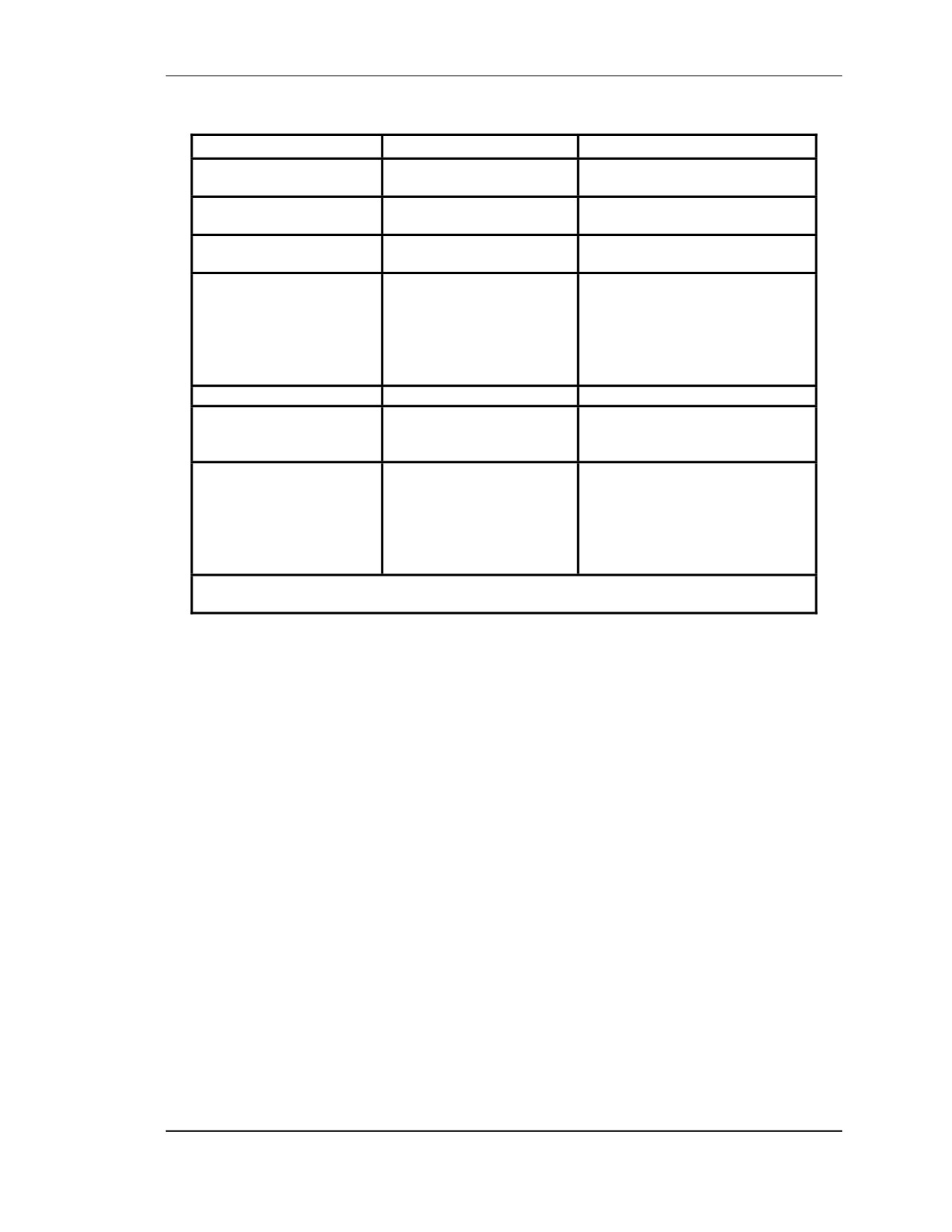
a. Keypad Controls (Figure K-2). The DAGR control keys can be used to perform
two actions. The operator can push and hold the key to access one function or push and
release the key to access another. Table K-1 describes the keys and their associated
functions.
Figure K-2. Function keys.
K-2
FOUO
18 January 2005
FM 3-25.26
Key
Push and Hold
Push and Release
F1/IN Function Key
F1 functions*
Zooms in on the situational
awareness and map pages.
F2/OUT Function Key
F2 functions*
Zooms out on the situational
awareness and map pages.
F3/STATUS Function
F3 functions*
Displays the current DAGR
Key
status.
PWR/QUIT Key
Turns the DAGR off or
• Cancels an operation.
on.
• Pages backwards when
using a page set.
• Returns to a previous
display in a series of
operational displays.
POS/PAGE KEY
Present position page
Scrolls to the next page of data.
BRIGHTNESS/MENU
Toggles the keypad and
Accesses display menus.
Key
turns display lighting on
and off.
WP/ENTER Key
Selects between different
• Selects items from pop-up
waypoint functions.
menus.
• Selects a field (highlight)
when no field is currently
selected.
• Makes choices within lists.
* The functions these keys access are displayed sequentially from left to right on the
toolbar at the bottom of the display.
Table K-2. DAGR function keys.
b. Editing Data Within the Display Window. After the steps are completed to edit
a field, the DAGR uses the same process for all operations to select and edit data in the
display window. Use the cursor control keys to make selections or enter data in the
display window. The left, right, up, and down cursor control keys function as follows:
(1) Push and release a cursor control key for one scroll (movement) of the cursor
from field to field or option to option in the display.
(2) Push and hold a cursor control key for an accelerated scroll in the desired
direction.
(3) Up and down cursor control keys are used to scroll through data vertically within
a selected field as well as to move from field to field. For example, to enter new waypoint
coordinates move to each digit, make the correction, push ENTER to confirm the change,
and then move to the next digit.
(4) The left and right cursor control keys are used to scroll through data horizontally
as well as move from field to field.
(5) The procedure to select and enter data into fields depends on how the data is
presented and its type.
(a) Editing Field Options from a List. A list editor is a pop-up containing a menu of
choices not requiring any individual character editing. Scroll to the correct entry and
select it by pushing ENTER.
FOUO
K-3
18 January 2005
FM 3-25.26
(b) Editing Fields Containing Only Numbers. A number editor is a pop-up containing
numeric characters for editing. Use the left and right cursor keys to select the digit to edit.
Use the up and down cursor keys to select the new digit, then push ENTER.
(c) Editing Fields Containing Alphanumeric Characters. A text editor is a pop-up
containing alphanumeric characters for editing. Use the cursor control keys to select the
character to edit, then push ENTER.
c. Multifunction Keys. The DAGR also has two sets of multifunction keys.
(1) PWR/QUIT and POS/PAGE Key. Push and release the PWR/QUIT and
POS/PAGE keys simultaneously to activate the emergency zeroize display. Confirmation
from the user is required before the action is completed.
(2) BRIGHTNESS/MENU Key and Up or Down Cursor Control Key When the
keypad/display lighting is on, push and hold the BRIGHTNESS/MENU key and push the
respective up or down cursor control key simultaneously to adjust lighting brightness
level.
d. Lighting, Battery, and Function Indicators and Labels. The DAGR displays
the lighting status, the battery strength, and the function being used in the display
window.
(1) Lighting Status Indicator. The lighting status indicator is located in the upper
right corner of the display next to the battery status indicator. It resembles a light bulb
when the keypad/display lighting is on, and it does not appear when the lighting is off.
(2) Battery Status Indicator. The battery status indicator is located in the upper right
corner of the display. It resembles a battery and the darkened portion indicates how much
battery life remains.
(3) Function Key Labels. Each of the three function keys of the keypad has an
associated function key label shown in the toolbar window at the bottom of the display.
The function key actions are activated by pushing and holding the respective key on the
keypad directly below the toolbar window.
e. Display Windows (Figure K-3). The DAGR display contains three windows:
page, toolbar, and message. The page and toolbar windows are also divided into two
sections that are always visible. The message window appears as needed to display
additional messages, including pop-up information.
(1) The display windows cannot be individually selected; only fields included in the
windows may be selected. The operator can request help text or a menu specific to the
currently displayed page when no fields are selected.
(2) The page window is where the majority of display interaction occurs. A page may
contain several individual fields. The fields may contain “read only” data or data that can
be modified. A page may contain multiple horizontal or vertical views, as denoted by
scrollbars at the right side or bottom of the page window. The scrollbars are controlled by
the cursor control keys.
K-4
FOUO
18 January 2005
FM 3-25.26
Figure K-3. DAGR display.
(3) The toolbar window consists of three display sections and is located at the bottom
of the screen. It displays labels for the push and hold keys referred to as function keys
(F1, F2, and F3). The function keys are used to change the page being displayed or to
perform a single action (for example, go to the NAV display page).
f. Message. When conditions warrant operator notification, message windows are
used to attract the operator’s attention. Messages are categorized as notes, alerts,
cautions, and warnings based on the impact of the message to the operator’s mission. The
message window is displayed over the page window. The message must be cleared
(through operator acknowledgement or self-removal) before the page window
functionality can be resumed.
g. Pop-Ups. Message, menu, help, and editor pop-ups are displayed over the page
window. The operator initiates a pop-up by pushing the MENU key, or by pushing the
ENTER key when a field is selected. The pop-up is cleared by making a selection from
the pop-up display or pushing the QUIT key. Page window functionality is resumed after
removing the pop-up. Pop-ups may have menus, allow editing, and have help text
pop-ups associated with the displayed information.
h. Editors. The DAGR provides a variety of editors for the operator to change or
customize page field content. Editors are accessed through the page or field menu. Actual
DAGR editor titles correspond with the field being edited (for example, when editing a
waypoint name field, the text editor title is Name). The operator primarily uses the
number editor when selecting courses and creating waypoints. (See TM 11-5820-1172-13
for more details on how to use the DAGR edit features.)
(1) Number Editor. The number editor is used when editing numeric field values (for
example, grid coordinates). The number editor utilizes key functions as follows:
• Up/down cursor control keys — scroll to desired digit or characters.
• PAGE key — scroll to the first digit or character value.
• Left/right cursor control keys — move the cursor left or right (for example,
move to the next digit in a coordinate).
• ENTER key — save changes and exit.
• QUIT key — exit without saving changes
FOUO
K-5
18 January 2005
FM 3-25.26
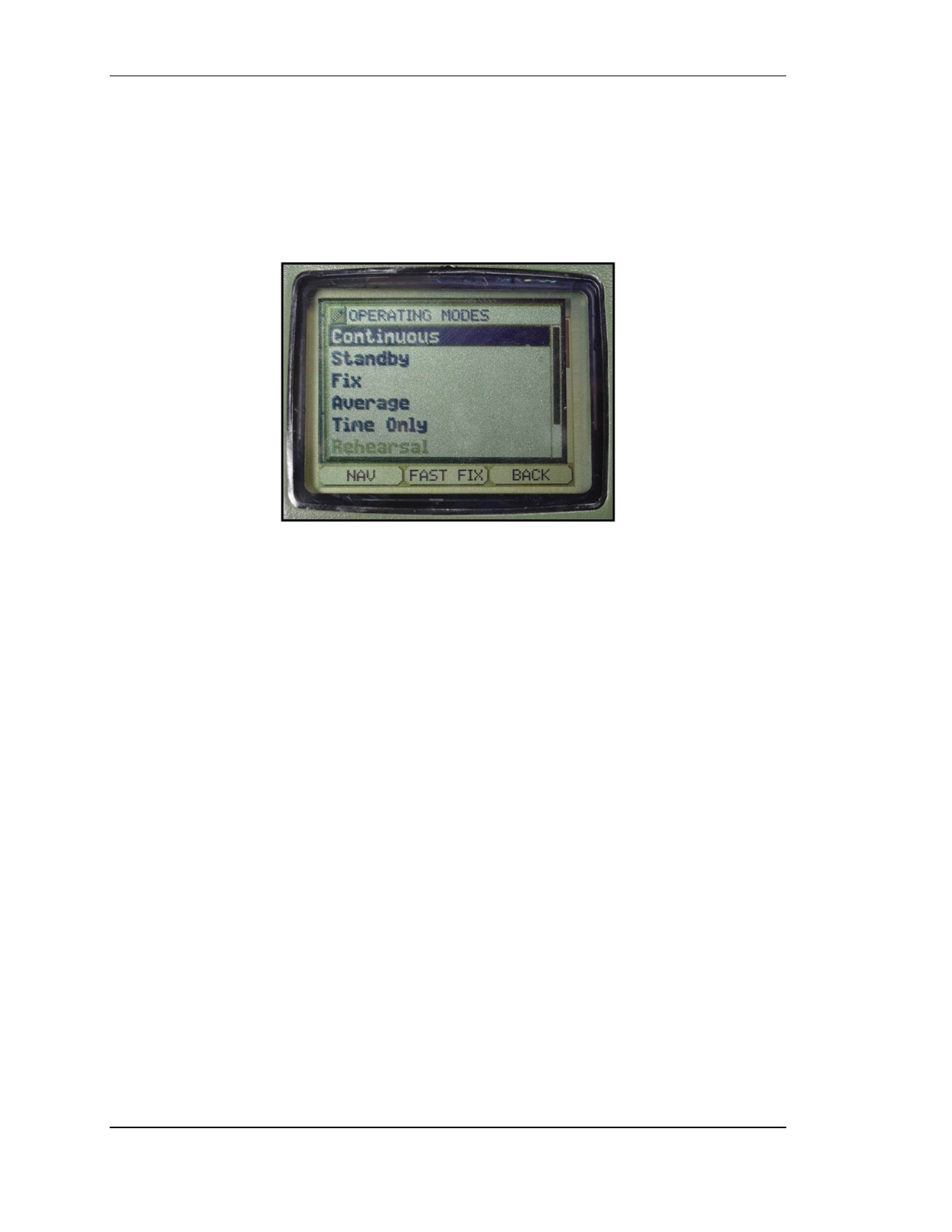
(2) List Editors (Figure K-4). The list editor utilizes key functions the same as the
number editor except the PAGE key is used to scroll down larger lists. The list editor is
used when editing operator selectable data (for example, selecting from a pick list). List
editors are also used for special lists (for example, including both waypoint number and
name) or additional information of the highlighted item in a display footer (for example,
datum information).
Figure K-4. List editors.
(3) Text Editors. The text editor is used when editing text and numeric characters. It
allows selection of the characters A through Z, 0 through 9, dash (-), slash (/), period (.),
and space ( ) to be entered into the text box. To select/activate a given key, the ENTER
key must be used. There are four command keys: Clear, Ins Char, Del Char, and Save.
(a) Clear. The Clear key clears the selected character and all characters to the right of
the selected character and replaces them with the space character.
(b) Ins Char. Insert Character shifts the selected character and all characters
following the selected character to the right by one character, and inserts a space
character at the selected location. The new space character becomes the selected
character and the character at the end of the text string is deleted (last character of the last
line of editable text).
(c) Del Char. Delete Character shifts all characters following the selected character to
the left by one character, thereby overwriting the selected character, and a space character
is inserted at the end of the text string (last character of the last line of editable text). The
character replacing the selected character becomes the new selected character.
(d) Save. Saves the changes made to the text string and exits the text editor. Instead of
using the cursor keys to highlight the SAVE command, the MENU key can be pushed to
access a list of options (undo changes, save and exit, exit and no save, reset to default,
and editor help). These options provide shortcuts to close the text editor.
i.
Menus. The DAGR uses the following general menu structure to access and or
edit information. The four menu types are:
• Main menu: provides submenu choices.
• Submenu: provides page (function) choices.
K-6
FOUO
18 January 2005
FM 3-25.26
• Page menu: provides specific functions or editors associated with the page.
• Field menu: provides specific functions or editors associated with the field.
(1) With a page displayed or a field highlighted, the corresponding menu may be
viewed by pushing the MENU key. Pushing the QUIT key allows the user to back out of
the menu and return to the previous display. When a highlighted menu selection has an
arrow symbol to its right, pushing the right cursor control key or the ENTER key causes
the submenu to be displayed.
(2) Field and page menu items that are not currently available (for example, Edit
Field) appear as light gray text. Although the cursor can be placed on disabled items, the
pop-up menu does not allow selection of that item.
j.
Accessing Menus. DAGR menus are accessed in steps. The operator must access
each level, select the next menu, and proceed down the hierarchy until reaching the
desired field. The operator uses the cursor keys to highlight and the ENTER key to select.
(1) Going from the Main Menu to a Field Menu. Use the steps to access the desired
field menu.
(a) Access the main menu and select the correct submenu by highlighting it and
pushing ENTER.
(b) From the submenu, select the correct page menu by highlighting it and pushing
ENTER.
(c) From the page menu, select the correct field menu by highlighting it and pushing
ENTER.
(2) Accessing the Main Menu. Following DAGR power-up, and from any display
(except a pop-up message), access the main menu by pushing the MENU key twice. With
a submenu open, the main menu is accessed by pushing the QUIT key. When a page
menu or a field menu is open, the main menu is accessed by pushing the MENU key.
(3) Accessing the Waypoint Page. The operator can immediately access the waypoint
functions by pushing and holding the WP/ENTER key.
NOTE: When a page is displayed, other pages of the submenu page set are accessed
by pushing the PAGE or QUIT keys.
k. POS/PAGE Set. POS/PAGE set speeds access to the most commonly used
DAGR functions. It is accessed by pushing and holding the POS/PAGE key. After
accessing the POS/PAGE set, the PAGE or QUIT key can be pushed to view all pages of
the POS/PAGE set. The POS/PAGE set consists of the following pages:
• Present Position.
• Situational Awareness.
• NAV Pointer.
• Map.
• SV Sky View.
NOTE: The operator can remove the SV Sky View and Map page from the
POS/PAGE set, but not the Present Position, Situational Awareness, and NAV
Pointer pages. The operator can add up to seven additional display pages to
the nonremovable pages of the POS/PAGE set for a total of up to ten display
pages.
FOUO
K-7
18 January 2005
FM 3-25.26
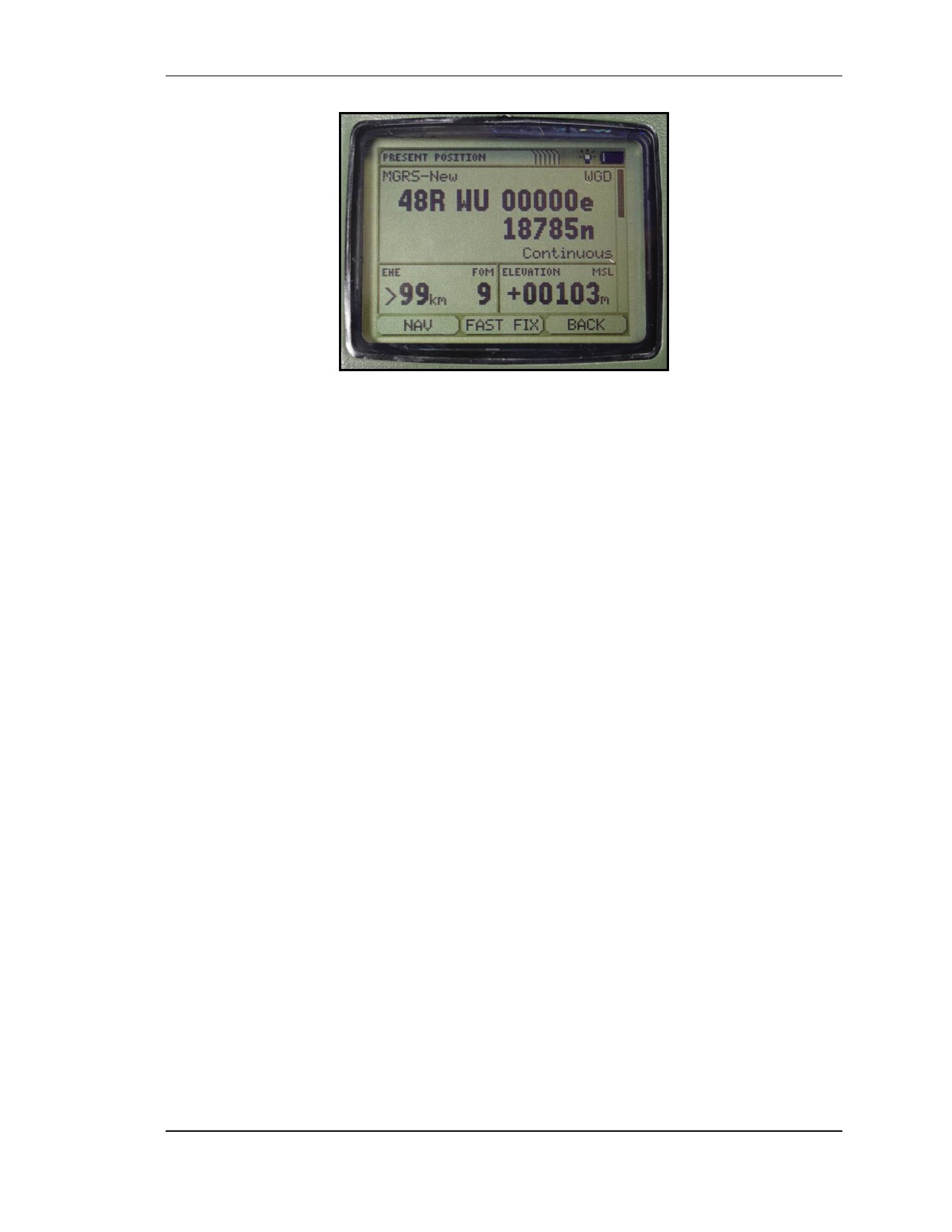
(1) Present Position (Figure K-5). The Present Position page displays the operator’s
present position and contains ten fields. The operator can scroll the page to view the
additional field data. The ten fields include: Present Position Coordinates, Coordinate and
Grid System, Datum Identifier, Current Operating Mode, EHE, FOM, Elevation
Reference, Ground Speed, Estimate Time Error, and MAGVAR (magnetic variance)
Figure K-5. Present position.
(2) Situational Awareness. The Situational Awareness page provides a graphical
display of relationships between present position, track, waypoints, routes, and alerts. The
Situational Awareness page includes a north reference indicator, speed and track, position
error data, and a range scale.
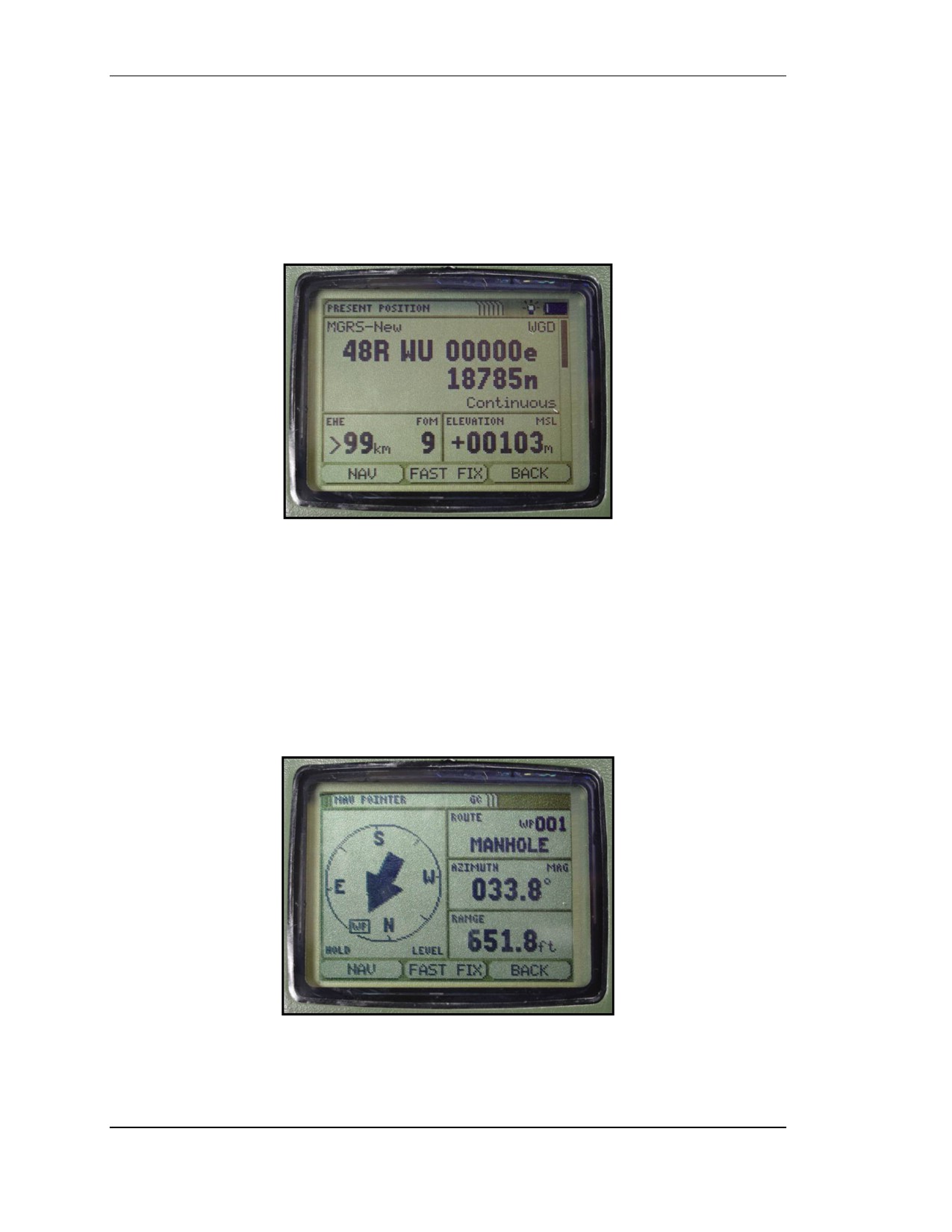
(3) NAV Pointer (Figure K-6). The NAV Pointer page displays a pointer directing
the operator towards the displayed waypoint. It also displays the current navigation
method, destination waypoint number and name, azimuth, and range fields.
Figure K-6. NAV pointer.
K-8
FOUO
18 January 2005
FM 3-25.26
(4) Map. The Map page displays a graphical map of relationships between current
position, landmarks, map objects, and selected waypoints. With a map previously loaded,
the Map page automatically displays a map with present position of the DAGR shown at
the center of the display. The operator uses zoom and pan operations, and waypoint
selections to obtain a desired view. When navigating, the Map page provides the operator
with a mapped view of surrounding terrain and potential obstructions (for example,
a body of water).
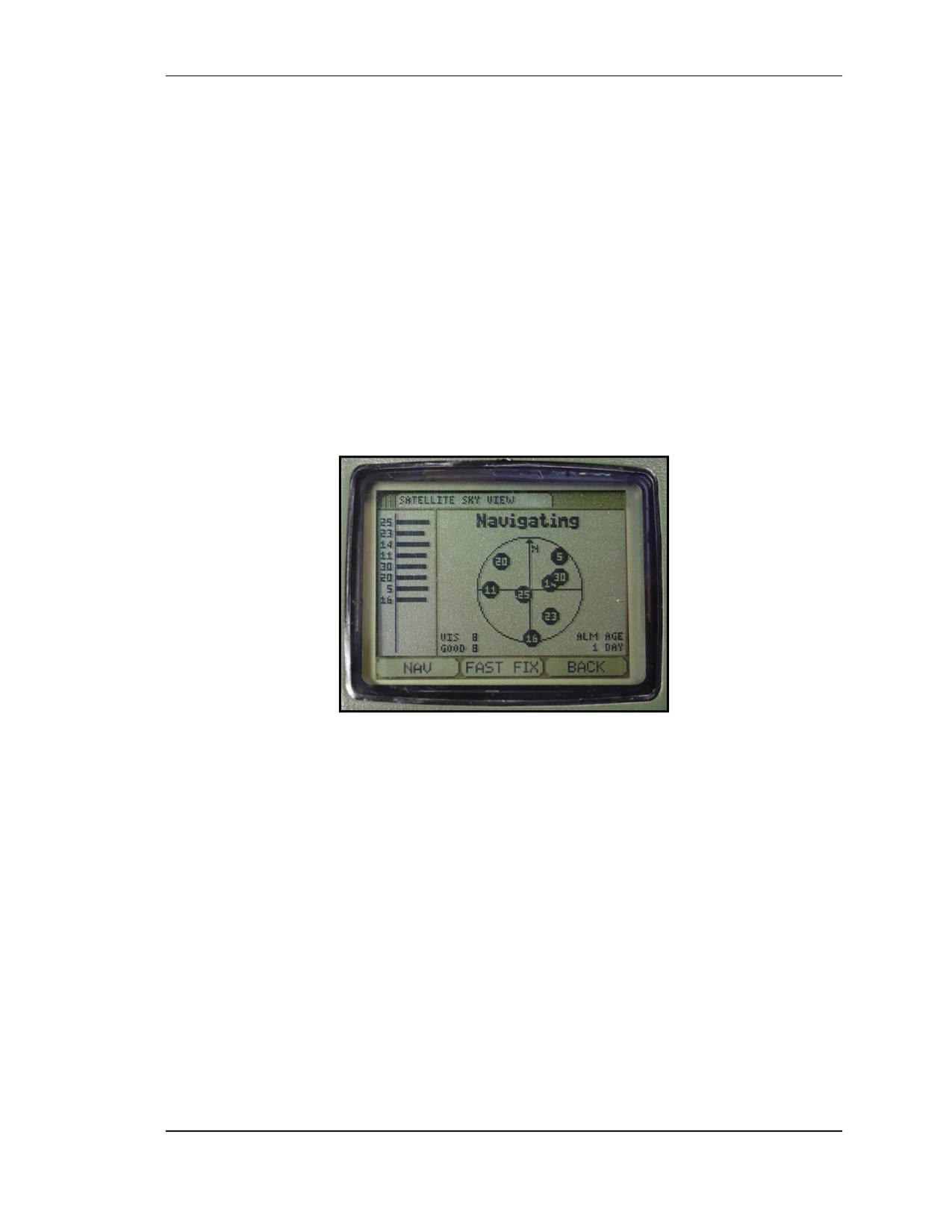
(5) SV Sky View (Figure K-7). The SV Sky View page displays status information on
tracked satellites (for example, acquiring satellites). The current operating status is shown
at the top of the display. Numbers inside black circles indicate satellites in use to acquire
or maintain the current DAGR position. The corresponding number at the left side of the
display provides a bar graph indication of satellite signal strength and code status. The
longer the bar, the greater the signal strength. A black bar indicates ephemeris data is
collected. If the DAGR cannot display satellite information, no bars appear at the far left
side of the display.
Figure K-7. SV sky view.
K-3. OPERATIONAL CHECKOUT PROCEDURES
Performing the operational checkout procedures on the DAGR determines if the unit is
operating correctly. These checks aid the user in detecting a DAGR malfunction that may
be corrected in the field. If the DAGR passes the operational checkout procedure, the unit
is ready to use; if the DAGR does not pass the operational checkout procedure, proceed
to the troubleshooting procedures. After operational checkout procedures, but before use,
ensure:
• The correct function set is being used (basic or advanced).
• The correct user profile is being used if using the advanced function set.
• The DAGR is set to the desired operating mode.
a. External Body. Inspect the DAGR and external cables and equipment for
damaged and or missing parts.
b. Power Up. Push the POWER key to turn the DAGR on, and make sure the
DAGR has a clear view of the sky. During power up, observe the power-on status
FOUO
K-9
18 January 2005
FM 3-25.26
display. Make sure the DAGR passes the self-tests and the battery strength indicator
shows sufficient battery power remaining. Do not use the DAGR if a failed self-test is
indicated.
NOTE: A Test Summary page can be accessed from the System submenu for a listing
of tests that passed or failed. Do not use the DAGR if the Status field shows
FAILED.
c. Operator-Induced Commanded Self-Test. After the DAGR successfully
completes the power-on self-test and shows the SV Sky View page or Present Position
page, perform the following procedure for an operator-induced commanded self-test.
NOTE: The self-test does not track SVs, determine position, or provide navigation
data. Operator confirmation is required to enter this mode. The self-test lasts
approximately four minutes and requires operator intervention to complete.
(1) Activate commanded DAGR self-test.
(2) If the Present Position page is not already displayed, push and hold the POS key
(except when showing a message pop-up, then push the QUIT key first). The Present
Position page is displayed. Push the MENU key.
(3) Highlight Select Op Mode, then push the ENTER key.
(4) Highlight Test, then push the ENTER key.
(5) The DAGR displays an ENTER TEST MODE message prompting the operator to
confirm or cancel entering test mode. Push ENTER key to confirm.
(6) A Test In Progress display appears with the specific area of testing listed at the
bottom and a bar graph denoting progress. The DAGR automatically tests multiple areas.
NOTE: While performing the following keypad test, push and hold the ENTER key to
test the ENTER key. Push and release the ENTER key to advance to the next
display.
(7) After the displayed tests are completed, Keypad Test is displayed. Push each key
on the keypad and verify the corresponding key shown on the display toggles between
normal and highlighted appearance. Push the ENTER key to continue to the next display.
(8) The Display Light Test display appears with the brightness adjustment cycling
between 0% and 100%. The percentage adjustment is reflected in the light bulb of the
display. Push the ENTER key to continue.
(9) The Contrast Test display appears with the contrast adjustment cycling between
0% and 100%. The percentage adjustment is reflected in the bar graph of the display.
Push the ENTER key to continue.
(10)
The Display Test Beginning message appears momentarily. After sequencing
through white, light gray, dark gray, and black, the Display Test Completed message
appears, followed by the Power-On Status display listing self-test results as Pass or Fail.
K-10
FOUO
18 January 2005
FM 3-25.26
NOTE: A Test Summary page can be accessed from the System submenu for a listing
of tests that passed or failed. Do not use the DAGR if the Status field shows
FAILED.
(11)
If the Power-On Status remains displayed and does not time out, push the
ENTER key to acknowledge.
(12)
The SV (satellite vehicle) Sky View page is displayed. Push the MENU key.
(13)
Highlight Select Op Mode, then push the ENTER key.
(14)
Highlight Continuous, then push the ENTER key. This mode enables the
DAGR to acquire a current position fix.
(15)
After satellites are acquired and a current position fix is obtained, the DAGR
display stops blinking and Tracking SVs is shown on the SV Sky View page. The display
then automatically switches to the Present Position page.
NOTE: If the DAGR does not acquire satellites, the display blinks between black and
gray text and goes into Standby mode (both handheld and host platform
operation). If the DAGR display continues to blink, verify a clear view of the
sky, then perform the manual initialization procedure.
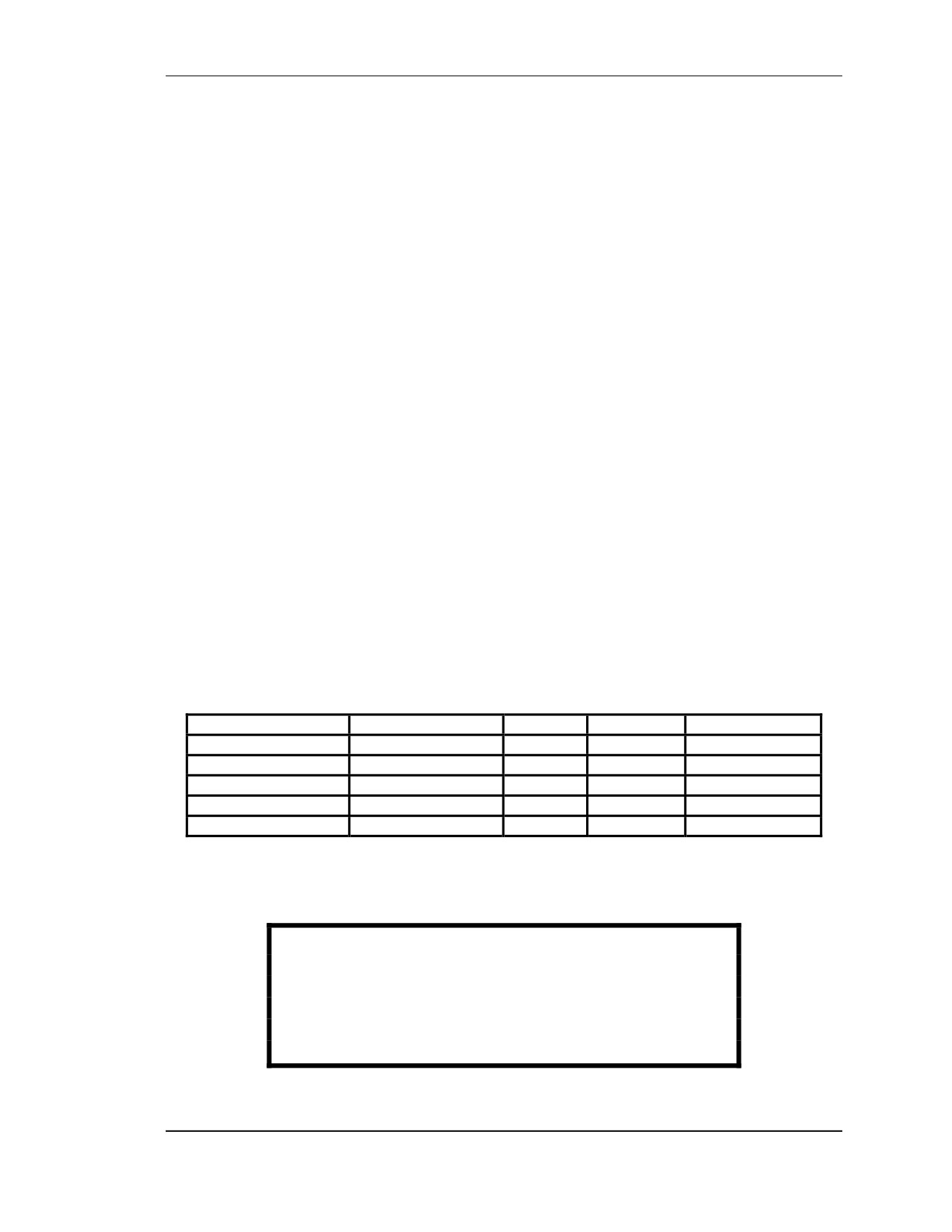
K-4. BATTERY INSTALLATION
The DAGR requires two sets of batteries to operate fully, although it can operate on only
the primary battery. Table K-3 shows the types of batteries the DAGR can use.
a. Battery Life and Type. The approximate battery life is based on operating the
DAGR in continuous mode, at room temperature, and without keypad/display lighting.
Several operator selectable DAGR settings are available to extend battery life. No power
conservation is required when using external power. Internal batteries are not required
when using external power, and need not be removed when connected to external power
Type
Size and Voltage
Use
Life
Rechargeable ?
Lithium
AA 1.5 volt
Primary
16.5 hours
No
Alkaline
AA 1.5 volt
Primary
11.5 hours
No
Alkaline
AA 1.5 volt
Primary
7 hours
Yes
Nickel Metal Hydride
AA 1.5 volt
Primary
10 hours
Yes
Lithium
1/2 AA 3.6 volt
Memory
6 months
No
Table K-3. Types of batteries.
WARNING
If abused, lithium batteries can explode causing
severe injury. Be sure to store batteries in original
packaging until ready to use, and observe polarity
during installation. Reverse polarity can cause
damage to the battery and receiver.
FOUO
K-11
18 January 2005
FM 3-25.26
CAUTIONS
1. Do not mix new batteries with old batteries. Do not
mix battery types. Do not reverse battery polarity.
Use only fresh/new batteries.
2. If the DAGR is being used for the first time and
there are no memory settings to be saved, the
memory battery is not important, but still needs to
be installed. To ensure all settings from previous
usage are retained, ensure a good memory
battery is installed (check memory battery date on
Battery page) or external power is applied to the
unit before installing or replacing the primary
batteries.
3. If all primary and memory power is lost, memory
information is lost, and the DAGR resets to default
settings after power-up.
b. Primary Battery Installation. Use the following steps to install the primary
battery.
(1) Ensure power to the DAGR is off.
(2) Hold the unit firmly upside down with the battery pack facing up.
(3) Push or pull the latch located on the battery pack to release the battery pack. Lift
up on the battery pack and remove it from the unit.
(4) Position the battery removal strap into the channel of the battery pack before
installing new batteries.
(5) Install new batteries and ensure correct polarity installation for each battery
(marked on battery pack).
(6) Before installing the battery pack, inspect the battery pack gasket for damage or
dirt. Lubricate or replace gasket if necessary. Ensure the battery removal strap is not
protruding from the battery pack.
c. Memory Battery Installation. To install a new battery pack, position the tab on
the battery pack in the slot on the DAGR.
(1) Close the battery pack against the DAGR until the battery pack is engaged.
(2) Ensure power to the DAGR is off.
(3) Place the unit upside down on a nonabrasive surface with the memory battery
cover facing up.
(4) Use a flat-blade screwdriver to loosen the three screws securing the memory
battery cover, then remove the cover from the unit.
(5) Remove the expired memory battery and properly dispose of it.
(6) Install the new memory battery.
(7) Before reinstalling the memory battery cover, inspect the gasket for damage or
dirt. Lubricate or replace the gasket if necessary.
(8) Reinstall the memory battery cover, and tighten the three screws.
K-12
FOUO
18 January 2005
FM 3-25.26
K-5. OPERATING PROCEDURES
Operating procedures include the following steps:
• Turn the power on.
• Conduct a self-test.
• Select the mode of operation.
• Turn the power off at the end of the operation.
a. Preoperational Steps and Checks. Several steps and checks must be conducted
before turning the DAGR on. (Refer to TM 11-5820-1172-13 for more details.)
(1) To ensure proper battery life and proper unit operation, check the batteries to
make sure they are of the same type, are not a mix of old and new batteries, and are still
good (by checking the battery indicator).
(2) If using external power, be sure the battery cable is properly connected.
(3) Be sure the DAGR has an open view of the sky to acquire the present position.
When position data fields blink between black and gray text, the DAGR is not tracking
satellites or has not yet acquired present position.
(4) Manually enable and orient the internal compass.
(5) To operate in -20-degree Centigrade or below conditions, the heater must be on
for at least 20 minutes before powering up.
(6) If a warning or other message displays while operating the DAGR, follow the
display instructions.
b. Turn the Power On. Push the PWR key to turn the DAGR on. A display page
briefly appears indicating the DAGR software version. After the power is on, the normal
operating mode is Continuous when operating on external power and Fix when operating
on battery power.
(1) If a CV key, group-unique variable (GUV) key, or an SV code condition exists,
acknowledge the message(s) accordingly.
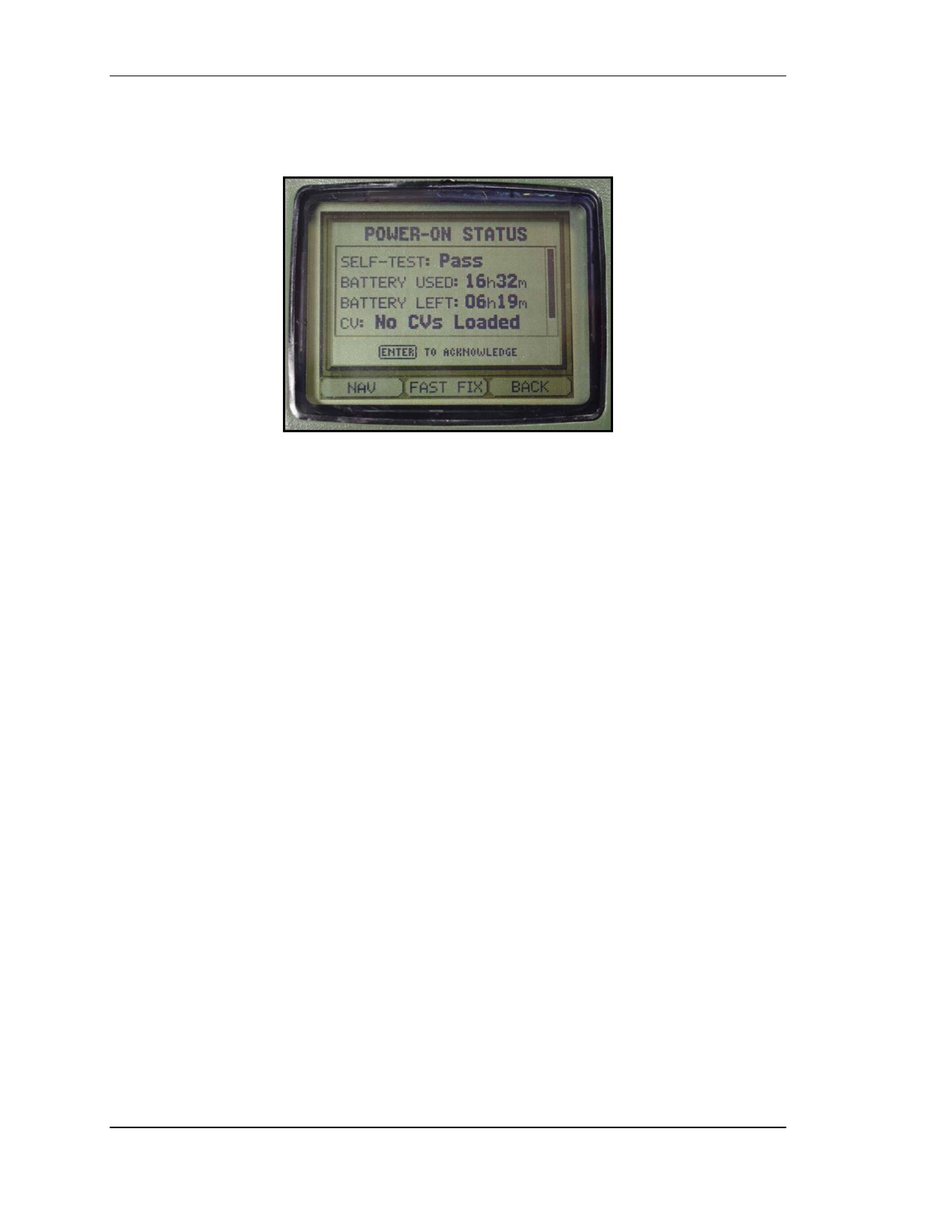
(2) The power-on status message (Figure K-8, page K-14) appears and provides the
following information. (All messages may not be listed as they are dependent on how the
DAGR is configured. Use the up/down cursor control keys to scroll and view the entire
display message.)
(a) Self-Test. The Self-Test message displays the self-test results as PASS
(no
self-test failures found) or FAIL (self-test failures detected). This message is always
displayed.
(b) Battery Used. The Battery Used message indicates the primary battery capacity
used (amount of time in hours and minutes the DAGR has been operated using primary
battery). It is displayed when using internal primary battery power only.
(c) Battery Left. The Battery Left message indicates the primary battery capacity
remaining (in hours and minutes). It is displayed when using internal primary battery
power only.
(d) CV. The CV message indicates whether or not CV keys are loaded. If they are
loaded, the message indicates whether or not the DAGR has the current CV key.
(e) Power. The Power message indicates which power is being used—internal or
external.
(f) Days Remaining. This message indicates the number of days remaining in the
mission. It also indicates if enough CV keys are loaded for mission duration.
FOUO
K-13
18 January 2005
FM 3-25.26
(g) Default. The Default message indicates that the DAGR’s position, time, and date
are default values. It also indicates if initialization is recommended for the DAGR.
Figure K-8. Power-on status.
(3) The Power-On Status message times out in two seconds. The DAGR is ready for
use if the status message indicates that the self-test has passed and the DAGR does not
need initialization. If the self-test indicates FAIL, the operator is prompted to push the
ENTER key to acknowledge, but the DAGR is not ready to use. If any of the following
conditions exist, a message requiring the operator’s acknowledgement will appear.
• No CVs or GUV keys are loaded.
• No CV key for today is loaded.
• Not enough CV keys are loaded for duration of mission (if mission duration is
entered).
• SV code is set to Mixed.
(4) After the Power-On Status display times out or is acknowledged, the DAGR
displays the SV Sky View page with satellite acquisition status appearing at the top.
Initially, the status is displayed as ACQUIRING SVS and then, when successful, the
status changes to TRACKING SVS.
(5) After the DAGR has acquired the current position, the unit automatically switches
to the Present Position page and displays the position coordinates, elevation, and the
estimated horizontal error (EHE).
(6) During satellite acquisition, the PAGE or QUIT keys can be used to access the
Present Position page. If the DAGR is not tracking satellites, the display will blink and
the Present Position page will display the last position recorded by the receiver before
being turned off.
NOTE: Adjust the DAGR Keypad/Display lighting is by pushing and holding the
BRIGHTNESS key and the respective up or down cursor control key.
c. Conduct a Self-Test. Conduct the self-test using the same procedures described
in paragraph K-3.
K-14
FOUO
18 January 2005
FM 3-25.26
d. Mode of Operations. The DAGR mode of operation can be selected from any
display, except a message pop-up, by pushing the MENU key twice to display the Main
Menu. The normal (default) operating mode is Continuous when the DAGR uses external
power and Fix when it uses battery power.
(1) Types of Modes. The DAGR can operate in eight different modes.
(a) Continuous. The Continuous mode, which uses the most power, tracks satellites to
produce a continuous PVT solution.
(b) Fix. The Fix mode tracks satellites to produce a current PVT solution. After a
position fix is obtained, it automatically transitions to the Standby mode.
(c) Standby. When the DAGR is in the Standby mode, which uses reduced power, it
does not acquire and track satellites, but performs all functions that do not require
satellites.
(d) Other Available Modes. The other available modes are: Average, Time Only,
Rehearsal, Test, and Off. (Refer to TM 11-5820-1172-13 for details on their use.)
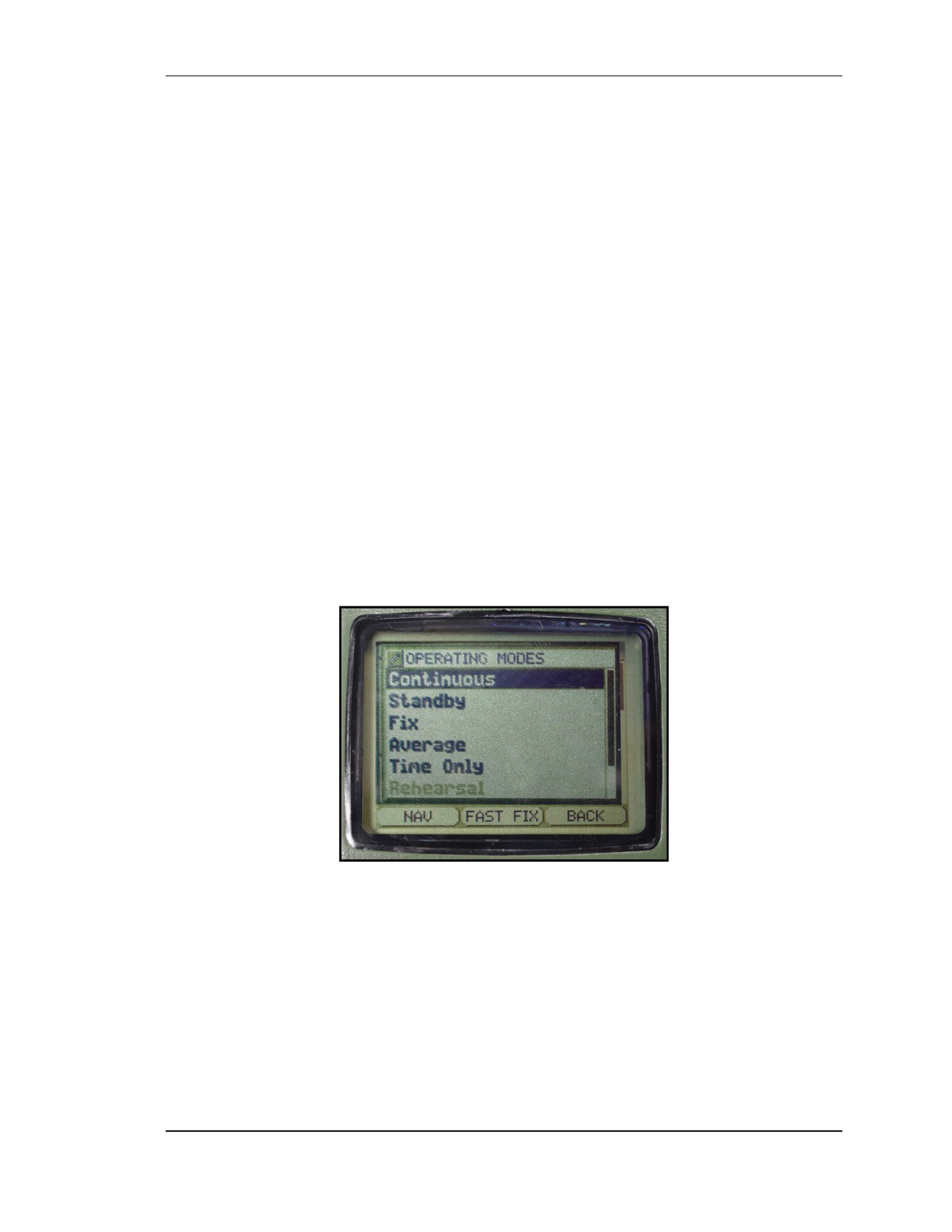
(2) Selection of the Operating Mode (Figure K-9). To select an operating mode—
(a) From any display except a message pop-up, push and hold the POS/PAGE key
until the Present Position page is displayed.
(b) Push the MENU key.
(c) Highlight the Select Op Mode option and then push the ENTER key.
(d) Highlight the desired operating mode and then push the ENTER key.
(e) The display returns to the Present Position page and displays the current operating
mode.
Figure K-9. Operating modes.
e. Power Off. The user performs the following operations to turn the DAGR off
after use.
(1) Push and hold the PWR/QUIT key. The power down warning page is displayed.
If some functions are enabled, such as Auto-on, a message appears before the power
down warning.
(2) Wait the allotted time for the DAGR to turn off, or push the WP/ENTER key to
turn it off immediately.
FOUO
K-15
18 January 2005
FM 3-25.26
K-6. MANUAL INITIALIZATION
If the DAGR has been moved a long distance and is not operating properly, it may need
to be initialized according to its new position. Some indications that it needs to manually
initialized include:
• Difficulty obtaining a position fix.
• Datum is mismatched with navigation waypoints.
• Datum does not match the geographical map being used.
(Refer to TM 11-5820-1172-13 for instructions on performing a manual initialization.)
K-7. CREATION OF WAYPOINTS
A waypoint is a position reference used to navigate, define routes, or mark points of
interest. The Waypoints page is accessed using the WP key or from the WP/Routes/Alerts
submenu. The Waypoints page provides a table that lists all DAGR waypoints. The
Waypoints Editor page allows the user to create new waypoints, edit existing waypoints,
clear waypoints, copy waypoints, or view only desired waypoints (search, sort, and
filter). The Waypoint Editor page is accessed from the Waypoints page.
a. The menu functions on the Waypoints page are (Figure K-10):
(1) Create/New. This function provides a list of unused waypoints (numbers). After
selecting a new waypoint number, the Waypoint Editor page is used to set up the
waypoint.
(2) Edit Waypoint. This function displays the Waypoint Editor page for editing the
selected waypoint.
(3) Copy. The copy function copies a selected waypoint’s data. This data can then be
pasted into another waypoint or a range of waypoints. Operator confirmation is required
before the DAGR overwrites any existing waypoints.
(4) Clear. The clear function clears a single waypoint, a range of waypoints, or all
waypoints. Operator confirmation is required before the DAGR clears any waypoints.
(5) Units. This function provides an editor to select range, angle, north reference, or
elevation (Advanced) units.
(6) Navigate to Waypoint. This function displays the NAV Pointer page.
(7) Search. The search function searches for and displays waypoints by a name or
remark (up to ten characters each).
(8) Sort. The sort function sorts and displays the entire list of waypoints in ascending
alphanumeric order by name, number, range from present position, range from selected
waypoint, or identity.
(9) Filter. The filter function displays a filtered list of waypoints. Filter choices are:
All Used WPs, All Unused WPs, Within Range (specified by operator), and Unfilter
(display all waypoints).
(10)
Waypoint Summary. The waypoint summary displays the number of
waypoints used and unused.
K-16
FOUO
18 January 2005
FM 3-25.26
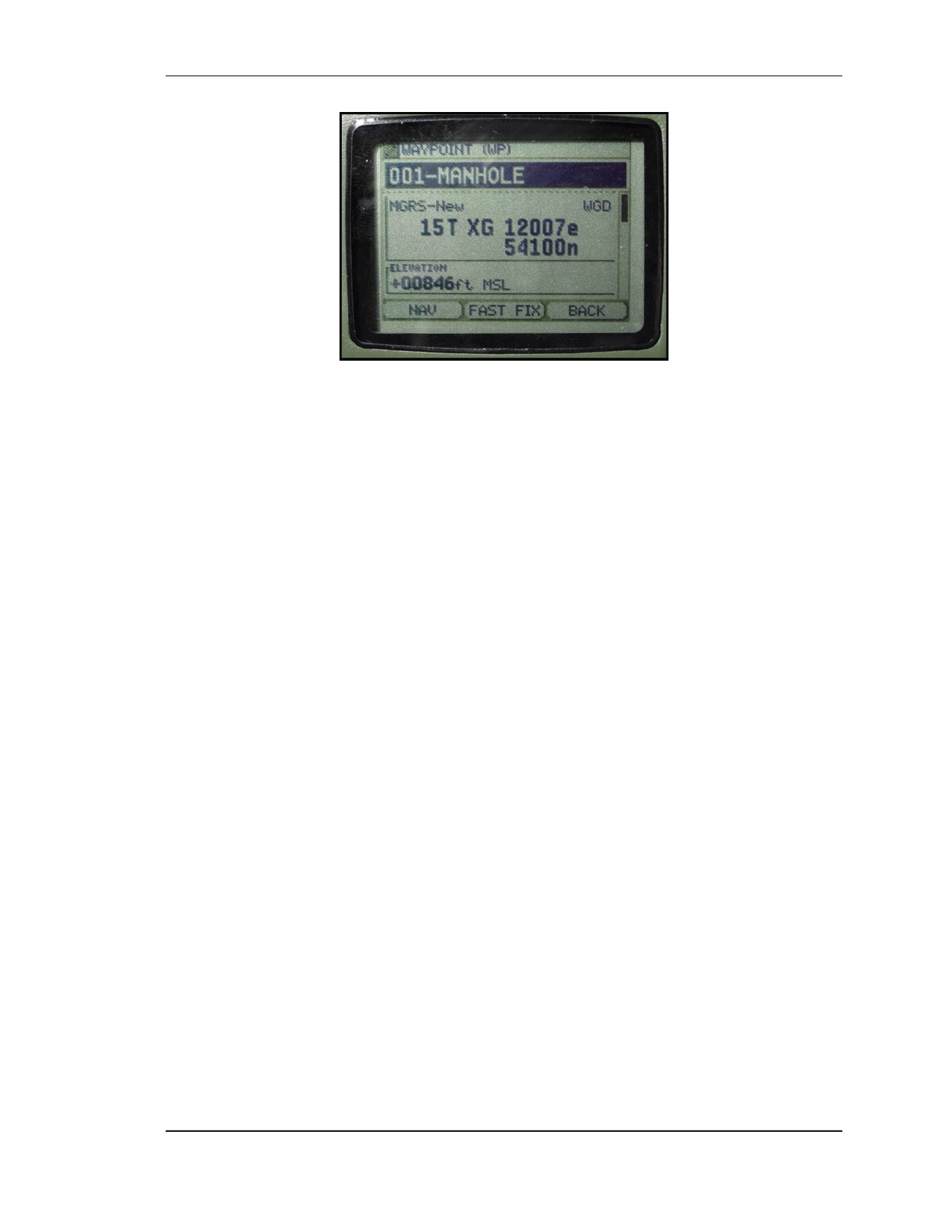
Figure K-10. Creating waypoints.
b. Perform the following steps to create a waypoint.
(1) From any display, push and hold the WP key. Waypoint function choices are
displayed.
(2) Highlight Create New WP, then push the ENTER key.
(3) The Waypoint Editor page automatically displays the first unused waypoint with
current
(if tracking satellites) or last position information. Revise information as
necessary.
(a) Use the left and right cursor keys to move between the digits.
(b) Use the up and down keys to change the digit, and push ENTER to enter the new
digit.
c. Complete the action by highlighting one of the following and pushing the ENTER
key.
(1) Save and Exit. The display briefly shows the Waypoint Stored message, then
returns to the Waypoints page with the new waypoint information saved and highlighted.
(2) Exit and No Save. When this option is selected, the display returns to the
Waypoints page without saving the waypoint.
(3) Edit Field. This selection displays an editor for the highlighted field.
(4) Undo Changes. Undo Changes clears any changes made, and the display returns
to the Waypoints Editor page for editing.
(9) Help. This selection displays help text for the highlighted field.
K-8. CREATION OF A NEW ROUTE
By creating a route, the operator creates or designates existing waypoints to define the
course he wants to take. Waypoints define the end of each leg of the route and the sum of
the designated legs becomes the route. The Route Editor page allows the operator to
view, edit, and create routes. The Routes page is accessed from the WP/Routes/Alerts
submenu. It provides a table that lists all routes stored in DAGR. Vertical scrolling is
used to view all routes. If a route is undefined or invalid, double dashes appear in the
route name and legs columns of the table. The route list includes the following
information for each route:
• NUM — Displays the route number (01 through 15).
• Route Name — Displays the route name of up to ten characters.
FOUO
K-17
18 January 2005
FM 3-25.26
• Legs — Displays the number of route legs (1 to 1,000). This quantity matches
the number of waypoints in a route.
a. From the Routes page, highlight the desired new route number, or if the
highlighted route is not changed, the first unused route number will be automatically
used. Push the MENU key. Highlight Create and push the ENTER key.
b. Highlight Create/New and push the ENTER key. The Route Editor page displays
the first unused route if no route number was previously selected or the operator-selected
route.
c. Scroll down the page into the route leg table and highlight the first row containing
all double dashes (unused leg), then push the ENTER key. Highlight the desired ending
waypoint for the leg of the route, then push the ENTER key. The Route Editor displays
the route leg with the selected end waypoint. Repeat this step to create all desired route
legs. After creating all route legs, push the MENU key.
NOTE: The top row of the route leg table always has end waypoint 000-POS
representing present position.
d. Complete the action by highlighting one of the following and pushing the ENTER
key.
(1) Save and Exit. The display briefly shows the route stored message, then returns to
the Routes page with the new route information saved and highlighted.
(2) Exit and No Save. The display returns to the Routes page without saving the
route.
(3) Maximize/Minimize Table. The display returns to the Routes page with the route
table maximized (displaying five routes at once) or minimized (displaying three routes at
once).
(4) Insert WP After. From the Select WP editor, highlight the desired waypoint, then
push the ENTER key. The Route Editor page highlights a new leg (inserted after the
original highlighted leg) created from the entered waypoint.
(5) Swap With Next. The Route Editor displays the highlighted route leg swapped
with the one that was next (disabled if the highlighted route leg is the last leg).
(6) Remove WP. The Route Editor page displays with the highlighted leg removed.
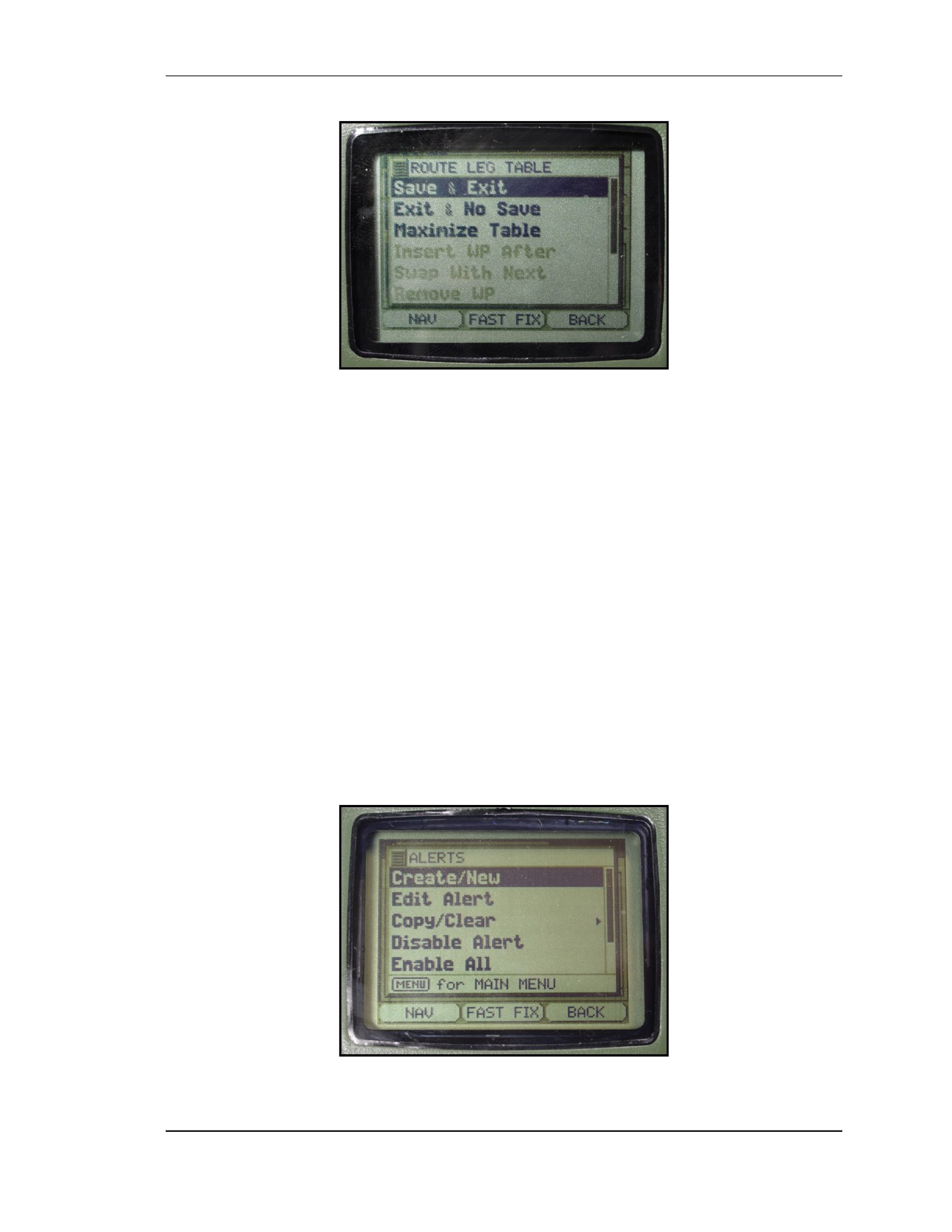
(7) Edit Field. This selection displays an editor for the highlighted field
(leg)
(Figure K-11).
(8) Undo Changes. Undo Changes clears any changes made, and the display returns
to the Route Editor page for editing.
(9) Help. This selection displays help text for the highlighted field.
K-18
FOUO
18 January 2005
FM 3-25.26
Figure K-11. Create a route.
e. To calculate the length of a route, highlight a desired route from the Routes page,
and push the MENU key.
(1) Highlight Calculate Length, then push the ENTER key.
(2) The route length is displayed. Push the ENTER key to acknowledge.
(3) The DAGR returns to the Routes page.
K-9. CREATION OF A NEW ALERT
Setting the DAGR’s alert function will indicate to the operator when he is approaching or
has passed a waypoint (Figure K-12) or a predefined line or area. The Alerts page is
accessed from the WP/Routes/Alerts submenu, or by using the Status key and Receiver
Status menu. The Alerts page provides a table showing all DAGR alerts. The operator
can create new alerts, edit existing alerts (using Alert Editor page), clear alerts, copy
alerts, and enable or disable alerts. The Alert Editor page is accessed from the Alerts
page. Vertical and horizontal scrolling is used to view all alerts and table columns. If alert
data are undefined or invalid, double dashes appear in the table columns. Use the Status
key to view the Receiver Status display and check the alert status or access the
Alerts page.
Figure K-12. Alert message.
FOUO
K-19
18 January 2005
FM 3-25.26
a. From the Alerts page, highlight the desired new alert number, or if the highlighted
alert is not changed, the first unused alert number will automatically be used. Push the
MENU key.
b. Highlight Create/New, then push the ENTER key. The Alert Editor page displays
the first unused alert (up to 33 alerts can be created) if no alert was previously selected.
Revise the information as necessary using standard editing techniques, then push the
MENU key. Highlight the desired option from the multiple options provided, then push
the ENTER key.
d. Complete the action by highlighting one of the following and pushing the ENTER
key:
(1) Save and Exit. The display briefly shows the alert stored message, then returns to
the Alerts page with the new alert information saved and highlighted.
(2) Exit and No Save. The display returns to the Alerts page without saving the alert.
(3) Edit Field. This selection displays an editor for the highlighted field.
(4) Undo Changes. Undo Changes clears any changes made, and the display returns
to the Alerts Editor page for editing.
(5) Help. This selection displays help text for the highlighted field.
K-10. DAGR NAVIGATION
The operator usually navigates directly to a waypoint or follows a route with legs created
by moving to a series of waypoints. He can also use the Elevation Hold and Bullseye
method.
a. Selection of the Navigation Function. Push the MENU key twice, highlight
Navigation, and push the ENTER key. Scroll to Navigation Setup and push the ENTER
key. Scroll to the Navigation Method field and push ENTER. Select either Direct To or
Route. (Although other methods are available, such as Course To, Approach, and so on,
Direct To and Route are the most common and are discussed herein. Refer to
TM 11-5820-1172-13 for the other methods.)
(1) Direct To. Set the To WP field to the waypoint being navigated to.
(a) Highlight To WP field, then push the ENTER key.
(b) Highlight the desired waypoint and push the ENTER key.
(c) Set the WP Alert Mode field to On or Off. When the Alert Mode field is on, the
DAGR visually alerts the operator upon arrival at the waypoint.
(d) The Calc Type field appears on all NAV Setup page displays when using
advanced function set. There are two methods used for calculating navigation
information: Rhumb Line (RL) or Great Circle (GC).
• Rhumb Line (RL)—produces constant compass directions and allows lines
of latitude to be used as paths.
• Great Circle (GC)—produces the shortest path to the navigation waypoint,
but the compass direction of travel changes due to the curvature of the earth.
(4) Route. Perform the following steps to navigate using a series of waypoints along a
route that has been previously created.
(a) Highlight Route and push the ENTER key.
K-20
FOUO
18 January 2005
FM 3-25.26
(b) Set the Route field to the desired navigation route number/name.
• Highlight Route field, then push the ENTER key.
• Highlight the desired route and push the ENTER key.
(c) Configure the Calc Type Field and the alert function the same as for the Direct To
method.
b. Navigating with the DAGR. Access the NAV Pointer page, then travel the
azimuth pointed by the Pointer field arrow. The compass dial rotates so the top of the dial
indicates the current ground track.
(1) If the DAGR internal compass is active, Hold Level appears at the bottom of the
Pointer field. The internal compass activates when moving below a preset speed for a
preset amount of time.
(2) While moving towards the destination waypoint, the Range field value steadily
decreases and the Azimuth field value changes.
(3) Use the Steering 2D field directional arrow and angular value to align the track
with the azimuth for navigation to the leg ending waypoint. When off course, the left and
right directional arrows and angular value appear. When on course, the on course
indicator (
) appears, and the Track field and Azimuth field values match.
(4) At any time during route navigation, the operator can reverse the direction of
travel on the route by changing the setting of the Direction field of the NAV Setup page.
(5) The DAGR recognizes it has reached the waypoint when it reaches a radius from
the waypoint (default is 5 meters) set in the Alert Radius field of the Waypoint Editor
page. The operator must confirm waypoint arrival only if the WP Alert Mode field of the
NAV Setup page was previously set to On. If the operator is using the Route function, the
DAGR automatically switches to the next leg.
(6) Set the Direction field to Forward or Reverse for desired direction of navigation
through the route legs.
K-11. SITUATIONAL AWARENESS
The Situational Awareness page provides a graphical display of the DAGR’s current
position compared to other waypoints, routes, and alerts shown on the display. It is
accessed from the NAV submenu (Figure K-13, page K-22). Track, ground speed, north
indicator, position error, and range scale data all provide additional DAGR present
position information. The operator can select view orientation, view content (waypoints,
routes, and alerts), edit displayed waypoints, measure between selected points, and track
history.
FOUO
K-21
18 January 2005
FM 3-25.26
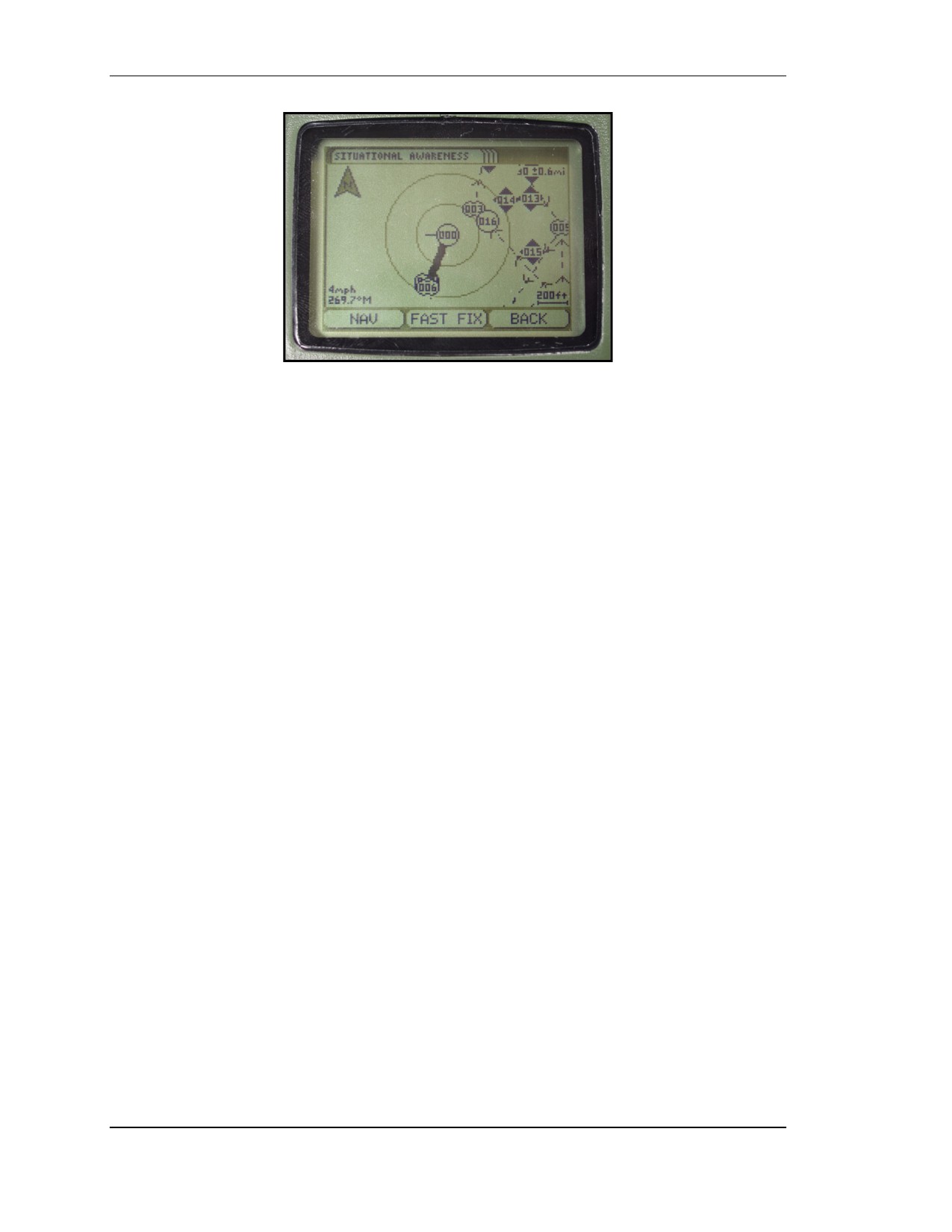
Figure K-13. Situational awareness.
a. The present position symbol (waypoint 000 inside a circle) is at the center of the
display (unless fields are selected) with a track indicator staff.
(1) Ground speed and track are displayed in the lower left corner.
(2) If the DAGR internal compass is being used, displayed track text alternates with
the instruction to HOLD LEVEL.
(3) The range scale is displayed in the lower right corner. The north reference
indicator is displayed in the upper left corner and always points to True North.
(4) Position error (EHE, EPE, EVE, or FOM) is displayed as a ± value in the upper
right corner (except FOM is displayed as a value of 1 to 9, with 1 being the best).
(5) The operator can set the display view orientation as follows:
• North-Up—top of the display is north.
• Track-Up—top of the display is current track.
• Course-Up—top of the display is current navigation course
(if defined,
otherwise defaults to current track).
• Operator-Entered—top of display is an operator-entered value.
b. The Situational Awareness page provides a graphical display of waypoints,
routes, alerts, and track history. Page characteristics include zoom range scale,
panning/scrolling, and measuring range between points.
(1) Waypoints. Waypoint numbers are provided in the center of a shape and a
direction indicator staff is attached, if applicable. Highlighted symbols (shown on the
bottom row) denote selected waypoints. The operator can select which waypoints to
display.
(2) Routes. Routes are shown as dashed lines with arrows indicating route direction
from waypoint to waypoint (legs of the route). The display of waypoints used to define
the route is based upon the selected waypoint view option. The operator can select which
routes are displayed.
(3) Alerts. Waypoints are used to define alerts. Alerts are displayed as selected by the
operator (none, enabled, or all) using shapes to denote the alert type. Spikes displayed as
part of the alert perimeter represent the dangerous side or area of an alert. Use the Status
key and the Receiver Status menu to check alerts and their status.
(4) Zoom/Range Scale. The operator can zoom in or out using the IN or OUT keys
on a scale of 50 feet to 800 miles, 50 yards to 800 nautical miles, or 50 meters to 800
K-22
FOUO
18 January 2005
FM 3-25.26
kilometers (English, nautical, or metric units). Range scale is shown in the lower right
hand corner of the display.
(5) Overzoom. Overzoom is displayed in place of the range scale when the DAGR
speed is too fast for the selected zoom scale. The operator may zoom out until overzoom
is no longer displayed. When zooming in or out with the cursor displayed, the display
centers upon the cursor. When a waypoint is selected, the display centers upon the
waypoint and the cursor moves to the center of the display.
(6) Panning and Scrolling. The operator uses the cursor control keys to pan (move)
the display to any horizontal point. Default panning is the present position (POS) at the
center of the display. A cursor appears when scrolling in any direction. Scrolling the
cursor to the edge of the view pans the display.
(7) Measuring Range Between Points. When the measurement function of the page
menu is used, a measurement box appears. The measurement box provides azimuth (AZ),
range (RNG), slant range (SR), and elevation angle (ELA) data computed from a starting
point position (DAGR position) to the current cursor position. A corresponding line
between the points also appears. The operator can set the starting point as a point other
than present position and restart the measurement. When the cursor is moved to a
waypoint, the waypoint symbol is highlighted to signify the waypoint is selected for
generating measurement data.
c. The Map page is accessed from the Navigation submenu (Figure K-14). The Map
page provides a graphical map display of relationships between current position,
landmarks, map objects, and selected waypoints. With a map previously loaded (covering
present position), the Map page automatically displays a map with the DAGR’s present
position shown at the center of the display. The operator uses zoom and pan operations,
and waypoint selections to obtain a desired view. When navigating, the Map page
provides the operator with a mapped view of surrounding terrain and potential
obstructions (for example, a body of water).
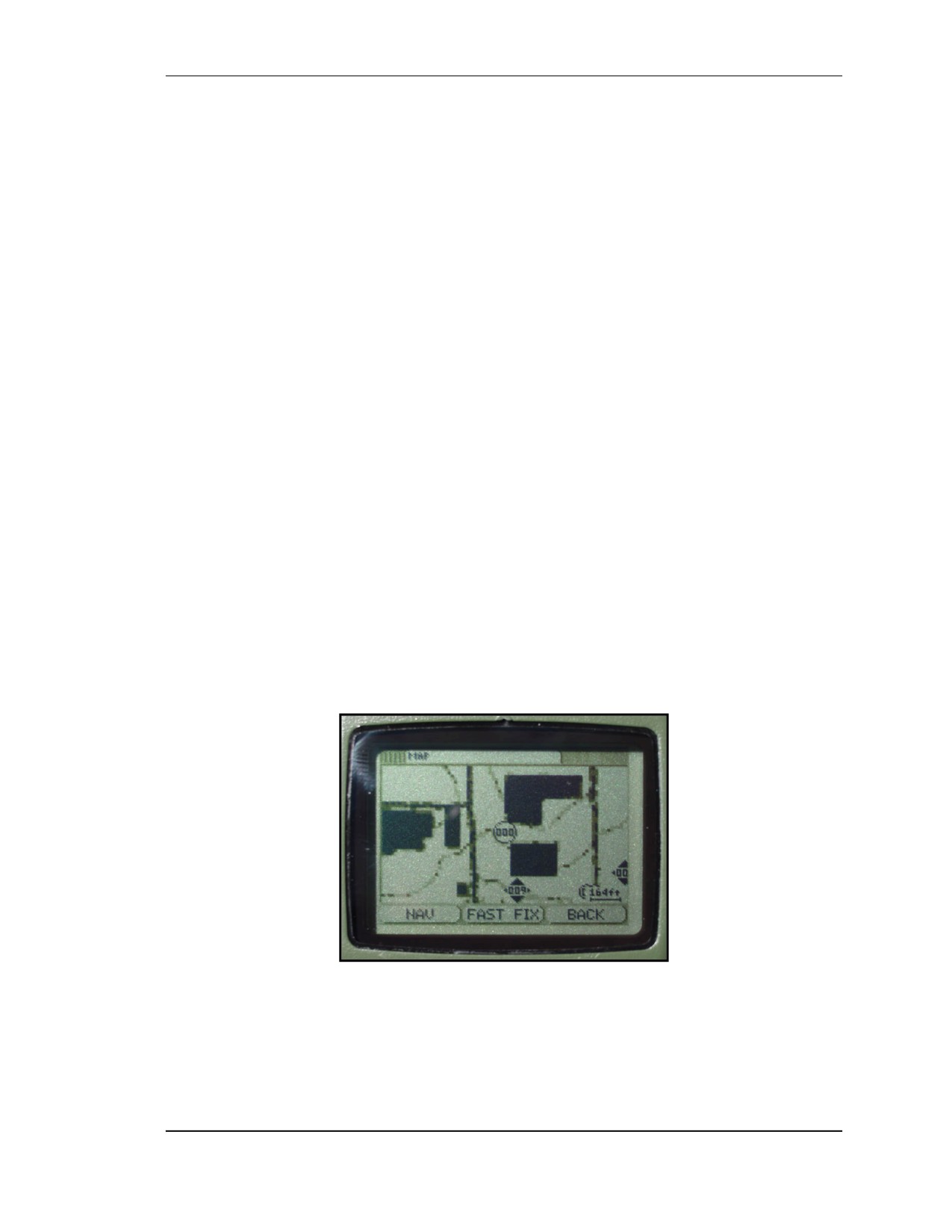
Figure K-14. Map page.
(1) The Map page is always oriented with the top of the map appearing at the top of
the display.
(2) The present position symbol (waypoint 000 inside a circle) is at the center of the
display (unless the operator is panning the display).
FOUO
K-23
18 January 2005
FM 3-25.26
(3) A scale value (dependent upon the map in use) is provided in the lower right
corner of the Map page.
(4) The Map page uses no fields and no cursor.
(5) The Map page provides a graphical display of waypoints and map objects. Page
characteristics include zoom range scale, panning, and map selection.
(6) Waypoint numbers are displayed in the center of a shape denoting their identity or
type as follows:
• Friendly—circle.
• Hostile—diamond.
• Neutral—square.
• Unknown—cloud.
Present position is always displayed as waypoint 000.
(7) The operator can select which waypoints to display from the Map page menu.
Operator selectable waypoint view options are:
• None—only present position is displayed.
• Navigation—displays waypoints being used for navigation inside the map
coverage area as determined by the NAV Setup page From WP or To WP
fields.
• Operator-selected—displays waypoints inside the map coverage area that have
been selected by the operator for viewing.
K-12. TROUBLESHOOTING
Troubleshooting procedures detect and isolate DAGR failures and malfunctions. These
procedures are similar to the operational checkout procedures. After a DAGR failure has
been found and corrected, perform the operational checkout procedure again to make sure
the DAGR is operating properly. If troubleshooting confirms a DAGR failure, and repair
is beyond what is covered in the DAGR TM, turn the DAGR unit in.
a. Inspect External Body. Inspect the DAGR and external cables and equipment for
damage and or missing parts. If the DAGR is damaged or parts are missing, turn the
unit in.
b. Power Up the DAGR. Push the PWR key to turn the DAGR on.
c. Check Battery. If the DAGR display does not come on after power is applied,
check the primary battery and primary battery pack, and the external connections to the
power source. If the battery connections are good, turn the unit in.
(1) If operating in cold conditions, allow additional time (up to 20 minutes) for the
display to appear.
(2) Observe the power-up test results. If a failure occurs, check all external
connections and rerun the self-test. Follow instructions on the display or turn the unit in.
(3) After power-up when using primary power batteries, check the primary battery
life indicator to determine if the battery has sufficient life. If battery life is insufficient,
replace primary batteries and update battery information on the Battery page.
(4) After power-up, ensure a low memory battery message does not show. Access the
Battery page and check the date shown in the Memory Battery Installed field. If the
DAGR shows a date approximately six months old, then replace the memory battery and
update the memory battery information on the Battery page.
K-24
FOUO
18 January 2005
FM 3-25.26
d. Perform an Operator-Induced Commanded Self-Test. After power-up,
perform an operator-induced commanded self-test.
(1) If the DAGR fails the self-test, check all external connections if applicable, and
rerun the self-test.
(2) Follow instructions on the display and or turn the unit in.
e. Display Blinks Between Black and Grey Text. After power-up, if the DAGR
passes the self-test and the display still blinks between black and grey text, perform the
following:
• Move the DAGR (or external antenna) to an open view of the sky.
• Hold the DAGR at a 90-degree angle to the horizon.
• Ensure satellite acquisition time was at least two minutes.
• Ensure the DAGR is in a satellite tracking mode of operation.
• Perform the manual initialization procedure.
(1) If the display does not stop blinking, turn the unit in.
(2) If the display stops blinking, troubleshooting is complete.
FOUO
K-25
18 January 2005
This Page intentionally left blank.
C1, FM 3-25.26
GLOSSARY
AA
avenue of approach
ANCOC
Advanced Noncommissioned Officer Course
AR
Army regulation
BM
bench marks
BNCOC
Basic Noncomissioned Officer Course
BT
basic training
*CCC
Captain’s Career Course
cm
centimeter
CONUS
continental United States
CS
combat support
CSS
combat service support
CUCV
commercial utility cargo vehicle
DD Form
Department of Defense form
E
east
EPLRS
Enhanced Position Location Reporting System
FIST
fire support team
FM
field manual
FORSCOM
United States Army Forces Command
GD
ground distance
GEOREF
geographic reference
G-M
grid-magnetic
GPS
Global Positioning System
GSR
ground surveillance radar
GTA
graphic training aid
G/VLLD
ground/vehicular laser locator designator
HD
horizontal distance
HHC
headquarters and headquarters company
HMMWV
high-mobility multipurpose wheeled vehicle
JOG
joint operations graphics
JTIDS
Joint Tactical Information Distribution System
km
kilometer
LAT
latitude
30 August 2006
Glossary-1
FOUO
C1, FM 3-25.26
MD
map distance
METT-TC
mission, enemy, terrain and weather, troops and support available,
time available, civil considerations
MITAC
Map Interpretation and Terrain Association Course
N
north
NCO
noncommissioned officer
NGA
National Geospatial-Intelligence Agency
OAC
Officer Advanced Course
OBC
Officer Basic Course
OCS
Officer Candidate School
OSUT
one station unit training
PADS
Position and Azimuth Determining System
PD
photo distance
PJH
hybrid (PLRS and JTIDS)
PLGR
precision lightweight Global Positioning System receiver
POI
program of instruction
PRE
precommission
QRMP
quick response multicolor printer
RF
representative fraction
ROTC
Reserve Officers’ Training Corps
S
south
SF
standard form
SME
subject matter expert
SOSES
shape, orientation, size, elevation, and slope
SUSV
small-unit support vehicle
tan
tangent
TM
technical manual
TOW
tube-launched, optically tracked, wire-guided missile
TRADOC
United States Army Training and Doctrine Command
topo
topographic
UPS
universal polar stereographic
U.S.
United States
USGS
United States Geological Survey
UTM
universal transverse mercator
VD
vertical distance
VNAS
Vehicular Navigation Aids System
W
west
*WLC
Warrior Leader Course
Glossary-2
30 August 2006
FOUO
FM 3-25.26
REFERENCES
SOURCES USED
These are the sources quoted or paraphrased in this publication.
FM 7-0
Training the Force. 22 October 2002.
FM 7-1
Battle Focused Training. 15 September 2003.
FM 21-31
Topographic Symbols. 19 June l961.
FM 25-4
How to Conduct Training Exercises. 10 September 1984.
FM 101-5-1
Operational Terms and Graphics. 30 September l997.
TM 11-5820-1172-13 Operator and Maintenance Manual for Defense Advanced GPS
Receiver (DAGR) Precise Positioning Service (PPS).
06 June 2004.
TM 11-5855-238-10
Operator’s Manual for Night Vision Goggles Ground Use:
AN/PVS-5 and ANPVS- 5A. 15 May 1993.
TM 11-5855-262-10-1 Operator’s Manual for Night Vision Goggles Ground Use:
ANPVS-7B and ANPVS-7D. 01 July 1994.
DOCUMENTS NEEDED
These documents must be available to the intended users of this publication.
AR 115-11
Geospatial Information and Services. 10 December 2001.
AR 380-5
Department of the Army Information Security Program.
29 September 2000.
AR 380-40
Policy for Safeguarding and Controlling Communications and
Security (COMSEC) Material. 30 June 2000.
DD Form 1348
DOD Single Line Item Requisition System Document (Manual).
July 1991.
DD Form 1348M
DOD Single Line Item Requisition System Document
(Mechanical). March 1974.
FM 5-33
Terrain Analysis. 11 July 1990.
FM 6-40
Tactics, Techniques, and Procedures for Field Artillery Manual
Cannon. 24 April 1996.
FOUO
References-1
18 January 2005
FM 3-25.26
FM 34-1
Intelligence and Electronic Warfare Operations. 27 September
1994.
FM 34-3
Intelligence Analysis. 15 March 1990.
GTA 05-02-012
Coordinate Scale and Protractor. 02 January 1981.
TM 11-5825-291-13
Operations and Maintenance Manual for Satellite Signals
Navigation Sets AN/PSN-11 and AN/PSN-11(V). 01 April 2001.
TB 11-5825-291-10-2 Soldiers’ Guide for the Precision Lightweight GPS Receiver
(PLGR) AN/PSN-11. 1 December 1996.
TB 11-5825-291-10-3 The PLGR Made Simple. 1 November 1997.
INTERNET WEBSITES
Reimer Digital Library, http://www.adtdl.army.mil
Army Publishing Directorate, http://www.usapa.army.mil
References-2
FOUO
18 January 2005