Volkswagen Jetta GLI (2023 year). Manual in english - page 5
Stationary or oncoming pedestrians; generally no reaction to people without Pedestrian Monitoring.
Stationary cyclists, oncoming cyclists or cyclists crossing the street.
Pedestrians and cyclists who are not detected as such, for example because they are fully or partially hidden.
Functional limitations
Front Assist may not react, may react with a delay, or may react in a way that is not desired in the following situations:
When driving around tight curves
When driving in heavy rain, snow, or spray
When driving in parking garages or tunnels.
When driving on roads with embedded metal objects, such as railroad tracks
When driving in reverse
If ESC is regulating.
When ESC Sport (depending on the vehicle equipment) is switched on ⇒ Switching the braking support system on and off .
If the radar sensor is dirty or obstructed
If multiple brake lights on the vehicle are malfunctioning.
If the vehicle is accelerating very quickly or the accelerator pedal is pressed all the way down
In complex driving situations, such as around traffic islands
In unclear traffic situations, for example if vehicles driving ahead are braking quickly or are turning
If Front Assist is malfunctioning
Switching off Front Assist
Depending on the system, Front Assist may not be suitable in the following situations and must be switched off if they occur
⇒
:
If the vehicle is not being driven on public roads, for example during off-road driving or on a racetrack.
If the vehicle is being towed or transported
If add-ons such as auxiliary headlights cover the radar sensor.
If the radar sensor is malfunctioning
Following a violent impact affecting components within the range of the radar sensor, e.g. following a rear-end collision.
If there are multiple unwanted activations
WARNING
If you do not switch off Front Assist in the these situations, accidents and serious injuries could occur.
Using Front Assist
Please read the introductory information and heed the Warnings and Notice ⇒
Introduction.
When you switch on the ignition, Front Assist and the advance warning (depending on the country) are automatically switched on.
or
However, Front Assist is not available or its availability is restricted while the indicator light is turned on.
Volkswagen recommends always leaving Front Assist, distance warning, and advance warning switched on. For exceptions to this, see
⇒ Front Assist limitations.
Switching on and off
You can switch Autonomous Emergency Braking on and off manually and view the switched on condition.
In the instrument cluster display:
1. Press the
button.
2. Switch Autonomous Emergency Braking on or off.
Depending on the vehicle equipment, the
button is located either on the multi-function steering wheel or the turn signal and high beam lever.
In the Infotainment system:
1. Open the Assistance systems menu.
2. Switch Autonomous Emergency Braking on or off in the corresponding submenu.
If you switch off Front Assist, the advance warning and distance warning will also be switched off. The yellow indicator light turns on in the instrument
cluster display.
Adjusting the distance and advance warning setting
If Front Assist is switched on, you can set the following settings in the assistance systems menu of the Infotainment system depending on the equipment and
163

country:
Switch on and off distance warning.
Switch on and off advance warning.
Set the warning period for the advance warning.
Troubleshooting
Please read the introductory information and heed the Warnings and Notice ⇒
Introduction.
or
Front Assist Starts
The indicator light lights up white or yellow depending on the country.
Autonomous Emergency Braking (Front Assist) is temporarily not available or has limited availability. After driving straight for a short distance, Autonomous
Emergency Braking is available again and the indicator light goes out. If the vehicle does not drive, the indicator light stays on.
Front Assist is not available, and the radar sensor does not have sufficient visibility
The radar sensor is dirty. Clean the radar sensor ⇒ Vehicle care.
The visibility of the radar sensor is limited due to weather conditions, such as snow, or from soap residue or coatings. Clean the radar sensor
⇒ Vehicle care
Radar sensor visibility is limited by attachments, decorative frames on license plate holders, or stickers. Clear the area around the radar sensor.
The radar sensor is misaligned or damaged, for example as a result of damage to the front of the vehicle. Check if there is noticeable damage
⇒ Repairs and
technical modifications.
Painting work was carried out on or structural modifications were made to the front of the vehicle.
The original Volkswagen emblem is not used. Volkswagen recommends the use of Volkswagen original parts or Volkswagen original accessories, which you
can acquire from an authorized Volkswagen dealer or authorized Volkswagen Service Facility.
If the problem persists, turn off Autonomous Emergency Braking and contact suitably qualified professionals. Volkswagen recommends contacting an
authorized Volkswagen dealer or authorized Volkswagen Service Facility.
Front Assist is not functioning as expected or has been triggered multiple times unnecessarily
The radar sensor is dirty. Clean the radar sensor ⇒ Vehicle care.
The system limitations are not adhered to ⇒ Front Assist limitations.
If the problem persists, turn off Autonomous Emergency Braking and contact suitably qualified professionals. Volkswagen recommends contacting an
authorized Volkswagen dealer or authorized Volkswagen Service Facility.
Lane Keeping System (Lane Assist)
Introduction
Lane Assist helps the driver to stay in a
lane, within the system limitations. This
function is not suitable for, and not
designed for, autonomously keeping
your vehicle in a lane.
Lane Assist detects the lane markers using a camera behind the windshield. If the system detects that the vehicle is coming too close to a lane marker, the system
warns the driver with corrective steering. The driver can override the corrective steering at any time.
Speed range
Lane Assist is ready to take control (active system status) when a lane marking is detected within the system limits above approximately 35 mph (60 km/h).
WARNING
The intelligent technology of Lane Assist cannot overcome the natural laws of physics and it can only operate within the limits of the system. Careless or
unintended use of Lane Assist can cause accidents and serious injuries. The system cannot replace the driver’s attention and steering.
Always adapt your speed and remain a safe distance to vehicles driving ahead according to the visual, weather, road, and traffic conditions.
Always keep your hands on the steering wheel so that you are prepared to steer at any time. The driver is always responsible for keeping the vehicle
within the lane.
Override immediately by steering if the system intervenes when it should not.
Pay attention to indicators in the instrument cluster display and respond to the prompts accordingly when the traffic situation allows.
Always pay attention to the area around your vehicle and drive with anticipation.
If the camera lens is dirty, covered, or damaged, Lane Assist may be limited.
Lane Assist limitations
164

Please read the introductory information and heed the Warnings and Notice ⇒
Introduction.
Lane markings not detected or not correctly recognized
Lane Assist does not correctly detect all lane markings. If lane markings are not recognized, Lane Assist may fail to intervene. Be prepared to steer at all times.
Under certain circumstances, Lane Assist may incorrectly detect poor road surfaces, road structures or objects, reflections and glare as lane markings. Override
immediately if the system intervenes when it should not.
Switching off Lane Assist temporarily
In the following situations, Lane Assist may intervene when not desired or may fail to intervene when it should. Therefore, the driver's attention is especially
important in these scenarios. Switch off Lane Assist temporarily:
When the driving style is very dynamic.
When weather or road conditions are poor
In construction zones
In front of bumps or dips in the road
When not on highways or well-developed roads.
WARNING
If you do not switch off Lane Assist in the these situations, accidents and serious injuries could occur.
Lane Assist is not available
The system is not available under the following conditions (inactive system status):
The vehicle speed is less than around 55 km/h (around 30 mph).
Lane Assist has not detected a road lane marking.
If lanes and curves are too narrow.
Temporarily, when the driving style is very dynamic.
When the turn signals are switched on before a manual lane change.
When the driver oversteers during a system intervention.
When there is no reaction from the driver to a driver intervention prompt.
“Blind Spot” Sensor “Plus”
Steering intervention does not occur in vehicles without a “Blind Spot” Sensor when the turn signal is switched on.
In vehicles that are also equipped with a “Blind Spot” Sensor, a warning appears when the turn signal is switched on when leaving the lane. The warning always
appears when the system detects a situation that may be critical when changing lanes.
Driving with Lane Assist
Please read the introductory information and heed the Warnings and Notice ⇒
Introduction.
Switching on and off
You can view the switched on condition of the Lane Assist in the instrument cluster display and in the Infotainment system. You can also switch Lane Assist on and
off there.
In the instrument cluster display:
1. Press the
button.
2. Switch Lane Assist on or off.
Depending on the vehicle equipment, the
button is located either on the multi-function steering wheel or the turn signal and high beam lever.
In the Infotainment system:
1. Open the Assistance systems menu.
2. Switch Lane Assist on or off in the corresponding submenu.
If there is a system malfunction, Lane Assist can turn off automatically.
Displays
165
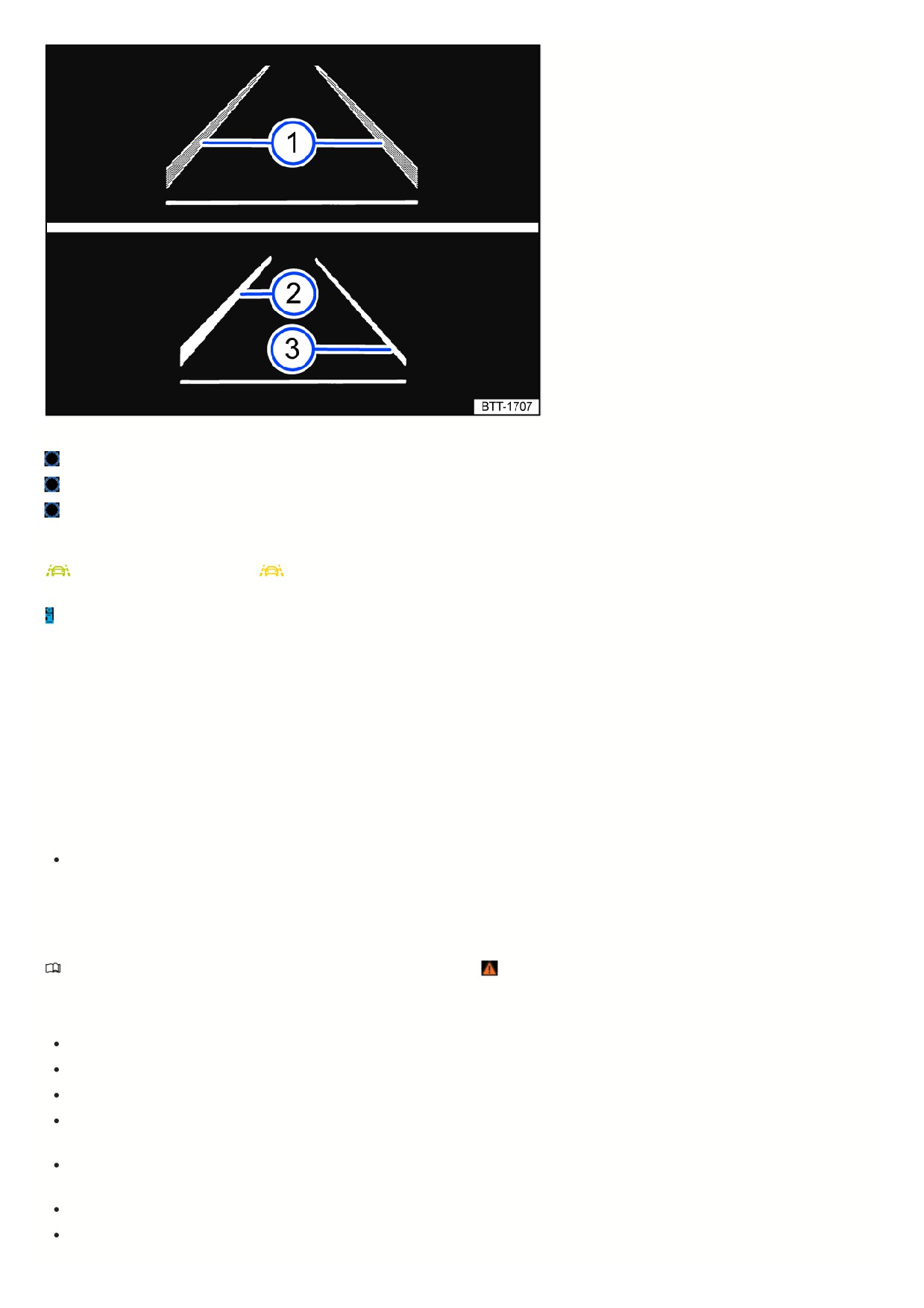
Fig. 117 In the instrument cluster display: Lane Assist indicators.
Lane marking detected. The system is ready to monitor on the indicated side.
Lane marking detected. The system is monitoring on the indicated side.
The system is not ready to monitor on the indicated side.
One of the following indicator lights may come on, depending on the driving situation and the instrument cluster version:
System active and ready to control.
System in operation (corrective steering intervention).
If the indicator light does not light up, the system is not ready for operation on both sides (inactive system status) or is switched off.
If Travel Assist is actively regulating, there will be no steering intervention and no Lane Keeping System (Lane Assist) display.
Driver intervention request
If there is no steering activity, the system prompts you to drive in the center of your lane with an indicator in the instrument cluster display and warning chimes.
If you do not respond accordingly, the system becomes inactive.
Depending on the vehicle equipment, semi-automatic vehicle control in a medical emergency (Emergency Assist) is activated.
Independently of steering activity, you are also prompted by an indicator on the instrument cluster display and by a warning chime to drive in the middle of the lane
the corrective steering intervention takes a long time.
Steering wheel vibration
The following situations may cause the steering wheel to vibrate:
A lane is no longer detected during a sharp corrective steering intervention by the system.
In addition, you can select the Vibration or Steering wheel vibration option in the Assistance systems menu in the Infotainment system. If you select this option, the
steering wheel will vibrate if Lane Assist is active and you drift onto a road lane marking that the system has detected.
Troubleshooting
Please read the introductory information and heed the Warnings and Notice ⇒
Introduction.
Malfunction message, Lane Assist is not available
An indicator light comes on in the instrument cluster. In addition, a message is shown in the instrument cluster display.
The camera field of view is dirty. Clean the windshield ⇒ Vehicle care.
The camera's view is limited due to weather conditions, such as snow, or from soap residue or coatings. Clean the windshield
⇒ Vehicle care.
The camera's view is limited by attachments or stickers. Keep the area around the camera field of view clear.
The camera is misaligned or damaged, for example as a result of damage to the windshield. Check if there is noticeable damage
⇒ Repairs and technical
modifications.
The camera was automatically deactivated due to a high ambient temperature or long exposure to direct sunlight. Lane Assist will be available once the
camera is available again. Stop the engine and restart.
Malfunction or fault. Stop the engine and restart.
If the problem persists, contact an authorized Volkswagen dealer or authorized Volkswagen Service Facility. Volkswagen recommends contacting an
authorized Volkswagen dealer or authorized Volkswagen Service Facility.
166
It can take a few seconds once the ignition has been switched on for a system fault to be recognized.
If Lane Assist is not available, Emergency Assist is not available either.
If Lane Assist is not available, Travel Assist is not available either.
The system is functioning differently than expected
1. Do not mount any objects on the steering wheel.
Comfort drive Travel Assist
Introduction
Thanks to the comfort drive Travel
Assist, within the system limitations, the
vehicle can maintain a distance, which
has been preselected by the driver, to
the vehicle in front and hold the
preferred position within the lane
(adaptive lane guidance).
Travel Assist uses the same sensor technology as the Adaptive Cruise Control (ACC) and Lane Keeping System (Lane Assist). Therefore, carefully read all the
information about the ACC and Lane Assist and take note of the system limitations and notes specified in those sections.
Does this vehicle have Travel Assist?
The vehicle has Travel Assist, if the
button on the multi-function steering wheel is available.
Speed range
Travel Assist operates in a speed range between around 30 km/h (approximately 20 mph) and around 210 km/h (approximately 130 mph). This range is expanded
to, from 0 km/h (0 mph) to around 250 km/h (approximately 155 mph), for the adaptive lane guidance. This speed range may vary depending on the country.
Driving with Travel Assist
Travel Assist automatically regulates the speed and steers the vehicle. Within the system limitations, Travel Assist can also bring the vehicle to a halt behind a
stopping vehicle and drive on again.
You can override the Travel Assist regulation function at any time.
Displays
Fig. 118 In the instrument cluster display: Display during active control.
Adaptive lane guidance is active.
Set distance, no vehicle recognized in front.
Indicator lights on the instrument cluster display show the Travel Assist status, depending on the vehicle equipment:
Travel Assist active, Adaptive Cruise Control and adaptive lane guidance active.
Travel Assist active, Adaptive Cruise Control active and adaptive lane
guidance passive.
Driver intervention request
If you remove your hands from the steering wheel, the system will ask you to take over the steering wheel after a few seconds with a message in the instrument
cluster display and with audible warnings.
If you do not respond, the system warns you with a brief braking maneuver.
167
Travel Assist is then deactivated.
Alternatively, Emergency Assist is activated, depending on the vehicle equipment.
WARNING
The intelligent technology of the Travel Assist cannot overcome the natural laws of physics, and it can only operate within the limits of the system. Careless or
unintended use of the Travel Assist can cause accidents and serious injuries. The system cannot replace the driver's attention.
Always adapt your speed and distance to vehicles driving ahead based on the visual, weather, road, and traffic conditions.
Never use Travel Assist when visibility is poor or when roads are steep, winding, flooded, or slippery, for example from snow, ice, moisture, or gravel.
Never use Travel Assist when driving off-road or on unpaved roads. Travel Assist is only designed for use on paved roads.
Travel Assist does not react to persons, animals, vehicles crossing the lane or vehicles coming towards you in the same lane.
Take over steering immediately if a driver intervention prompt appears in the instrument cluster display or the deceleration by the Travel Assist is not
sufficient.
Apply the brakes if the vehicle continues to roll unintentionally, e.g. after a driver intervention prompt.
Always keep your hands on the steering wheel so that you are prepared to steer at any time. The driver is always responsible for keeping the vehicle
within the lane.
Always be ready to resume control of the vehicle speed.
Operating Travel Assist
Please read the introductory information and heed the Warnings and Notice ⇒
Introduction.
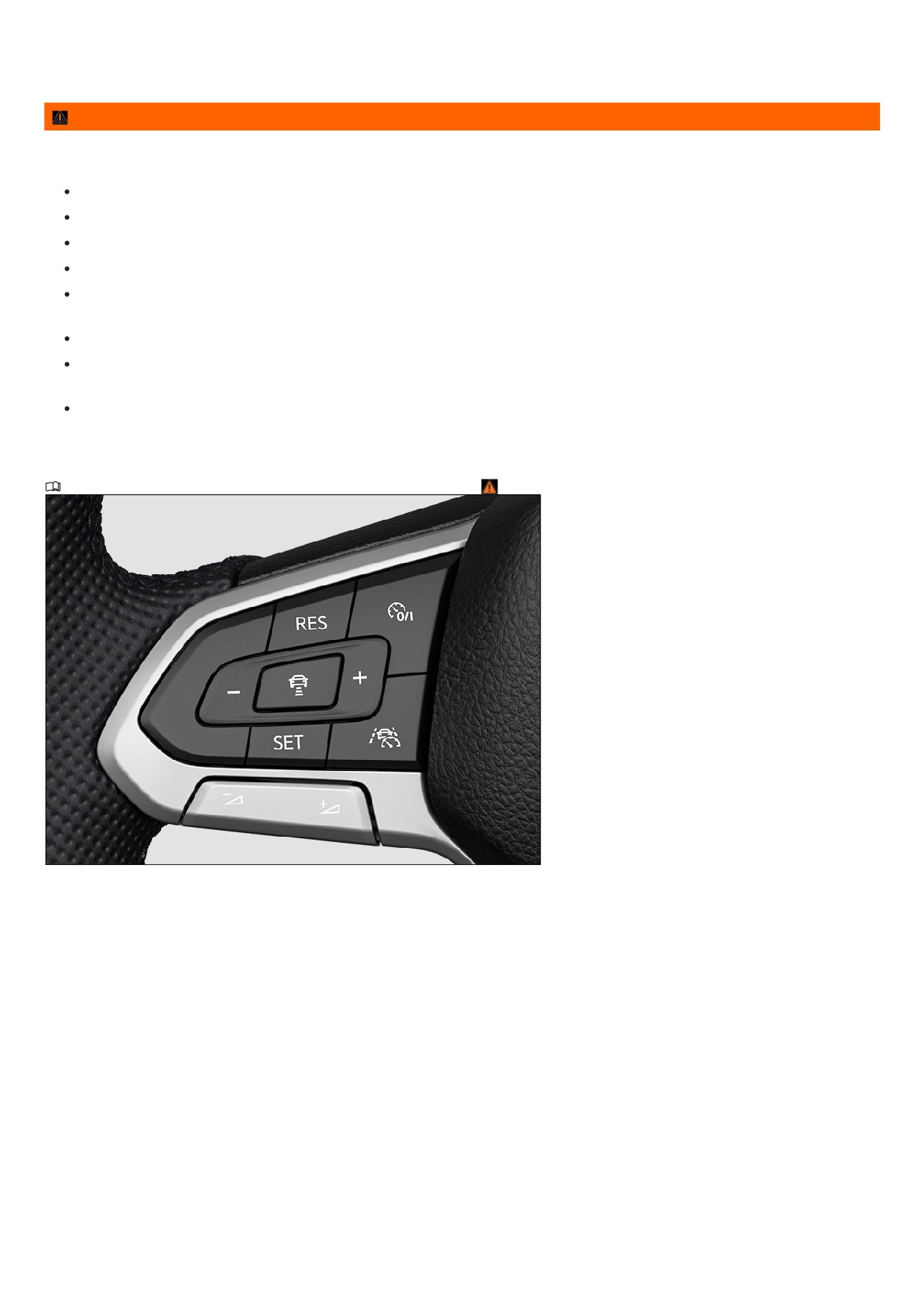
Fig. 119 Left side of the multi-function steering wheel (variant 1).
168
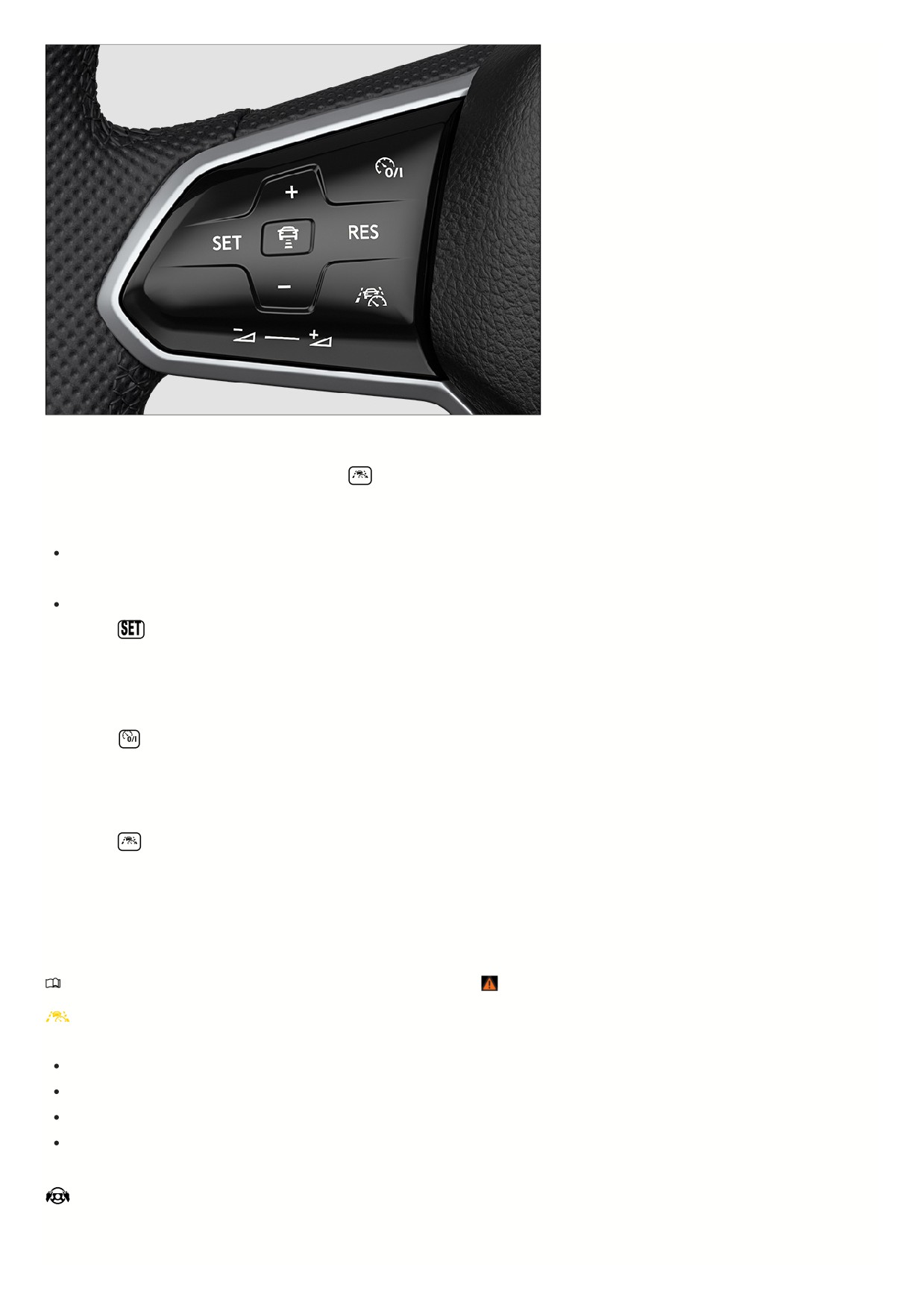
Fig. 120 Left side of the multi-function steering wheel (variant 2).
Switching on and starting the regulation function
1. During forward travel with ACC switched on, press the
button on the multi-function steering wheel.
The vehicle switches from ACC to Travel Assist.
Depending on the driving situation, the vehicle switches to the following system status in Travel Assist:
If ACC is regulating, Travel Assist maintains the current speed and the preset distance from the vehicle driving ahead (system status inactive).
At the same time, the vehicle is kept in its lane by steering movements when road markings are detected (system status active).
If ACC is not regulating, Travel Assist is switched on, but stays deactivated.
1. Press the
button.
Travel Assist switches the driving situation accordingly to an active or inactive system status.
The indicator/warning light corresponding to the driving situation comes on in the instrument cluster display. A notification is also displayed.
Canceling the regulation function
1. Press the
button briefly.
Or: Press the brake pedal.
The set distance remains saved.
Changing to ACC
1. Press the
button on the multi-function steering wheel.
The vehicle switches from Travel Assist to the system status of ACC corresponding to the driving situation.
Adjusting further settings
The further operation of Travel Assist corresponds to the operation of the ACC
⇒ Adjusting the ACC settings.
Troubleshooting
Please read the introductory information and heed the Warnings and Notice ⇒
Introduction.
Comfort drive Travel Assist is not available or is not working as expected
The yellow indicator light turns on. In addition, a message is shown in the instrument cluster display.
There is a malfunction in the sensor system. Check the causes and troubleshooting measures described in the information on ACC and Lane Assist.
Malfunction or fault. Stop the engine and restart.
The system limitations are not adhered to.
If the problem persists, contact an authorized Volkswagen dealer or authorized Volkswagen Service Facility. Volkswagen recommends contacting an
authorized Volkswagen dealer or authorized Volkswagen Service Facility.
Take over the steering
The white warning light will come on and a message will be shown in the instrument cluster display.
You have let go of the steering wheel for a few seconds.
169
1. Take hold of the steering wheel and take over steering the vehicle.
Take over the steering immediately
The red warning light will come on and a message will be shown in the instrument cluster display. An audible warning will sound or the steering wheel will vibrate,
depending on the driving situation.
You have let go of the steering wheel for a long period of time or the system limits have been reached.
1. Immediately take hold of the steering wheel and take over steering the vehicle.
Comfort drive Travel Assist switches off automatically
Vehicles without Emergency Assist:
You have let go of the steering wheel for a long period of time.
Malfunction or fault. Stop the motor and restart.
If the problem persists, contact an authorized Volkswagen dealer or authorized Volkswagen Service Facility. Volkswagen recommends contacting an
authorized Volkswagen dealer or authorized Volkswagen Service Facility.
The regulation function is canceled unexpectedly
You have operated the turn signal.
Semi-automatic vehicle control in a medical emergency (Emergency Assist)
Introduction
Emergency Assist can recognize driver
inactivity and can automatically keep
the vehicle in its lane and, if necessary,
slow it down to a stop. The system can
hereby actively help to avoid an
accident or reduce the consequences of
an accident.
Emergency Assist uses the same sensor technology as the Adaptive Cruise Control (ACC) and Lane Keeping System (Lane Assist). Therefore, carefully read all
the information about the ACC and Lane Assist and take note of the system limitations and notes specified in those sections.
WARNING
The intelligent technology of the Emergency Assist cannot overcome the laws of physics, and it can only operate within the limits of the system. The
responsibility for driving the vehicle always lies with the driver.
Always adapt your speed and remain a safe distance to vehicles driving ahead according to the visual, weather, road, and traffic conditions.
Emergency Assist alone cannot always avoid accidents and serious injury.
If the radar sensor or the front camera malfunctions, is covered or misaligned, Emergency Assist may carry out unwanted braking or steering
interventions.
Emergency Assist does not react to people, animals, vehicles crossing the lane or vehicles coming towards you in the same lane.
Driving with Emergency Assist
Please read the introductory information and heed the Warnings and Notice ⇒
Introduction.
Switching on and off
When the ignition is switched on, Emergency Assist is active under the following conditions:
The Lane Assist system and Adaptive Cruise Control (ACC) are switched on.
A gear is engaged for driving forward.
The system must detect lane markers on the left and right side of the vehicle.
If the Lane Keeping System (Lane Assist) is not available, Emergency Assist is not available either.
Driver intervention request
Using warning chimes and brief braking maneuver, Emergency Assist prompts an inactive driver to take over control of driving. In addition, a message is shown in
the instrument cluster display.
System intervention
If you do not respond, the system can brake the vehicle and keep it in its lane. In the instrument cluster display, one of the following indicator lights comes on:
System is regulating.
You can override the regulation at any time by accelerating, braking or steering.
17

Whenever Emergency Assist is actively controlling the vehicle, the emergency flashers will switch on after a short delay to warn other road users.
If the remaining stopping distance is sufficient, the vehicle slows down, if necessary, to a stop. The electronic parking brake then switches on automatically.
WARNING
If Emergency Assist is triggered unintentionally, it could result in accidents or serious injury.
If the vehicle behaves unexpectedly, you can stop intervention by Emergency Assist by accelerating, braking or steering.
Switch off the Lane Keeping System (Lane Assist).
Do not use the comfort drive Travel Assist.
Seek assistance from suitably qualified professionals and have the system checked. Volkswagen recommends contacting an authorized Volkswagen
dealer or authorized Volkswagen Service Facility.
“Blind Spot” Monitor
Introduction
The “Blind Spot” sensor helps the driver
to determine traffic behavior behind the
vehicle.
Radar sensors monitor the area behind the vehicle. The system measures the distance and difference in speed to other vehicles and informs the driver through
visual signals in the outside mirrors.
System limitations
Only use the “Blind Spot” Monitor on paved roads.
Among other possibilities, the “Blind Spot” Monitor may not interpret the traffic situation correctly in the following situations:
In tight curves.
When driving in the center of two lanes.
When lanes have different widths.
When driving at the top of a hill.
In poor weather conditions.
When certain types of equipment are on the side of the road, such as high or offset guard rails.
WARNING
The intelligent technology of the “Blind Spot” Monitor cannot overcome the natural laws of physics and it can only operate within the limits of the system. Do not
allow the increased convenience provided by the “Blind Spot” Monitor to tempt you into taking risks. Careless or unintended use of the “Blind Spot” Monitor can
cause accidents and serious injuries. The system cannot replace the driver's attention.
Always adapt your speed and remain a safe distance to vehicles driving ahead according to the visual, weather, road, and traffic conditions.
Always keep your hands on the steering wheel so that you are prepared to steer at any time.
Pay attention to the displays in the outside mirror glass and in the instrument cluster display, and act accordingly.
Always pay attention to the area around your vehicle.
Never use the “Blind Spot” Monitor if the radar sensors are dirty, covered, or damaged. The function of the system may be impaired in such cases.
Sunlight may reduce the visibility of the indicator light in the outside mirrors.
Driving with the “Blind Spot” Monitor
Please read the introductory information and heed the Warnings and Notice ⇒
Introduction.
Switching on and off
You can view the switched on condition of the “blind spot” sensor in the instrument cluster display and in the Infotainment system. You can also switch the “Blind
Spot” sensor on and off there.
In the instrument cluster display:
1. Press the
button.
2. Switch the “Blind Spot” Monitor on or off.
Depending on the vehicle equipment, the
button is located either on the multi-function steering wheel or the turn signal and high beam lever.
In the Infotainment system, depending on the vehicle equipment:
171
1. Open the Assistance systems menu.
2. Switch the “Blind Spot” Monitor on or off in the corresponding submenu.
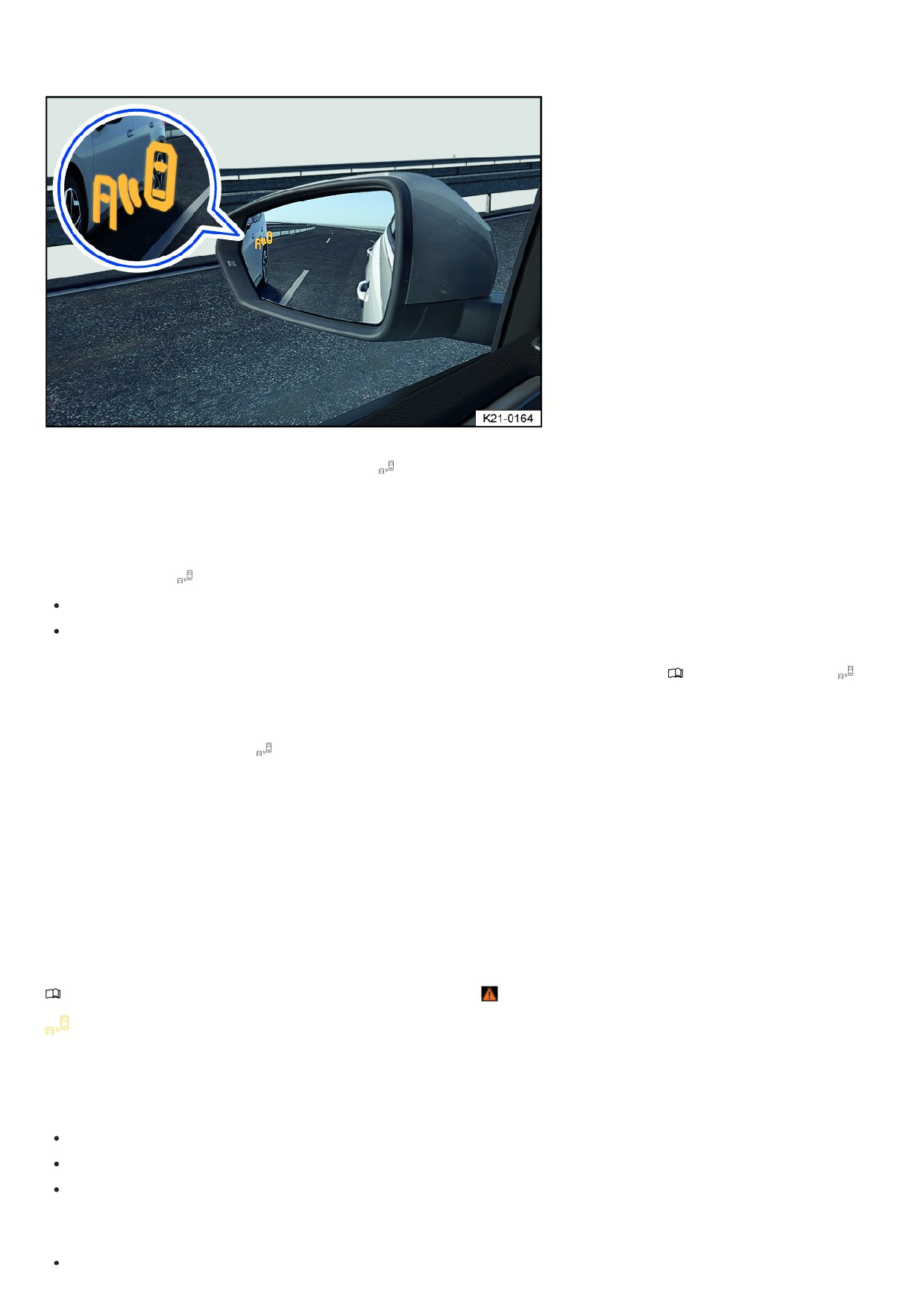
Fig. 121 In the outside mirrors: Blind Spot Monitor indicator.
When the “Blind Spot” Monitor is ready for operation, the yellow
indicator light turns on one time briefly in the mirrors.
System function
The activated “Blind Spot” Monitor is active at speeds above approx. 9 mph (15 km/h).
The faster another vehicle approaches, the sooner the display in the outside mirror will turn on.
The yellow indicator light
fig. 121 lights up in the respective outside mirror in the following situations:
When your vehicle is passed.
When passing another vehicle and the difference in speed between the two vehicles is up to approximately 6 mph (approximately 10 km/h). There is no
indicator if the passing speed is clearly faster.
If a vehicle was detected in the blind spot and the turn signal on the side where the vehicle was detected is activated
⇒ Introduction, then the yellow
indicator light flashes.
“Blind Spot” Sensor “Plus”
On vehicles with Lane Assist, the yellow
indicator light will blink even without activating the turn signal when leaving a lane if Lane Assist is switched on (Active
“Blind Spot” Monitor “Plus”). You will be notified of a potential critical situation (information level, warning level) with corrective steering. Corrective steering also
occurs if the turn signal is activated for the respective side. If the corrective steering is overridden by the driver, an additional warning is given with a steering wheel
vibration.
Automatic deactivation
The radar sensors for the “Blind Spot” Monitor switch off automatically if, for example, a permanent obstruction over a radar sensor is detected. For example, this
could be from ice or snow covering the radar sensor.
A message will appear in the instrument cluster display.
If the “Blind Spot” Monitor was deactivated automatically, the system can only be reactivated after switching the ignition off and back on.
Troubleshooting
Please read the introductory information and heed the Warnings and Notice ⇒
Introduction.
“Blind Spot” Monitor malfunction
Malfunction or fault. The yellow indicator light turns on.
1. Contact a suitably qualified professional. Volkswagen recommends contacting an authorized Volkswagen dealer or authorized Volkswagen Service Facility.
System is malfunctioning
Clean the radar sensors and remove the sticker or attachments from the radar sensors, mirror glass and the bumper
⇒ Exterior care and cleaning.
Check if there is any noticeable damage.
If the problem persists, contact an authorized Volkswagen dealer or authorized Volkswagen Service Facility. Volkswagen recommends contacting an
authorized Volkswagen dealer or authorized Volkswagen Service Facility.
The system is functioning differently than expected
The radar sensors could be dirty. In addition to dirt and snow, the sensor range can also be impaired by soap residue or other coatings
⇒ Exterior care and
172

The radar sensors could be dirty. In addition to dirt and snow, the sensor range can also be impaired by soap residue or other coatings
⇒ Exterior care and
cleaning.
The system conditions are not met ⇒
Introduction.
The radar sensors could be covered by water.
The vehicle could be damaged in the radar sensor area, for example from parking barriers.
The coverage areas of the radar sensors could be blocked by attachments, for example by bicycle carriers.
The paint may have been changed or other structural modifications may have bee made near the radar sensors, for example to the front of the vehicle or to the
suspension.
The side mirrors may be covered with after-market tinting films.
If the problem persists, contact an authorized Volkswagen dealer or authorized Volkswagen Service Facility. Volkswagen recommends contacting an
authorized Volkswagen dealer or authorized Volkswagen Service Facility.
173

Parking and maneuvering
Parking the vehicle
Parking
WARNING
Parking the vehicle incorrectly can result in the vehicle rolling, even on slight downhill slopes. This can cause accidents and serious injuries.
When parking, always follow the steps in the specified order.
Before exiting the vehicle, make sure the electronic parking brake is activated and the red warning light
comes on in the Volkswagen Digital
Cockpit display once the ignition has been switched off.
Ignition switch: Never remove the remote vehicle key from the ignition switch when the vehicle is in motion. Otherwise, the steering lock could engage
suddenly. Then you would not be able to steer the vehicle.
1. Press and hold the brake pedal.
In vehicles with a manual transmission, press the clutch pedal down completely or disengage the clutch.
2. In vehicles with an automatic transmission, move the selector lever into the P position.
3. Set the electronic parking brake.
4. On uphill and downhill slopes, turn the steering wheel so that the vehicle will roll into a curb if it begins moving.
5. Stop the engine and switch the ignition off.
The red
indicator light in the instrument cluster display will turn on.
6. With a manual transmission, engage the 1st gear if the vehicle is on a level or an uphill surface, or engage the reverse gear if the vehicle is on a downhill
surface. Release the clutch pedal.
7. Release the brake.
8. To engage the steering lock, you may need to turn the steering wheel slightly.
9. Exit the vehicle ⇒
. Pay attention to other road users.
10. Take all vehicle keys with you and lock the vehicle.
WARNING
If children, people requiring assistance or animals are left unattended in the vehicle, there is a risk of accidents and serious injuries.
Never leave children, people requiring assistance or animals unattended in the vehicle. They could move the selector lever, switching off the electronic
parking brake. The vehicle could move.
Never leave children, people requiring assistance or animals in the vehicle. Depending on the season, the temperature inside the vehicle could become
very high or low.
Always take all vehicle keys with you when leaving the vehicle.
To avoid damage and dangerous situations, always park the vehicle in a suitable parking area
⇒
NOTICE
Any unevenness in the ground, as well as sand and mud may mean that the vehicle cannot be parked safely and may be damaged.
Always park the vehicle on solid and level ground.
NOTICE
Vehicle components that are low to the ground such as the bumpers, spoilers, and parts of the suspension could be damaged when driving over objects
protruding up from the ground.
Drive carefully over driveways, ramps, curbs and fixed barriers, as well as when driving through dips.
Electronic parking brake
174
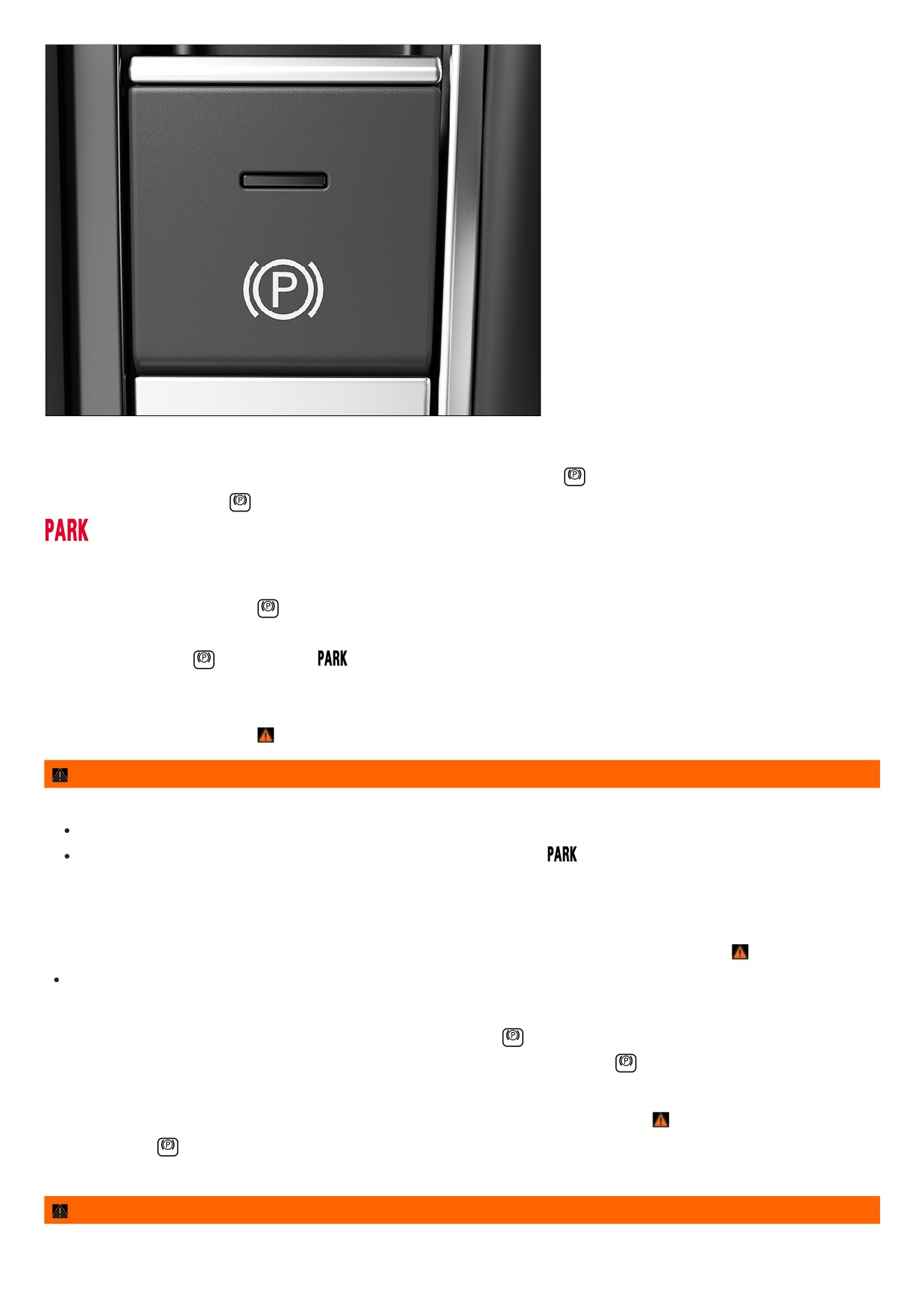
Fig. 122 In the center console: button for the electronic parking brake.
Switching on
1. When the vehicle is stationary, pull and hold the button for the electronic parking brake fig. 122
The yellow indicator light in the
button comes on.
If the electronic parking brake is switched on, the red indicator light comes on in the instrument cluster.
Switching off
1. Switch the ignition on.
2. Press the brake pedal and press the
button.
Or: when the engine is running, press the accelerator pedal lightly without pressing the brake pedal.
The indicator light in the
button and the red
warning light in the Volkswagen Digital Cockpit will turn off.
Automatic switch-on if you leave the vehicle incorrectly
In vehicles with an automatic transmission or DSG® automated transmission, if the system detects that the vehicle was exited incorrectly, it can switch on the
electronic parking brake automatically ⇒
WARNING
Exiting the vehicle incorrectly can result in the vehicle rolling. This can cause accidents, serious injuries, and property damage.
Always follow the specified steps in the correct order when parking the vehicle.
Before exiting the vehicle, make sure the electronic parking brake is activated and the red
warning light in the Volkswagen Digital Cockpit display
comes on after switching off the ignition.
Automatic switch-off when starting to drive
The parking brake releases automatically as you drive off if one of the following situations occurs when the driver's door is closed
⇒
:
Manual transmission: The clutch is pressed all the way down before starting to drive.
Starting to drive on steep inclines or with increased vehicle weight
You can prevent the electronic parking brake from releasing automatically if you pull the
switch upward and hold it up while starting to drive.
If more engine power is required when starting to drive, the electronic parking brake will release only after the
switch is released.
Emergency braking function
Only use the emergency braking function in an emergency, if the vehicle cannot be stopped using the brake pedal
⇒
1. Pull and hold the
switch.
The vehicle will brake abruptly. A warning chime will also sound at the same time.
WARNING
Using the electronic parking brake incorrectly can cause accidents and serious injuries.
175

Always use the brake pedal to brake the vehicle and never the electronic parking brake unless it is an emergency. The braking distance will be
significantly longer because only the rear wheels will be braked under certain circumstances.
Do not press the accelerator pedal when the engine is running and a gear is engaged if the vehicle is to be brought to a standstill. The parking break may
release and the vehicle could start to move.
Noises can be heard when the electronic parking brake is operated or checked after a longer period.
Troubleshooting
Holding force in the current situation is too low
The red warning light
is blinking.
It is not possible to park the vehicle safely.
1. Park the vehicle in another location or on a flat surface.
/
Electronic parking brake malfunction
The yellow central warning light comes on. The
symbol with a message is additionally shown in the instrument cluster display.
1. Contact an authorized Volkswagen dealer or authorized Volkswagen Service Facility. Volkswagen recommends contacting an authorized Volkswagen dealer or
authorized Volkswagen Service Facility.
The electronic parking brake does not switch off
The requirements for switching off the electronic parking brake are not met
⇒ Electronic parking brake .
The 12 V vehicle battery is drained ⇒ Preparing and Performing a Jump-start.
Information about the parking systems
Safety instructions
WARNING
The intelligent technology of the Park Distance Control (PDC) cannot overcome the natural laws of physics and it can only operate within the limits of the
system. Do not allow the increased convenience provided by the parking systems to tempt you into taking risks. The parking systems cannot replace the driver's
attention.
Always adapt your speed and driving style to the visibility, weather, road and traffic conditions.
Always keep an eye on the parking direction and the vehicle surroundings. Pay particular attention to small children, animals and objects.
Bear in mind that the parking system may not be able to react if the vehicle approaches too quickly and no warning is issued.
Do not allow the parking system's display to distract you from the traffic around you.
WARNING
Camera lenses enlarge and distort the field of vision. Using the camera image to estimate the distance to people or obstacles may not be precise and can cause
accidents and serious injuries.
Do not rely on the camera system image.
NOTICE
In parking spaces without a curb, park at least 20 inches (50 cm) away from walls and buildings to reduce the risk of vehicle damage.
Sensor and camera boundaries
Various sensors and cameras that detect the vehicle surroundings ultrasonically, by radar waves, and visually are located on and in the vehicle. The various parking
systems use different combinations of sensors. All sensors have technical and physical limits ⇒
:
In some situations, some objects may not be detected, e.g. trailer draw bars, narrow poles, fences, posts, and trees, extremely low or high obstacles, or trunk
lids that are opening or already open ⇒
The parking system coverage areas have “blind” spots in their range where they cannot detect people and objects.
Dirt, ice, or water on the sensors and cameras may be detected as obstacles or prevent the detection of objects in some cases. In addition to dirt and snow,
soap residue or other coatings can also impair the sensor range → page , Exterior care and cleaning.
External noises and certain surfaces on objects and clothing can affect the sensor signals. In some situations, people and objects may not be detected or may
176
be detected incorrectly.
Certain objects, such as small posts or grating, cannot be shown or cannot be adequately shown due to the resolution of the screen and if there is insufficient
lighting.
The cameras only show two-dimensional images on the screen. Due to the lack of depth of field, it may be difficult or impossible to identify protruding objects o
recesses in the road.
Volkswagen recommends practicing with the parking systems in a location or parking space with no traffic in order to become acquainted with the functions.
Requirements
The use of parking systems, e.g. with camera assistance, may not be allowed in some regions according to legal provisions.
Use the parking systems only where permitted by legal provisions.
General information
So that the sensors and cameras can detect the area surrounding the vehicle as well as possible and display this image on the Infotainment system screen, the
following requirements must be met.
The doors and trunk lid are closed.
The outside mirrors must not be folded in.
The sensors or cameras are not covered by attachments or decorative license plate frames. The decorative number plate frame and the number plate itself
must not protrude at the sides or bottom.
The vehicle must be on level ground.
The vehicle must not be loaded primarily in the rear or on one side.
Engine is running.
Braking assistance systems such as ESC or ASR are switched on.
If you use any other functions in the Infotainment system while you are parking, the parking function and its warning chimes will be deactivated.
Finding a suitable parking space
The length and width of the parking space must be larger than the vehicle measurements and provide enough space to maneuver.
The distance when driving past the parking space is approx. 1 m (approx. 3 feet).
Automatic braking intervention
A parking system's automatic braking
support helps to avoid collisions, if an
obstacle is detected.
Parking systems with braking support
Depending on the vehicle equipment, the vehicle has parking systems with a maneuvering and/or emergency braking function
⇒
WARNING
The increased comfort offered by the parking system automatic braking intervention should not cause you to take safety risks. In some situations, function of the
automatic braking intervention may be limited or it may not function at all. Collisions with obstacles can lead to injuries and vehicle damage. The system cannot
replace the driver's attention.
Stay attentive and do not rely only on the parking systems.
Always be ready to take over braking and steering.
Do not take any risks when it comes to safety.
React to the warnings and recommendations from the parking systems.
Requirements
When maneuvering, the vehicle is not driving faster than approx. 10 km/h (approx. 6 mph).
A parking system has been switched on.
What happens during an automatic braking intervention?
If there is an obstacle, the vehicle brakes to a stop and is kept stationary for around two seconds.
1. After braking, press the brake pedal to keep the vehicle stationary.
2. Check your surroundings.
177
Depending on the vehicle equipment, there may be a message on the instrument cluster display.
Switching on and off
Automatic braking is activated or deactivated when a parking system is switched on or off by the driver.
1. Or: Tap the
function key in the screen display of the parking system.
General information
Switch the parking system off if automatic braking support happens too frequently, like when driving off-road.
Following a Rear Traffic Alert emergency braking intervention, it will take approx. 10 seconds before automatic braking support can occur again.
Troubleshooting
The parking system is functioning differently than expected
The system conditions are not met ⇒ Requirements.
The sensors or camera may be dirty or covered with ice
⇒ Exterior care and cleaning.
The camera lens is dirty and the camera image is not clear ⇒ Exterior care and cleaning.
Sources of noise, such as a jackhammer or driving over cobblestones, can interfere with the ultrasonic signal.
The vehicle is damaged in the area of the sensors or camera, for example from parking barriers, or the paint may have been changed or other structural
modifications may have been made near the sensors or camera, for example to the vehicle front end or to the suspension.
The areas detected by the sensors or camera may be blocked by accessories such as bicycle racks.
Fault displays
1. Note any messages on the instrument cluster display and in the Infotainment system.
NOTICE
Contact an authorized Volkswagen dealer or authorized Volkswagen Service Facility in the event of a parking system malfunction. Volkswagen recommends
contacting an authorized Volkswagen dealer or authorized Volkswagen Service Facility.
No sensor or camera view or the parking system has been switched off
If a sensor malfunctions, the sensor area is deactivated. The sensor area affected can be displayed in the Infotainment system by the
symbol. The parking syste
may be completely switched off.
If Park Distance Control is malfunctioning, a continuous tone will sound for several seconds when you switch it on. Where applicable, a message will appear in the
instrument cluster display.
1. Check if one of the causes listed is responsible.
2. Once the source of the issue has been resolved, switch the system on again.
3. If the problem persists, contact an authorized Volkswagen dealer or authorized Volkswagen Service Facility. Volkswagen recommends contacting an authorized
Volkswagen dealer or authorized Volkswagen Service Facility.
Rear View Camera (Rear View)
Introduction
The Rear View Camera system in the
rear of the vehicle makes it easier for
the driver to see behind the vehicle and
assists when parking.
System function
The Rear View Camera system shows the area behind the vehicle on the Infotainment system screen. Depending on the mode and vehicle equipment, orientation
lines may assist in the view toward the rear ⇒
WARNING
The intelligent technology of the Park Distance Control (PDC) cannot overcome the natural laws of physics and it can only operate within the limits of the
system. Not paying attention can result in accidents, serious injuries and vehicle damage.
The PDC cannot replace the driver's attention.
Brake the vehicle in good time before reaching an obstacle.
The orientation lines superimposed on the camera image are shown by the system regardless of the vehicle's surroundings. There is no automatic obstacle
178
detection by the camera while it is active. The driver must evaluate whether the vehicle will fit in the parking space.
If a camera is installed in the trunk lid, the orientation lines are also hidden if the trunk lid is open.
USA and Canada: If the camera image on a parking system has been switched on by engaging the reverse gear, no function keys are displayed for safety reasons.
These function keys can be displayed again by tapping the function key
CAUTION
Vehicles with a swiveling emblem: The Rear View Camera system extending can cause serious injuries due to entrapment.
When engaging reverse gear, make sure that there are no persons directly behind the vehicle and that nobody can intervene in the range of operation of
the Volkswagen emblem on the trunk lid.
Switching the Rear View Camera system on and off
Please read the introductory information and heed the Warnings and Notice ⇒
and Safety instructions.
Switching on
1. Select the reverse gear.
Switching off
1. Disengage reverse gear.
Or: The vehicle is driving at more than approx. 9 mph (approx. 15 km/h).
Parking (Rear View Camera system without parking mode selection)
Please read the introductory information and heed the Warnings and Notice ⇒
and Safety instructions.
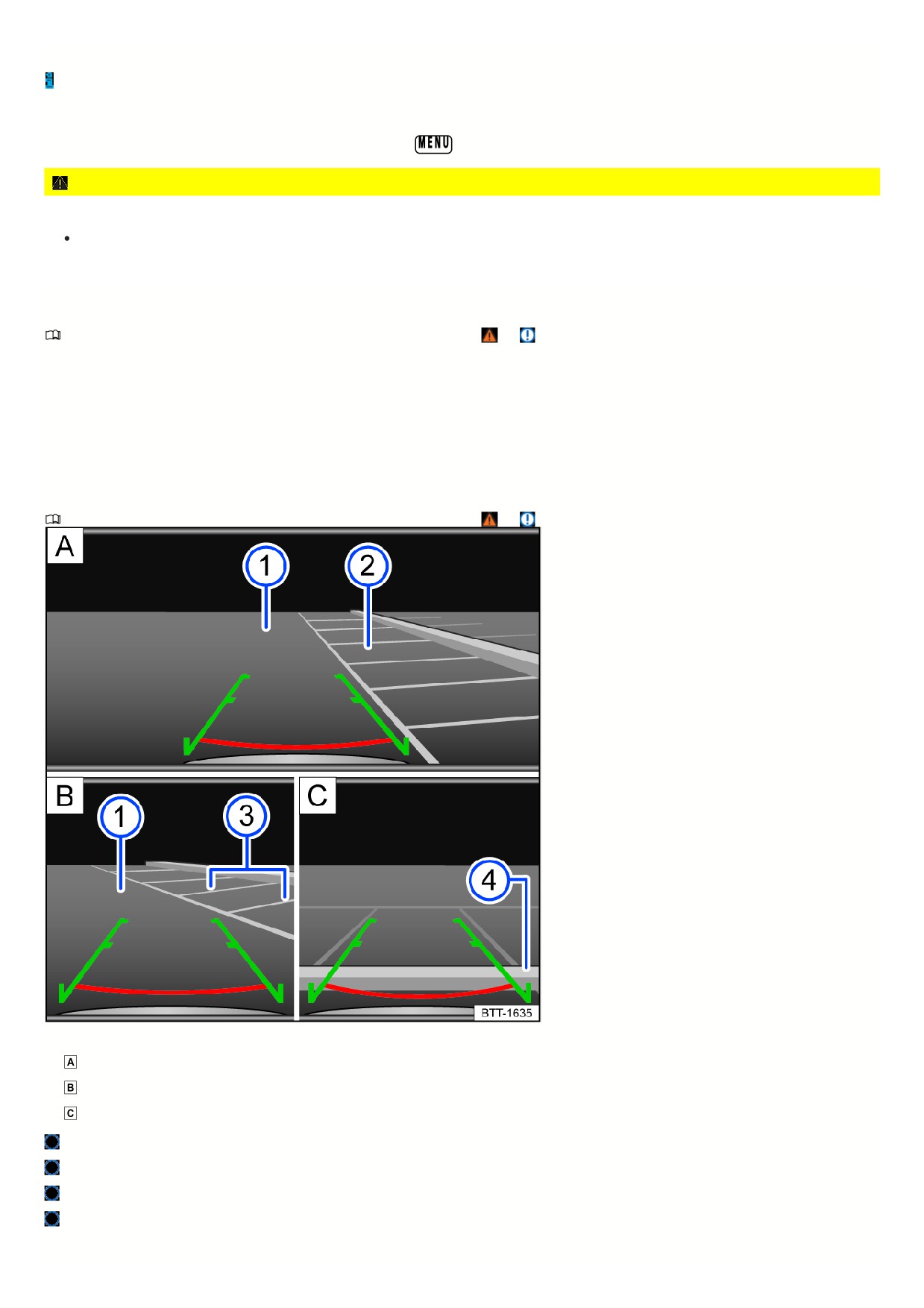
Fig. 123 Infotainment system: Parking with the Rear View Camera system.
Searching for a parking space.
Steering toward the selected parking space.
Aligning the vehicle within the parking space.
Road surface.
Selected parking space.
Side boundaries of the selected parking space.
Rear boundary of the parking space.
Screen display
179
Red line: Boundary or safety distance from the vehicle.
Green side line: Extension of the vehicle.
Adjust the brightness, contrast, and color.
1. Position your vehicle in front of the parking space fig. 123
2. Select the reverse gear.
3. Slowly reverse while steering so that the green side lines line up with the selected parking space. The green lines must line up with the side boundaries of your
parking space fig. 123
4. Stop when the red horizontal line reaches the rear boundary fig. 123
Rear Traffic Alert
Rear Traffic Alert monitors the cross
traffic when reversing out of a space or
maneuvering.
WARNING
The intelligent technology of the Park Distance Control (PDC) cannot overcome the natural laws of physics and it can only operate within the limits of the
system. Not paying attention can result in accidents, serious injuries, and vehicle damage.
Pay attention to the traffic situation and the vehicle environment.
The Rear Traffic Alert may potentially not detect all approaching objects, e.g. pedestrians or objects approaching quickly.
Switching on and off
1. Press the
button.
Or: Depending on the vehicle equipment, press the button for driver assistance systems.
Or: Depending on the vehicle equipment, open the vehicle settings in the Infotainment system ⇒ Vehicle settings menu.
2. Switch Rear Traffic Alert on or off.
System function
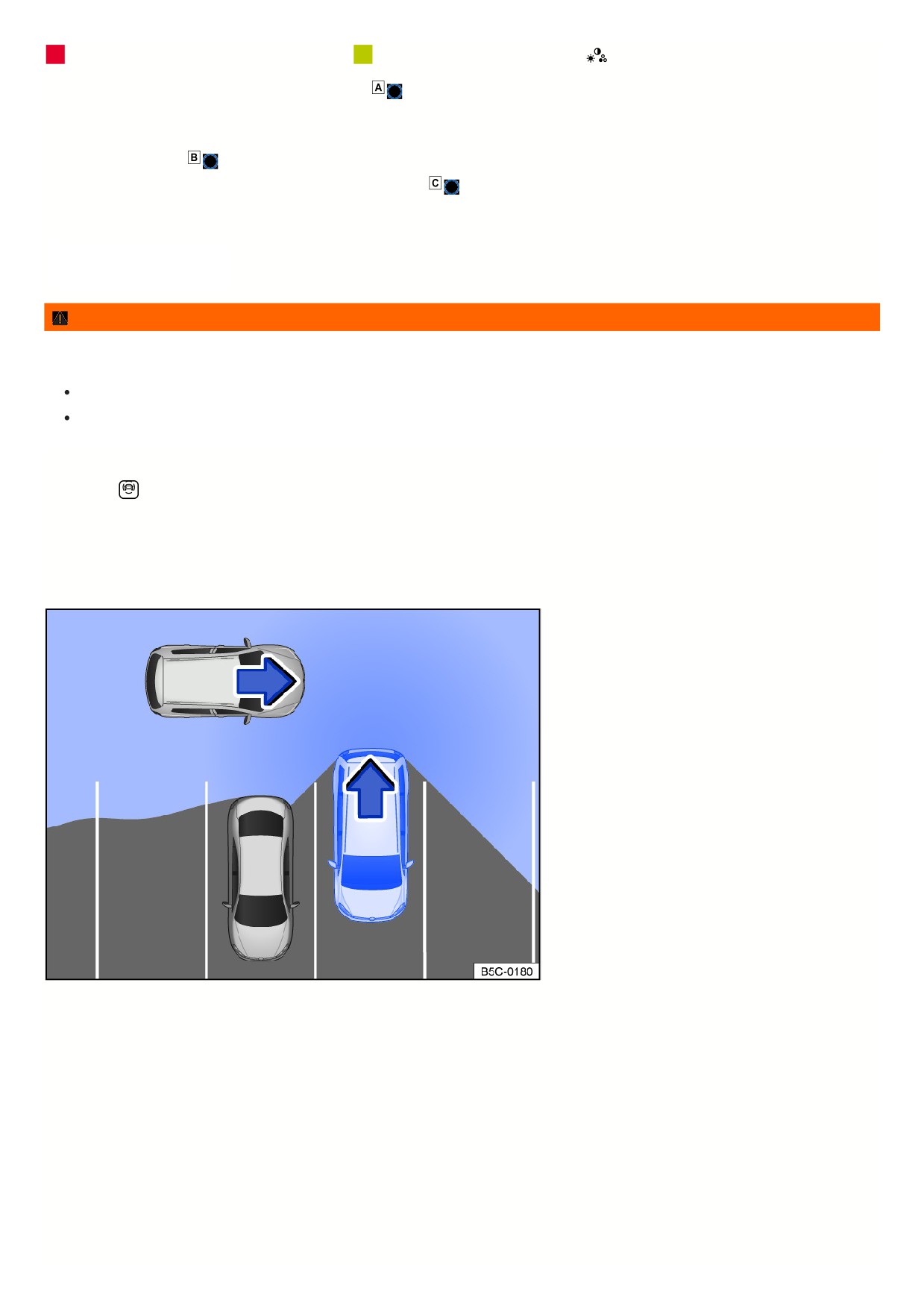
Fig. 124 Rear Traffic Alert, general example: monitored area around the vehicle that is exiting a parking space.
18
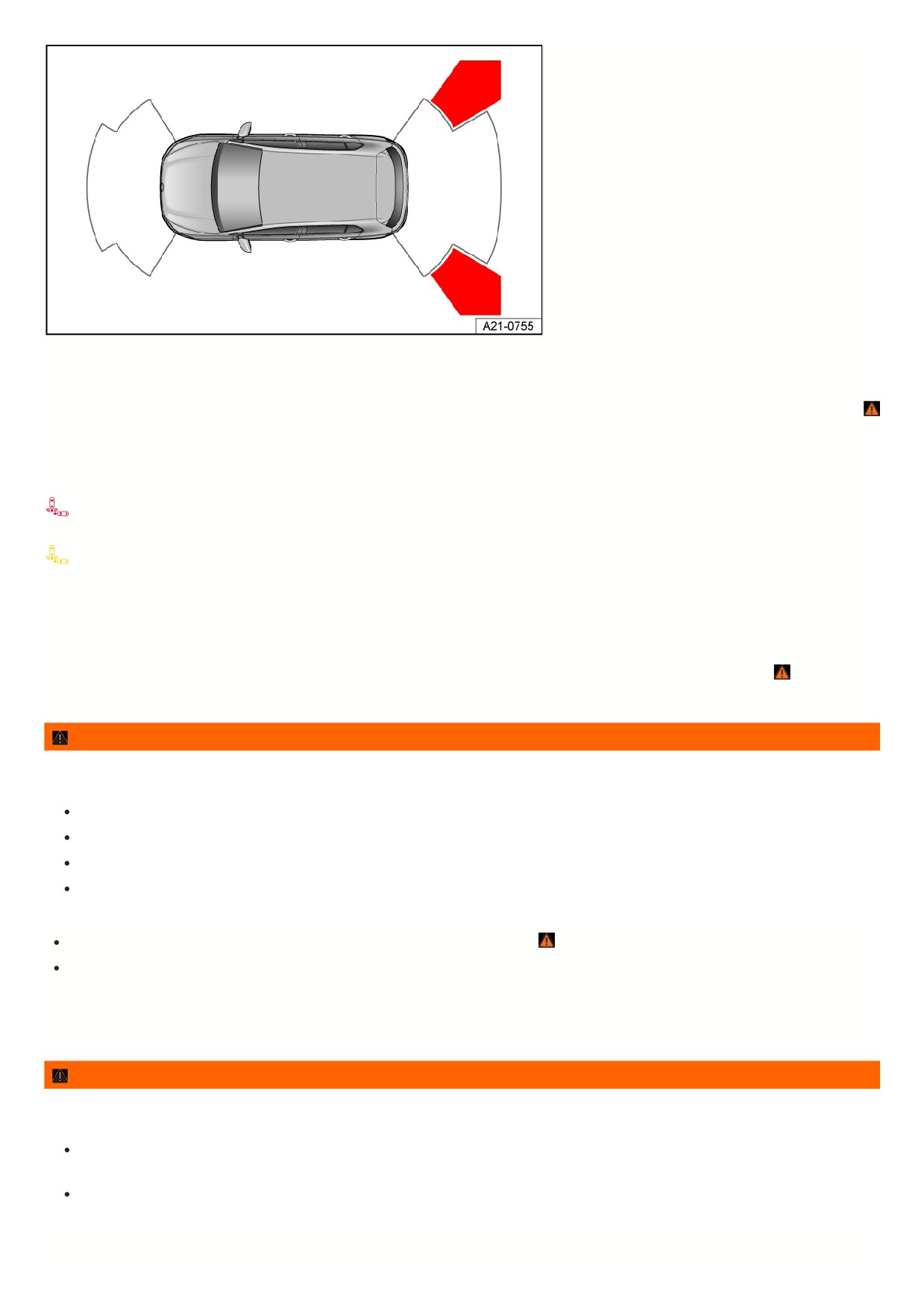
Fig. 125 Infotainment system: Rear Traffic Alert display (depending on the vehicle equipment).
The Rear Traffic Alert functions with radar sensors in the rear bumper.
The system detects approaching or moving objects in the surrounding area to the rear and to the side and warns the driver if there is an obstacle fig. 124, ⇒
If there is an obstacle, a warning signal will sound. Depending on the vehicle equipment, a color indication of the obstacle zone appears in the Infotainment
system fig. 125 and/or a warning or indicator light appears in the instrument cluster along with a message.
If the driver does not respond, automatic braking support may kick in.
Obstacle detected.
1. Beware of traffic behind the vehicle.
Automatic braking intervention by Rear Traffic Alert.
1. Press the brake pedal to bring the vehicle to a standstill.
Braking assistance systems
Information about braking assistance systems
Braking assistance systems can assist the driver in critical driving and braking situations. The driver is always responsible for safe driving
⇒
1. If a braking assistance system is regulating, continue braking with the necessary force. If necessary, steer the vehicle.
WARNING
The intelligent technology in the braking assistance systems cannot overcome the natural laws of physics and it can only operate within the limits of the system.
Driving fast on icy, slippery, or wet roads can lead to loss of vehicle control and serious injuries to the driver and passengers.
Always adapt your speed and driving style to the visibility, weather, road and traffic conditions. Do not take any risks.
Braking assistance systems cannot prevent a collision, for example if you are driving too close to other vehicles.
Always use suitable tires. Driving stability depends on the tires' ability to grip the road.
Always keep the footwell beneath the pedals clear so that the brake pedal is unobstructed and can move freely.
ESC, ABS and ASR only function correctly when all four wheels have the intended tires ⇒
If the ABS malfunctions, the ESC, ASR and EDS also fail.
When the ignition is switched on, the condition of the braking functions is automatically checked. The indicator lights will come on briefly and then turn off. If an
indicator light remains on permanently, there is a malfunction. Contact an authorized Volkswagen dealer or authorized Volkswagen Service Facility immediately.
Volkswagen recommends contacting an authorized Volkswagen dealer or authorized Volkswagen Service Facility.
WARNING
The effectiveness of the ESC can be reduced considerably if other components and systems that affect driving dynamics are not maintained correctly or are
malfunctioning. This applies in particular to changes made to the suspension and any non-approved wheel and tire combinations.
Ensure that conversion and modifications to the vehicle are only performed by an authorized Volkswagen dealer or authorized Volkswagen Service
Facility. Volkswagen recommends contacting an authorized Volkswagen dealer or authorized Volkswagen Service Facility.
Always use suitable tires. Driving stability depends on the tires' ability to grip the road.
Electronic Stability Control (ESC)
181

ESC is regulating the vehicle to reduce the risk of skidding and improve driving stability ⇒ . The indicator light flashes yellow.
Anti-Slip Regulation (ASR)
ASR is regulating the vehicle to reduce the risk of the wheels spinning. The indicator light flashes yellow.
ASR reduces drive power at wheels that are spinning and adapts the drive power to the road conditions. ASR makes it easier to start, accelerate, and drive up hills
⇒
Anti-Lock Braking System (ABS)
ABS prevents the wheels from locking during braking so that the vehicle can be steered
⇒
Brake Assist System (BAS)
BAS can help to reduce the vehicle braking distance. BAS increases braking power when the driver presses the brake pedal quickly in emergency situations
⇒
Electronic Differential Lock (EDL and XDL)
EDS automatically applies the brakes to a wheel that starts spinning and transfers the drive power to the other driving wheels.
XDS is an extension of the electronic differential lock, and improves traction with braking support to help keep the vehicle in its lane.
Multi Collision Brake
The Automatic Post-Collision Braking System automatically brakes the vehicle if the airbag control module has detected a collision in an accident situation.
Requirements for automatic braking:
The driver does not press the accelerator pedal.
Brake booster
The braking support only functions when the engine is running and it enhances the pressure applied to the brake pedal by the driver.
If the braking support is not working or the vehicle is being towed, you will need to press the brake pedal harder because the lack of braking assistance will increase
the braking distance ⇒
WARNING
Driving without the brake booster or when the brake booster’s functionality is limited can increase the braking distance significantly, increasing the risk of
accidents and serious injury.
Never stop the engine or switch the ignition off while the vehicle is moving.
If the braking support is not working or the vehicle is being towed, you will need to press the brake pedal harder because the lack of braking assistance
will increase the braking distance.
Always keep the footwell beneath the pedals clear so that the brake pedal is unobstructed and can move freely.
Switching the braking support system on and off
Driving situations
In order to avoid risks, the brake systems should not be switched off under normal conditions
⇒
WARNING
When ESC Sport is switched on, the risk of the vehicle swerving is significantly higher. The vehicle can be difficult for inexperienced drivers to handle at high
speeds. Accidents and serious injuries could result.
Only switch on ESC Sport if you are driving on a closed track and are experienced in sporty driving.
Never take risks, and note the physical limits of the vehicle.
Switching on and off
1. Open the vehicle settings of the Infotainment system ⇒ Vehicle settings menu.
2. Open the settings for parking systems.
3. Select the function.
If the driving situation no longer exists, the brake system should be switched on again completely
⇒
ASR
It can be helpful to switch off ASR when the vehicle is driven on loose ground or when “rocking” the vehicle out of place because it is stuck
⇒
ASR is manually switched off. The yellow indicator light turns on.
182
ESC Sport
The function assists with sporty driving. The ESC intervenes later to stabilize the vehicle, e.g. during fast cornering
⇒
ESC Sport is switched on. The yellow indicator light turns on.
Button in the center console
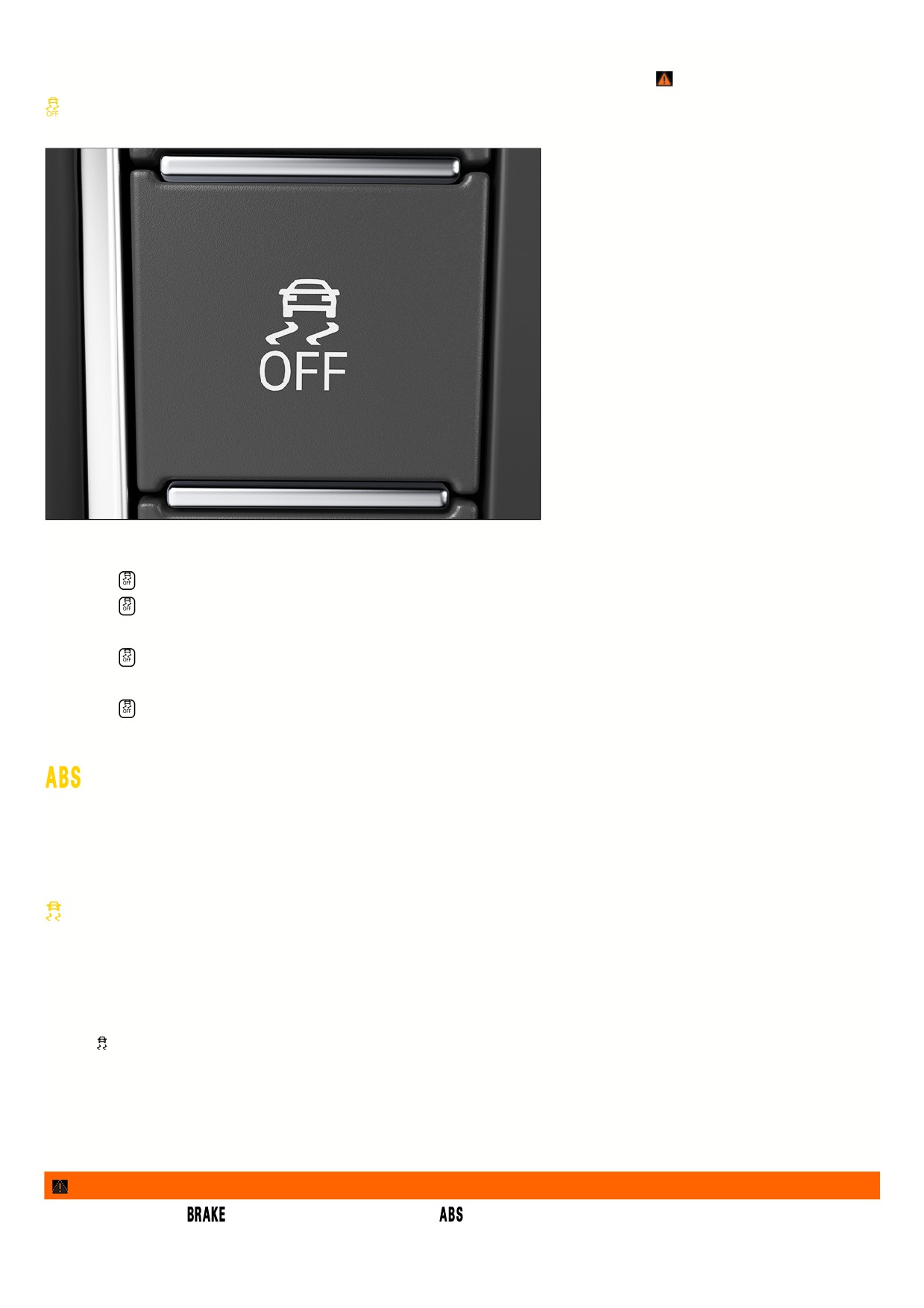
Fig. 126 Located on the center console: Button to manually switch ASR or ESC Sport on and off (depending on how your vehicle is equipped).
Switching off the ASR
1. Press the
button for about one second fig. 126.
2. Press the
button again to switch ASR on again.
Switching on ESC Sport
1. Press the
button for about three seconds fig. 126.
ASR switched off and ESC Sport switched on.
2. Press the
button again to switch ASR and ESC on again.
Troubleshooting
ABS failure or malfunction
The yellow indicator light turns on.
1. Contact an authorized Volkswagen dealer or authorized Volkswagen Service Facility. Volkswagen recommends contacting an authorized Volkswagen dealer or
authorized Volkswagen Service Facility.
The vehicle can be braked without ABS.
ESC malfunction
The yellow indicator light turns on. ESC has been switched off.
There is a fault or malfunction.
1. Switch the ignition off and on.
2. Drive a short distance at a speed of approximately 15 km/h (approx. 9 mph) to 20 km/h (approx. 12 mph).
3. If the
indicator light stays on, contact a suitably qualified professional. Volkswagen recommends contacting an authorized Volkswagen dealer or authorized
Volkswagen Service Facility.
Noises in the braking assistance systems
When the braking assistance systems are actively regulating, the brake pedal may move or noises may occur.
1. Continue braking with the necessary force and, if necessary, steer the vehicle.
WARNING
If the brake warning light
turns on together with the indicator light
, the regulating function of the ABS could be malfunctioning. This could cause the
rear wheels to lock relatively quickly when braking. Locked rear wheels can lead to loss of vehicle control.
183

If possible, reduce your speed and drive slowly and carefully to the nearest authorized Volkswagen dealer or authorized Volkswagen Service Facility to
have the brake system checked. Volkswagen recommends contacting an authorized Volkswagen dealer or authorized Volkswagen Service Facility.
Avoid sudden braking or driving maneuvers.
If the ABS indicator light does not turn off, or turns on during the journey, the ABS is not working correctly. The vehicle can only be stopped with the
normal brakes (without ABS). The security provided by the ABS is not available. Visit an authorized Volkswagen dealer or authorized Volkswagen
Service Facility as soon as possible. Volkswagen recommends contacting an authorized Volkswagen dealer or authorized Volkswagen Service Facility.
184

Practical equipment
Storage compartments
Introduction
WARNING
Loose objects can be thrown around the inside of the vehicleduring sudden driving or braking maneuvers. This can cause serious injuries and loss of vehicle
control.
Store objects in only closed storage compartments.
Always keep the storage compartments closed while driving.
Only hang lightweight clothing, up to a maximum of 5.5 lbs (approximately 2.5 kg), from the coat hooks in the vehicle. Never leave heavy, hard or sharp
objects in the pockets.
WARNING
An open glove compartment can increase the risk of serious injuries in the event of a collision or during sudden braking or driving maneuvers.
Always keep the glove compartment closed while driving.
WARNING
Lighters in the vehicle can become damaged or ignite unintentionally. This can cause severe burns and vehicle damage.
Before closing compartments or storage areas, always make sure that there are no cigarette lighters near the sections that will be closing.
Never place lighters in compartments, in storage areas, or on other surfaces in the vehicle. Lighters may ignite as a result of high surface temperatures,
especially in summer.
WARNING
Incorrect usage of the cup holders can cause injuries.
Do not place hot beverages in the cup holders. Hot beverages in the cup holders could spill and cause burns while driving, during sudden braking
maneuvers, or in collisions.
Take care that only suitably sized drinks are stored in the cup holder. Drinks must always be steady and secure in the cup holder.
WARNING
Closed beverage bottles can explode from heat and burst from frost.
Never leave closed beverage bottles in an extremely hot or extremely cold vehicle.
NOTICE
Never leave any objects, groceries, or medications that are sensitive to temperature in the vehicle interior. Hot and cold conditions could damage these
objects and make them unusable.
Objects made out of transparent materials in the vehicle, for example transparent suction cups on the window glass, can concentrate sunlight and cause
damage to the vehicle.
Sockets
Introduction
Electrical devices can be connected to the sockets in the vehicle.
The 12 V socket only works when the ignition is switched on.
WARNING
Using sockets and electrical devices incorrectly can cause fires and serious injuries.
185
Never leave children unattended in the vehicle. Sockets and the devices connected to them can be used when the ignition is switched on.
If the electrical devices become too warm, turn off the devices immediately and disconnect them.
NOTICE
To reduce the risk of damage to the electrical system, never attempt to charge the 12 V vehicle battery by connecting electrical devices that provide
power to the 12 V sockets, such as solar panels or battery chargers.
Only use electrical devices that have been tested for compliance with the applicable directives for electromagnetic compatibility.
Do not use any malfunctioning devices.
To reduce the risk of damage from voltage fluctuations, turn electrical devices off before switching the ignition on or off and before starting the engine.
Never connect electrical devices that draw more than the specified load of a 12 V socket. The vehicle electrical system can be damaged when the
maximum load is exceeded.
Refer to the operating instructions for the electrical devices.
The 12 V vehicle battery will drain if the ignition and electrical devices are switched on while the engine is switched off.
Unshielded devices can cause malfunctions in the radio, the Infotainment system and in the vehicle electronics, depending on the vehicle equipment.
Sockets in the vehicle
Please read the introductory information and heed the Warnings and Notice ⇒
and Introduction.
Do not exceed the maximum power of the sockets. The power draw of the external devices is indicated on their identification labels.
12 V socket
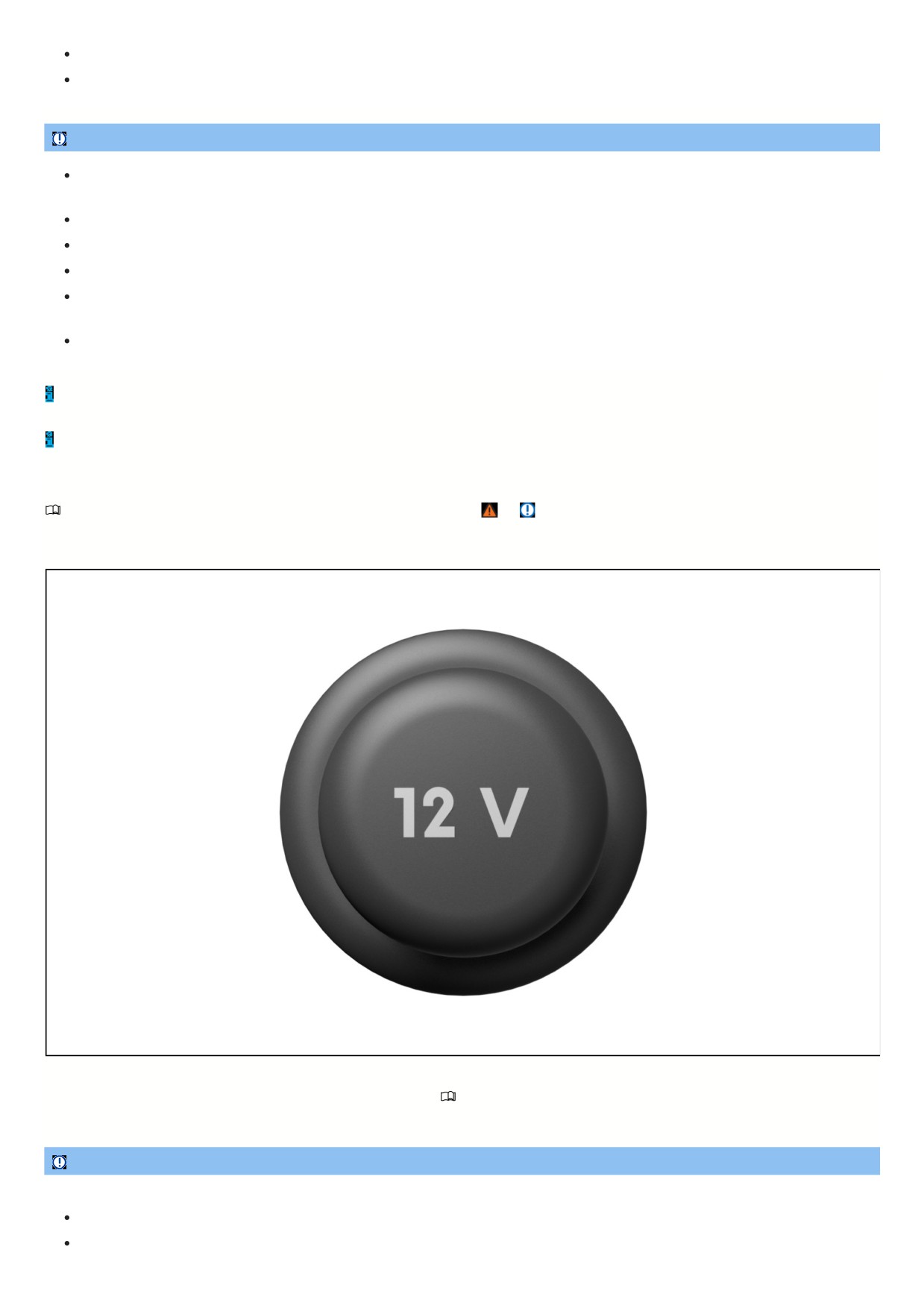
Fig. 127 In the front part of the center console: 12 V socket with removable cover (general example).
The total continuous output of all 12 V sockets in the vehicle is 120 watts
⇒ Introduction.
The maximum power of a 12 V socket in the vehicle with the engine running totals 180 watts.
NOTICE
Using 12 V sockets for too long at maximum power can cause the fuse to blow.
Never use 12 V sockets at their maximum power for longer than 10 minutes.
Only ever use a single 12 V socket at maximum power.
186

187
Data transmission
Cyber security
Cyber security describes measures that
reduce the risk of illegal access to
vehicle functions, data and control
modules caused by malware or an
Internet attack.
What are connectivity components?
Control modules for data transmission, interfaces, media and diagnostic connections are connectivity components, through which information and data can be
exchanged between the vehicle and external devices or the Internet. The following connectivity components may not be available in all vehicles:
Diagnostic connection port
Control module with installed eSIM card.
Mobile phone interface
App-Connect.
Wi-Fi hotspot.
NFC radio technology.
Bluetooth interface.
USB port.
SD card slot.
SIM card slot.
Connectivity components are the key points for cyber security. Connectivity components are also equipped with security mechanisms that minimize the risk of
unauthorized access to vehicle systems.
Security mechanisms
Software and security mechanisms available in the vehicle undergo continuous development. Similar to computers or operating systems on cell phones, software
and security mechanisms in the vehicle may also be updated at various times.
Generally, system updates improve the security, stability, and processing speeds of the vehicle systems in vehicles that have already been produced.
WARNING
In spite of the integrated security mechanisms, malware can cause malfunctions in control modules and vehicle functions. This can cause serious accidents and
fatal injuries.
If the vehicle works or reacts differently to normal, reduce your speed in a controlled manner.
Contact suitably qualified professionals for assistance. Volkswagen recommends contacting an authorized Volkswagen dealer or authorized Volkswagen
Service Facility.
Malware can also access data and information that are stored in the control modules, in the Infotainment system, on connected data carriers, and in paired cell
phones.
Minimizing risks
You can actively help to reduce the risk of unauthorized access to vehicle systems and functions by following these guidelines:
Only use data carriers, Bluetooth devices and cell phones in the vehicle that do not contain any manipulated data or malware.
Only have the vehicle repaired and serviced by suitably qualified professionals. Volkswagen recommends contacting an authorized Volkswagen dealer or
authorized Volkswagen Service Facility.
WARNING
Computers, data carriers and cell phones that are connected to the Internet or are used in public or private networks can be infected by manipulated data and
malware.
Protect computers, data carriers and cell phones with a suitable antivirus program and by taking generally recognized precautions.
Regularly update the antivirus program using the provided system updates or upgrades provided by the vendor.
Wired and wireless connections
188
Introduction
Some external devices can be connected to the Infotainment system using the wired and wireless connections in the vehicle, if available.
The type and quantity of wired and wireless connections depend on the vehicle equipment and country. The connections may differ within a model line or in a mode
with optional equipment.
In wired connections, only use the original connecting cable that belongs to the device or the connecting cable that was placed in the vehicle at the factory, if
available.
If the plug on the connector cable cannot be inserted, check the position and the connections.
NOTICE
Only use a suitable and undamaged connector cable for wired connections.
Hold the plug on the connector cable in the correct position and insert it into the intended socket while pressing lightly. Pressing strongly can damage the
device connection and the plug on the connector cable.
The connector cable must not be pinched or bent sharply.
Using unsuitable or damaged connector cables can cause malfunctions and damage to the device.
If a connected device is not recognized, disconnect all connected devices and then reconnect the device. Check the function of the connecting cable, if necessary.
If malfunctions occur in a connected device, restart the device. This sometimes fixes the error.
USB port
Please read the introductory information and heed the Warnings and Notice ⇒
Introduction.
Using the USB port, you can transfer
data and charge devices or only charge
devices.
USB-C port
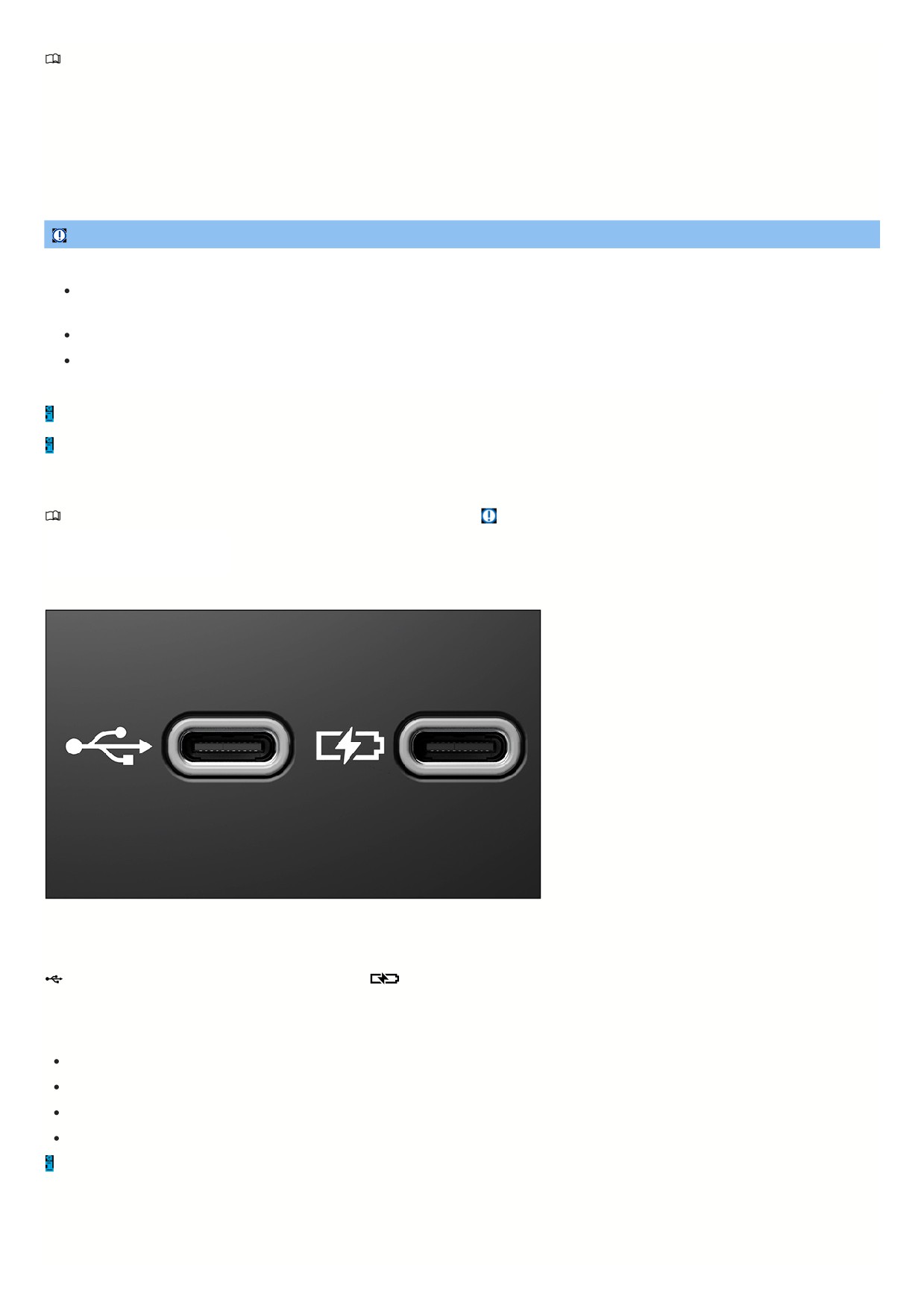
Fig. 128 USB-C connection in the vehicle (general example).
The vehicle may contain the following USB-C ports:
Symbol for a USB port for data transmission and charging.
Symbol for a USB port for charging only.
Possible USB port installation locations
The number and installation locations of USB ports depend on the vehicle and vehicle equipment and are not available in all countries.
In the center console.
At the base of the interior rearview mirror.
In the storage compartment in the center console.
In the compartment underneath the center armrest.
USB ports at the rear seats only come with a charging function.
Available Data Transfer Functions
The following USB data transfer functions are available depending on the vehicle equipment.
189

App-Connect ⇒ App-Connect.
Media playback ⇒ Media mode.
Update, e.g. of the navigation data ⇒ Navigation data.
Available Charging Power
Voltages up to 20 V are provided via the USB port, which enables up to 45 W charging power.
Depending on the vehicle equipment, the following charging profiles may be supported by the USB ports:
Legacy charging (2.5 W).
BC1.2 (7.5 W).
USB-C charging (15 W).
USB power delivery (up to 45 W).
The actual charging power of the connected device depends on the following aspects:
Supported charging profiles.
Device charge level.
Device temperature.
Charging cable used.
For double USB ports, the charging power can be split between both ports.
Instructions and restrictions
Only use suitable USB connection cables. The USB connection cable must match the USB port installed in the vehicle.
Dirty, overheated or damaged data carriers are not to be used. Read and heed the information provided by the manufacturer.
Difference in quality between data carriers from different manufacturers can cause problems with media playback.
Using USB extension cables, USB adapters or USB hubs may result in malfunctions or failure of the USB functions.
Bluetooth® interface
Please read the introductory information and heed the Warnings and Notice ⇒
Introduction.
The Bluetooth interface is a wireless connection.
In Bluetooth audio mode, audio files that are on a Bluetooth audio source that is connected via Bluetooth, such as a cell phone, can be played through the vehicle
speakers.
Bluetooth audio mode is only possible in vehicles equipped with a factory-installed mobile phone interface that supports this function.
Bluetooth profiles
The Infotainment system is equipped with a Bluetooth interface at the factory.
A maximum of three Bluetooth devices can be connected at the same time.
The following Bluetooth profiles may be available in the specified version or in another version:
HFP 1.7.
Telephony and handsfree mode.
A2DP 1.3.
Music playback.
AVRCP 1.6.
Display and operation for music playback.
Transfer of cover art.
PBAP 1.2.
Access to phone book and call lists.
MAP 1.4.
Access to SMS and e-mail.
SPP 1.2.
Serial data transfer via Bluetooth.
Requirements
The Bluetooth audio source supports the A2DP Bluetooth profile.
The
Bluetooth audio (A2DP/AVRCP) function is activated in the Bluetooth settings menu.
19

Controlling playback
The extent that the Bluetooth audio source can be controlled by the Infotainment system depends on the type of Bluetooth audio source that is connected.
For media players that support the AVRCP Bluetooth profile, playback from the Bluetooth audio source can be started or stopped automatically when Bluetooth
audio mode or another audio source is selected. Depending on the Bluetooth audio source, it may also be possible to display and play the track on the Infotainmen
system.
Because of the large number of possible Bluetooth audio sources, it is not possible to guarantee that all functions described can be performed correctly.
On a connected Bluetooth audio source, all warning and operation tones, such as touch tones on a cell phone, should generally be switched off to avoid
interference and malfunctions.
Depending on the device, if an external media player is connected to the Infotainment system via Bluetooth and the USB port
at the same time, the
Bluetooth audio connection may be automatically disconnected.
Connecting an external audio source via Wi-Fi
Please read the introductory information and heed the Warnings and Notice ⇒
Introduction.
The Wi-Fi connection is a wireless connection.
In Wi-Fi audio mode, sources such as cell phones that are connected via Wi-Fi can be used for audio streaming.
The availability of the Wi-Fi function depends on the country and the Infotainment system being used.
Requirements
The connected audio source has a suitable app or supports media sharing using the UPnP standard.
There must be a Wi-Fi connection to the audio source.
Starting Wi-Fi audio streaming
1. Lower the volume on the Infotainment system.
2. To open the Media main menu, tap MENU
3. Start the UPnP server application or a suitable app for audio playback on the Wi-Fi audio source.
4. Tap
and select
Wi-Fi .
5. Follow the instructions shown on the Infotainment system screen and on the Wi-Fi audio source screen.
The function key for selecting the audio source
in the Media main menu can vary if another audio source is connected with the Infotainment system, e.g. by
USB
, and is selected.
Controlling playback
The extent to which the Wi-Fi audio source can be controlled by the Infotainment system depends on the type of Wi-Fi audio source that is connected.
Wi-FI hotspot
Introduction
The "Wi-Fi hotspot" function is not available in all countries and vehicles.
Some Infotainment systems can be used as a Wi-Fi hotspot for Internet access on up to eight Wi-Fi devices.
Some Infotainment systems can use the Wi-Fi hotspot on an external Wi-Fi device (Wi-Fi client)
⇒ Setting up a Wi-Fi client.
A data connection is required for connecting to the Internet and for certain functions, such as using VW Car-Net.
The Wi-Fi connection is encrypted by default with WPA2 encryption for security reasons. Volkswagen recommends always using WPA2 encryption. Observe
legal regulations for the country where you are operating the vehicle.
There may be fees for the required data connection. Volkswagen recommends using a mobile phone plan with a flat rate data package due to the possible
volume of data. Information on this can be obtained from the mobile network provider.
Depending on your mobile data rate, additional costs, such as roaming fees, may result from downloading and using data plans online, especially in other
countries.
When crossing the border into countries with different permitted radio frequencies than your own country, use of the wireless function/the Wi-Fi must be
deactivated to comply with legal provisions. The wired functions are not affected by this restriction and can still be used.
Opening the Network settings menu
1. To open the System Settings menu, tap MENU
Or: to open the Car-Net settings (mobile online services) menu, open the Car-Net main menu and tap
2. To open the Network settings menu, tap Network.
3. Tap the function key of the respective section to configure the settings.
Changes will be automatically applied when the menu is closed.
191

The Network settings menu is only visible if a SIM card is in the Infotainment system, if there is an active Bluetooth rSAP connection or if a suitable CarStick is
connected to the Infotainment system.
Function keys in the Network settings menu
Network settings
The submenu opens for connection settings with the mobile phone service provider (Mobile network settings menu) from whom the SIM card
was purchased.
Data roaming:Data roaming is deactivated. To use a data connection while out of the country, data roaming must be activated. This may result in additional
charges. For information on roaming fees, contact the mobile phone service provider.
Current connection details :Display of data packets sent and received through the Infotainment system. This display may differ from the mobile phone network
provider data.
Restore factory settings :Restoring the factory settings deletes all previous inputs and settings.
Internet connection :Opens a context menu with the options Do not allow (data connection will not be established), Show disclaimer (data connection will only
be established after the prompt is confirmed) and Always allow (data connection will be established automatically).
Function keys in the Mobile network settings menu
Access point name :Mobile network provider's access point name for the mobile network connection. The name is automatically preset and, if necessary, can
be manually changed according to the respective mobile phone service provider specifications.
User name :User name when accessing the mobile network provider access point. The user name is automatically preset and, if necessary, can be manually
changed according to the respective mobile phone service provider specifications.
Password :Password to connect to the mobile network. The password is automatically preset and, if necessary, can be manually changed according to the
respective mobile phone service provider specifications.
Authentication :Depending on the mobile network provider, authentication (verification of identity) may be necessary. If this is the case, select Secure. If not,
select Normal.
Reset automatic connection settings :Any entries and settings that have been made are reset to the default settings.
Establishing a data connection
Wi-Fi (9.2" version and 8" version)
Wi-Fi in accordance with IEEE 802.11 b/g/n.
2.4 GHz and 5 GHz data transfer.
Two Wi-Fi modes at once:
Tethering (2.4 GHz).
2.4 GHz access point.
Up to eight Wi-Fi devices can be connected at the same time.
Internet connection via Wi-Fi:
Tethering via cell phone.
Hotspot for clients in the vehicle.
Apple CarPlay™ via Wi-Fi.
Android Auto™ via Wi-Fi.
Simplified pairing process via WPS, NFC or QR code .
Possible data connection types
SIM card in SIM card reader:
Suitable SIM card in the SIM card reader. Allow Internet connection must be activated in the Network settings menu. A stable
network connection is only possible with a compatible SIM card.
Bluetooth Profile rSAP:
The Infotainment system is connected to a suitable cell phone via the Bluetooth profile rSAP. Allow Internet connection must be
activated in the Network settings menu.
External Wi-Fi device:
Use the Wi-Fi hotspot on an external cell phone ⇒ Setting up a Wi-Fi client.
eSIM (embedded SIM):The vehicle has a control module with installed eSIM card (eSIM). In order to use the Wi-Fi hotspot, you need to purchase data plans via
the In-Car Shop or via the online shop of our mobile communications partner.
The types of possible data connections depend on the country and equipment.
Requirements
Network settings Allow Internet connection is activated in the settings menu.
Or: Data connection Integrated data connection is activated.
192

Setting up and deactivating a Wi-Fi hotspot
The Infotainment system can be used as a Wi-Fi hotspot for Internet access on up to four Wi-Fi devices.
To connect to the Internet and, for instance, to be able to use VW Car-Net, a data connection is additionally required, for example via an internal eSIM card, a
CarStick or an external Wi-Fi device. The possible types of data connections depend on the country and the Infotainment system being used.
Determining network information
Requirements
Your vehicle has been added to your VW Car-Net user account.
You have paid for a data plan for your vehicle.
1. Log in to you user account via the VW Car-Net app or the VW Car-Net portal and select the vehicle.
2. Search for the network name (SSID ) and select the network key (password) for the vehicle as follows:
In the portal, under User
Wi-Fi SSID and password.
Or: in the app, under User
Wi-Fi SSID & password.
Connecting to Wi-Fi
1. Tap MENU Setup
Wi-Fi Mobile hotspot .
2. Activate the
Mobile hotspot checkbox.
3. Search for available networks on the Wi-Fi device.
4. Select from the network names (SSID).
5. Enter the network key on the Wi-Fi device and confirm it.
The Wi-Fi connection will be established. If necessary, you may need to enter additional information on the Wi-Fi device.
6. Repeat the process to connect additional Wi-Fi devices.
Deactivating a Wi-Fi hotspot
1. Open the Hotspot settings (Wi-Fi) menu. To do this, tap MENU Settings
Wi-Fi Mobile hotspot .
2. Deactivate the
Mobile hotspot checkbox.
The Wi-Fi hotspot is deactivated.
Setting up a Wi-Fi client
The Infotainment system can use the Wi-Fi hotspot of an external Wi-Fi device, e.g. of a cell phone, to connect to the Internet and use mobile online services.
Connecting to Wi-Fi
1. Activate the Wi-Fi hotspot on the Wi-Fi device. Refer to the manufacturer's operating instructions.
2. Open the Hotspots (Wi-Fi) menu. To do this, tap MENU Settings
Wi-Fi Wi-Fi .
3. Activate Wi-Fi in the Infotainment system. To do this, activate the
Wi-Fi checkbox.
4. Tap Search and select the preferred Wi-Fi hotspot from the list. The search for available Wi-Fi hotspots may take a few seconds.
5. If necessary, enter the network key of the Wi-Fi hotspot in the Infotainment system and confirm by pressing OK.
The Wi-Fi connection will be established. If necessary, you may need to enter additional information on the Wi-Fi device.
Manual settings : enter the network settings of an external Wi-Fi device manually.
The Infotainment system cannot be used both as a hotspot and as a client of a Wi-Fi network at the same time. To connect the Infotainment system as client to
a Wi-Fi device, the hotspot of the Infotainment system must first be switched off.
Due to the large number of Wi-Fi devices that are available, there is no guarantee that all functions will always be available.
The Wi-Fi function may not be available in all countries and may vary.
Quick connection
Quick connection makes it possible to easily and quickly set up a wireless local network with encryption. In several countries, the function can alternatively be
executed by scanning in a QR code.
WPS with the Infotainment system as a Wi-Fi hotspot
1. Tap MENU
Wi-Fi Mobile hotspot (Wi-Fi).
2. Tap WPS quick connection (WPS button).
3. Activate WPS on the external Wi-Fi device to be connected.
The Wi-Fi connection will be established. If necessary, you may need to enter additional information on the Wi-Fi device.
4. Repeat the process to connect additional Wi-Fi devices.
193

Only one WPS connection can be established at a time. If multiple connection attempts start at the same time, all connection attempts will fail.
WPS with Infotainment system as client
1. Tap MENU
Setup
Wi-Fi Wi-Fi.
2. Tap WPS quick connection (WPS button).
3. Activate WPS on the external Wi-Fi device.
The Wi-Fi connection will be established. If necessary, you may need to enter additional information on the Wi-Fi device.
WPS is not supported by all cell phones or some external Wi-Fi devices. In this case, connect manually:
Setting up the Infotainment system as a Wi-Fi hotspot
⇒ Wi-FI hotspot, ⇒ Setting up and deactivating a Wi-Fi hotspot .
Connecting the Infotainment system as client to the hotspot of an external Wi-Fi device
⇒ Setting up a Wi-Fi client.
App-Connect
Introduction
App-Connect makes it possible to display and control content and functions displayed on the cell phone through the Infotainment system screen.
To do this, the cell phone must be connected to the Infotainment system via a USB interface with a data transfer function.
Some technologies can also be used with App-Connect Wireless via the Bluetooth interface and a Wi-Fi connection.
The following technologies may be available:
Apple CarPlay™.
Apple CarPlay™ Wireless.
Android Auto™.
Android Auto™ Wireless.
MirrorLink®.
Which App-Connect technologies are available to you depends on the country and on the cell phone in use.
MirrorLink, Apple CarPlay and Android Auto are technologies which are operated by third parties and provided by Volkswagen. Volkswagen is not responsible if
these technologies are canceled, discontinued or deactivated during the service life of the vehicle.
You can find more information on the Volkswagen website.
App-Connect wireless function in the event of border crossings
In the event of border crossings into countries with different permissible radio frequencies than your own country, please note the following:
The App-Connect wireless function may be limited due to legal provisions, or may not be possible at all. This can be indicated by a message in the Infotainmen
system.
The App-Connect wireless function must be deactivated due to legal provisions. The Wi-Fi hotspot must be deactivated.
This does not apply to wired functions.
Opening the App-Connect main menu
Navigation to the App-Connect main menu depends on the Infotainment system being used.
1. Tap
Or: tap MENU
Or: press APP .
Setting up App-Connect Wireless
In order to use App-Connect Wireless, first pair the cell phone with the Infotainment system.
Connecting a cell phone for the first time
1. Unlock the cell phone.
2. Activate Wi-Fi reception and Bluetooth on the cell phone.
3. Connect the cell phone to the Infotainment system via a USB cable or Bluetooth.
4. Open the App-Connect main menu if it does not open automatically.
5. Select the cell phone and your preferred technology.
6. Allow the Infotainment system the required access. To do this, confirm authorization requests on the cell phone.
7. Disconnect the USB connection and re-connect with the Infotainment system using Wi-Fi or Bluetooth.
194
App-Connect Wireless set-up is complete.
Pairing is complete. The paired cell phone can now use App-Connect Wireless in the future without a USB connection.
If any pop-up menus were dismissed during the connection process, App-Connect Wireless will not be available. In this case, Volkswagen recommends deleting the
devices from the cell phone settings and Infotainment system and restarting the connection process.
App-Connect Wireless may not be supported by all technologies.
WARNING
Using apps while driving can distract from traffic. Driver distraction can cause accidents and injuries.
Always drive attentively and responsibly.
Only use apps when the vehicle is stationary.
WARNING
If apps are used that are not suitable or that are not used correctly, this may result in vehicle damage, accidents, and serious injuries.
Protect the cell phone and its apps from misuse.
NOTICE
Volkswagen is not responsible for vehicle damage that is caused by low-quality or malfunctioning apps, inadequate programming of apps, insufficient network
strength, data loss during transmission, or misuse of cell phones.
Apps
Please read the introductory information and heed the Warnings and Notice ⇒
and Introduction.
Content from Volkswagen apps and third party provider apps displayed on cell phones can be displayed on the Infotainment system screen using Volkswagen App-
Connect.
Apps from third-party providers may be incompatible.
The use of apps and the required mobile phone connection may be subject to additional charges.
Apps can be based on many different designs and can also differ depending on the vehicle and country. The content, scope, and providers of the apps may vary.
Furthermore, some apps depend on the availability of services from third party providers.
It cannot be guaranteed that the apps that are offered will be able to run on all cell phones and with all operating systems.
The apps provided by Volkswagen can also be changed, canceled, deactivated, reactivated, and enhanced without notice.
To avoid driver distraction, only certified apps can be used while driving.
Symbols and settings for App-Connect
Please read the introductory information and heed the Warnings and Notice ⇒
and Introduction.
Symbols in the App-Connect menu
The symbols present depend on the type of Infotainment system and the vehicle model.
Show further information.
Open the App-Connect settings menu.
Open the App-Connect settings menu.
Select the Apple CarPlay technology.
Select the Android Auto technology.
Select the MirrorLink technology.
Setting options in the App-Connect settings menu
The setting options depend on the integrated Infotainment system.
Mobile devices:
Open the device manager.
Activate data transmission for VW apps: Data transmission for VW apps is activated.
Allow MirrorLink messages to display: Messages are displayed when using MirrorLink.
Apple CarPlay™
Please read the introductory information and heed the Warnings and Notice ⇒
and Introduction.
Requirements
The following requirements must be met in order to use Apple CarPlay:
The iPhone must support Apple CarPlay.
Voice control (Siri) must be activated on the iPhone.
Apple CarPlay must be activated in the iPhone settings without restrictions.
195
The iPhone must be connected to the Infotainment system with a USB connection. Only USB ports with data transfer are suitable for use with Apple CarPlay
The USB cable being used must be an original cable from Apple.
Apple CarPlay Wireless: Bluetooth and Wi-Fi must also be activated on the iPhone.
These technologies may not be available in all countries.
Information on technical requirements, compatible iPhones, certified apps and availability can be found at the Volkswagen and Apple CarPlay website or at
an authorized Volkswagen dealer or authorized Volkswagen Service Facility.
Connecting
When connecting an iPhone for the first time, follow the instructions on the Infotainment system screen and the iPhone display.
The requirements must be met in order to use Apple CarPlay.
Start Apple CarPlay:
1. To open the App-Connect main menu, tap MENU App-Connect
Or: press APP .
2. To connect to the iPhone, tap
Apple CarPlay.
Disconnecting
1. To open the App-Connect main menu, tap
in Apple CarPlay mode.
2. To end the active connection, tap
or
The presentation of the function keys in the display may vary.
Special conditions
During an active connection with Apple CarPlay, the following conditions apply:
Bluetooth connections between the iPhone and the Infotainment system are not possible.
If there is an active Bluetooth connection, it will be automatically ended.
Phone functions are only possible via Apple CarPlay. The functions described for the Infotainment system are not available.
The connected iPhone cannot be used as a media device in the Media main menu.
It is not possible to use the internal navigation and Apple CarPlay navigation at the same time. The route guidance which was started last ends the previous
active one.
Depending on your Infotainment system, you can view information about telephone operation in the instrument cluster display.
Depending on your Infotainment system and the navigation app used, you can view upcoming turns in the instrument cluster display.
You can accept or decline incoming calls or end a call in progress using the buttons on the multi-function steering wheel.
Voice control
The “voice control” function depends on the vehicle equipment.
1. Tap
briefly to start the Infotainment system voice control.
Or: to start voice control (Siri) on the connected iPhone, tap and hold
Android Auto™
Please read the introductory information and heed the Warnings and Notice ⇒
and Introduction.
Requirements
The cell phone - hereafter referred to as a smartphone - must support Android Auto.
An Android Auto app must be installed on the smartphone.
If Android Auto Wireless cannot be used, the smartphone must be connected to the Infotainment system with a USB connection that allows data transfer.
The USB cable used must be an original cable from your mobile device manufacturer.
Android Auto Wireless: Bluetooth and Wi-Fi must also be activated on the smartphone.
These technologies may not be available in all countries.
Information on technical requirements, compatible smartphones, certified apps and availability can be found on the Volkswagen and Android Auto websites or
at an authorized Volkswagen dealer or authorized Volkswagen Service Facility.
Connecting
When connecting a smartphone for the first time, follow the instructions on the Infotainment system screen and the smartphone display.
196
The requirements must be met in order to use Android Auto.
1. Tap MENU
to open the App-Connect main menu.
Or: press APP .
2. Tap
Android Auto to establish the connection with the smartphone.
Disconnecting
1. To open the App-Connect main menu, tap Close
in Android Auto mode.
2. Tap
to end the active connection.
Special conditions
During an active connection with Android Auto, the following conditions apply:
An active Android Auto device can also be connected with the Infotainment system via Bluetooth (HFP profile) at the same time.
Phone functions are possible through Android Auto. The Infotainment system phone function can also be used if the Android Auto device is connected to the
Infotainment system via Bluetooth at the same time.
An active Android Auto device cannot be used as a media device in the Media main menu.
It is not possible to use the internal navigation and Android Auto navigation at the same time. The route guidance which was started last ends the previous
active one.
You can view information about telephone operation in the instrument cluster display.
Depending on your Infotainment system and the navigation app used, you can view upcoming turns in the instrument cluster display.
You can accept or decline incoming calls or end a call in progress using the buttons on the multi-function steering wheel.
Voice control
The “voice control” function depends on the vehicle equipment.
1. Tap
briefly to start the Infotainment system voice control.
Or: Tap and hold the
button to start voice control of the connected smartphone.
MirrorLink®
Please read the introductory information and heed the Warnings and Notice ⇒
and Introduction.
Function keys
Returns to the App-Connect main menu. Here you can end the MirrorLink connection, connect another cell phone, or select another technology.
Tap to
close apps that are open. Then tap the apps to be closed or tap the Close all function to close all open apps.
Tap to display the cell phone on the Infotainment
system screen.
Open the MirrorLink settings.
Tap to return to the MirrorLink main menu.
Requirements
The cell phone must support MirrorLink.
The cell phone must be connected to the Infotainment system via a USB connection with data transfer.
The USB cable used must be an original cable from your cell phone manufacturer.
Depending on the cell phone in use, an appropriate Car Mode app must be installed on the device to use MirrorLink.
Information about technical requirements, compatible cell phones, certified apps and availability can be found via the Volkswagen and MirrorLink website or
at your authorized Volkswagen dealer or authorized Volkswagen Service Facility.
Connecting
When connecting a cell phone for the first time, follow the instructions on the Infotainment system screen and the cell phone display.
The requirements must be met in order to use MirrorLink.
1. To open the App-Connect main menu, tap MENU App-Connect
Or: press APP .
2. Tap
to connect to your cell phone.
Disconnecting
1. To open the App-Connect main menu, tap the APP button in MirrorLink mode.
Or: To get to the MirrorLink main menu, tap
2. Tap
to end the active connection.
Special conditions
When there is an active connection with MirrorLink, the following conditions apply:
197

An active MirrorLink device can also be connected with the Infotainment system at the same time via Bluetooth.
If the MirrorLink device is connected to the Infotainment system via Bluetooth, you can use the Infotainment system phone function.
An active MirrorLink device cannot be used as a media device in the Media main menu.
You can view information about telephone operation in the instrument cluster display.
The instrument cluster display will not show upcoming turns or display information about media mode.
You can accept or decline incoming calls or end a call in progress using the buttons on the multi-function steering wheel.
198

Mobile online services
myVW with Connected Features by Car-Net®
Introduction
VW Car-Net Ready
Your vehicle is equipped with VW Car-Net hardware, including a three-button module in the roof console. In order to use the VW Car-Net services, you need a
subscription to them and to activate them. Many of the services come at an additional cost. Some services may be offered as a trial subscription for a limited period
of time.
VW Car-Net requires a mobile network connection and GPS signal availability.
WARNING
Using apps while driving can distract from traffic. Driver distraction can cause accidents and injuries.
Always drive attentively and responsibly.
Only use apps and functions when the vehicle is stationary.
Once you have registered with VW Car-Net, positional information from the vehicle is transmitted every time one of the VW Car-Net buttons is tapped. This
also occurs in the event of an automatic emergency call or periodically in conjunction with using the VW Car-Net functions. Volkswagen has the capability to
determine the exact position of the vehicle at any time, should this be required legally, by order or compulsory measure, or be necessary in emergencies,
provided that the VW Car-Net equipment has not been deactivated. For further information, please contact the VW Car-Net Response Center on 1-833-648-
2735. Calls may be monitored or recorded.
Volkswagen collects, processes, shares and transmits information about you and your vehicle in compliance with the VW Car-Net terms and conditions and
privacy provisions. For more information, please visit our website at www.vw.com/carnet.
Situations that can affect system functions
Please read the introductory information and heed the Warnings and Notice ⇒
Introduction.
Even if requirements for the usage of these services have been met, the performance of VW Car-Net may be impaired or blocked by various factors that are outsid
of the control of Volkswagen. In particular, this includes:
Maintenance, repairs, deactivations, software updates, and technical improvements to the telecommunications systems, satellites, servers, and databases.
Switching the mobile network standard to transmit mobile data through the telecommunications provider, for example, from UMTS to EDGE or GPRS.
Switching off an existing mobile network standard via the telecommunications provider.
Malfunction, impairment, or interruption of the mobile network and GPS reception, for example due to high speeds, solar storms, weather conditions, regional
circumstances, malfunctioning equipment, and high mobile network usage in the applicable radio cells.
If you are in a location with no or very poor cell phone or GPS reception. These locations may include tunnels, areas between tall buildings, garages, parking
ramps, underpasses, mountains, and valleys.
Limited availability of information or incomplete or incorrect information from third-party providers, such as on map displays.
In countries, federal states and regions where VW Car-Net not offered.
VW Car-Net® Portfolio
Please read the introductory information and heed the Warnings and Notice ⇒
Introduction.
VW Car-Net is part of Connected Vehicle Services and makes driving a Volkswagen more convenient. The In-Vehicle Services can be used via the control for voice
services in the roof console.
Emergency Call Service
If you or your passengers require medical assistance or help from the police, press the emergency call button. You will be connected to a contact partner at the
Volkswagen emergency call center, who will assess your situation and, if required, will send the police or medical help to the GPS location of your vehicle.
Only press the emergency call button if you require medical assistance or help from the police via VW Car-Net.
Volkswagen is not responsible for the reaction time of police or medical emergency services, or the assistance they provide on site.
Roadside assistance call
In the event of a breakdown, press the roadside assistance call button. You will be connected to a contact partner at VW Roadside Call Assist, who will send help to
your GPS location.
Do not use the roadside assistance call button or the information call button to request police or medical help.
Information call
199

Press the information call button. You will be connected to a contact parter at the VW Car-Net call center, who can help you in the following cases, amongst others:
Logging in and registering services.
Finding and sending routes to the navigation system.
Locating VW service partners.
Registration required
If you want to use VW Car-Net, you must log in and activate the functions. Many functions require a paid subscription. Some functions can be provided with a time-
limited trial subscription. For more information on VW Car-Net functions, visit our website at www.vw.com/carnet.
After registering successfully, inform all users of the vehicle that the following data from the vehicle is sent or automatically received:
Speed
Location.
Further information.
Functions and services of VW Car-Net and every trial or paid subscription may be adjusted, ended, deactivated, reactivated or enhanced without additional
notifications. Visit www.vw.com/carnet for details regarding subscription, Terms of Use and privacy policy.
If you have any questions or would like to start a subscription, contact our VW Car-Net Response Center on 1-833-648-2735, or visit our website at
2

Infotainment system
First steps
Introduction
The functions and settings of the Infotainment system depend on the vehicle equipment and are not available in all countries.
Prior to the first use
Before using the Infotainment system for the first time, read the following points to be able to fully use the available functions and settings:
Observe the safety instructions ⇒ Safety instructions.
Reset the Infotainment system to factory settings.
Find your favorite radio stations and save them on the station preset buttons to quickly access them
⇒ Radio mode.
Only use suitable audio sources and data carriers ⇒ Media mode.
Use current map data for the navigation system.
Pair a cell phone in order to use the phone interface to make calls
⇒ Mobile phone interface.
Register on VW Car-Net® to use related services.
Other applicable documents
In addition to this manual, please refer to the following documentation when using this Infotainment system and its components:
Supplements to your Owner's Manual.
Operating instructions for the cell phone or audio sources.
Operating instructions for external data carriers and players.
Instructions for retrofitted or additional Infotainment accessories.
Service description when using VW Car-Net services.
Safety instructions
Refer to ⇒
and
Some functions may contain links to websites that are administered by third parties. Volkswagen does not assume ownership of third-party sites reached
through links and is not responsible for their content.
Some functions may contain third-party information that originates from third-party providers. Volkswagen is not responsible for the accuracy, currentness, and
completeness of this non-proprietary information, and for ensuring that the rights of third parties are not violated.
The radio stations and owners of the data carriers and audio sources are responsible for the transmitted content.
Parking buildings, garages, underpasses, tunnels, tall buildings, mountains and valleys or electrical devices such as battery chargers can also interfere with
cell phone, GPS and radio signal reception.
Foil stickers or stickers with a metal layer placed on the antenna and on the windows can impair radio reception.
Read and follow the applicable manufacturer's operating instructions when using cell phones, data carriers, external devices, and external audio and media
sources.
WARNING
The Infotainment system's central processor is networked with the control modules installed in the vehicle. As a result, if the central processor is incorrectly
repaired, removed or reinstalled, there is an increased risk of accident and injury.
Never replace the central processor with a used central processor from a scrap vehicle or from recycling.
Always have the central processor repaired, removed and reinstalled by suitably qualified professionals. Volkswagen recommends contacting an
authorized Volkswagen dealer or authorized Volkswagen Service Facility.
WARNING
Driver distraction can cause accidents and injuries. Reading information on the screen, operating the Infotainment system and connecting, inserting or removing
a data carrier or audio source while driving can distract from traffic and cause accidents.
Always drive attentively and responsibly.
WARNING
Displays and information on the screen may be difficult to read if the lighting conditions are unfavorable or if the screen is damaged or dirty.
2 1

Never allow displays and information on the screen to cause you to engage in behavior that poses a safety risk. Always drive attentively and responsibly.
WARNING
Setting the volume too high prevents warning chimes from being heard from outside and can cause hearing damage. This is true even if you are exposed to a
loud volume for only a short time.
Adjust the volume settings in the Infotainment system so that audible signals from outside the vehicle (such as sirens on emergency service vehicles)
can still be heard.
WARNING
Sudden volume fluctuations may occur when the audio or media source is changed or connected.
Reduce the volume level before changing or connecting an audio or media source.
WARNING
The following conditions may prevent or cause interruptions to emergency calls, phone calls, and data transmission:
If you are in a location with no or very poor cell phone or GPS reception.
If you are in a location where there is good cell phone and GPS reception, but the telecommunications provider's mobile communications network is
malfunctioning or unavailable.
If the vehicle components required for emergency calls, phone calls, and data transmission are damaged, not operating, or have insufficient power.
If the cell phone battery is drained or if the battery charge level is too low.
WARNING
Radio stations can broadcast messages about disasters and dangers. It may not be possible to receive or send messages under the following conditions:
If you are in a location with no radio reception, or insufficient reception.
If the radio station's frequency bands are malfunctioning or not available.
If the speakers and vehicle components required for radio reception are damaged, not operating, or have insufficient power.
WARNING
In some countries and mobile networks, emergency calls can only be made under the following conditions:
A cell phone with an unlocked SIM card and sufficient calling credit is connected to the vehicle's phone interface.
Adequate network coverage is available.
WARNING
Using a cell phone or CB radio inside the vehicle without a separate outside antenna that is installed correctly may create electromagnetic energy that exceeds
permissible limits. This may be dangerous to your health and that of your vehicle occupants. This also applies if the exterior antenna is not installed correctly.
Keep the cell phone antenna at least approximately 20 cm (8 inches) away from any active medical implants, such as pacemakers, because cell phones
can impair the function of active medical implants.
Do not place a cell phone that is turned on directly above or in the immediate vicinity of any active medical implants, for example by keeping the cell
phone in a shirt pocket.
Immediately switch off cell phones if you suspect there is interference with an active medical implant or other medical device.
WARNING
Unsecured or incorrectly mounted cell phones, external devices, and accessories can be thrown through the vehicle interior and cause injury in the event of
sudden driving or braking maneuvers or a collision.
Secure cell phones, external devices and accessories outside of the airbag deployment zone or stow them securely.
Arrange cables for external devices and audio sources so that they are not in the way of the driver.
2 2