Volkswagen Arteon (2023 year). Manual in english - page 1
About this Owner's Manual
This Owner's Manual is valid for all models and versions of your Volkswagen model and model year. The Owner's Manual describes all equipment and models
without indicating special equipment or model versions. This may include descriptions of equipment that your vehicle may not have or that may only be available in
some countries. You can find details of your actual vehicle equipment in your sales documentation or by contacting an authorized Volkswagen dealer or authorized
Volkswagen Service Facility. Volkswagen recommends contacting an authorized Volkswagen dealer or authorized Volkswagen Service Facility.
This Owner's Manual describes a passenger vehicle.
All information in this Owner's Manual was correct at the time of printing. Due to continuous vehicle development, there may be differences between your vehicle
and the information in this Owner's Manual. No legal commitment can be derived from the information, illustrations, or descriptions in this manual.
Brief definitions are placed in front of some sections in a different color to summarize the topic in question. Detailed information about the systems and equipment
along with their properties, conditions, and system limitations is included in the associated sections.
Due to legal and technical requirements, the vehicle may be provided with different Owner's Manual variants depending on the country.
Printed Owner's Manual
The printed Owner's Manual describes the range of functions of the vehicle at the time of release. Additions and amendments to the Owner's Manual may also be
added in the form of supplements.
An alphabetically ordered keyword index as well as a list of abbreviations that explains technical abbreviations and designations are included to assist with
orientation and understanding of the printed manual.
Make sure that the printed documents are in the vehicle if you wish to sell or lend the car. Volkswagen also recommends resetting the Infotainment system to its
factory settings in order to delete all personal data.
4
Explanations
The following section explains phrasings and terms found in the Owner's Manual to help understanding.
Directions
Directions (left, right, front, back) are in reference to the driving direction unless noted otherwise.
Units and speeds
The display in miles instead of kilometers or mph instead of km/h is determined by the versions of the instrument cluster and Infotainment system that are installed,
which varies depending on the country where the vehicle is sold.
Illustrations
Illustrations are only for orientation and are simply used to provide a visual display of descriptions and instructions. The illustrations may differ from your vehicle.
This Owner's Manual was created for left-hand drive vehicles. For vehicles with right-hand drive steering , controls are sometimes arranged differently from what is
shown in the illustrations or described in the text.
Form of address
To improve readability, plural pronouns are used here to refer to a singular subject of any gender. This applies to all genders equally. The use of abbreviations are
for editorial purposes and do not contain any evaluation.
Terms used and their meanings:
Sunroof
The term "power sunroof" is used as a synonym for all variants of the tilting and sliding panoramic sunroof depending on the vehicle equipment.
Authorized Volkswagen dealer or authorized Volkswagen Service Facility
Authorized Volkswagen dealer or authorized Volkswagen Service Facility refers to
workshops with instructed or trained personnel that specialize in servicing passenger vehicles. A qualified professional can be an authorized
Volkswagen dealer or authorized Volkswagen Service Facility or an independent workshop.
Authorized Volkswagen dealer or authorized Volkswagen Service Facility
Authorized Volkswagen dealer or authorized Volkswagen Service Facility refers to
workshops that have a contractual relationship with Volkswagen. This contractual relationship means that they have access to more information as well
as a direct line of communication to the manufacturer.
Contact an authorized Volkswagen dealer or authorized Volkswagen Service Facility
In some situations, it is necessary for you to drive your vehicle to an
authorized Volkswagen dealer or authorized Volkswagen Service Facility so that it can be checked.
Contact an authorized Volkswagen dealer or authorized Volkswagen Service Facility for assistance If it is no longer possible to continue driving your
vehicle, it is necessary to have it checked directly where it is by a professional. A decision regarding whether the vehicle can continue to be driven
following inspection or whether it needs to be towed must then be made depending on the circumstances.
5
Explanation of symbols
Indicates a reference to a section within a chapter containing important information and safety warnings
that should always be
heeded.
The arrow indicates the end of a section.
This symbol indicates situations where the vehicle must be stopped as quickly as possible.
The symbol means “Trademark” and indicates a recognized but not (yet) officially registered trademark. However, the absence of this
TM
symbol does not constitute a waiver of any rights associated with intellectual property.
This symbol indicates a registered trademark. However, the absence of this symbol does not constitute a waiver of any rights associated
with intellectual property.
⇒
Symbols of this type refer to warnings in the same section or on the specified page, pointing out possible risks that can cause accidents
⇒
and personal injuries and how to help prevent them.
⇒
⇒
Cross-reference to a warning of potential property damage, in the same section or on the specified page.
DANGER
DANGER indicates a hazardous situation which, if not avoided, will result in death or serious injury.
WARNING
WARNING indicates a hazardous situation which, if not avoided, could result in death or serious injury.
CAUTION
CAUTION indicates a hazardous situation which, if not avoided, could result in minor or moderate injury.
NOTICE
NOTICE is used to address practices not related to physical injury, but related to damage to the vehicle.
Texts with this symbol contain information about the environment and how you can help to protect it.
Texts with this symbol contain supplementary information.
6
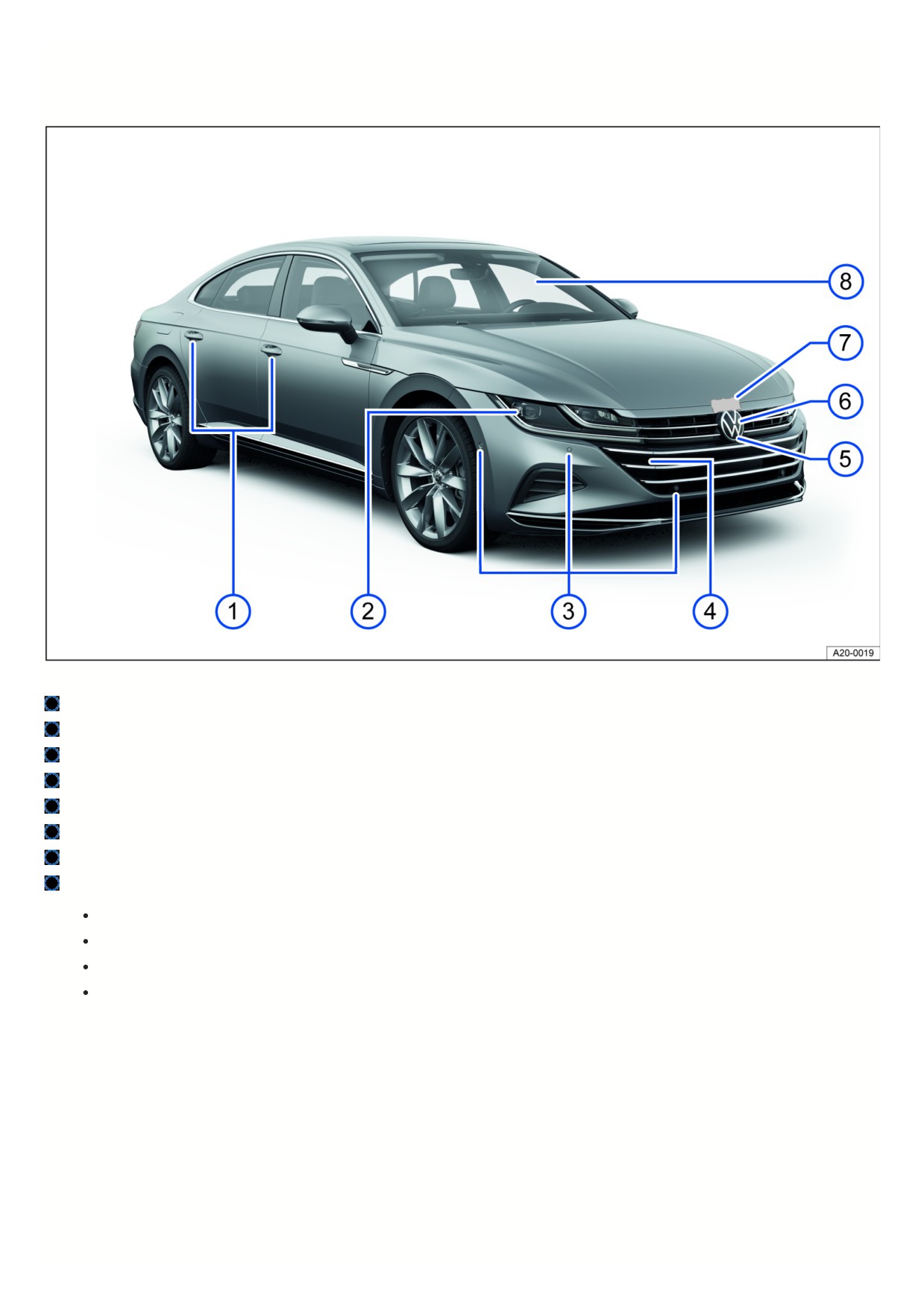
Vehicle overviews
View from the front
Fig. 2 Overview of vehicle from the front.
Door handles ⇒ Doors and central locking button
Headlights ⇒ Exterior lighting
Sensors for assistance systems ⇒ Exterior care and cleaning
Behind a cover: mount for towing eye ⇒ Towing
Camera for Area View ⇒ Area View, ⇒ Exterior care and cleaning
In the Volkswagen emblem: radar sensor for assistance systems ⇒ Exterior care and cleaning
Opening lever for the hood with the engine compartment underneath ⇒ Opening and closing the hood
Windshield
With VIN ⇒ Technical data
With windshield wipers ⇒ Operating the windshield wiper lever
With camera window for assistance systems ⇒ Exterior care and cleaning
With rain/light sensor in the interior rearview mirror area
⇒ Rain/light sensor, ⇒ Exterior care and cleaning
Rear view
7
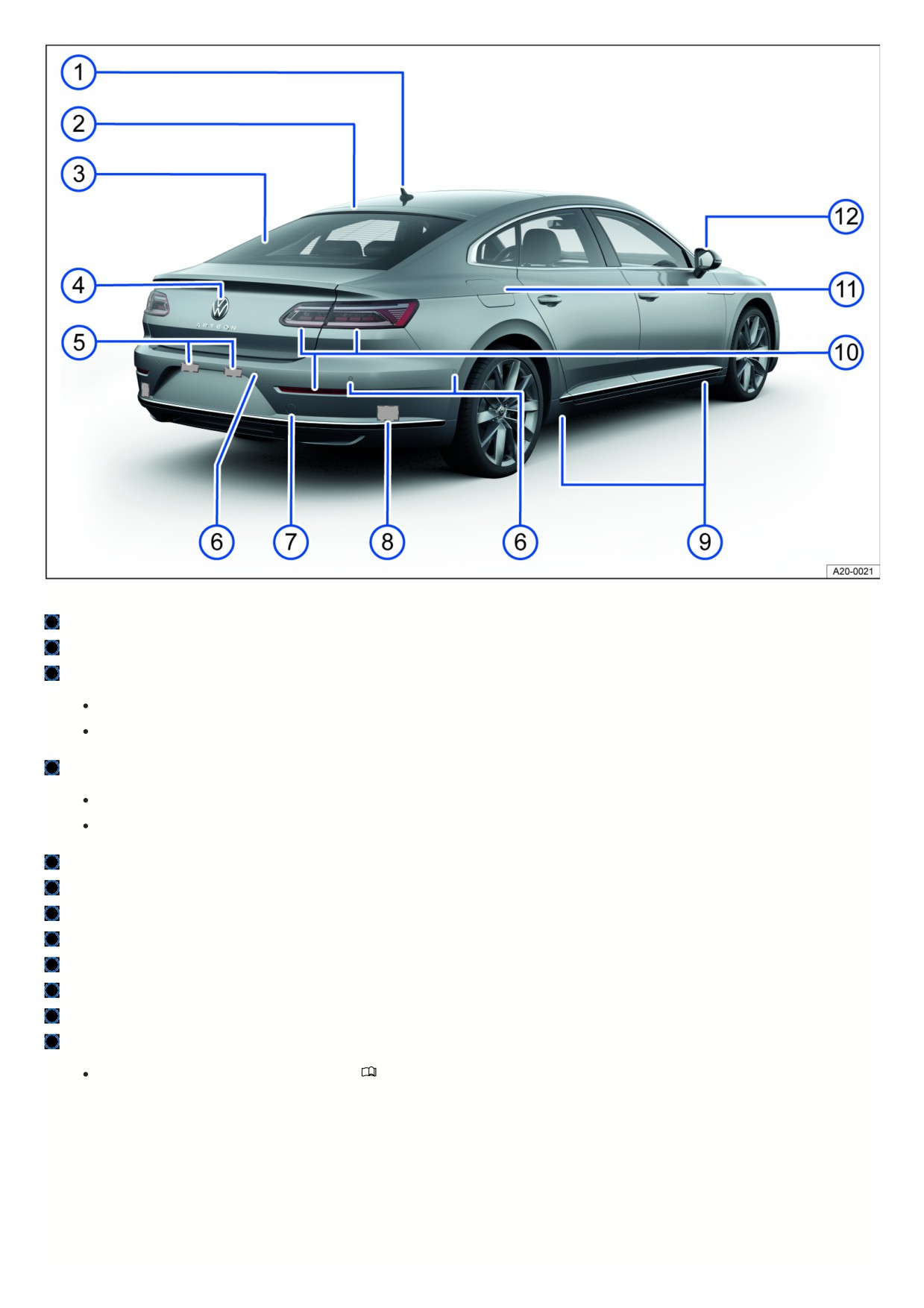
Fig. 3 Rear vehicle overview.
Roof antenna ⇒ Infotainment system and aerials
High-mounted brake light
Rear window
With rear window defroster ⇒ Rear window defroster
With window antenna ⇒ Infotainment system and aerials
Volkswagen emblem
for opening the trunk lid ⇒ Trunk lid
with camera for parking systems ⇒ Rear View Camera, ⇒ Exterior care and cleaning
Number plate light ⇒ Exterior lighting
Sensors for assistance systems ⇒ Exterior care and cleaning
Behind a cover: mount for towing eye ⇒ Towing
Behind the bumper: radar sensor for assistance systems ⇒ Exterior care and cleaning
Mounting points for the vehicle jack ⇒ Wheel change
Taillights and reflectors ⇒ Exterior lighting
Fuel filler flap ⇒ Fuel types and refueling
Outside mirrors ⇒ Outside mirrors
with Lane Change System (Side Assist) display ⇒
Introduction
Driver door
8
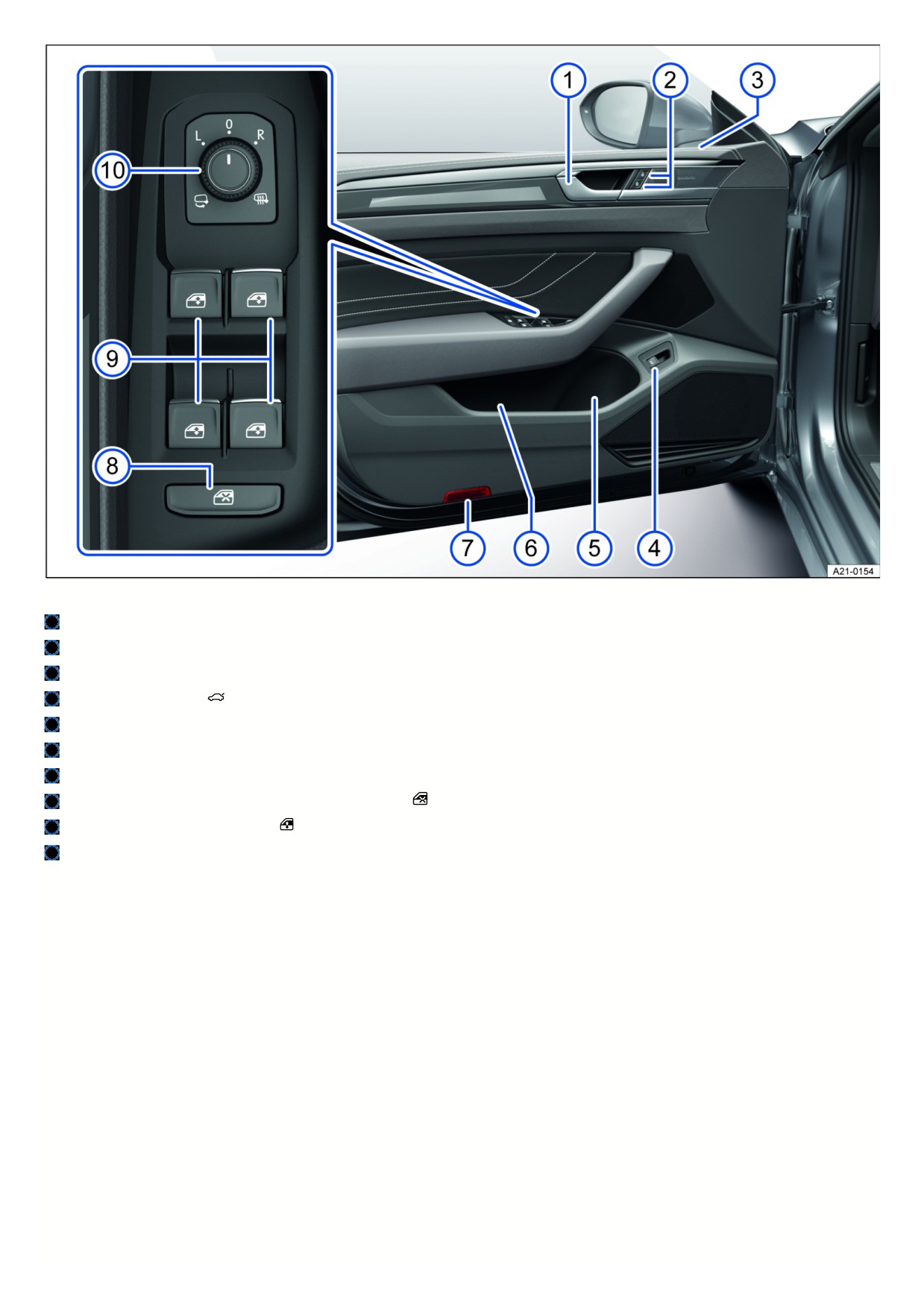
Fig. 4 Driver door: Controls.
Door handle
Central locking button to lock and unlock the vehicle ⇒ Indicator light in the driver's door
Central locking indicator light ⇒ Central locking button
Button to open the trunk lid
⇒ Trunk lid
Storage compartment with cup holder
Storage compartment with storage option for a reflective vest ⇒ Emergency equipment
Door lights or reflectors
Button for deactivating the power window buttons in the rear doors
⇒ Opening and closing the windows
Buttons for operating the power windows
⇒ Opening and closing the windows
Knob for outside mirror positions and functions ⇒ Outside mirrors
Driver side
9
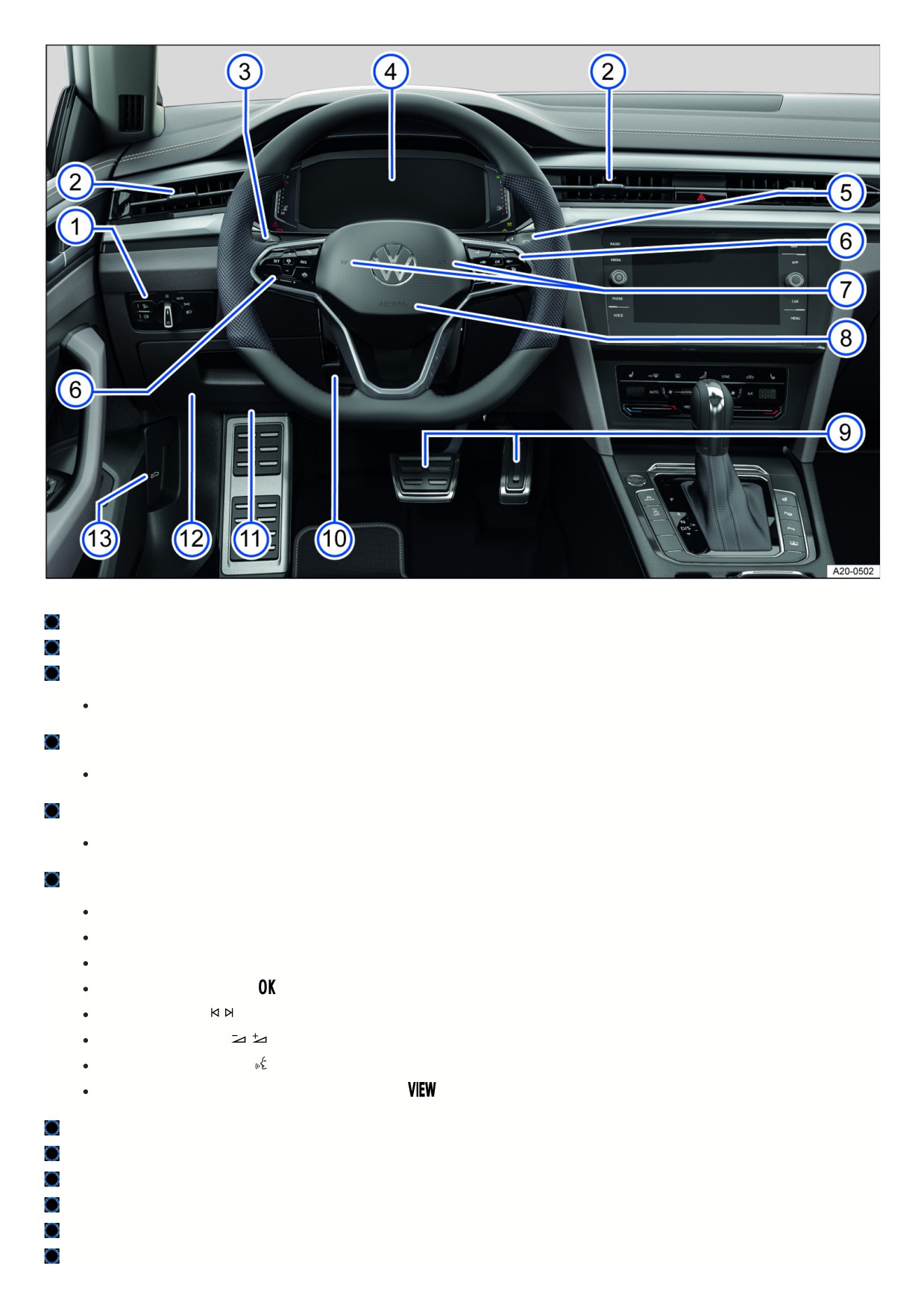
Fig. 5 Driver’s side overview.
Light switch ⇒ Headlights
Vents ⇒ Air distribution and blower speed
Turn signal and high beam lever ⇒ Switching the turn signals on and off , ⇒ Switching the high beam headlights on and off
With switch and buttons for driver assistance systems
⇒ Driver assistance systems
Instrument cluster ⇒ Overview of the Volkswagen Digital Cockpit Pro
With warning and indicator lights ⇒ Symbols in the instrument cluster
Windshield wiper/washer lever ⇒ Window wipers
With buttons for menu operation ⇒ Operating the Volkswagen Digital Cockpit Pro
Multi-function steering wheel controls:
For driver assistance systems ⇒ Driver assistance systems
For menu selection ⇒ Operating the Volkswagen Digital Cockpit Pro
For steering wheel heating ⇒ Steering wheel heating
For accepting telephone calls
For audio, navigation
⇒ Infotainment system, ⇒ Navigation
For adjusting the volume
For voice operation activation
(may not function depending on the equipment) ⇒ Voice control
In order to switch between the current and previous menus
⇒ Operating the Volkswagen Digital Cockpit Pro
Horn
Installation location of driver’s front airbag ⇒ Airbag system
Pedals ⇒ Pedals
Lever for adjusting the steering wheel position ⇒ Steering wheel
Knee airbag location ⇒ Knee airbags
Storage compartment
1
Hood release lever ⇒ Opening and closing the hood
Center console
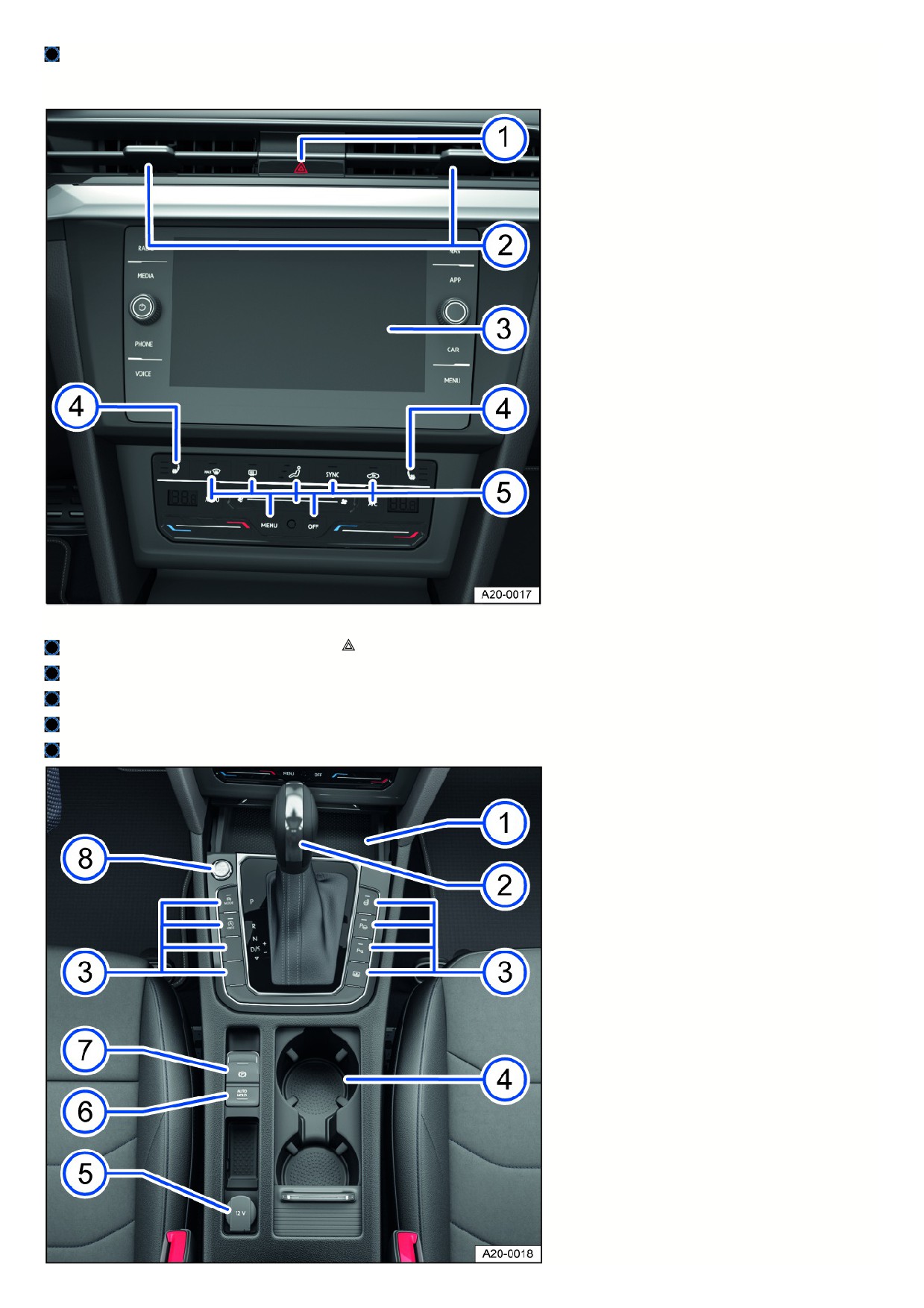
Fig. 6 Overview of the upper section of the center console.
Button for switching the emergency flashers on or off
⇒ In case of an emergency
Vents ⇒ Air distribution and blower speed
Infotainment system ⇒ First steps
Buttons for seat heating and seat ventilation
⇒ Seat heating and seat ventilation
Controls for the climate control system ⇒ Heating and air conditioning system
11
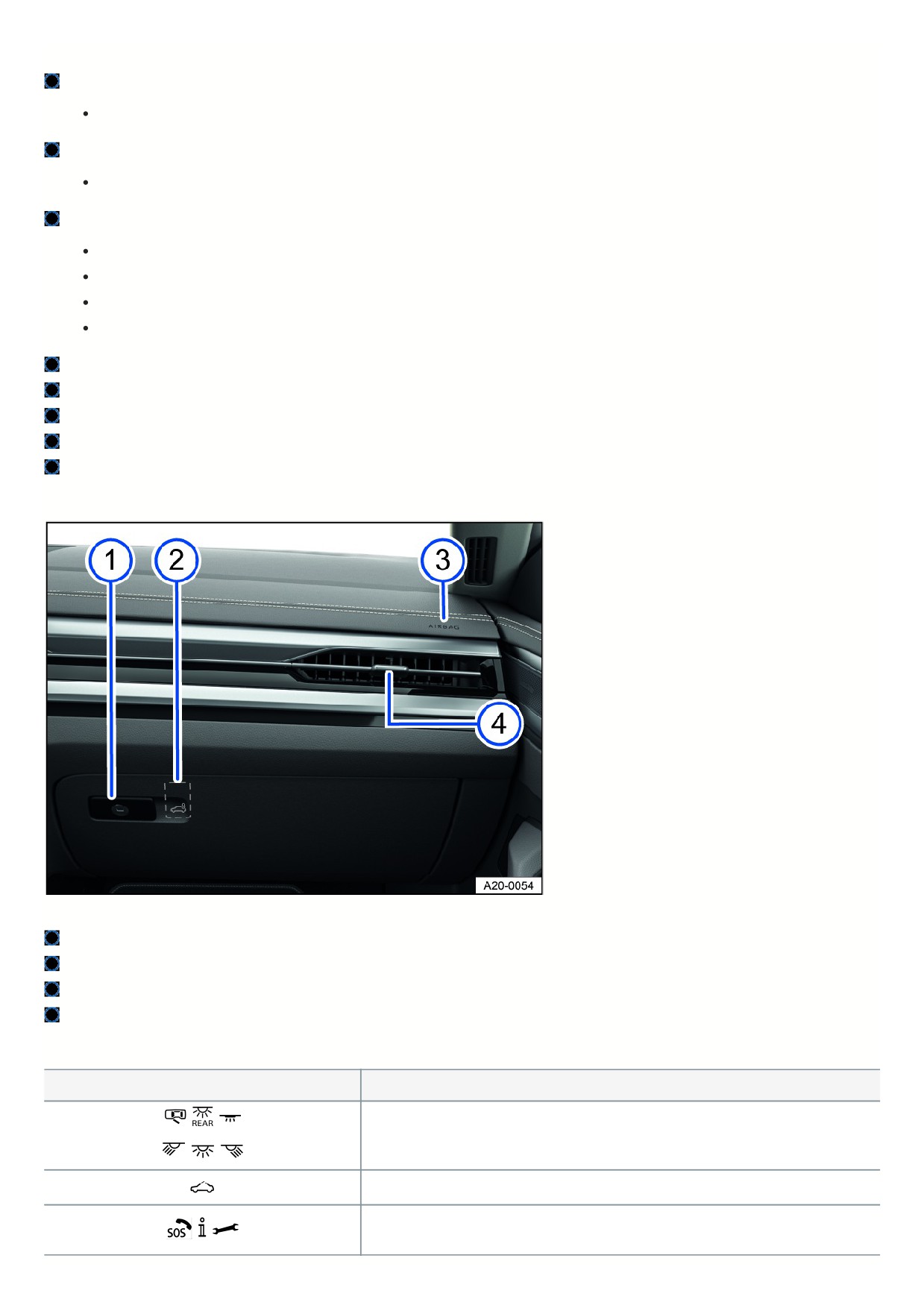
Fig. 7 Overview of the lower section of the center console.
Storage compartment
With functionality for wireless charging in accordance with Qi standard
⇒ Wireless charging function
Lever:
For DSG® automated transmission ⇒ Automatic transmission
Buttons:
For start/stop system ⇒ Start/Stop system
For assist systems for parking and maneuvering
⇒ Parking and maneuvering
for the Driving Mode Selection ⇒ Driving Mode Selection
For steering wheel heating ⇒ Steering wheel heating
Under a cover: Cup holder
12 V socket ⇒ Sockets
Button for Auto Hold function ⇒ Auto Hold
Electronic parking brake ⇒ Electronic parking brake
Button to start and stop the engine (Keyless Access with push-button start)
⇒ Starting and stopping the engine
Passenger’s side
Fig. 8 Passenger's side: instrument panel overview
Control lever for the glove compartment
Button for the valet parking function (in the glove box)
⇒ Emergency key (vehicle key without key bit)
Installation location of the front passenger’s airbag in the instrument panel
⇒ Airbag system
Vent ⇒ Air distribution and blower speed
Controls in the headliner
Symbol
Meaning
Buttons for interior/reading lights ⇒ Interior/reading lights, ambient lighting.
Sunroof switch ⇒ Sunroof.
Buttons for Emergency Call, Information Call and Roadside Assistance Call
⇒ Information Call,
Roadside Assistance Call and Emergency Call Service.
12
Driver information
Symbols in the instrument cluster
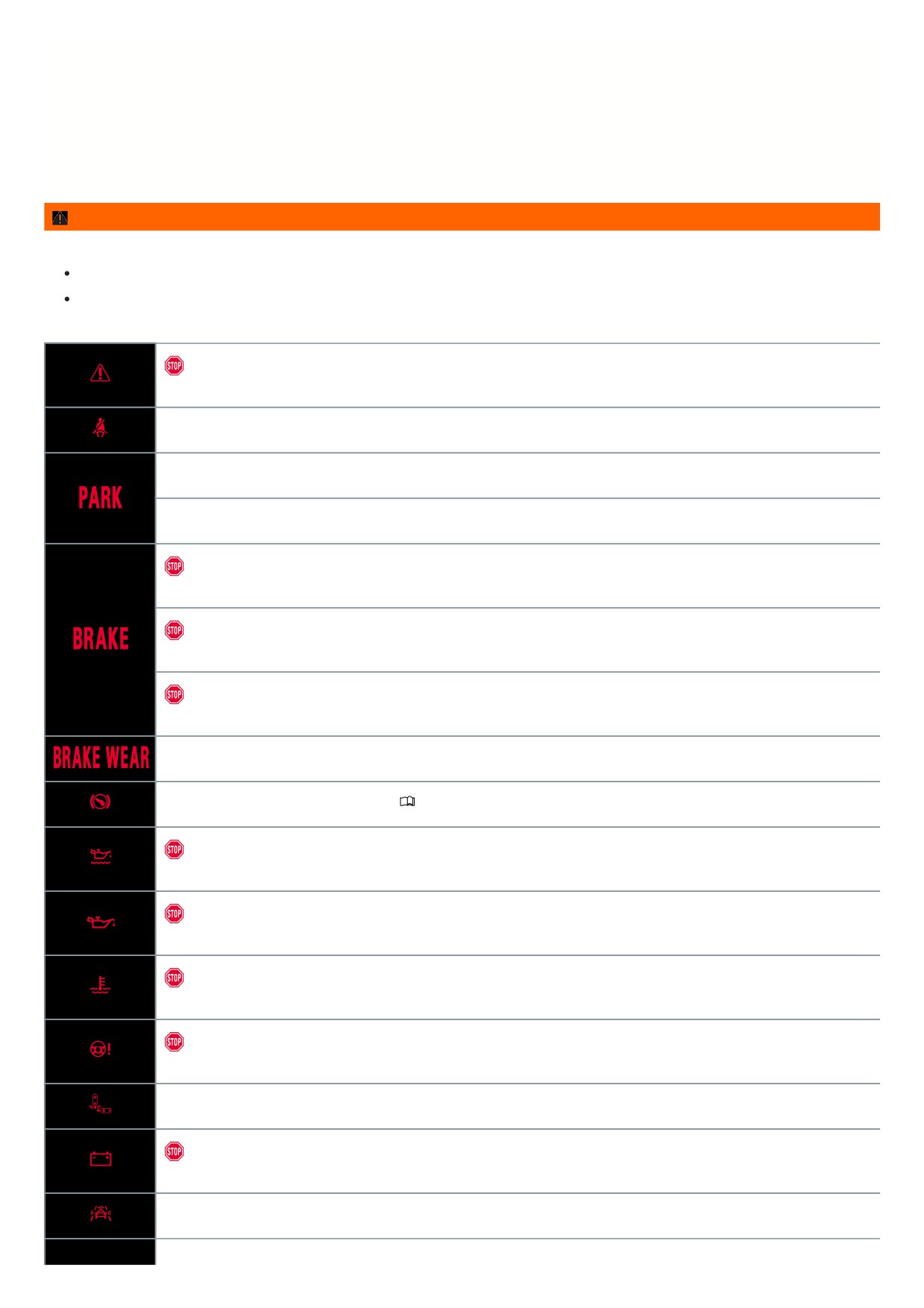
The warning and indicator lights can turn on individually or in combination with each other and indicate warnings, malfunctions and certain functions. Some warning
and indicator lights come on when you switch the ignition on and must turn off after some time.
Indicator lights that turn on in the light switch are described in the “Lights” chapter ⇒ Switching the lights on and off .
WARNING
Failure to respond to illuminated warning lights and messages may result in a vehicle breakdown, accidents and serious injuries or death.
Never ignore illuminated warning lights and messages.
Stop the vehicle as soon as it is safe to do so.
Do not continue driving!
Central warning light ⇒ Priority 1 warning message
Fasten safety belt ⇒ Fasten seat belts reminder and seat belt safety indicator
Electronic parking brake switched on ⇒ Electronic parking brake
Holding force of the electronic parking brake too low ⇒ Holding force in the current situation is too low
Do not continue driving!
Brake system malfunction ⇒ Brake system malfunction
Do not continue driving!
Electromechanical brake booster failed ⇒ Electromechanical brake servo failure
Do not continue driving!
Brake fluid level too low ⇒ Brake fluid level
Check brake system ⇒ Brake pad wear indicator
Take over steering and be ready to brake. ⇒
Introduction
Do not continue driving!
Engine oil level too low ⇒ Engine oil level very low
Do not continue to drive!
Engine oil pressure too low ⇒ Engine oil pressure too low
Do not continue to drive!
Engine coolant system malfunction ⇒ Engine coolant
Do not continue driving!
Steering malfunction ⇒ Steering malfunction
Rear Traffic Alert has detected an obstacle to the rear ⇒ Rear Traffic Alert
Do not continue driving!
12 V energy supply malfunction ⇒ 12-volt power supply
Collision warning ⇒ Warning levels and braking support
13
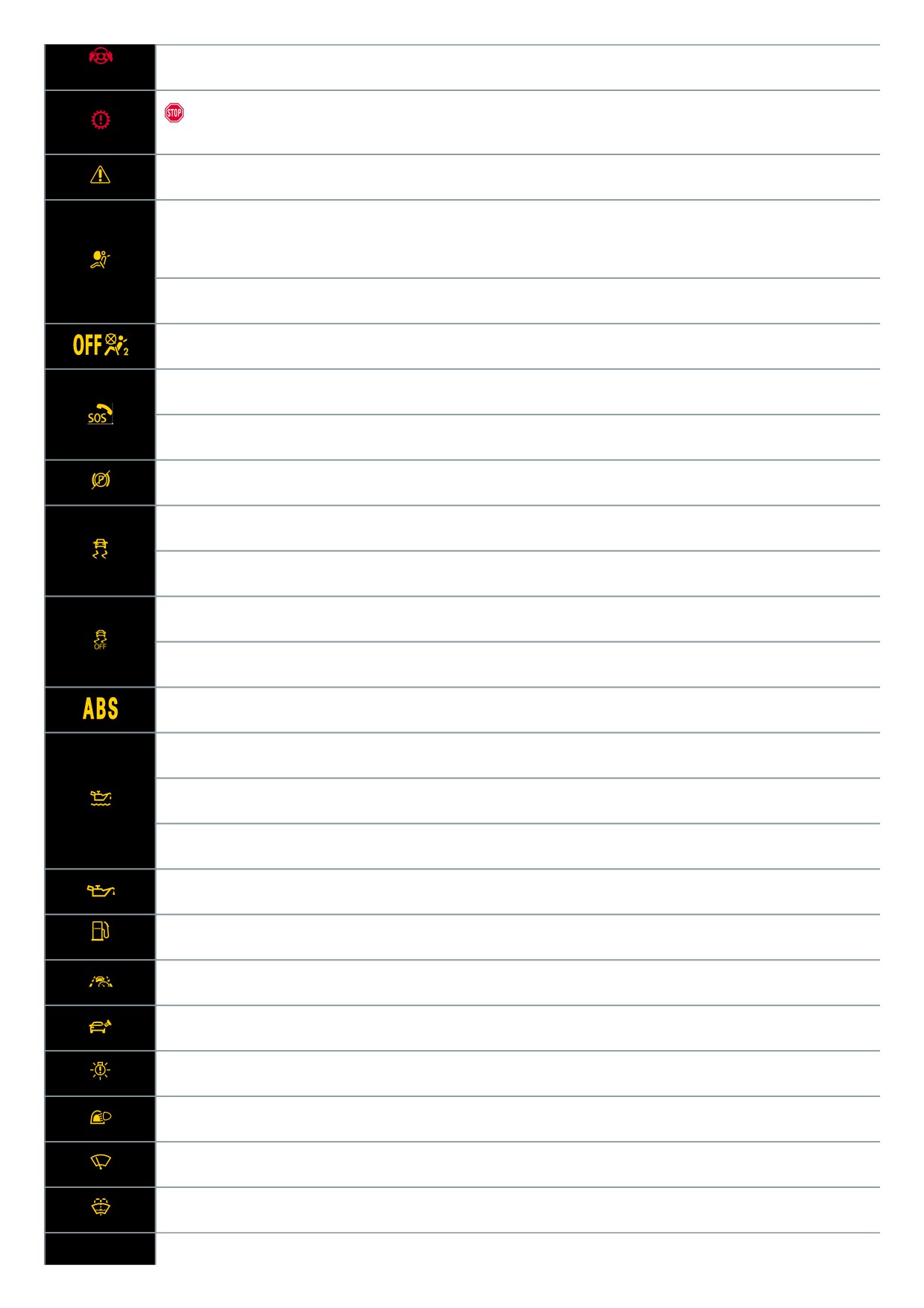
Take over the steering immediately ⇒ Take over the steering immediately
Do not continue to drive!
Transmission overheating ⇒ Transmission overheating
Central warning light ⇒ Priority 2 warning message
Airbag or safety belt pretensioner system deactivated with diagnostic equipment
⇒ Airbag or safety belt pretensioner system deactivated
with diagnostic equipment
Airbag system or safety belt pretensioner malfunction ⇒ Airbag system or safety belt pretensioners malfunction
Front passenger's front airbag deactivated ⇒ Front passenger's front airbag switched off
Emergency Call Service limited ⇒ Emergency Call Service limited
Emergency Call Service malfunctioning ⇒ Emergency Call Service malfunction
Electronic parking brake malfunction ⇒ Electronic parking brake malfunction
Comes on: Electronic Stability Control (ESC) malfunction ⇒ ESC malfunction
Flashes: Electronic Stability Control (ESC) or Anti-slip regulation (ASR) in operation
⇒ Electronic Stability Control (ESC)
Electronic Stabilization Control (ESC) switched off ⇒ ESC Off
Anti-Slip Regulation (ASR) switched off ⇒ ASR
Anti-Lock Braking System (ABS) malfunction ⇒ ABS failure or malfunction
Engine oil system malfunction ⇒ Engine oil system malfunction
Engine oil level too low ⇒ Engine oil level too low
Engine oil level too high ⇒ Engine oil level too high
Engine oil system malfunction ⇒ Engine oil system malfunction
Tank almost empty ⇒ Fuel tank almost empty
Travel Assist not available ⇒ Comfort drive Travel Assist is not available or is not working as expected
Tank cap not closed ⇒ Fuel tank cap open
Driving light failure ⇒ Exterior lighting malfunction
Rain/light sensor malfunction ⇒ Rain/light sensor malfunction, ⇒ Rain/light sensor malfunction
Windshield wiper malfunction ⇒ Windshield wiper malfunction
Washer fluid level too low ⇒ Washer fluid level too low
14
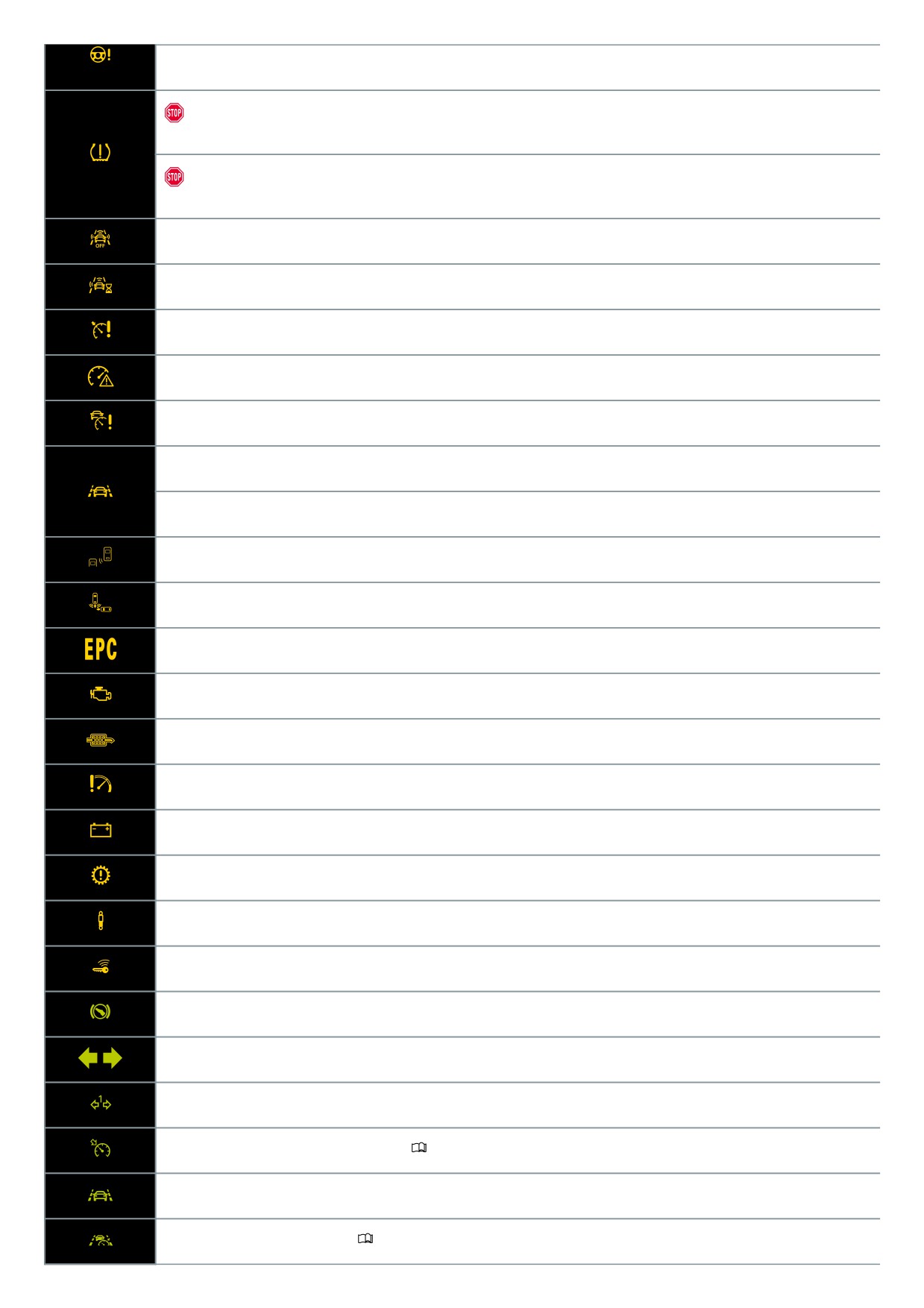
Steering malfunction ⇒ Steering malfunction
Do not continue to drive!
Tire pressure low ⇒ Tire pressure low
Do not continue to drive!
Tire pressure monitoring system malfunction ⇒ Tire pressure monitoring system malfunction
Front Assist is switched off ⇒ Using Front Assist
Autonomous Emergency Braking starts ⇒ Front Assist Starts
Cruise control system malfunction ⇒ Cruise control system malfunction
Speed warning ⇒ Driving data menu
Adaptive cruise control (ACC) not available ⇒ ACC is not available
Semi-automatic vehicle control in a medical emergency (Emergency Assist) is functioning ⇒ Driving with Emergency Assist
Lane Assist in control ⇒ Driving with Lane Assist
Side Assist malfunction ⇒ Lane change system malfunctioning
Rear Traffic Alert brakes ⇒ Rear Traffic Alert
Engine control malfunction ⇒ Engine control malfunction
Exhaust system malfunction ⇒ Exhaust-related malfunction
Particulate filter clogged with soot ⇒ Particulate filter clogged with soot
Engine RPM limited ⇒ Engine speed limited
12-volt power supply malfunction ⇒ 12-volt power supply
Transmission malfunction ⇒ Transmission overheating
Adaptive chassis control (DCC) malfunction ⇒ Adaptive chassis control malfunction
Vehicle key not in vehicle ⇒ Valid vehicle key cannot be detected
Press the brake pedal. ⇒ The engine is not starting
Turn signals ⇒ Turn signal indicator light
Trailer turn signal ⇒ Trailer turn signal indicator light
Cruise control switched on, regulation active ⇒
Introduction
Lane Assist active ⇒ Driving with Lane Assist
Comfort drive Travel Assist active ⇒
Introduction
15
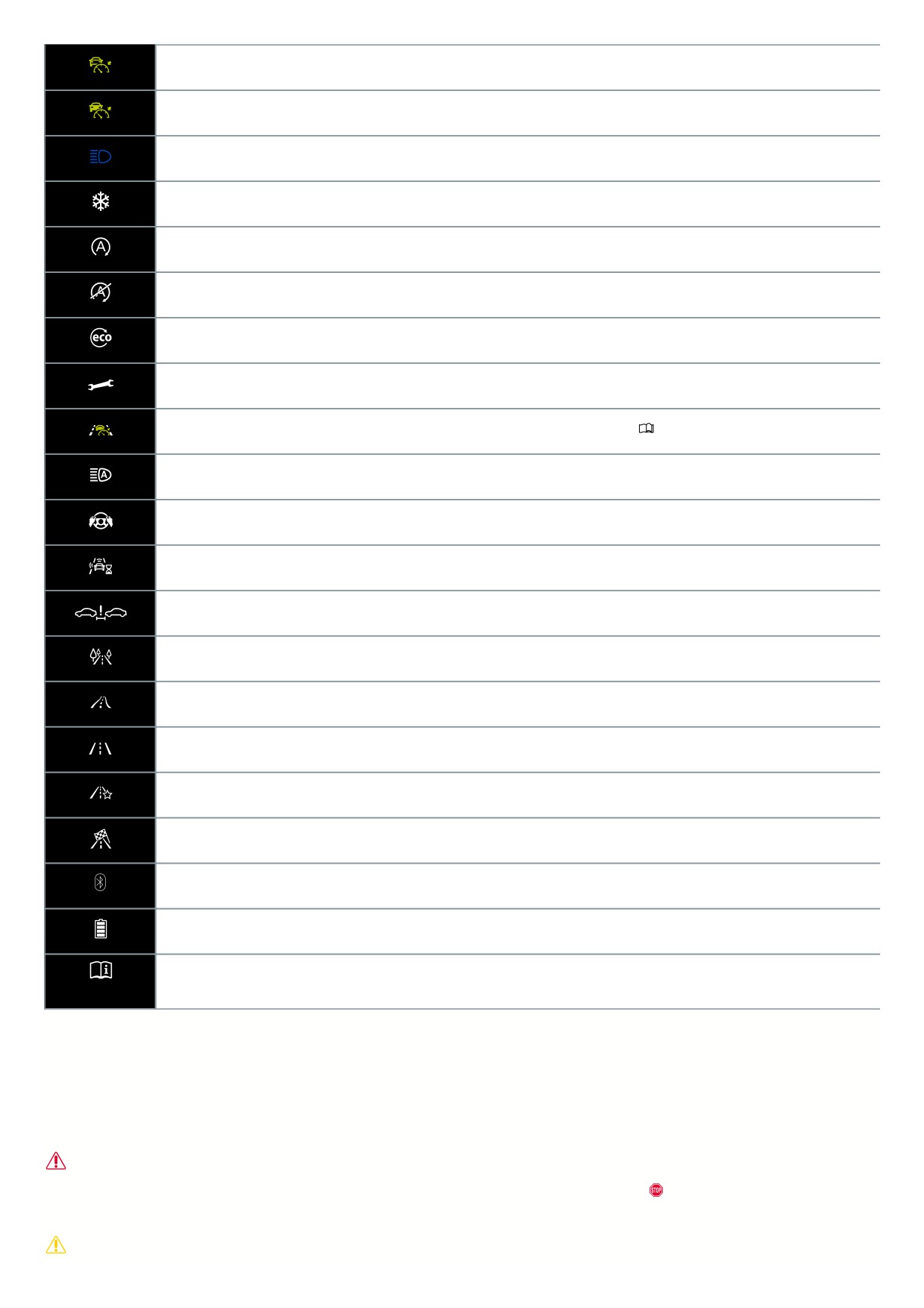
Adaptive Cruise Control (ACC) regulates, no vehicle driving ahead is detected ⇒ Switching ACC on and off
Adaptive Cruise Control (ACC) regulates, vehicle driving ahead is detected ⇒ Switching ACC on and off
High beams or headlight flasher ⇒ Switching the high beam headlights on and off
Outside temperature is below +39 °F (+4 °C) ⇒ Volkswagen Digital Cockpit Pro Information Displays
Start/Stop system active ⇒ Start-stop system
Start/Stop system not available ⇒ Start-stop system
Economical driving condition ⇒ Volkswagen Digital Cockpit Pro Information Displays
Service due ⇒ Service interval display
Travel Assist active, Adaptive Cruise Control active and adaptive lane guidance inactive
⇒ Introduction
High beam control active ⇒ Switching on Light Assist
Take over the steering ⇒ Take over the steering
Autonomous Emergency Braking starts ⇒ Front Assist Starts
Distance warning ⇒ Warning levels and braking support
Eco driving mode ⇒ Driving mode properties
Comfort driving mode ⇒ Driving mode properties
Normal driving mode ⇒ Driving mode properties
Individual driving mode ⇒ Driving mode properties
Sport driving mode ⇒ Driving mode properties
Mobile phone connected via Bluetooth® ⇒ Volkswagen Digital Cockpit Pro Information Displays
Mobile phone battery charge level ⇒ Volkswagen Digital Cockpit Pro Information Displays
Note about information in the Owner's Manual ⇒ Note about information in the Owner's Manual
Warning and information texts
The status of some functions inside the vehicle and vehicle components are checked when the ignition is switched on or while driving. Malfunctions are indicated by
red and yellow warning symbols in the instrument cluster display and may also be signaled audibly in some cases. The appearance of texts and symbols may vary
depending on the instrument cluster version.
Any malfunctions currently occurring can also be manually called up. To do this, open the Vehicle status or Vehicle menu. ⇒ Vehicle settings menu
Priority 1 warning message
The red central warning light flashes or comes on, in some cases together with warning tones or additional symbols.
Do not continue driving! There is a haza
Check the malfunction. Contact an authorized Volkswagen dealer or authorized Volkswagen Service Facility immediately for assistance.
Priority 2 warning message
16
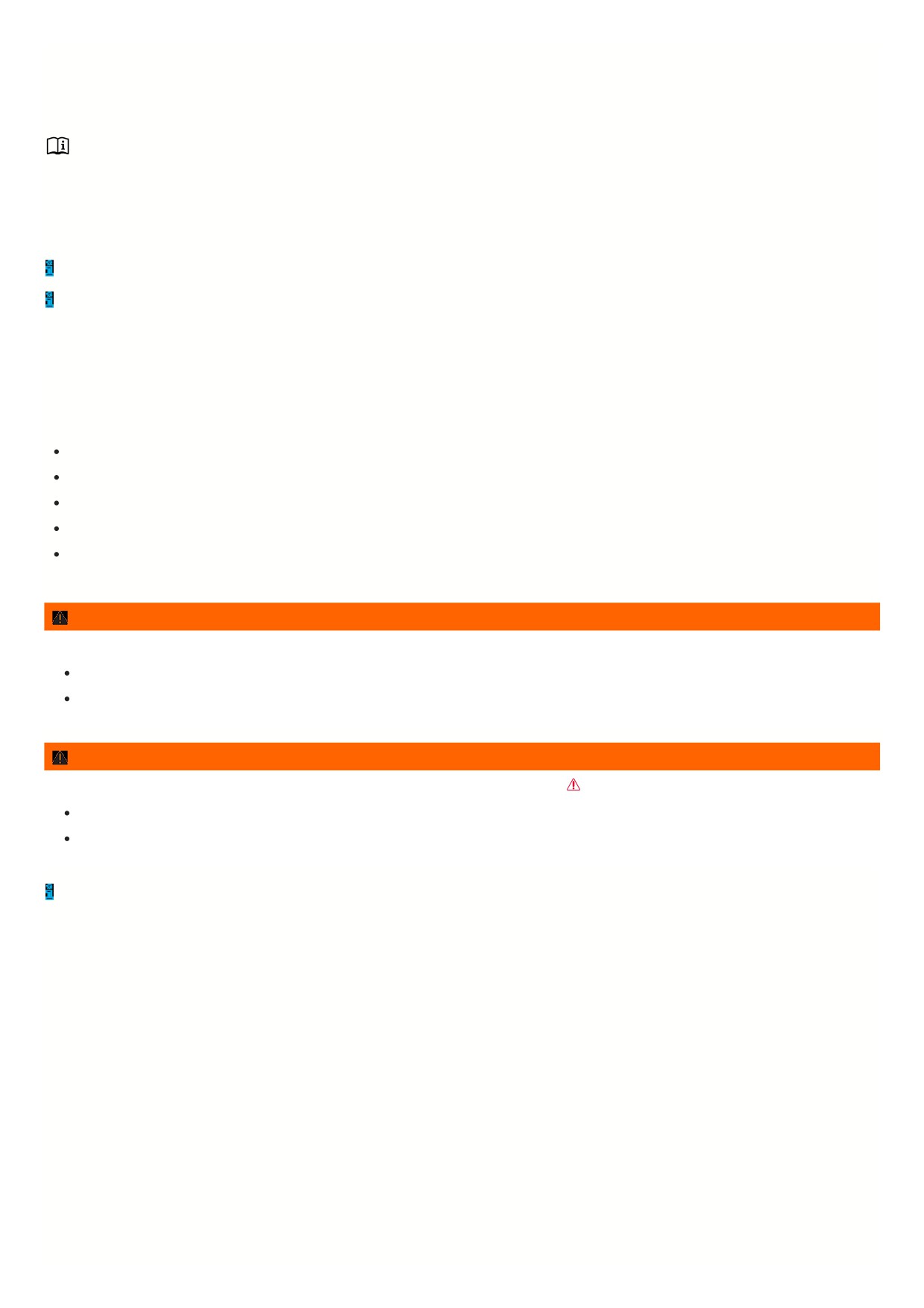
The yellow central warning light flashes or comes on, in some cases together with warning tones or additional symbols. Malfunctions or insufficient operating fluids
can cause vehicle damage and vehicle malfunctions. Check the malfunction as soon as possible. Immediately contact an authorized Volkswagen dealer or
authorized Volkswagen Service Facility to have the system checked. Volkswagen recommends contacting an authorized Volkswagen dealer or authorized
Volkswagen Service Facility.
Note about information in the Owner's Manual
You can find more information about the existing warning message in the Owner's Manual.
Informational text
Information about various processes in the vehicle.
If there are multiple warning messages, the symbols will appear consecutively for several seconds. The symbols will appear until the malfunction is corrected.
If warning messages about malfunctions appear when the ignition is switched on, settings or information displays may not appear as described. If the
malfunction persists, contact a suitably qualified professional. Volkswagen recommends contacting an authorized Volkswagen dealer or authorized Volkswagen
Service Facility.
Introduction to the instrument cluster
The vehicle is equipped with a Volkswagen Digital Cockpit. The instrument cluster shows essential information, such as speed.
In addition, the following functions, among others, are available depending on the equipment:
Various menus, such as for the driver assistance systems.
Status displays for the driver assistance systems.
Display messages.
Warning and indicator lights.
Information about economy and range.
Content can be individually adapted and settings can be changed in the menus.
WARNING
If the driver is distracted while driving, accidents and serious injuries can occur.
Never operate the instrument cluster while driving.
Only adjust any settings in the instrument cluster or Infotainment system when the vehicle is stationary.
WARNING
If there is a serious fault in the instrument cluster, the display may be turned off. The warning light
may also come on here.
Safely stop the vehicle.
See an authorized Volkswagen dealer or authorized Volkswagen Service Facility for assistance.
After starting the engine when the 12 V vehicle battery is severely drained or when it has been replaced or jump-started, the system settings, e.g. personal
convenience settings and programming, and user profiles may be changed or erased. Check and correct the settings after the 12 V vehicle battery is sufficiently
recharged.
Volkswagen Digital Cockpit Pro
Overview of the Volkswagen Digital Cockpit Pro
The Volkswagen Digital Cockpit Pro is a digital instrument cluster with a high-resolution TFT color display. By selecting different information profiles, other displays
can be shown in addition to the standard dials, such as the tachometer. The term Volkswagen Digital Cockpit Pro is used to refer to the “Pro digital instrument
cluster” in the following.
17
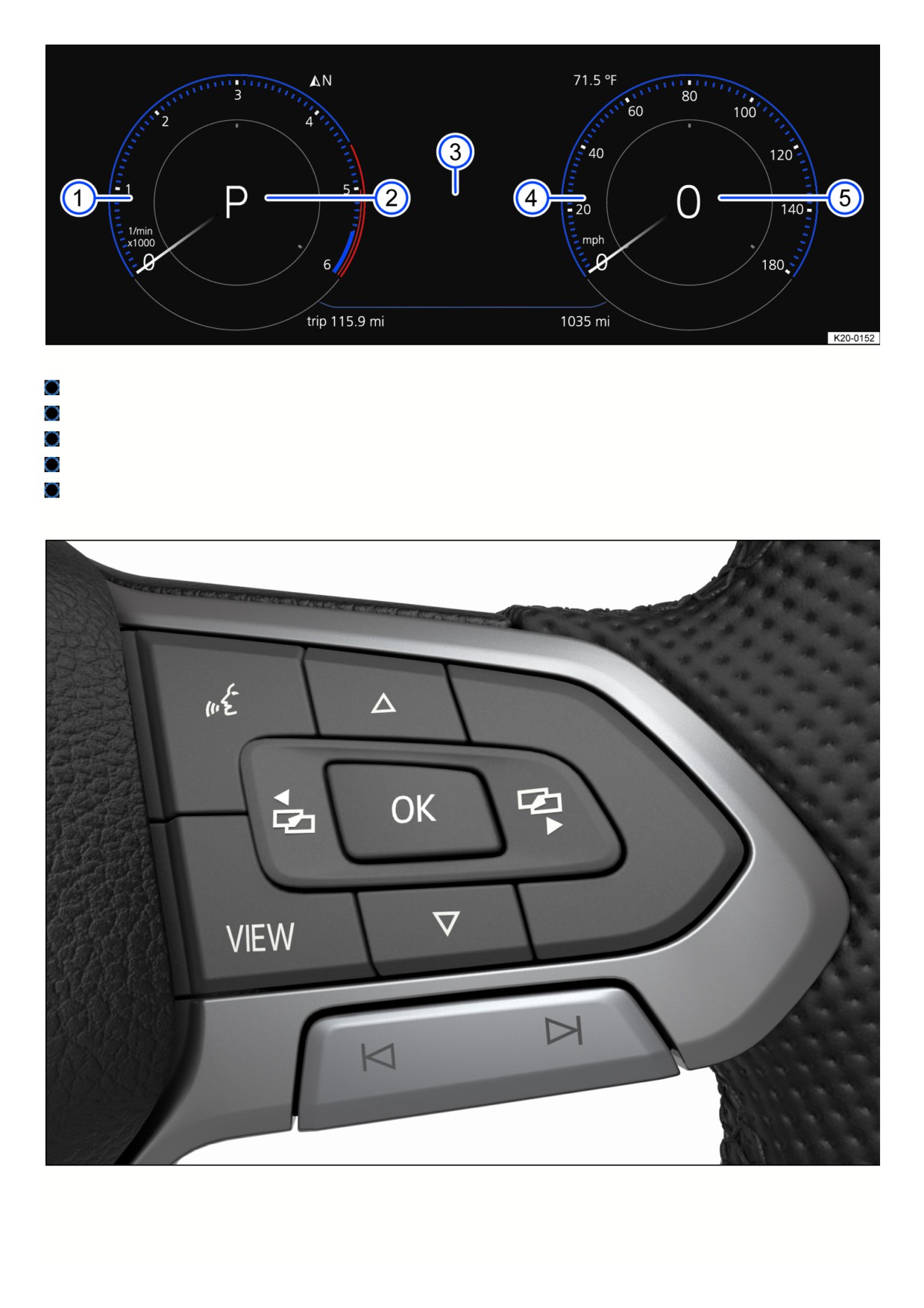
Fig. 9 Volkswagen Digital Cockpit Pro in the instrument panel (general example).
Tachometer (RPM of the running engine).
Currently engaged gear or selector lever level
⇒ Driving.
Displays ⇒ Operating the Volkswagen Digital Cockpit Pro .
Speedometer.
Digital speed display.
Operating the Volkswagen Digital Cockpit Pro
Fig. 10 Right side of the multi-function steering wheel: Operating the Volkswagen Digital Cockpit Pro (variant 1).
18
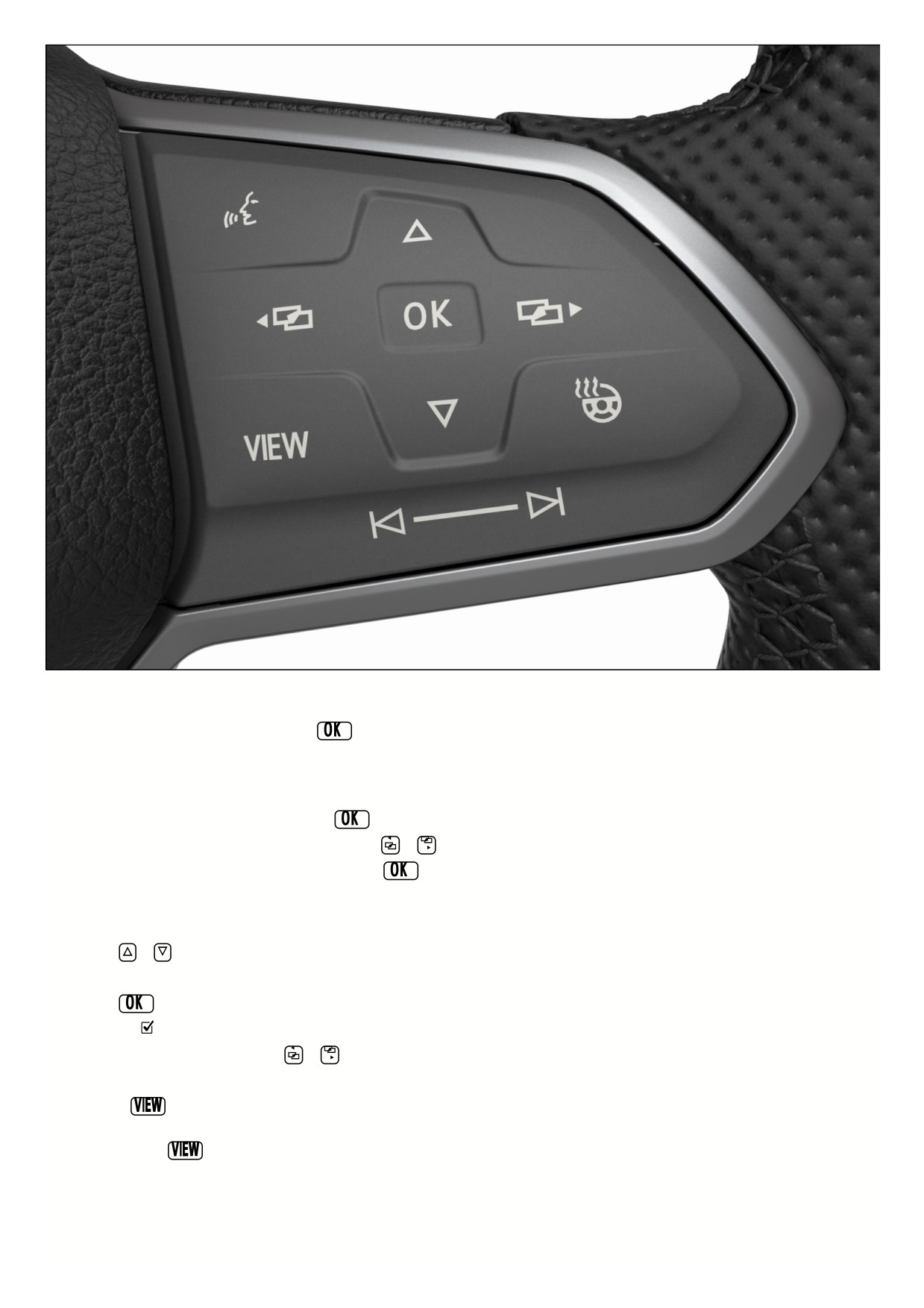
Fig. 11 Right side of the multi-function steering wheel: Operating the Volkswagen Digital Cockpit Pro (variant 2).
Vehicles with multi-function steering wheel: Menus cannot be accessed when a priority 1 warning message is displayed → page , Warning and information texts.
You can confirm and hide some messages using the
button on the multi-function steering wheel fig. 10, fig. 11.
Selecting a menu or information display
Vehicles with multi-function steering wheel:
1. Switch the ignition on.
2. If a message or vehicle icon is displayed, press the
button, repeatedly if necessary.
3. To display a menu and to scroll through the menu, press the
or
button.
4. To open the displayed menu or information display, press the
button or wait until the menu or the information display opens automatically after several
seconds.
Applying settings in the menus
Vehicles with multi-function steering wheel:
1. Press the
or
arrow button in the displayed menu until the preferred menu item is highlighted.
The item is marked with a frame around it.
2. Press the
button to apply the desired changes.
A check mark
indicates that the respective function is switched on.
3. To return to the menu selection, press the
or
button.
VIEW button on multi-function steering wheel
You can use the
button to switch between the classic display of dials, the large platform without information profiles, and the enhanced view with highlighted
information profiles. The classic display shows the large dials on the right and left side, and the selected information profile is displayed in the center.
1. Press and hold the
button to select from the preset information profiles in the list:
Classic
View without information profiles.
Automatic The information profiles adjust to the selected driving mode. Only for vehicles with Driving Mode Selection.
Preset 1 Individual selection of information profiles
19
Preset 2 Individual selection of information profiles
Preset 3 Only on vehicles with standard factory-installed navigation system.
Navigation map in the Volkswagen Digital Cockpit Pro
Depending on the vehicle equipment, the Volkswagen Digital Cockpit Pro may display a detailed navigation map.
The navigation map can be displayed in three sizes. With the larger map view, the navigation map is shown across the entire display. To select the desired map
size, proceed as follows:
1. Select menu item Navigation.
2. Press the
button on the multi-function steering wheel to switch between the map sizes.
3. Press the
or
arrow buttons on the multi-function steering wheel to zoom in or out.
4. When zooming manually, press the
button on the multi-function steering wheel to switch to auto-zoom.
Depending on the equipment, navigation will be shown on two screens or only on one screen. The navigation map may appear in the Volkswagen Digital Cockpit
Pro and in the Infotainment system or just in the Infotainment system. If the navigation map is shown in the Infotainment system, only navigation arrows are shown
the Volkswagen Digital Cockpit.
If warning messages about malfunctions appear when the ignition is switched on, settings or information displays may not appear as described. If the
malfunction persists, contact a suitably qualified professional. Volkswagen recommends contacting an authorized Volkswagen dealer or authorized Volkswagen
Service Facility.
WARNING
If the driver is distracted while driving, accidents and serious injuries can occur.
Never operate the Volkswagen Digital Cockpit Pro while driving.
Only adjust any settings in the Volkswagen Digital Cockpit Pro or Infotainment system when the vehicle is stationary.
Volkswagen Digital Cockpit Pro Information Displays
Information profiles
Using the Volkswagen Digital Cockpit menu item in the Infotainment system vehicle settings, you can select different, topic-specific information profiles
⇒ Vehicle
settings menu. Depending on the selected information profile, the Volkswagen Digital Cockpit Pro may show additional information in the center of the dials or the
dials may be hidden and the additional information shown across the entire display. The following information profiles can be selected:
Audio. Digital display of the current audio playback
Comfort drive Travel Assist. Visual display of various driver assistance systems
⇒ Driver assistance systems.
Distance Display of the distance driven.
Gear indicator Display of the current gear or the selected gear.
Speed Display of the speed.
Navigation Graphic display of arrow navigation
Range. Display of the range.
Consumption Graphic display of the current consumption and the digital display of the average consumption
Traffic sign recognition Display of detected traffic signs.
Destination arrival information. Display of remaining driving time, the distance to the destination, and the estimated arrival time.
Depending on the equipment, the number and scope of the information profiles that can be selected may vary.
Possible displays in the Volkswagen Digital Cockpit Pro
Depending on the vehicle equipment, different information may be shown in the Volkswagen Digital Cockpit Pro:
Outside temperature display.
Detected road sign from the traffic sign recognition.
Driver assistance systems.
Driving data menu and menus for various settings.
Speed warnings.
Speed warning for winter tires.
Open doors, hood and trunk lid.
Infotainment system and navigation information.
Odometer displays.
2
Compass display.
Radiator fan run-on.
Engine code ().
Service interval display.
Status display for the start-stop system ⇒ Start/Stop system.
Phone information.
Time.
Selector lever position.
Warning and information texts.
Warning and indicator lights ⇒ Symbols in the instrument cluster .
Depending on the vehicle equipment: Fuel-efficient driving . Status display for Active Cylinder Management (ACT ) ⇒ Eco tips.
Outside temperature display
When outside temperatures are colder than approximately +4°C (+39°F), a snowflake symbol also appears on the outside temperature display
. This symbol
remains on until the outside temperature rises above +43 °F (+6 °C).
In the following situations, the temperature displayed may be higher than the actual outside temperature due to heat radiating from the engine:
When the vehicle is stationary
When the driving speed is very low
The measurement range is from -45 °C (-49 °F) to +169 °F (+76 °C)
WARNING
Streets and bridges may be icy when outside temperatures are above the freezing point.
The snowflake symbol indicates a possible risk of black ice.
Black ice may also be present when outside temperatures are above +39 °F (+4 °C) when the
snowflake symbol is not displayed.
Never rely solely on the outside temperature display.
Open doors, hood and trunk lid
If, after unlocking the vehicle and while driving, any doors and/or the hood or trunk lid are open, this is displayed in the Volkswagen Digital Cockpit and an audible
signal may also sound.
Speed warning for winter tires
If the set maximum speed is exceeded, this will be shown in the digital instrument cluster.
Settings for the speed warning can be adjusted in the vehicle settings in the Infotainment system
⇒ Winter tires.
Compass display
When the ignition is switched on, the instrument cluster display shows an abbreviation to indicate the direction the vehicle is currently traveling, for example “NW”
for northwest.
If the Infotainment system is switched on and route guidance is not active, the graphic display of a compass is also available.
Odometer displays
The odometer registers the total distance that the vehicle has driven.
The trip trip odometer shows the miles that were driven since the trip odometer was last reset.
1. Reset the odometer via the Infotainment system or the service menu ⇒ Service menu.
Radiator fan run-on
This indicator appears after the ignition has been switched off, if the radiator fan continues to run.
The radiator fan may continue running due to:
Exhaust gas post-treatment, through particulate filter regeneration, for example.
Active brake cooling after descent.
Dissipation of engine heat after high load, e.g. trailer mode.
Engine code
1. Open the service menu ⇒ Service menu.
21
2. Select the Engine code menu item.
Phone information
If a cell phone is connected via Bluetooth, the Bluetooth symbol
will be displayed in the Volkswagen Digital Cockpit.
The symbol also indicates the charge level of the mobile device.
Selector lever position
The selector lever position that is engaged is shown on the left side of the selector lever and in the Volkswagen Digital Cockpit.
If necessary, the respective gear is displayed in the Volkswagen Digital Cockpit when in the D/S selector lever position and when in tiptronic mode
⇒ Automatic
transmission: selecting the selector lever position.
Fuel-efficient driving
If the vehicle is driving in a fuel-efficient manner, this will be indicated in the Volkswagen Digital Cockpit while driving
Suitably qualified professionals can program or modify additional functions depending on the vehicle equipment. Volkswagen recommends contacting an
authorized Volkswagen dealer or authorized Volkswagen Service Facility.
There are different instrument clusters; therefore the versions and appearances of the displays may vary. Malfunctions will only be indicated by indicator lights
if the display does not have warning or information texts.
Some displays in the Volkswagen Digital Cockpit may be hidden due to events that occur suddenly, e.g. incoming phone calls.
Depending on the equipment, some settings and displays may also appear in the Infotainment system.
Tachometer
The start of the red area on the tachometer indicates the maximum permissible engine speed for all gears when the engine is run in and at operating temperature.
Before reaching the red area, shift to the next highest gear, select the selector lever position D/S or take your foot off the accelerator pedal.
NOTICE
Avoid high engine speeds, full acceleration and heavy engine loads when the engine is cold.
To prevent engine damage, the tachometer indicator may only be in the red area of the scale briefly.
Shifting up early helps save fuel and reduce operating noises.
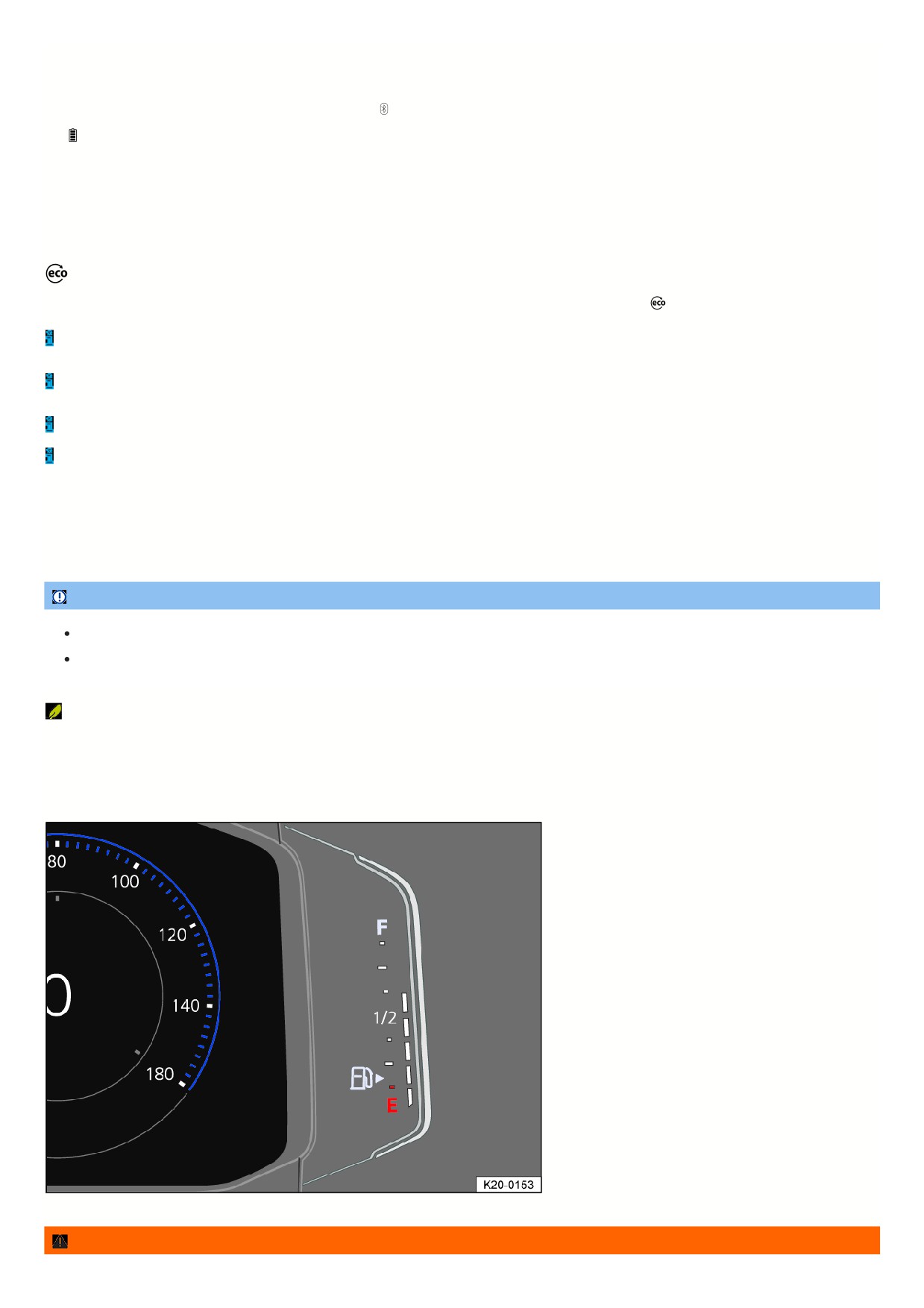
Fuel gauge
Digital fuel gauge
Fig. 12 Fuel gauge on the Volkswagen Digital Cockpit Pro (general example).
WARNING
22
Driving with low fuel level that is too low can lead to a vehicle breakdown in traffic, accidents, and serious injuries.
If the fuel level is too low, this can result in irregular fuel supply to the engine, particularly when going uphill or downhill.
The steering, all driver assistance systems and brake support systems will not work if the engine is “sputtering” or cuts out due to fuel shortage or
irregular fuel supply.
To prevent vehicle breakdown due to low fuel, always refill the fuel tank once it reaches a fill level of 1/4.
NOTICE
Never drive with a completely empty fuel tank. Irregular fuel supply can result in misfiring and unburnt fuel entering the exhaust system.
The small arrow next to the fuel pump symbol on the fuel gauge indicates which side of the vehicle the fuel filler flap is on.
Troubleshooting
Fuel tank almost empty
The yellow indicator light turns on. The reserve supply (red marking ) is being used.
1. Refuel at the next opportunity.
Fuel tank cap open
The yellow indicator light turns on.
1. Close the fuel tank cap.
Engine coolant temperature gauge
Digital coolant temperature gauge
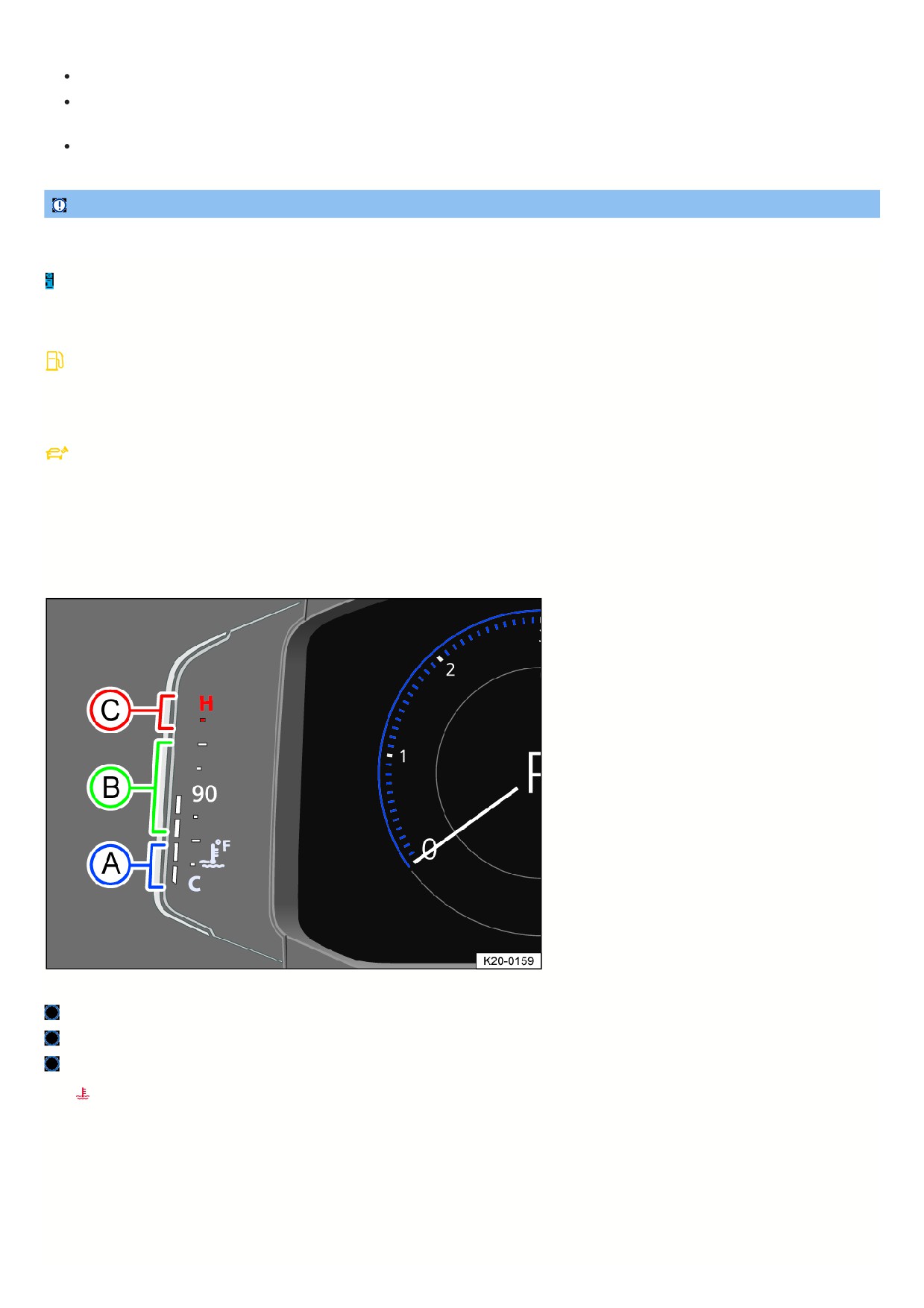
Fig. 13 Coolant temperature gauge in the Volkswagen Digital Cockpit Pro (general example).
Cold range. The engine is not at operating temperature yet. Avoid high engine RPMs and heavy engine load when the engine is not at operating temperature.
Normal range.
Warning range. The needle may move into the warning range when engine load is heavy, especially when outside temperatures are high.
If the
warning light flashes, the coolant temperature is too high or the coolant level is too low
⇒ Troubleshooting.
Driving data menu
The driving data menu shows driving and consumption data. Depending on the vehicle equipment, various driving data can be displayed. The displayed driving
data is dependent on the current driving style, the vehicle status, e.g. particle filter regeneration, and the current driving situation, e.g. city traffic. The driving data is
determined as an average value over sections of different distances and the currently displayed value may therefore differ from the actual average value.
Switching between the displays
Vehicles with multi-function steering wheel:
23

1. Press the
or
button on the multi-function steering wheel.
Switching memories
Vehicles with multi-function steering wheel:
1. Press the
button on the multi-function steering wheel.
Since start memory
If the trip is interrupted for more than two hours, the memory is erased.
Since refuel memory
Display and memory of the collective driving and consumption data. The memory is erased when the vehicle is refueled.
Extended period memory
The memory collects the driving data up to 19 hours and 59 minutes or 99 hours and 59 minutes driving time or 1999.9 km (miles) or 9999.9 km (miles) distance
driven. If one of these maximum thresholds is met, the memory is erased. The maximum thresholds may vary depending on the version of the instrument cluster.
Erasing the driving data memory
Vehicles with multi-function steering wheel:
1. Select the memory to be erased.
2. Press the
button on the multi-function steering wheel.
Setting a speed warning
Vehicles with multi-function steering wheel:
1. Select the Warning at --- km/h or Warning at --- mph display.
2. Press the
button on the multi-function steering wheel to save the current speed and to activate the warning.
3. Set the speed on the multi-function steering wheel within approximately five seconds by pressing the
and
arrow buttons. Then press the
button
or wait several seconds.
The speed will then be saved and the warning will be activated.
4. Press the
button again to deactivate.
The stored speed is erased.
The warning can be set for speeds between 18 mph (30 km/h) and 155 mph (250 km/h).
Depending on the country, a single warning tone sounds at speeds of over approximately 80 km/h (approximately 50 mph), and from approximately 120 km/h
(approximately 75 mph), a continuous warning tone sounds. The
indicator light will also be displayed in the instrument cluster display. This warning is required
by law and cannot be altered.
Driving Data in the Infotainment system
Driving Data can be displayed in the Infotainment system, in addition to being displayed in the instrument cluster.
Selecting Displays
You can select the driving data you would like to display using the vehicle settings in the Infotainment system
⇒ Vehicle settings menu.
Consumption
The average fuel consumption is displayed after approximately 300 m (984 ft).
Range
This indicates the approximate distance in km (miles) the vehicle can travel under the same driving conditions.
Speed
The average speed is displayed after approximately 100 m (approximately 328 ft).
WARNING
If the driver is distracted while driving, accidents and serious injuries can occur.
Never operate the instrument cluster while driving.
Only adjust any settings in the instrument cluster or Infotainment system when the vehicle is stationary.
Service
Service menu
Depending on the equipment, settings can be applied in the service menu.
Opening the Service Menu
1. Select the Range information profile in the instrument cluster.
24

2. Press and hold the
button on the multifunction steering wheel for approximately four seconds.
3. Navigate in the menu using the buttons on the multi-function steering wheel.
Resetting the service interval display
1. Select Service menu.
2. Follow the instructions in the instrument cluster display.
Resetting the oil change service
1. Select Reset oil change service menu.
2. Follow the instructions in the instrument cluster display.
Resetting the trip odometer
1. Select Reset trip menu.
2. Follow the instructions in the instrument cluster display.
Displaying the engine code
1. Select Engine code menu.
The engine code is shown on the instrument cluster display.
Setting the time
1. Select Time menu.
2. Set the time with the
and
arrow buttons.
Displaying copyright information
1. Select the Copyright menu to access the copyright information.
Service interval display
Displays about service events appear in the instrument cluster display and in the Infotainment system. There are different versions of the instrument cluster and
Infotainment system; therefore, the appearances of the displays may vary.
Service appointments at Volkswagen are divided into oil change services and inspections. The service interval display informs the driver about the next service
appointment which includes an engine oil change and about the next inspection.
The service intervals are specified for vehicles with the fixed oil change service interval.
Intervals are determined individually on vehicles with the flexible oil change service interval. Oil change services only need to be performed if the vehicle requires it
The specific operating conditions and the personal driving style are also taken into consideration. The service early warning message is first displayed 30 days prio
to the calculated oil change service due date. The displayed remaining distance to be traveled is always rounded to 100 km (miles) and the remaining time is
rounded to whole days.
Service notification
If an oil change service or an inspection service is due in the near future, a service notification will be displayed when the ignition is switched on.
The specified mileage or time is the distance or time until the next service can be completed.
Service event
When an oil change service or an inspection service is due, a chime will sound when switching on the ignition and you can then see a wrench symbol
for a fe
seconds in the instrument cluster display together with one of the following displays:
Inspection now!
Oil change now!
Oil change service and inspection now!
Checking a service due date in the Infotainment system
When the ignition is on, the engine is off, and the vehicle is stationary, the current service due date can be viewed at any time:
1. Depending on the vehicle equipment, press the
button or function key and select the Vehicle menu in the Infotainment system.
Or: depending on the vehicle equipment, press the
button or function key.
2. Depending on how your vehicle is equipped, select the Settings menu.
3. Select the Service menu item to display the service information.
Checking a Service Due Date in the Volkswagen Digital Cockpit Pro
When the ignition is on, the engine is off, and the vehicle is stationary, the current service due date can be viewed at any time:
1. Open the service menu ⇒ Service menu.
25
Resetting the service interval display
If the service interval display was not reset after the oil change service or inspection service, the display can be reset as follows:
Vehicles with a digital instrument cluster: The service interval display can only be reset through the service menu
⇒ Service menu.
Do not reset the service interval display between service intervals or incorrect information will be displayed.
If the oil change service interval was manually reset, the service interval display then also switches to a fixed service interval, even on vehicles with the flexible oil
change service interval.
The service message disappears automatically after a few seconds when the engine is running or when the
button on the multi-function steering wheel
is pressed.
If the 12 V vehicle battery in a vehicle with the flexible service interval has been disconnected for an extended period, the time for the next oil change service
cannot be calculated. Therefore, the service interval displays may show incorrect calculations. If this is the case, follow the maximum permissible maintenance
intervals.
Time
Setting the time in the Infotainment system
1. Depending on the design, press the
button or function key and open the Vehicle menu.
Or: depending on the vehicle equipment, press the
button or function key.
2. Depending on how your vehicle is equipped, open the Settings menu.
3. Select the Time and date menu item to set the time.
Setting the Time in the Volkswagen Digital Cockpit Pro
1. Select the Range information profile.
2. Press and hold the
button on the multi-function steering wheel until the service menu is available in the instrument cluster display
⇒ Service menu.
3. Select Time menu.
4. Set the correct time using the
or
arrow buttons.
Sport displays
Lap timer in the instrument cluster
The lap timer offers the option to
measure and save the individual lap
times on a race course manually in the
vehicle as well as compare these times
to the best times previously recorded.
Depending on the equipment, the lap timer can be displayed in the instrument cluster.
The following main menus can be displayed:
Lap timer.
Lap (with current lap specification).
Statistics.
Switching between menus
1. Press the
or
button on the multi-function steering wheel.
For example, the following list will show the layout of the menus in the instrument cluster display. The actual scope of the menus and the names of individual menu
items depend on the instrument cluster version and the vehicle electronics.
Menu displays and functions
Lap timer menu:
Start
The time measurement of a lap is started.
Since start
The time measurement begins when the vehicle begins to drive. If it is already moving, the time measurement starts when the vehicle comes to a
stop in the meantime.
StatisticsAn overview of the laps previously recorded is displayed.
Lap menu:
Stop
The active time measurement is paused. The lap is not finished.
Resume
The paused time measurement is resumed.
Split time A split time is displayed for approximately five seconds. The active time measurement continues to run simultaneously.
26
New lap The time of the current lap is stopped and a new lap is started. The time for the finished lap is transferred to the statistics.
Cancel lap
The time measurement is stopped and discarded. The current lap will not be recorded in the statistics.
End
The time measurement is finished. The lap will be recorded in the statistics.
Statistics menu:
Back
The display switches back to the previous menu.
Reset All saved statistics data is reset.
The previously driven lap times are displayed in the Statistics menu. If the maximum lap number of 99 laps or the maximum total duration of 99 hours, 59 minutes
and 59 seconds is reached, a new time measurement can be started before the statistics are reset.
WARNING
Driver distraction can cause accidents and injuries.
Only adjust lap timer presets and open the statistics when the vehicle is stationary.
Only operate the lap timer while driving if the driving situation is easy to control and monitor.
Infotainment system lap timer
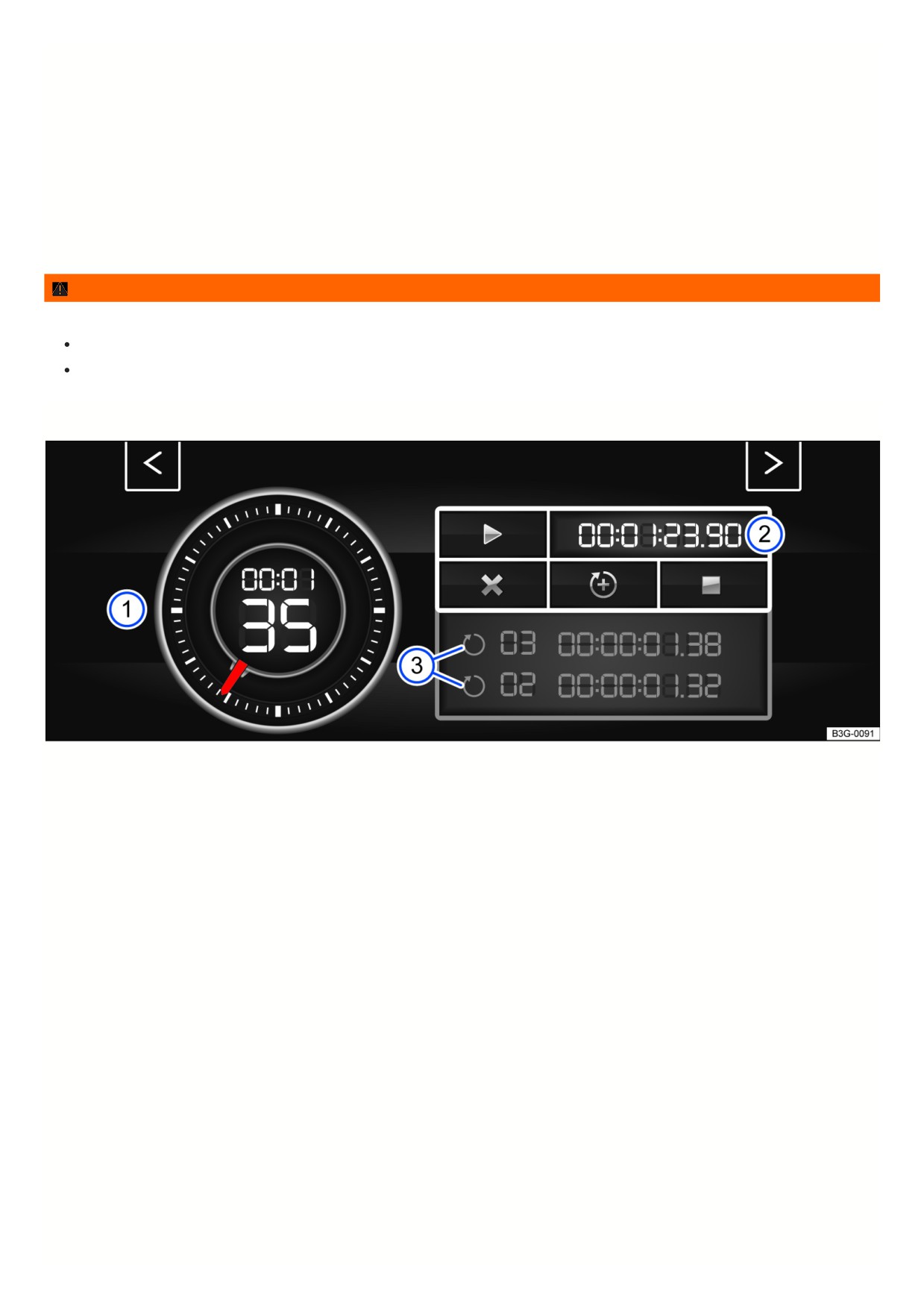
Fig. 14 On the Infotainment system screen: lap timer with stopwatch, function key, and lap times.
27
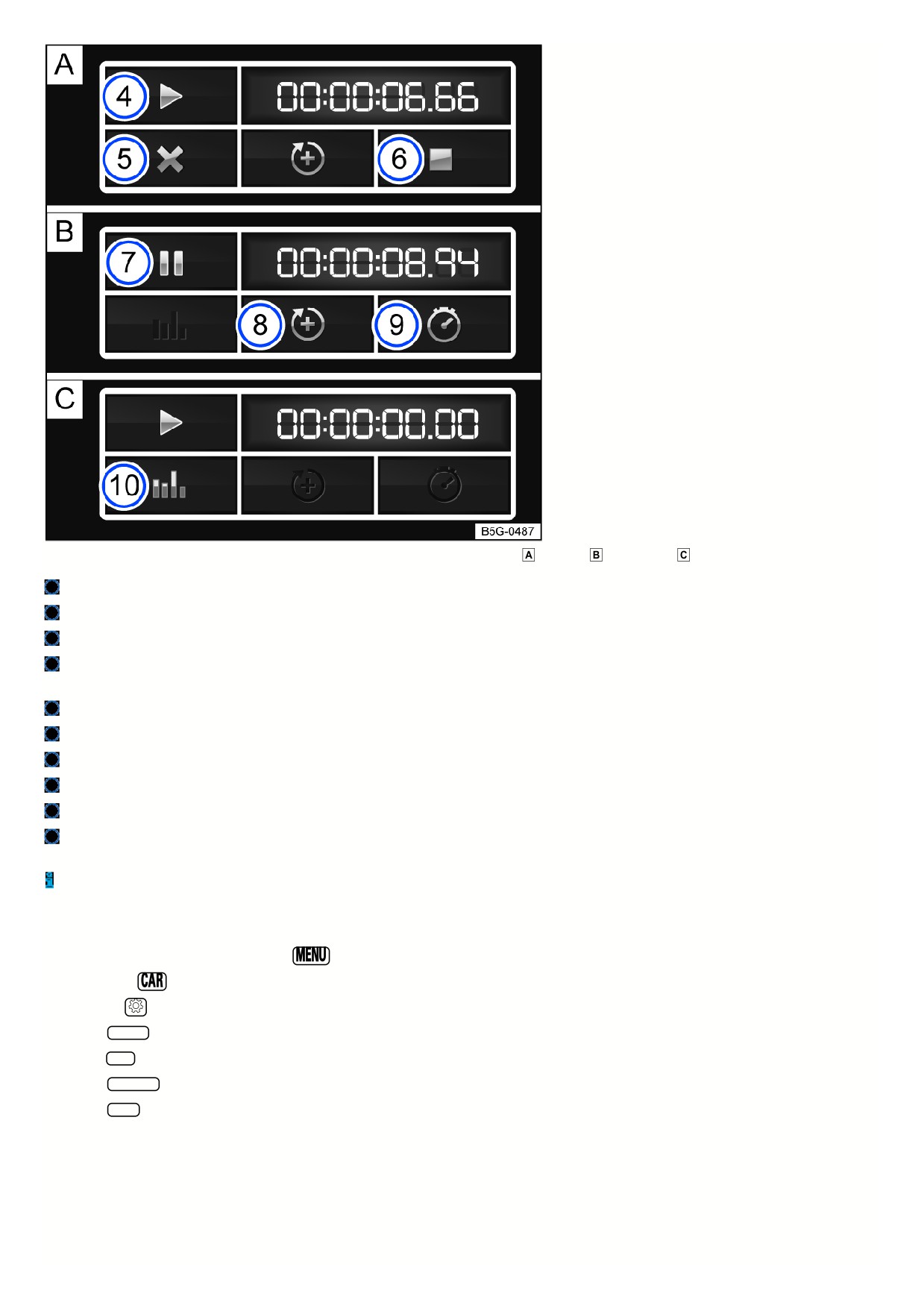
Fig. 15 Function key on the Infotainment system screen: time measurement when the lap is
stopped,
running, and
finished.
Stopwatch
Function key with current lap time
Saved lap times
Start or resume time measurement; this is only possible when the ignition is switched on. Tap Start to begin the time measurement. The time measurement
starts automatically once the vehicle moves forward. If the data has been reset in the statistics, a new first round can be started.
Cancel the current lap. The lap time is deleted. --: --:--.-- is displayed in the statistics.
End the time measurement.
Stop the time measurement or cancel the current lap when the time measurement is running.
Start new lap. The last lap time is saved and a new lap time starts. The total time of the laps is displayed in the statistics.
Display the split time. The stopwatch stops for several seconds and the split time is displayed.
Display the statistics after ending or canceling the time measurement: number of laps, total time, fastest and slowest lap, average lap time of all laps, all lap
times). Tap Reset to reset the statistics.
A maximum of 99 laps and a maximum duration of 99 hours, 59 minutes and 59 seconds can be recorded. If one of these limits is reached, data in the statistics
must be deleted before starting another time measurement.
Opening the lap timer
1. Depending on vehicle equipment, press the
button or function key.
Or: press the
button or function key.
Or: tap the
function key.
2. Tap the Vehicle function key.
Or: tap Auto function key.
3. Tap the Selection function key.
4. Tap the Sport function key.
The performance monitor will be displayed.
5. Tap one of the arrow buttons in the performance monitor to switch to the lap timer.
You can switch between the lap timer and performance monitor using the arrow buttons.
Measuring lap times
The stopwatch measures the lap time in two areas:
28
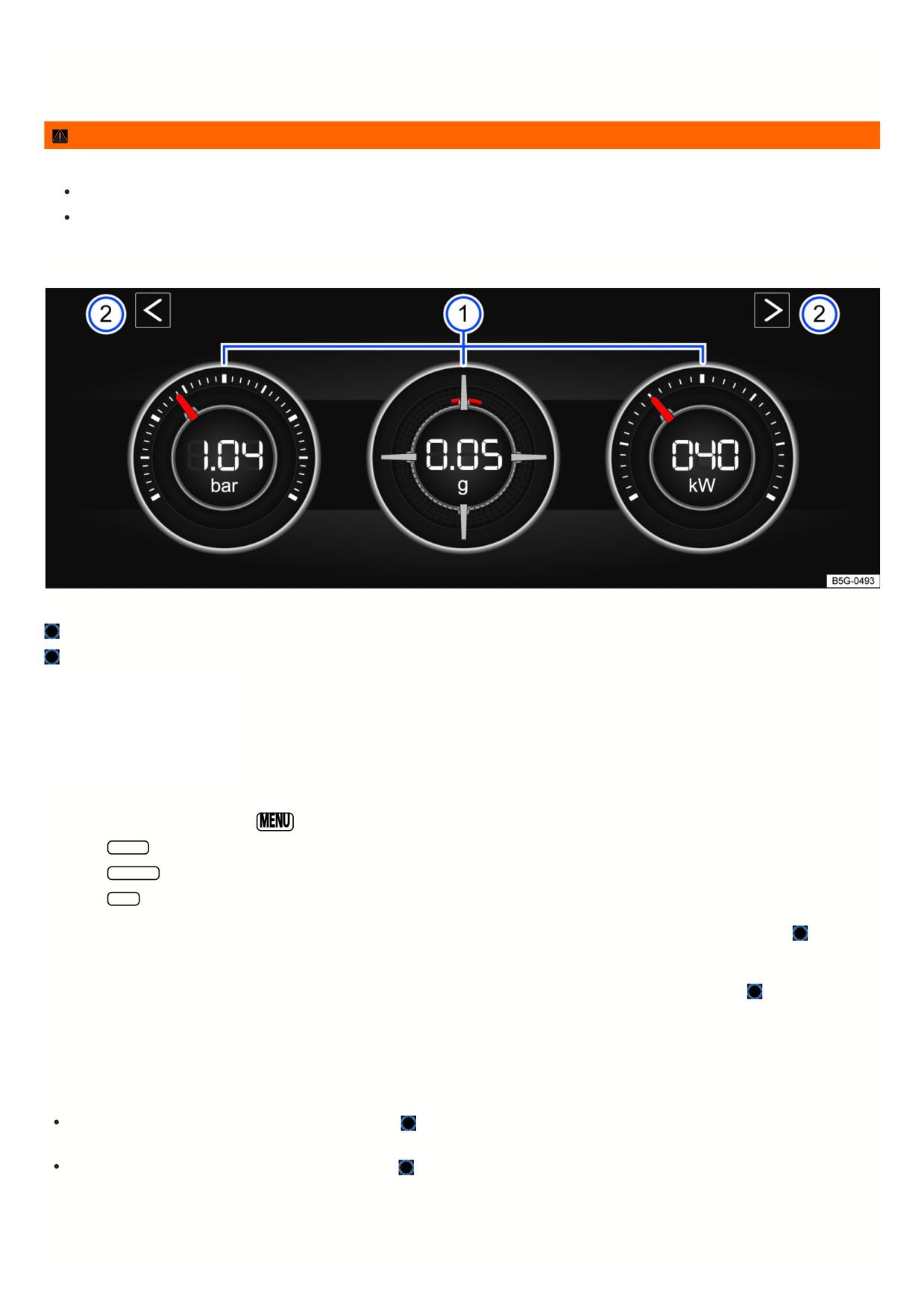
The red needle and the number in the center indicate the running time in seconds, and the smaller display in the inner area shows minutes and hours.
The display on the right side shows the current lap time with an accuracy of 1/100 of a second. If no laps with split times have been saved yet in the lap timer, then
there is no difference between the stopwatch and the lap time.
WARNING
Driver distraction can cause accidents and injuries.
Only adjust lap timer presets and open the statistics when the vehicle is stationary.
Only operate the lap timer while driving if the driving situation is easy to control and monitor.
Performance monitor
Fig. 16 On the Infotainment system screen: performance monitor.
Displays
Arrow buttons to switch to the lap timer
The performance monitor is a display
for sporty driving. The digital
instruments show values in real time for
engine power, temperature, and
acceleration that are determined by
sensors in the vehicle. This gives the
driver an overview of the driving
dynamics.
Opening the performance monitor
1. Depending on the version, press the
button or function key in the Infotainment system.
2. Tap the Vehicle function key.
3. Tap the Selection function key.
4. Tap the Sport function key.
If you want to switch between the performance monitor and the lap timer, tap one of the left or right arrow buttons above the instruments fig. 16
Selecting instruments and adjusting units
The display can show a maximum of three instruments at the same time. Every instrument can be selected for any display area fig. 16
(left, center, right).
1. To switch between instruments, swipe up over the display.
The instrument that is currently selected will disappear and a new instrument will appear.
The units on some instruments can be adjusted in the Infotainment system
⇒ Vehicle settings menu.
The following instruments can be displayed:
Boost pressure indicator: the boost pressure indicator fig. 16
(left) displays the boost pressure between the turbocharger and the engine in bar. The
farther to the right that the needle on the scale is, the more engine power is being used.
Accelerometer (g-meter): the accelerometer (g-meter) fig. 16
(center) displays the acceleration value in the center area in g. The red marking in the tab
area shows the intensity of the acceleration and the direction of the force. The force in effect is contrary to the physical laws. For example, if you drive to the
left, the red marking will move in the right area of the instrument and vice versa. When accelerating, the red marking will move downward. When braking, the
red marking will move upward. The intensity of acceleration is indicated by the position of the red marking from the inside to the outside. If you accelerate
faster, the red marking will disappear from the center area.
29
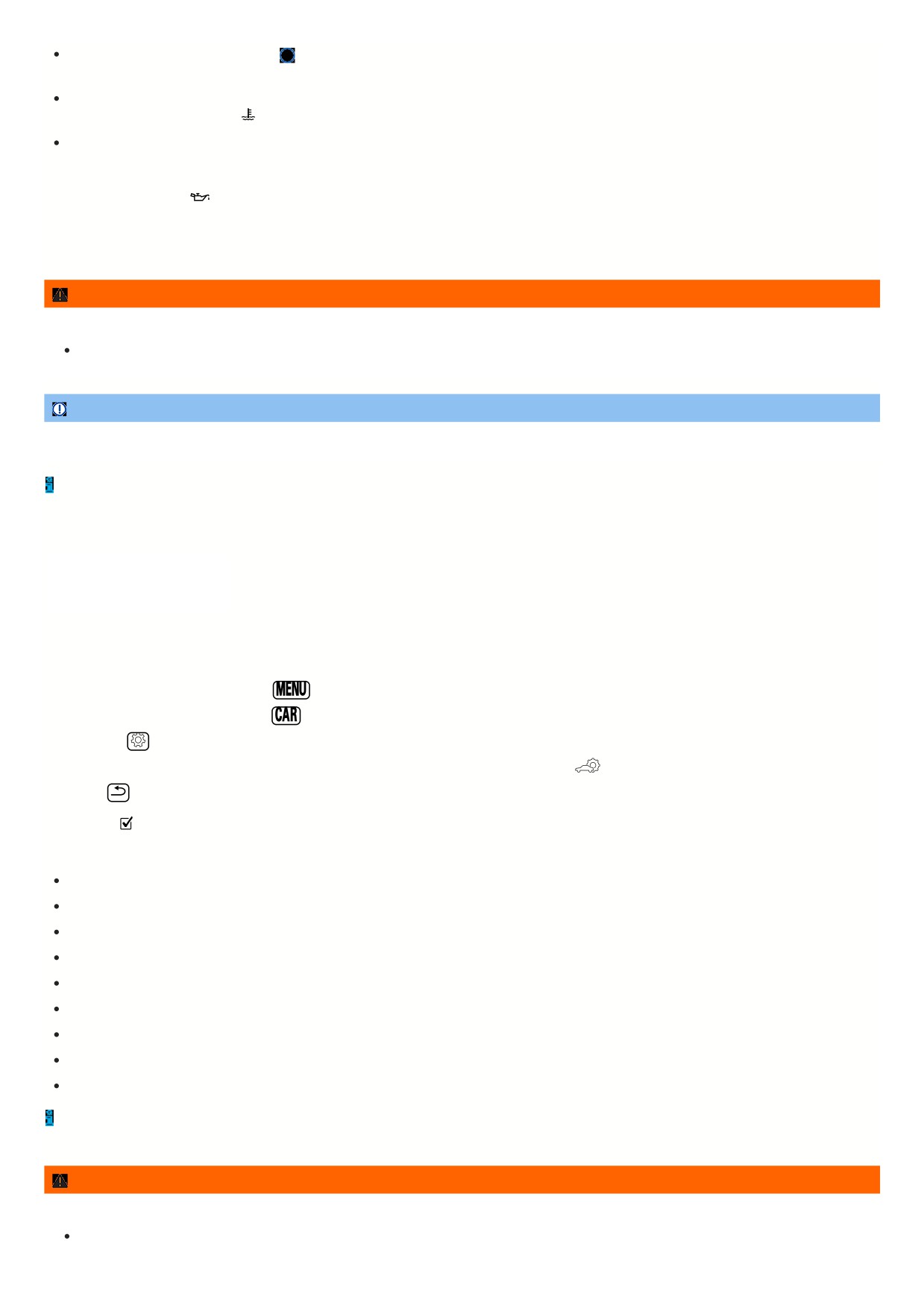
Power gauge: the power gauge fig. 16
(right) shows the engine power that is being currently used as a digital value displayed on the surrounding scale in
kW.
Engine coolant temperature gauge: when engine load is heavy and outside temperatures are high, the gauge may move farther to the right. This is not a
cause for concern as long as the
indicator light in the instrument cluster display is off or blinking
⇒ Checking and filling engine coolant .
Oil temperature gauge: the needle stays in the center area under normal driving conditions. If the pointer is in the left, lower area, the engine operating
temperature has not yet been reached. If the engine operating temperature has not been reached yet, avoid excessive high speeds and acceleration. Engine
coolant temperature gauge: when engine load is heavy and outside temperatures are high, the gauge may move farther to the right. This is not a cause for
concern as long as the
indicator light in the instrument cluster display is off or blinking
⇒ Troubleshooting.
Adjusting the display areas to the driving situation
You can select the three instruments that best fit your individual driving style and the driving situation.
WARNING
Driver distraction can cause accidents and injuries. Operating the Infotainment system can distract you from traffic.
Always drive attentively and responsibly.
NOTICE
Avoid high engine speeds, full acceleration, and heavy engine loads after starting the engine when it is cold.
Because of the methods that are used to determine power in the vehicle, the displayed values may not be completely precise.
Vehicle settings menu
You can switch individual functions and
systems on and off and adjust settings
in the vehicle settings menu in the
Infotainment system.
Opening the Vehicle settings Menu
1. Switch the ignition on.
2. If necessary, switch on the Infotainment system.
3. Depending on the equipment, press the
button or function key and select the Vehicle menu.
Or: depending on the design, press the
button or function key and select the Settings menu.
Or: Tap the
function key and select the Car menu.
4. To open other menus in the Vehicle settings menu or to adjust settings to the menu items, tap the
function key and select the relevant function keys.
5. Tap the
function key to return to the previous menu.
A check mark
indicates that the respective function is switched on.
System settings and vehicle information display
Vehicle settings (setup)
Depending on the vehicle equipment: Think Blue. Trainer.
Depending on vehicle equipment: Performance monitor ⇒ Performance monitor.
Depending on vehicle equipment: Lap timer ⇒ Infotainment system lap timer.
Volkswagen Digital Cockpit (Pro) ⇒ Volkswagen Digital Cockpit Pro , ⇒ Volkswagen Digital Cockpit Pro Information Displays .
Active media.
Driving Data.
Vehicle status.
Radio station selection.
After starting the engine when the 12 V vehicle battery is severely drained or has been replaced or jump-started, system settings, e.g. personal convenience
settings and programming, may be adjusted or deleted. Check and correct the settings after the 12 V vehicle battery is sufficiently recharged.
WARNING
Driver distraction can cause accidents and injuries. Operating the Infotainment system can distract you from traffic.
Always drive attentively and responsibly.
3
Dynamic Road Sign Display
Introduction
The Dynamic Road Sign Display detects
standard road signs using a camera in
the interior rearview mirror base and
informs the driver of detected speed
limits and passing restrictions. Within
the system limits, the system also
displays an additional sign to indicate
special restrictions. The system may
also continue to display the valid speed
limit on roads without signs.
The traffic signs recorded by the Dynamic Road Sign Display are shown in the display of the Volkswagen Digital Cockpit. Depending on the Infotainment system
installed in the vehicle, the road signs may also be displayed there.
Dynamic Road Sign Display is always active when the ignition is started.
Road sign display
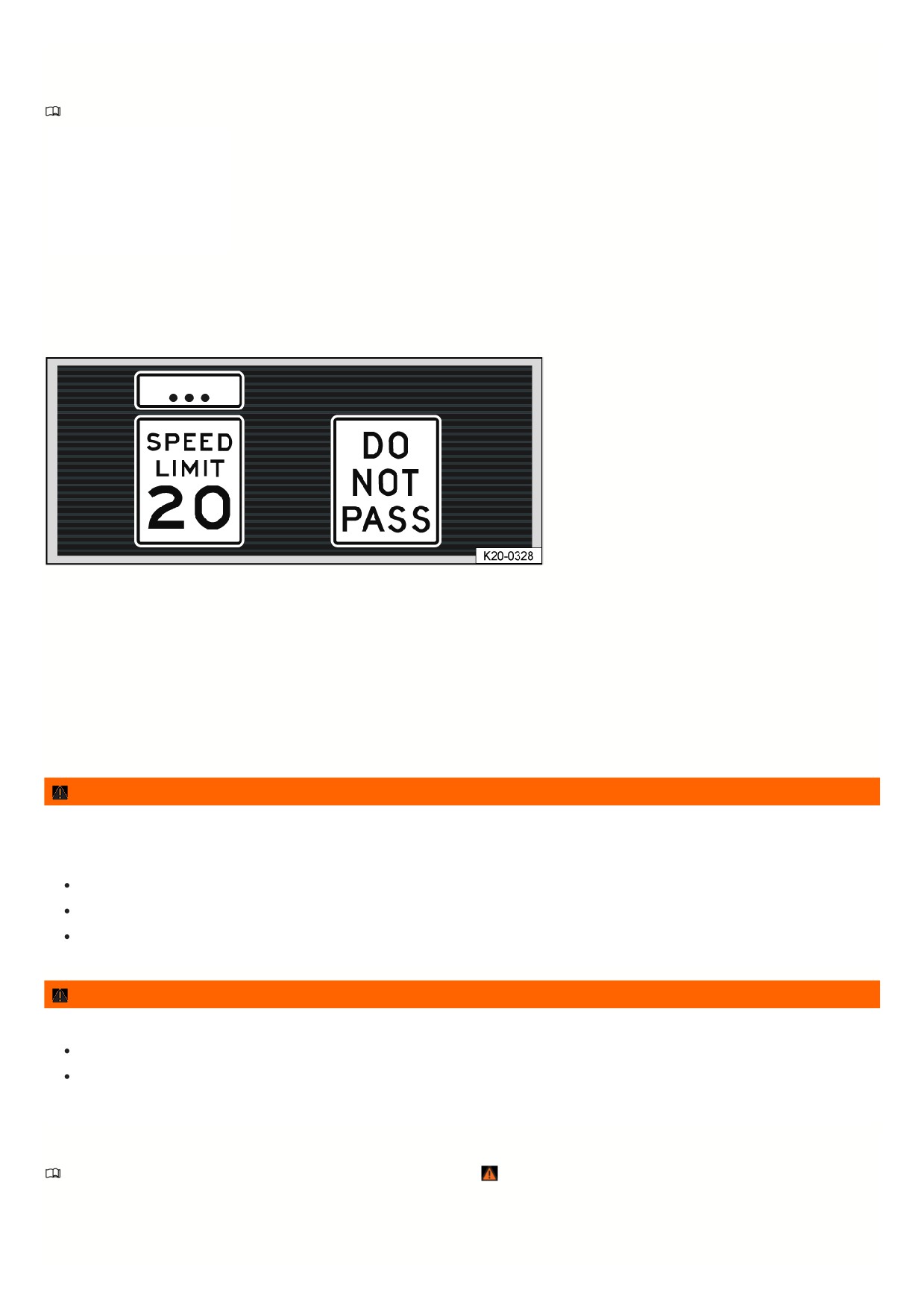
Fig. 17 In the instrument cluster display: Example of detected speed limits.
After checking and evaluating the information from the camera, the Infotainment system, and the current vehicle data, the Dynamic Road Sign Display function
displays up to two valid traffic signs and a generic additional sign fig. 17:
1st position:The traffic sign that currently applies is shown on the left side of the display, for example a speed limit of 20 mph (35 km/h).
2nd position:
Another road sign can be displayed in the second position, such as a passing restriction.
Additional signs:
A recognized additional sign is displayed above the applicable traffic sign. Depending on the system, a generic additional sign is displayed
instead of the actually recognized additional sign. The applicable traffic sign in the display of the instrument cluster is supplemented by the generic
additional sign.
WARNING
The intelligent technology of the Dynamic Road Sign Display cannot overcome the natural laws of physics, and it can only operate within the limits of the
system. Do not allow the increased convenience provided by the Dynamic Road Sign Display to tempt you into taking risks. The system cannot replace the
driver's attention.
Always adapt your speed and driving style to the visibility, weather, road and traffic conditions.
Poor visibility, darkness, snowfall, rain, and fog may prevent road signs from being display or may cause them to be displayed incorrectly by the system.
If the camera lens is dirty, obstructed, or damaged, the Dynamic Road Sign Display function may be limited.
WARNING
Driving recommendations and road signs displayed in the Dynamic Road Sign Display may differ from the actual traffic situation.
Not all road signs can be detected and displayed correctly by the system.
Traffic signs on the roads and traffic regulations must always take precedence over driving recommendations and displays from the Dynamic Road Sign
Display function.
Limits of the Dynamic Road Sign Display
Please read the introductory information and heed the Warnings and Notice ⇒
Introduction.
Error messages
No road signs available. The system is in the initialization phase.
Or: the vehicle has not detected any road signs.
31
Error: Dynamic Road Sign Display. System malfunction. If the malfunction persists, contact a suitably qualified professional. Volkswagen recommends
contacting an authorized Volkswagen dealer or authorized Volkswagen Service Facility.
Speed Alert currently not available.
The speed alert from the Dynamic Road Sign Display is malfunctioning. If the malfunction persists, contact a suitably
qualified professional. Volkswagen recommends contacting an authorized Volkswagen dealer or authorized Volkswagen Service Facility.
Dynamic Road Sign Display: Clean windshield!
The windshield is dirty in the area around the camera or weather conditions are interfering with the camera
view. Clean the windshield.
Dynamic Road Sign Display is currently limited.
Data is not being transmitted by the Infotainment system. Check that valid map data is loaded in the
Infotainment system.
Or: the vehicle is located in an area that is not detected on the map stored in the Infotainment system.
No data available. The Dynamic Road Sign Display function is not supported in the country where the vehicle is currently being operated.
Functional limitations
The Dynamic Road Sign Display is subject to system limitations. The following conditions may cause the Dynamic Road Sign Display function to be limited or to no
operate at all:
High ambient temperature or long exposure to direct sunlight.
Poor visibility, such as in snow.
Glare, for example from oncoming traffic or the sun
High speeds
If the camera is obstructed or dirty
If road signs are outside of the camera’s visual field
If road signs are partially or completely covered, for example by trees, snow, dirt, or other vehicles.
If road signs are not in the standard format
If there are damaged or bent road signs
If there are variable traffic signs on overhead signs (variable display of road signs by LEDs s or other lighting).
If there is outdated map material in the Infotainment system
If there are stickers on vehicles that indicate road signs, such speed limits on commercial vehicles
Operating the Dynamic Road Sign Display
Please read the introductory information and heed the Warnings and Notice ⇒
Introduction.
Speed warning
If the Dynamic Road Sign Display function detects that a valid speed limit is being exceeded, it may warn the driver audibly, or visually and audibly, with a message
in the instrument cluster display.
The speed warning can be set or completely deactivated in the Infotainment system
⇒ Vehicle settings menu. The speed warning can be set to a value of 0 mph
(0 km/h), 3 mph (5 km/h) or 5 mph (10 km/h) over the permitted speed.
Trailer mode
On vehicles with a trailer hitch installed at the factory and a trailer that is connected to the vehicle electrical system, the display of road signs relevant to a trailer,
such as the valid speed limit and passing restrictions for vehicles with a trailer, can be activated and deactivated in the vehicle settings in the Infotainment system
⇒ Vehicle settings menu.
For trailer mode, the display of valid speed limits can be adjusted to the model of the trailer and to the legal regulations. The setting can be set in increments of
10 km/h (5 mph) within a range of approx. 60 km/h (35 mph) and approx. 130 km/h (80 mph). If a speed is set that is higher than the permitted speed for driving wit
a trailer in the country or state where the vehicle is being operated, the Dynamic Road Sign Display function will automatically display the legal speed limit, for
example approx. 80 km/h (50 mph) in California.
32
//////////////////////////////////////////