Polaris Sportsman 570 (2018 year). Instruction - part 14
 

  Index      Snowmobiles / ATV     Polaris Sportsman 570 - instruction 2018 year


Search            


Content   ..  12  13  14  15   ..


Polaris Sportsman 570 (2018 year). Instruction - part 14


3. To exit the Options Menu the user can select Exit Menu function from

Options Menu, can hold Mode Button and exit out of Options Menu, or not
press any button for 10 seconds, which will exit out of the Options Menu.

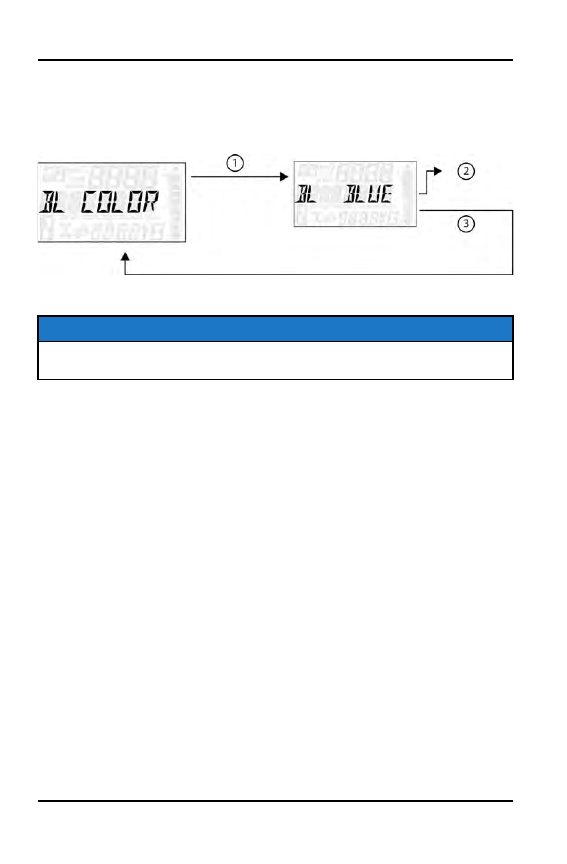
BACK LIGHT COLOR

1. Press and hold the MODE button to enter the Options Menu.

NOTE

“OPTIONS” will display on the screen for 3 seconds before showing first menu

item

2. Select “Backlight Color” from the Options Menu by pressing the MODE

button.

Reference the image shown above:

q

Press the MODE button.

w

Toggle the Up/Down Buttons to change the units (Blue or Red)

e

With the correct unit displayed, Press the mode button which will set

the unit and return to the Options Menu.

3. To exit the Options Menu the user can select Exit Menu function from

Options Menu, can hold Mode Button and exit out of Options Menu, or not
press any button for 10 seconds, which will exit out of the Options Menu.

58

FEATURES AND CONTROLS

BACK LIGHT LEVEL

1. Press and hold the MODE button to enter the Options Menu.

NOTE

“OPTIONS” will display on the screen for 3 seconds before showing first menu

item

2. Select “Backlight Level” from the Options Menu by pressing the MODE

button.

Reference the image shown above:

q

Press the MODE button.

w

Toggle the Up/Down Buttons to change the units (Increase or De-

crease Level)

e

With the correct unit displayed, Press the mode button which will set

the unit and return to the Options Menu.

3. To exit the Options Menu the user can select Exit Menu function from

Options Menu, can hold Mode Button and exit out of Options Menu, or not
press any button for 10 seconds, which will exit out of the Options Menu.

59

FEATURES AND CONTROLS

SERVICE HOURS

1. Press and hold the MODE button to enter the Options Menu.

NOTE

“OPTIONS” will display on the screen for 3 seconds before showing first menu

item

2. Select “Service Hours” from the Options Menu by pressing the MODE button.

Reference the image shown above:

q

Press the MODE button.

w

Toggle the Up/Down Buttons to change the units (0, 5, 10, - 95,100)

e

With the correct unit displayed, Press the mode button which will set

the unit and return to the Options Menu.

NOTE

To reset service hours after they have counted down to "0.0" reselect the

existing setpoint or select a new service hour value.

3. To exit the Options Menu the user can select Exit Menu function from

Options Menu, can hold Mode Button and exit out of Options Menu, or not
press any button for 10 seconds, which will exit out of the Options Menu.

60

FEATURES AND CONTROLS

BLUETOOTH OPERATION

The Bluetooth Classic functionality allows users to pair their phones with the
vehicle’s digital gauge. This function allows users to receive call and text alerts
while operating the vehicle.

PAIRING YOUR PHONE TO THE DIGITAL GAUGE

Use the following procedure to pair your phone with the vehicle’s digital gauge.

NOTE

Bluetooth functionality is compatible with both iOS and Android phones. For

iOS phones, you must go to the Settings option and enable notifications. Most

Android phones will prompt the user automatically to enable notifications as

part of the pairing process.

1. Make sure Bluetooth is enabled on your

phone.

2. Access the options menu on the vehicle’s

digital gauge and select BT PAIR. The
Bluetooth icon

q

will begin to blink.

3. Find and select Polaris Gauge on your

phone’s Bluetooth menu or prompt. Pairing
should occur momentarily. Pairing mode will
continue for up to 90 seconds or if you exit the
BT PAIR menu.

After successfully pairing the phone, the vehicle’s digital gauge will automatically
reconnect with the phone each time it is powered on and within range. No further
action is required by the user at this point.

NOTE

Once the digital gauge is powered off, Bluetooth connectivity will cease. Also,

when a new phone is paired with the digital gauge, all missed call and text

information from the previous phone will be erased. Up to 16 different phone

pairings can be saved to the digital gauge. The digital gauge does not support

systems below Android version 4.2 and iOS version 8.4.

SAFEGUARDS

• If a text message is received while the vehicle is moving faster than 2 KPH,

only the sender’s name is shown onscreen.

• If you are browsing any of the Bluetooth menus and the vehicle starts to move

faster than 2 KPH, the menu will automatically display VEHICLE MOVING.

• If you attempt to access Bluetooth menus while the vehicle is moving faster

than 2 KPH, the screen will display VEHICLE MOVING momentarily, and then
it will redirect to the options menu.

61

FEATURES AND CONTROLS


Content   ..  12  13  14  15   ..