Network Intrusions Responder Program (NITRO). Instructor Guide - page 3
NITRO
Lesson 4 Topics, continued
Current User
• Walk through the exercise.
Activity
• Discuss the processes found.
• Notice that truecrypt is also running.
• Discuss the search capabilities.
• Discuss that LiveWire does not save the
file with its extension.
• Discuss changing the file name does not
change the hash value of the file.
My Notes:
Active Network
• Walk through the exercises.
State
• Discuss the importance of open ports.
• Explain what the “$” on the shares mean.
My Notes:
140
For Official Use Only - Law Enforcement Sensitive
5-2008
NITRO
Lesson 5 - Evidence Collection
Lesson 5: Evidence In this lesson, we look at collecting physical and logical data from
Collection
the target machine.
Lesson 5 Learning
• Determine the status of the file system
Objectives
• Generate a disk image
• Collect file evidence from the remote target
Lesson 5: VMware NOTE: This lesson discusses imaging physical and logical images
Notes
of the target machine. It is at the discretion of the instructor
whether or not the students will take the time to image a physical
or logical partition. It may be recommended to only image the
logical truecrypt volume instead of the entire volume, due to the
amount of time required to complete that task.
If a student accidently starts the process of creating a whole disk
image or the entire logical C:\ partition, then the system will
drastically slow down. To stop the creation process, that student
should reboot their computer and the VMware image should be
reverted back to the original snapshot state.
5-2008
For Official Use Only - Law Enforcement Sensitive
141
NITRO
Lesson 5 Topics
Here are the topics to present.
Topic
Key Points
File System
• Walk through the exercise.
status
• Discuss the purpose of gathering disk
information
• Discuss gathering data about files stored on
the target system
My Notes:
Physical vs.
• Walk through the exercise.
Logical
• Discuss physical and logical images.
• Discuss physical images capture all data on
the drive; free space, deleted, etc.
• Explain benefits of physical imaging over
logical imaging.
• Explain the benefits of logical imaging
over physical imaging.
My Notes:
Collection and
• Walk through the exercise.
Preservation
• Explain why investigators should correctly
preserve evidence.
• Students should be able to find the anarchy
documents on the VMware image.
My Notes:
142
For Official Use Only - Law Enforcement Sensitive
5-2008
NITRO
Lesson 5 Topics, continued
Hashing
• Walk through the exercise.
• Discuss MD5 hashing - 128-bit
• Discuss SHA-1 hashes
• MD5 is currently accepted but SHA-1 may
soon be preferred.
• Many investigators run both MD5 and
SHA-1 hashing during investigations.
• Hashing is a one-way algorithm.
My Notes:
5-2008
For Official Use Only - Law Enforcement Sensitive
143
NITRO
Lesson 6 - Malicious Code Analysis
Lesson 6:
In this lesson, we look how LiveWire can be used to discover
Malicious Code
malware categorized programs on the target system.
Analysis
Lesson 6:
• Describe the malware search functions on LiveWire
Learning
• Conduct a malware analysis of a target system
Objectives
Lesson 6 Topics
Here are the topics to present.
Topic
Key Points
Malicious
• Walk through the exercise.
Program Search
• Discuss some of the different categories
that malicious code could be put into.
• Discuss the possibility of searching
different locations on the target system.
• The malicious code search may take some
time depending on many factors.
• Review the malware scan report.
• Make sure not to confuse the option under
Data Analysis with the option under
Acquire Disk Data.
My Notes:
144
For Official Use Only - Law Enforcement Sensitive
5-2008
NITRO
Module 15 Exercise Configuration Details
Module 15 Carly Sizemore Exercise Details
VM Image:
Carly Sizemore
VM Snapshots:
1. Carly Sizemore - Conf Special
Description:
This exercise is includes a paper handout with questions for the
students to answer during their investigation of the system.
This virtual machine will be used for the students to walk through the
exercise on their own, with the assistance of the Instructor when
needed. Once students have completed the exercise, the instructor
will walk through the examination to demonstrate finding the correct
answers to the question sheet. The VM should be run at the specified
snapshot to load the artifacts into memory that will be discovered by
the students.
This Virtual Machine has the Conf Special document opened in open
office. This document will be used to search for answers to the
handout questionnaire.
The instructor can choose to demonstrate the investigation for the
students on a schedule best suited for them. Ex. The instructor may
choose to conduct the demo at different levels of the system
examination, such as after the LiveDiscover portion.
Summary of Artifacts to be Discovered During This Module
Running processes:
IM programs, antivirus, open office
Document Open:
My Documents\Conf special.odt
Browse images:
Located in My Pictures
Target VMware Configurations
Computer Name:
Csizemore
Operating System:
Windows XP SP2
IP Address:
10.15.4.233
Subnet Mask:
255.255.255.0
Administrator U/N:
Administrator
Administrator P/W:
password
Target U/N:
Carly
Target P/W
none
5-2008
For Official Use Only - Law Enforcement Sensitive
145
NITRO
Lesson 7 - Alternate Data Collection Tools
Lesson 7:
In this lesson, we look at other tools that may be used to collect
Alternate Data
information. These tools are included on the LiveWire CD. The
Collection Tools
Helix Live CD is introduced.
NOTE: These tools do get updated and newer versions of the
PSTools can be downloaded from Microsoft.com
Lesson 7:
• Describe functions of alternate tools
Learning
• Describe the functions of the helix live CD
Objectives
146
For Official Use Only - Law Enforcement Sensitive
5-2008
NITRO
Lesson 7 Topics
Here are the topics to present.
Topic
Key Points
Windows
• Walk through using the commands in the
Forensic Toolkit
student book.
• Explain that these tools are retrieving
information from a remote machine.
• Discuss how this information may be
useful in an investigation.
• Explain how this information could be
redirected out to at text file with the “>”
option.
• Also mention “>>” to append data to a file.
My Notes:
Helix
• Explain that Helix is a custom version of
Linux.
• Discuss the two modes of Helix (Windows
mode and Linux mode).
My Notes:
5-2008
For Official Use Only - Law Enforcement Sensitive
147
NITRO
Lesson 7 Topics, continued
Topic
Key Points
Helix -
•
Walk through starting helix on a live
Windows Mode
system.
•
Point out that the live systems are
constantly changing and helix will affect
the system. This is a publicly accepted fact
in the industry. The investigator must be
able to speak to that fact if necessary in
court.
•
Go over the different screen in Helix.
•
Note the Quick Launch in the menu bar.
•
Note the Triangle buttons between the left
and right page. It changes pages for the
different tabs.
•
Discuss the ability to use netcat to send
forensic images over a network to another
system.
•
Therefore, two helix disks could be used.
One system to collect the data, and the
other to store the data.
•
Discuss the other tools available on the
CD.
My Notes:
148
For Official Use Only - Law Enforcement Sensitive
5-2008
NITRO
Lesson 7 Topics, continued
Topic
Key Points
Helix - Linux
• Boot the computer to the Helix CD.
Mode
• Discuss that Helix is configured to not
change any data on the host machine.
• Access times will not be altered if a file is
viewed.
• Helix will mount devices with only read
access.
• It is possible to mount devices with
read/write access and must be done through
the command line.
• Briefly discuss some of the forensic tools
included on the Helix CD.
• Discuss some of the benefits of using the
Helix CD.
My Notes:
5-2008
For Official Use Only - Law Enforcement Sensitive
149
NITRO
Module 15 - Alternate Tools Practical Exercise Configuration Details
Module 15 - Alternate Tools Practical Exercise Details
VM Image:
Windows XP Pro - CookBook
VM Snapshots:
2. Anarchy CookBook - truecrypt
Description:
This exercise is includes a paper handout with questions for the
students to answer during their investigation of the system.
This virtual machine will be used for the students to walk through the
alternate tools exercise on their own and in a group, with the
assistance of the Instructor when needed. This exercise is includes a
paper handout with questions for the students to answer during their
investigation of the system. The VM should be run at the specified
snapshot to load the artifacts into memory that will be discovered by
the students. This snapshot is the same as previous exercise. This will
allow the students to compare their finding discovered using
LiveWire.
This Virtual Machine has the Conf Special document opened in open
office. This document will be used to search for answers to the
handout questionnaire.
The instructor can choose to demonstrate the investigation for the
students on a schedule best suited for them. Ex. The instructor may
choose to conduct the demo at different after they have completed the
individual portion, then allowing the students to continue on to the
group section.
Summary of Artifacts to be Discovered During This Module
Running processes:
truecrypt, open office writer
Document Open:
M:\anarchycookbook - credit card fraud.doc
TrueCrypt Volume:
My Documents\sweet-success.avi
Suspect images:
Located in My Pictures
Recent Documents:
shows files from M:\ and My Documents
150
For Official Use Only - Law Enforcement Sensitive
5-2008

NITRO
Target VMWare Configurations
Computer Name:
HellRaiser
Operating System:
Windows XP SP2
IP Address:
10.15.4.210
Subnet Mask:
255.255.255.0
Administrator U/N:
Admin
Administrator P/W:
password
Target U/N:
Student
Target P/W
password
TrueCrypt Volume:
My Documents\sweet-success.avi
TrueCrypt Volume P/W:
anarchy
5-2008
For Official Use Only - Law Enforcement Sensitive
151
NITRO
Module 15 - Alternate Tools Practical Exercise Configuration Details
Module 15 - Alternate Tools Practical Exercise Details
VM Image:
Carly Sizemore
VM Snapshots:
3. Carly Sizemore - Conf Special
Description:
This exercise is includes a paper handout with questions for the
students to answer during their investigation of the system.
This virtual machine will be used for the students to walk through the
alternate tools exercise on their own and in a group, with the
assistance of the Instructor when needed. This exercise is includes a
paper handout with questions for the students to answer during their
investigation of the system. The VM should be run at the specified
snapshot to load the artifacts into memory that will be discovered by
the students. This snapshot is the same as previous exercise. This will
allow the students to compare their finding discovered using
LiveWire.
This Virtual Machine has the Conf Special document opened in open
office. This document will be used to search for answers to the
handout questionnaire.
The instructor can choose to demonstrate the investigation for the
students on a schedule best suited for them. Ex. The instructor may
choose to conduct the demo at different after they have completed the
individual portion, then allowing the students to continue on to the
group section.
Summary of Artifacts to be Discovered During This Module
Running processes:
IM programs, antivirus, open office
Document Open:
My Documents\Conf special.doc
Browse images:
Located in My Pictures
Target VMware Configurations
Computer Name:
Csizemore
Operating System:
Windows XP SP2
IP Address:
10.15.4.233
Subnet Mask:
255.255.255.0
Administrator U/N:
Administrator
Administrator P/W:
password
Target U/N:
Carly
Target P/W
none
152
For Official Use Only - Law Enforcement Sensitive
5-2008
National Computer Forensics Institute
NITRO
Network Intrusion
Responder Program
Volume 1 of 2
Course Introduction
Classification
Information contained in this instruction is UNCLASSIFIED.
However, certain methodologies are Law Enforcement Sensitive.
Introduction
NITRO is a three-week course consisting of 14 days of lessons,
incremental practical exams and a final practical exam.
Objective of this
NITRO is designed to introduce the officer to basic network
Course
intrusion investigation techniques.
Learning
After completing this course the trained officer should be able to
Outcomes
successfully conduct a network intrusion investigation.
Course Protocols
Information contained in each section of this student book is
presented in sequential order so that knowledge gained from later
lessons is built on a foundation of what was learned earlier. Other
course protocols include the following:
Practical exercises - Instructors will provide directives and
handouts for practical exercises completed in the lab.
Appendices - Include course related materials provided by the
instructors.
Practical Exercises
Practical exercises in NITRO are hands-on. Each exercise is
instructor-directed. In the exercises, students will:
Perform network wiring and connecting activities
Conduct manual log analysis
Use automated log analysis tools
Perform “Live” network gathering and analysis activities
In addition, every morning the students will have an opportunity to
ask questions and/or review materials discussed on the previous
day. This allows instruction to remain fresh and aids students with
building practical connections to the training.
***This page intentionally left Blank***
Network Intrusion Responder Program
Table of Contents
Network Intrusion Responder Program (NITRO)
NITRO Book I
Windows Operating System
Introduction to Networks
Network Connectivity and Protocols
IP Addresses and Subnets
Common Network Crimes
Phases of an Intrusion
NITRO Book II
Report Writing
Legal Issues
Fundamentals of Log Analysis
Log Sources
Log Analysis
LiveWire Investigations
Appendices
01/09
For Official Use Only - Law Enforcement Sensitive
I-1
Table of Contents
Network Intrusion Responder Program
This page intentionally left blank.
I-2
For Official Use Only - Law Enforcement Sensitive
01/09
Network Intrusion Responder Program
Table of Contents
Network Intrusion Responder Program (NITRO)
Table of Contents - Book I
Topic
Page
Module 1 - Windows Operating System
1-1
Lesson 1 - Windows Operating System Basics
1-3
File Systems
1-4
Operating System Installation
1-8
Operating System Updates
1-11
Module 2 - Introduction to Networks
2-1
Lesson 1 - Networks Basics
2-3
Introduction to Networks
2-4
Network Types
2-6
Network Categories
2-9
Lesson 2 - Network Technologies
2-11
Introducing Network Technologies
2-12
Lesson 3 - Network Topologies
2-15
Topologies Defined
2-16
Lesson 4 - Network Architecture
2-25
Introduction to Network Architecture
2-26
Ethernet
2-27
Token Ring
2-29
Fiber Distributed Data Interface (FDDI)
2-30
Asynchronous Transfer Mode (ATM)
2-31
Broadband
2-32
Lesson 5 - The OSI Model
2-35
OSI Model Overview
2-36
OSI Model Layers
2-39
01/09
For Official Use Only - Law Enforcement Sensitive
I-3
Table of Contents
Network Intrusion Responder Program
Topic
Page
Module 3 - Network Connectivity and Protocols
3-1
Lesson 1 - Network Connectivity
3-3
Network Connectivity
3-4
Network Transmission Media
3-5
Network Devices
3-10
Wireless Media
3-18
Lesson 2 - Network Configuration Models
3-23
Introduction to Network Models
3-24
Lesson 3 - Network Protocols
3-27
Protocols
3-28
TCP/IP
3-29
Other Protocols
3-31
Lesson 4 - Wireless Networks
3-35
About Wireless Networks
3-36
Types of Wireless Networks
3-37
Hardware Components
3-38
Security Concerns
3-40
Vulnerabilities
3-45
Module 7 - IP Addresses and Subnets
4-1
Lesson 1 - IP Addresses
4-3
IP Address Basics
4-4
IP Address Classes
4-6
More about IP Addresses
4-9
Lesson 2 - Ports
4-13
Overview of Ports
4-14
How Ports are Used
4-16
Configuring TCP/IP
4-19
Lesson 3 - Subnets
4-21
Subnet Overview
4-22
Subnet Masks
4-24
I-4
For Official Use Only - Law Enforcement Sensitive
01/09
Network Intrusion Responder Program
Table of Contents
Topic
Page
Virtual LAN
4-25
Lesson 4 - Network Security
4-27
Data Encryption
4-28
Anti-Virus Software
4-29
Firewalls
4-30
IDS
4-37
Logs
4-39
Network Security Summary
4-41
Module 5 - Common Network Crimes
5-1
Lesson 1 - E-mail Scams
5-3
Overview of E-mail Scams
5-4
Attack Methodologies
5-5
Investigative Response
5-7
Lesson 2 - Online Fraud
5-9
Online Fraud Overview
5-10
Attack Methodologies
5-11
Investigative Responses
5-13
Lesson 3 - Identity Theft
5-15
Identity Theft
5-16
Investigative Reponses
5-18
Lesson 4 - Social Threats
5-19
Social Threats
5-20
Attack Methodologies
5-21
Investigative Responses
5-22
Lesson 5 - Internal Threats
5-23
Internal Threats Overview
5-24
Investigative Responses
5-26
Lesson 6 - Malicious Code
5-27
Malicious Code Attacks
5-28
Investigative Responses
5-29
01/09
For Official Use Only - Law Enforcement Sensitive
I-5
Table of Contents
Network Intrusion Responder Program
Topic
Page
Lesson 7 - Denial of Service Attacks
5-31
Denial of Service
5-32
Investigative Responses
5-33
Lesson 8 - Extortion
5-35
Extortion on the Internet
5-36
Investigative Responses
5-38
Lesson 9 - Network Attacks
5-39
Network vs. System Level Attacks
5-40
Investigative Responses
5-41
Lesson 10 - Terrorism
5-43
Extortion on the Internet
5-44
Investigative Responses
5-45
Module 6 - Phases of an Intrusion
6-1
Lesson 1 - Defining an Intrusion
6-3
Definition of an Intrusion
6-4
Goals of an Intrusion
6-5
Attacker Profiles
6-6
Phases of an Intrusion
6-9
Lesson 2 - Reconnaissance
6-11
Goals
6-12
Strategies
6-13
Techniques - General Web Browsing and Searching
6-14
Techniques - Public Records and Archives Search
6-15
Techniques - Target Web Site Examination
6-18
Techniques - Identifying Physical Attack Vectors
6-20
Techniques - Live Host Identification
6-22
Techniques - Identifying Available Protocols/Ports
6-23
Techniques - Type and Version Identification
6-25
Techniques - Vulnerability Scans
6-26
Lesson 3 - Network Attacks
6-29
I-6
For Official Use Only - Law Enforcement Sensitive
01/09
Network Intrusion Responder Program
Table of Contents
Topic
Page
Goals
6-30
Strategic Categories
6-31
Strategies - Authentication Attacks
6-32
Techniques - Factor Guessing/Cracking
6-33
Techniques - Credential Recover/Reset
6-37
Techniques - Credential Injection
6-39
Techniques - Credential Theft
6-40
Strategies - Unexpected Input
6-41
Techniques - Excessive Input
6-42
Techniques - Excessive Input / Buffer Overflows
6-43
Techniques - Unexpected Input Content / XSS Attacks
6-44
Lesson 4 - Entrenchment
6-45
Goals
6-46
Strategies
6-47
Techniques - Log Cleaning
6-48
Techniques - Automatic Execution
6-50
Techniques - Hooking
6-52
Techniques - File Type Manipulation
6-54
Techniques - Naming Conventions and Placement
6-55
Techniques - Remote Connectivity
6-58
Techniques - File System Date/Time Stamp Manipulation
6-62
Privilege Escalation
6-63
Lesson 5 - Infiltration and Extraction
6-67
Sniffers
6-68
Trust Relationships
6-69
Data Extraction
6-70
01/09
For Official Use Only - Law Enforcement Sensitive
I-7
Network Intrusion Responder Program
Windows Operating System
Module 1
Windows Operating System
Overview
Windows XP Professional is both a popular and widely used
Operating System. This lesson explains how to select a file system
and install an operating system. You will learn how to patch your
Windows XP system with the latest critical updates after
installation.
Purpose of this
You need to be familiar with the file systems used within
Module
Microsoft Windows Operating Systems, as well as how to install a
Windows operating system and apply patches.
Objectives
After successfully completing this module, you will be able to:
Explain the procedure for installing Windows XP Professional
Compare and Contrast the FAT32 and NTFS File System
Describe how to install updates on Windows XP
In this Module
The following table shows the contents of this module.
Topic
See Page
Lesson 1 - Windows Operating System Basics
1-3
01/09
For Official Use Only - Law Enforcement Sensitive
1-1
Windows Operating System
Network Intrusion Responder Program
This page intentionally left blank.
1-2
For Official Use Only - Law Enforcement Sensitive
01/09
Network Intrusion Responder Program
Windows Operating System
Lesson 1 - Windows Operating System Basics
Introduction
This lesson provides an overview of File System / Operating
System Basics including selecting a file system.
Purpose of this
You will gain an understanding of how to install and patch a
Lesson
Windows based operating system.
Objectives
After completing this lesson, you will be able to:
Give a brief overview of file systems
Explain how to install Windows XP Professional
Identify how Updates are installed on Windows XP
In this Lesson
The following table shows the contents of this lesson.
Topic
See Page
File Systems
1-4
Operating System Installation
1-8
Operating System Updates
1-11
01/09
For Official Use Only - Law Enforcement Sensitive
1-3
Windows Operating System
Network Intrusion Responder Program
File Systems
File System
Before installing Windows onto your workstation, you need to
Characteristics
take an accurate assessment of how the workstation will be used.
This will allow you to make the best choices during installation to
avoid trouble later.
Users installing Microsoft Windows NT-based operating systems
(NT, 2000, XP, 2003, and Vista) have a choice between using FAT
or NTFS file systems. Although Windows Vista does not allow the
system partition to use a FAT file system, additional partitions can
use the FAT16 and FAT32 file systems.
NTFS has several advantages over FAT file systems. NTFS
provides security and better overall performance than FAT file
system. NTFS also uses a journaling mechanism which logs disks
transactions. In the case of a power failure, journaling file systems
often do a better job at data recovery.
While FAT does not provide security, it is compatible with older
Windows Operating systems such as Windows 95, Windows 98,
and Windows ME. Most USB thumb drives and storage devices
are released pre-formatted with the FAT file system. This allows
operating systems such as Linux and Mac OS X to read and write
to the device.
FAT File System
Each partition or logical drive contains a File Allocation Table, or
Characteristics
FAT. The FAT manages a list of where files exist on the particular
drive. This list is constantly being updated with new information
as files are saved, deleted, renamed or moved. It is critical that this
list stay up to date and intact to allow the operating system to
access files.
FAT16 used a 16-bit length number to identify the various clusters
on a hard drive. This limited the addressable capacity of a hard
drive to 65,526 clusters, or 2 Gigabytes of data. Those using
FAT16 on drives that were larger than 2 GB were required to
create multiple partitions on the drive - each smaller than 2 GB.
For example, a 4 GB hard drive would have to be partitioned into
two 2 GB volumes, each receiving its own unique drive letter.
FAT32 uses a 32-bit length number to identify all of the clusters
on a hard drive. This increase allows the file system to address
approximately 268,400,000 clusters, or approximately 2 terabytes.
1-4
For Official Use Only - Law Enforcement Sensitive
01/09
Network Intrusion Responder Program
Windows Operating System
File Systems, continued
NTFS
Windows 2000 and Windows XP can operate in a FAT32 or
FAT16 environment, but most users opt for the default file system,
NTFS (New Technology File System). NTFS is more stable than
the FAT system and offers such benefits as file compression and
data encryption; these options are not readily available on a FAT-
based system. In addition, MS Windows 2000, Windows 2003,
and Windows XP Professional support dynamic volumes, which
allow partitions to be added or extended without resulting in data
loss.
The Windows 2000/XP Disk Management tool allows you to add,
delete or modify partitions. In addition, it can be used to display
general volume information including: file system type, the
amount of available space and the drives total capacity. It can also
be used to convert a partition from FAT16/32 to NTFS. In
addition, the command prompt can also be used to convert
partitions up to the NTFS standard. The following command
converts the FAT formatted D: to the NTFS standard:
convert <drive letter> /fs:ntfs
Note: FAT partitions can be converted to NTFS while preserving
the data; however, NTFS partitions cannot be converted to
either of the FAT file systems.
There are a number of ways that a partition can be formatted or
reformatted to the NTFS file system. The Disk Management tool,
described previously, can be used to format the partition. In
addition, the partition can be formatted via My Computer. The
new partition(s) display when the My Computer folder is opened.
Right clicking on the partition will result in a context-sensitive
menu with Format as an option. Lastly, the Format command can
be executed via the command line. The command “format [drive
letter] /fs:ntfs” will format an existing partition to the NTFS
standard.
Note: The format command can also be used to prepare a
partition with the FAT (/fs:FAT) and the FAT32
(/fs:FAT32) file systems.
01/09
For Official Use Only - Law Enforcement Sensitive
1-5
Windows Operating System
Network Intrusion Responder Program
File Systems, continued
NTFS File System NTFS uses the Master File Table (MFT) to track files and their
Characteristics
associated locations on a particular volume. The MFT is similar to
FAT in that it maps the location of directories and folders and is
updated whenever a file is accessed, changed, deleted or added to
the volume.
There are, however, significant differences. The File Allocation
Table can be thought of as a static fixed-sized chart that cannot
change in size. However, the MFT is much more dynamic than the
FAT. The MFT is a relational database that can grow in size if
necessary. The MFT is created when the drive (or volume) is
formatted for the NTFS specifications.
Since the MFT has the capability of growing, a certain amount of
contiguous space is reserved for MFT expansion. This area is
sometimes called the “MFT Zone.” Initially, this zone is
approximately 12 percent of the total volume capacity; however,
the MFT can grow past that size if needed. Most NTFS volumes
are no larger than 2 terabytes in size. However, the dynamic nature
of the MFT allows an NTFS volume to reach 16 Exabyte‟s, which
is equivalent to approximately 16,000,000 terabytes in capacity!
1-6
For Official Use Only - Law Enforcement Sensitive
01/09
Network Intrusion Responder Program
Windows Operating System
File Systems, continued
File Systems for
The following table describes the default type of file systems used
Operating Systems
by each operating system.
Operating
Type of Primary
Characteristics of File
System
File System
System
DOS
FAT16
Limited to 2GB partitions
Windows for
FAT16 w/ limited
32-bit file access
Workgroups
VFAT
Windows 95a
VFAT
32-bit file access
Supports long file names
Windows 95b
FAT32
Supports larger disk capacity
(OSR2),
up to 2TB
Windows 98,
Uses smaller cluster sizes for
Windows ME
more efficient storage
Windows 2000 supports
FAT32 with disk volumes up
to 32GB
Windows NT
NTFS
Improved reliability, to avoid
data loss and improve fault
tolerance
Security and Access Control to
manage who can read or write
data
Supports long file names
Supports larger sized
partitions, up to 16 Exabytes
Windows 2000,
NTFS
Improved Security
XP
Internal Data Encryption
Disk Quotas
UFS, FFS
Among oldest file systems
Unix,
Mac OS X
HFS+
Supports 16 terabyte file and
volume size
2.1 billion files per folder
Linux (kernel
Ext2fs
Security and Access Control
versions prior to
Supports partitions up to 4TB
2.4.16)
Supports long file names
Linux (kernel
Ext3fs
Faster than ext2fs
versions since
Greater data control.
2.4.16 )
Information will not be lost on
unclean shutdowns
OS/2
HPFS
Less fragmentation of data
01/09
For Official Use Only - Law Enforcement Sensitive
1-7
Windows Operating System
Network Intrusion Responder Program
Operating System Installation
Relevance
You will install Microsoft XP Professional SP2 as a means to
introduce you to a modern desktop operating system that you will
use later in this course.
Procedure:
Use this procedure to properly install Microsoft Windows XP
Installing
Professional SP2 for use on machines that do not have an
Windows XP Pro
operating system pre-installed.
SP2
Step
Action
1
Turn on your desktop PC and insert the provided
Windows XP SP2 CD. Allow the PC to boot from the
CD-ROM. When prompted, press any (space bar is fine)
key to begin installation from the CD.
2
The CD will begin copying files to the hard drive. This
process can take about five minutes to complete.
Afterwards, a menu displays.
3
The Windows XP Professional Setup screen will appear.
Press Enter to proceed to the End User Licensing
Agreement.
4
Read over the License Agreement carefully. Press F8 if
you agree to the terms of the License. If XP was pre-
installed, the install will detect the existing installation
and display a menu asking to overwrite it.
5
Press the ESC key to continue installing Windows XP.
The partitioning screen will display.
6
Highlight the Partition1 on disk0, id0 (the partition
where you want to load XP) and press D for delete.
Press Enter, and then press L to delete the partition.
7
Press C to create a new partition. Use the default size
value to make a partition to use up the entire hard drive.
8
Highlight Partition1 and press Enter to format it. Format
the partition using NTFS.
The computer will reboot. Allow it to boot from the hard
drive instead of the CD. Hint: Do not press a key when
prompted to „press any key‟ The Regional and Language
Options screen will soon display.
1-8
For Official Use Only - Law Enforcement Sensitive
01/09
Network Intrusion Responder Program
Windows Operating System
Operating System Installation, continued
Procedure: Installing MS Windows XP Pro SP2, continued
Step
Action
9
Click Next to proceed to the Personalize Your Software
screen.
10
When requested, type in your name, or organization
assigned user name.
Click Next to proceed to the End User Licensing
Agreement screen.
9
Type in the Windows XP license key as it is noted on
the supplied Windows XP Installation CD. Click Next
to proceed to the Computer Name and Administration
Password screen.
10
When requested for a Computer Name field, type in a
unique value that doesn‟t exist anywhere else on your
network. Refer to your instructor or network
administrator for an appropriate value.
For the administrator password, type in a unique
password that is not easily guessed or determined. In the
classroom, refer to your instructor for an appropriate
password.
Type password again to confirm it. Click Next to
proceed to the Date and Time Setup screen.
11
Change the time zone to CST -06:00, Central Standard
Time Zone and click Next to continue the installation.
This setting can be changed at any time in the future to
your local time zone. After copying files, the
Networking Settings screen displays.
12
If connecting this computer into your organization‟s
network, refer to your local administrator for appropriate
network information to use in the next few steps. This
procedure will assume you‟re in a classroom network.
Click on Typical Settings and click Next for the
Workgroup or Computer Domain screen.
01/09
For Official Use Only - Law Enforcement Sensitive
1-9
Windows Operating System
Network Intrusion Responder Program
Operating System Installation, continued
Procedure: Installing MS Windows XP Pro SP2, continued
Step
Action
13
Click No. For the workgroup, type:
WORKGROUP
Click Next to continue the installation. After copying
files, the machine should reboot. Afterwards, the install
will proceed to the “Welcome to Microsoft Windows”
screen. Click Next.
14
On the “Help Protect Your PC” screen, choose the green
shield for help protect my PC, and then click Next.
15
The system will check for Internet connectivity. The
following screen will ask “Will this computer connect to
the Internet directly, or through a network?” Choose
“Yes, this computer will connect through a local area
network or home network.”
16
Click Next to proceed to the “Ready to register with
Microsoft?” screen.
17
At the “Ready to register with Microsoft?” screen, select
“No, not at this time.” Click Next to proceed to the
“Who will use this computer?” screen.
18
Type your name in the Your Name field and click Next
to proceed to the “Thank You!” screen.
19
Click Finish to have Windows restart and bring up the
desktop.
1-10
For Official Use Only - Law Enforcement Sensitive
01/09
Network Intrusion Responder Program
Windows Operating System
Operating System Updates
Patching
After installing an Operating System, it should be patched with the
latest critical updates. Installing updates on a regular basis is vital
as new threats and vulnerabilities are always being developed.
Users who utilize the Windows Update site can choose to use
Express or Custom settings.
Express Settings will install all high priority updates without
allowing the user to decide which updates will be installed.
Custom settings will allow the user to choose which updates their
operating system will receive.
Alternatively, you could wait until Windows performs its
automatic update function. This is set to occur during the middle
of the night, on every night.
The Danger of
By default, Windows XP will automatically download and install
Automatic
new patches on a weekly basis. While this is a great setting for
Patching
maintaining the security of a computer, there is also a negative
drawback to it. If a critical update is released, your computer will
automatically install it and reboot, closing all open applications in
the process. Any open documents and case work will be closed,
with the potential for the loss of hours, or even days of work. Even
worse, this update occurs, by default, at 0300 hours at night. You
could set up a forensic workstation to begin a 12-hour text search,
only to come in the next morning to see a blank desktop screen.
To disable this setting, select Start > Control Panel > System
Properties. Locate and select the tab for “Automatic Updates” to
view the patching options. The recommended value for a
workstation is “Download updates for me, but let me choose when
to install them.” With this option set, you will notice an update
icon in your system tray notifying you that new updates have been
downloaded. You can then choose a safe time to apply the updates,
without worrying about the loss of work.
01/09
For Official Use Only - Law Enforcement Sensitive
1-11
Windows Operating System
Network Intrusion Responder Program
Operating System Updates, continued
Procedure:
The following procedure will walk you through manually updating
Updating an
your Windows XP system using Microsoft‟s online Windows
Operating System
Update Web site.
Step
Action
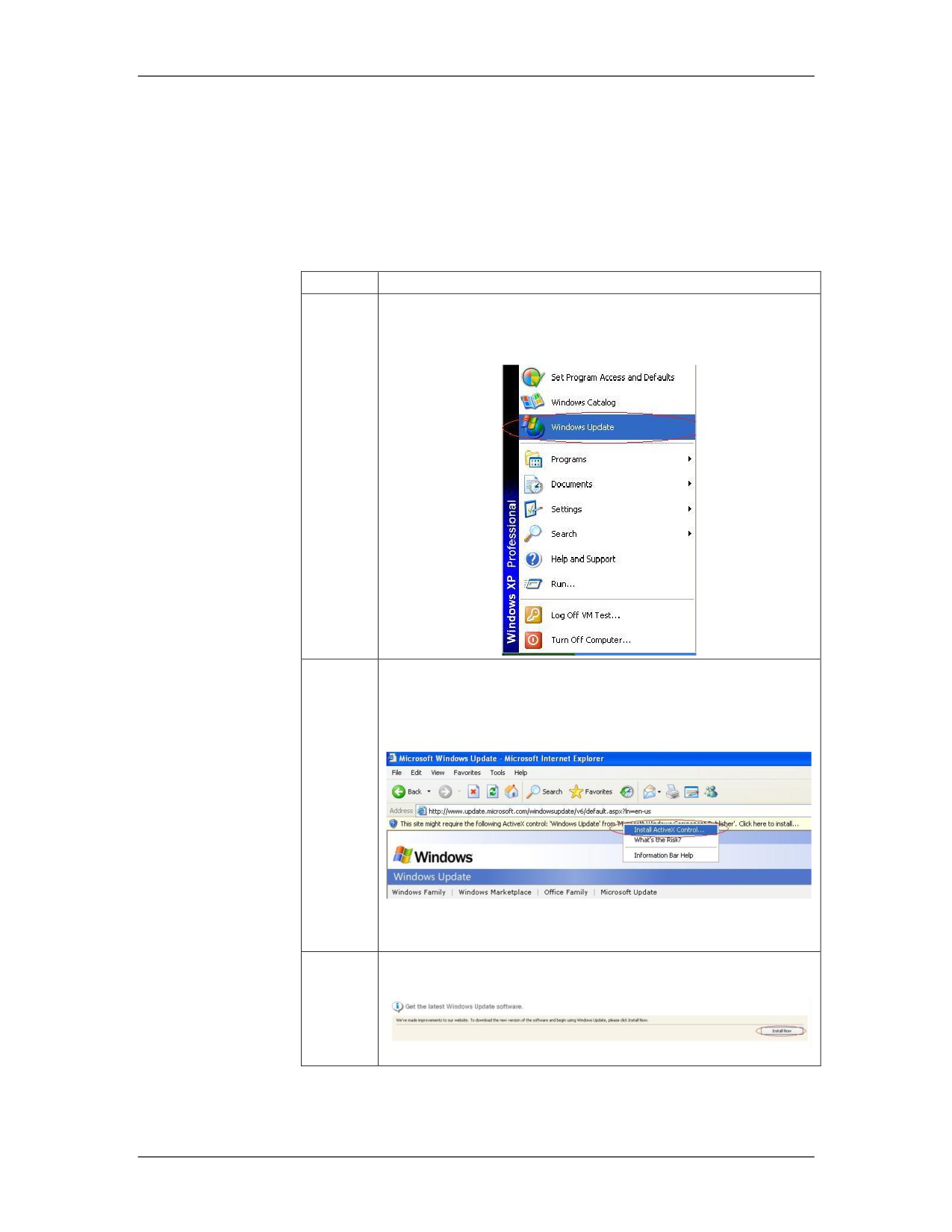
1
Click on the Start Button, and choose Windows Update,
as seen below:
2
The system will check for Internet connectivity. Right
click on the ActiveX Warning and select “Install
ActiveX Control…” as seen below.
Click Install at the Internet Explorer Warning.
3
Click Install Now at get the latest Windows Update
Software screen.
1-12
For Official Use Only - Law Enforcement Sensitive
01/09
Network Intrusion Responder Program
Windows Operating System
Operating System Updates, continued
Procedure: Updating an Operating System, continued
Step
Action
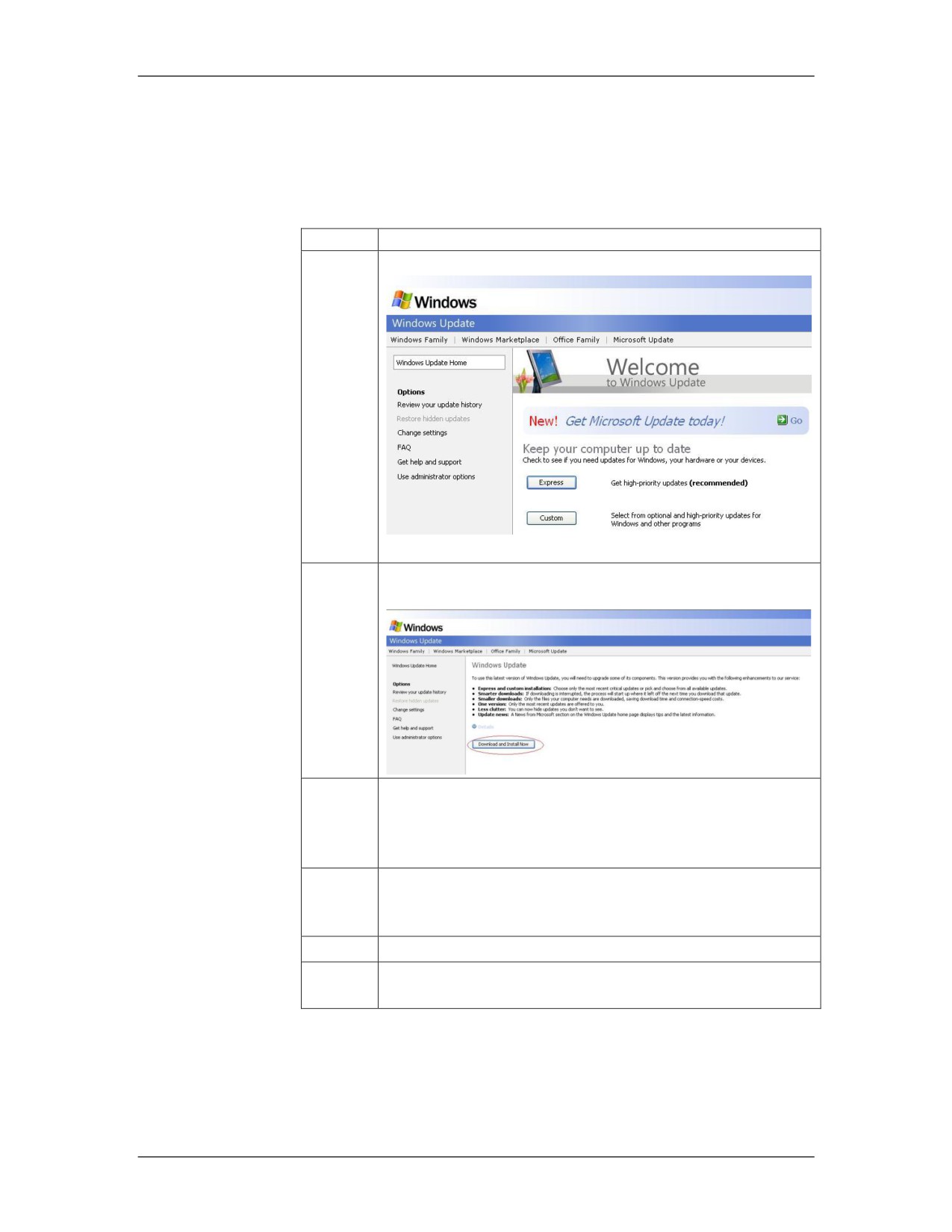
4
At the Express or Custom Screen, select Express.
5
At the Next screen, click Download and Install
Updates Now, as seen below.
6
Click Restart Now after the installation is complete. At
this point, you have not installed any updates, just the
Windows Installer. This application is required to install
the rest of Microsoft‟s updates.
7
Go back to the Windows Update Site to get updates, by
clicking on the Start Button and selecting Windows
Update.
8
Click Express.
9
Click Install Now. Read over the License Agreement
and click I agree if you agree to it.
01/09
For Official Use Only - Law Enforcement Sensitive
1-13
Windows Operating System
Network Intrusion Responder Program
This page intentionally left blank.
1-14
For Official Use Only - Law Enforcement Sensitive
01/09
Network Intrusion Responder Program
Network Connectivity and Protocols
Module 3
Network Connectivity and Protocols
Overview
Previously you learned about the different types of networks as
well as the OSI model that supports data transport between two
end systems. This module introduces the various network
topologies and explains how networks interconnect.
Purpose of this
Networks come in many configurations or topologies. You need to
Module
be able to recognize common network topologies and understand
how they function.
Objectives
After successfully completing this module, you will be able to:
Identify network connection configurations
Name network connection devices and their functions
Recognize connection hardware and describe their
characteristics
Describe different network topologies
In this Module
The following table shows the contents of this module.
Topic
See Page
Lesson 1 - Network Connectivity
3-3
Lesson 2 - Network Configuration Models
3-23
Lesson 3 - Network Protocols
3-27
Lesson 4 - Wireless Networks
3-35
01/09
For Official Use Only - Law Enforcement Sensitive
3-1
Network Connectivity and Protocols
Network Intrusion Responder Program
This page intentionally left blank.
3-2
For Official Use Only - Law Enforcement Sensitive
01/09
Network Intrusion Responder Program
Network Connectivity and Protocols
Lesson 1 - Network Connectivity
Introduction
This lesson identifies the various physical components used to
connect computers and devices within a network environment.
Purpose of this
You will learn how computers and stand-alone devices
Lesson
interconnect to form a network. You will also discover how to
connect clients and servers on a LAN to other networks. An
introduction to wireless networks is also included.
Objectives
After successfully completing this lesson, you will be able to:
Name the various types of transmission cabling used to wire a
network
Identify network interface cards and adapters
Explain how modems work to provide remote access
Identify the various types of wireless media
In this Lesson
The following table shows the contents of this lesson.
Topic
See Page
Network Connectivity
3-4
Network Transmission Media
3-5
Network Devices
3-10
Wireless Media
3-18
01/09
For Official Use Only - Law Enforcement Sensitive
3-3
Network Connectivity and Protocols
Network Intrusion Responder Program
Network Connectivity
Building Network
A network connects stand-alone computers, workstations, printers,
Connections
and other shared resources using many different types of
connection devices. For example, you need at least the following
components to build a LAN:
Network interface cards (NIC) for each computer
Transmission media including cabling and connectors
In order to connect locally to the Internet, the world’s largest
network, you would need:
Modem connected to an Internet Service Provider’s modem
Or a NIC connected to a DSL or cable modem
Or a USB cable modem.
Or a NIC connected to an Optical Network Terminal (ONT)
Phone wire or UTP cabling as appropriate
Network Devices
To connect one network to other networks, you need some
combination of the following devices, which are described in
detail later in this lesson:
Routers to provide transmission pathways between two or
more networks
Hubs to establish a central connection point for several
network devices on the same network
Repeaters to ensure integrity of signals over long distances
Switches to direct traffic through the network more efficiently
than with traditional hubs
Multi access units/multi-station access units (MAUs/MSAUs)
to set up token ring in a star-wired ring topology
Bridges to connect two separate segments of a network
The following sections describe numerous network components
and in which topologies and architectures you are likely to find
them being used.
3-4
For Official Use Only - Law Enforcement Sensitive
01/09
Network Intrusion Responder Program
Network Connectivity and Protocols
Network Transmission Media
Types of Network
Network data transmission is classified two ways: cable and
Transmission
wireless.
Media
With cable, communication travels via electric currents or light
pulses (for fiber optics) through different types of cabling.
Wireless connections use radio waves, microwaves, and light
spectrum energy to transmit data.
Bandwidth
A discussion of network transmission would not be complete
without a description of bandwidth. The capacity of transmission
media is measured in bandwidth. Bandwidth is the amount of data
a communication channel can handle.
The bandwidth of a channel, often referred to as its capacity, is
denoted differently for analog transmissions (phone, radio, and
television communications) and digital transmissions. Analog
transmissions are measured in cycles per second called hertz (Hz).
Digital transmissions are measured bits per second (bps) and the
capacity is called the data transfer rate.
Cabling
Most networks use cabling to connect devices. There are three
main types of cabling used on most networks:
1. Twisted-pair
2. Coaxial
3. Fiber optic
01/09
For Official Use Only - Law Enforcement Sensitive
3-5
Network Connectivity and Protocols
Network Intrusion Responder Program
Network Transmission Media, continued
Attenuation
Before addressing the types of transmission media, it is important
to understand a key point in the limitations of any media.
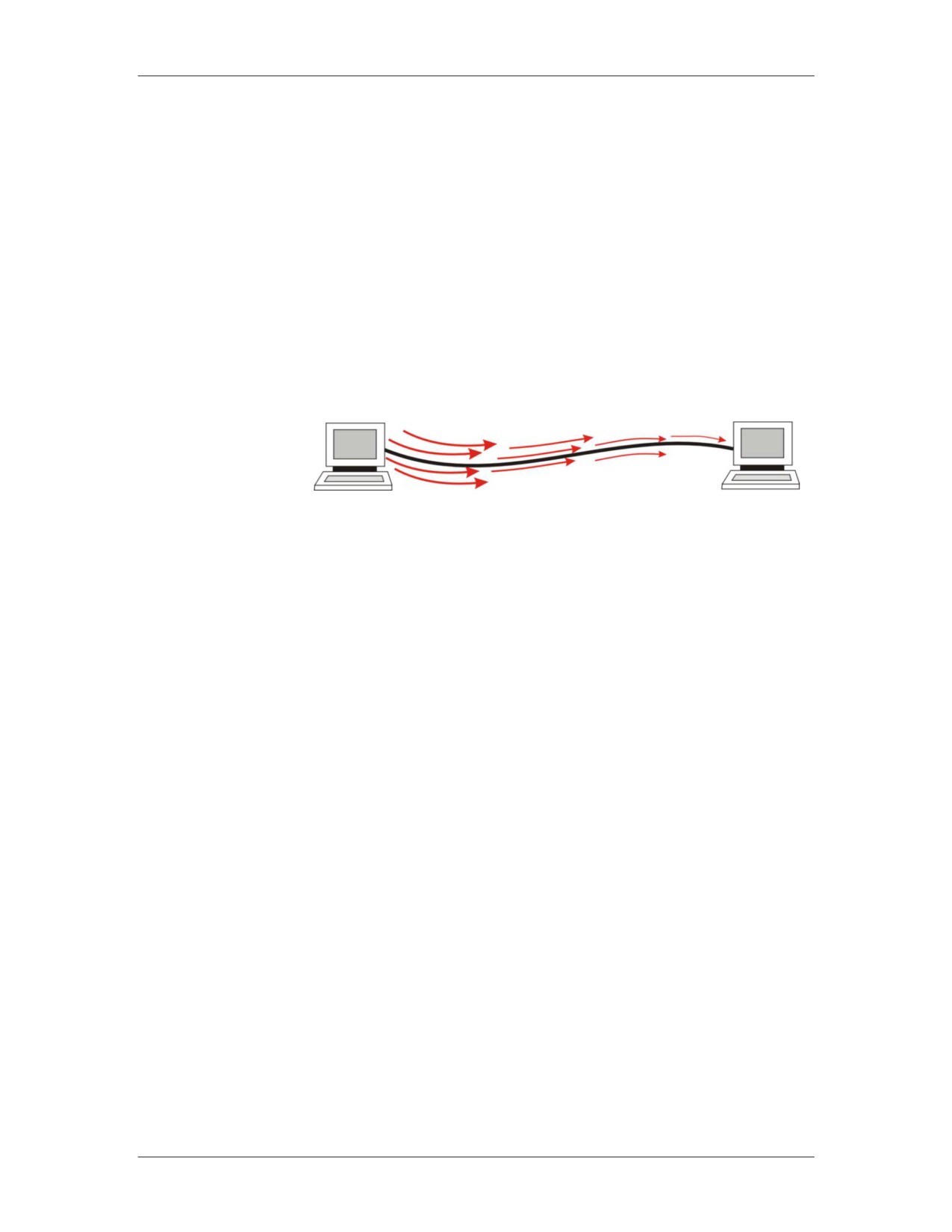
Signals carried over cabling are susceptible to attenuation.
Attenuation is the weakening of signals as they travel away from
their source. This is why there are specific limits to cable
distances. The signal can only travel a limited distance before
becoming indecipherable.
Attenuation
Twisted-pair
Twisted-pair cabling is inexpensive and used extensively with
Cabling
LANs and telephone connections. The cable consists of
individually insulated metal wires that are twisted together and
placed in a plastic encasement. The wires are twisted to prevent
crosstalk, which is noise interference from other wires within the
same cable. The twists also help prevent electromagnetic
interference, or EMI, from nearby electrical or magnetic fields.
There are two types: unshielded twisted-pair (UTP) and shielded
twisted-pair (STP). The shielded cable has an additional internal
shield covering the wires that protects against electromagnetic
interference (EMI). Electromagnetic waves can also be intercepted
allowing for eavesdropping on signals.
Neither STP nor UTP offer the greater distances or more reliable
interference protection of coaxial or fiber optic cables.
Twisted pair cables can be used in any topology, including bus and
ring.
3-6
For Official Use Only - Law Enforcement Sensitive
01/09
Network Intrusion Responder Program
Network Connectivity and Protocols
Network Transmission Media, continued
Categories of
There are several categories of twisted-pair cable. They reduce
Twisted-pair
crosstalk and EMI, but suffer from rapid attenuation and are
Cable
susceptible to eavesdropping. As a result of attenuation, all
unshielded twisted pair cables have a maximum effective distance
of 100 meters.
Cat 3 twisted-pair cable is an older type and supports speeds up
to 10 Mbps. Commonly used in 10baseT Ethernet networks
Cat 5 twisted-pair cable supports speeds up to 100 Mbps.
Commonly used in 100baseX Fast Ethernet networks.
Cat 5e twisted-pair cable supports speeds up to 1 Gbps.
Commonly used in 1000baseX Gigabit Ethernet networks.
Cat 6 twisted-pair cable supports speeds up to 1 Gbps.
Commonly used in 1000baseX Gigabit Ethernet networks.
Connectors
An RJ-45 connector is used on the ends of twisted pair cabling to
connect components in an Ethernet network. It has an eight-wire
modular plug that is similar in appearance to the RJ-11 and RJ-12
(standard phone wire) connectors.
01/09
For Official Use Only - Law Enforcement Sensitive
3-7
Network Connectivity and Protocols
Network Intrusion Responder Program
Network Transmission Media, continued
Coaxial Cable
Coaxial cable offers greater protection against EMI than twist-pair
cabling. Coaxial design has a copper core surrounded by insulation
and then a braided metal shield. A plastic or rubber encasement
comprises the outside layer.
Coaxial cabling is widely used for cable television and computer
networks. The two types used for networks are:
Thinnet coaxial cable: Used with 10base2 Ethernet
Thicknet coaxial cable: Used in 10base5 Ethernet
Other characteristics include the following:
To build a token ring network or bus Ethernet, thinnet is used
to connect one device using a T-connector
Cable must be grounded and terminated
Peak transfer rate is 16 Mbps
Effective range is approximately 185 meters for thinnet and
500 meters for thicknet
Suffers from high attenuation
Coaxial cables can be used in any topology including bus and ring.
Connectors
The BNC connector is the acronym for British Naval Connector,
Bayonet Neill Canceilman, or Bayonet Nut Connector. This type
of connector is used to secure Thinnet coaxial cable and is found
in 10Base2 Ethernet systems.
A BNC connector has a male-type plug found at each end of the
cable. The BNC connector has a center pin connected to the center
cable conductor and a metal sheath connected to the exterior cable
shield. A rotating ring is then used to secure the connection. BNCs
come in T-connectors, barrel connectors, and terminators.
3-8
For Official Use Only - Law Enforcement Sensitive
01/09
Network Intrusion Responder Program
Network Connectivity and Protocols
Network Transmission Media, continued
Fiber Optic Cable
Fiber optic cable uses glass or plastic fibers to transmit data
modulated onto light waves. Each cable contains two strands in
separate jackets. Fibers can be either single-mode allowing only
one transmitted signal, or multi-mode allowing multiple
transmitted signals simultaneously. The diameter of the optic core
of a multi-mode fiber is visibly larger than that of a single mode
fiber. Another notable difference between single-mode and multi-
mode fiber is the distance they can carry a signal. A single-mode
fiber, driven by laser light can carry a signal approximately forty-
three miles without regeneration. The multi-mode fiber is limited
to approximately one and a half miles.
Data does not have to be converted to analog before being
transmitted. Instead, it is sent in its original digital format. Fiber
optic cables offer greater bandwidth; therefore, can carry more
data than metal cables. They are also less susceptible to signal
interference making them a popular choice for LANs or
transoceanic cabling.
Fiber optic cables are much thinner and lighter than wire cables,
but also more fragile to handle and more difficult to cut. One main
disadvantage of fiber optic cables is that they are expensive to
install. Despite the increased cost, phone companies are replacing
old lines with fiber optic cables and many think they will be the
first choice for future communication cabling.
Connectors
Fiber optic cable uses several different types of connectors
depending on the application. The one thing that they have in
common is that the end of the fiber extends past the connector. The
end can be damaged easily; therefore, you should always cap them
when not in use.
Examples of ST (single twist) and SC (single click) fiber optic connectors
01/09
For Official Use Only - Law Enforcement Sensitive
3-9
Network Connectivity and Protocols
Network Intrusion Responder Program
Network Devices
NICs
The NIC is an adapter in a computer that enables the computer to
connect to a network. Each NIC is made for the network type it
will support, such as Ethernet, Token Ring, FDDI, etc. Some cards
are formatted as separate plug-ins to the MB while others are
integrated into the MB. Most cards work with specific cable types.
MAC Address
NICs are manufactured with a hardwired code that is unique to
each card. This code is called the MAC address. The first six
hexadecimal characters of the address represent the manufacturer
of the card, while the last six represent the serial number of the
individual card. When the NIC is installed in a computer or other
device, the MAC address is essentially the computer’s physical
address on a network. The MAC address is used to identify the
right destination for transmitting data packets across a network.
Example: 3F-73-A4-48-D7-8F
Laptop and notebook computers can have a NIC built into the MB
or use a NIC in the form of a PC card. A slot on the side of the
laptop holds the PC card and provides high-speed access to the
processor and memory.
There are several NICs for both Ethernet and Token Ring. NICs
used for FDDI are called Dual Access Stations (DAS) as they
connect the computer to each of two separate token rings.
How NICs Work
When a computer makes a request to communicate with the
network, the OS sends the request to the NIC. The NIC converts
the request into the proper type of data packets to be transmitted
over the network. It then monitors network traffic flow and sends
the packets at the appropriate time when there is an opening.
In addition to preparing and sending packets, the NIC also checks
the MAC addresses of passing network transmissions. If they are
addressed to the computer, the NIC then copies the packet for the
computer. NICs decide whether to read incoming data packets
based on the MAC address. (Data Link Layer 2)
3-10
For Official Use Only - Law Enforcement Sensitive
01/09
Network Intrusion Responder Program
Network Connectivity and Protocols
Network Devices, continued
Modems
Modems handle communication that is transmitted over telephone
lines between computer systems. Most modems have fax
capabilities.
PCs are digital devices and the telephone system is analog. The
modem is the component that converts or modulates the PC’s
digital code to analog so it can be sent over phone cables. Likewise
when receiving information, the modem converts or demodulates
analog signals to digital code before transmitting data to the PC.
The transmission mode takes two separate forms:
Asynchronous Mode: This mode of transmission sends data
intermittently one character at a time. A start bit and a stop bit
frame each character.
Synchronous Mode: This mode of transmission relies on
software to negotiate the protocol used. The blocks of data are
much larger (128 up to 1024 bytes or more) than with
asynchronous mode communications. The receiving modem
must respond with either an acknowledgement (ACK) of
receipt or a negative acknowledgement (NAK).
Modems do not decide whether or not to send the data packets.
They simply make the conversion between analog and digital.
(Physical Layer 1)
01/09
For Official Use Only - Law Enforcement Sensitive
3-11
Network Connectivity and Protocols
Network Intrusion Responder Program
Network Devices, continued
Hubs
A hub contains ports where network computers and devices can
connect with each other. A hub provides a central point of
connection for all network nodes attached to it. The type of
connector needed by each node depends on the network
architecture and cabling used (i.e., Ethernet, Fast Ethernet, etc).
Most hubs are small boxes with multiple ports; however, some
hubs are cards that can plug into a server.
A hub is used to join several nodes together at a single site. Its
main functions are to connect nodes, to organize cabling, and to
transmit signals to anything that is attached to it, including other
segments of the network. The types of hubs are:
1. Passive Broadcast Hub: Broadcasts data packets to every node
on the hub. Performs no signal regeneration.
2. Active Broadcast Hub: Broadcasts data packets to every node
on the hub. Enhances signal transmission by regenerating
signals and filtering noise.
An intelligent hub is essentially an active hub that contains
network management functions that are used to gather information
on network traffic and error detection. Most intelligent hubs allow
you to monitor individual ports and close a port if problems arise.
Hubs do not decide when or where to send data packets. They
simply broadcast the data to all ports. (Physical Layer 1)
Token Ring MAU/MSAU
The Multi-Station Access Unit (MAU/MSAU) is a special device
used to link nodes on token ring networks. The nodes are
connected to the MAU and then data packets are routed in a ring
within the MAU. Using this star-wired ring topology makes it very
easy to add and remove nodes from the network.
MAUs or MSAUs decide where to send data packets and create a
point-to-point connection based on the sending and receiving
node’s MAC addresses. (Data Link Layer 2)
3-12
For Official Use Only - Law Enforcement Sensitive
01/09
Network Intrusion Responder Program
Network Connectivity and Protocols
Network Devices, continued
Repeater
Repeaters combat attenuation by boosting the signal during
transmission.
To boost signals, analog repeaters amplify the signal and digital
repeaters regenerate the signal. These devices can relay signals
between networks that use different types of protocols or cabling.
The difference between an active and a passive hub is that an
active hub also functions as a repeater to regenerate or amplify the
signal.
Repeaters do not decide when to send data. They simply receive
data packets in one port, regenerate or amplify them, and send
them back out the other port. (Physical Layer 1)
Bridge
A bridge is a unit that joins two separate segments of the same
network. It also can be used to divide an overloaded network by
creating separate broadcast (collision) domains. A bridge can also
connect two networks that are dissimilar, such as connecting an
Ethernet with a Token Ring network.
Bridge Example
A bridge decides whether data packets should be sent from one
collision domain, across the bridge, into the second collision
domain, based on the MAC address of the sending and receiving
nodes. If the sending and receiving nodes are on the same segment,
the bridge simply ignores, or drops the packets. (Data Link Layer
2)
01/09
For Official Use Only - Law Enforcement Sensitive
3-13
Network Connectivity and Protocols
Network Intrusion Responder Program
Network Devices, continued
Switches
Switches are devices that meet the demand for faster connections
and more bandwidth in networks. Although switches visibly
resemble hubs, they also help increase the speed of the network by
providing dedicated bandwidth to each port. In contrast, hubs share
the bandwidth among all ports.
A switch functions like a cross between a bridge and a hub.
Switches cut down on the amount of broadcast traffic on the
network segment by switching network packets from the incoming
port and sending them directly to the port for the receiving
computer.
By decreasing the amount of broadcasts on the network, you also
lower the number of collisions on the network segments,
improving overall performance. Like intelligent hubs, switches can
be managed, allowing individual port configuration and
monitoring from across the network.
Switches direct data packets between ports based on sender and
receiver MAC addresses. Switches have the ability to broadcast to
all ports when necessary, but differ from hubs in that they can limit
traffic to the sender and receiver ports without broadcasting.
(Data Link Layer 2)
Token Ring Switches are available that replace the MultiStation
Access Units at speeds of 100/16/4 Mbps.
There are also Layer 3 switches that direct data based on network
addresses, covered later in the Networking module.
3-14
For Official Use Only - Law Enforcement Sensitive
01/09
Network Intrusion Responder Program
Network Connectivity and Protocols
Network Devices, continued
Routers
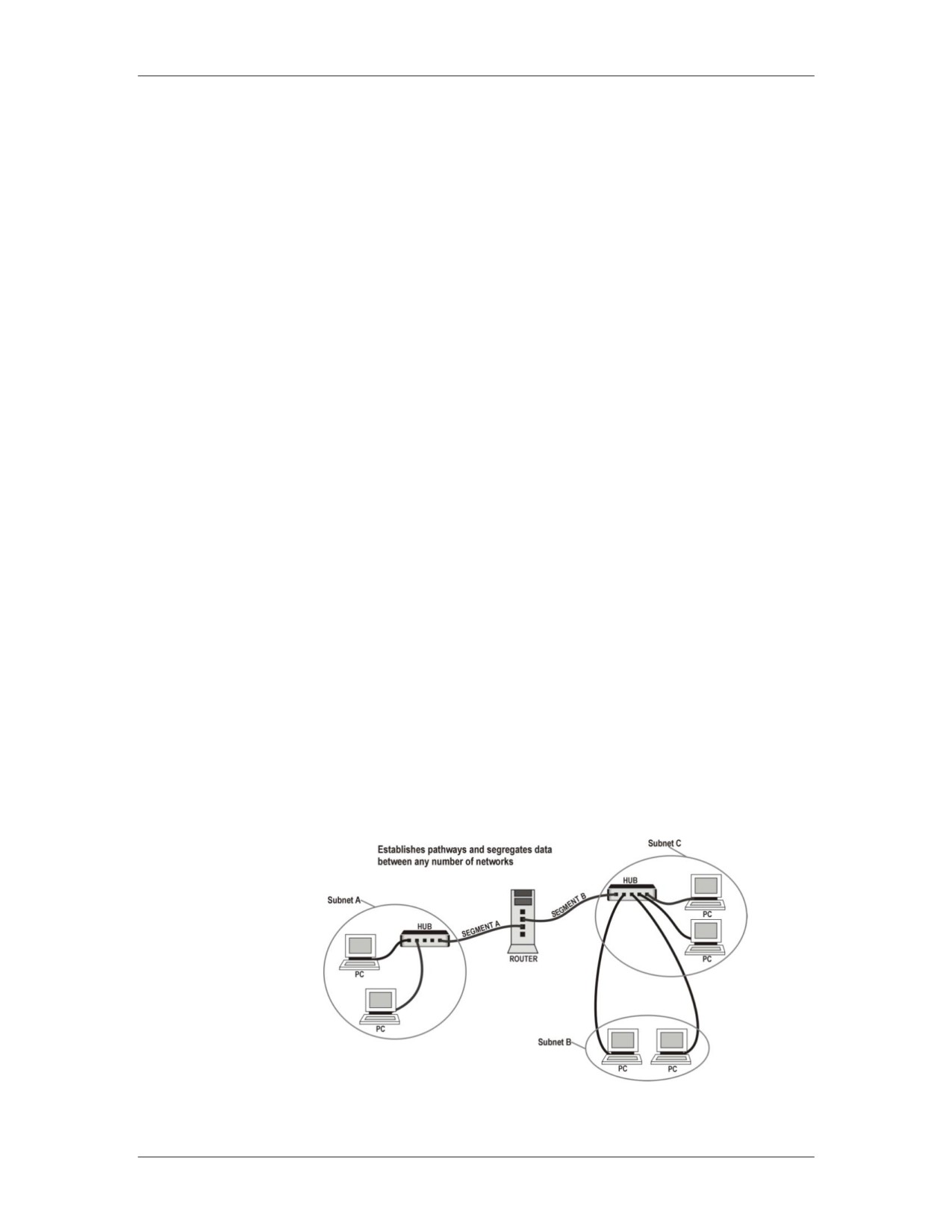
Routers link separate networks or LAN segments and establish
pathways for data packet transmissions. Each network has an IP
network address. The router uses this address to transmit packets
to the correct destination. Other characteristics include the
following:
Transmit data packets across different types of networks
Fragment data packets to fit different frame sizes of various
networks
Can be configured to segregate secure data and prevent it from
being sent to specified networks
Collects and assembles information from remote routers about
network routes. This information is used to identify reliable
pathways.
Does not broadcast data packets
Routers read each data packet looking for the network address
(IP address) to send to. Once it determines the best route to
forward the packet, it replaces the sender’s MAC address with
its own.
Each port on a router is in essence a separate NIC, with its own
unique MAC address. Therefore, as packets move from one
router to another, the MAC address changes from router to
router. The original source and destination IP addresses will
remain the same, regardless of how many routers a packet
encounters.
Router Model
01/09
For Official Use Only - Law Enforcement Sensitive
3-15
Network Connectivity and Protocols
Network Intrusion Responder Program
Network Devices, continued
Routing Activity
Routers on networks exchange information about paths to
computers attached to them through a process known as
convergence. This convergence information is stored in routing
tables, which contain the network portion of the host computer’s
IP address.
Routing assumes that addresses convey at least partial information
about where a host is located. This permits routers to forward
packets without having to rely on a complete listing of all possible
destinations.
Routing involves two basic activities:
Path determination
Switching
Path determination enables a routing protocol to determine the best
direction to route a packet. It is complex because the determination
will differ based on the routing protocol used.
Switching involves the router forwarding the packets
independently through the network. The router forwards the
packets based on the IP address. (Network Layer 3)
If the IP address is not in the router’s routing table, the router will
drop the packet.
3-16
For Official Use Only - Law Enforcement Sensitive
01/09
Network Intrusion Responder Program
Network Connectivity and Protocols
Network Devices, continued
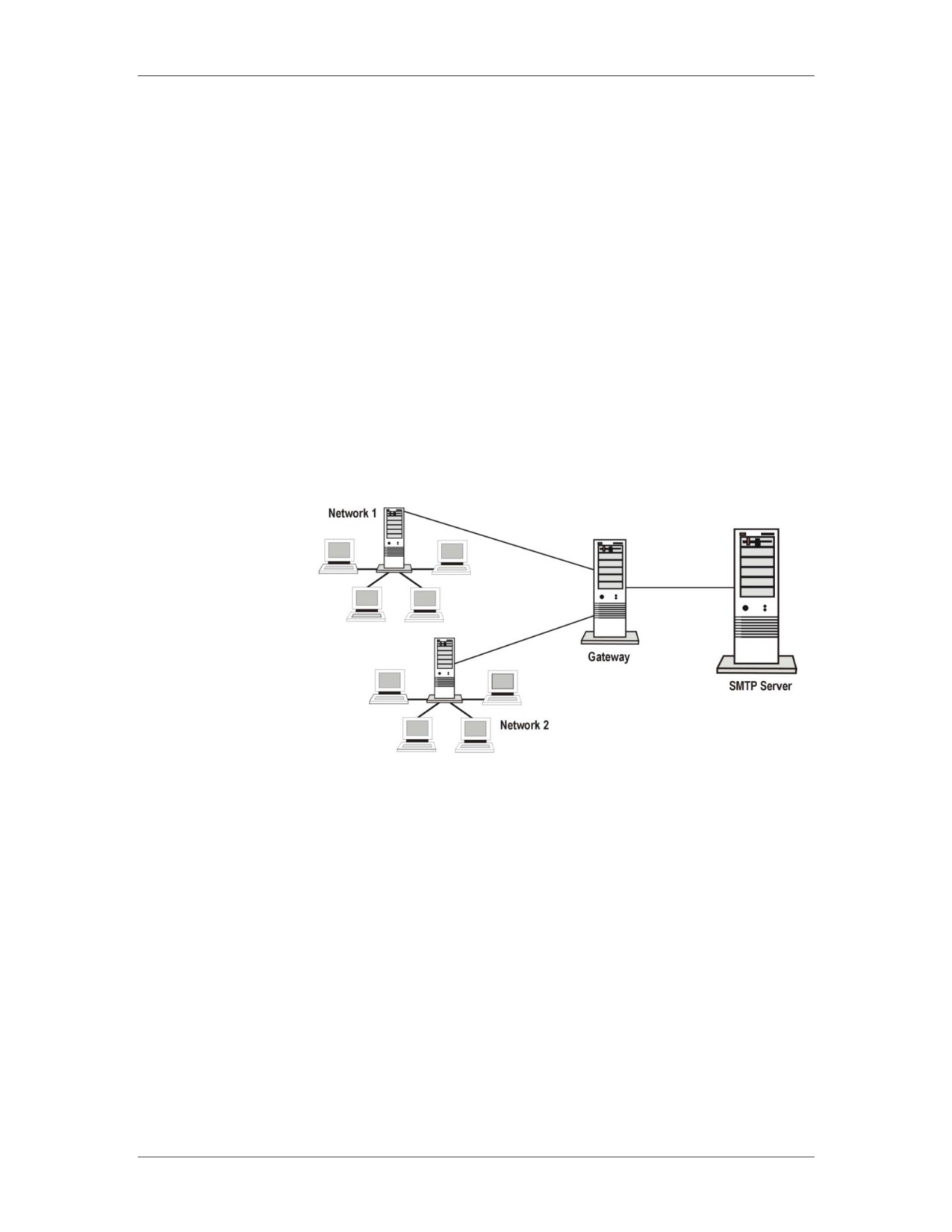
Gateway
A gateway is a server or software program that is the entrance to a
network. For example, a gateway is used to route communications
from a PC to a Web server outside the network.
A gateway can translate different protocols on a network thereby
enhancing the traffic flow. Gateways can also serve as proxy
servers and firewalls.
Gateways have the ability to look at data inside the packets and
perform high-level decisions about that data, beyond simply
looking at a MAC or network address. (OSI Layers 4 - 7)
Gateway Example
Network Device
All of the above hardware can be implemented in Ethernet or
Summary
token ring networks with the exception of hubs and MAUs. Hubs
use broadcast technology and are only used in Ethernet, while
MAUs use point-to-point and are only used in token ring. FDDI
uses an FDDI concentrator, which is similar to a MAU.
Much of the hardware above is used to divide a network into
manageable segments. The main difference between them is their
basis for passing data on to other devices, or at which layer of the
OSI model they function. For example, a hub automatically
broadcasts all packets to all nodes, whereas a switch reads the
packet header for a valid MAC address and only forwards data to
the port associated with that address.
01/09
For Official Use Only - Law Enforcement Sensitive
3-17
Network Connectivity and Protocols
Network Intrusion Responder Program
Wireless Media
Wireless Media
Wireless technology offers data communications between two or
Defined
more computers without the use of traditional network wire or
cabling. Data is transmitted over frequencies in the air rather than
through a cable. The IEEE 802.11 standard defines all aspects of
radio frequency wireless networking.
The two types of wireless systems are the following:
1. Fixed wireless describes computing devices or networks that
are in fixed locations, such as in a building, office, or home.
These devices rely on electrical power.
2. Mobile wireless refers to portable computing devices, such as
cell phones, PDAs, and wireless notebooks that use battery
power and can transmit and receive from any location.
How Wireless
Wireless Access Points (WAPs), or base stations, are the devices
Communication
clients use to connect to a wireless network. Wireless devices
Works
transmit and receive signals without electrical or optical
conductors. Wireless communication uses the Earth’s atmosphere
as the physical data path.
Wireless networking uses the technology in radio frequency (RF)
transmissions to send network packets across airwaves. Typical
indoor ranges are 150-300 feet and outdoor ranges are quoted up to
1,000 feet.
RF technology is used in both LANs and WANs. For transmission,
laptop computers have transceivers in PC-card slots that first
connect to a wireless access point (WAP) and then to the wired
network. Desktop PCs use either an ISA/PCI wireless or USB
transceiver. Data transfer speeds can be slower than wired
connections.
3-18
For Official Use Only - Law Enforcement Sensitive
01/09

Network Intrusion Responder Program
Network Connectivity and Protocols
Wireless Media, continued
Wireless LAN
A wireless LAN, called a WLAN, transmits over the air and does
not require arranging devices for line of sight transmission. In a
WLAN, WAPs are connected to an Ethernet hub or server. These
send radio frequency signals through walls over an area up to a
thousand feet.
Desktop PCs send and receive transmissions via an ISA or PCI
card. Laptops use PC cards or wireless modems that connect to an
Ethernet port.
Wireless Signals
Wireless signals operate at a frequency rate that is gauged by the
number of oscillations per time unit a signal makes. The faster the
cycle rate the higher the frequency as shown in the following
illustration. High frequency has more oscillations per second than
low frequency.
Wireless signal frequencies are measured in hertz (Hz) and most
current wireless communications involve megahertz (MHz) and
gigahertz (GHz). These higher hertz rates mean greater bandwidth
and more data capacity.
Types of Wireless Signals
Current wireless technology employs the following methods for
transmitting signals:
Radio frequency (RF) signals
Microwaves
Infrared signals
01/09
For Official Use Only - Law Enforcement Sensitive
3-19
Network Connectivity and Protocols
Network Intrusion Responder Program
Wireless Media, continued
Radio Frequency The majority of wireless communication is transmitted over radio
frequency. RF bands used widely today include:
High Frequency (HF): 3 - 30 MHz
Very High Frequency (VHF): 30 - 300 MHz
Ultra High Frequency (UHF): 300 MHz - 3 GHz
Super High Frequency (SHF): 3 GHz - 30 GHz
The types of devices that use RFs between 10KHz and 1GHz
include short wave radio, VHF television, FM radio, and UHF
radio and television.
Types of RFs
Wireless communications rely on three types of RFs.
RF
Characteristics
Low Power,
Used to carry signals short distances. This method
Single-
is susceptible to massive attenuation and
Frequency
vulnerable to eavesdropping.
High-Power,
Used over long distances. They can resist
Single-
attenuation, but are vulnerable to eavesdropping.
Frequency
Spread
Uses multiple frequencies simultaneously and
Spectrum
continuously to change signal patterns. This
change of frequencies makes this method less
susceptible to illegal monitoring. There are two
types of spread spectrum RFs:
Direct Sequence Modulation: Transmits
encoded data and white noise across a subnet
of radio frequencies. It is the most common RF
used.
Frequency Hopping: Switches between pre-
established frequencies several times per
second.
3-20
For Official Use Only - Law Enforcement Sensitive
01/09
Network Intrusion Responder Program
Network Connectivity and Protocols
Wireless Media, continued
Microwave
Microwaves are electromagnetic waves that use the same
Wireless Media
frequencies as RFs. There are two basic forms of microwave
communication. Both are susceptible to weather conditions,
jamming frequencies, eavesdropping, and latency.
Terrestrial: Sends data over land such as for line-of-sight
transmissions between buildings
Satellite: Sends data across great distances via satellites
Infrared Wireless Infrared transmissions use optical transceivers to communicate
Media
between transmitter and receiver. They operate using line-of-sight
or reflection and require an unobstructed pathway between
devices. The two categories of infrared media are as follows:
Point-to-Point Infrared: Uses tightly focused beams directed at
specific receiver (s) such as one computer transmitting to
another within the same area.
Broadcast Infrared: Signals are diffused over a wide area to a
number of receivers such as data sent to several computers
within a room. Data transfer is slow.
01/09
For Official Use Only - Law Enforcement Sensitive
3-21
Network Connectivity and Protocols
Network Intrusion Responder Program
This page intentionally left blank.
3-22
For Official Use Only - Law Enforcement Sensitive
01/09
Network Intrusion Responder Program
Network Connectivity and Protocols
Lesson 2 - Network Configuration Models
Introduction
The network configuration models presented in this lesson include
client/server network, server/server network, peer-to-peer network,
server-centric network, enterprise network, and remote access
service (RAS) network.
Purpose of this
You will learn to recognize common network configurations. This
Lesson
information will be helpful for computer crime investigations
involving networks.
Objectives
After successfully completing this lesson, you will be able to:
Identify the six main network configurations
Describe the key characteristics of each network configuration
Explain how remote access service networks function
In this Lesson
The following table shows the contents of this lesson.
Topic
See Page
Introduction to Network Models
3-24
01/09
For Official Use Only - Law Enforcement Sensitive
3-23
Network Connectivity and Protocols
Network Intrusion Responder Program
Introduction to Network Models
Introduction
Network models are determined by the size and needs of the
organizations they support. The following network models will be
defined in this lesson:
Peer-to-peer network
Client/server network
Server-centric network, which includes:
Enterprise network
Server/server network
Remote access service (RAS) network
Peer-to-Peer
The peer-to-peer network model links computers and has them
Network Model
function as both workstations and as servers to share resources.
Each PC can act as a server for other linked PCs. They can share
drives, printers, and other common devices while running
applications.
A peer-to-peer network is easy to set up and is often found in small
offices. Limited user security can be configured to include
password access. However, it is not ideal for a large network
where a server-based network can provide more security.
3-24
For Official Use Only - Law Enforcement Sensitive
01/09
Network Intrusion Responder Program
Network Connectivity and Protocols
Introduction to Network Models, continued
Client/Server
In a client/server network, individual workstations send requests to
Network Model
a central server and the server provides all resources. This
separation of duties makes for a powerful system that offers the
following:
Fast processing time for running applications
Increased disk space for sharing files
Network security including mandatory user login to access
network resources
This model has advantages over the peer-to-peer network. First, it
provides a more organized system where files are easier to locate.
Second, it has better security features because all user login files
are stored in one location on the server.
As a network grows, the need for security increases. In the
client/server model, every user has a user profile that includes a
login name and password. These encrypted files are stored on the
server and are accessed each time users log onto their
workstations. User validation must occur before network access is
granted.
Server-centric
In the server-centric network, each server has defined roles and
Network Model
offers access to specific shared resources. To handle requests from
users on this network, each server requires user login
authentication before processing the request.
Enterprise
An enterprise network connects all departmental and individual
Network Model
networks throughout an organization into one network. This
configuration allows users to exchange and access files and
resources across the organization.
It integrates all systems types. Therefore, Windows PCs, Apple
Macintoshes, UNIX, and mainframes can be linked in an
enterprise network. This interconnectivity is achieved with the
Internet protocol TCP/IP and other Web technologies.
A designated server maintains system security. Users login once
for access across the network.
01/09
For Official Use Only - Law Enforcement Sensitive
3-25
Network Connectivity and Protocols
Network Intrusion Responder Program
Introduction to Network Models, continued
Server/Server
In the server/server network, one server provides services to other
Network Model
servers in the network. The types of services provided include
domain name service (DNS) address resolution and dynamic host
configuration protocol (DHCP) IP address request and issue.
Remote Access
Remote Access Service (RAS) enables users to access the network
Service
from any outside location by using a modem or an Internet
connection.
3-26
For Official Use Only - Law Enforcement Sensitive
01/09
Network Intrusion Responder Program
Network Connectivity and Protocols
Lesson 3 - Network Protocols
Introduction
Network protocols are guidelines that define how computers
transmit and receive data. These rules for transmission follow the
guidelines established by the OSI model. Protocols ensure that all
devices attempting to communicate on a network are following the
same rules. In this lesson, you will explore commonly used
protocols.
Purpose of this
Gaining an understanding of the role of network protocols is
Lesson
essential to knowing how devices communicate across networks.
Objectives
After successfully completing this lesson, you will be able to:
Define network protocol
Describe the characteristics of TCP/IP, IPX/SPX, NetBEUI,
PPP, and PPTP
In this Lesson
The following table shows the contents of this lesson.
Topic
See Page
Protocols
3-28
TCP/IP
3-29
Other Protocols
3-32
01/09
For Official Use Only - Law Enforcement Sensitive
3-27
Network Connectivity and Protocols
Network Intrusion Responder Program
Protocols
Introduction
Protocols define the rules for transmitting data between computers
or other devices. Protocols determine the size of the data packets,
what type of information is included in each packet, and what
actions take place if the communication does not reach its
destination. Protocol guidelines:
Provide data compression, when necessary
Determine the process to begin and to end a communication
Govern message routes and data speeds
Provide error checking procedures to ensure error-free message
delivery
Offer translation services for different types of computers and
networks
Protocols vary depending on the network’s environment. Those
explained in this lesson include:
TCP/IP
IPX/SPX
NetBEUI/NetBIOS
PPP/PPTP
3-28
For Official Use Only - Law Enforcement Sensitive
01/09
Network Intrusion Responder Program
Network Connectivity and Protocols
TCP/IP
Introduction to
Transmission Control Protocol/Internet Protocol (TCP/IP) is
TCP/IP
considered the standard protocol for the Internet. While the
TCP/IP protocol can be used for internal networks without Internet
access, TCP/IP must be used for a device to gain Internet access.
TCP/IP is a suite of communications protocols governing how data
travels between devices and networks throughout the Internet.
Developed in 1969 to interconnect networks of research agencies
around the country, TCP/IP was designed to work on all network
topologies and to communicate over fiber optics, twisted-pair, or
coaxial cable.
Within TCP/IP, the TCP functions (Transport Layer 4) are:
Divide data into manageable packet sizes
Reassembles data at destination
Verifies packet arrival at destination
Within TCP/IP, the IP functions (Network Layer 3) are:
Defines how much data can be carried by each packet
Packages and addresses the data to be sent
Enables various types of networks to read and route data
packets
01/09
For Official Use Only - Law Enforcement Sensitive
3-29
Network Connectivity and Protocols
Network Intrusion Responder Program
TCP/IP, continued
TCP/IP Message
TCP/IP is a routable protocol and enables computers on different
Routing
networks to communicate as if they were on the same network.
The IP part of this protocol provides the routing capability.
When a message is sent, it is divided into packets. Every client and
server in TCP/IP network has a unique IP address. Therefore, each
packet carries the IP addresses of both the source and destination
computer. TCP/IP determines the right travel path between the two
computers and then transmits the packets. When a packet reaches
its destination, a confirmation is sent to the source computer. This
confirmation is why TCP/IP is considered to be so reliable.
During the packets’ journey, TCP/IP employs its suite of protocols
to enable different types of networks to exchange data. The
protocols that are part of this suite include the following:
Simple Mail Transfer Protocol (SMTP) - Used to send email
between hosts on the network
File Transfer Protocol (FTP) - Used to transfer files over the
network
Simple Network Management Protocol (SNMP) - Used to
monitor network activities
Telnet - Allows a user to log onto a remote computer and run a
program
Domain Name Service (DNS) - Matches domain names of
host computers with their corresponding IP addresses
3-30
For Official Use Only - Law Enforcement Sensitive
01/09

Network Intrusion Responder Program
Network Connectivity and Protocols
TCP/IP, continued
TCP/IP Model
The TCP/IP model consists of four layers:
1. Application layer
2. Transport layer
3. Network layer
4. Link layer
Encapsulation is a TCP/IP process for handling data packets. As
data travel down the TCP/IP model when a network device
transmits packets, each layer of the TCP/IP model adds leading
information, or headers.
De-capsulation is the process of removing the headers as the data
travels up the TCP/IP model on the receiving network device.
TCP/IP vs. OSI
When comparing the two, OSI is considered to be a conceptual
Model
model of how communications should flow from one network to
another. It provides a standard for other protocols to use.
On the other hand, TCP/IP represents the actual implementation of
how internetwork communications occur. In the TCP/IP Model,
the Application layer absorbs the functions of OSI’s Presentation
and Session layers. The functions of the Data Link and Physical
layers are combined. The following illustration shows how the
layers of both TCP/IP and OSI model compare to each other.
TCP/IP
OSI
Application Layer
Application Layer
Presentation Layer
Session Layer
Transport Layer
Transport Layer
Network Layer
Network Layer
Link Layer
Data Link Layer
Physical Layer
01/09
For Official Use Only - Law Enforcement Sensitive
3-31
Network Connectivity and Protocols
Network Intrusion Responder Program
Other Protocols
IPX/SPX Protocol Internetwork Packet Exchange (IPX) and its related protocol
Sequenced Packet Exchange (SPX) are internetworking protocols
for Novell Netware. Both are easy to configure for small networks
and are compatible with other network operating systems.
IPX is a connectionless network protocol that operates on the
network layer. With it, data packets are sent without any prior
knowledge of the current state of the recipient system. Therefore,
packet delivery cannot be guaranteed.
SPX, on the other hand, is a connection-oriented protocol that
ensures the proper delivery of packets by establishing a virtual
connection between sender and receiver before packets are sent.
Therefore, SPX guarantees delivery of packets and provides error
correction and packet sequencing.
NetBIOS and
NetBIOS is the standard networking protocol for Windows
NetBEUI Protocol
networks. NetBIOS provides a programming interface for
applications on the Session layer. It is also combined with
NetBIOS Extended User Interface (NetBEUI), which serves as the
default transport protocol for Windows networks.
Each computer on a NetBEUI network has a unique NetBIOS
name (no more than 15 characters). NetBEUI is non-routable;
therefore, it cannot pass data through the router to leave the
connected LAN. It broadcasts many packets which makes it
difficult to scale. For these reasons, it is best suited for small
LANs because it is easy to configure with low overhead. NetBEUI
is fast and self-tuning.
3-32
For Official Use Only - Law Enforcement Sensitive
01/09
Network Intrusion Responder Program
Network Connectivity and Protocols
Other Protocols, continued
PPP and PPTP
Point-to-Point protocol (PPP) is designed for simple links between
Protocols
two peers. It offers full-duplex operation to both peers and packets
are delivered in order (circuit-switched).
In addition, PPP is used to link a PC to the Internet. It creates the
session between the PC and the ISP. PPP works well with many
protocols including IPX.
Point-to-Point Tunneling protocol (PPTP) enables other protocols
to transmit over an IP network. For example, it is used to
encapsulate NetWare IPX packets and send them over the Internet.
It is also used to carry TCP/IP, IPX/SPX, and NetBEUI traffic.
01/09
For Official Use Only - Law Enforcement Sensitive
3-33