SUBARU STARLINK. Quick Reference Guide (2017)
Table of Contents
2
Controls
3
Bluetooth Basics
4-8
Hands-free Calling —
SUBARU STARLINK™
6.2" Multimedia
• Pairing Your Cell Phone and Calling
9-13
Hands-free Calling —
SUBARU STARLINK™
7.0" Multimedia Plus and
7.0" Multimedia Navigation
• Pairing Your Cell Phone and Calling
14-23
Navigation —
SUBARU STARLINK™
7.0" Multimedia Navigation
• Safety
• Introduction
• Finding an Address
• Finding a Point of Interest
• Setting HOME
24
SUBARU STARLINK™
Safety and Security System
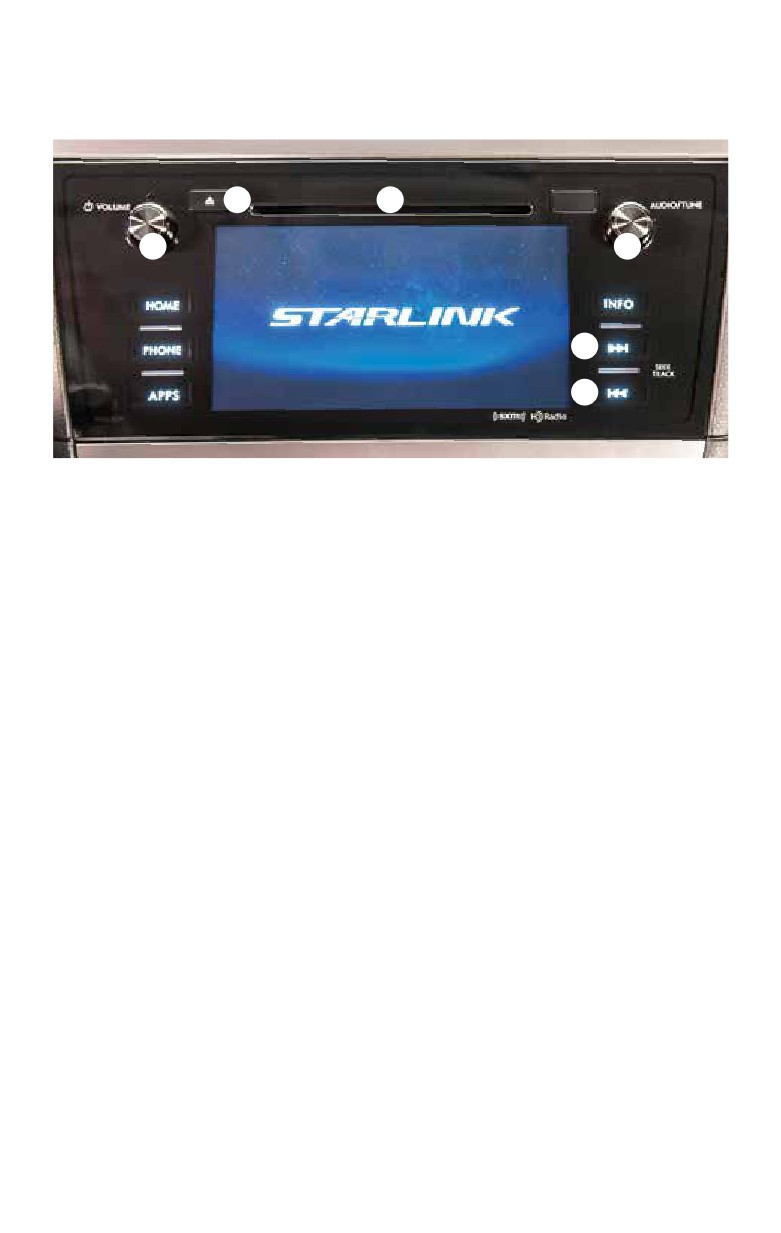
Controls
5
4
1
2
3
6
SUBARU STARLINK™
NOTE: This section only covers the buttons
3. Seek
on the STARLINK system faceplate. Your
Press to select the next or previous
vehicle has one of the systems listed below:
radio frequency.
• 6.2" Multimedia
CD Player Functions
• 7.0" Multimedia Plus
• 7.0" Multimedia Navigation
4. Load
Though they appear slightly different, these
Insert a disc into the slot. The CD will
buttons work the same for all three systems.
automatically be drawn in and will begin
play at the first track.
Radio Functions
5. Eject
1. Power/Volume Control
Press the button to eject the disc.
Press the power/volume control knob
for on or off; rotate the knob to control
6. Track
the volume.
Press to select the next or
previous track.
2. Audio Source
Press the “AUDIO” button to display the
*For more detailed information, please refer
audio screen. Touch the audio source
to the Owner’s Manual or the Navigation
you want to hear. When there are two
System Owner’s Manual.
pages, use the arrows to change
the page.
Sound Settings
While in an audio operations screen,
touch the “Sound” key. You will be able
to adjust EQ and sound position.
2
Bluetooth Basics
• The hands-free system may not operate
that is used. Note that operation of
properly under the following conditions:
the cell phone may be necessary if the
call is continued on the cell phone.
o The cell phone is turned off.
• Do not speak at the same time as
o The cell phone is not connected
the other party during a call. If you
to the hands-free system.
and the other party speak at the
o The cell phone is not in
same time, it may be difficult for
the phone call area.
the other party to hear your voice
o The battery of the cell
and vice versa. This is normal.
phone has run down.
• The receiver sound volume should
o The cell phone is behind the
be set as low as possible. Otherwise,
seat or in the glove box.
the party you are calling may notice
o A metal material covers or
an undesirable echo sound.
touches the cell phone.
• Speak clearly and loudly.
• Depending on the type of cell
• Your voice may be difficult to
phone that is used, not all phones
hear by the receiving party under
and phone functions may be
the following conditions:
compatible with your vehicle.
o Driving on a rough road.
• Depending on the type of cell
o Driving at a high speed.
phone that is used, the screen
on the cell phone may remain
o Driving with a window open.
illuminated while the ignition switch
o When air from the ventilator blows
is in the “ON” position. If this occurs,
directly toward the microphone.
consult your cell phone manual to
o When the sound coming
adjust the cell phone settings.
from the ventilator is loud.
• Depending on the setting of the cell
o When the cell phone is
phone, the dial lock function may
positioned too closely to the
be activated after making a call.
vehicle system microphone.
Deactivate the automatic dial lock
• The sound quality may degrade
function of the cell phone before
using the hands-free system. Do not
due to the quality and operation of
the cell phone that is connected
perform this operation while driving.
to the system or the strength
• Depending on the type of cell phone
of the Bluetooth network.
that is used, not all phone functions
• When another Bluetooth device is
may be compatible with your vehicle.
simultaneously connected, noise
• When the ignition switch is turned
may be heard in the voice coming
to the “LOCK/OFF” position during
from the hands-free phone.
a call, the call may be disconnected
or continued on the cell phone,
*For compatibility visit
depending on the type of cell phone
3
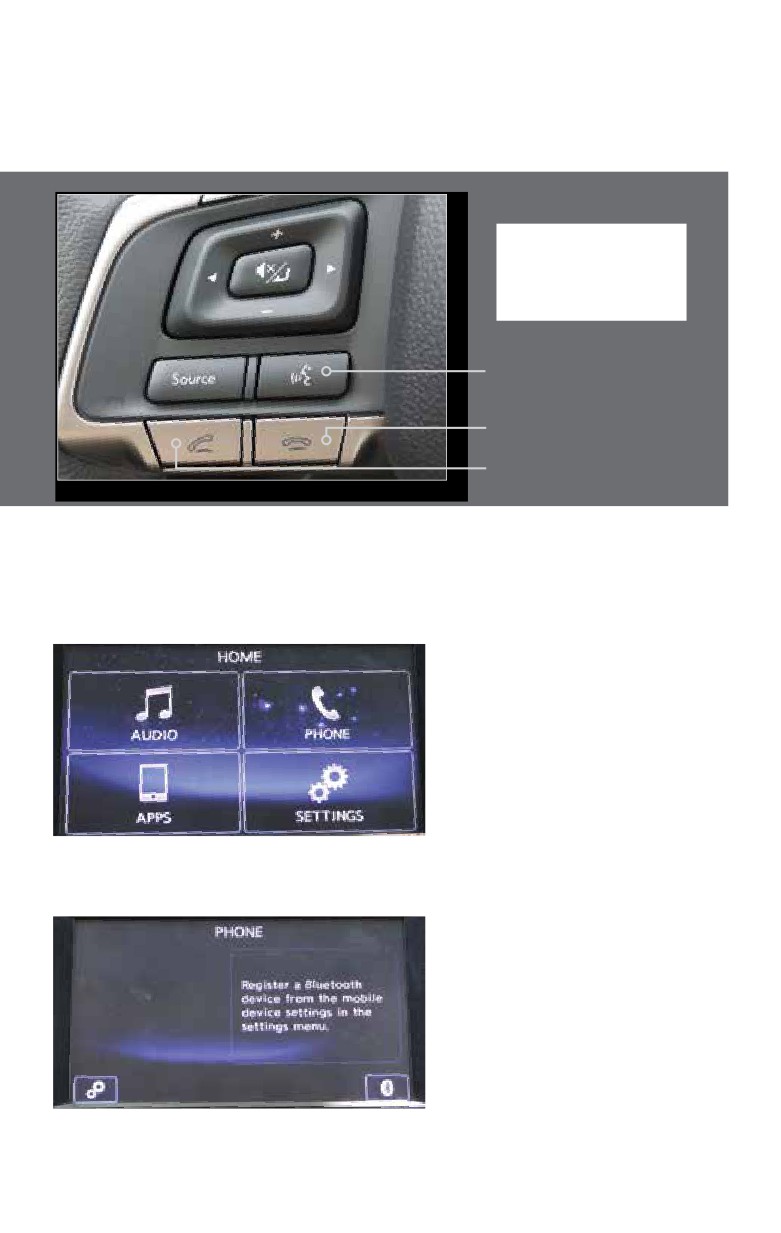
Hands-free Calling —
6.2" Multimedia
IMPORTANT:
These buttons will be
referenced throughout
this guide.
talk button
phone on hook button
phone off hook button
Pairing Your Cell Phone
Press the home button located on the left side of the audio system panel, then
touch the “PHONE” soft key on the touch screen.
Touch the “Bluetooth” soft key at the lower right-hand corner of the screen.
4
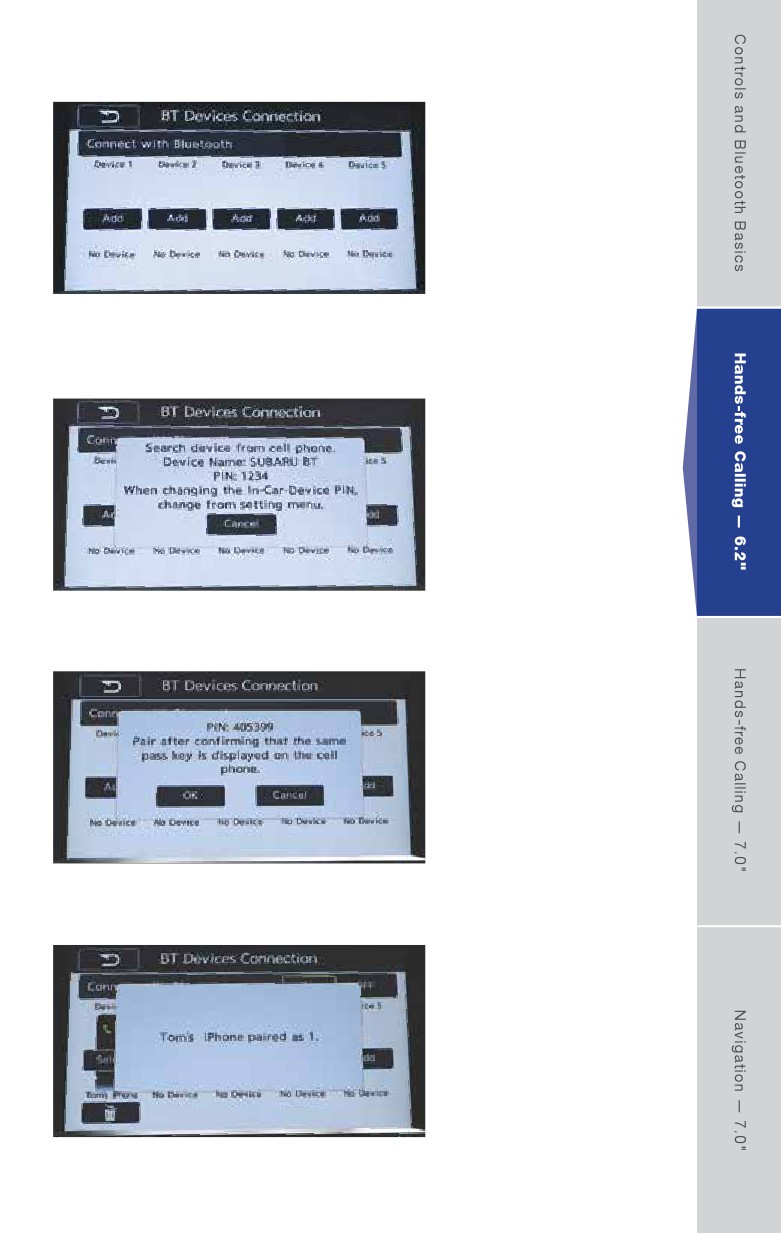
For pairing the first phone under “Device 1,” touch the “Add” soft key.
The system will wait for a connection request from your phone.
Touch the “OK” soft key.
The screen will confirm when pairing is complete.
5
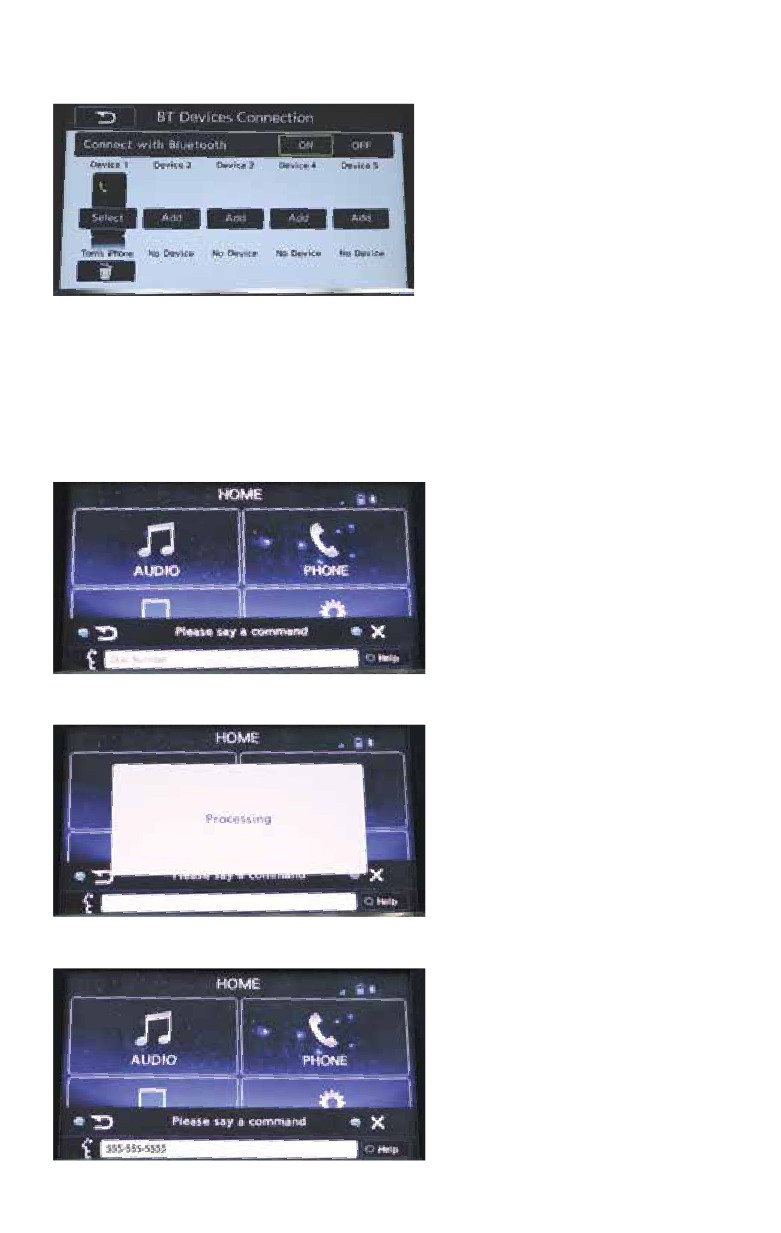
Your phone now appears in the connection screen.
Making a Call
NOTE: This system is designed primarily for voice command operation. However, manual
input is also recognized.
For voice command operation, follow the steps below:
Press the talk button, then say, “Dial number.”
The system will process the command.
Say the phone number.
6
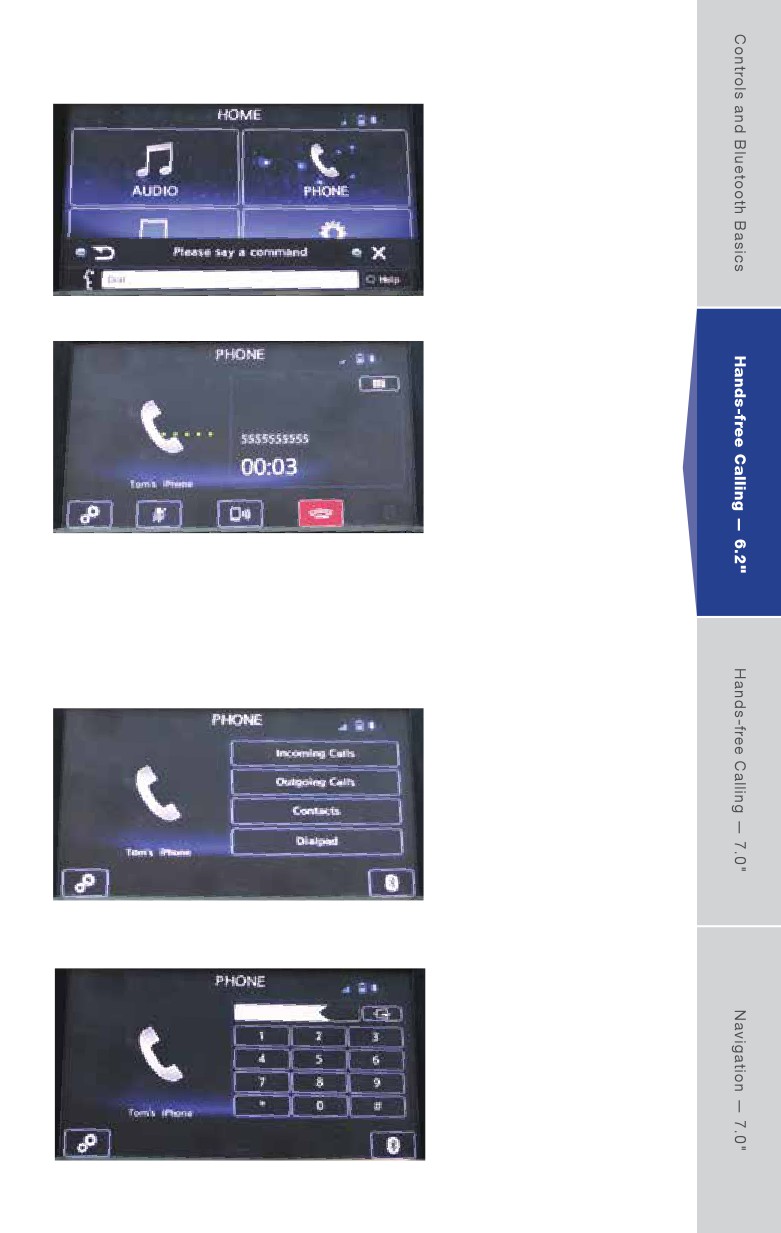
Say, “Dial.”
The system will place the call.
To end the call, press the phone on hook button or touch the red “phone on hook”
soft key. For more information on voice command operation, please consult the
vehicle Owner’s Manual.
For manual input operation, follow the steps below:
Press the home button on the audio system panel, then touch the “Phone” soft key
on the touch screen. Select the desired tab to call from, then select the number.
If you select “Dialpad,” type the number you want to call.
NOTE: For safety, this operation cannot be performed while driving.
7
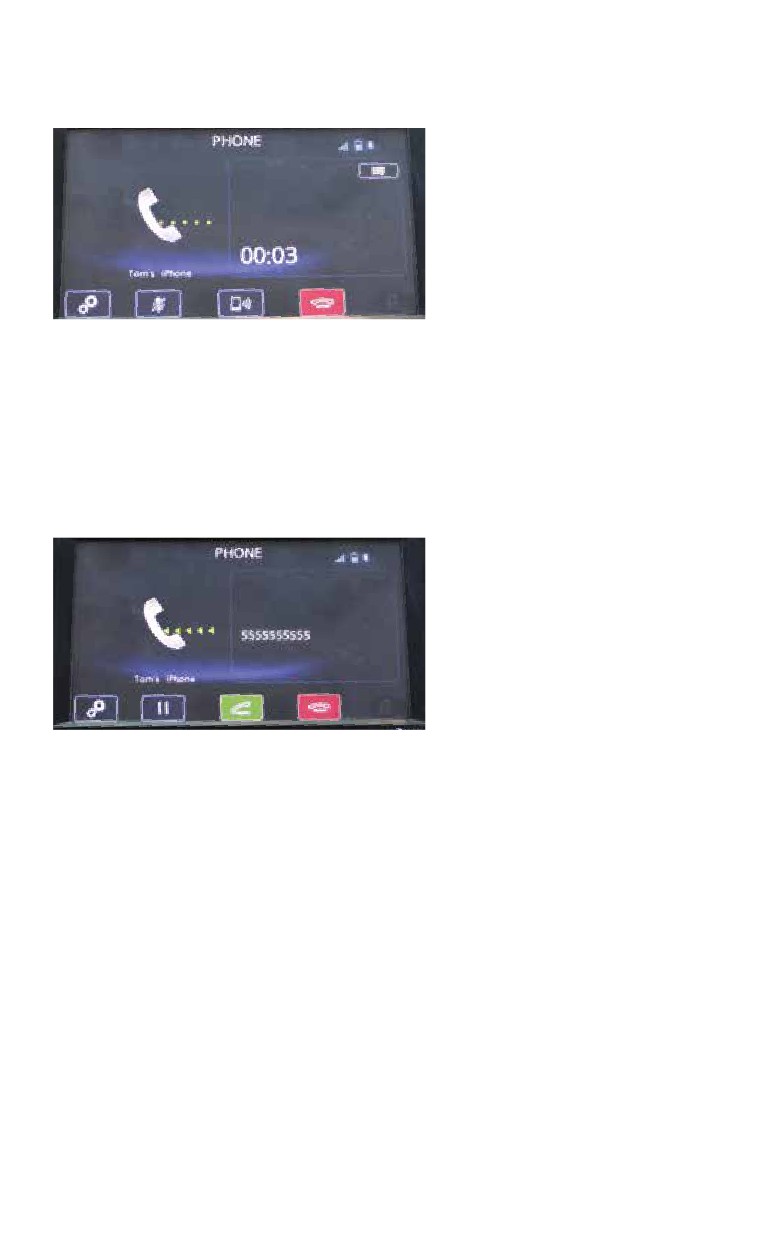
Press the phone off hook button or the green “phone off hook” soft key.
The system will place the call.
To end the call, press the phone on hook button or touch the red “phone on hook” soft key.
For more information on manual operation, please consult the vehicle Owner’s Manual.
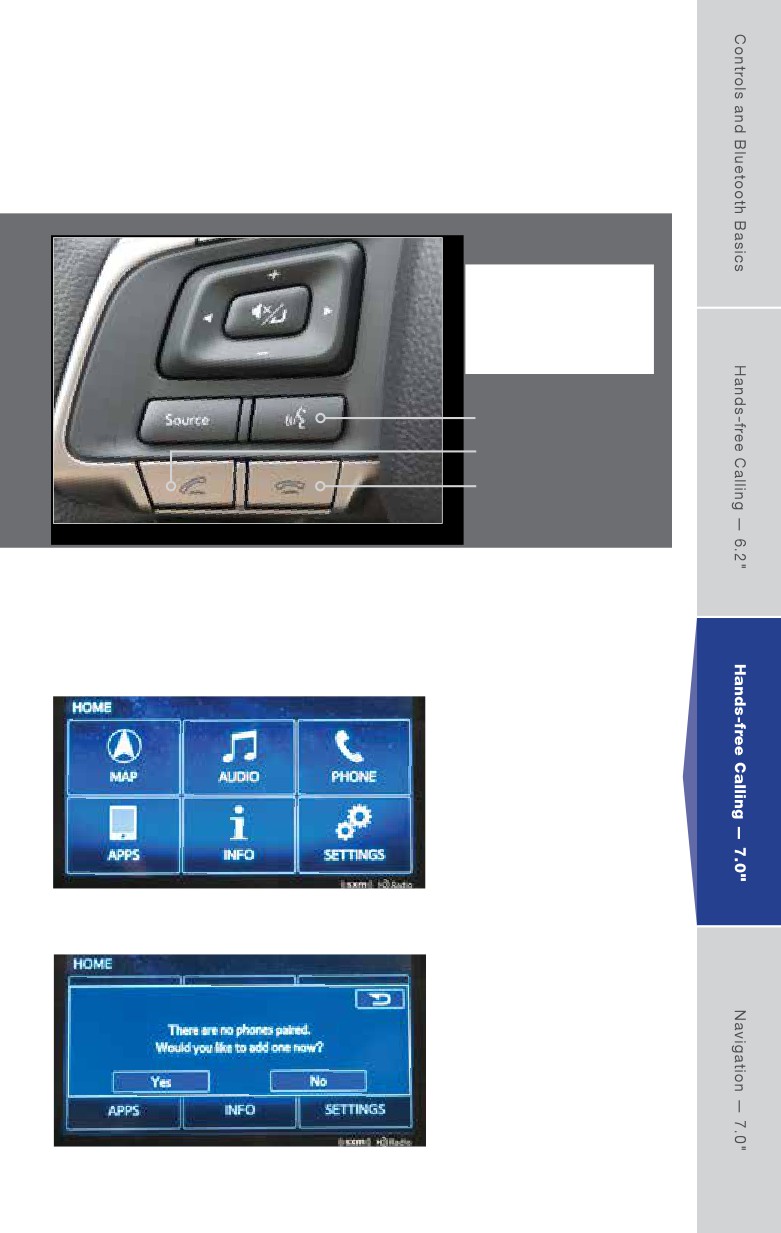
Receiving a Call
When a call comes in, you will be notified. If the audio system is on, the audio system will
mute and a voice prompt will inform you. Press the phone off hook button to accept the call.
• If you want to put the call on hold (only if your cell phone has this function), press the
phone on hook button.
• If you want to decline the incoming call (only if your cell phone has this function), press and
hold the phone on hook button.
• If you want to adjust the volume of the call, use the plus or minus switch on the steering
wheel. If you want to end the call, press the phone on hook button.
8
Hands-free Calling —
7.0" Multimedia Plus and
7.0" Multimedia Navigation
IMPORTANT:
These buttons
will be referenced
throughout this guide.
talk button
phone off hook button
phone on hook button
Pairing Your Cell Phone
Press the home button located on the left side of the audio system panel, then
touch the “PHONE” soft key on the touch screen.
Touch “Yes.”
9
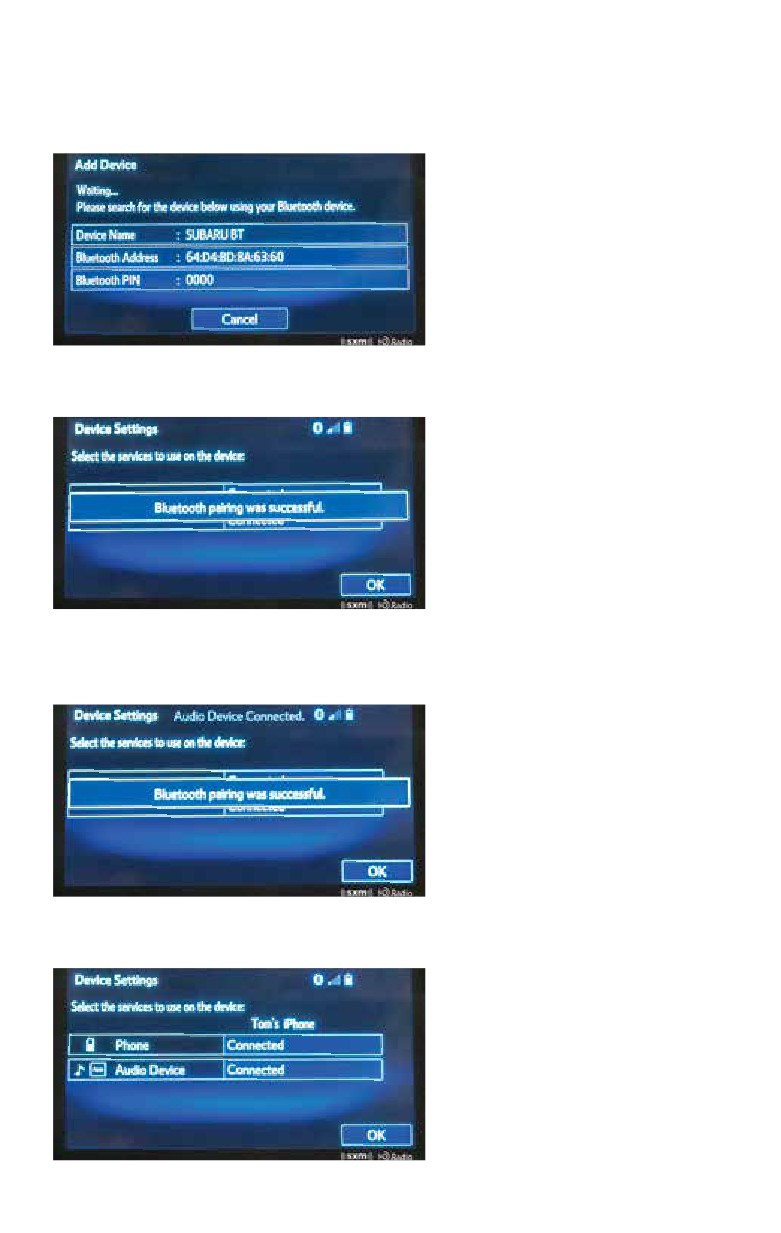
A Bluetooth PIN will appear on the screen. Put your phone into
Bluetooth pairing mode. Follow the prompts on your phone screen
to register your phone to the vehicle system using the PIN provided.
Check that this screen is displayed when pairing is successful.
The system waits for additional connection
requests coming from the registered device.
When the connection status changes to “Connected,” touch “OK.”
10
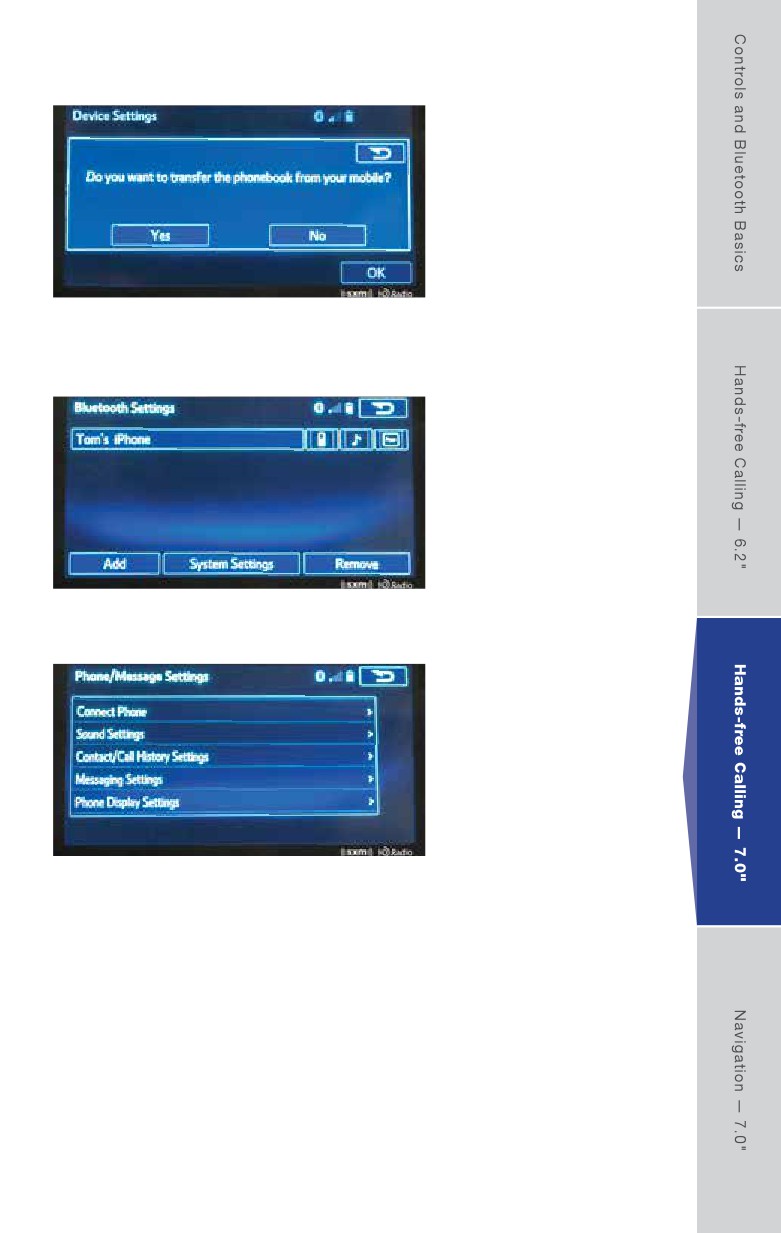
If you want to transfer your device’s phonebook, touch “Yes.”
You can customize your phone operation by touching
“System Settings” to access the settings menu.
From here, you can access the different system settings.
Please consult the Navigation System Owner’s Manual for more detailed information.
11
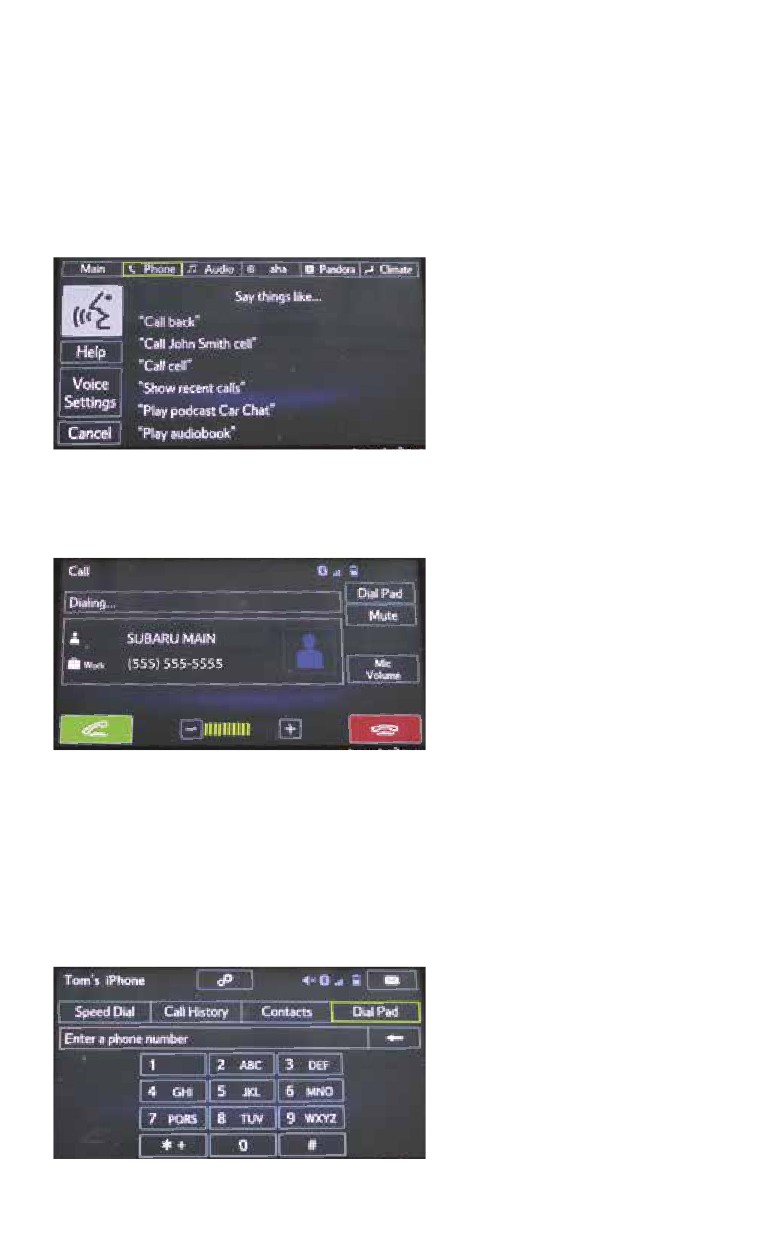
Making a Call
NOTE: This system is designed primarily for voice command operation. However, manual
input is also recognized.
For voice command operation, follow the steps below:
Press the talk button, then say, “Call a number.”
Say, “Call,” followed by the phone number.
When the confirmation screen appears, say, “Yes,” or press the phone off hook button.
The system will place the call.
To end the call, press the phone on hook button or touch the red “phone on hook” soft key.
For more information on voice operation, please consult the Navigation System Owner’s Manual.
For manual input operation, follow the steps below:
Press the home button, then touch the “PHONE” soft key. Select the desired tab to call from,
then select the number.
If you select “Dial Pad,” type the number you want to call.
NOTE: This operation cannot be performed while driving.
12
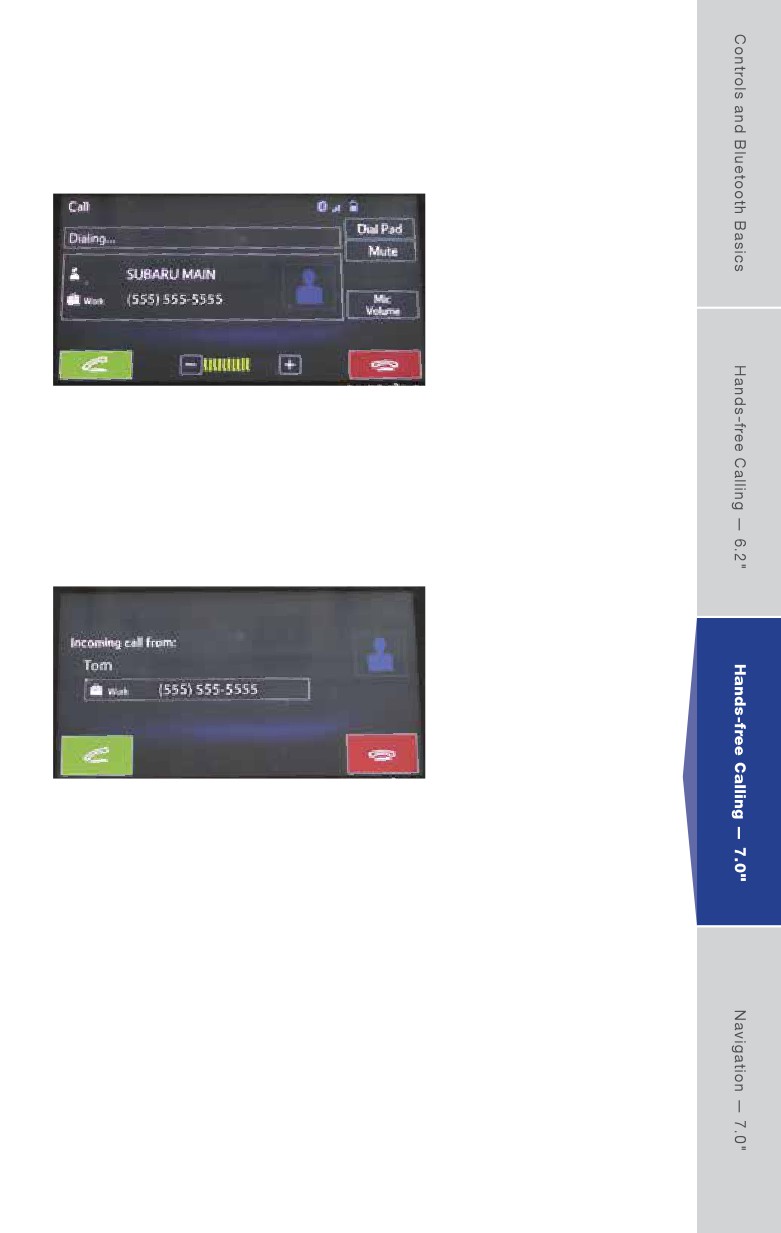
Press the phone off hook button or the green “Phone off hook” soft key. The
system will place the call.
To end the call, press the phone on hook button or touch the red “phone on hook”
soft key.
For more information on manual operation, please consult the Navigation System
Owner’s Manual.
Receiving a Call
• If you want to put the call on hold (only if your cell phone has this function), press
the phone on hook button.
• If you want to decline the incoming call (only if your cell phone has this function),
press and hold the phone on hook button.
• If you want to adjust the volume of the call, use the plus or minus switch on the
steering wheel. If you want to end the call, press the phone on hook button.
13
Navigation —
7.0" Multimedia Navigation
Safety
Your Navigation System will assist you in reaching your destination and, if used
properly, can do so with speed and ease. To use the system as safely as possible,
follow all safety directions.
• Before attempting to use this system while driving, make sure you read the
entire Navigation System Owner’s Manual Supplement. Do not allow others to use
this system until they also read the manual and understand the instructions.
• You should program your destination and select your route only when your vehicle is not
moving. While driving, listen to the voice instructions as much as possible and only glance
at the screen briefly and when it is safe to do so.
• The data in the system may occasionally be incomplete as road conditions and driving
restrictions (no left turns, road closures, etc.) change. Before you follow system instructions,
make sure to check whether you can comply with the instructions legally and safely. Do not
be distracted by the navigation screen. Failure to keep your attention on the road could lead
to an accident.
• The system cannot warn you of environmental or street hazards or the availability of
emergency systems. If you are unsure about the safety of an area, do not drive into it.
• Use this system only where it is legal to do so. Some states may have laws prohibiting the
use of video screens within the driver’s sight.
And remember, this system is never a substitute for the driver’s personal judgment.
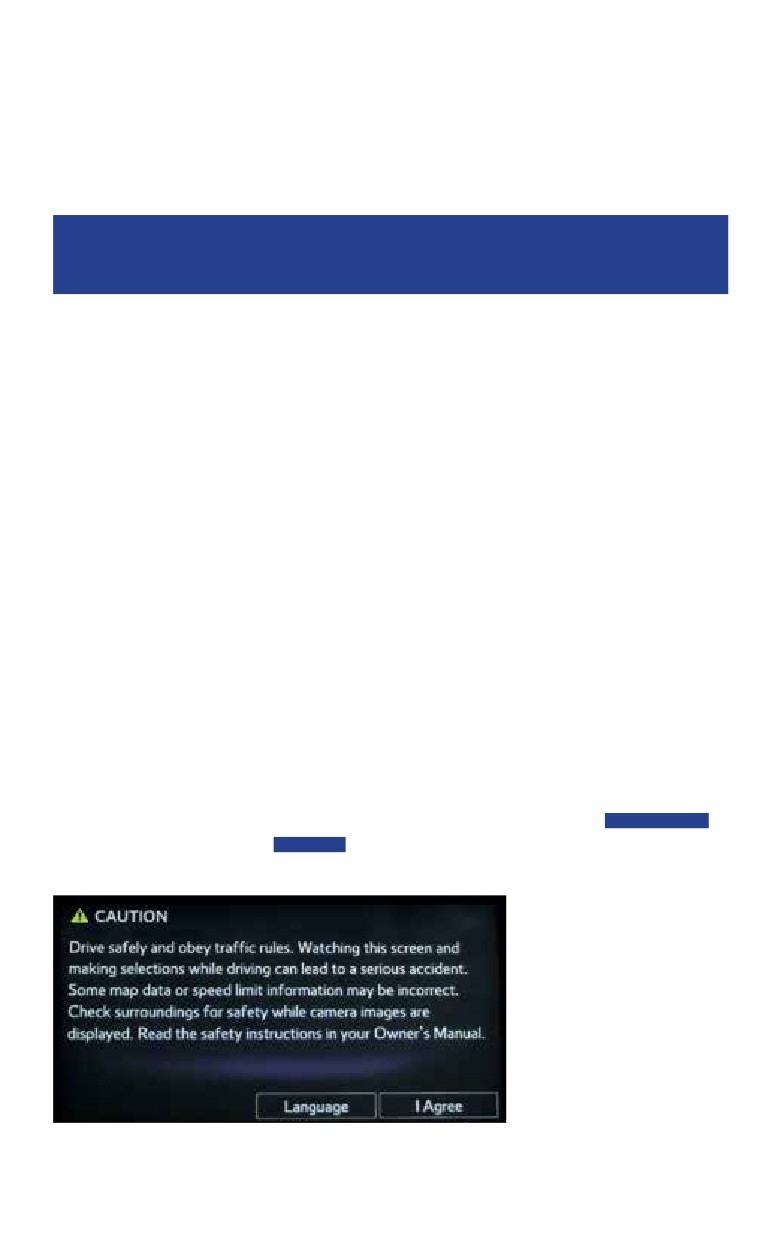
To start the Navigation System, start the engine and press the map button on the audio
system panel. The opening screen (Subaru Starlink™) will appear, followed by the CAUTION
screen. Read the instructions on the screen. If not previously selected, touch LANGUAGES to
select a language. Then touch I AGREE when illuminated.
14
Introduction
Your Navigation System helps you find and store addresses as well as places and
attractions based on your map location. Prior to using the system, be sure to read
the entire Navigation System Owner’s Manual Supplement so you have a complete
understanding of the system. For your convenience, this Quick Reference Guide
offers a quick guide for regularly used features.
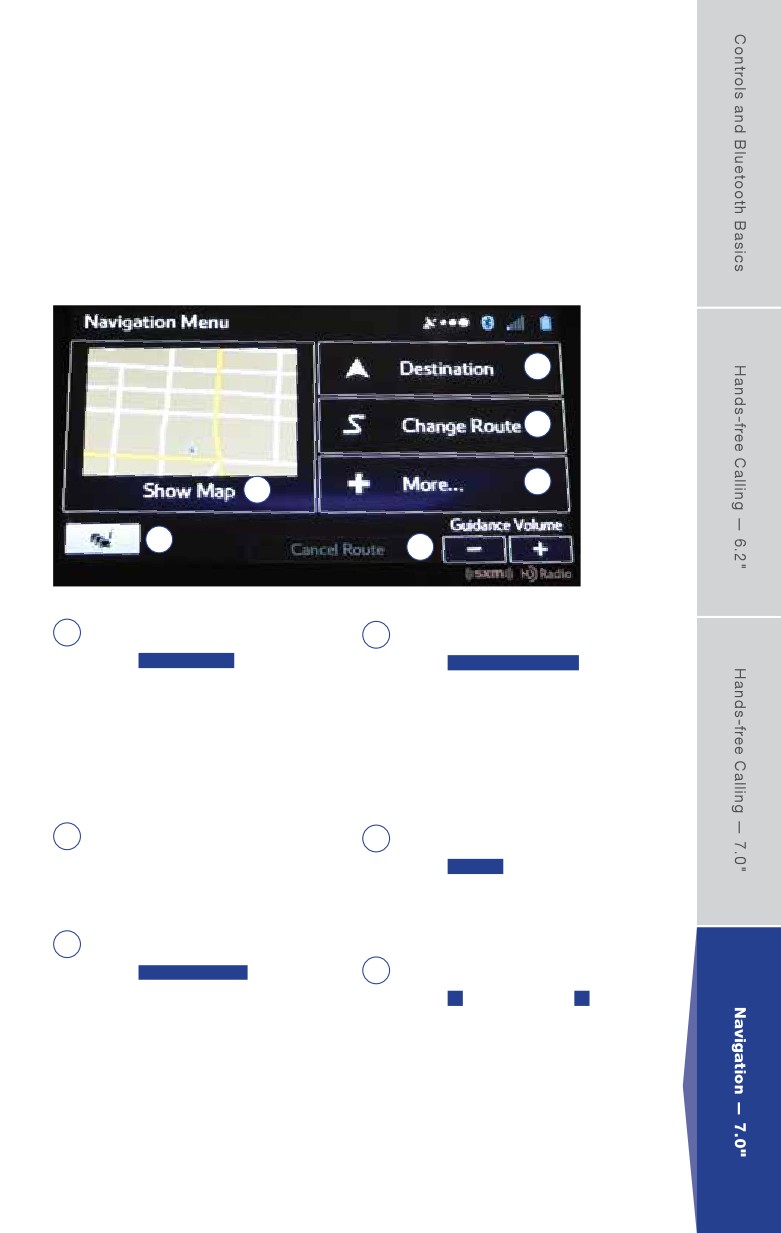
Your control panel is your access to the Navigation System. Some of
the controls and functions cannot be used unless the vehicle is stationary.
3
4
5
1
2
6
1
4
Show Map
Change Route
Touch SHOW MAP to access the
Touch CHANGE ROUTE . You
map screen and to start navigation
can also perform various route
on the map. The map shows the
related functions such as editing
current position, recommended
or canceling the route, adding way
route if previously selected, and
points, selecting a different route,
reduces the surrounding area to
avoiding a part of the route or
display on the map being used.
performing a navigation simulation.
2
Traffic Summary
5
More...
Touch to open the Traffic Summary
Touch MORE to select navigation
screen. XM Traffic® customer
settings, get help, start a system
subscription required.
demo, or start various other
3
auxiliary applications.
Destination
Touch DESTINATION , and then
6
Guidance Volume
select which method to use to
Touch + to increase, or - to
reach your destination by entering
decrease, the guidance volume.
the address, selecting a favorite
place, selecting a position on
the map, or selecting from the
destination history list.
15
Finding an Address
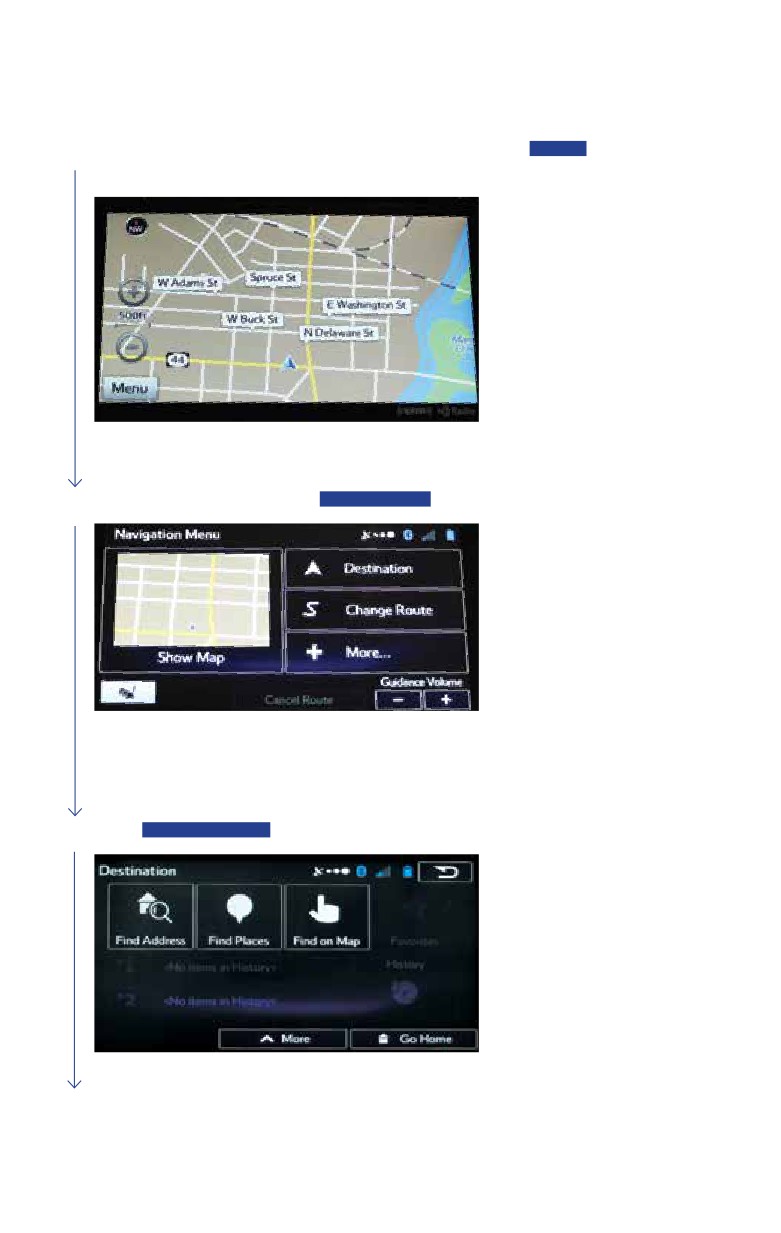
1 Touch the map button to display the map screen, then touch MENU to
access the navigation menu screen.
2 On the navigation menu, touch DESTINATION.
3 Touch FIND ADDRESS.
16
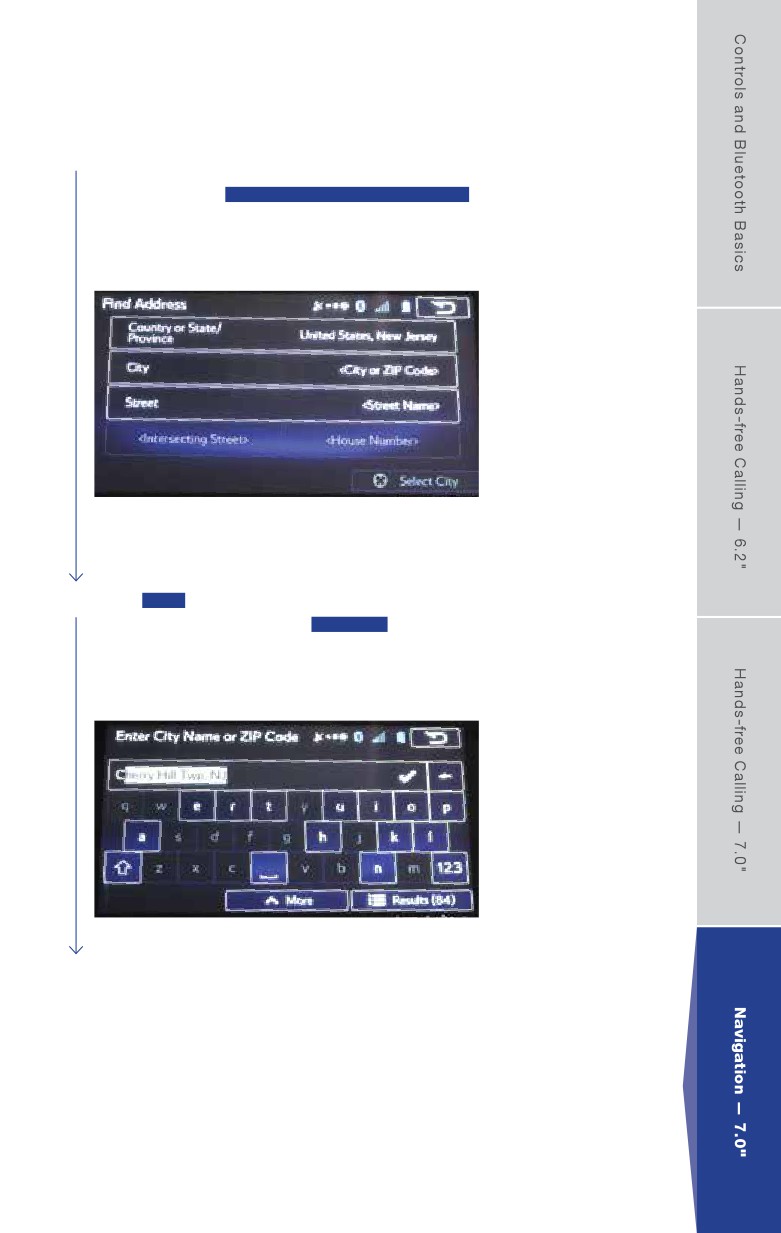
4 By default, the country and state for your current position are displayed.
If you are traveling to a destination other than the state you are in, you
will need to touch COUNTRY OR STATE/PROVINCE to select the
desired country or state. When the keyboard appears, type the state.
As you type, a list of choices appears. Touch the line with the correct
state and it is automatically transferred to the address screen.
5 Touch CITY. When the keyboard appears, type the city or ZIP code. As
you type the city name, touch RESULTS at the lower right of the screen
and a list appears with possible city choices. Touch the up/down arrows to
the right to scroll until you find the city name. Touch the line with the correct
city and it is automatically transferred to the address screen.
17
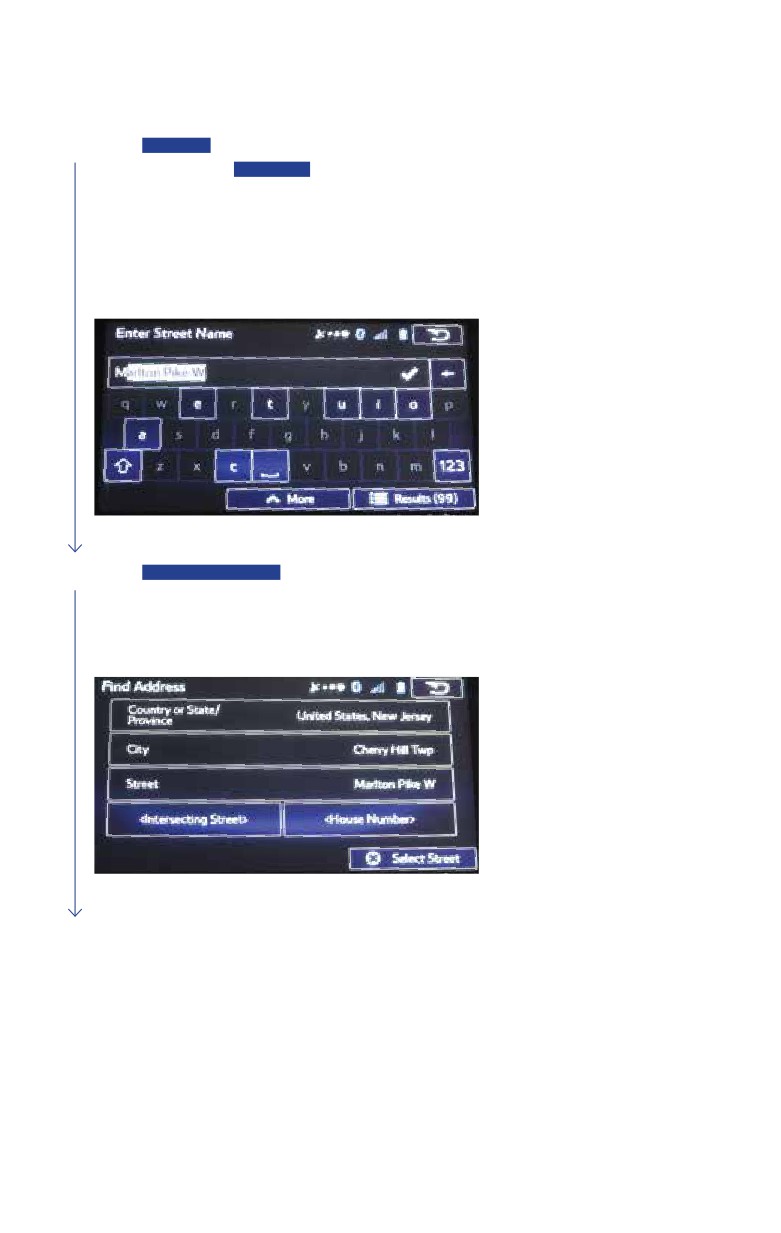
6 Touch STREET. When the keyboard appears, type the street name. As you type the
street name, touch RESULTS at the lower right of the screen and a list appears with
possible choices. Touch the up/down arrows to the right to scroll until you find the street
name. Touch the line with the correct street name and it is automatically transferred to
the address screen.
NOTE: For streets that are preceded by a direction such as North, South, etc.,
type the street name first.
7 Touch HOUSE NUMBER. When the keyboard appears, type the house number.
The house number is automatically transferred to the address screen.
NOTE: If the house number is not found, the center of the street is automatically
selected as the destination.
18
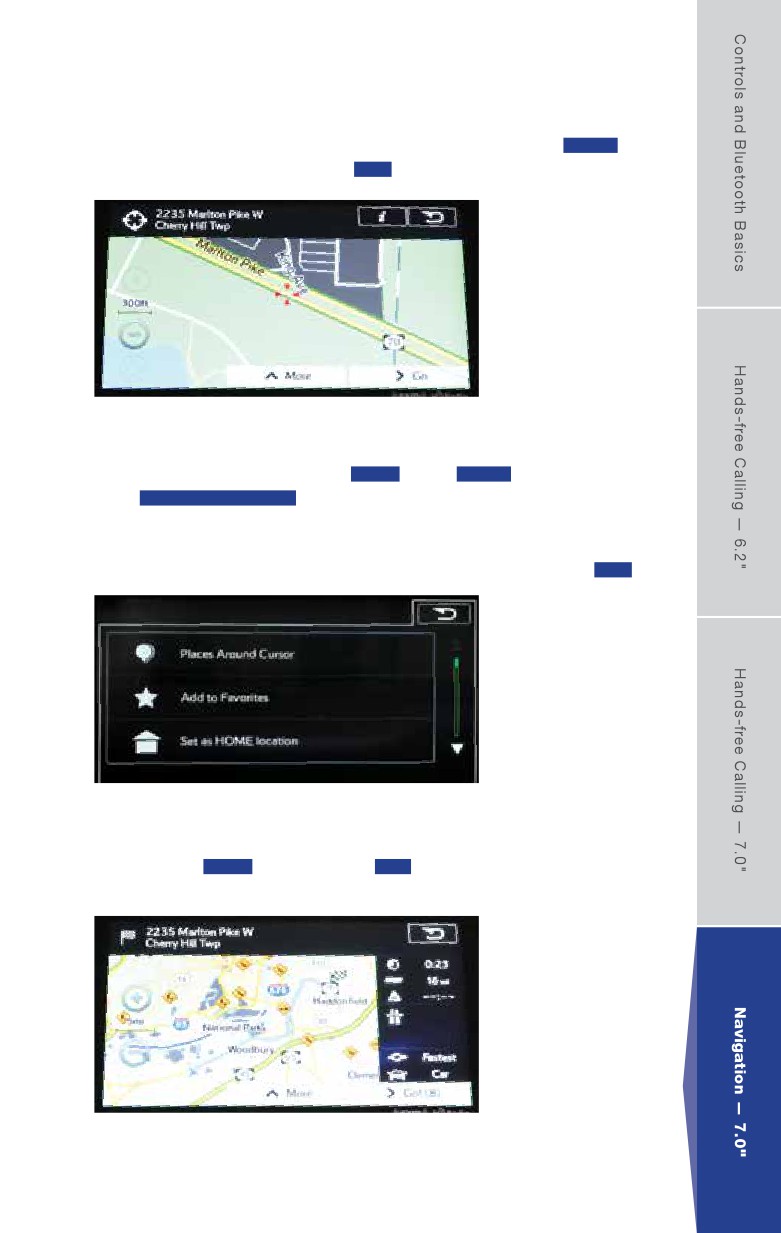
8 The map is displayed with the selected point at the center. Touch NEXT
when a route has been set or touch GO! to start route guidance.
NOTE: If the destination will be used frequently, you can save it to
favorites as follows before touching NEXT . Touch MORE , and then
touch ADD TO FAVORITES . A keyboard appears with the destination
address. You can store that address or type a name for that address.
Touch the arrow to the right of the address. This clears the address from
only the screen so that you can give the address a name. Then touch OK! .
You are automatically returned to the map with the destination now set as a
favorite. Touch NEXT , and then touch GO! . The map screen appears with
the route. Start driving following the navigation.
19
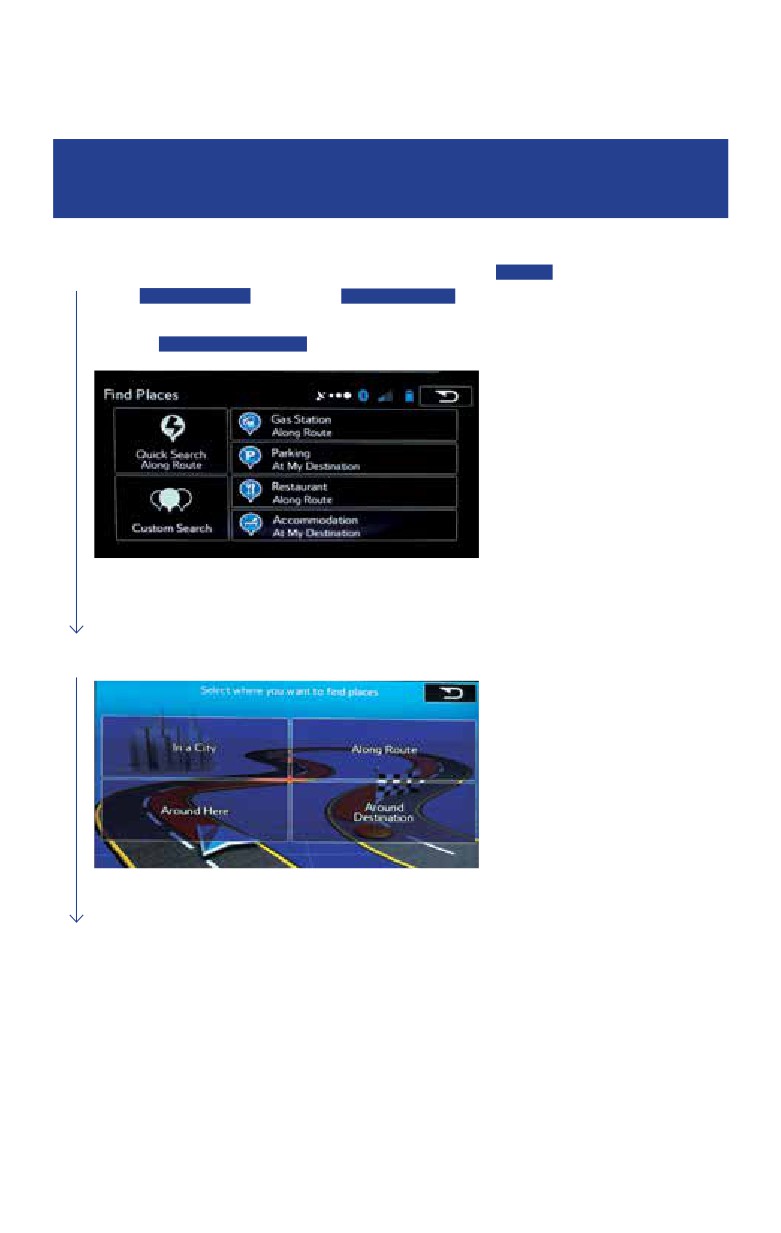
Finding a Point of Interest
You can also find addresses by using Find Places. You can use this in the event
you do not have a specific address but can refer to a specific place, such as a gas
station, restaurant, accommodation, etc.
1 Touch the map button to display the map screen. Touch MENU,
touch DESTINATION , then touch FIND PLACES . You can select
from the four preset categories shown on the right side of the screen
or touch CUSTOM SEARCH .
2 Choose where you want to find places.
20
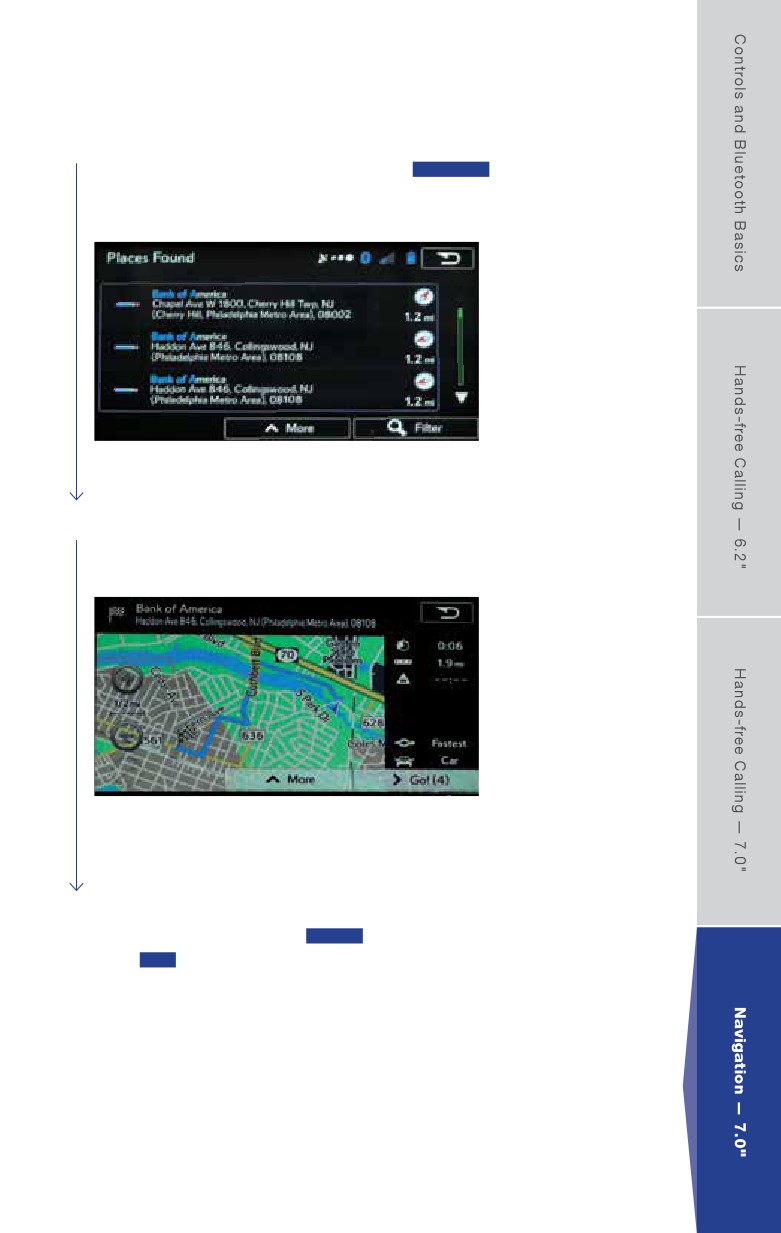
3 A keyboard appears for you to enter the name of a specific location.
After entering the first few characters, touch RESULTS at the lower
right of the screen to view a list of names that include the characters
you entered.
4 Find the item you want on the list, and then touch that item. The map is
displayed with the selected point at the center. The name and address
of the location are displayed in the black bar at the top of the screen.
5 The route is researched automatically, and then the entire route is
displayed on the map. Touch MORE to change the route plan, or
touch GO! to start navigation.
21
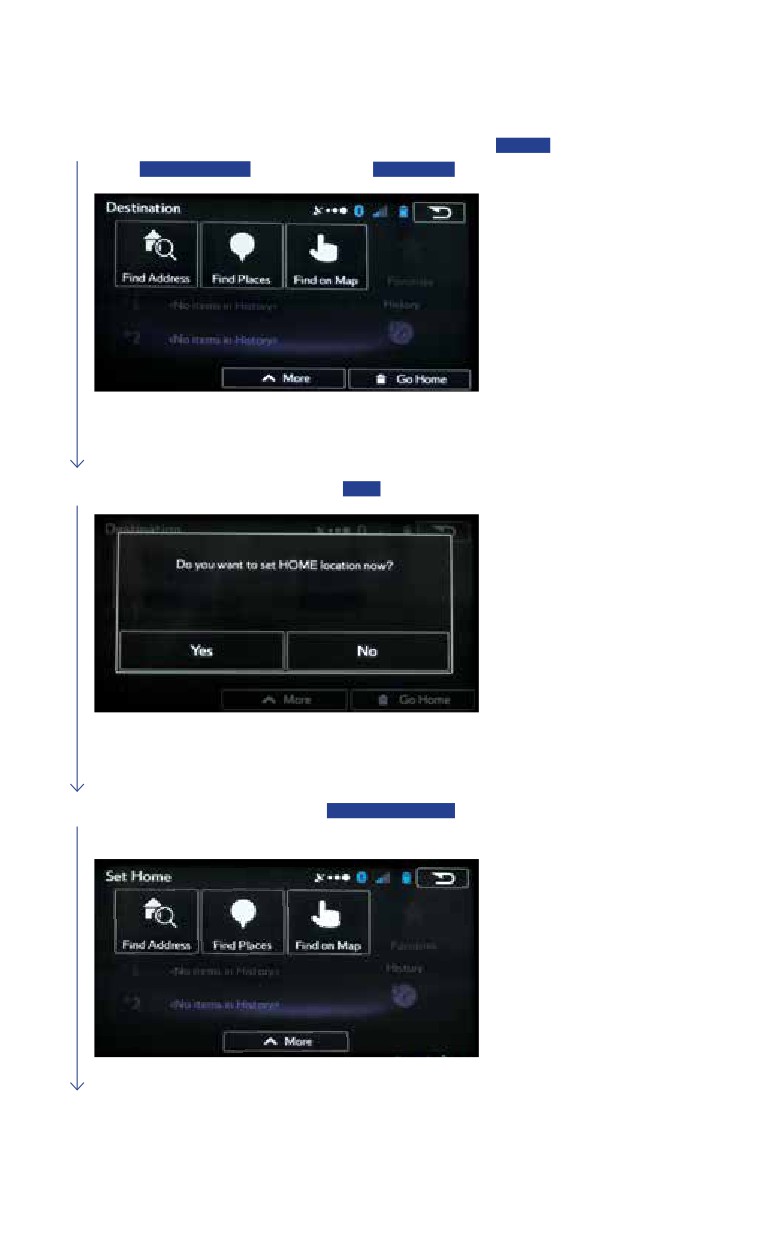
Setting HOME
1 Touch the map button to display the map screen. Touch MENU,
touch DESTINATION , and then touch GO HOME .
2 On the confirmation screen, touch YES .
3 On the Set Home screen, touch FIND ADDRESS. Follow the
steps 3 through 7 on pages 16-18 (Finding an Address) of this guide.
22
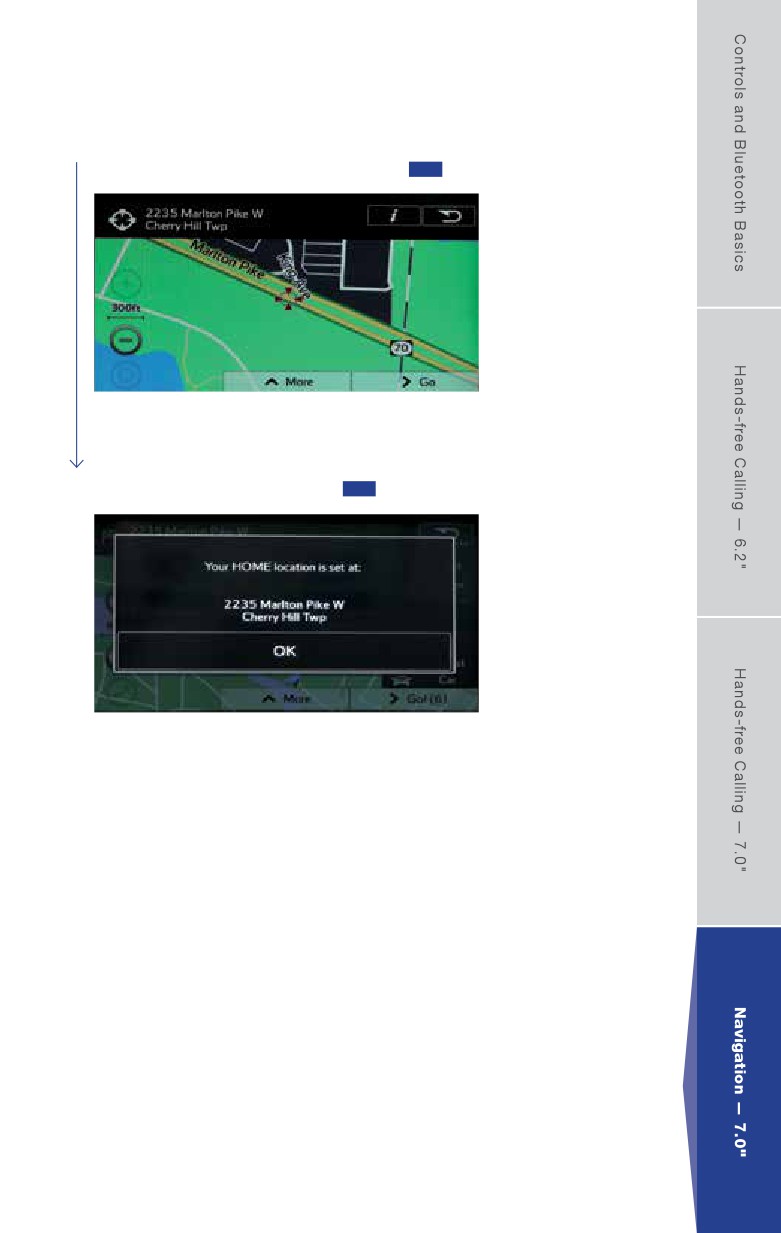
4 The address is displayed in the black bar at the top of the screen.
The location is centered on the map. Touch GO .
5 On the confirmation screen, touch OK.
23
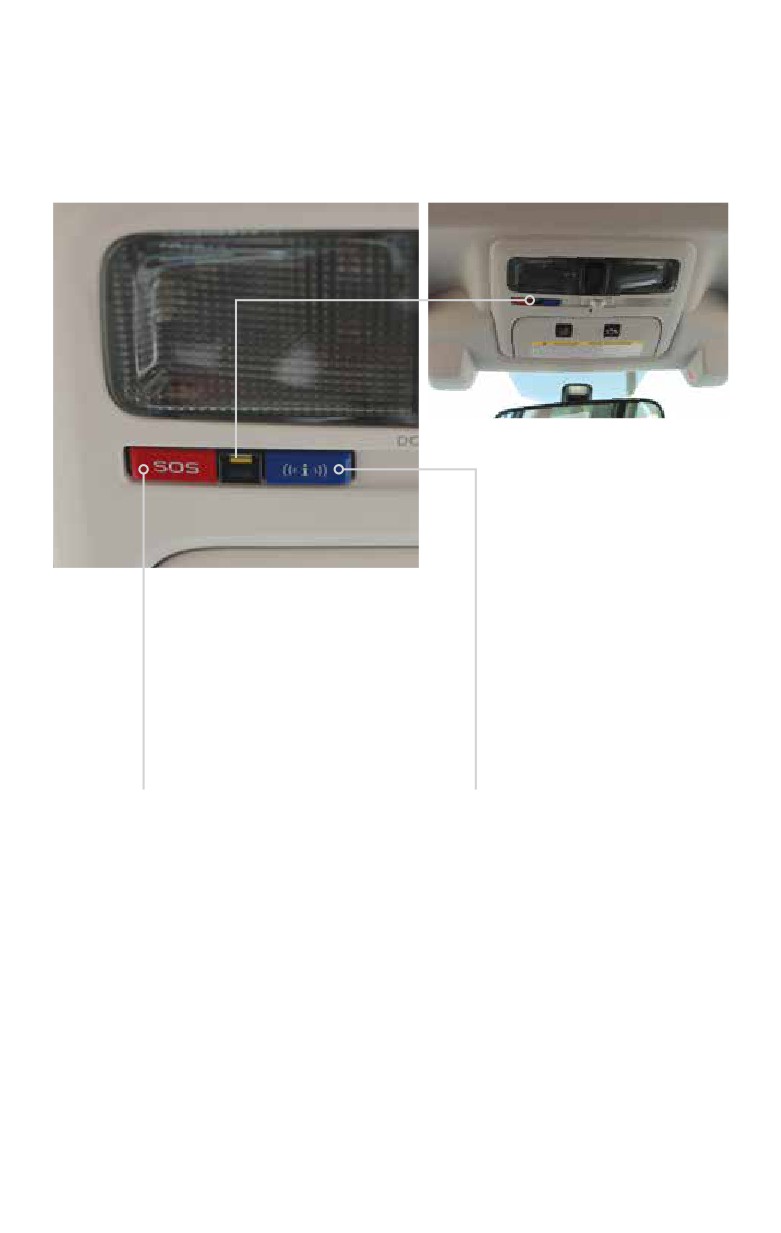
SUBARU STARLINK™
Safety and Security System (if equipped)
SOS Emergency Assistance
Enhanced Roadside Assistance
Press to connect with a
Press to connect with Subaru’s
STARLINK Customer Care
Roadside Assistance Provider.
Advisor. Subscription required.
Subscription required.
Press and hold the button
Press and hold the button
for about two seconds
for about two seconds
to cancel the call.
to cancel the call.
NOTE: A paid subscription to SUBARU STARLINK is required for service.
24
About the Map SD Card
When driving using guidance from the navigation system, be sure to follow the
actual road signs and traffic regulations. If road signs and traffic regulations are
changed, the data on the map SD card may be out of date. Also, the data on the
map SD card does not take into account factors such as weather, time zones,
and occurrences such as differences in congestion situations and temporary road
closures due to construction work. Always give precedence to road signs and traffic
rules over instructions from the navigation system.
Not following the road signs and traffic rules could lead to injury or traffic violations.
All information contained within this Quick Reference Guide was accurate at the time of
publication. We reserve the right to change features, operation and/or functionality of any vehicle
specification at any time without incurring any obligation to make the same or similar changes to
products previously sold. Your Subaru retailer is the best source for the most current information.
For detailed operating and safety information, please consult your Owner’s Manual.
MSA5B1710A
Issued March 2016
Printed in USA 03/16